Intel’s autonomous driving ambitions may soon get a boost from a well-known app developer. Calcalist, The Marker and TechCrunch sources claim Intel is close to acquiring transit app developer Moovit in a deal that would be worth around $1 billion. Th…
Category: Tutorials
Tutorials,freelance,projects,joomla,php,mysql,wordpress,blancer.com
After Math: Keeping occupied in a time of quarantine
Six weeks on the inside can change a person. It empties out their soul and makes them question their perception of the world. They say seven weeks will drive you completely over the edge, giving in to the temptations of artisanal home haircuts and so…
25 Free Beautiful PowerPoint Templates (Pretty PPTs to Download for 2020)
Having a beautiful PowerPoint presentation will make
it look professional. Not only will the template look professional,
but you’ll impress your audience. Using a beautiful PowerPoint presentation
template also gives you a layout that’ll make the preparation of your presentation
much easier.
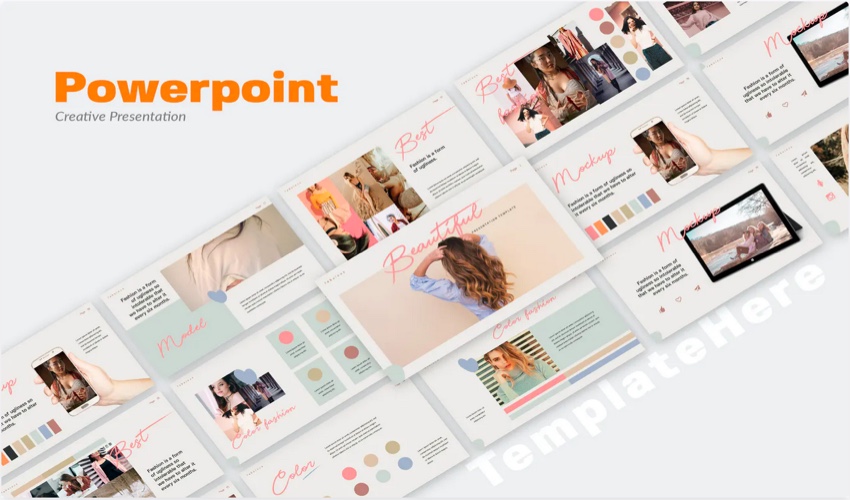
This article features beautiful premium PowerPoint templates
and beautiful PowerPoint slides with free downloads. Using a premium
template ensures that you’ve got an attractive and professional slide design.
Using a template also saves you time since you won’t have to create the beautiful PowerPoint slide designs and layouts.
The Best Source for Premium Beautiful PowerPoint Templates
(With Unlimited Downloads)
When you’re making a presentation, you may be tempted to
search online for beautiful presentation templates for free. But premium templates give
you more options to customize your template and they’re designed by
professionals. When you get a premium template, you’re getting a high-quality
template.

Envato Elements has thousands of beautiful PowerPoint
templates. Just subscribe to Envato Elements by paying a
low monthly fee.
The low monthly fee includes more than templates. You’ll also get unlimited use of graphics, stock photos, and audio files. Use all these elements to
customize your premium template even more or for other projects you have.
Discover more beautiful PPT templates in this article:

Now let’s take a look at our featured PowerPoint presentations.
5 Beautiful Premium Presentation Templates
Here’s a hand-picked list of premium templates from Envato Elements:
1. Style Multipurpose Template

Style is a beautiful PowerPoint template that comes
with 4000 total slides. With this template, you’ll have 20 color scheme
options to choose from for your presentation. Easily add images to this
template by dragging and dropping the image of your choice into the image
placeholder.
2. Pluvio – Beautiful PPT

Pluvio comes with 30 nice slides in both standard
and widescreen formats. Also included with this template are three color schemes
options. Pluvio includes both light and dark versions of the slides.
3. Tofo – Nice PPT

Tofo is a beautiful PowerPoint has a modern and minimal
design. This template comes with 30 multipurpose slides. With this template, choose between five different color schemes. You won’t find anything this nice in beautiful PowerPoint templates you find for free.
4. Munnine – Beautiful PowerPoint Presentation

Munnine has a modern and beautiful PowerPoint design.
This template package comes with 60 slides and 30 icon slides. With this
template, you’ll have 50 color schemes to choose from. It’s sure to impress your audience.
5. Toetiec – Beautiful PowerPoint Template

Toetiec has a nice PPT PowerPoint design that’s simple
and creative. This template comes with a total of 1800 slides. Toetiec includes
icons and world maps along with the slide templates. Free beautiful PowerPoint templates won’t have these options.
5 Premium Beautiful PowerPoint Templates
If you need a beautiful PowerPoint presentation for just one project and you won’t need it again, then GraphicRiver is a great option
for you. GraphicRiver has thousands of premium PowerPoint templates and other design assets that you buy one-at-a-time.

Here are some beautiful PowerPoint premium presentation templates from GraphicRiver:
1. Freshness – Beautiful PowerPoint Presentation

Freshness is a beautiful PowerPoint template that’s nature themed. This template comes with 35 unique slides and icons. Easily add
an image to this template by dragging and dropping an image of your choice into
the image placeholder.
2. Change – Beautiful PPT

Change is a beautiful PowerPoint presentation that’s got a nice PPT minimal design. This template has 35 unique slides to use in
your presentation. Along with slide templates, this bundle comes with icons,
device mockups, and an image placeholder.
3. Raymond – Beautiful PowerPoint Design

Raymond, beautiful PowerPoint design, comes with 50 color
scheme options and 4500 total slides. Along with slide templates, this template
comes with icons, charts, infographics, maps, tables, timelines, and more.
Easily add an image of your choice to this template by dragging and dropping
the image into the image placeholder.
4. Space – Beautiful PowerPoint Presentation

Space, a beautiful PowerPoint template, comes with 200
unique slides and 45 master slides. This template comes icons and infographics.
With this template, you’ll have 10 color schemes to choose from. Free stunning PowerPoint templates won’t offer this kind of choice.
5. Autumn Stylish – Nice PPT

The Autumn stylish template comes with 35 nice slides.
Also, included are vector icons of various shapes. Easily add an image of your
choice by dragging and dropping the image into the image placeholder.
20
Best Free Beautiful PowerPoint Presentation templates
Premium PowerPoint templates are your best choice. But if you’re strapped for cash, free might be the best you can afford.
Before looking for beautiful presentation templates for free on the web, check Envato’s free offerings first. Try out various premium template files (not always free beautiful PowerPoint templates) at no cost to you.
Here’s the deal:
-
Every month Envato Elements offers 12 different hand-selected files, (fonts, presentations, videos, and more). Create a free account to download this month’s free premium files now.
- Or try Envato Market for free. They offer seven handpicked monthly freebies. Log in with your Envato Market account to get this month’s handpicked premium freebies.
But if you truly can’t afford a premium PowerPoint template, here are some of the best beautiful PowerPoint presentation templates:
1. Lilac – a Free Beautiful PowerPoint Template

Lilac
is a free beautiful PowerPoint template with a purple-themed design. Easily customize this template to suit your needs. The Lilac
presentation template includes seven slides to use for your
presentation.
2. Leopard – a Free Stunning PowerPoint Template
Leopard is beautiful PowerPoint slides for free download with a dark theme. This template
comes with a chart that you can display your data in. The Leopard template also comes with a total of five slides to use for your presentation.
3. Bloom – Nice Slides
Bloom is another free
beautiful PowerPoint template. It’s got a sunflower-themed design. Use this
template for many different purposes because of its multipurpose design. This
template is compatible with Microsoft PowerPoint, Google Slides, and Keynote.
4. Color – Pretty PowerPoint Template for Free

Color is a vibrant and nice PowerPoint template. This
template has great if you’re looking for a pretty PowerPoint theme for free that’ll add a lot
of color to your presentation. This color template’s got a paint splatter theme, as
well.
5. Focus – Free Stunning PowerPoint Template
Focus
is a stunning PowerPoint slides template for free download. It’s got a camera lens in the design. This template will
work well if you’re giving a photography presentation or camera presentation.
Focus PowerPoint template is compatible with LibreOffice Impress and Microsoft
PowerPoint.
6. Blue
Abstract – Beautiful PowerPoint Presentation for Free Download
Blue
Abstract is a beautiful PowerPoint presentation for free download with a
dark blue silky background. This design is very versatile and can be used for a
presentation with different topics. Blue Abstract comes with a total of three
slides to use in your presentation.
7. Botany Lesson – Beautiful PPT

Botany
Lesson is one of the beautiful PowerPoint templates for free. It comes with a total of 21
slides. This template package also comes with five color scheme options for you to
choose from. Botany Lesson not only comes with slide templates but icons,
graphics, maps, and mockups.
8. Abstract
Personal Resume
Abstract
Personal Resume is a beautiful PowerPoint presentation for free download that comes with 28
slides. This template also comes with icons, graphics, charts, and maps. Edit this template in Microsoft PowerPoint and Google Slides.
9. Earth
Hour – Nice PPT
Earth
Hour is a beautiful PowerPoint templates free package that’s got a dark space theme
with neon graphics. This template comes with 29 total slides and comes with
icons, maps, and mockups. Easily edit this template in Microsoft PowerPoint or
Google Slides.
10. Research
Report PowerPoint

Research
Report beautiful presentation templates for free comes with 40 total slides
and 25 key slides. Along with a slide template, you also get graphics,
timelines, maps, and icons. The design of this research report template features
an office theme design that’s elegant and unpretentious.
11. Wild Adventure
Wild
Adventure beautiful PowerPoint slides free download contains 30 slides
that are adventure themed. Along with the slide template, you also receive icons,
device mockups, and maps. Easily edit this template in Google Slides and
Microsoft PowerPoint.
12.
Yellow Magazine Style PowerPoint Template
Yellow magazine-style PowerPoint template comes with 10 nice
slides in the template. This template has got a classic design with a pop of color. The yellow magazine-style PowerPoint
template is a great design for a business presentation.
13.
Minimalist Presentation

Minimalist
presentation is a beautiful PowerPoint with a black and white theme
throughout the presentation template. Along with fully designed slides, this
template comes with charts and a table. The Minimalist presentation contains
eleven total slides.
14. Outdoors
Presentation
Outdoors
presentation is a beautiful PowerPoint presentation for free download there’s a nice outdoor themed design on each slide. This template is great if you’re the business focuses on eco-friendly products or if you’ve got a business that deals
with the outdoors.
15. Cherry
Blossom Nature Presentation
Cherry
blossom nature presentation is a beautiful PowerPoint presentation for free download. This template color scheme has a light pink flower design. Cherry blossom nature presentation
has a total of eleven slides and comes with charts and graphs,
16. Coastal Presentation

Coastal
presentation is a free beautiful PowerPoint template with images of the
coast throughout the presentation template. The background has some fun bubble
graphics. This template’s great for any water-related business, hotel, or
resort.
17. Rose
Suite
Rose Suite is a beautiful PowerPoint presentation for free
download that comes with 13 slides in the
template. Along with the designed slides you also get charts and graphs. This template has a city skyline theme that’s minimal and modern.
19.
Organic Presentation
Organic
presentation is a beautiful PowerPoint template that’s got a plant-themed abstract design. If you love
plants or have business-related to plants this template will let you show off
your creative side. This template comes with professionally designed slides, a
chart, and graphs.
20.
Vintage Presentation – Free Beautiful PowerPoint Template

Vintage
presentation is a beautiful PowerPoint templates for free that comes with 13
pre-designed slides. This template features pictures of vintage cars that’s
great if you’re in the car business or just love vintage cars. This template
includes graphs and a chart that you can add your data into.
How to Quickly Make Beautiful PowerPoint PPT Presentations
If you don’t know how to customize your template here are
some tips to get you started. I’ll be using Microsoft PowerPoint and I’ll
be editing the Footage Gradiant beautiful PowerPoint template. Download the template to follow along.
Here’s what the template looks like with no edits:

Now let’s make some customizations:
1. How to Change the Text
Color

On
slide #21 I’ll be changing the text color in the middle of the slide from
white to black.
To change the text color, highlight the text. Click
in the middle of the text that you want to change. Then highlight all the
text that you want to change the color of.
You’ll know that you’ve got the text
selected when there are handles around the text. Next click on the arrow next
to the Font Color button. This will cause a color menu to drop down. Select the
color that you want to change the text to.
2. How to Delete an
Object

On
slide #21 I’ll delete the giant circle in the middle of the slide.
Click
on the object that you want to delete. You’ll know that the object is
selected when there are handles surrounding the object.
After there are handles
surrounding the object, press the Delete button on your keyboard. Now the object
is deleted.
3. How to Change the
Color of an Object

On
slide #21 I’ll change the color of the circle in the middle of the page to
blue.
Select the object. You’ll know that the object is selected when
handles appear around the object. On the Home tab click on the arrow next to the Shape Fill button in the toolbar. Clicking on the arrow will cause a drop-down
menu to appear next select the new color that you want your object to change
to.
4. How to Change the
Background Color

On
slide #21 I’ll be changing the background color from black to white.
Click on
a part of the slide that doesn’t have text or an object. This will select the
background of the slide. You’ll know that the background when there are
handles surrounding the slide.
Next click on the Home tab. Click on the Shape
Fill button in the toolbar. Clicking on the arrow will cause a color menu to drop down. Now select the new color that you want to make your background.
5. How to Add New Text

I will
be adding new text to slide #21.
To add new text, click on the Insert tab. Next
click on the Text Box button in the toolbar. After you’ve clicked on the
text button, draw where you want your new text box to appear.
You’ll know that
a new text box appeared when there’s a box with handles where you drew. Next,
click inside the box and start typing.
Discover More Pro PowerPoint Templates with Beautiful
Designs
Are you looking for more PowerPoint templates? These
articles feature PowerPoint templates:
 Microsoft PowerPoint25 Modern PowerPoint (PPT) Templates to Design Presentations in 2020Brenda Barron
 Microsoft PowerPoint40+ Awesome PowerPoint Templates (With Cool PPT Presentation Designs)Sean Hodge
 BusinessFashion PowerPoint Templates for Trendy Marketing PPT Presentations 2020Sarah Joy
Learn More About Working With PowerPoint.
If you
desire to learn more about PowerPoint there are some great tutorials on Tuts+
Here are more great articles:
.jpg) PresentationsHow to Create Great PowerPoint Presentations (With Top 2020 Examples)Laura Spencer
PresentationsHow to Create Great PowerPoint Presentations (With Top 2020 Examples)Laura Spencer Microsoft PowerPointHow to Make a Very Good PowerPoint Presentation About YourselfBrenda Barron
 Microsoft PowerPointHow to Make Any PowerPoint Presentation Slide Design More InterestingAndrew Childress
Download
a Beautiful PowerPoint Template Today!
You’ve just learned how to make a beautiful PowerPoint presentation using templates. You’re ready to take the next step.
Having
a beautiful PowerPoint presentation gives you a professional base to
start with gives you a head start. There are beautiful PowerPoint templates for free, but they
aren’t as high quality as the premium templates from Envato Elements and
GraphicRiver. Download a premium template today and get started with your next presentation.

{excerpt}
Read More
25 Beautiful PowerPoint (PPT) Presentation Templates With Unique Slide Designs (For 2020)
Beautiful PowerPoint templates are the top way to stand out in 2020. Whether you’re presenting to a crowd, or sharing your slides online, it’s time to think differently. The focus is on you to create compelling slides.

But you don’t have to do all the hard work! Add style with stunning presentation templates and watch your content come to life.
In this article, you’ll learn how to make a beautiful PPT presentation with nice slides from Envato Elements and GraphicRiver.
Templates on Envato Elements (With Unlimited Use)
You can find hundreds of beautiful PowerPoint templates on Envato Elements, with a great offer: download as many as you want for a single monthly fee.

Each of the many amazing PowerPoint Presentation templates from Envato Elements have hundreds of awesome presentation options. They’re packed with creative slide layouts, nice background for PowerPoint, and tons of professional graphics.

So why use professional PowerPoint templates in 2020?
- They’re built by talented creatives. Too busy to build your own layouts? Turn to custom templates.
- They’re easy to use. With professional pre-built templates, all you’ve got to do is drop in your own content.
- They’re superior to built-in designs. Although PowerPoint includes a series of designs, professional options are much more robust and look far more advanced.
Remember: Envato Elements is an all-you-can-download resource available for a low monthly fee. You’ll gain access to amazing PowerPoint presentation templates, photos, fonts, audio, and more. So, get started today and turn to Elements for PowerPoint presentation design inspiration.
5 Beautiful PowerPoint Templates from Envato Elements
Let’s explore some of 2020’s top beautiful PowerPoint templates from Envato Elements. These are five of the best, and you can find many more right here:
1. Makeit – PowerPoint Presentation Template

Bold flashes of color and the inspired use of contrast are the hallmarks of this pretty PowerPoint template. It’s designed to promote any products and services that you offer. But marketing isn’t the only mission. Choose from 40+ unique slide layouts, introduce your content, and make each one your own.
2. Anerio Beautiful Fashion PowerPoint

With 30 designs and custom graphics, these beautiful slides project confidence. One of the best elegant PowerPoint templates available for 2020, it embraces the theory of “less is more.” Text and images fly off the slides, offset against pale backdrops. Use this one to jumpstart the creation of a winning slide deck.
3. Advance – Lookbook PowerPoint

Sometimes you need to wow an audience with vibrant color. Try out these beautiful PowerPoint slides to do just that. Whether you’re making your personal portfolio, or pitching a new business, Advance-Lookbook is ready to help. With flashy features not available in free templates, this is the perfect case for using a professional design.
4. Simphony Presentation Template

You don’t have to change beautiful PowerPoint presentation templates to mix up the look and feel. Instead, turn to one like Simphony, which has over 20 color themes built in. All it takes is a few clicks to swap one for another. Instantly, you can alter the entire mood of your slide deck. Best of all: you won’t have to move a single piece of content!
5. Champino – PowerPoint Template

The Champino template is an exercise in contrasts. When sharing images and text, it’s one of the best options to make a memorable impression. You can pull in your own content in moments. And with more than 150 slides to choose from, the creative choices are all yours. Try this one out to offset words and photos in a flash.
Envato Elements (Design Without Limits)
Envato Elements has a single compelling (all inclusive) offer:
Sign up for Envato Elements and you get access to thousands of unlimited use graphics and templates (with unlimited use). Get great web themes, beautiful PowerPoint presentation templates, and more—all for one low price.

That’s right! Download as many professional templates and graphics as you want, then customize them to fit any of your project needs.
While Envato Elements is a powerful option, if you prefer to buy unique PowerPoint templates one at a time (instead of getting unlimited access to hundreds of creative designs), check out the selection from our GraphicRiver marketplace below.
20 Beautiful PowerPoint Templates from GraphicRiver
GraphicRiver is another great platform from Envato. Here, you can buy beautiful creative content individually. Choose a template you like and make a single purchase—no membership required!

Let’s dive in and explore 20 beautiful PowerPoint templates available now thanks to GraphicRiver:
1. Eviana – Beauty & Cosmetic PowerPoint Template

Beauty is in the eye of the beholder. But there are some nice PPT templates that almost anyone could agree are beautiful. This is one of them. It’s tailored to the beauty and cosmetics world. Use the included icons to tell visual stories easily with the help of the Eviana template.
2. Beauty Salon PowerPoint Presentation Template

The included example helps you visualize using this nice PPT for a beauty salon, but it’s flexible for many purposes. One of my favorite things about this template is its use of an easy color changer. That helps you match it to your specifics with less work than ever before. Use the 51 included slides to learn how to make a beautiful PPT presentation.
3. Freshness Modern – Beautiful Creative PowerPoint

Fresh templates show content with minimal and easy-to-view designs. This design option is exactly what you might have in mind for a green and outdoorsy presentation. It’s a set of nice slides that really lend themselves to easy customizations and minimalist design.
4. Beautiful Curves
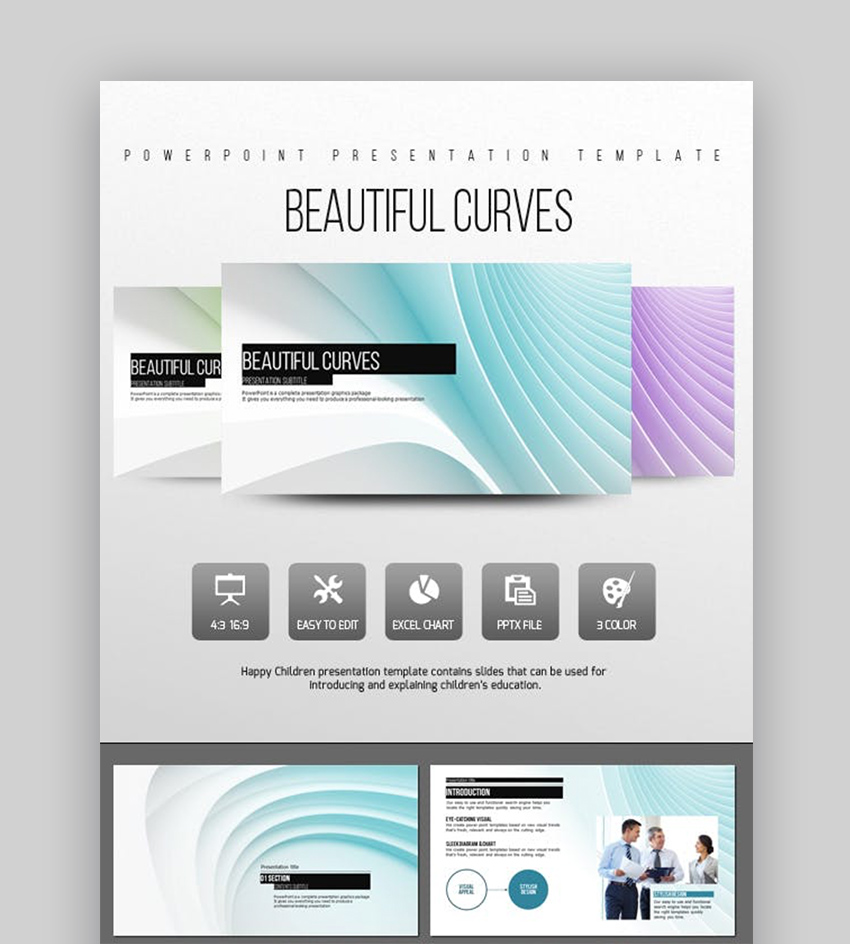
Beautiful design is almost the only thing these slides have in common. You’ll find layouts customized to suit almost any need. And with simple placeholders, you can add in your own content in just a few clicks. With hundreds of slides and high-resolution graphics, use this versatile template over and over to create perfect presentations.
5. Colorful – Beautiful Business Template

You might picture business PowerPoint templates as dull and boring. Not so here. Colorful content and engaging elements stand out brilliantly against the gray backdrop. You’ll also find many useful infographics to bring your data to life. It’s a beautiful and robust data presentation.
6. Beautiful – Professional PowerPoint Template
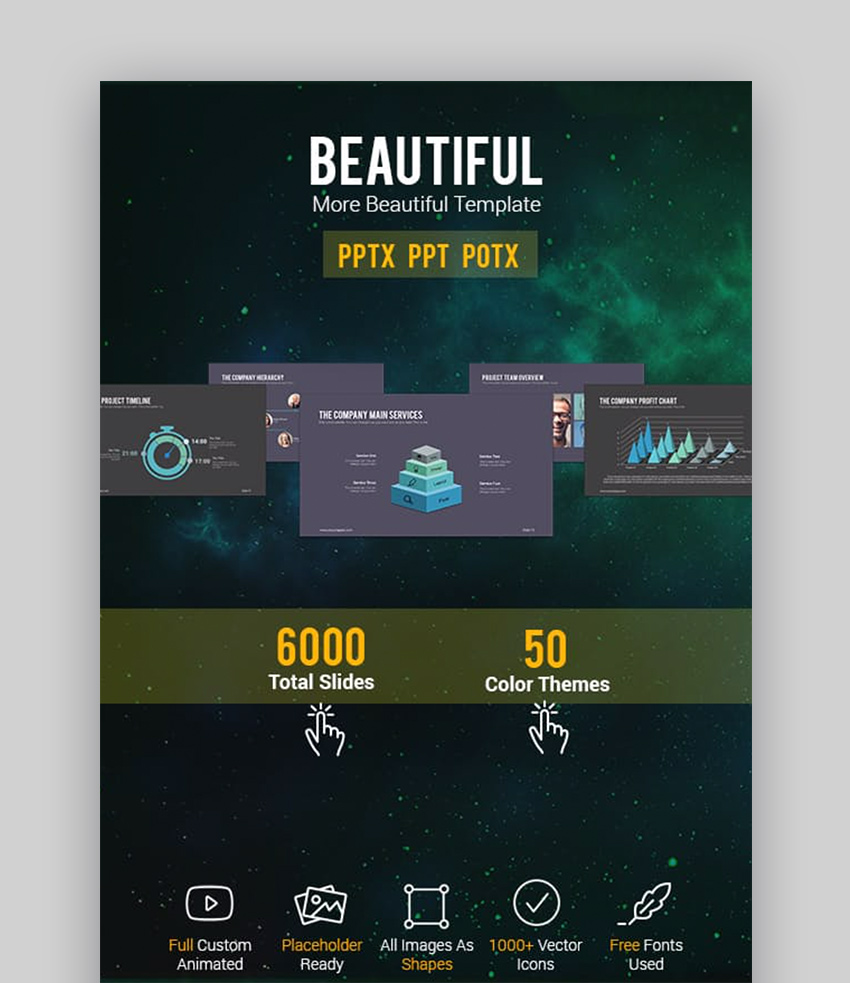
When choosing a GraphicRiver template, look for extra value. Beautiful PowerPoint presentation templates like this one deliver with thousands of unique slides and dozens of colors. Each and every one has custom placeholders that let you drop in text, images, video, and more. Couple it with a winning message and you’ll be unbeatable in 2020.
7. Space PowerPoint

Ethereal colors and minimalism define this contemporary slide deck. Foremost among today’s most beautiful PowerPoint templates, Space is designed as a top-flying package to bring your message to the front. Abstract graphics complement content and soften hard edges. You’ll have all of the supporting placeholders you need to drive ultimate style—and none that you don’t.
8. Earth PowerPoint

Earth PowerPoint takes nature’s beauty and rolls it into a slide deck. Inspired by the majesty of the great outdoors, this beautiful PowerPoint template fits an array of personal and professional uses. Try using the photo slides to introduce your team and bring your social media portfolio alive with edgy networking layouts.
9. Simple PowerPoint

Beautiful PPT templates speak for themselves. They support your content, rather than defining it. Such is the case with this attractive PowerPoint template offering. You’ll find all of the layouts and design elements needed your 2020 presentation right here. But you won’t see distracting animations or over-complicated features.
10. Minimal PowerPoint Design Template

Grayscale themes wash away bright colors while preserving the spirit of images and words. Renowned by artists, themes like this are the ideal way to fashion your unique PowerPoint templates. Details come to life on each and every slide. Plus, this template saves ink if you need to print copies of your slides.
11. Ravi Minimal Template

100 custom slides make Ravi a top option for beautiful presentation packs. Much focus is given to circular design, which naturally captures attention and helps viewers stay engaged. Edits are easy, and customization is easier still, with over 40 color designs to choose from. Smart infographic slides are tailored for deep dives into data.
12. Elegant Style PowerPoint Design Template

The name of this amazing PowerPoint presentation template speaks for itself. It truly is a powerful resource to use for your slide design needs in 2020. Multipurpose summary slides give way to device mockups, charts, maps, and more. Whatever you’re needing to build your beautiful PowerPoint presentation, this template offers at the touch of a button.
13. The ELEGANT – PowerPoint Presentations

Unforgettable designs are a trademark of stunning presentation templates. The ELEGANT is a prime example, with its black background and golden overlays. Beautiful presentation templates like this help you stand out, and they’re easier on the eyes as well. Perfect for conveying an intimate and luxurious feel, this template is surpassed in beauty only by usability.
14. Unique Creative PowerPoint Template

Pastel colors and modern fonts make this design a favorite among pretty PowerPoint templates. It’s designed to portray an artsy, fun look on every slide. Yet it remains a very powerful template for sharing data, device mockups, analyses, and more. Every piece of content is fully editable to meet your every need.
15. Stylish – Creative PowerPoint Template

Turn to beautiful PowerPoint templates if you need to build stylish slides in a hurry. Powerful and packed with flexible placeholders, this template makes slide building effortless. Rather than including many specialty layouts, it emphasizes easy adjustments to make layouts meet your needs. It’s a perfect choice for almost any kind of presentation, and it can be yours today.
16. Moneta PowerPoint Template

PowerPoint presentation design inspiration comes from many directions. One of these is using a general template with many different layouts. If you’re struggling to portray your content in beautiful style, a template like Moneta can help. Browse over 100 unique slides until you find one just right for you.
17. Nebula PowerPoint Presentation

A beautiful PowerPoint slide deck like this one is the perfect new marketing tool for 2020. Featuring beautiful starburst graphics, sleek content blocks, and animated graphics, Nebula launches your slides to a higher level. Over 80 slide designs, simple placeholders, and sleek transitions help get you started.
18. Ideo PowerPoint Presentation Template

Ideo is a beautiful PowerPoint template focused on creative projects. Use it to share your next big idea with the world. It stands out with 700 font icons and over 100 unique slide templates. It’s built to show off projects, with a complete collection of charts, data models, infographics, maps, and more. Pick and choose to dial in your next perfect presentation.
19. Gradation – Elegant Beautiful Powerpoint Template

There are 50 unique and nice slides in one simple package. That creates a lot of value with just one purchase. Bright colors and impactful designs mean that your content will never go unnoticed. The slides are simple and highlight the content.
20. Footage Gradient – Beautiful Creative Powerpoint

Here’s a tip for learning how to make a beautiful PowerPoint presentation: try out gradients. The smooth transition between multiple colors is a favorite effect. This nice PPT template includes great gradients that are sure to signal your presentation as one that’s totally on-trend.
5 Design & Style Tips for Beautiful PowerPoint Presentations
Once you’ve chosen your beautiful PowerPoint presentation template, there are a few tips to keep in mind when building your slides. By using these tips, you can stand out from the crowd and ensure audiences will engage with your content.
1. Be Bright and Bold
Audience eyes are drawn to bright, bold designs. You can use contrast to offset individual content blocks. Designs like this are also more readable, which helps when you’re presenting in a large room.

2. Be Brief
When designing and styling your slides, don’t forget to consider audience attention spans. Presentations that go on too long aren’t favorably received. Brevity is key, to keep viewers focused and interested in your main points.
Edit your slide designs to include fewer elements using the template below:
3. Illustrate Your Data
Nothing is duller than talking over numbers. Instead, bring them to life with charts and infographics. Beautiful presentations don’t just include words and images. They also deliver stunning data visualizations that make tough concepts understandable at a glance.

Want to learn more about using charts and graphs to show your data? Use the tutorial below:

4. Add Even More Imagery
I’ll make a bold statement: the best way to create nice slides is to add more images. Audiences love visuals, and Envato Elements give you unlimited stock photo access.
If you’re learning how to make a beautiful PowerPoint presentation, don’t forget this tip! A good image can tie a slide together and illustrate points, visually.
Learn how to master the art of working with images in PowerPoint in this tutorial:

5. Incorporate Your Branding
Branding includes your color scheme, logo, and more. When you start with a template, you’ll need to take a few steps to match the pre-made design to your color scheme.
To re-color a PPT template, click on a shape. Then, choose the Format option on the ribbon. Choose a new color on the Shape Fill drop-down to change the active shape’s color. Take this step a few times and your PowerPoint will match your brand.

How to Make Beautiful PowerPoint Presentations Quickly
Templates are a major advance when you’re building a nice PPT. Make no mistake, either. They’re flexible to your content and style.
In this section, you’ll learn how to make a beautiful PowerPoint presentation with customizations. We’ll work with the Makeit PowerPoint template to create nice slides.

Three slides, three steps. That’s all it takes to learn how to make a beautiful PPT presentation. Let’s learn more:
1. The Mobile App Slide

Building an app? It helps to show it in action so that potential users can imagine using it. Let’s customize slide 30 to do that in three steps:
- Add a device screenshot. Grab an image of your app in action on your device, then transfer it to your computer. Click on the image placeholder icon and browse to the file.
- Add a title. Type over “App Project Sample” with a quick summary that suits your slide.
- Add slide details. There are four text boxes that you can use to describe the unique value of your app. Use each one to describe what you bring to the table.

2. The Chart Slide

Charts and graphs tell a story. Our template includes several slides that tell data stories. Let’s customize slide 35 with three tweaks:
- Update data. Right-click on the chart and choose Edit Data. You’ll see an embedded Excel window pop up.
- Add your title and text. Type over Chart Sample and the text box below it. Then, resize text to make good use of the slide space.
- Customize the icon boxes. I love the icons in this presentation template. Use them to your advantage by typing over the three boxes with icon-driven values.

3. The Contact Slide

Contact details matter! They’re the best way to show the audience that you’re interested in continuing the conversation after your presentation is over. Slide 44 is perfect for the purpose:
- Add an image. Add a friendly photo of a founder or customer service rep. Click on the image icon, then browse to a photo to update the slide.
- Slide title. Type over it with a personalized greeting for your company.
- Add contact details. Make sure to type over the phone number, address, and email with your details.

Common PowerPoint Template Questions Answered (FAQ)
Are you still learning how to make a beautiful PowerPoint presentation? Have no fear, we’ve got you covered. Let’s help you tackle five questions I bet you’re asking as a beginner:
1. What’s the Best Way to Show Data in PowerPoint?
If you want to build nice slides, don’t clutter them with too much data shown in tables.
Instead, opt to build charts and graphs. They show data, but make it easy to read. Learn how to use those features and use templates below:
2. How Do You Create Backgrounds for PowerPoint?
Many users who want to learn how to make a beautiful PowerPoint presentation with great graphics. And if you already know an app like Photoshop, you can bring the two tools together with a few settings.
Learn how to pair Photoshop and PowerPoint to create perfectly sized backgrounds below:

3. What’s a Good Way to End Your Presentation?
Rookie presenters too often default to saying “thank you” to wrap up a presentation. Simple slides like this aren’t a step to take to make a beautiful PowerPoint presentation.
If you want more ideas to conclude your presentation, we’ve got you covered:

4. How Can You Track Changes by Others in PowerPoint
Want to make your nice slides nicer? You need to ask for a bit of collaboration. That’s much easier when you keep good track of the changes they’ve made to your presentation.
Using PowerPoint’s built-in track changes feature makes it much easier. Learn how to do just that with the help of this article:

5. Does PowerPoint Support 3D Designs?
Maybe you want to see some design depth in your presentation. Flat graphics just don’t do your content justice. Luckily, with the help of templates, PowerPoint allows for pseudo-3D designs.
Want to learn how to make a beautiful PowerPoint presentation with 3D pyramids and shapes? Check out our tutorial:

Build Beautiful PowerPoint Presentations in 2020
We’ve looked at 25 beautiful template options, learned some fundamental design tips, and more. Now it’s time for you to get started building amazing PowerPoint presentations with these stunning templates.
Be sure to check out Envato Elements and GraphicRiver to find your very own stunning PowerPoint templates. And then, it’s as easy as dropping in your own content. Beautiful presentations win any time—go build one today!
Editorial Note: Our staff updates this post regularly—adding new PowerPoint templates with the best, trending designs. That way, you can find just the design you need to make high-impact PowerPoint presentations.

{excerpt}
Read More
Samsung’s $399 Galaxy A51 comes to AT&T and Xfinity Mobile
Samsung’s Galaxy A51 is a viable alternative to the iPhone SE if you’re looking for a mid-priced phone, but you’ve been out of luck if you wanted to get it through a carrier besides Sprint or Verizon (Engadget’s parent company). You won’t have to wai…
How to Create an Instagram Ad Template

Learn how to create an eye-catching ad by using an Instagram post template, without Photoshop.
If you want to promote your brand or your product at a low cost, and
still reach your target audience effectively, you can do it with the
help of Instagram. An eye-catching Instagram post will make a great ad,
but first you need to know how to create it. In this tutorial, I’ll show
you how you can create your post using an Instagram ad template.
Follow along with us over on our Envato Tuts+ YouTube channel:
What You’ll Learn in This Instagram Ad Template Tutorial
- Where to find Instagram post templates
- How to use a template for an Instagram post
- How to customize a blank Instagram post template
- How to use an Instagram template without Photoshop
How to Create an Instagram Ad Template
Step 1
First,
go to Placeit.net. Placeit is an online mockup generator that you can
use for all kinds of products. This time we’re going to look at
Instagram ad templates, so navigate to Designs and click Instagram
Posts.

Step 2
There
are hundreds of Instagram post templates to choose from, in a variety
of styles and topics. You can filter them by Tags, but you can also
browse through them all to see what inspires you the most. When you’re
ready to pick one, just click it. I chose this one.

Step 3
You
can now customize your Instagram ad template! If you don’t know where
to start, you can scroll down and select a preset that fits your vision
the best.

Step 4
Once
you’ve chosen the preset, it’s time to adjust it to make it perfect.
First, let’s take care of the photo—it’s the most important thing here. This
template offers plenty of photos that you can use without worrying about
the license. But if you want to present your own product, you can also
add your own photo by clicking Custom Image.

Step 5
Select your image (I used this one) and Crop it to create an eye-catching composition.

Step 6
This template adds a color filter to your photo. Pick a color that complements your image.


Step 7
Once
you have the main image done, you can take care of the details. The
colors of the frame and the banners should fit the colors of the photo.
You can adjust them in the upper right corner.

Step 8
The
frame itself comes in a couple of styles that you can easily change. You
can also get rid of the frame entirely, if you think your design would
look better without it.

Step 9
This
template also allows you to add another graphic out of an extensive
library of vector images. Type a phrase in the search bar or browse the
library directly. You can also adjust the color of this graphic
separately. If you want to use a color you’ve used before, click Show
Recently Used to see all of them on the palette.

Step 10
Once
the visual side of this Instagram post is ready, it’s time to take care
of the text. There are a couple of text fields ready to use—you can
customize them and add another one if you need. Everything can be
changed—from the font and color to the size and position.

Step 11
Our Instagram post looks great! Now, you only need to scroll up and click Download to get your design without the watermarks.

Instagram Post Templates
Now
you know how to create an Instagram post using a template. But this was
only one template out of hundreds! Let’s take a look at a few other examples to see what else can you do to make your post shine.
Minimalistic Instagram Post
For
example, this template for an Instagram post is a great combination of a photo and a graphic,
with calm colors complementing the composition. Take a look at the
presets to see how powerful this post looks, despite its minimalistic
features!

Scrapbook Instagram Post
This
template lets you create an Instagram post in a scrapbook style. You
can be really creative, with special photo frames and two photos combined
into one composition! Use bold fonts and vibrant colors for the best
effect.

Vector Graphic Frame for Instagram Post
Instagram
is all about photos, but if you combine a photo with a graphic
background, you’ll get a beautiful mix that will stand out from the
crowd. This template shows you the power of minimalistic vector graphics
used as a frame around the photo.

Graphic Instagram Post
You
can also opt out of using a photo altogether and use an Instagram
template that is purely graphic in nature. Browse the library of vector
graphics and backgrounds, and create a unique composition!

All-Text Instagram Post Template
A
picture may be worth a thousand words, but sometimes less is more.
This template for an Instagram post is based on a bold font, simple graphics, and a blurry
background. It allows you to make your message loud and clear with the
power of minimalism.

Simple Instagram Post Template
You
can use a similar template for the same purpose—make it simple, keep
the message short, and it will make people interested in the content you
want to show them.

Vivid Instagram Post Template
Here’s
another template that uses a photo to bring attention to the post.
But it’s more than that—it also offers a clean, bold banner that is
instantly noticeable thanks to the contrasting colors. It’s impossible
to ignore it!

Cute Animals Instagram Post Template
Cute
animals are a recipe for success! This template shows you how you can
use simple illustrations of cats and dogs to make the post visually
appealing and therefore more noticeable. Add a simple message, and your
ad is ready!

Cyber Monday Instagram Post Template
Sometimes
you should keep your post low key, but there are times that call for
vivid colors and strong contrast. This template was designed for the
Cyber Monday sales, and its collection of tech-related backgrounds will
help you create a post with a strong theme.

Trendy Instagram Post Template
This
template is based on the trendy effect of bold colors mixed with a
monochromatic photo. It’s perfect for promoting content on your website
or blog—just write your title and add the link.

Good Job!
Now you know how to create an ad using an Instagram post template!

If you want to learn more about Instagram templates, try these tutorials as well:
 Instagram42 Best Instagram Templates (Posts, Stories, PSD, and More)Nona Blackman
 Instagram36 Best Instagram Post Templates Using an Instagram Post CreatorNona Blackman
 InstagramHow to Make Instagram Stories in Seconds Without PhotoshopAndrei Stefan
 InstagramHow to Create an Instagram Post Template in PhotoshopAbbey Esparza
 InstagramHow to Make Instagram Story TemplatesAbbey Esparza

{excerpt}
Read More
India requires all workers to use its COVID-19 tracking app
COVID-19 contact tracing apps are frequently voluntary in those countries that have rolled them out so far, but India’s is effectively mandatory. The country’s home ministry will require that all workers, public or private, use its Aarogya Setu app s…
Senate bill would set privacy requirements for COVID-19 tracking
Now that COVID-19 lockdowns are slowly starting to lift in the US, a group of senators want to set privacy expectations for the contact tracing apps that could help keep the virus in check. Senators Marsha Blackburn, Jerry Moran, John Thune and Roger…
Virgin and O2 might merge to create a UK telecom giant
Two of the bigger telecoms in the UK are reportedly close to uniting. The Guardian sources say the owners of Virgin Media and O2, Liberty Global and Telefonica, are in talks for a UK joint venture that would unite their mobile, internet and TV effort…
Boosted’s planned products included e-bikes and an ‘Ultimate’ skateboard
Boosted as you know it is no more, but it apparently had ambitious plans before Lime snapped up its assets. YouTuber Sam Sheffer has obtained images of what the company had been working on before its effective shutdown, and it was clearly keen to exp…
Juul may exit France, Spain and other European markets
Juul is preparing to leave five European countries within the year, according to BuzzFeed News. The e-cigarette maker is reportedly planning to pull out of Austria, Belgium, Portugal and Spain in July followed by France at the end of the year. Unlike…
Kickstarter may cut up to 45 percent of its workforce
Kickstarter has discussed layoffs as the COVID-19 pandemic ravages its crowdfunding business, and it now looks like those job cuts may be particularly severe. In a message to Gizmodo, the company has confirmed plans to cut a large portion of its work…
HBO Max pre-order promo drops price to $12 per month for the first year
HBO Max is taking a page out of the Disney+ playbook by offering sizeable discounts to early adopters. The streaming service is running a pre-order promotion that drops the price from $15 per month to $12 for the first year if you’re either a new sub…
Sonos is reportedly giving the Playbar a long-awaited redesign
You’d be forgiven for thinking that Sonos had forgotten about the Playbar — while it’s been happy to introduce newer hardware like the Beam and Playbase, its original soundbar still has that 2013-era design and core functionality. At last, though, So…
Recommended Reading: The life of a dropshipper
‘It’s bullshit’: Inside the weird, get-rich-quick world of dropshippingSirin Kale, WiredIn Bali, co-working spaces are filled with remote workers looking to make big bucks — and to do so quickly. Through a process called dropshipping, sellers are abl…