Instagram is taking its most aggressive steps yet to challenge YouTube: the app is piloting a series of features that will allow influencers to make money off their videos. Instagram announced that it’s testing commercials in IGTV videos and the abil…
Category: Tutorials
Tutorials,freelance,projects,joomla,php,mysql,wordpress,blancer.com
30 Best Cartoon Photo Effects & Comic Text Photoshop Actions
Create cartoon photo effects and comic text effects with Photoshop actions faster than ever before. Check out this list of helpful resources below.

30 Best Cartoon Photo Effects & Comic Text Actions
Do you love cartoons? Do you want to know how to make a cartoon picture in a few simple clicks? Photoshop actions make it possible to create the coolest photo effects without any prior software knowledge.
We know how hard it is to feel confident designing your own cartoons, so that’s why we’ve put together this list of the best cartoon photo effects and comic text actions that are easy to use.
Just open your photo and run these actions to enjoy quirky and hilarious cartoon effects. Color them with high-quality presets and customize them with text and more!
Enjoy this selection of top-notch resources hand-picked from Envato Elements and Envato Market.
Pop Art Photoshop Action
This action could not only turn a picture into a cartoon, but it will also help you to recreate the famous artworks of Roy Lichtenstein. It’s really easy to use, so you can easily transform any portrait or pet photo into a fun retro effect. Customize the colors to your liking or swap out the background for a new look!

Vintage Comic Creator
If you not only want to know how to make cartoon pictures, but also create cartoon inspired text and shape effects, then rough out your ideas with this smart vintage comic creator. This simple action creates a comic book-inspired text effect you can efficiently apply to any logo or text. Included in this download are several patterns, layer styles, and overlays that are completely editable.

GTA Photoshop Action
Make your photo into a cartoon and recreate the famous cartoon effect from the wicked video game series, Grand Theft Auto. This cartoon filter Photoshop action comes from designer Indworks and helps you mimic your favorite game quickly. Enjoy 15 colorful presets and 5 collage templates.

Vector Paint Photoshop Action
Blend two creative art styles together and turn a photo into a cartoon with this awesome Photoshop action. Make photo-realistic results using energetic oil, comic, and photo retouching styles. This non-destructive action is easy to use and will save you plenty of precious time. Get it for $6.

Ultra Realistic 3D Space Effect
Love space? Then create a brilliant space-inspired text effect for your comic designs! This cool Photoshop action creates fully editable text effects featuring fun cartoon themes. You’ll get one main file with several examples and even a link to the free font used.

Animated Zombie Grime Art Photoshop Action
This cartoon action Photoshop set can help you to achieve that trendy zombie grime effect with no effort. And beyond that, it creates an amazing animation, which you could save as a video or GIF file and easily use for your social media profiles.

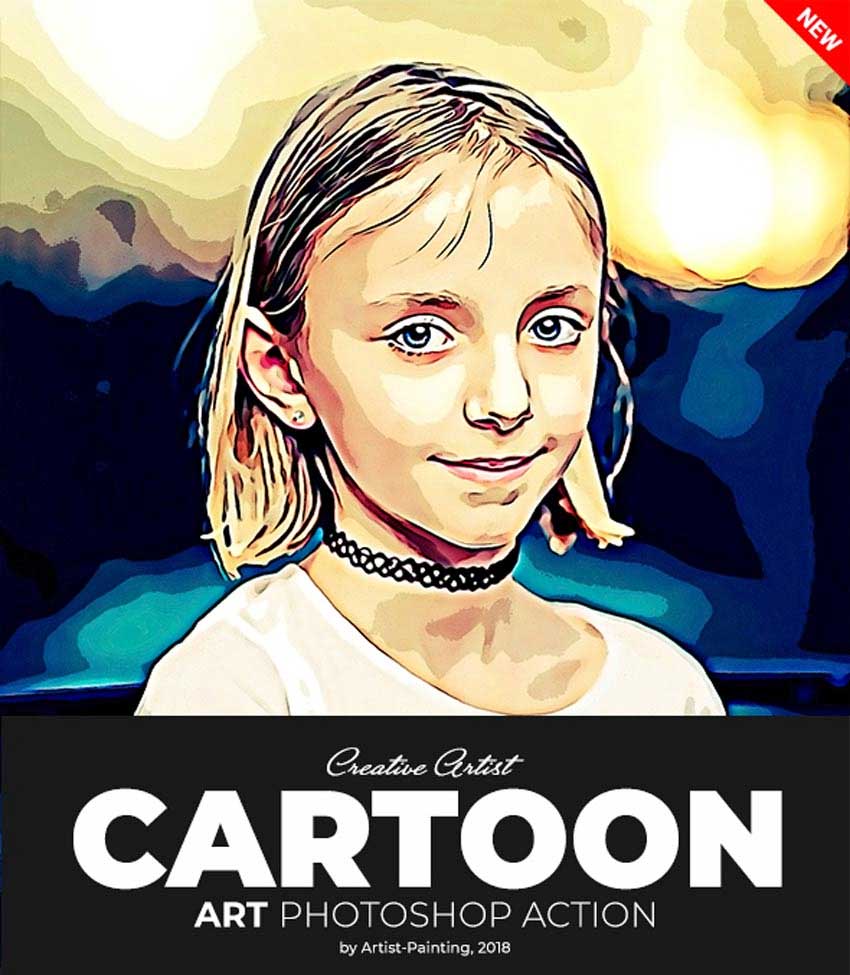
Cartoon Art Photoshop Action
Surprise your kids and family with this cartoon photo maker, which lets you create a custom cartoon of your own in a few simple clicks. This Photoshop action creates a quick and easy cartoon effect inspired by Impressionist paintings. Get access to fully organized folders and layers, all in one convenient download. Check it out!
Cartoonize Photoshop Action
Cartoonize Photoshop Action is one of the best Photoshop effects, which can show you how to turn a picture into a cartoon with no professional skills. You could create unique artworks such as CD covers, posters, flyers, and much more with this product.

Soft Cartoon Photoshop Action
Make your picture a cartoon and add an inspiring soft look to your portraits. This action creates a colorful cartoon effect in just one click, and you can easily customize the final effect by editing the layers and smart filters.

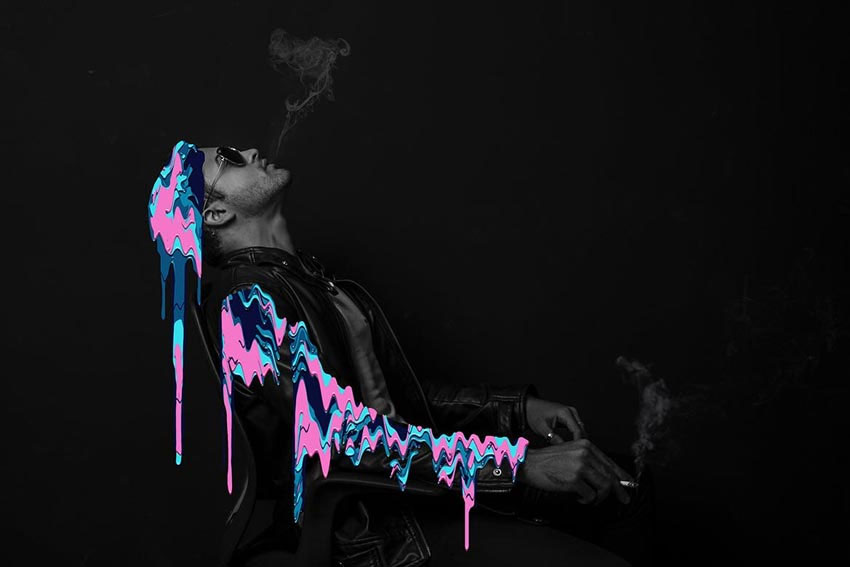
Cartoon Melted Drips Action
Turn a photo into cartoon Photoshop artwork and add this unique effect to your photos with this cartoon melted drips action. Experiment with different shapes and colors to create organic dripping fluid right on your work. This action is compatible with Photoshop versions CS6 and above and uses 25 color scripts.
Cartoon Vector Photoshop Action
How can you make a photo into a cartoon and transform your pictures for posters, albums, or social media covers? Get this awesome Photoshop action and create one-of-a-kind vector cartoons in only a few steps! Choose from 25 unique color combinations to apply to your final artwork before saving.

Ink Scribbles Animation Photoshop Action
Do you want to know how to cartoon a picture and make it look alive? Try to animate your cartoons fast with this next Photoshop action. Ink Scribbles creates a one-of-a-kind animation effect you can upload to Instagram, Twitter, and more. Make an amazing quality animation in much less time.

Vector Cartoon Photoshop Action
How can you turn a photo into a cartoon for your social media profiles? Try this simple cartoon Photoshop action. Designed to give your photos that vector cartoonish look, this action can be used with versions CS5 and above. A quick user guide is also included for more information.

Comic Book Creator
This photo cartoon effect lets your imagination run wild and create brilliant comic book pages. This ultimate creator kit includes over 120 comic book elements to draw out your new passion. Choose from amazing Photoshop brushes to Photoshop actions and colorful text effects.

10 Geometric Style Text Effects
Try out these modern geometric text effects to create beautifully designed comics! Featuring ten PSD files with fully layered graphics, these text effects are easy to update and place into your work. Just replace the names with your own text to see the magical result!

Glitch Cartoon Effect
Turn an image into a cartoon and give it a funny look! This Photoshop action delivers awesome caricature-styled portraits without all the hassle. It even applies a cool glitch-inspired texture for added appeal. It’s totally non-destructive and easy to use, so make sure to try it out!

Gradient Duotone Design Photoshop Action
Turn your pic to a cartoon or make your illustrations and photos look super psychedelic with this gradient duotone action. With just one click, this action generates 25 colorful duotone effects decorated with large halftone blobs. Use it for presenting your work online or for traditional media.

3D Cartoon Text Effects
Create stunning 3D text just like your favorite animated features! Included in this download are eight professional Photoshop files created at 300 dpi. Easily change the font or text by selecting the smart objects, and then make your edits. Add this effect to any movie or poster!

Cartoon Art Photoshop Action
Cartoonize your photos and then add a little texture to your cartoons to help them stand out! This awesome Photoshop action delivers a unique alternative to flat, boring cartoons. Not only do you get a quality Photoshop action to apply the effect, but you also get a bonus texture image to create a weathered look like the one below. Try it out on your photos!
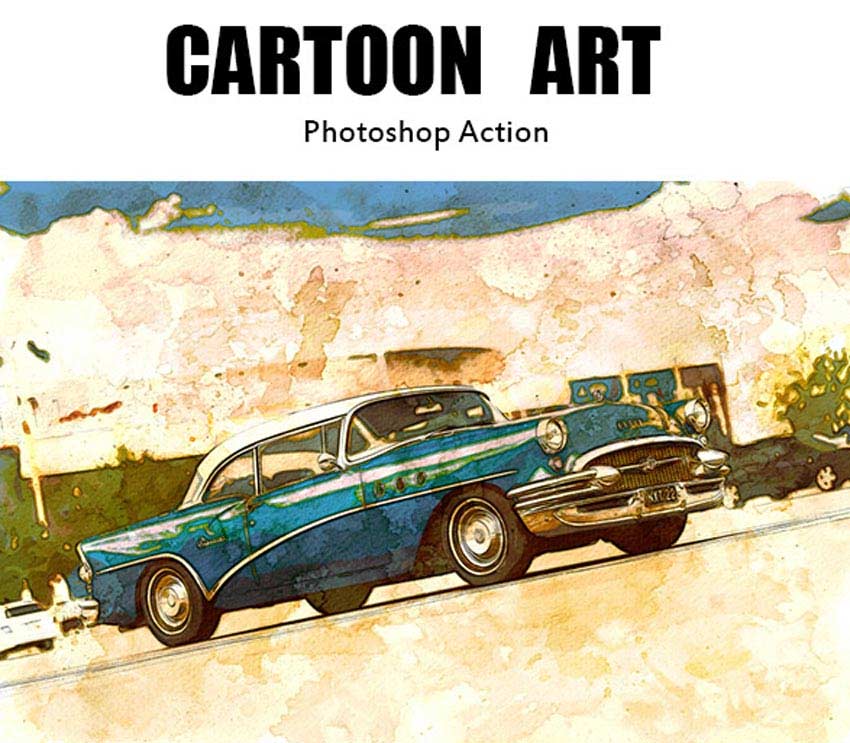
Watercolor Comic Photoshop Action
This image to cartoon Photoshop action not only converts your image to a cartoon but also adds a lovely watercolor effect. Create a watercolor comic book effect in a few seconds—try it out with Photoshop versions CS5 and above.

Painting & Comics Photoshop Actions
Get two amazing effects in one incredible download! This Photoshop action pack features 12 professional actions to create stunning painting and comic book-inspired results. They’re fully compatible with Mac and PC devices and even include an easy-to-follow user guide.

Conceptum – 3D Sketch Photoshop Action
Make imaginative concepts that pop right off the paper! This Photoshop action has 20 colorful presets and more fantastic options. You’ll get additional great files like Photoshop brushes and patterns to make your projects complete! Check it out!

Concepter – Plein Air Sketch Photoshop Action
If your client tells you, “Turn my picture into a cartoon,” you have an easy tool to recreate not only the cartoon look, but also to add the plein air technique to add movement and gorgeous colors to the work. This Photoshop action features well-organized layers and additional help files. Check out the video demonstration on YouTube to see how it works!

Cell Shader Photoshop Action
How can you cartoonize a photo and add a cell shading art technique at the same time? You can achieve that look with this one-step action. Just open up the photo you’d like to use, and then press play to see it shaded. Try it out on friends, animals, and stock photos for a brilliant effect!

Foil Balloon Text Effect Action
Spell out a quirky message to your followers with this epic foil balloon text effect. Featuring one Photoshop file that works with any text or shape, this action lets you experiment with different colors and textures for the desired result. Use it on logos, posters, and headers!

Caricature Maker Photoshop Actions
Turn a photo into a caricature and make it look funny. Discover these hilarious Photoshop actions to twist and warp your photos. This splendid caricature maker turns your portraits into awesome caricatures in less time. Control the face distortion yourself before applying one of many different color presets. Give it a try!

Comic Book Ink Actions
Finalize
your comic book designs with some cool text effects. This Photoshop
action set contains two wicked actions to create high-resolution text.
They’re fully customizable and contain super helpful extras like
patterns and brushes for more incredible texture.

Illustrator – Vector Art Photoshop Action
If you want to achieve vector-like effects and turn your picture into a cartoon, then try this next Photoshop action. Enjoy 20 colorful options along with amazing presets to turn your pictures into creative cartoons. Keep in mind it does require an additional filter, so make sure you grab the oil paint filter too!

Scribble Doodle Collage Photoshop Action
Turn your photo into a cartoon and scribble all over your pictures with this clever Photoshop action. Master the collage effect with unique design layouts and fun doodle details. Designed to look like hand-drawn elements, this scribble action is perfectly suited for posters and more!

MicroPro Cartoon Oil Photoshop Action
Create a cartoon from a photo and add a realistic oil painting effect with just the click of a button! This next Photoshop action set from MicroPro includes non-destructive actions that won’t ruin your original photos. Try it out with high-resolution images for the best results!

Comic Text FX
Relive the 80s with this cool text effect! Choose from six text layouts that are 100% editable. Drop them into any video for a cool intro effect or add them to your website for a bold header. Enjoy creative comic book styles that can fit many projects.

Cell Shader 2 Photoshop Action
A sequel to the original cel shader action, this Photoshop action creates a gorgeous cartoon look! To use it on your photos, simply fill the subject with color before pressing play. In seconds, a cel-shaded result will appear which you can further customize with more colors. Give it a go!

Comic Book Text Styles
If you already know how to make a picture look like a cartoon, you probably need some cool cartoon-looking comic text effects. This set contains 11 Photoshop styles which you could apply to your text and then add to your picture to make it look like a comic book page.

Retro Comic Book Photoshop Action Kit
Create cool cartoon pictures and comic book pages with this powerful tool. The kit comes bundled with 15 vector speech bubbles, 15 vector comic elements, 12 vector comic sound effects, 5 comic book frame templates, and 2 free comic book mockup templates. So it contains all the necessary tools for a quick start.

Urban Mixed Art Photoshop Action
Cartoon your picture and add a creative look to your images using the Urban Mixed Art Photoshop Action. This action is the best choice if you want to create urban and city artworks in a few simple steps. The final result comes in a fully customizable PSD file with editable layers, colors, and elements.

Grandiose 3 Animated Photoshop Action
This action can not only help you to turn yourself into a cartoon, but also create an amazing animation with almost no efforts. The action comes with 16 different background shape actions and 20 color presets, giving you unlimited creative possibilities.

Comics & Painting Actions
Cartoon your photo and add a painting effect along with a halftone overlay using this Photoshop cartoon effect, which gives you a fully customizable, easy-to-use, and non-destructive result.

Cartoon Comic Book Oil Paint
Convert your photo to a cartoon Photoshop artwork and give it an oil-painted look with the Cartoon Comic Book Oil Paint Photoshop action. This action works with old versions of Photoshop and uses the oil paint plugin, which is one of the most realistic Photoshop painting effects.

Cartoon Text Effects
Searching for how to make my picture a cartoon, I’ve also found this amazing set of cartoon text effects, which is the must-have tool for creating the elements of your comic book page, titles or signs for your images.

Text Effects For Games
You’ve already added a cartoon photo filter to your photo, but you want it to look even more “cartoonish”? Check this pack of eight Photoshop text effects inspired by game logos and titles.

Show Us Your Cartoon Effects!
Tried any of these assets? Let us know! Tell us your favorite cartoon effects in the comments below.
This has been a collection of premium resources perfect for the avid designer and photographer. For more cool cartoon effects, check out Envato Market and Envato Elements, or enlist the help of our talented professionals at Envato Studio. Happy designing!
Looking for some more cool Photoshop effects and actions? Or maybe you are looking for cartoon Photoshop tutorials? Check out these awesome resources:
 Text EffectsHow to Create a Cartoon Text Effect in Adobe PhotoshopJan Stverak
 Photography10 Cool Comic and Cartoon Effects for Photos with Photoshop ActionsMarie Gardiner
 Photoshop ActionsHow to Make a Retro Comic Book Portrait Effect Action in PhotoshopMonika Zagrobelna
 ComicsHow to Create Halftone Effects in Adobe IllustratorSara Berntsson

{excerpt}
Read More
Keyboard-Driven Cross-Linking in Drafts
I use Drafts as my text-processing tool of choice. I do all my actual writing in Ulysses, but when it’s time to prepare articles for my blog, my weekly site-members’ newsletter and so on, it’s Drafts I turn to. I think of it as the BBEdit for my iPad.
With the recent version 20.0, Drafts introduced cross-linking. You can use wiki-style links to open other documents (also called drafts, by the way) within the app; for example, a link like this: [[Some Other File]] can be tapped or clicked to open the draft entitled “Some Other File” (creating it if necessary). Needless to say, this is very useful for creating a repository of knowledge, a body of research, a plain-text household database, and so on.
Drafts is also very scriptable and customisable, so I decided to extend this functionality to fit how I work. First and foremost, I don’t like to take my hands off the keyboard, so I needed a way to navigate cross-links without needing to use a pointing device. I created an action for Drafts to do that, to which you can assign whatever keyboard shortcut you prefer. It works on a link that’s either part of the text selection in the frontmost draft, or is immediately adjacent to the selection or the insertion point. There are various other options you can tweak for yourself, as detailed below.
10 Top Motion Graphics Video Templates for Apple Motion
{excerpt}
Read More
WordPress Secure Setup: Top Tips for Securing WP Admin
{excerpt}
Read More
How to Make a Lyric Video With Stock Footage in Final Cut Pro X
{excerpt}
Read More
3 Top Father’s Day Video Templates for After Effects
{excerpt}
Read More
How to Create an Ink Sketch Photoshop Action

Create an ink sketch Photoshop action and Photoshop inking brushes to convert any photo to an ink sketch. I will explain everything in so much detail that everyone can follow it, even those who have just opened Photoshop for the first time.
What You Will Learn in This Adobe Photoshop Action Tutorial
- How to create an ink Photoshop brush
- How to create an ink Photoshop action
- How to save a Photoshop action
- How to create a pen and ink portrait in Photoshop
The effect shown above is the one I will show you how to create in this tutorial. If you would like to create the even more advanced Photoshop ink effect shown below, using just a single click and in only a few minutes, then check out my Ink Pen Sketch Photoshop Action.

What You’ll Need
To recreate the design above, you will need the following resources:
1. How to Get Started
First, open the photo that you want to work with. To open your photo, go to File > Open, choose your photo, and click Open. Now, before we get started, just check a couple of things:
- Your photo should be in RGB Color mode, 8 Bits/Channel. To check this, go to Image > Mode.
- For best results, your photo size should be 2000–4000 px wide/high. To check this, go to Image > Image Size.
- Your photo should be the Background layer. If it is not, go to Layer > New > Background from Layer.

2. How to Create a Brush in Photoshop
Step 1
In
this section, we are going to create a scribble brush we’ll need.
Take a pencil and paper and draw a scribble. Then, scan the scribble that you drew. Here is my result:

Step 2
Now go to Edit > Define Brush to define this scribble as a brush, and name it Temp Brush.

Step 3
Press B on your keyboard, Right-click anywhere inside the canvas, select the Temp Brush brush, and hit Enter. Then go to Window > Brush and, in the Brush window, use the settings below:

Step 4
Now, to define this brush with new settings as a new brush, click on the icon in the bottom right-hand corner of the Brush panel, and name it Ink Sketch Brush.

3. How to Start Recording a Photoshop Action
In this section, we are going to start recording the action. Go to Window > Actions, and in the Actions panel, click on the menu icon in the top right-hand corner, choose New Set to create a new set, and name it Ink Sketch. Then, click on the same menu icon again, choose New Action to create a new action, and name it Ink Sketch.

4. How to Create the Background
Step 1
In this section, we are going to create the background. Go to Layer > New Fill Layer > Solid Color to create a new solid color fill layer, name it Background Color, and choose the color #f3f3f3 as shown below:

Step 2
Now select the Background layer and press Control-J on your keyboard to duplicate this layer. Then, drag this layer to the top of the Layers panel.

Step 3
Go to Filter > Filter Gallery > Sketch > Photocopy and set the Detail to 2 and Darkness to 5.

Step 4
Now change the Blending Mode of this layer to Multiply and the Opacity to 65%. Name this layer Outline Sketch.

5. How to Create an Ink Sketch Effect
Step 1
Go to Layer > New > Layer to create a new layer and name it Ink_Sketch_1.

Step 2
Because we want to give users the freedom to brush where and how they like, we are going to pause the action recording. Go to Window > Actions, and in the Actions
panel, click on the rectangle icon in the bottom left-hand corner to
stop recording the action. Then, in the same panel, click on the menu
icon in the top right-hand corner and choose Insert Stop to add the Stop command.
Set the foreground color to #000000, choose the Brush Tool (B), pick the Sketch Brush brush, and brush over the subject where you like. You don’t have to brush over the whole subject—you can focus on a specific area.

Step 3
Go to Window > Actions, and in the Actions panel, click on the circle icon at the bottom to resume recording the action.
Then, go to Layer > Layer Mask > Reveal All to add a layer mask that reveals the whole layer. After that, hide the Ink_Sketch_1, Outline Sketch, and Background Color layers, go to Image > Apply Image, and use the settings below:

Step 4
Now go to Image > Adjustments > Levels and enter the settings below:

Step 5
Go to Image > Adjustments > Threshold and set the Threshold Level to 50.

Step 6
Now show all the layers in the Layers panel. Then, press Control-I on your keyboard to invert the layer mask. After that, in the Properties panel, set the Density of the layer mask to 70%.

Step 7
Change the Opacity of this layer to 80%.

Step 8
Now press Control-J on your keyboard to duplicate this layer. Drag this new layer just below the Ink_Sketch_1 layer in the Layers panel. After that, Right-click on the layer mask of this layer, and choose Delete Layer Mask to delete it.

Step 9
Go to Layer > Layer Mask > Reveal All to add a layer mask that reveals the whole layer. Hide the Ink_Sketch_1, Ink_Sketch_1 copy, Outline Sketch, and Background Color layers. After that, go to Image > Apply Image and use the settings below:

Step 10
Now go to Image > Adjustments > Levels and enter the settings below:

Step 11
Go to Image > Adjustments > Threshold and set the Threshold Level to 75.

Step 12
Now show all the layers in the Layers panel. Press Control-I on
your keyboard to invert the layer mask. In the Properties panel, set the Density of the layer mask to 35%.

Step 13
Change the Opacity of this layer to 100% and name it Ink_Sketch_2.

6. How to Reveal the Subject Details
Step 1
In this section, we are going to reveal the subject details. Select the Background layer and press Control-J on your keyboard to duplicate this layer. Then, drag this layer to the top of the Layers panel.

Step 2
Press Control-Shift-U to desaturate this layer. Then, go to Filter > Other > High Pass and set the Radius to 10 px.

Step 3
Change the Blending Mode of this layer to Overlay and name it Reveal Details.

7. How to Make the Final Adjustments
Step 1
In this section, we are going to make final adjustments to the design. Go to Layer > New Adjustment Layer > Curves to create a new curves adjustment layer, and name it Overall Brightness.

Step 2
Now Double-click on this layer thumbnail and, in the Properties panel, enter the settings below:

8. How to Crop an Image in Photoshop
In this section, we are going to save the action for future use and crop the image to keep only the focus area. Go to Window > Actions, and in the Actions panel, click on the rectangle icon in the bottom left-hand corner to stop recording the action. Then, in the same panel, click on the menu icon in the top right-hand corner and choose Save Actions to save the action.
Now choose the Crop Tool (C) and transform the Crop Box as shown below:

You Made It!
Congratulations, you have succeeded! You’ve learned how to create an ink effect Photoshop action. Using this abstract ink Photoshop action, you can now convert any photo to an ink sketch and create amazing pen and ink portraits. Here is our final result:

Take It to the Next Level!
If you would like to create the even more advanced Photoshop pen and ink effect shown below, using just a single click and in only a few minutes, then
check out my Ink Pen Sketch Photoshop Action.
Using this modern ink Photoshop action, you can convert your photo to an ink drawing quickly and easily! Simply open your photo, brush over your subject, and run the action. It’s really that simple!
You may also like:
-

How to Create a Cyberpunk Photoshop Effect Action
In this tutorial, you will learn how to create a cyberpunk Photoshop effect action to add amazing photo effects to your photos. I will explain everything in… -

How to Create a Sketch Effect Action in Adobe Photoshop
In this tutorial, I’m going to teach you how to create a Photoshop sketch effect. You will learn how to turn your photos into amazing, advanced sketches. I… -

How to Make Watercolor Effects in Photoshop Quickly With Actions
In this tutorial, you will learn how to create an amazing watercolor effect Photoshop action. I will explain everything in so much detail that everyone can… -

How to Create a GTA V Photo Effect Action in Adobe Photoshop
In this tutorial, you will learn how to create an amazing photo effect inspired by the Grand Theft Auto V video game art style. Even if you’re a Photoshop…

{excerpt}
Read More
The Best Free To-Do List Apps For Android and How to Make One Yourself
{excerpt}
Read More
42 Best Photoshop Illustration Actions (From Photo to Illustration)

Photoshop actions allow you to turn a photo into an illustration with almost no effort. This list of the best Photoshop illustrations actions includes a great variety of different styles of illustration effects, from a classical watercolor to a risograph-styled work of art.

If you want to create beautiful and attractive images for your social media profiles, Photoshop actions could be a great and useful tool to save time and money. The useful Photo to Illustration Actions at Envato Elements provide you with a large number of painting effects so that you can find the right one for your purposes.
Unlimited Photoshop Illustration Actions From Envato Elements

Envato Elements is the perfect place to find design resources and smart Photoshop tools for any design project. With our subscription, you can download as many resources as you need for a reasonable price. So let’s take a look at the best Photoshop illustration actions at Envato Elements.
42 Best Photoshop Illustration Actions (From Photo to Illustration)
1. Newspaper Art Photoshop Action

This photo illustration action adds an amazing atmosphere to your photo and converts it into a true work of art. You could easily create amazing posters with an inspirational look. Save your time and add this effect to your collection of Photoshop tools.
2. Retro Illustration Photoshop Action

Retro Photoshop effects could be a great tool for creating inspiring illustrations from your photos. This Retro Illustration Photoshop Action can help you to create a professional artistic effect with sketch, watercolor, and retro styles. The final result is fully customizable, so you can easily change the colors and elements of your illustration.
3. Impasto Oil Paint Photoshop Action

If you are looking for a more “classical painting” Photoshop effect, the Impasto Oil Paint Photoshop Action is the right tool for you. It helps you to transform your photos into hand-painted oil works of art in a few simple clicks. Besides the amazing and realistic painting effect, it also gives you 20 color presets to apply with a single click.
4. Aquarelle Watercolor Photoshop Action

Another Photoshop illustration action with an outstanding end look is Aquarelle Watercolor Photoshop Action. With this Photoshop action, you can create a digital illustration in just one click. The final result is fully customizable, so you can play around with the elements of your illustration.
5. Paint Splatter – Photoshop Actions

Another way to turn your image from a photo to an illustration is with the Paint Splatter Photoshop Actions set. This action can save you hours of work and automatically generate illustration elements. You can easily create a lot of variations of your artwork and create illustrations for your posters, flyers, or social media projects with no effort.
6. Hologram Photoshop Action

This Photoshop action illustration kit inspired by 80s aesthetics is a great tool for creating creative and colorful illustrations from your photos. This product comes with an organized folder structure and easy navigation, so it’s easy to change the color or edit elements of your illustration.
7. Double Exposure Action

If you need an instant eye-catching effect to grab attention for your post on social media, try to turn a photo into an illustration with a double exposure effect. This effect has been a trend for a few years because of its amazing visual aesthetics and almost endless creative possibilities.
8. Island Photoshop Action

Among many Photoshop effects, this one is really surprising and creative. Turn your portrait into an island illustration in a few simple steps. The final PSD file contains ten color effects and gives you a structured file with many layers and folders, so it’s very easy to improve the final result.
9. Miniaturum – Watercolor Sketch Photoshop Action

Miniaturum is a cartoon action Photoshop effect, which gives your pictures the incredible artistic look of a watercolor sketch. The final result of this action is a highly detailed, fully customizable PSD file with a clean structure. Give it a try for your architecture photos.
10. Color Fusion Photoshop Actions

Color Fusion is another cartoon Photoshop action that transforms your image into a colorful illustration. This Photoshop effect gives you a vibrant acrylic-painted artwork with an eye-popping color palette with just a couple of clicks.
11. Guardian 3 Photoshop Action

This photo illustration effect is the best choice for creating illustrations for sport flyers and posters. The artworks created with this action include smoke, light, and cloud elements, which give your photo a dynamic look. It’s extremely easy to use, and there’s no need for professional design skills.
12. 80s Retro Poster Action

Here’s another action for 80s lovers, with a lot of neon light and bright elements! The amazing vector art style 80s posters created with this action will grab the attention of fans of Stranger Things and other TV shows with 80s aesthetics.
13. Architecture Sketch and Blueprint Photoshop Action

Architecture Sketch and Blueprint Photoshop Action is a kit to help you convert a photo to a cartoon. It converts any photo into a professional-looking pencil sketch, and it also gives you a lot of possibilities for customization, as well as ten useful color presets. With this powerful kit, it’s super easy to create blueprints and sketches in a few simple steps.
14. Storm Photoshop Action

You can use Storm Photoshop Action to create realistic illustrations inspired by disaster films from any photo. It works perfectly with landscape photos and gives you ten color presets to find the right look for your artwork.
15. Eclipse Photoshop Action

This Photoshop action is ideal for converting a photo to an illustration with a dark atmospheric look. This Photoshop effects set offers three different line widths and full control of the final design colors and elements. All you need to do is fill your subject and play the action!
16. Zombie Grime Art Photoshop Action

This is my favorite cartoon Photoshop action for creating illustrations. This Photoshop effect inspired by the Instagram and Tumblr trend converts your photos into awesome zombie illustrations. It gives you customizable drip pattern parameters such as scale, translation, and texture variation. Use this action for your social media profiles and grab the attention of your followers!
17. Vector Painting CS6 & CC+ Photoshop Action

And here’s another amazing vector art style illustration kit with a lot of creative possibilities. This non-destructive action with well-arranged layers and PNG shapes creates bright illustrations suitable for any purpose. You can easily create posters, banners, and avatars in a few simple clicks.
18. Halftone Photoshop Action

If you are a fan of pop art, take a look at the Halftone Photoshop Action. This Photoshop effect not only turns a photo into an illustration, but also offers four different halftone textures along with ten duotone color presets.
19. Modern Poster Photoshop Action

A continuation of the best photo to illustration actions, this photo effect transforms your images into modern posters with geometric elements. This action not only gives you a fully layered final PSD file but also creates 15 one-click color presets.
20. 21 Pixel Art Photoshop Actions

If you are a fan of retro pixel art or indie games with that pixelized look of the characters, try this cartoon action Photoshop effects pack. It contains 21 color palettes, from the Nintendo console to a trendy cyberpunk palette. Also, it gives you 11 different pixel sizes to choose from. Pixel art was never so easy to create!
21. Generative Geometric Art Photoshop Action

Looking for a photo to illustration action with an abstract, geometric effect? Check out Generative Geometric Art Photoshop Action! Every time you run this action, it gives you a unique result, so you could play around a lot with this one. The action comes with five different color variations and five main design elements.
22. Ink Monoprint Poster Photoshop Action

Need a stylish black and white illustration? Try to turn your photo to an illustration with Ink Monoprint Photoshop Action. This action creates a unique design each time you play it. Imagine the possibilities of this action for creating illustrations for absolutely any purpose!
23. Risographia for Adobe Photoshop

I’ve used this smart Photoshop tool a lot of times for creating different illustrations. It’s a must-have product for every poster artist. Instantly create risograph illustrations, adjust the density of the effects, and control the colors. This item contains 16 main effects and an illustrated PDF guide. It will be super easy for you to create a risograph illustration in a few simple clicks.
24. 5 Premium Retro Action

This set of Photoshop action illustration effects creates stunning artworks with a retro touch. The action includes five color variations of the main effect, and it can help you to find the right color for your designs. If you want to create some retro illustrations, give this action a try!
25. Disturb Intense Distortion Effect

Produce high-quality illustrations in a few minutes with this amazing Photoshop action. Perfect for abstract posters, this action gives your photo that distorted and glitchy look.
26. Hope Pop Art Generator

This photo illustration action helps you achieve that retro pop art look inspired by the popular Obama Hope poster by Shepard Fairey. This action is easy to use and comes with four overlay paper textures that you can pick from. The final result is fully editable, so you can customize the poster any way you like.
27. Sketch Action

Do you love traditional black and white pencil illustration sketches? This action is a great choice for you. Try out this lovely sketch action that produces hand-drawn illustrations from your photos.
28. Magic Photoshop Action

Here’s another great Photoshop action with truly magical colors and design elements. You can turn a photo into an illustration complete with shining particles and bright lights in a few clicks. All you need to do is follow along with the text guide to see how it works.
29. Artista – Mixed Media Art Photoshop Action

Do you prefer mixed media art? Then try this next Photoshop action. Automatically generate many graphic elements to work with, combine them, and create lots of variations. Follow the detailed video instructions and create awesome illustrations.
30. Strokes Photoshop Action

This Photoshop action is great for creating colorful illustrations from any photo and has so many creative possibilities! All you need to do is brush the area on the photo which you want to turn into an illustration and hit the play button. The video tutorial included in this product will not only cover how to set it up in Photoshop but also give you a complete guide to customization techniques.
More Photo to Illustration Actions From GraphicRiver

If you want to buy just one specific action instead of trying out several, then GraphicRiver may be a better option for you. You can download a single Photoshop action for one-time use for a low fee. Let’s take a closer look at some of the top-quality illustration effects there.
31. VectorArt Photoshop Action

If you want to create a colorful illustration from your photo with an automatically generated striped background, then all you need to do is follow along with the quick video tutorial to see how this one works! VectorArt Photoshop Action is a cartoon Photoshop action with fully layered and customizable results.
32. Vintage Painting Action

Do you love both watercolor effects and vintage illustrations? Then you don’t want to miss this Vintage Painting Action, which gives your image this hand-painted texture look. It’s easy to use and comes with instructions and a premade PSD file with fully customizable smart filters.
33. Animated Instagram Stories Creative Portrait

If you like to create stunning Instagram stories, then you need to check out this amazing template! It not only converts your photo to a watercolor illustration sketch, but also creates a complex animation. You could easily save the final result to a video file and upload it to your Instagram account, or just save it as a static picture.
34. Retro Illustrations Photoshop Action

Have you ever wanted to travel in a time machine? This amazing Photoshop action can help you to turn your photos into retro illustrations in just a few minutes. This action automatically combines pencil drawing, brush strokes, and watercolor paints to create the realistic effect of a retro illustration.
35. Vector Sketch Photoshop Action

Create an illustration and add a vector art style to your photo with Vector Sketch Photoshop Action. This action comes with ten color effects and a well-organized layer structure to improve the final result. It works perfectly both on Mac and PC and comes with detailed instructions.
36. Rough Sketch Photoshop Action

Create rough illustration sketches with this cool Photoshop action. It generates ten sketch variations, so you can be sure that you find the one you like. This action comes with three paper textures to pick from that give it even more final look possibilities.
37. Paper Book Photoshop Action

Looking for a fast way to turn your photo into an illustration with lots of different elements? Paper Book Photoshop Action creates a complex, abstract effect with an eye-popping look. Save hours of work using this one-click tool.
38. Mastro Line Art Photoshop Action

Create phenomenal, highly detailed line art illustrations with this action. This action is suitable for almost any photo, from portraits to architecture photos. Get this professional photo effect with ten color effects and a well-structured, fully editable final result.
39. Retro Poster Photoshop Action

If you are a fan of the Fallout game series, there is no way you can miss this illustration Photoshop action. Design impressive posters from any photo in a retro-futuristic style. Created for Photoshop versions CS3 and above, this action instantly creates a painted illustration with a vintage background.
40. Realistic Chalk Sketch and Drawing Effect

Present your photo as an awesome chalk hand-drawn illustration! This Photoshop action includes one action, a brush set, and detailed instructions with screenshots. Check it out!
41. Engrave Photoshop Action

Do you love old engraving illustrations? Apply this engraving Photoshop action to your photo to get this impressive look. It’s quick to apply this rich style to your images, and the results are easy to customize.
42. Colorful Illustrations Photoshop Action

And last but not least, here’s a Photoshop action illustration kit with lots of options for customization. Colorful Illustrations Photoshop Action allows you to create colorful illustrations with a dynamic look. Just follow the simple instructions to create this amazing effect.
Find the Best Photo to Illustration Action
Visit Envato Elements if you want to find the best Photoshop illustration action or if you need any other Photoshop resources like brushes, patterns, textures, and anything else to polish your illustration. Envato Elements offers unlimited downloads for a reasonable monthly fee.
If you prefer to pay per download, then check what GraphicRiver offers. Here you can find the best Photoshop action illustration kit assortment. In addition, there’s a fantastic range of other Photoshop supplies, from backgrounds and textures to Photoshop addons and print templates.
Do you want to learn more about illustration actions or learn how to create a photo to illustration Photoshop action by yourself? Check out these helpful articles and tutorials below:
 Photo Effects45 Best Photoshop Actions With Creative Photo EffectsSean Hodge
 Photoshop Actions30 Best Cartoon Photo Effects & Comic Text Photoshop ActionsMelody Nieves
 Photoshop ActionsHow to Create a Photoshop Painting EffectIvan Gromov
 Photo EffectsHow to Turn a Photo Into Comic Book Art in Adobe PhotoshopJohn Negoita

{excerpt}
Read More
12 Best PHP Event Calendar and Booking Scripts… and 3 Free Options
{excerpt}
Read More
Hosting WordPress on AWS: Pros and Cons and How To
{excerpt}
Read More
Illustrator’s Pen Tool: The Comprehensive Guide
If you use Adobe Illustrator, then it’s almost certain that you use the Pen Tool when creating your paths. This comprehensive Pen Tool Illustrator guide aims to introduce or remind you of features, shortcuts, and methods for working with what is arguably Adobe’s most essential tool.
In this Illustrator Pen Tool tutorial, you’ll become comfortable using all of its features, from learning how to add anchor points in Illustrator to using bezier curves.
What You Will Learn in This Adobe Illustrator Tutorial
- How to use the Pen Tool in Illustrator
- How to move anchor points in Illustrator to create a path
- How to use different shortcut keys to improve and speed up your workflow
- How to adjust the preference settings to your liking
- What the best practices and suggestions are for using the Pen Tool
Follow along with us over on our Envato Tuts+ YouTube channel:
1. How to Use the Pen Tool Functions
Pen Tool (P)
Click on the artboard to create paths with straight segments. Click and drag to create paths with Bezier curves.

Add Anchor Point Illustrator Tool (+)
Click on a path segment to add anchor points.

Delete Anchor Point Tool (-)
Click on an anchor point to remove it from the path.

Convert Anchor Point (Shift-C)
Click on an anchor point and drag to create bezier handles where there were none. Click on an anchor point with handles to remove them.

Alternatively, click and drag midway along a path to manipulate it as a curve.

Scissors Tool (C)
Not part of the Pen Tool group, but definitely associated with it. Click on a path segment to divide it into two paths.

Move Anchor Point Illustrator Tool (Direct Selection Tool)
Another useful tool to use is the Direct Selection Tool (A). This will allow you to select an anchor point and move it to adjust your path to the way you want it.

2. How to Use Keyboard Shortcuts
- Select Pen Tool (P)
- Select Add Anchor Point Tool (+)
- Select Delete Anchor Point Tool (-)
- Select Convert Anchor Point Tool (Shift-C)
- Select Scissors Tool (C)
- Join two anchor points (Command/Control-J)
3. What Are the Different Cursors?
The Pen Tool takes on different forms depending on what you’re doing when you’re using it. Each cursor intuitively makes you aware of the action you are about to perform.
(Caps Lock to toggle between pointer and cross hair)


4. What Are the Secondary Mouse Controls (With Path Selected)?
- Pen Tool hovers over anchor point: changes to Delete Anchor Point Tool
- Pen Tool hovers over path segment: changes to Add Anchor Point Tool
- Pen Tool hovers over end anchor point: changes to Continue Anchor Point Tool
5. How to Use the Keyboard Controls
- Hold Shift to constrain movements to 45°, 90°, 135° or 180° whilst creating or editing anchor points and Adobe Illustrator handles.
- Select an anchor point with the Direct Selection Tool (A) and click Delete. The anchor and adjoining path segments will be deleted, leaving two paths.
- Pen Tool-Option (Alt): changes to Convert Anchor Point Tool.
- Pen Tool hover over bezier handle + Command (Control): allows editing of a bezier curve.
- Pen Tool-Option (Alt) whilst creating a bezier curve: splits the curve (unhinges handles).
- Pen Tool hover over bezier handle + Option (Alt): splits the curve (unhinges handles).
- Scissors Tool (C)–Option (Alt): changes to Add Anchor Point Tool.
- Add Anchor Point Tool-Option (Alt): changes to Delete Anchor Point Tool.
- Delete Anchor Point Tool-Option (Alt): changes to Add Anchor Point Tool.
6. How to Set Up Different Preferences
You can access the preferences which influence the Pen Tool (P) and other related tools by going to Illustrator > Preferences > Selection & Anchor Display.

Tolerance
Radius of the selection area around anchor points. Must be between 1 and 8 pixels: 1px if you’re deadly accurate with your mouse or have a lot of anchors in close range of one another, 8px if you prefer less precision. 3px is the default value.

Object Selection by Path Only
When checked, this option allows selection of objects only by clicking their paths. Clicking on their filled areas is ineffective, comparable to working in Outline mode (View > Outline).

Snap to Point
Also checkable via View > Snap to Point, though via the Selection & Anchor Display dialogue the tolerance can also be determined from 1 to 8 pixels. This value again represents the radius around anchor points. When lining up two objects, anchor points from one will snap to points of the other should they be positioned within the specified range.

It’s worth noting that since the release of Adobe Illustrator CC 2014 Bezier handles are immune to grid-snapping. You can therefore make sure your anchors all stick to the grid (great for web use) whilst maintaining precision with free curves.

Anchor Point and Handle Display
Determines the way in which your path anchor points and handles are displayed.

Highlight Anchors on Mouseover
When checked, highlights anchor points when hovered over with cursor.

Show Handles When Multiple Anchors Are Selected
When checked, this option displays the Adobe Illustrator handles of points when multiple points are selected. Otherwise, the handles of multiple selected points are not displayed.

Hide Corner Widget
Corner widgets allow you to drag corners in order to make them rounded. You may find it helpful to specify the corner angle at which you no longer want to have the widget displayed. Choose from 105°, 120°, 135°, 150°, or 165°.

Enable Rubber Band
When I want to lay down an anchor point, I always find it helpful to know what the path will look like. Checking the Rubber Band option gives you a preview of the path before you commit.

7. What Are the Other Shortcuts and Tips?
Select the Direct Selection Tool (A) before selecting the Pen Tool (P). Hold-Command (Control) to give you access to the last tool selected (in this case the Direct Selection Tool) for editing of paths and handles without deselecting the path.
With the path selected, use the Spacebar to give you access to the Hand Tool (H). Move your screen without deselecting the path or changing tools.
While creating or editing an anchor point, click and Click-Hold-Spacebar to alter the position of the anchor point you’re working on. Since the release of Adobe Illustrator CC 2014, this manipulation is also possible on the closing anchor of a path.

With the Direct Selection Tool (A), select the end point and starting point of a path. Command (Control)-J to Join.
With the Direct Selection Tool (A), select the end point and starting point of a path. Command (Control)-Option (Alt)-Shift-J to join and average simultaneously.
Bear in mind that the colour of your highlighted paths and their Bezier handles is dependent on the colour of the layer they’re placed on.

To smoothen a path by reducing the number of anchor points, open the Simplify dialogue (Object > Path > Simplify) and adjust according to your needs.

Conversely, should you want more anchor points to improve manipulation, go to Object > Path > Add Anchor Points. A new anchor point will appear after every existing anchor point on the selected path.
To prevent the Pen Tool (P) from changing its function when interacting with other anchor points or paths, open the general preferences dialogue (Illustrator > Preferences > General) and check the Disable Auto Add/Delete option. The Pen Tool will now only draw paths.

Since the release of Adobe Illustrator CC 2014, control over Bezier handles has improved. Now, whilst dragging the handles of an anchor point, press and hold Command/Control to independently stretch and shrink the leading handle, whilst keeping its movement paired to the trailing handle.

8. How to Use Best Practice Suggestions
Drag handles from the first anchor point when beginning a curved path.
Drag your handles around just one-third of the curve you’re creating for a smooth path.

Position anchor points on a curve where the paths begin to change direction, not in the middle of its curve.

Be sparing with your use of anchor points: fewer points = neater path.
9. How to Use the Pen Tool: Exercise
This is all well and good in theory, but while these tips are fresh in your mind, why not put them into practice? Download the Pen Tool Exercise file and follow the guides to create precise paths, using the hints and shortcuts covered in this article.
Here you can put to use what you’ve learned in this Pen Tool guide for Illustrator!


If you need some inspiration for your designs, check out the popular vectors on Envato Market. If you’re struggling to create a particular vector with the Pen Tool, you might find something there that you can use in your project.
Learn More Tools in Adobe Illustrator!
If you liked this and are looking to develop your skills in Adobe Illustrator further, check out the tutorials below! Expand your expertise by going through these in-depth guides. Happy designing!
 Text EffectsHow to Use Outline Stroke in IllustratorDiana Toma
 BrushesHow to Install and Use Brushes in Adobe IllustratorMary Winkler
 Adobe IllustratorIllustrator in 60 Seconds: How to Use Compound ShapesAndrei Stefan
 Adobe IllustratorIllustrator in 60 Seconds: How to Use Selection ToolsAndrei Stefan
 Adobe IllustratorIllustrator in 60 Seconds: How to Use the Snap to Grid OptionAndrei Stefan

{excerpt}
Read More
26 Best Sci-Fi Fonts (Science and Retro Styles)
The font you use in a project helps to set the tone for the work, and when it comes to science fiction, it’s critical to use a sci-fi font for your project that will help your audience buy into the time, place, and ideas you are representing in your work.

That’s why today we’re covering a list of the best sci-fi fonts you can find at Envato Elements and GraphicRiver. Take a look! There’s bound to be a sci-fi font here that you can’t do without.
Unlimited Futuristic Font Designs at Envato Elements
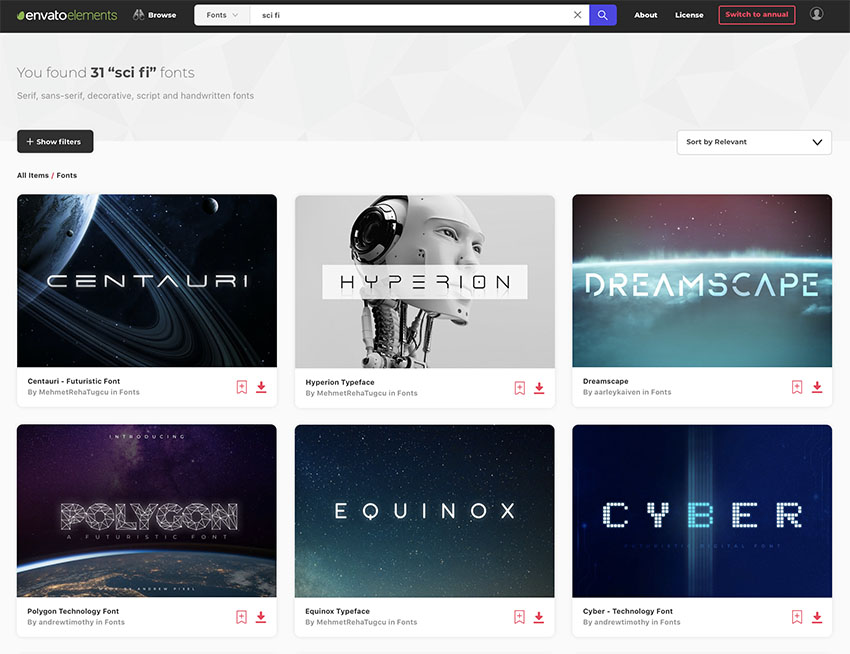
Envato Elements offers a number of amazing sci-fi fonts created by the most talented designers in the field. You can download as many as you want, as often as you want, for one flat monthly fee.
One low monthly fee = unlimited access to the best sci-fi fonts available on the internet today. What’s more, that monthly fee also allows you to access and download thousands of premium digital assets like logos, graphic templates, mockups, photos, business card templates, and much more.
Let’s take a look at the best sci-fi fonts on offer at Envato Elements, and you’ll see what I mean.
15 Best Sci-Fi Fonts
1. Centauri – Futuristic Font

First up is Centauri, a bold sci-fi futuristic font that brings a cool edginess to your projects. The clean, minimalist font includes uppercase Latin letters, numbers, and basic punctuation, as well as alternate letters.
2. Dreamscape
Check out this beautiful sci-fi futuristic font, Dreamscape. The font comes in two styles, Dreamscape and Dreamscape Sans. Use it to create eye-catching movie titles or for poster design, album covers, or T-shirts.
3. UAV31

If you need highly legible text, UAV31 shouldn’t be your first choice, but if your text is short and simple, then this retro sci-fi font is a great choice. Stylish and attention-getting, this decorative geometric font is great for logos, posters, and other short titles when impact is what matters.
4. Kusanagi – Futuristic Font

Take Kusanagi for a spin and create visually engaging text for your next project. This awesome sci-fi futuristic font mixes sharp and round corners and uses narrow spacing between letters to accommodate the wide characters. A perfect font for titles, posters, and various covers.
5. SKYWAVE

Looking for a clean and modern font for branding projects, titles, and display text? Then Skywave is a great choice. The vintage sci-fi font comes in four weights—light, normal, bold, and heavy—with additional italic and outline versions in all weights.
6. Cyber

How about Cyber, a sci-fi font inspired by digital technology? Use this all-caps font to create your movie titles and posters, flyers, website headers, and more.
7. Polygon Technology Font

Looking for an awesome sci-fi futuristic font? Check out Polygon, an abstract grid technology typeface with a futuristic feel. This all-caps display font is an excellent choice for large-scale projects.
8. Voyager Typeface

Voyager is a retro sci-fi font with a rounded aesthetic. It’s great for sci-fi logos and UI elements. Voyager comes with alternate characters that can be toggled with caps lock and includes two weight options. The font family includes uppercase characters, numbers, punctuation, and some multilingual support.
9. Flare – Futuristic Science Font

This retro sci-fi font is all you need when you want to create stunning movie titles, posters, branding materials, and other stand-out media. With that Alien movie vibe to it, Flare is a perfect choice for technological, sci-fi, and all kinds of futuristic projects you can come up with.
10. Alpha – Futuristic Display Typeface

Say hello to Alpha, a bold vintage sci-fi font for those times when no ordinary font will do. Use it to create riveting movie titles, posters, and other branding materials. The retro sci-fi font includes upper and lowercase letters, numbers, and punctuation.
11. Galaxy Font

Inspired by the cosmos, Galaxy is a cool font for sci-fi projects. Use it for your logos, posters, film titles, and advertisements, and take your projects to outer space.
12. Halcyon Typeface

Fancy a tall, cool font for your next project? This elongated and rounded sci-fi futuristic font would look great on movie titles, posters, T-shirts, and much more. The type comes in two weights, and the alternate letters can be toggled using the caps lock.
13. Cebo Font

Cebo is a sci-fi font for Photoshop and other popular software. It includes five different styles: light, twin, shadow, bold, and expand. The all-caps type is an excellent display font for posters, titles, logos, banners, and other large-scale projects.
14. Hyperion Typeface

Hyperion is a high-quality futuristic font for sci-fi projects, from film to book covers. The clean all-caps type includes three weights—light, regular, and bold—and you can access alternate characters by toggling the caps lock.
15. Stargaze Typeface

How cool is this 50s sci-fi font? It’s the perfect choice when you need a big, bold, vintage sci-fi font for your movie titles, posters, branding projects, signage, etc. Stargaze includes uppercase Latin and foreign language letters, numbers, and punctuation.
More Premium Sci-Fi Fonts From GraphicRiver

GraphicRiver is another service that offers thousands of premium Sci-Fi fonts for Photoshop and other software, but it works differently from Elements.
While Elements is the best source when you want to buy many fonts and other resources, GraphicRiver is better for those who are on a budget and only want to buy one font at a time.
So if you’re interested in purchasing just one font for your sci-fi projects, instead of experimenting with several, then Graphic River is a better choice for you. You can download a single font for one-time use for a low fee.
Let’s take a look at some of the best sci-fi fonts at GraphicRiver.
11 Best Sci-Fi Fonts
1. Zeniq

When it comes to super cool fonts for sci-fi projects, Zeniq is at the top of the league. This modern, clean, tech-inspired font offers four style variations: normal, hype, nano, and tech. An excellent choice for logos and brand identity projects.
2. Nebula Sci-Fi Font

An awesome name for an awesome font, Nebula is a sci-fi futuristic font inspired by science fiction movies and books. Offered in three styles—regular, bold, and outline—this elegant font is perfect for movies, posters, logos, labels, etc.
3. Dynamic Font

Sometimes clean, bold, and simple is all you need, and that’s certainly what Dynamic has to offer. This vintage sci-fi font is reminiscent of early computer text and includes uppercase Latin and foreign language characters, numbers, and punctuation.
4. Melting Point Sci-Fi Font
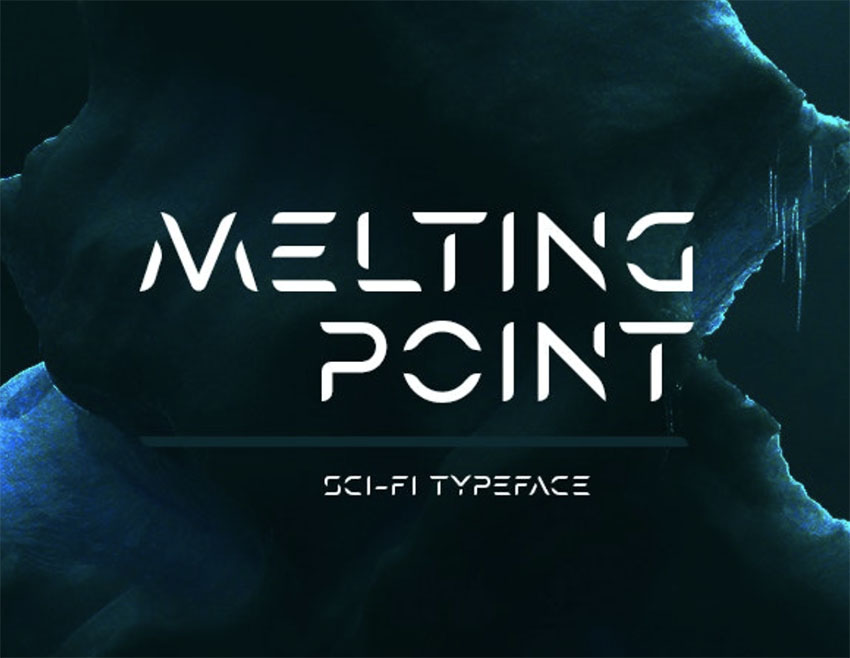
A clever font for sci-fi projects, Melting Point has an effect of ice melting in parts of the font’s stems. This stylish science font includes uppercase Latin characters, numbers, punctuation, and several foreign language characters. It comes in six different styles: regular, light, bold, italics, bold italic, and light italic.
5. Equinox Typeface

Equinox is a modern sci-fi font for Photoshop and other software. It contains uppercase Latin and foreign language characters, numbers, punctuation, and alternate letters. This versatile font comes in two weights: regular and bold.
6. Teratur Typeface

Check out Teratur, a clean and minimalist sci-fi font that offers two stylistic choices when you toggle the caps lock on and off. The all-caps font also comes in three weights: thin, regular, and bold. Mix and match the font variations to create text that is uniquely yours.
7. Blank Fonnt

Blank is a wonderful sci-fi font that captures the essence of a futuristic font design while preserving legibility. This innovative font includes both a regular and italic style and comes in three weights: thin, regular, and bold. A great choice to add a cool edginess to your next project.
8. Station Futuristic Font

Station is a superb science font that contains over 300 glyphs, including uppercase Latin and foreign language characters, numbers, punctuation, and a host of other characters and symbols. The font is offered in three styles: light, regular, and stencil. Use this display type for signs, titles, and logos.
9. Etheriq Typeface

Etheriq is a fabulous sci-fi futuristic font that would look equally great used in larger or smaller sizes. This clean, sans serif type offers uppercase characters, numbers, and punctuation. A great font for sci-fi titles, posters, T-shirts, branding, logos, etc.
10. Nevan

If you’re looking for a sci-fi futuristic font for a book or movie title, Nevan is a great choice. This bold, eye-catching font is strong and solid and will stand out clearly to call attention where you most need it. The font includes uppercase Latin letters, numbers, and punctuation.
11. Exodar – Futuristic Font

Inspired by all things futuristic and sci-fi, Exodar is a great font to have in your toolbox. This strong font with rounded corners includes uppercase characters, numbers, and punctuation and is a reliable powerhouse you can use in your posters, web design, branding, and more.
Choose Your Favourite Sci-Fi Fonts Today
Envato Elements is an excellent resource for stunning sci-fi fonts for Photoshop and other software. If you regularly need mockups, icons, and other design resources, Elements offers unlimited downloads for one low monthly fee.
Alternatively, if you just want to buy a single sci-fi font, GraphicRiver is an excellent resource for high-quality fonts. Head over to either site to download your favourite sci-fi font today.
And finally, if you want more information on other terrific font styles, check out these really helpful articles below:
 Fonts39 Best Futuristic FontsNona Blackman
 Fonts35 Best Block Fonts (Ready to Download Now)Nona Blackman
 Fonts28 Best Art Deco FontsNona Blackman
 Fonts21 Best Small Fonts (Pixel & Tiny Fonts to Download Now)Nona Blackman
 Fonts34 Best Fun Fonts (Download Now to Use)Nona Blackman
 Fonts29 Best Monospace FontsNona Blackman

{excerpt}
Read More
Hacked NES Power Glove controls a modular synth with finger wriggles
Never mind controlling a modular synth by twiddling knobs. If one modder has his way, one of Nintendo’s legendary controllers is the way of the future. Look Mum No Computer (aka Sam Battle) has hacked an NES Power Glove into a gesture controller for…