Woof, what a week it’s been. As the IFA conference winds down and gadget release season heats up, let’s take a look at some of the headline highlights of the past seven days. Engadget Ford's electric Mustang dragster covers a quarter-mile in 8.27 se…
Category: Tutorials
Tutorials,freelance,projects,joomla,php,mysql,wordpress,blancer.com
25 Cool Photoshop Watercolor Effects & Filters With Texture
Create beautiful watercolor art with simple Photoshop actions! Check out these amazing Adobe Photoshop watercolor effects we’ve gathered for you.
Watercolor is one of the coolest mediums to explore. All you have to do is begin by mixing colorful paints with the magical qualities of water for stunning, artistic results.

But if you don’t have as much time on your hands, you can achieve the same realistic effects with just a Photoshop action! And we’ve put together a great selection of premium watercolor filters and add-ons to help give your photos and designs cool watercolor textures.
Hand-picked from the latest assets to hit Envato Elements and Envato Market, these Adobe watercolor actions are incredibly easy to use, even if you’re a beginner to Adobe Photoshop. Want to see these effects in action? We’ve tried a few out!
Envato Elements: Get the Best Photoshop Effects (With Unlimited Use)
Envato Elements is our subscription-based marketplace. This means that for a low monthly price, you can go there and download as many Photoshop watercolor styles as you need. We’ve got thousands of Photoshop actions, add-ons, and all the digital assets you may need.

This is a great offer if you’re a photographer, graphic designer, digital artist, avid Photoshop user, or if you’re in any creative field and constantly work with design software.
15 Top Adobe Photoshop Watercolor Effects to Get From Envato Elements
Let me share with you some of the coolest Adobe watercolor actions we’ve got. You’ll be creating cool watercolor paintings in no time after you see this selection.
1. Aquarelle Watercolor Painting Photoshop Action (ABR, ATN, PAT)

Have you ever wanted to create cool watercolor paintings in a fraction of the time? Now it’s possible with this unique watercolor action, which is based on traditional watercolor techniques and will turn your images into works of art. The Adobe watercolor action works great on landscapes, architecture, buildings, and still life.
2. Miniaturum – Watercolor Sketch Photoshop Action (ABR, ATN, PAT)

There are plenty of Photoshop watercolor styles to choose from at Envato. If you’re looking for a minimalist or simpler look, this watercolor action for Photoshop CC will be great for you. The action is easy to use, and you’ll have a stunning result.
3. Nostalgia – Old Watercolor Overlays (PSD, ABR)

For those who love a vintage look, this Adobe Photoshop watercolor effect hits all the marks. You can turn your photos into old watercolor framed pictures in seconds. The Photoshop watercolor filter plugin comes with 11 frames, six old paper textures, and more.
4. Watercolor Photoshop Action (ABR, ATN)

Get this unique watercolor action and create cool watercolor paintings in a few clicks. It’s one of our most popular Photoshop watercolor filter plugins because it’s really easy to apply.
5. Artistic Watercolor Photoshop Action (ABR, ATN, PAT)

This watercolor action for Photoshop CC quickly transforms your photos into contemporary creative watercolor artworks. The watercolor filter works best with figures, models, inanimate objects, and other photos. The final composition is fully layered and provides plenty of customization options.
6. Watercolor Magic Volume 1 (ABR, PAT, ASL, AI, EPS, PSD)

Now, if you need a really complete Adobe watercolor action bundle, this is a great option. This watercolor splash generator comes with 15 realistic Photoshop watercolor styles, 25 handmade brushes, 15 seamless patterns, 31 hand-drawn vectors, and the ability to combine them all with minimal effort.
7. Lively Photoshop Action (ABR)

Want a cool effect like the result below? Just use the incredible Lively Photoshop action. Mix and match colorful watercolor textures with a cool sketch effect for one insane result.
8. AquaFlow Watercolor Generator (ABR, AI, ASL, EPS, PAT, PNG)

You don’t need a photo to enjoy the lovely benefits of watercolor art. Try this watercolor generator, for instance, which allows you to create awesome, realistic textures for your shapes, logos, and text. You’ll also get a bonus of over 150 hand-crafted vector illustrations to take your work to the next level. Try it out!
9. Modernum – Watercolor Art Photoshop Action (ATN)

Transform your travel photography with fantastic watercolor effects! The Modernum action does all the work for you by applying highly detailed watercolor filters to your photos. Customize your work even further by playing with the ten different color presets available.
10. Watercolor and Pencil Action for Adobe Photoshop (ATN)

Many artists lay down their watercolor illustrations with a bit of pencil work first. And you can achieve the same workflow with this lovely Photoshop action. Get started with your favorite image before applying a number of presets. You’ll love this unique look!
11. Watercolor Photoshop Action (ABR, ATN, PAT)

Turn your selfies into magical watercolor royalty with this superb Photoshop action. Designed for portraits and more, this action comes as a well-structured file that is easy to customize. Get access to high-quality brushes and patterns, all in one file.
12. Painter Photoshop Action (ABR, ATN, PAT)

Create imaginative editorials with this awesome Painter Photoshop action. This action contains ten color effects that are fully layered and organized for hassle-free productions. Achieve countless watercolor results with one well-rounded action. Check it out!
13. Watercolor Scene Text Mockups (PSD)

Step up your social media game with this series of watercolor text mockups. These easy-to-use templates feature fully editable smart objects positioned in realistic painting scenarios. Just switch out the text with the message you want, and adjust the colors to fit your needs.
14. HyperFuze Photoshop Action (ATN)

Pump up the energy in your flyers and posters with the superb HyperFuze action. Explore fantastic watercolor textures mixed with neon colors and glowing graphics! This action is best used with versions CS3 and above, so make sure you have the latest software before downloading. Enjoy!
15. Valentinum – Sweethearts Photoshop Action (ABR, ATN)

Celebrate love with this romantic Photoshop action. Designed for romance and inspiring holidays, this action creates a cutesy watercolor effect with bonus heart shapes. Surprise your friends and family with your edits, or create a unique greeting card. Try out different effects!
GraphicRiver: Best Source for Photoshop Effects (Get One at a Time)
On the other hand, if a subscription isn’t your thing and you prefer to buy digital assets one at a time, then our single-purchase market place is the perfect option for you.

Browse through hundreds of Photoshop watercolor filter plugins and buy them when you need them. We offer premium items with the highest quality in our Envato marketplaces.
10 Best Photoshop Watercolor Styles From GraphicRiver
To show you what I mean, here are some of our best watercolor splash generators and actions available in our single-purchase marketplace:
1. Watercolor Creation Kit (ABR, PAT, ATN)

This stunning watercolor action for Photoshop CC is one of the best you’ll find. What makes this unique watercolor effect stand out is that you can choose from various texture presets. All the textures were hand-painted, scanned, and converted into seamless patterns. Apply the effect to your entire photo or reveal only the areas you want. Use it to create the most realistic and cool watercolor paintings.
2. TechnicalArt Photoshop Action (ABR, ATN, PAT)

With this bundle pack, you’ve got a selection of watercolor and traditional art effects and textures, all in a handy action! Check out how this was created in our tutorial on How to Make a Watercolor Effect in Photoshop.
3. ColoreeXign Art Photoshop Action (ABR, ATN, PAT)
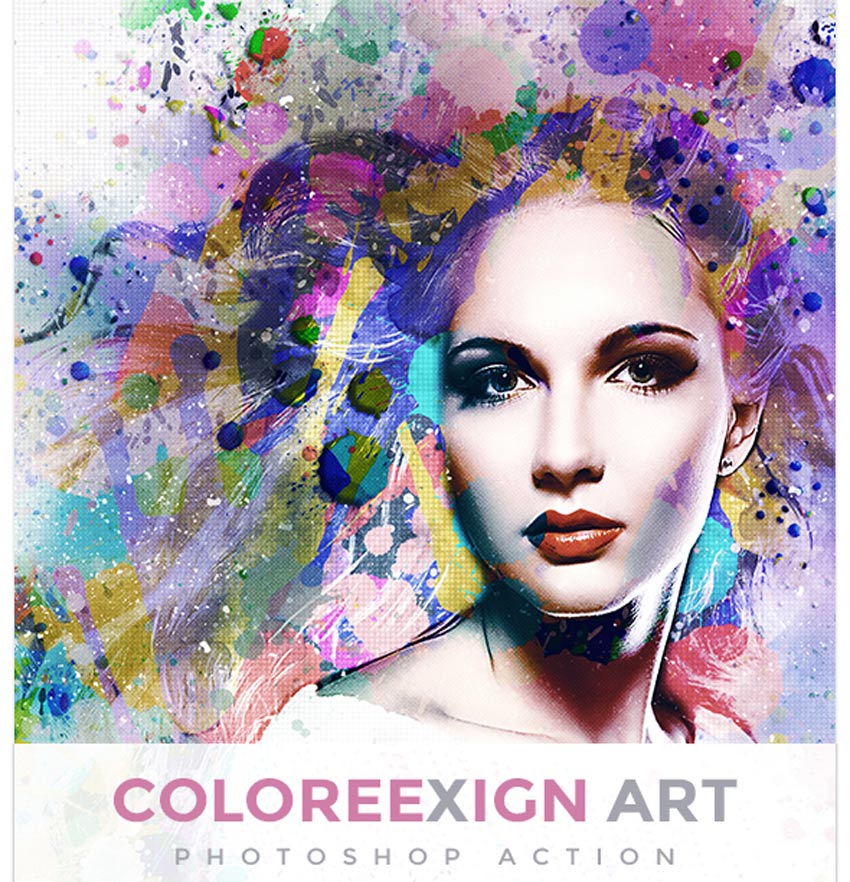
Make cool portraits with the simple click of a button! This gorgeous action creates magical, watercolor-themed portraits complete with realistic textures, splashes, and more!
4. Watercolor Oil Paint Photoshop Action (ABR, ATN, PAT)

Make the most out of your wildlife photography with this beautiful Photoshop action. Mixing two creative mediums in one, this action gives your photos that watercolor and oil painting look! Just open any image you want, and run the action to play with different effects.
5. Solid Watercolor Photoshop Action (ABR, ATN, PAT)

Architects often use watercolor as a creative medium for their architectural drawings. Get that same stunning, professional look with this watercolor Photoshop action. Choose any high-resolution image you want, and then apply the action. Give it a try!
6. MixDxign Watercolor Art Photoshop Action (ABR, ATN, PAT)

Change any object, building, or special memory into a colorful watercolor painting! This action from MixDxign lets you scale, rotate, and even blur your designs for fabulous results. Just download the action to get access to a wide variety of color effects and controls.
7. Papyrum – Vintage Grunge Photoshop Action (ABR, ATN, PAT)

Pay respect to our creative ancestors with this clever Papyrum Photoshop action. Designed to look like a recreation of vintage water and ink drawings, this action saves you valuable time by creating the effect in seconds! Get highly detailed results that look as if they were made on papyrus paper.
8. Oily Watercolor Paint Photoshop Action (ABR, ATN)

Combine the look of two popular mediums for an extraordinary effect! This oily watercolor Photoshop action creates highly detailed results with one straightforward action. It’s been specially made for photographers, designers, and artists, so use it to access your fullest creative potential. Give it a try!
9. Watercolor Vector Photoshop Action (ABR, ATN)

Achieve a watercolor plus vector effect with one simple action. Great for beginners, this Photoshop action applies cool textures to your photography for amazing looks. Just paint over the area you would like to apply the action, and press play! So easy!
10. Creative Masking Kit – Watercolor Brushes (ABR, PSD)

Check out this set of 102 hand-crafted watercolor brushes for Photoshop. We also have a tutorial to accompany this to see how the brushes were created.
Learn More About Photoshop Actions
Are you a Photoshop beginner user? Don’t worry, we’ve got you covered. Check out these cool resources to learn more about Photoshop actions.
 Photoshop ActionsWhat Are Photoshop Actions and How to Install Photoshop ActionsKirk Nelson
 Photoshop ActionsHow to Use Photoshop ActionsMelody Nieves
 Adobe PhotoshopHow to Install Photoshop ActionsMelody Nieves
Explore More Fantastic Photoshop Actions
I’m sure you feel inspired to try the Photoshop watercolor filter plugins I showed you. But in case you need more Photoshop actions and tutorials, I’ve got some cool resources for you:
 Photoshop Actions100 Super Awesome Adobe Photoshop Actions From Envato ElementsMelody Nieves
 Photoshop ActionsHow to Create an Abstract Watercolor Effect Photoshop ActionMarko Kožokar
 Photoshop ActionsHow to Create a Photoshop Oil Painting EffectMarko Kožokar
 Photoshop ActionsHow to Create a Glitter Effect Photoshop ActionMarko Kožokar
 Photoshop ActionsHow to Create a Palette Knife Photoshop ActionMarko Kožokar
 Photo Effects25 Best Photo to Pencil Drawing Effect Actions for PhotoshopMelody Nieves
 Photoshop ActionsHow to Create an Awesome Dispersion Action in Adobe PhotoshopMarko Kožokar
 Photoshop Actions50 Amazing & Cool Photoshop Action TutorialsMonika Zagrobelna
Show Us Your Watercolor Designs!
Tried any of these assets? Let us know! Tell us your favorite watercolor effects in the comments below.
This has been a collection of premium resources perfect for the avid designer. For more Photoshop watercolor styles and watercolor splash generators, check out Envato Elements and Envato Market, or enlist the help of our talented professionals at Envato Studio. Happy designing!

{excerpt}
Read More
Netflix, Amazon and Disney+ will self-regulate to avoid censorship in India
Streaming services are keen to prevent regulators from censoring their content, and they’re willing to police themselves to ensure that artistic freedom. Variety reports that Netflix, Amazon Prime Video, Disney+ Hotstar and 12 other companies have si…
Twitch will shut down its live karaoke game on January 1st
Twitch Sings will bid karaoke fans farewell after 2020. The Amazon subsidiary has announced that it’s shutting down the live karaoke game on January 1st, 2021, less than two years after it was officially launched. In its announcement, Twitch says it…
Electronic skin reacts to pain like a human
Electronic skins can already react to touch, but they’re not much good at reacting to the jabs and burns that cause pain. That’s a problem for prosthetics and robots that are supposed to have human-like responses. They may be more sensitive in the fu…
Microsoft details how it will phase out Flash support in Edge after 2020
Microsoft is providing more detail (via Bleeping Computer) about how it will drop support for Flash in Edge to dovetail with Adobe’s plans, including some notable exceptions. As expected, Flash will be disabled by default in Edge as of December 2020….
US considers blocking deals with China’s largest chip maker
The US’ trade bans on Chinese companies like Huawei and ZTE might have been just the beginning. The Defense Department has confirmed to the Wall Street Journal that agencies are discussing whether or not they’ll add China’s Semiconductor Manufacturin…
Amazon foils plot using phones in trees to get more deliveries
Amazon appears to have stopped a strange plot that used phones in trees to game delivery route assignments. Contract drivers talking to Bloomberg said that they’re now getting more routes even when they’re miles away from the Whole Foods locations th…
Volkswagen shows off ID.4’s interior ahead of official debut
Volkswagen is giving us a glimpse of the ID.4, its first all-electric crossover, before the vehicle’s official reveal later this month. The automaker has released photos of ID.4’s interior, showing its touchscreen displays — yes, it has more than one…
Facebook blocks terminally ill French man from livestreaming his death
Facebook is dealing with a test of its policies barring live streams involving suicide and self-harm. The social media giant told the AFP (via The Verge) it would block terminally ill French man Alain Cocq from livestreaming his death. The French gov…
Judge rules FBI, NSA broke the law and court orders with data collection
If you were concerned that federal agents might play fast and loose with the Foreign Intelligence Surveillance Act's Section 702 while gathering data, your worries were well-founded. The Washington Post reports that Foreign Intelligence Surveillance…
Hitting the Books: Lessons learned from gaming with the King of Sweden
Video games have come a long way from their dim arcade origins. No longer a mere niche diversion for pasty, maladjusted youth, gaming is now an integral part of modern pop culture standing shoulder to shoulder with “classical” forms of media like fil…
Recommended Reading: Behind the wheel of the Polestar 2
Driving the Polestar 2, the first electric car with a brain by GoogleAndrew J. Hawkins, The VergeThe Verge offers some first impressions of the first EV that runs Android Automotive: Google’s tech that controls things like air conditioning, navigatio…
The Morning After: macOS Big Sur preview
On Saturday morning a couple of classic game series have surprising news for us. First is Shenmue, which follows last year’s Shenmue III effort with news of a new anime series that’s coming soon. Sega fans can tune in to the Crunchyroll Virtual Indus…
How to Make a Monogram in Photoshop

Monograms are powerful tools in modern brand design. In this tutorial, we show you how to make a monogram in Photoshop. Ready to make it your own?
We’ll show you how to design a logo with two monogram letters. Envato Elements has some great monogram fonts, and we’ll be using assets from their library. If you want a great time-saver, we can show you an awesome monogram creator to design custom monograms at the end of the tutorial.
What Is a Monogram?
Monograms date back to 350 BC. Greek cities were the first to issue coins with the first two letters of the city’s name, and monograms have since been used throughout history as a practical way of identifying cities and empires. They have evolved into a form of brand design. Monograms are motifs made up of two or more letters to form a single unified symbol. Their purpose is to represent a brand, person, or company in a stylish way.
 Fonts25+ Best Free Fonts for Monograms & Logos (Download Now!)Nona Blackman
 FontsWhat Is a Monogram? Types, Designs, and IdeasLaura Keung
What You’ll Learn in This Monogram Logo Design Tutorial
- How to create a new document in Adobe Photoshop
- How to add guides in Adobe Photoshop
- How to design a monogram logo
- How to use Layer Masks in Photoshop
- How to use Smart Layers in Photoshop
Tutorial Assets
Monogram fonts are available at Envato Elements and GraphicRiver. To complete this tutorial, you’ll need the following monogram fonts:
Before we start, make sure that the fonts are installed in your system and you’re ready to create your custom monogram!
1. How to Set Up a Photoshop File for a Monogram Design
Step 1
In Photoshop, go to File > New and create a file with the following dimensions:
- Width: 1280 px
- Height: 720 px
- Portrait: Landscape
- Units: Pixels
- Resolution: 72 pixels/inch
- Color Mode: RGB
Click Create.

Step 2
We’ll create guides in the document to make sure the monogram design is centered. Head over to View > New Guide Layout. In the New Guide Layout option window, set the number of Columns and Rows to 2 and the Gutter to 0 cm.
Under Margin, maintain the default of 1.27 cm. Click OK.

2. How to Design a Monogram Logo
Step 1
Head over to the Tools panel and select the Text Tool (T). Click on the document to add a single initial; I’ll add “O”. Add another text layer with the letter “R”. Set the initials to Monogram World 5 Regular on the Character panel.

Step 2
Open the Glyphs panel by going to Window > Glyphs.
On the Glyphs panel, you’ll notice different options for the monogram letters. This specific monogram font contains wide and regular-width characters. In this case, I’ll select the wider “O” from the Glyphs panel. Select the “O” and double-click on the wider “O” on the Glyphs panel to add the character. For the “R”, keep the regular width.

Step 3
On the Layers panel, select both monogram letters by pressing Shift and clicking on each layer. Head over to the Options bar and align both letters by clicking on Align horizontal center and Align vertical center. Using the Move Tool (V), place both monogram letters in the center of the document.

Step 4
On the Layers panel, head over to Create New Fill or Adjustment > Solid Color. Add a new solid black layer.

Step 5
In the Layers panel, right-click on the “O” layer and select Blending Options to open the Layer Style window.
In the Layer Style window, check the Stroke option from the left side menu.
For the Stroke option, set the Size to 5 px, Position to Outside, and Color to White.

Step 6
In the Layers panel, right-click on the O layer and select Copy Layer Style. Right-click on the R layer and select Paste Layer Style.

Step 7
To be able to create an interlocking monogram, we need to convert the layers into Smart Objects. Right-click on each layer and select Convert to Smart Objects.

Step 8
In the Layers panel, select the O layer. Click on Add Layer Mask. Repeat this step with the R layer.

Step 9
Select the Brush Tool (B) from the toolbar. Make sure you have the Foreground Color set to Black.

Step 10
In the Layers panel, select the Layer Mask thumbnail on the R layer. While using the Brush Tool, swipe over the areas you’d like to have interlock. For me, those would be the areas where the “R” and the “O” intersect—more specifically, the top-left corner and the bottom-right corner.
Layer Masks are useful to hide and reveal parts of a layer without erasing them. If you make a mistake, you can easily fix it by changing the foreground color to white and perfecting your design.

Step 11
From here, you can get a couple of different results, depending on what you’re looking for. Here are a few examples of interlocking or merged initials.

3. How to Add Finishing Touches to the Monogram Logo
Step 1
Use the Text Tool (T) to add a text layer. I added “Oregon”. Use the Characters panel to change the settings. Set the text Size to 50 pt and the Tracking to 100.

Step 2
With the Text Tool (T) activated, head over to the Options bar. Select the Create Warped Text button. In the Warp Text options window, set the Style to Arc, select Horizontal, and set the Bend to +25%. Click OK.
Place the text over the monogram.

Step 3
Using the Text Tool (T), add another text layer. I added “Rugby Team”. Use the Characters panel to change the settings. Set the text Size to 50 pt and the Tracking to 100.
With the Text Tool (T) activated, head over to the Options bar. Select the Create Warped Text button. In the Warp Text options window, this time set the Style to Arc, select Horizontal, and set the Bend to -25%. Click OK.
Place the text under the monogram.

Step 4
Last, we’ll add “ESTD.” and “1998” on each side of the monogram logo. Select the Text Tool (T), and create one layer to add “ESTD.” Using the Character panel, set the font to Calderock, the Size to 30 pt, and the Tracking to 200.
Duplicate the layer by pressing Option and dragging the text towards the right. Additionally, press Shift to maintain the same horizontal or vertical alignment.
Select the Text Tool (T) and change the text to a year.

Step 5
From here, you can change the color of your design. Remember that we created Smart Layers for the initials. To edit the color, double-click on the Smart Layer. A new Photoshop file will open with the Smart Layer. Select the layer and open the Character panel to change the color. Once you’ve changed the color, press Command-S to Save the edits.
Close the window and you’ll see the new color in the design.

Step 6
Repeat the same step with the other initial of the monogram design.
I also went ahead and changed the color of the background through the Color Fill layer and recolored the text.

Step 7
To add dimension to the monogram design, we can add a drop shadow. Select both initial layers by pressing Command and clicking on one layer and then the second layer. Right-click and select Duplicate Layers.
Select both duplicated layers, right-click, and select Merge Layers.
Right-click on the merged layer and select Blending Options. Check and select the Drop Shadow from the left menu. Set the Blend Mode to Multiply, Opacity to 30%, Angle to 130, Distance to 25 px, Spread to 20%, and Size to 80 px. Click OK.

Step 8
Right-click on the merged layer and select Copy Layer Style. Select all four text layers added on each side of the monogram design. Right-click and select Paste Layer Style.

Congratulations, You’re Done!
In this tutorial, you learned what a monogram is: one of the most useful and powerful tools of brand design to distill a brand into a single design. Knowing how to make a monogram logo is essential for creating awesome brands. Below, you’ll find a quick monogram maker that can save you lots of time. Designing your monogram online is a quick way to freshen up your brand!
If you’re looking for monogram fonts, make sure to check out Envato Elements and GraphicRiver. They have an extensive library to be discovered. Alternatively, if you’re pressed for time, Placeit is an excellent monogram creator. Get your own custom monogram online in just a few minutes.

If you liked this tutorial, you might like these:
 Fonts39 Best Fonts for Making Monograms & Logo Designs in 2020Melody Nieves
 Fonts25+ Best Free Vintage Fonts (Free & Premium to Download!)Nona Blackman
 Fonts25+ Free SVG Fonts (Font Files to Download Now)Nona Blackman
 Fonts25+ Best Free Hand-Lettering Style Fonts (Designs for 2020)Melody Nieves
 FontsThe Must-Have Fonts for Graphic Designers and Font LoversMary Winkler
 Banner AdsHow to Make a Banner With an Online Banner MakerAndrei Stefan

{excerpt}
Read More