25 Free Social Media Marketing PowerPoint Templates (Top Business Marketing PPTs)

Facebook has over 1.7 billion daily users. Five hundred million new Tweets pop up every day. A billion people log in and use Instagram daily.

You should be marketing on social media. With the help of a social media PowerPoint presentation, plan campaigns and even create marketing proposals. 

PowerPoint templates for social media intro
Use premium social media PowerPoint templates to create shareable posts using an app you already know.

You might have found this article while searching for free PowerPoint templates with a social media theme. Don’t worry—we’ve got 20 free social media PowerPoint presentation templates selected for you. But while free is a hard price to beat, it’s unlikely that these give you the best options.

This tutorial will show you the power of premium social media PowerPoint templates for professional visuals. Social media marketing plan PowerPoint presentations are accessible when you use designs like the ones in this article.

How to Build Social Media PowerPoint Presentations With Premium Templates

Maybe you’re a beginner at social media marketing. Learning the different platforms and building your marketing materials takes too much time.

That’s why we turn to social media PowerPoint templates. The professionally designed social media for business PowerPoint presentations take your marketing to the next level. We’ll feature free PowerPoint templates with a social media theme later.

Social media PowerPoint templates Elements
Use social media marketing PPT from Envato Elements to craft your next marketing campaign quickly.

You may be tempted by digital marketing PPT free downloads you find online. But relying on one of those is usually a mistake.

The best value for social media PowerPoint presentations is Envato Elements. The templates are professionally designed, and a single subscription gives you unlimited access. No matter how many social media PowerPoint presentations you develop, your costs will never increase.

You’re sure to find other benefits when you use Envato Elements. The entire library is flat-rate, including helpful extras like:

  • Background music tracks, all available royalty-free to add to your social media PowerPoint.
  • Stock photography that fills in your social media marketing presentation with real-life scenes.
  • Graphics and illustrations that give you extra ways to show ideas in your presentation.

Later in this tutorial, you’ll see another leading marketplace for social media PowerPoint templates. GraphicRiver offers pay-as-you-go, single purchase designs of social media for business PowerPoint presentations.

5 Top Social Media PowerPoint Templates

You’ve seen the power of Envato Elements as a source for social media marketing presentation templates. It’s so deep that it helps to have a guide. Let’s look at five of the best premium social media for business PowerPoint presentations:

1. Social Media Infographic

Social media PowerPoint template

Social media is all about engagement. And with this social media PowerPoint template, you can precisely track your numbers and share them with an audience. Featuring over twenty custom infographics, it’s a great way to visualize data. Documentation is included to help you get started.

2. Social Media PowerPoint Template

Social media PowerPoint

With high-resolution graphics and custom placeholders, a social media PowerPoint like this helps you put your best foot forward. Device mockups are included as a critical feature of the template. These allow you to showcase your social presence as it looks on real devices. It’s an attractive way to boost engagement and attract new audiences.

3. Social Media Trends – PowerPoint Template

Social media advertising PowerPoint presentation

Social media is a crowded landscape, and it pays to stand out. This trendy modern social media advertising PowerPoint presentation includes 100 unique slides. Each is pre-animated, and many feature simple drag-and-drop content placeholders. That means you can build a fantastic slide deck in moments—no editing skills required.

4. Social Network PowerPoint

Social network PowerPoint presentation template

Sure, you can find a free social media PowerPoint presentation template. But for the most significant impact, turn to an expertly designed premium option like this, featuring:

  • hundreds of stylish icons
  • full HD widescreen graphics
  • studio-quality animations
  • custom placeholders

It’s simply far superior to free options you might find around the web.

5. Social Media Guide PowerPoint Template

Social media PowerPoint presentation download

Direct an audience straight to your social media presence, thanks to the Social Media Guide PowerPoint template. It’s a winning social media PowerPoint presentation download. 

This one is loaded with all the slides you’ll need to meet your marketing goals. Inside, you’ll find a full suite of charts and graphs to highlight numbers and plenty of text boxes to add in more details.

More Top Social Media PowerPoint Templates to Download Now From GraphicRiver

GraphicRiver is another premium marketplace that presentation pros turn to. It includes top social media PowerPoint templates, but the model is different. You can buy single social media PowerPoint templates and pay-as-you-go.

GraphicRiver social media PowerPoint template
GraphicRiver gives you the option to buy single social media for business PowerPoint presentations.

GraphicRiver keeps costs low by letting you buy single templates. Check out five of the best premium social media for business PowerPoint presentation options here:

1. Social Media Presentation Template

Social media marketing PPT template

Built by professionals, Social Media Presentation Template is a key part of your marketing success story. Every slide is completely customizable to fit your mission perfectly. A robust animated pack, it works equally well as an intro or an in-depth study. With 24 slides to choose from, the choice is yours.

2. Social Media PowerPoint

Social media for business PowerPoint presentation

Social media is a visual thing, so you should capture that in your next presentation. This social media for business PowerPoint presentation is illustrated with images, icons, infographics, and more. All you’ve got to do is quickly drop in your specific content. It’s the perfect way to show off your business social media.

3. Social Media PRO – PowerPoint Template

Social media pro PowerPoint template

Need a professional social media PowerPoint template for your next slide deck? You’ve found a top choice with Social Media PRO, a handcrafted premium template for all your social media needs. Explore features including:

  • standard and widescreen layouts for any display
  • many color palettes to instantly change the style
  • drag-and-drop image placeholders for your photos
  • stylish free fonts

In just a few clicks, you can build an unforgettable slideshow of your own, thanks to this template.

4. Digital Marketing and Social Media PPT Pitch Deck

Digital pitch deck social media PowerPoint template

Digital and social media marketing often operate on a tight budget. That means you need to make every dollar count, including your choice of premium templates. 

You won’t find this quality in digital marketing PPT free downloads. For unmatched value, this custom social media pitch deck is the right choice. With hundreds of versatile slides, you can rapidly tailor this digital marketing PPT template to fit any project.

5. Social Media Report

Social media marketing plan PowerPoint presentation

A crucial element of any social media marketing plan PowerPoint presentation is the tracking of growth and engagement. Built-in a dynamic report style, a template like Social Media Report template for PPT helps you do just that. With sleek charts and concise infographics, it helps your audience instantly grasp concepts and ideas. Come prepared with your data, and you’ll be all set.

20 Free Social Media PowerPoint Templates for Download in 2020/2021

Before looking for a free social media marketing PPT template on the web, check Envato’s free offerings first. Try out various premium template files (not always social media marketing PPTs) at no cost to you.

Here’s the deal:

If you didn’t find what you need above and you’re starting at a budget of “zero” as you launch your social media marketing efforts, you might need a free template. We’ve found working templates across the web that you can try. Here are 20 free social media PowerPoint presentation templates:

1. Social Media Proposal (PPT)

Social media marketing proposal PowerPoint

Trying to build a social media marketing proposal PPT PowerPoint quickly? With plenty of pre-built placeholders, you can do it with this free template. Over 40 slides are included in the social media proposal for PPT pack.

2. Barnwell Free Business Presentation

Barnwell offers a variety of slides in a free PowerPoint template with a social media theme. Graphs and charts are included, which you can adapt to your data with PowerPoint’s editing tools.

3. Light Sales Pitch Presentation

Free social media PPTX template

Selling is a big part of social media marketing. As a free social media marketing plan PowerPoint presentation, this template doesn’t include some features found in premium options. But it’s always available as a basic intro you can build out in a hurry.

4. Free Marketing Analytics PowerPoint Template

Designed with analytical reports in mind, this free deck has many slides with a blue-green theme. Ample space is offered for you to share your reports, charts, and more.

5. Free – Ravi Social Media Pack

Ravi, a free social media PowerPoint presentation template, helps you craft content for your key networks. It’s got a minimalist aesthetic that translates to the smaller screens commonly used for social networks.

6. Cordelia Presentation Template

Free PowerPoint templates social media theme

A free social media PowerPoint presentation template like Cordelia is a fast way to get your social media networks in front of an audience. Keep in mind that templates like this aren’t as versatile as premium options. That means it’s up to you to arrange your content in a dynamic style.

7. Free Social Media PowerPoint Template

Twenty-three slides are built into this social media report PowerPoint template for free. The default color purple can quickly be changed to mix up the appearance. It’s arranged in the widescreen layout common to many projectors.

8. Modern Minimal Free PowerPoint Template

The title of this pack speaks for its design aesthetic. Plenty of space is reserved for images and other visual tools needed to drive social media engagement. 

9. Free PowerPoint Template – Social Media Presentation

Social media report PowerPoint template free

Many slide layouts and an assortment of designs drive this clean social media template free for PowerPoint. The title slide features icons of the most popular networks. Inside are text layouts, infographics, diagrams, and more.

10. Creative Red Presentation

With a red color palette, this free social media PowerPoint presentation download is certainly a bright design. Inside, slide layouts are controlled fully by PowerPoint’s built-in tools. That means you can arrange your content simply by using the default menus.

11. Nathaniel Presentation Template

The graphics in the Nathaniel Presentation Template, a free social media PPT download, have a hand-drawn appearance. An assortment of slide types is built-in, so you can pick and choose layouts to fit your needs. 

12. Marketing Strategy Free PowerPoint Template

Marketing free PowerPoint tempaltes with social media theme

Your social media marketing proposal PPT PowerPoint likely needs a few crucial features: a mission, specific goals, traffic numbers, and more. All can be shared in this free marketing PowerPoint template, with 16 slides. Don’t forget to use PowerPoint to mix and match fonts, colors, and much more. 

13. Minta Free PowerPoint Template

Minta has a focus on numbers, which often describe the leading indicators of a social media marketing plan. You can download it, a social media report PowerPoint template for free. Then, fill your relevant details into the pre-made placeholders.

14. Optical Presentation Template

Social media largely exists on mobile devices, so it can be useful to show your profiles on those devices. Optical includes a set of placeholders to allow this, in the form of customized device mockups. Your task: drop a screenshot in, and you’re ready to roll.

15. Free Social Media Management PowerPoint Template

Free social media marketing proposal PowerPoint

A PowerPoint templates social media free download pack is an option to detail your profiles, networks, and more visually. With text boxes and clear visuals, this one is customizable enough to fit your personal goals.

16. Gaoler Presentation Template

Gaoler defaults to a blue theme, but thanks to PowerPoint you can alter it with just a few clicks. That’s an important step to building a slide deck that matches your branding and personal style. PPT’s built-in options allow you to introduce plenty of content with equal speed.

17. Free Simple PowerPoint Template

With over 20 slides, this free social media PowerPoint presentation template provides different layouts arranged for any type of content. Plus, you can build slides of your own with PowerPoint itself. Vector graphics are used for clear and readable visuals.

18. Social Media – Education

Free social media advertising PowerPoint presentation

Inform audiences of your social media presence: that’s the only way to boost engagement. With colorful slides, the Social Media – Education template merges higher learning and popular social channels. Simply drop in your details and go.

19. Biz Plan Free PowerPoint Template

Social media marketing plan PowerPoint presentation free downloads like Biz Plan let you document your path to growth and success. A dozen slides are included in the pack, with editable and resizable graphics.

20. Free Social Media PowerPoint Template

Opening with popular network logos and packing several extra slides, this free marketing social media PPT can be used for brands big and small. Don’t forget to explore custom color options, new fonts, and more.

How to Quickly Make Great Social Media Marketing Presentations

Throughout this tutorial, you’ve seen social media marketing templates that you can use for PowerPoint. We’re big fans of saving time by sourcing pre-built designs.

You might be concerned that these templates won’t match your style and purpose. That’s why we’ll use this section to customize three key slides. We’re going to work with the premium Social Media Infographic PowerPoint from Envato Elements.

Social media infographic PowerPoint template
We’ll work with this premium social media marketing plan PowerPoint presentation in this section.

Let’s customize three slides in three steps to create social media PowerPoint presentations:

1. The Traffic Source Slide

Traffic Slide Before

As you build your marketing materials, you’ll want to consider how your audience consumes content. With slide 18, you’ve got the perfect slide to show your traffic sources.

  • Adjust the percentages. Type over the placeholder percentages to include data that matches your traffic trends.
  • Update the title and text. Describe the specific trends you’re observing by updating the text boxes, including the title.
  • Scale the device icons. As you adjust the percentages, it helps to size the device icons accordingly. Just click on them and scale them down by dragging the corner handle.
Traffic slide after

2. The Laptop Infographic

Laptop Mockup Before

Audiences love infographics as a way to understand data. And your audience is sure to love slide 5, a laptop mockup that you can use to show how much time or spend you’ve got on each social platform.

Three tweaks make this slide great:

  • Update the icons. On the right side, the built-in statistics show an example. But if you want to adjust the percentages, you’ll need to make the icons match. Right-click and choose Ungroup, then copy and paste the empty and closed icons to mirror the percentages.
  • Update the text. Make sure to type over the slide title and details on the right side to match your purpose. 
  • Update the data. Right-click on the table and choose Edit in Excel. Then, type over the numeric values and watch the chart update automatically.
Time spent After

3. The Facebook Slide

Facebook slide before

Slide 10 is a great option to plan your Facebook marketing efforts. Use the graphic to show the proportion of time that you’ll split between your efforts on the platform. Let’s customize it:

  • Resize the shape portions. As you change the percent of each effort, you’ll want to resize the individual shapes. Click and drag them to roughly match the percentages for each effort. (No need for perfection here!)
  • Update the plans. Type over the plans with your percent of time and details. This builds confidence in the campaign.
  • Give the title a slide. Like “Our Plan for Facebook,” as you see in my example.
Facebook plan after

5 Quick Social Media PowerPoint Presentation Tips for 2020/2021

If you want your marketing presentation to stand out, choosing a template is just the beginning. Here are five quick tips that’ll help you create a standout social media PowerPoint presentation:

1. Be Visual With Data

If you’ve got a lot of statistics or if you want to show the results of your marketing efforts, displaying data in a visual manner is the way to go. A premium infographic social media PowerPoint presentation is an excellent choice to share graphs, charts, and other ways of displaying progress.

Social Media Infographic for PowerPoint
Premium Social Media Infographic for PowerPoint

2. Add Animations

Make your PowerPoint presentation more visually appealing. Add subtle animations to slide elements or as slide transitions. 

3. Experiment With Color

Use color for subtle accents throughout your social media marketing presentation. You can also use it for a slide background like in the premium social media PowerPoint template below. Background color works really well when you use color as an overlay on an image to make your text stand out more.

Social Media PowerPoint Template
Premium Social Media PowerPoint Template

4. Use Built In Layouts

Even if you’re using a PowerPoint template, you can still use the built-in layouts to add extra slides to your presentation. They act as a basic blueprint for your content so all you’ve got to do is drop in your content. 

5. Use Plenty of Images

Images are another way to make your presentation more dynamic and interesting. Make sure they’re high quality. Easily add images using image placeholders found in most premium PowerPoint templates.

Marketing Presentation Template
Premium Marketing Presentation Template

5 Benefits of Using the Premium Social Media PowerPoint Presentation Templates (In 2020/2021)

Are you still on the fence about using a premium social media PPT template for your social media marketing presentation? You might wonder about the value of using premium templates when there are so many free ones to choose from. 

Here are five reasons that you should use a great digital marketing PPT template for your next presentation in 2020/2021:

  1. It saves you time. A premium PowerPoint template will have all the necessary elements in place so all you have to do is drop in your content into the placeholders. 
  2. Professional design. Let’s face it. Design is best left to professionals. A premium PowerPoint template will give you a polished and high-end look for your presentation. Skip the high designer price tag or you having to learn design theory.  
  3. Tons of ideas for content. If you’re struggling with what to include in your presentation, a good PPT template will save the day. They have tons of ideas built into the slides so all you have to do is add your own information. 
  4. Plenty of customization options. Even though premium PPT template has built-in styles and professional design, that doesn’t mean you’re stuck with that look. You can easily change fonts, customize colors, and more. 
  5. The slides stand out. While Microsoft does have some built-in templates, they don’t offer the most modern or professional look. What’s more, everyone uses them. By using a pro template, your presentation is sure to stand out. 

Benefits of Envato Elements (The Power of Unlimited Use)

Envato Elements is a unique service. It’s a flat-rate subscription that includes thousands of great digital marketing PPT templates for a single flat-rate price.

social media marketing powerpoint templates on Envato Elements
Social media marketing PowerPoint templates on Envato Elements

Sign up for Envato Elements and get access to thousands of unlimited use templates and design assets. Choose from web themes to social media marketing presentation PPT templates, and more—all for one low price. 

Common PowerPoint Questions Answered (FAQ)

If you’re thinking about using PowerPoint for your presentation, you might have some questions about this powerful program. Here, we’ve gathered some of the most common questions people ask about Microsoft PowerPoint to provide you with some answers: 

1. Is PowerPoint Better Than Keynote?

Both Apple Keynote and Microsoft PowerPoint are powerful programs for creating presentations. They each have their own set of strengths and weaknesses. The answer to which program is better depends on your familiarity with the software.

The following article compares Keynote and PowerPoint:

2. Can I Edit Master Slides in PowerPoint?

Master slides are a great time-saving feature in PowerPoint. Edit them to quickly apply changes across many slides. Learn more in the tutorial below:

3. How Do I Convert My Presentation Into Video?

In some cases, you’ll need to create a presentation and then convert it into video. Luckily, PowerPoint makes this easy with its built-in export options.

Discover how to convert a PowerPoint presentation to video in this tutorial:

4. How Do I Embed Excel Data into PowerPoint?

Embedding your Excel data into PowerPoint is useful when you need to show statistics or any other type of numerical data. 

Learn how to embed Excel files into PowerPoint:

5. Can I Collaborate with Others on My PowerPoint Presentation?

Yes, you can! All it takes is uploading your presentation to the Cloud. Then use built-in sharing features to invite your collaborators.

Study the following tutorial to find out more about PowerPoint collaboration

Learn More About Working With PowerPoint

PowerPoint is a tool used by professional presenters the world over. While it’s easy to get started with, it might feel like drinking from a firehose as you learn every needed skill to present confidently.

With so much to learn, you need an excellent launchpad to learn PowerPoint. Use our guide for beginners, How to Learn PowerPoint Quickly (Complete Beginner’s Guide).

Make sure to check out some of our top tutorials as you learn to customize your social media for business PowerPoint presentation:

Discover More Great PowerPoint Templates With Stylish Designs

No matter what type of presentation you’re designing, there’s a template for the occasion. Social media marketing plan PowerPoint presentations are just one type of template you can use.

Here are even more PowerPoint templates to try:

Start Using Social Media PowerPoint Templates Today

If you’re running a business in 2020/2021, you can’t skip social media marketing. Creating a proposal or planning your campaign with a social media PowerPoint template is a great way to save time.

Sure, you’ve seen free social media PowerPoint presentation templates. But you’ve also seen the significant added value of advanced social media for business PowerPoint presentations. You can use social media PowerPoint templates from pro designers to create an outstanding plan.

There’s never been a better time to start marketing on social than now. Use these social media PowerPoint presentations to do just that, easily.

Editorial Note: Our staff updates this post regularly—adding new, exciting social media marketing PowerPoint templates with the best, trending designs.

{excerpt}
Read More

25 Best Nonprofit Annual Report Template Designs for 2021

Do you struggle to present your nonprofit’s accomplishments and projects in a non profit annual report? Do you know how to organize your annual report clearly?

LEVIDE Corporate Nonprofit Annual Report
LEVIDE Corp. Nonprofit Annual Report template is one of the many eye-catching and modern annual templates available on Envato Elements.

Detail your nonprofit’s mission, growth, and statistics with nonprofit annual report templates. The template will help quickly create an effective report that’s easy to understand. 

Annual reports are an integral part of a nonprofit’s future success. Use your non profit annual report to attract potential partnerships and sponsors. Report information must be displayed in a professional manner. While free annual report template non profit designs might be appealing, premium offerings can save both time and money, in the long run.

Check out all the top-selling non profit annual report available on Envato Elements. We’ve also got the best nonprofit annual report template designs on GraphicRiver. Consider picking one up today or consider them sample nonprofit annual report designs for your inspiration.

Best Nonprofit Annual Report Templates on Envato Elements (With Unlimited Use)

Explore the hundreds of the best nonprofit annual report design templates on Envato Elements. For one low monthly fee, download as many annual report templates for nonprofit organizations as you want. You can also download all the other resources available on Envato Elements for your nonprofit such as:

  • web themes
  • photos
  • presentation templates
  • and more 

All Elements design templates available come ready to use. They feature stylish designs and are fully customizable to help you make the best possible annual report for your nonprofit.

annual report design templates Envato Elements
Browse through the 1,400+ nonprofit annual report templates on Envato Elements.

The unlimited downloads that Elements offer lets you try out as many annual reports for nonprofits templates as you’d like. 

Use the nonprofit annual report template designs included in Envato Elements to present relevant financial data and highlight your nonprofit’s achievements. An effective report can help generate new business and promote your organization. 

The templates that come with Elements include a variety of features:

  • images, text, and backgrounds
  • free fonts 
  • adobe in design compatibility
  • modern designs 
  • complete customization of the templates

With these annual report templates for nonprofit organizations, focus on inputting the information into the template. Don’t worry about the design. 

5 Nonprofit Annual Report Templates (From Envato Elements 2021)

If you need to create an annual report for your nonprofit, the templates at Envato Elements can give you a head start. Here’s a list of some of our best nonprofit annual reports templates: 

1. Creativity Design: Annual Report Template for Nonprofit Organization

Creativity-Design Nonprofit Annual Report Template

This template ensures that you’ve got a visually pleasing annual report to showcase your nonprofit. Join Envato Elements and grab this annual report template for your nonprofit. You’ll see how easy it is to create a nonprofit annual report. 

Don’t be tricked by a nonprofit annual report template you find for free online. You won’t bet the same quality as in this professionally designed non profit organization annual report format.

2. Pro-GH: Nonprofit Annual Report and Corporate Identity Brochure

Nonprofit Annual Report and Corporate Identity Brochure

This template for nonprofit organizations serves as an annual report. You can also use it as a corporate identity brochure. This stylish and modern looking twenty-four-page template can be a great accompaniment to any business meeting. It’ll display your nonprofit in a positive light.

3. Visual Colony: Uni Brand Nonprofit Annual Report

Visual Colony Uni Brand Nonprofit Annual Report

Visual Colony created this template to be a showstopper. Images and graphics are the main focus of this design to help you create a stunning nonprofit report. This 20-page template comes ready to print. It’s U.S. letter or A4 size. This quality of this impressive-looking nonprofit annual report template can’t be found for free. So, join Envato Elements today and get this nonprofit annual report template now!

4. Egotype: Nonprofit Annual Report Template

Egotype Nonprofit Annual Report Template

The key to a good design template is flexibility. Egotype ensures that you can customize this nonprofit template design to fit your exact needs. This template is split up into two parts to keep your presentation organized. The first section is for photos and information about your nonprofit. The second section is for your financial details. 

5. andre 28: Nonprofit Annual Report Template

Nonprofit Annual Report Template

This minimal template is grid-based, flexible, and ready to print. The 24-page InDesign template gives you a quick and easy way to get your nonprofit template started and completed now. This annual report design comes with PDF documentation, free fonts, paragraph styles, and much more. 

Envato Elements (Design Without Limits)

Envato Elements Design Without Limits
Envato Elements – Unlimited awesome template downloads for one low price. 

Join Envato Elements by taking advantage of their all-inclusive offer.

By signing up for Envato Elements, you’ll get access to all the nonprofit annual report templates. You can also access the thousands of unlimited use graphics and templates available

You read that correctly! Download anything you like from the entire Envato Elements library. Included in Elements are graphic and presentation templates, WordPress themes and plugins, photos, videos, and much more. Sign up now!

Envato Elements is a great option if you’re looking to take advantage of everything that it’s got to offer. But if you’re looking to buy high-quality nonprofit templates one at a time, check out our selection from the GraphicRiver marketplace below. 

The Best Nonprofit Annual Report Templates on GraphicRiver (Buy One at a Time for 2021)

In the GraphicRiver marketplace, choose from over three thousand eye-catching nonprofit annual report templates. Like the templates offered in Envato Elements, these templates are a valuable resource to display your nonprofit’s financials and promote your nonprofit. Buy these annual report templates for nonprofit organizations one at a time.  

Here are some of the best-selling nonprofit annual report templates for 2021:

Best-Selling Nonprofit Annual Report Templates
View all the powerful and stylish nonprofit annual report designs that GraphicRiver has to offer.

Present your nonprofit’s financials. Highlight your past success. Or provide more general information to clients or prospective businesses. Whether you’re looking for sample annual report for small nonprofit pdf centric templates or charity annual report template designs, GraphicRiver has annual reports for nonprofits templates to help you create a successful annual report.

20 Awesome Nonprofit Annual Report Template Samples from GraphicRiver for 2021

Here’s a curated list of sample nonprofit annual reports:

1. Charity Annual Report Template

Charity Annual Report Template

If you’re looking for a charity annual report template, look no further. This design would be perfect for your small nonprofit annual report template needs. But it could also be adapted and expanded for larger projects too. You won’t find this detail in a free annual report template for a non profit.

2. Nonprofit Annual Report Template InDesign

Nonprofit Annual Report Template InDesign

Isn’t this annual report template stylish? Remember, you can easily go in and edit the aesthetic here to match your professional brand. Add your own images, change the colors, or completely mix things up using this design as your starting point.

3. -Be Creative-: Proposal

Proposal

This five-star proposal template is a great fit for all your reporting and corporate identity needs. This template has a ton of features that’ll be integral to putting together your annual report such as:

  • 26 pages 
  • includes PowerPoint presentation
  • plenty of image placeholders

4. Charity Annual Report Template

Charity Annual Report Template

This non profit annual report has lots of potential. Not only is it designed for all your annual report needs, it could also be remixed for a host of other business applications. It even comes in more than one size with many options for your added convenience.

5. Temp-ly: Nonprofit Annual Report Template

Temp-ly Nonprofit Annual Report Template

Temp-ly: Nonprofit Annual Report Template is a comprehensive report. It’ll help you showcase what your business has achieved in the previous year. 

Whether you’re showing this annual report to your boss, looking to gain new customers, or are pitching a new idea, you need a compelling annual report. This has more to offer than any free annual report template for a non profit you might find online.

6. Realstar: Flexible Annual Report Template

Realstar Flexible Annual Report Template

To make an impact when giving a presentation about your nonprofit, you need creative visuals that clearly communicate your business’s goals and financials. 

This nonprofit annual report template features a modern design that’s made to persuade. Whether you need to pitch investors, showcase your company at a conference, or let people know about your nonprofit, this annual report has what you need.

7. Annual Report Themes Nonprofit

Annual Report Themes Nonprofit

This charity annual report template is perfect for your next project. It uses free fonts, comes with a whole host of layout options, and is easily customizable in Adobe InDesign. Download the included nonprofit annual report template InDesign file today.

8. andre28: Annual Report Proposal Template

Annual Report Proposal Template

Annual Report Proposal Template is a beautiful multipurpose annual report brochure template. It’s got a clean and modern design that’s fully customizable. What’s great about this template is that anyone with a very basic knowledge of Adobe InDesign can customize it.  

9. Annual Report of Non Profit Organisation

Annual Report of Non Profit Organisation

If non profit organization annual report template format considerations are on your mind, give this template a look—you get two options here! Use this template in both Adobe InDesign and Microsoft Word.

10. mikinger: Modern Brochure

Modern Brochure

Present your nonprofit with this contemporary 24-page brochure. The brochure is so flexible that you can easily turn it into a 52-page brochure. The creator of the template made sure to give you plenty of ideas to help inspire you to share all the information that’ll help present your nonprofit. As a bonus, you can also choose between five different cover options.

11. Graficso: Modern Annual Report

Graficso Modern Annual Report

This annual report template is divided into two parts. The first part contains photos and a narrative to provide all the pertinent information about your nonprofit. The second part contains the actual financial details displayed in text and graphic form. 

12. Greenishco: Stylish Nonprofit Annual Report

Greenishco Stylish Nonprofit Annual Report

Greenishco nonprofit annual report is a clean and professional 16-page corporate business brochure. All you’ve got to do is add in your own pictures and texts, and you’ll be ready to print the report out. 

The brochure works great as a corporate identity brochure as well as an annual report. Plus, you could also showcase a new project for your nonprofit as there are a few pages in the template dedicated to this.

13. Creativesigne: Powerful Annual Report Template

Creativesigne Powerful Annual Report Template

If you’re looking to display more than your nonprofit’s financials, then this is the template for you. This template will tell your entire organization’s story in a graphics-rich booklet. 

This design has pages for you to add your business’s policy, history, strategy, and timeline and is print-ready.  

14. fathurfateh: Annual Report 

Annual Report 2019

This Adobe In Design annual report template features a creative layout using modern graphics. Change the colors in the template to match your brand. Create a section for your nonprofit’s team members. Showcase what clients are saying. Or insert tables and charts. Grab this all in one template on GraphicRiver now!

15. Nonprofit Annual Report Template in Landscape

Nonprofit Annual Report Template in Landscape

With its unique landscape layout, this nonprofit annual report is sure to stand out. The charity annual report template is based on free fonts for your convenience. Customize it for your organization with Adobe InDesign.

16. Annual Report Brochure Ver 2.0

Annual Report Brochure Ver 20

Need high-quality infographics in your next nonprofit annual report template? Annual Report Brochure Ver 2.0 gives you tons of infographics to choose from in this 18-page template. 

The template has a yellow, gray, and black theme that works well for non profit annual reports. It can be edited if it’s not the right color scheme for your report. Besides the infographics, there’s plenty of room to add images on the template.  

17. 24 Page Annual Report Brochure

24 Page Annual Report Brochure

This easy to edit template works great as a sample annual report for a small nonprofit. It’s got a dark red accent color throughout the whole document. And it’s got text, image placeholders, and detailed graphs and charts. This template comes across as serious, informative, and professional. 

Here are a few of the features of this template:

  • 24 unique pages included
  • 300dpi
  • CMYK color
  • bleeds 3mm

18. Divided Annual Report Template

Divided Annual Report Template

If you need a template for your nonprofit that includes different color versions, then this template has you covered. Visually-appealing graphics and charts, spacious page designs, and layered page designs are what you can expect from this high-quality template.

Here more specifications for this template:

  • 36pp InDesign document
  • 2 sizes: A4 & US letter
  • change to your brand color
  • 4 cover options
  • compatible with Adobe InDesign CS4, CS5, CS5.5 & CS6

19. Report Template – Great for a Charity Annual Report Template

Report Template

This annual report template comes packed with eye-catching graphics and graphs that are sure to look professional. Many of the pages in this template have plenty of space for you to add detailed information about your specific report. Try it out as a sample nonprofit annual report.

Here are a few specs for this annual report template:

  • 28 pages included
  • 2 sizes: A4 & US letter
  • compatible with Adobe InDesign CS4, CS5, CS5.5 & CS6/CC
  • includes .IDML file
  • vector diagrams and icons

20. Annual Report Clean InDesign Brochure

Annual Report Clean Indesign Brochure

The Annual Report Clean InDesign Brochure will help you save time and money by giving you an already professionally designed template. It’ll not only showcase your non profit annual reports, but your business’s information, corporate publications, and any type of financial reports. 

Here are a few notable features for this template. 

  • 16 pages included
  • 300 dpi
  • master pages included
  • CMYK
  • fully editable

Let’s now go over how you can customize an Adobe InDesign annual report template.

How to Customize an InDesign Annual Report Template for your Nonprofit

Adobe InDesign is a strong option when it comes to non profit organization annual report format choices.

We’ll use this nonprofit annual report template InDesign file for this walkthrough. To work along either use this sample nonprofit annual report or use a different non profit annual report template of your choice. 

Note that you also can also work with a multi-page template, outside of designs created with nonprofits in mind. A great template can be adapted for a variety of situations!

nonprofit annual report template indesign
Download this Nonprofit Annual Report Template InDesign file, and many others, on Envato Elements.

Let’s get started:

1. Understanding Guides

The first time you open an InDesign document, you might be a little visually overwhelmed. You might see a whole bunch of different rectangles and lines all over your document.

But don’t worry—none of these lines will print. Some of them are guides. Like the name sounds, they’re visual guidelines in your document. Create guides of your own by clicking and dragging from your Ruler in your work area.

If you’d prefer not to see the guides (especially if they came included with your template), go to View > Grids & Guides > Hide Guides.

InDesign Guides

2. Understanding Rectangular Frames

But even with your guides hidden, you’ll likely still see rectangles all over your document. What’s up with that?

Well, in Adobe InDesign, most content is “held” within a rectangular frame. For example,  look at the text below. See how the text appears to be inside of a box? This is a text box—or a rectangular frame that holds our text. We can resize this text box if we select it with our Selection tool. 

Think of this like the space our text is allowed to occupy.

Don’t want to see the Rectangular Frames? Hide them by going to View > Overprint Preview.

InDesign Rectangular Frame

3. Edit Text With the Type Tool

Now, let’s look at that same text box and make some edits to the text using our Text tool, as highlighted below.

It’s as simple as selecting the Text tool and clicking on the type. You’ll notice that it acts much like standard word processing software. Note that this text box is our active area—this is specifically where we’re adding and editing text.

Want to create a new text box? With the Type tool selected, click and drag to draw a new text box. Then, add text just as you did in the previous example.

InDesign Edit Text

4. Placing Images in Adobe InDesign

Next, let’s look at some other content we can potentially add to rectangular frames—images. Using the Selection tool, select one of the empty placeholder rectangular frames in your document.

Then, go to File > Place. You’ll be prompted to select an image from your computer. In this demonstration, we’ll use this stock image, right here.

Then, InDesign will automatically insert your chosen image into the rectangular frame. 

InDesign Place Images
Stock Imagery by dotshock on Envato Elements.

5. Save and Export Your Work

Remember to save your work! If you go to File > Save, you’ll most likely be prompted to save an INDD file—which is an InDesign Document file type. 

This file type is a great fit for saving a working—and editable—version of your work. But it’s not always the best choice for final distribution. For example, an INDD file would not be web friendly.

In cases like that, your goal might be to export something like a PDF file. Luckily, you can find these options under File > Export. Choose from a variety of files, such as PDF, ePUB, JPG, and more.

InDesign Export Settings

What Goes into a Nonprofit Annual Report? 3 Quick Tips for 2021

To get the most out of the templates presented in this article, make sure you’ve got a plan to put in place. This will ensure that you’re presenting the most valuable information to whoever reads your report. It’ll also give your nonprofit the best chance of attracting more donors.

Below I’ll share a few tips and techniques you can use to create a complete nonprofit annual report. You’ll find what you need whether you’re looking to work with a small nonprofit annual report template, a charity annual report template, an NGO annual report template, or an annual report of non profit organisation for any type, size, or focus.

1. Create a Plan

When your nonprofit takes on a project, the first step is to create a strategy. The same approach goes for your annual report. Here are a few key pieces of information that you’ll need to gather to make the most out of the report

  • collect all your financial statements
  • collect fundraising metrics 
  • collect feedback from your nonprofit’s supporters 
Pro-Gh Annual Report
Pro-Gh: Annual Report from Envato Elements

2. Structure the Nonprofit Annual Report

The structure of your nonprofit annual report must be laid out in a way that shows all the essential information. Structure your report to ensure the reader of the report understands what your nonprofit is about and where it’s heading. Here’s a suggested outline:  

  • clear mission and focus
  • list of projects you initiated
  • financial statement
  • details about major contributions

Using this structure will give your organization consistency and create a foundation for future reports as well.

3. Write the Annual Report

When it comes to the actual writing of the annual report, you’ll want to make sure that you’re presenting your nonprofit in the best light possible. But be honest. 

Here are a few points that you’ll hit on and a few items to add to the report. 

  1. Focus on your donor’s accomplishments. It can be easy to get caught up in your organization’s accomplishments. Highlight the contributions that donors made to help support your projects. This shows whoever reads the report that your nonprofit was built by passionate supporters
  2. Use visuals to keep readers engaged. Annual reports for nonprofits contain plenty of numbers and text. These numbers and text can be quite overwhelming to the reader. Use visually appealing graphics, charts, tables, and graphs to make the data easier to understand. 
  3. Be honest about the performance of your nonprofit. Show any mistakes that you’ve made in the past and solutions on how you plan to correct them. This will show potential contributors that you’re proactive in solving your organization’s problems.
  4. Inspire supporters to take action. Like any good landing page or marketing email, you need a call to action. Let your readers know what they can do after they read the report. This will be a great time to ask for donations and let them know where they can do so. 
Egotype Annual Report
Egotype: Annual Report template

Find More Annual Report Themes for Your Nonprofit

 If you’re looking for a different sample nonprofit annual report, we’ve got plenty of choices for you. Check out the articles below for more annual report options:

Where to Find the Best Nonprofit Annual Report Templates in 2020/2021 (Envato Elements vs GraphicRiver)

If you’re looking for the highest-quality non profit annual reports available on the web, you’ll want to check out Envato Elements and GraphicRiver. These two marketplaces have eye-catching and up to sample nonprofit annual reports that are sure to make an impact on your audience. 

But should you use GraphicRiver or Envato Elements? And what are the benefits of each?

1. Key Benefits of Envato Elements

If you’re in need of multiple a sample annual report for a large or small nonprofit, then a premium subscription with Envato Elements will provide you with incredible value. 

Not only will you get access to the entire nonprofit annual report template library on Elements, but you’ll get access to all of the creative assets available on the marketplace. The marketplace is full of assets such fonts, web templates, stock images, stock video, and much more. Take advantage of this powerful offer by heading on over to Envato Elements.

Sample nonprofit annual reports
Best charity annual report templates on Envato Elements (2020 & 2021).

2. Key Benefits of GraphicRiver (& Envato Market)

If you only need to purchase one small nonprofit annual report template or creative asset, then the leading digital marketplace, GraphicRiver, has got what you need. 

GraphicRiver is part of the Envato Market suite of online marketplaces that cater to many creative digital asset needs.

Here are some of the best-selling non profit organization annual report formats available on GraphicRiver right now:

Charity Annual Report Templates
Best-selling annual report templates available on GraphicRiver

3. Your Choice (What’s Right for You?)

If you’re working in a job that requires you to continually work with creative assets, then Envato Elements offers a great bang for your buck. You’ll have an entire library of creative assets at your disposal for a low monthly cost. Sign up for Envato Elements now.  

Envato Elements - Design without limits
Envato Elements – Design without limits.

Or, if you need a single nonprofit annual report template or another file type to download right now, then head over to GraphicRiver (or another Envato Market site) to find what you need.

Common Annual Report Questions Answered (FAQ)

Whether you’ve been creating non profit annual reports for a while or this is your first annual report, you likely have some questions. We’ve gathered some of the most common questions about using annual reports (and the answers) below:

1. What’s an Annual Report?

If you’re a small or new nonprofit, it’s possible that you’ve never created an annual report before. You may wonder: what’s a non profit annual report?

Simply put, an annual report explains what your nonprofit did in the past year. It also covers your financial statements and plans for the future. The following tutorial explains what a business annual report is, but much of it applies to a non profit annual report:

2. Does Our Charity Have to File an Annual Report?

Whether your charity has to file an annual report or not depends on where your charity is located and whether it’s tax-exempt.

In the United States, tax-exempt charities must file an annual report with the IRS using Form 990. You may also find it useful to create a more detailed annual report for your sponsors and donors.

In other countries the legal requirements for creating and filing an annual report may be different. Check your country’s legal code to find out.

3. How Can I Create an Annual Report for Donors and Sponsors?

If this the first non profit annual report you’ve ever created, you might be confused about how to write an annual report. A good place to start is to decide on a key message for your charity annual report. Then plan the structure of your annual report.

For 10 quick tips on how to write an annual report, study the tutorial below:

4. How Can I Make Sure That My Annual Report Looks Good?

The best way to make sure that your annual report looks good is to use a template. You can find some great-looking annual report templates on Envato Elements. To get an idea of what’s available, take a look at the article below:

 5. Do I Need to Pay a Lot for a Charity Annual Report Template?

It’s true that the best non profit annual report templates are premium templates. But that doesn’t mean that they’re expensive. If your charity creates a lot of informational materials such as websites, presentations, or brochures—get unlimited access to resources for all that plus charity annual report templates on Envato Elements. Just pay a low monthly fee.

Even if you only need a single non profit annual report template, we’ve got you covered. You can buy annual report templates one at a time on GraphicRiver.

If you’re completely strapped for cash, though, you may need to turn to free annual report templates for non profits you find online. Be careful though. Nonprofit annual report templates you get for free usually don’t have the same quality as a premium template.

5 Inspirational Non-Profit Annual Report Designs (With Ideas You Can Use in 2021)

Let’s check out some real-world examples. These are awesome non profit annual report designs from actual nonprofit organizations. There’s a lot of benefit in observing actual, professional examples of design work, in action. 

Consider them design inspiration. Think about what makes them work so well and what you can learn from these admirable, professional annual report cover designs. Think about a sample annual report for small nonprofit organizations in your industry. Visual research can help you make better informed design decisions.

1. The National Kidney Foundation (USA)

The National Kidney Foundation Annual Report
Samples of The National Kidney Foundation‘s (USA) Annual Report

The National Kidney Foundation’s annual report is colorful and very well organized. Notice the full page dedicated to visually separating each section of the report. Keep organization in mind, when thinking about your own annual report design. 

But the consistency here is also of note. Even though we’ve got varied colors here, do you see other elements that help establish consistency? A great example is the 03 and 04 on the section introduction pages.

2. Water.org

Waterorg Annual Report
Sample page from Water.org’s Annual Report.

Water.org’s annual report is filled with beautiful imagery and clean, open layouts. But one of the standout features is its infographics. They’re both beautiful and easy to understand.

Visuals are a wonderful way to communicate concepts to your audience. Not only that, but they can reinforce concepts and make a stronger impact than text alone, too. Think about how you’ll use visuals to reinforce or convey key messages in your annual report. 

3. The Audobon Society

Audobon Society Annual Report
Sample page from The Audobon Society’s Annual Report

Check out this lovely spread from The Audobon Society. Your organization’s annual report is the perfect time to highlight what your organization is working towards and fighting for. Here, we see a host of information on climate change. 

Infographics help reinforce content, and we also see an impacted species. Share information meaningful to your organization with your viewers. Connect with them in a meaningful and well-rounded way. 

4. The Best Friends Animal Society

Best Friends Animal Society Annual Report
Sample of The Best Friends Animal Society‘s Annual Report.

The Best Friends Animal Society’s Annual Report is a great example worth checking out. It’s all digital, on Adobe Spark. Easily scan though, right in your browser. This is a great idea for sharing your annual report in a way that’s user friendly and economically friendly too. No need to worry about printing or distribution if it’s all easily accessible online.

Think about how you plan to distribute your annual report. Will it be readily and publicly available? What’s most economically viable for your nonprofit organization?

5. The Animal Welfare Institute

Animal Welfare Institute Annual Report
Sample spread from The Animal Welfare Institute’s Annual Report.

Isn’t this spread from The Animal Welfare Institute stylish? The emphasis on photography is not only beautiful to look at—it’s purposeful. It encourages the viewer to look at the animal, potentially to admire it’s beautiful. And, really, that’s the entire point here—the conversation and welfare of animals. A direction like this supports the narrative.

What kind of narrative will you share with your audience—and how will your visual approach support this narrative?

Learn More About Annual Reports

Whether you’re creating an annual report for a large organization or you just need a small nonprofit annual report template, you need to put your best foot forward. Luckily, we’ve got some resources to help you. 

To learn more about annual reports, study these tutorials:

Get Your Nonprofit Annual Report Today!

If you need to put together a professional-looking annual report in a hurry, then start with one of the best nonprofit annual report templates from Envato Elements. 

Don’t be fooled by a nonprofit annual repot template you find for free. Your best choice is always a better quality premium template.

A professionally designed annual report template for nonprofit organizations save you time and money. It also gives you the flexibility to shape the report to fit your nonprofit organization. You won’t have to hire a graphic designer to create an eye-catching template. 

Besides all the templates on Envato Elements, there are also thousands of premium annual report template designs available on GraphicRiver for a one time purchase. There are so many annual report themes nonprofit organizations could adapt and use. 

Finding a design that helps you present your nonprofit in the best possible way is an absolute must when constructing an annual report. So, take advantage of Envato Elements and GraphicRiver today!

Editorial Note: Our staff updates this post regularly—adding new non-profit annual report templates with the best, trending designs. 

{excerpt}
Read More

20 Best Free PowerPoint Photo Album & PPT Slideshow Templates for 2021

There’s something magic about photo albums. Sharing your favorite photographic memories is fun. And it creates treasured memories.

But you can’t always gather everyone around to review a photo album. That’s why we use PowerPoint photo album templates

PowerPoint photo album template
Use a premium PowerPoint photo album template to show your favorite images easily.

With an an-easy-to-use tool like PowerPoint and a template, you can create great photo albums in 2020/2021.

We’ve put together free PowerPoint photo album templates in this article. Also, you’ll see premium options for the very best PowerPoint photo slideshow templates from Envato Elements. Plus, pay-as-you-go top PowerPoint templates with photo albums from GraphicRiver.

The Best PowerPoint Photo Album Templates on Envato Elements (With Unlimited Use)

Maybe you stumbled on this article looking for free PowerPoint photo album templates. And we’ve indeed built a list of 20 of the best PowerPoint templates with photo albums. 

But you should also consider premium PowerPoint photo album templates. A little cost goes a long way to source the very best PowerPoint photo slideshow templates. When you use Envato Elements, you unlock unlimited PowerPoint digital photo album templates.

PowerPoint picture templates on Envato Elements
Download the best premium PowerPoint photo album templates – with unlimited use – on Envato Elements.

Your single subscription unlocks everything in the Elements library. Not only does that include PowerPoint photo slideshow perfect for 2020/2021, but also:

  • Stock photos to round out your digital photo albums
  • Graphics and illustrations to complement your imagery
  • Custom fonts to add textual flair to your next PowerPoint photo slideshow

Remember that premium PowerPoint templates are far better than photo album PowerPoint templates available for free download. They’ve got more options and better designs.

Also, if you only need to create a single PowerPoint photo album and know what you need, consider premium templates from GraphicRiver. For a low price you can buy an individual template for a one-time use.

When you use a great template, don’t recreate the wheel. The template helps you learn how to make a photo slideshow on PowerPoint. Open a template and add your specific. You’ll create the best digital PPT photo album.

5 Top PowerPoint Photo Album Templates on Envato Elements

Here are five of the best PowerPoint picture templates, all available on Envato Elements. Learn how to make a photo slideshow on PowerPoint in 2020/2021 with the help of these professional templates:

1. Family Album PowerPoint Template

PowerPoint photo album template

Bring your family together with the help of this PowerPoint photo slideshow. It’s easy to create and has 32 unique master slides for good variety in the layouts. Try it out with your photos and create a digital photo album that’s sure to make your friends and family smile.

2. Album Book Multipurpose PowerPoint

PowerPoint photo slideshow template

This contemporary PowerPoint photo album template is perfect for a high-fashion design. You’ve got five color schemes and 30 slide designs to bring a sense of style to your next photo album. Open the template, add your images. You’ve got an excellent PowerPoint photo album built.

3. Wedding Lookbook PowerPoint Presentation

Wedding Lookbook PowerPoint Picture Template

Everyone’s big day deserves a great photo album. If you want to learn how to make a photo slideshow on PowerPoint as a wedding gift, use this template. It’s got all the slide layouts and designs that work perfectly as a showcase of your favorite moments.

4. Vintage Album PowerPoint Template

PowerPoint photo slideshow template

The best photo slideshows create nostalgia. And with the help of this stylistic vintage album, you can create a PowerPoint photo slideshow that harkens back to the “good old days.” Best of all, you’ve got beautiful text placeholders for great image captions. 

5. Asoka Multipurpose Creative PowerPoint

PowerPoint picture slideshow template

Asoka is an artistic and elegant design for images. It’s a non-traditional contemporary photo album template download for PowerPoint that leans on script to complement your images. Use them together to create a visual story that uses images heavily.

5 of the Best Premium PowerPoint Photo Album Templates from GraphicRiver

Not everyone needs unlimited access to PowerPoint photo album templates. On GraphicRiver, another Envato Market site, you can buy single photo album templates. Keep costs low by purchasing one template at a time.

GraphicRiver PowerPoint Photo Album templates
Download single PowerPoint photo album templates on GraphicRiver.

With over 9,000 PowerPoint templates in the library, you need some help finding the best. Here are five of my favorite PowerPoint photo slideshow templates to use in 2020/2021:

1. Vintage Photo Album PowerPoint Template

Vintage PowerPoint templates for photo album

Here’s another example of a classic look you can bring to your PowerPoint photo slideshow. It would lend itself to photos in PowerPoint with greyscale or sepia tinting. It’s a great way to show classic family photos and heirlooms.

2. Photo Mask PowerPoint Template

PowerPoint photo slideshow with custom masks

One of the most popular design trends we’re monitoring is custom photomasks. With these easy placeholders, your ordinary rectangular images take on a completely customized shape. Just click on the placeholder and browse to your image to watch it transform into a new look. Photo PowerPoint templates like this won’t be lost on your audience.

3. Showcase PowerPoint Presentation

PowerPoint photo album template

PowerPoint picture slideshow templates need options. This template is no exception to that principle. Maximize your value by choosing a photo PowerPoint slideshow template like this with many options built in.

4. Imaginary Portfolio Photography PowerPoint Template

PowerPoint photo slideshow template

Image-centric PowerPoint templates help you focus on your best photos. In Imaginary, create presentation photo albums in less time than ever. Just open it up, drop in your images. You’re ready to create a PowerPoint photo slideshow.

5. Portfolio PowerPoint Template

Digital photo album template

Portfolios are one of the most popular formats to show a beautiful collection of photos. This PowerPoint photo album template gives you 26 different layouts to show your images. That helps you show off your favorite images without repeating your designs.

20 Top Free PowerPoint PPT Photo Album Templates to Download 2021

When your budget is non-existent, it helps to have free PowerPoint photo album templates. 

Before looking for a free PowerPoint photo album template on the web, check Envato’s free offerings first. Try out various premium template files (not always photo album templates for PowerPoint) at no cost to you.

Here’s the deal: 

Are you still looking for a Luckily, we’ve put together a few options that’ll work for that purpose. Their design typically doesn’t match the premium options but check out these 20 no-cost templates:

1. Geometric Abstract PowerPoint TemplatesThis PowerPoint photo album template is free and uses geometric and artistic graphics to complement photos. Add in your images, and you’ll be ready to share with audiences anywhere. 

PowerPoint photo album templates free

2. Punaca Free PowerPoint TemplateColorful slide layouts make this photo album template that’s free an option for photos of all kinds. Whether it’s a business or personal project, the template is ready to help your slideshow look its best.

3. Free Gradient Slideshow Presentation TemplateA gradient slideshow is a simple way to style your photo PowerPoint, thanks to the contrasting look and feel of every design element.

4. Mosaic Effect Photos PowerPointMosaic effects break the mold of the traditional PowerPoint photo album template. Add them to your photos with this quick and simple slide design theme.

PowerPoint Photo album template free

5. Free Business PowerPoint TemplateBusinesses of all kinds benefit from presentation photo album. Make one for your business with this flexible custom PPT theme.

6. Free Restaurant PowerPoint TemplateShowing off your new space, or the freshest new recipes from your cookbook? If you’re searching for a restaurant digital photo album template for PowerPoint, this one’s available with a selection of slide layouts.

7. Free Photo PowerPoint TemplateCamera gear features prominently in this PowerPoint photo slideshow template, with slide designs that edit right inside the app.

PowerPoint Photo Album Template Free

8. Zigzag Frame PowerPoint TemplatesAs the name suggests, these abstract art graphics can be used to frame all your images. Drag and drop them within the placeholder slide layouts.

9. Free Creative PowerPoint TemplateAn idea for how to make a PowerPoint photo slideshow is to use a multipurpose template like this. Then you’ll add in your images and videos to create a slideshow of your own. It leaves creative control up to you.

10. Modern Minimal Free PowerPoint TemplateArrange your images in any sequence with these photo album PowerPoint templates for free download. Edit every part of every slide, giving you the ability to pursue your ideas as you work.

Free digital photo album template

11. Blue Circle with Ornaments PowerPoint TemplatesPowerPoint templates with photo albums like this one use ornaments and blue circles to outline and frame images, videos, and other slideshow media.

12. Free Casual PowerPoint TemplateFree for PPT, a template like this one’s ready to use for slideshow projects like business photo albums and vacation highlights.

13. Free Photo PowerPoint TemplateA photo frame is a fast but polished way to add visual interest to your photo album slideshows. Build them in PowerPoint with this template.

Free PowerPoint photo album template

14. Optical PowerPoint TemplateThis device mockup PowerPoint photo album template lets you share images as they would appear on the screen of a popular tablet computer.

15. Travel and Vacation PowerPoint TemplatesVacation memories to share? This travel theme digital photo album template includes an assortment of slide designs so you can get started.

16. Porto Free PowerPoint TemplateDeveloped with a collection of design features and options, convert this PPT theme into an animated slideshow with a few clicks.

Digital photo album template free

17. Red Aesthetics PowerPoint TemplateRed tones accent photos while creating a presentation that’s easier on the eyes, thanks to dark backgrounds. Don’t forget to mix and match colors and fonts as you work.

18. Isabella Presentation TemplateLarge photos feature front and center in this PPT theme. But it also leaves room for text, so you can add captions and descriptions for every image you want to share. 

19. Free Photography Presentation Template for PowerPointMeant for photographers showing off their portfolios, anyone can change this template to fit their project’s purpose. Just alter the built-in layouts, fonts, and colors.

PowerPoint photo slideshow template free

20. Grey Frames PowerPoint TemplatesThis PowerPoint templates photo album lets you add gray photo frames to any image. This makes it an option for professional and corporate projects that don’t need bright colors.

How to Quickly Customize PowerPoint PPT Photo Album Templates

A great thing about PowerPoint photo slideshows is how easy they are to customize. When you’ve chosen your favorite PPT photo album, make it truly yours in just a few quick steps.

For this fast tutorial, we’ll use the Asoka photo album template for PowerPoint from Envato Elements.

photo album template preview image
Join in this tutorial by downloading the Asoka photo album template for PowerPoint from Envato Elements.

1. Choose the Perfect Slide

A beautiful template like Asoka will include a wide variety of layouts. Begin by thinking about exactly what you want to share. Then, launch the template in PowerPoint. Spend some time browsing through the available slides. 

Let’s say you want to share an image, with some descriptive text alongside. Slide #11 in the template works well. Click on its thumbnail in the sidebar to select it. Now, it’s ready to edit.

Photo album template step 1

2. Customize the Text

Let’s begin by customizing text. There are several text boxes on the slide itself. To customize, begin by clicking in the title box. Then, add in your own text by typing, or by pasting from a different app. 

Repeat those steps as necessary in the other text boxes on the slide.

Photo album template step 2

3. Add Your Own Photos

Now it’s time to add a photo. The box on the left side of the slide is what’s known as an image placeholder. It’s an area ready and waiting for your photo.

To add an image, simply browse to where a photo file is stored on your computer. Then drag and drop it over the placeholder. Boom. PowerPoint automatically imports—and scales—your image.

Photo album template step 3

4. Deleted Unwanted Content

Remember—you don’t have to use every slide feature. Know that you can delete unwanted content for a more minimalistic look. In this case, click on the vertical text box beneath the photo to select it. Then, press Delete on your keyboard. Instantly, it’ll vanish, leaving a fresh and clean backdrop.

Photo album template step 4

5. Customize Fonts

It’s also an easy matter to customize fonts. This includes their design, size, color, and more. 

To do so, go ahead and highlight text in one of the text boxes. Then, on PowerPoint’s ribbon, find the Font group on the Home tab. There, you can change up all those features – and more – with the easy-to-use drop-down menus.

Photo album template step 5

5 Tips to Making Great PowerPoint Photo Slideshows

Even a seasoned presenter benefits from PowerPoint presentation tips. As you build your PowerPoint photo album or slideshow, it helps to have a few guiding principles. Let’s look at five helpful tips.

For even more tips, don’t miss out on our comprehensive guide, How to Use PowerPoint (Ultimate Tutorial Guide). This single resource has all the tips and tricks you need to build your next presentation:

1. Use Animations (But Not Too Many)

Animations can help you phase in your images for impact. Use them to bring individual images into your PowerPoint photo album, in steps.

But animations are a double-edged sword. Using a few helps your slides stand out. But too many clouds the message. Select photos, then use the Animation menu to phase them onto the slide.

PowerPoint animated photos album
Use the Animations tab to stage your photos onto the slide in steps (premium template).

2. Adjust Images Inside PowerPoint

Before you open Photoshop or another app, make sure you’re familiar with all PowerPoint’s built-in adjustment tools.

You might be surprised that PowerPoint can do all the following, with no extra apps needed:

  • cropping
  • exposure adjustments
  • removing backgrounds

Check out our complete guide to work with images in your PowerPoint photo slideshow template:

3. Set Slide Timings

Let’s say that you don’t want to advance your PowerPoint slides manually. When you share a PowerPoint photo slideshow template, it helps to turn on auto-advance so that the slides move right along.

On the Transitions menu, tick the After box and choose several seconds. This will automatically move your PPT photo album along.

Transitions in PowerPoint photo album
Use the Transitions > After setting to advance your slides after the set number of seconds automatically (premium template).

4. Use the Full Dimensions Of Your Screen

Photos are powerful storytelling tools. With excellent photography, you’re sure to delight the audience. After all, that’s the point of building a PowerPoint photo slideshow. 

It’s essential to use the full screen when you’re presenting. With the help of the tutorial below, you’ll ensure that your images occupy every available pixel.

5. Combine Complementary Images

The best PowerPoint picture slideshow templates use many images. On one slide, combine complementary images to tell a great visual story.

Lookbook image format
Use a lookbook format slide such as this one from the premium Wedding Lookbook template  to combine many images that work together to tell a story.

5 Awesome PowerPoint Photo Album Slide Design Trends for 2021

Setting up your PowerPoint photo slideshow can be as easy as dragging and dropping images, especially if you use a premium template. The tips above will help you get the most out of your theme. Keep the below design trends in mind if you experiment with your layouts:  

1. Inspired Image Masks

Your photos are at the center of your PowerPoint photo slideshow, so have some fun with them. To hook your audience, try out this design trend by showing pictures in more than traditional squares and rectangles. Use weird shapes, words, and other image masks to draw in your audience.

Photograph  PowerPoint Template
Photograph PowerPoint Template, a premium template, features many image mask styles that complement your photos.

2. Stacked Elements

Covering up parts of your photos may seem counterproductive, but it’s a popular design move in 2020/2021. When done right, this trendy look adds much-needed flair to your photo PowerPoint template. Use abstract elements like squiggly lines and hollow circles over images or place your photos over blocks of color.   

3. Toned-Down Color Schemes

Vibrant colors are everywhere in designs made in 2020/2021. But too many vibrant colors can distract from your photos. That’s why many modern PowerPoint photo slideshow templates tone down their color schemes. Limit your colors to little pops on each slide to make your design stand out even more.

Wedding Lookbook - PowerPoint Presentation
The slides of the premium Wedding Lookbook have pops of color that don’t take away from the photos.

4. Fashionable Fonts

Typography has always been key, but what’s trendy changes from year to year. For your photo presentation template in 2020/2021, it’s important to use the best typefaces. Large, bold fonts are popular this year, but there are more top custom fonts you can look for on Envato Elements.

Photography - PowerPoint Photo Slideshow Template
Photography – PowerPoint Template (premium template) makes great use of its trendy font.

5. Minimal Slide Layouts

The minimal design trend is important for every PowerPoint presentation, but especially for photo album templates. While you can place many images on each slide, not following minimal design principles can leave your slides looking cluttered. Keep white space in mind and your presentation will shine. 

If you’re not sure how to space well, check out this guide from Envato Tuts+:

Even More Advanced PowerPoint Templates for 2020/2021

PowerPoint photo slideshow templates are a great start, but don’t think for a minute that you’ve seen every template. If you aren’t building a PPT photo album, you’re sure to benefit from even more presentation designs.

These selections come from our Ultimate Guide to the Best PPT resource. Check it often to see the latest and greatest.

5 Benefits of Premium PowerPoint Photo Album Templates

Using a PowerPoint photo album template that’s free is tempting. After all, how much of a difference can they make from premium PowerPoint themes? The honest answer is quite a bit. Below, I’ll go into five benefits you’ll get from using a premium PowerPoint album template:

  1. They’re professionally designed. The difference in design quality is clear between premium and free PowerPoint templates. That’s because premium themes are professionally crafted and always look well done.
  2. You don’t need to be a professional. It doesn’t matter if you’re a PowerPoint power user or just starting with the program. With a premium template, you’ll be able to create the presentation you want with minimal effort on your end.
  3. You’ll save design time. Many free PowerPoint templates for photos are lacking in the aesthetic department. If you go that route, you’ll find yourself doing a lot of designing yourself. Premium templates save you this time because they already have eye-catching designs.
  4. Slides are still customizable. Premium templates already come with an excellent design, but these layouts aren’t rigid. So, if you’ve got ideas to tweak your PowerPoint photo slideshow, go ahead!
  5. Your audience will be engaged. At the end of the day, your audience needs to see the wow factor in your PowerPoint slideshow presentation. Unlike free PowerPoint templates, premium layouts complement your photos for excellent results audiences will love.

Benefits of Unlimited Use With Envato Elements

Envato Elements Photo Slideshow PPT Templates
Access and download thousands of PowerPoint photo slideshow templates with Envato Elements.

Envato Elements is a powerful tool to have by your side. With the price of a monthly subscription, you can download as many PowerPoint picture templates as you’d like without limits.

Sign up for Envato Elements today. In a few minutes, you can access a digital asset library full of PowerPoint themes, custom fonts, stock photos, music tracks, and much, much more for a monthly rate.

Common PowerPoint Questions Answered (FAQ)

Maybe you started with a PowerPoint album template as a way to save time and end up with the best results. I’m sure that you found that this approach saves you time and solves many of the design challenges that beginners face.

It’s okay if you still have questions. We’ve got you covered! Let’s look at five frequently asked questions that help you work with a photo album PPT template:

1. What Is SmartArt?

Maybe you’ve seen or heard about a powerful feature called SmartArt but aren’t quite sure what it can do for you. The answer is that it makes it a breeze to build infographics. Most importantly, it’s easy to maintain them.

Here’s a great introduction to learn how to use SmartArt in PowerPoint:

2. Can You Record Commentary For Your Presentation?

It’s not always possible to get everyone together in the same room. When that’s not possible, it’s far better to record narration and send it to your recipients. 

Use the narration tutorial to record voiceover, then send the finished version to your audience. It’s another tip that works great with a PowerPoint photo slideshow so that you can share your favorite memories alongside the photos:

3. Does PowerPoint Support Exporting Your Presentation in Other Formats?

It’s possible that your target audience doesn’t have PowerPoint installed. It helps to export your presentation in a format like a video so that anyone can enjoy it.

Learn how to do just that in the tutorial below. It even works with photo slideshow PPT templates:

4. Does PowerPoint Connect to Other Apps?

PowerPoint is a presentation tool with plenty of features. It works best in conjunction with other productivity apps.

The best example is Microsoft Excel. It’s a powerhouse for data analysis, financial modeling, and so much more. If used properly, you won’t need to recreate your slides from scratch. Link the two apps together and walk through our guide:

5. What Types of Charts Does PowerPoint Support?

PowerPoint is a charting powerhouse—especially when used with Excel as suggested in the tip before this one.

You might be amazed by the visuals you can build in PowerPoint. See examples of charts and graphs that only take a few clicks with the help of our tutorial:

Learn More About How to Use Microsoft PowerPoint

You’ve already seen that PowerPoint photo slideshow templates help beginners conquer the learning curve. Let’s pair it with tutorials that show you how to tap into the best features.

PowerPoint is a “best of both worlds” app: easy to get started but plenty of high-level professional features. Here are three tutorials from How to Use PowerPoint (Ultimate Tutorial Guide) to pair with a PowerPoint photo album template to create a great presentation:

Build a PowerPoint Photo Slideshow Today With the Help of Templates

This article showed you 20 free PowerPoint photo album templates from around the web. It’s a no-cost way to package your favorite photos into an interactive slideshow. But don’t forget: premium PowerPoint templates for photos are the most cost-effective tool. 

For not much more cost, you get genuinely professional designs. All you’ve got to do is add your images. Download top PowerPoint photo slideshows from Envato Elements (unlimited!) Or, pay-as-you-go with PowerPoint photo slideshow templates on GraphicRiver.

Download a template, add your images, and share it with others. PowerPoint can function as a minimal graphic design tool with the help of these PPT photo album templates you can use for 2020/2021. Why not get started today?

Editorial Note: Our staff updates this post regularly—adding new, PowerPoint PPT photo album templates with the best, trending PPT presentation designs.

{excerpt}
Read More

How to Make a Gift Certificate (With or Without Photoshop!)

Final product image
What You’ll Be Creating

Need a gift coupon template, but you’re not sure how to create a gift certificate template of your own? In this tutorial, we’ll walk through how to make a printable gift certificate, both with Photoshop and without it. 

Photoshop makes it easy to develop a customizable gift certificate template for your business, clients, and more. Or, if you’re looking for an easy to use gift certificate maker, we’ve got you covered. There’s something for everyone.

gift certificate template
Here’s a preview of the gift certificate we’ll create in this article. Mockup template by StreetD, jean background texture by SinCabeza.

If you’re looking for an online gift certificate maker, check out Placeit. It’s a simple tool that you can use right from the convenience of your browser. It’s not just about adding text to a template either—you can move design elements, import new ones, save drafts, and more. Best yet, there’s no software requirement. You can even create and edit designs from your mobile device.

Choose from a gallery of mockups, design templates, logos, video templates, and more. It’s free to start designing right now. 

placeit
Placeit is an easy-to-use gift certificate maker, but it’s also got mockups, logos, and so much more.

We’ll take a look at how easy it is to create your own custom gift certificates with an online gift certificate maker in Part 3 of this tutorial. Skip down there, if you’d like to jump right into that part.

First, we’ll walk through creating a printable gift certificate template from scratch, in Adobe Photoshop. Let’s get started.

What You Will Need

You will need the following resources in order to complete this project:

Download these assets to work along with the walk-through, or use other assets of your choice. Let’s get started.

1. How to Create a Gift Certificate 

Step 1

First, let’s think about the core items we need on our gift certificate. This may vary based on your business and your specific needs, but the usual essential items are:

  • the name of your business and/or a logo
  • your business contact information
  • the terms of the gift certificate (e.g. expiration date, not redeemable for cash, etc.)
  • space for an authorized signature or stamp
  • the amount of the gift certificate

You can also include things like “To” and “From”, for gift-giving purposes or for assigning the gift certificate to a specific individual only. 

Here’s an example of a completed gift certificate design. Think about what you plan to include and why, so you have a solid plan. 

printable gift certificate template
This printable gift certificate template is available for download on Envato Elements.

Step 2

Gift certificates, gift vouchers, and coupons can all come in a variety of sizes. So how do you decide what size works for your business needs?

  • Will you go to a professional printer? Ask them about your options. Many printers will also trim to a custom size for you, so you don’t necessarily have to rely on common or available stock sizes.
  • Will you DIY it all, and print them yourself? Think about your hardware and supplies. Make sure you are aware of the resolution and dimensions that apply to your hardware.
  • Think about your paper. Do you want the thickness of a business card? Would you prefer the thinness of stationery? Take some time to sample paper. Many printers will allow you to order a sample booklet (with different paper stock in it) so you can check the paper out before you print or purchase.
  • Will you print in color? Or maybe grayscale? Will you print double-sided or single? These answers can have a big impact on your design options and decisions.
  • Will you distribute digitally? Coupons and vouchers can be a great option for online promotion, so something like a gift certificate template PDF could be handy. 

Then, decide on what size works best for you. There is no wrong answer here—choose what works best for you, your resources, and your business needs.

gift voucher template
This gift voucher template from Envato Elements features a double-sided design. You can download it now.

Step 3

Open up Adobe Photoshop and go to File > New to start a new document.

For this demonstration, we’ll work with 2.5 inches (6.35 centimeters) high by 7 inches (17.78 centimeters) wide. You can choose any size you prefer, and the concepts we’ll cover in this tutorial will still apply.

One important thing to note here is resolution, since we’re designing for print. In this demonstration, we’ll work at 300 dpi, or dots/pixels per inch. 

If you’re unfamiliar, this means how many dots will be printed per inch on the page. The more dots per inch, the higher the resolution. A lower resolution image will be fuzzier and have lower quality. 

I recommend working at 300 dpi, even if this might be a little higher than you need. We’re working with raster imagery here in Adobe Photoshop. This means that we can’t just “make it larger” without losing quality. It’s often wise to work a little bigger, because you can easily scale down.

Once you’ve entered the size and resolution you prefer, click Create to create your new document.

Create a New Document

2. How to Make a Gift Certificate in Photoshop

Step 1

Before we start designing, let’s make sure to look at our layers. You can open the Layers panel by going to Window > Layers. Here’s a preview of what it looks like in the screenshot below. 

Think of layers like “layering” content on top of each other. We can keep pieces of our artwork separate, as well, by putting them each on their own layer. 

Want to learn more about this concept? Check out this free lesson from our Intro to Photoshop Course

In this tutorial, the layers will be named for clarity. To change the name of your layers, simply double-click on the name of an unlocked layer.

Photoshop Layers gift certificate template

Step 2

In this demonstration, we’ll design a gift certificate for a car wash. However, you can adapt these concepts for any business or industry you prefer.

Let’s start with some basic shapes. Select the Rectangle Tool. If you don’t see it, click and hold on your Shape Tools to expand the different shapes you can choose from (as shown in the screenshot, below).

Shape Tools gift certificate template

Step 3

Then, look up at the Options Bar, at the top of the software. We want our Fill Color to be transparent (it looks like a white box with a red line through it). Then, for the Stroke Color, choose a vivid, blue color (#369dfe or C:65 M:32 Y:0 K:0). 

Our Stroke Size should be 5 pixels.

Then, choose Dashed as the Stroke Style. To change the Stroke Style, click on the arrow beside the icon to expand the menu. Then choose the dashed option, as shown below.

Photoshop Dashed Line

Step 4

Once you’ve selected these settings, click and drag to draw a rectangular shape. It should look dashed, as shown below.

Photoshop Dashed Stroke

Step 5

Let’s make some more shapes as we begin our layout. This time, let’s use the Rectangle Tool again, but with some different values.

This time, make the Fill Color yellow. Set the Stroke Color to transparent. Then, click and drag to draw a long rectangle in the upper part of the composition.

gift certificate template

Step 6

There are lots of different ways we can create shapes in Photoshop—like the Shape Tool and the Pen Tool. Let’s try another way.

First, create a New Layer. Make sure this new layer is on top of your previous layers.

This time, select the Polygonal Lasso Tool. Single click to place points as you draw an angled selection, like the example below. Double-click to complete the selection.

With the new layer selected, use the Paint Bucket Tool to fill the shape with the same blue color as our dotted line. 

Polygonal Lasso Tool

Step 7

Next, let’s make a copy of our abstract shape layer. Right-click on the layer and select Duplicate Layer.

Duplicate Layer

Step 8

Lock transparent pixels on this duplicated layer.  This is located in the Layers panel, right next to the word “Lock”. 

Then, use the Eyedropper Tool to select the yellow color we’ve already used in our composition.

With yellow as your active Fill Color, use the Paint Bucket Tool to fill our copied version of our abstract shape. It should be yellow now.

Drag this layer beneath the original blue abstract shape. Then, move the blue version backwards a little, using the Move Tool. This way, we can see a little bit of the yellow shape behind the blue one.

gift voucher template design

Step 9

Next, let’s add an image to our gift certificate. I’m going to use this stock illustration from Envato Elements.

Open your image in Adobe Photoshop. Copy it, and then Paste it into your gift certificate design document.

We can then use the Move Tool to move and adjust the image to align best with our layout. You can go to Edit > Free Transform if you need to resize and scale the image. 

Add an Image in Photoshop

Step 10

Let’s add text to our layout with the Type Tool. Select the Type Tool in your Tools panel. Then, click on your workspace to start adding type. You’ll notice that Photoshop creates a new text layer for you.

I’m using the Jurka Typeface, in this example.

Type Tool Photoshop

Step 11

Repeat this process to add text to your layout. Here are some quick tips to help you add and edit your text:

  • Use the Move Tool to move your text around your layout.
  • Turn to the Character panel to change things like the font size, the font color, and the font itself. If you don’t see this panel, go to Window > Character to open it up.
  • You can resize text manually by turning on Show Transform Controls in your Options Panel, at the top of the software.

The fonts Jurka Typeface and Open Sans are used in this design example.

character panel photoshop

Step 12

Let’s add some lines to our design for some write-in information. 

Select the Line Tool—if you don’t see it, it’s often nested under the other Shape Tools.

Remember, you can click and hold on the Shape Tool to expand and see the range of Shape Tools you can choose. 

As we did with other shapes, look up at your Options Bar. We want the following values:

  • Your Fill Color should be our vivid blue we’ve used already.
  • Your Stroke Color should be transparent.
  • Set the Height to 3 pixels. Note, this is different from the Stroke Size.

Then, click and drag to draw lines in your composition for any spaces you’d like to include in your layout. I created four lines in my composition. Then, I created an extra line to add an accent to my existing text. Simply change the height to a larger number to draw a thicker line.

Tip: To change the color of any existing lines (or shapes) you’ve drawn, double click on the thumbnail in the Layers Panel.

Line Tool Photoshop

Step 13

Then, let’s add some text to our newly created lines. This will tell the customer what each line is for.

Use the Type Tool to add any supplemental text you’d like. I refined spaces for “To”, “From”, “Amount”, and “Authorized Signature”.

Type Tool Photoshop

Step 14

And there you have it! We’ve created a gift certificate template that you can use, reuse, and remix to suit your business needs. Change up the colors, the imagery, and the text to create a tattoo gift certificate template or business gift certificate template you like.

Remember to save your work. It’s a good idea to save a layered PSD file—a Photoshop document—just in case you ever want to change your design later. Then, you can export a gift certificate template PDF, a high-res JPG, or any other file type you need, without losing your fully editable content.

how to make a gift certificate

3. How to Create a Gift Certificate Without Photoshop

Step 1

Photoshop is a powerful tool—you can make amazing things with it—but maybe you’d rather not use Photoshop to make your gift coupon template. Why not give a gift certificate maker a try, instead?

Let’s check out how easy it is to work with a customizable gift certificate template, right from the comfort of your browser.

For this demonstration, we’re going to work with this printable gift certificate template from Placeit. You can work along for free, right now. Check it out:

online gift certificate maker

Step 2

We can easily change and adjust this design from our browser. For example, we can change what the text says on the left-hand side. Simply type and the text will be updated in the layout for you.

We also change the font and the font color here, on the left. 

gift certificate maker online text

Step 3

We can also move design elements around, too. 

Click and drag on any part of the design to reposition it. Go ahead, give it a try. It’s free, easy, and you don’t need any software to start designing, right now.

custom gift certificate template

Step 4

We can change up the images here, too. For example, we can easily choose a new background image, if we’d like to. It’s as simple as browsing the images already available for you, right here on Placeit.

There’s plenty of stock imagery to choose from, too. Just type in a search term, above the image boxes, to check out more images.

how to create a gift certificate

Step 5

However, we can also use images from external sources (remember only to use copyright-appropriate imagery). Let’s use the stock image that we used in our earlier gift certificate design. 

Under Main Graphic, click on Upload an Image. Then, we can select an image from our computer, crop it, and work with it in our layout, right here from our browser. Convenient, right?

gift certificate maker

Step 6

If you sign up for a free account, you can save drafts of your work. You can also add templates to your favorites, so you can easily go back to them later. It’s super convenient.

gift voucher template

Step 7

Once you’re happy with your design, it’s as simple as clicking Download.

Choose a one-time fee to download your work—this includes licensing for commercial usage too. Or, if you love to design, take that one-time fee and turn it into unlimited downloads. Create and download to your heart’s content.

how to make a gift certificate

Try a Customizable Gift Certificate Template

Looking for some gift certificate ideas? Here’s a sample of some of the customizable gift certificate template designs you can test out, right now, on Placeit. 

Whether you’re looking for a blank gift certificate or the perfect business gift certificate template, you can adjust and change the layouts, right now, from your computer or mobile device. Give it a shot!

1. Printable Gift Certificate Template

Printable Gift Certificate Template

Here’s the gift coupon template we used in the previous walk-through, exploring how to make a printable gift certificate. You can dig right in and customize this one too. It’s easy, fun, and free to try out.

2. High Contrast Gift Voucher Template

High Contrast Gift Voucher Template

Prefer a darker theme? This gift voucher template comes with a dark background by default, but you can completely customize the layout. Change the colors, move things around—the choice is yours. 

3. Custom Gift Certificates Template

Custom Gift Certificates Template

Here’s a customized gift certificate, specially adjusted for this article. Click to continue designing it. It’s easy to come up with new gift certificate ideas on Placeit because it’s so easy to adjust the layout content.

4. Elegant Blank Gift Certificate Design

Elegant Blank Gift Certificate Design

Imagine this one as a tattoo gift certificate template. You can upload artwork in Placeit to customize this design any way you like. Swap the colors and move layout elements to make the perfect printable gift certificate.

5. Colorful Customizable Gift Certificate Template

Colorful Customizable Gift Certificate Template

If you’re looking for a ready-made gift certificate template, this is a great option too. Swap out the background, change the text, and you’re done. The changes can be as simple or complex as you’d like.

Design Your Own Printable Gift Certificates Today

There are so many different ways to make custom gift certificates. Whether you’re looking to build one from scratch, edit a gift certificate template you’ve found, or use a gift certificate maker, we hope you found some help and inspiration today.

Check out these other articles, roundups, and tutorials from Envato Tuts+ for even more design content and inspiration. Happy designing!

{excerpt}
Read More

20 Best Real Estate Agent & Company Logo Designs (Ideas for 2021)

The real estate industry is one of the most competitive industries, which is why it’s important to stand out. A great place to start is by having an effective real estate logo design.

Your real estate agent logo helps build brand recognition and differentiates you from every other real estate agent. 

Eye-catching Real Estate company logo on Envato Elements

In this article, we’ll share the best of Envato Elements’ ready-to-use real estate agency logo designs and the best templates to create your own real estate logo ideas from the Placeit Logo Maker. Unlike free real estate logo designs, these premium designs help you stand out from the crowd and get noticed.

Follow along with us over on our Envato Tuts+ YouTube channel:

What Makes a Great Real Estate Logo Design?

If you want to create a great real estate logo design, there are a few things you need to keep in mind.

  1. Simplicity. If you look at the real estate agent logos used by some of the famous brands, they’re all pretty simple. The reason is that a simple logo is easier to use in a variety of media and sizes. It’s also easier to recognize than a logo that uses a myriad of shapes, colors, and fonts.
  2. Memorability. A great realty logo is memorable so that your customers can easily recognize you and your brand when they come across it. They should be able to single your brand out from every other real estate agent and company in their area.
  3. Timeless design. On a similar note, a great logo uses a timeless design that doesn’t require a redesign when a new realty company logo design trend comes along.
  4. Conveys the right mood. Your logo should also convey the right mood. If you specialize in selling luxury homes, aim for a more elegant and luxe logo. If you prefer selling urban, modern homes, then a logo with a modern feel will be better suited for your real estate business.
  5. Balance. Finally, all elements in your logo design should be balanced. Aim to maintain the same amount of spacing between and around logo elements to create a visually appealing and well-balanced logo.

Now that we’ve covered the key real estate company logo design principles, it’s time to design it. You can quickly and easily make your own logo with Envato Elements or the Placeit tool.

Best Real Estate Logos on Envato Elements (With Unlimited Use)

You can find hundreds of the best real estate logos on Envato Elements, with a great offer: download as many as you want for one low price

Best Real Estate Logos on Envato Elements With Unlimited Use
There are a ton of realtor logo ideas on Envato Elements.

5 Best Real Estate Logos Inspirations From Envato Elements

Grab one of these cool, creative and professional real estate logo design ideas, customize it to fit your chosen business colors, and you’re ready to go out and market your new real estate business!

Here are the five best real estate logos from Envato Elements to inspire your company logo design.

1. Smith & Robert Real Estate Logo Inspiration

Smith  Robert Real Estate Logo Inspiration

The first template, Smith & Robert Real Estate Logo Inspiration, features a clean and simple logo, featuring a colorful house icon paired with elegant typography. It gives off a high-end vibe, which makes it a perfect choice for realtors selling luxury homes. The template can easily be customized in Adobe Illustrator, and you’ll also get detailed documentation to help you. Free real estate logos out there fall short in comparison to a premium design like this.

2. Luxury Real Estate Logo Idea Template

Luxury Real Estate Logo Idea Template

Another elegant logo with a unique hexagonal design, the Luxury Real Estate Logo Idea Template features a stunning gold color scheme. Don’t waste your time trying to look for a suitable free real estate logo for your new realtor business. This premium logo is fully editable with Adobe Illustrator, and you can easily change the colors and fonts to match your branding. 

3. Real Estate Agent Logo

Real Estate Agent Logo

The Real Estate Agent Logo features an upbeat and modern realty logo design that’s bound to make your customers notice you and be eager to learn more about the types of homes you’re selling. You can customize the colors and the fonts using either Adobe Photoshop or Adobe Illustrator.

4. Royal Estate – Realtor Logo Idea Template

Royal Estate - Realtor Logo Idea Template

The Royal Estate – Realtor Logo Idea Template would be a great choice for realtors selling commercial property. The template starts off with a golden color scheme and corporate-looking icon, but you can easily change the colors to better match your brand. The template also includes a help file, so you’ll have no problems customizing it. Free real estate logos out there won’t impress you the way this premium logo will.

5. Commercial Real Estate Logo Inspiration Set

Commercial Real Estate Logo Inspiration Set

The Real Estate Logo Inspiration Set is a set of realty logos with a modern and versatile design. You can choose from several logo icons and customize them to have colors that match your brand or opt for a monochrome look. Change the fonts to your brand fonts, add your agency name, and you’re done. A detailed help file is also included. 

Envato Elements (Design Without Limits)
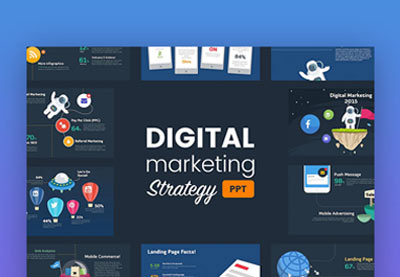
Envato Elements - Unlimited Modern Templates for Logos
Envato Elements – Unlimited Modern Templates for Logos

Envato Elements has a single compelling (all-inclusive) offer:

Sign up for Envato Elements and you get access to thousands of unlimited use graphics and templates (with unlimited use). Get great web themes, modern real estate logo ideas, and more—all for one low price

Get unlimited downloads from a massive digital warehouse of creative assets
Get unlimited downloads from a massive digital warehouse of creative assets. 

That’s right! Download as many professional templates and graphics as you want, and then customize them to fit any of your project needs.

While Envato Elements is a powerful option, if you prefer to design real estate business logos using an online logo creator (instead of using popular tools like Adobe Illustrator and InDesign), check out the selection from Placeit’s photo logo maker for real estate businesses below.

How to Quickly Make a Logo With Placeit

Creating a logo can be quite costly if you hire a professional designer. However, if you’re just getting started with your real estate business and your budget is tight, all is not lost. You can take advantage of an online logo generator such as the Logo Maker from Placeit. This awesome logo generator allows you to create fabulous real estate team logos even if you’re not a natural-born designer.

To get started with Placeit and design your perfect real estate team logo, follow these simple steps:

1. Go to Placeit and create a free account.

2. Choose Logos from the menu, type in your business name, and choose Real Estate from the drop-down:

Searching Placeit for Real estate logo templates
Start by typing your name and then selecting Real Estate from the drop-down.

3. Once the logo templates load, browse the selection and choose the template that you like best.

4. Customize the template by changing the text and the fonts, colors, shapes, and more. Optionally, try out one of the presets offered below the template or switch to a different template.

Customizing Placeit Logo Templates
Customize your real estate team logo design.

5. Once you’re completely happy with your real estate team logo design, hit the Download button at the top of the screen and download your design for a small fee. 

Alternatively, if you need to create realty logos, posters or social media banners regularly, sign up for a subscription to Placeit for a low monthly fee. You’ll get access to the entire Placeit library of more than 20,000 mockups, designs, logos, and videos!

15 Awesome Real Estate Logo Templates From Placeit

Placeit Real Estate Logo Templates
Placeit has some of the best real estate branding logos you can find.

Whether you want to create a logo design for your real estate agency that sells luxury real estate or a commercial real estate logo, the following 15 awesome Placeit real estate logo ideas are a great starting point for your logo designs.

1. Minimalist Logo Design Real Estate

Minimalist Logo Design Real Estate

This Minimalist Logo Design Real Estate is a perfect choice if you lean towards a minimalist style. The template features a simple icon and clean typography, and you can easily customize the fonts and colors, change out the icon, and switch the background image or remove it completely. There are loads of real estate logo ideas free to download online, but it’s nothing like creating one by yourself. 

2. Modern Real Estate Logo Design

Modern Real Estate Logo Design

If you want to make your customers feel good and excited about their real estate purchase, try this Modern Real Estate Logo Design. With a calming and fresh green background and a cozy home icon, this template is bound to inspire confidence in your customers. 

3. Simple Real Estate Agency Logo Maker

Simple Real Estate Agency Logo Maker

The Simple Real Estate Agency Logo Maker features an elegant negative space design and typography. It offers several real estate logo ideas free icons to choose from, and you can easily change out the icon to an icon of your choice. It’s a perfect choice if you’re focusing on more upscale properties as it won’t require too much customizing to fit with your brand.

4. Ecohouse Cool Agency Logo Design for Real Estate

Ecohouse Cool Agency Logo Design Real Estate

Is your agency focused on selling green, eco-friendly real estate? In that case, you definitely want to check out this Ecohouse Cool Agency Logo Design for Real Estate. Featuring earth-friendly greens paired with an icon of a simple geometric house surrounded by nature, it’s the perfect logo to paint a vivid picture of an eco-friendly home for your customers.

5. Creative Real Estate Logo

Creative Real Estate Logo

Try the Creative Real Estate Logo if you own a real estate agency that specializes in selling apartments. This template features a modern look and has dozens of icons to choose from, so you can find the one that’s the best fit for your real estate business.

You can also opt for a transparent background or easily change the color of it.

6. Logo Maker for Real Estate Businesses

Logo Maker for Real Estate Businesses

Looking for a serious and professional vibe for your logo? Consider this Logo Maker for Real Estate Businesses template. With a dark blue background and bold typography, this logo is the perfect template for anyone looking for a professional look and feel for their logo. Feel free to customize the colors and fonts if you enjoy the overall look but want a less serious look. You can also change the position of the icons and rearrange them to your liking. 

7. Real Estate Business Logo Template

Real Estate Business Logo Template

This Real Estate Business Logo template features a modern and vibrant design, so it’s perfect if you’re targeting a younger audience. As with the rest of the templates, you can customize the fonts and colors, add or remove the badge, and change the position to create an interesting layout for your logo. There are tons of real estate logo ideas free to download online, but nothing compares to this unique and modern design. 

8. Real Estate Agent Branding

Real Estate Agent Branding

The Real Estate Agent Branding is perfect if you’re selling urban homes. On top of the ability to customize icons to better reflect the type of properties you’re selling, you can change the background to use a texture or to give your logo a subtle glow. This is really effective when used with a colored background.

9. Logo Maker for Urban Real Estate Agency

Logo Maker for Urban Real Estate Agency

The Logo Maker for Urban Real Estate Agency makes it very clear who this template is for. The template starts off with a dark red background contrasted with white icons. This makes this template the perfect choice if you want to encourage your customers to take action and schedule a home tour.

10. Modern Real Estate Logo Maker

Modern Real Estate Logo Maker

If you specialize more in finding properties, then this Modern Real Estate Logo Maker is just what you need. It features a simple realty logo design as a starting point, but don’t let that fool you. You can customize the fonts to your liking and opt for a different type of icon.

11. Logo Template for Real Estate Developments

Logo Template for Real Estate Developments

The Logo Template for Real Estate Developments features an elegant design that would be a good choice for a real estate company or agency selling upscale properties. This is another template that allows you to add a subtle texture or a glow to your logo. You can also easily change the icon and the placement of elements as well as the fonts used.

12. Luxury Real Estate Logo Maker

 Luxury Real Estate Logo Maker

Another luxury logo template, the Luxury Real Estate Logo Maker is beautiful in its simplicity. With an elegant dark-gray background and Raleway font in light, muted orange, this template gives off a premium vibe suitable for any real estate company selling high-end properties.

13. Logo Design Template for Modern House Real Estate

Logo Design Template for Modern House Real Estate

This Logo Design Template for Modern House Real Estate features a modern, typography-based design. You can switch out the background to use a different color, add texture or a custom image, and customize the fonts that are used. Another option is to customize the layout by rearranging the elements yourself or by choosing a different layout preset.

14. Logo Creator for Real Estate Broker

Logo Creator for Real Estate Broker

A simple and minimal template, the Logo Creator for Real Estate Broker features an inviting icon of a house paired with bold typography. Make your logo stand out by changing the background color, adding a texture, and change the font colors to match your brand.

15. Real Estate Logo Maker With Icons

Real Estate Logo Maker with Icons

The last template on the list, Real Estate Logo Maker With Icons features awesome, minimal icons that make this template a perfect choice for urban realtors. However, if you like the layout, you can easily change the icon and the font to fit with your brand better. Don’t forget to customize the colors used in the logo so it represents your brand correctly.

Design Your Own Real Estate Logo Quickly

As you can see, there’s no shortage of great real estate logo templates online. In this article, we’ve shown you 20 great realtor logo ideas from Envato Elements and the Placeit Logo Maker that you can use to quickly and effortlessly design your own logo. Go check out the logo templates and find the perfect one for your real estate agency.

Editorial Note: Our staff updates this post regularlyadding new and cool real estate logo  templates and designs.

{excerpt}
Read More