20+ Best Custom Twitch Emotes (Using a Twitch Emote Maker)

Want to give your viewers an incentive to subscribe to your Twitch channel? Offer them your own custom Twitch emotes. Don’t know how to make Twitch emotes?  
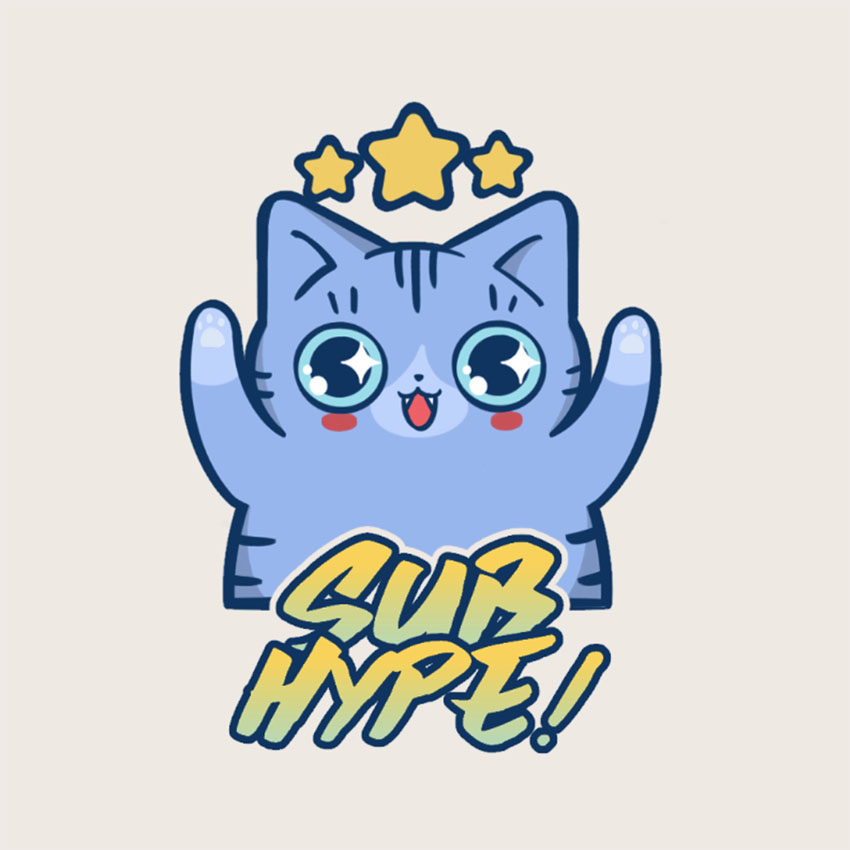
Custom Twitch Emotes
One of the many awesome Twitch emotes you can find at Placeit

Well, that’s what this article is all about. Here, you’ll not only learn how to make a Twitch emote but also discover the best custom Twitch emotes from Placeit.

How to Make Twitch Emotes

Making Twitch emotes has never been easier. Follow these five simple steps using the Twitch emote creator from Placeit, and you’ll have your own emote in no time at all.

1. Select Your Twitch Emote Template

How to Make Twitch Emotes
  • Take a look at the available Twitch emoticons and select the one you like the most.
Select Your Twitch Emote Template

2. Select Your Graphics and Colour Scheme

  • Start with the controls on the right and select a graphic you like.
  • If you have a specific graphic in mind, you can also search for it by typing a search term in the search bar. 
Select Your Graphics and Colour Scheme
  • Move to the controls above the graphics and select your colour scheme, working from the top of the panel to the bottom. 
Select Your Graphics and Colour Scheme

3. Customise Your Text

  • Move to the controls on the left and add any text you want to accompany your emote. 
  • You can change the font style and colour if you like.
Customise Your Text

4. Experiment With the Layout

  • You can also use the Layout button to try out different layouts. 
Experiment With Layout

5. Download Your Twitch Emote

  • When you are happy with your design, hit the Download button. This will take you to the download page, where you have two options for purchasing your Twitch emote.
Download Your Twitch Emote
  • You can either pay a single fee for your design or sign up for a monthly or yearly subscription that offers you unlimited downloads of all Placeit’s designs, mockups, logos, videos, and gaming templates.
Download Your Twitch Emote

And that’s how to make emotes for Twitch in a few minutes. Now let’s look at the best Twitch emotes available at Placeit. 

20+ Best Twitch Emotes 

Custom Twitch Emote Featuring a Unicorn

Custom Twitch Emote Featuring a Unicorn

Let’s kick things off with a series of Twitch emotes that are all inspired by Fall Guys. What’s so great about this collection is that you can add your own face to them. These bizarrely cute Twitch emotes, like this magic horn, are a great way to personalise your custom Twitch emotes by selecting an emote that embodies a quality that represents you.

Twitch Emoji Featuring a Cow Inspired by Fall Guys

Twitch Emoji Featuring a Cow Inspired by Fall Guys

What image would complement this Twitch emote template? Big grinning teeth, a lolling tongue, the back of the mouth with a view of the tonsils? Whatever you choose, make sure you complement the mood with the right colours and text.

Twitch Emoji Template Featuring a Burrito Inspired by Fall Guys

Twitch Emoji Template Featuring a Burrito Inspired by Fall Guys

How awesome is this burrito emote! Why not add a funny face to make it even more hilarious? Then you can change the text and characters as you like.

Twitch Emote Creator Featuring Characters Inspired by Fall Guys

Twitch Emote Creator Featuring Characters Inspired by Fall Guys

Get in touch with your floral side with this Twitch emote template. Just upload an image of your face or any face you choose, select a colour palette that pleases you, and your emote is ready for download. 

Twitch Emote Creator Featuring a Mermaid Based on Fall Guys

Twitch Emote Creator Featuring a Mermaid Based on Fall Guys

Are mermaids your thing? Then you’ll love this awesome cartoon Twitch emote of a mermaid. You can change the text and all the colours, and then add an image of your choosing to create your very own Twitch emoji.

Twitch Emote Template Inspired by Fall Guys

Twitch Emote Template Inspired by Fall Guys

Tommy Duck is here to help you create an eye-catching character. All you need to do is add an image of your choice, change the text and colours using the Twitch emote maker, and your job is done. 

Twitch Chat Emoji Inspired by Fall Guys Featuring a Cute Rabbit

Twitch Chat Emoji Inspired by Fall Guys Featuring a Cute Rabbit

Will you make the easter bunny smile or frown, or will you push the deranged factor up a notch? Whichever direction you want to take this character, the Twitch emote creator makes it as easy as 1-2-3 to complete your customisation. 

Twitch Chat Emote of a Bee Based on Fall Guys

Twitch Chat Emote of a Bee Based on Fall Guys

Bee well, bee good, bee bad, bee nice, bee naughty… you get the drift. You can give this Twitch emote template any personality you want when you upload your own image, so bee smart. 

Twitch Emoticons Featuring an Astronaut Emote

Twitch Emoticons Featuring an Astronaut Emote

Is space your final frontier? Then add your image to Galaxy Rider here and take off for worlds unknown. Don’t forget to leave a note!

Twitch Chat Emote Template Featuring a Dinosaur

Twitch Chat Emote Template Featuring a Dinosaur

Cute, friendly dinosaur or something else? I would opt for something else, but if you are more inclined to sweet thoughts, you could add a smiley face to create a Twitch smile emote. 

Twitch Emote of a Chilled Cat Smoking

Twitch Emote of a Chilled Cat Smoking

Cats are a perennial internet favourite. So of course we had to include a series of cat emotes. Kicking things off is a smoking cat in sunglasses. It’s easy to customise—all you need to do here is use the Twitch emote creator to change the colours and the text to suit your needs.

Cute Twitch Emote Featuring Kitten Illustrations

Cute Twitch Emote Featuring Kitten Illustrations

For those times when you need a distressed kitty, there is this Twitch cat emote. Just add the appropriate text and colours to make this template your own. 

Custom Twitch Emote Featuring a Cat Illustration

Custom Twitch Emote Featuring a Cat Illustration

Yup! I would say that having one’s head caught in anything, including a paper bag, engenders panic, making this the perfect Twitch emote for those times when you need an image that reflects your state of agitation.

Twitch Emote Featuring a Kitten Laughing Out Loud

Twitch Smile Emote Featuring a Kitten Laughing Out Loud

Nothing says LOL like an emoji, and we’ve got the perfect cat LOL emote for when you need it most. Don’t forget to use the Twitch emote creator to personalise the template by adding your own colours and font.

Twitch Smile Emote Featuring a Kitten Illustration

Twitch Smile Emote Featuring a Smiling Kitten Illustration

Maybe you’re looking for more of a smile than the full rolling-on-the-floor laugh. In that case, check out this Twitch smile emote. Change the text and colours as much or as little as you want until you have just the right look. 

Twitch Emote Template with a Fancy Bunny Graphic

Twitch Emote Template with a Fancy Bunny Graphic

And if you’re looking for a Twitch smile emote featuring different animals, there’s quite a range to be found at Placeit. This one features a fashionista bunny.

Cute Twitch Emote with Fox and Heart

Cute Twitch Emote Featuring a Cute Fox

Wanna express love? Placeit has you covered with this adorable fox hugging a heart. You can change the colour of all the elements in the template, and of course you can write your own message and change the font and its colours. 

Smile Twitch Emote Featuring an Adorable Teddy Bear

Smile Twitch Emote Featuring an Adorable Teddy Bear

And it’s not just foxes who share the love: here’s a bear with love coming out of its eyes and ears. There’s no way your target can miss the message. 

Twitch Emote Creator of a Fox with Money

Twitch Emote Creator of a Fox with Money

Given how important financial support is to all of us, we would be remiss if we didn’t include a money-related emote. This one features a sunglasses-wearing fox who appears to be loaded. As usual, add your text and change the font and colours to personalise this template.

Twitch Chat Emoji for a Gaming Squad with a Bear Graphic

Twitch Chat Emoji for a Gaming Squad with a Bear Graphic

Wow! It’s true what they say about angry bears! This one is positively terrifying, and of course very effective when rage is the emotion you want to communicate. 

Twitch Chat Emoji Featuring a Raccoon with Swag

Twitch Chat Emoji Featuring a Raccoon with Swag

A racoon with swag! Well, why not? This is a cute Twitch emote for multiple purposes, and a great way to show your viewers your enthusiasm.

Twitch Emote Featuring Cute Animals

Twitch Emote Featuring Cute Animals

And finally, here’s a great racoon Twitch emote for expressing a range of emotions all related to being upset and/or mystified. Think of all the great Twitch emote names you can add to this terrific template. 

Choose Your Favourite Twitch Emoticon Today

This collection of the best Twitch emotes gives you an idea of the quality and variety of Twitch chat emojis to be found at Placeit. You can customise any of these templates quickly and easily with minimal cost when you use the Twitch emote creator. 

I hope they have given you tons of inspiration. Why not use your favourite template to make your own emote and share it with us here? We’d love to see what you come up with.

If you are interested in other Twitch resources, check out this handy list of articles below:

{excerpt}
Read More

32 Best Album Back Cover Designs (Make Your Own Online)

The front of an album may be the first thing your buyer sees, but the back is where they go to find out what your album actually contains. That’s why you need to make sure your album back cover not only is attractive but also contains all the information your potential buyer is looking for. 

32 Best Album Back Cover Designs
One of the awesome album back covers you will find at Placeit

If you’re in the market for an album back cover, this article will share 32 of the best album back cover designs available at Placeit and show you how you can make them your own with the Album Cover Maker from Placeit

How to Make An Album Back Cover Online

So you need an album back cover for your new album. Well, making your own cover is super easy with the Placeit Album Cover Generator. Let me show you how: 

1. Select Your Album Back Cover Template

Placeit type Album Back Cover in the Search Bar
  • Review the templates on offer and select the one you like the most.
Review the templates

2. Select Your Graphics

  • Start with the controls on the right and select a background image or upload your own using the Upload Image button. 
select a background image
  • Move to the controls at the top right and select your Background Colour.
  • Next, select your Effect Colour and Effect Texture
background colours and textures

3. Customise Your Text

  • Move to the controls on the left and add your text. 
  • You can also change the font style and colour if you like.
adding text

4. Experiment With the Layout

  • You can move around the elements in your template for a better layout.
  • If you don’t like your changes, click the Reset Layout button to return to the default layout.
Layout changes

5. Download Your Album Back Cover Art

  • When you are happy with your design, hit the Download button. This will take you to the download page, where you have two options for purchasing your album back cover. 
Download the design
  • You can either pay a single fee for your design or sign up for a monthly or yearly subscription that offers you unlimited downloads of all Placeit’s designs, mockups, logos, videos, and gaming templates.
Finished album back cover design 

32 Best Album Back Cover Designs

Goth CD Album Back Cover Featuring a Nostalgic Picture

Goth CD Album Back Cover Featuring a Nostalgic Picture

Try this album back cover, featuring two bars on either side of a riveting image. One side features the name of the artist and the other the name of the album, the tracks, and credits. Use any of the images offered or upload your own, and then modify the text as needed.

Pop Album Back Cover Art for a Female Singer’s Album

Pop Album Back Cover Art for a Female Singers Album

Never worry that by using a Placeit template that your album back cover will look the same as someone else’s. The great thing about the album cover maker at Placeit is that it provides an excellent selection of controls that allow you to modify your template’s colours, images, and fonts to create a look that’s uniquely yours.

Album Back Cover Design For Pop

Album Back Cover Design For Pop

Go abstract with this wonderful album back cover, which features a solid colour background for your titles to stand out clearly and a beautiful swirl of colours on the left that sets the tone and mood for your album. You can customise just about everything you can see here to make this template your own. 

Indie Rock Album Back Cover Art With a Vintage Style

Indie Rock Album Back Cover Art with a Vintage Style

Lovers of all things vintage will give this album a thumbs up. You can use any one of the photos provided or upload your own. Then experiment with the filters to create just the right vintage look for your needs. 

Euro-Rock Album Back Cover Art with a Surrealist Picture

Euro-Rock Album Back Cover Art with a Surrealist Picture

Use this template as inspiration and upload an interesting photo of your own, and then use the controls to add your choice of texture overlay and text, and select a colour scheme that works for you. By making one small change at a time, you’ll have a terrific album back cover to download in a few minutes. 

Back of CD Cover Information Featuring a Guitarist’s Photo

Back Album Cover Creator Featuring a Guitarists Photo

When you’re looking for an album back cover with a distinct look, check out this fabulous template. It offers terrific images for the background of your album and a range of texture overlays that you can use to create something uniquely yours.  

Rock Album Back Cover Creator with a Rugged-Texture Filter

Rock Album Back Cover Creator with a Rugged-Texture Filter

If you want to create an album back cover with a surreal feel to it, then you’ve come to the right place. This particular template comes with a range of great photos and texture overlays that you can combine to create album back cover art to suit your taste.

Album Art Back Cover Template Featuring a Ripped Texture

Back Album Cover Design Template Featuring a Ripped Texture

Use this album back cover template to create a back cover for just about any kind of musical genre. Customisation is quick and easy. Add your text, change the background image and texture overlay, select your colour scheme, and your back album cover is ready to download.

CD Album Back Cover Maker With a Nostalgic Style

CD Album Back Cover Maker with a Nostalgic Style

This CD album back cover is designed with versatility in mind. It offers a simple, clean look with tons of gorgeous images, texture overlays, and fonts to choose from. As with all the other album back covers here, it is super easy to customise. 

Album Art Back Cover Template Featuring a Scratch Filter

Album Art Back Cover Template Featuring a Scratch Filter

This album back cover art is striking, and a great template to customise because it offers tons of terrific images, wonderful texture overlays, and a great selection of fonts that you can experiment with to find the ones that work best for your cover. 

Album Back Cover Art Featuring a Broken Glass Effect

Album Back Cover Art Featuring a Broken Glass Effect

Here’s a great example using the same template above to show how, depending on your customisation choices, you can create distinctly different looks from one template.

Rock Album Back Cover Art With a Grunge Effect

Rock Album Back Cover Art with a Grunge Effect

This is a great choice of album back cover art when you need to evoke that grunge vibe. 

Cover CD Back Featuring a Vintage Collage for a Folk Musician

Cover CD Back Featuring a Vintage Collage for a Folk Musician

Get as trippy as you want to when you use the album back cover maker. All it takes is a little time to play with the easy controls until you arrive at exactly the look you want. 

Hip-Hop Album Art Back Cover Maker Featuring Song Titles

Hip-Hop Album Art Back Cover Maker Featuring Song Titles

Need a hip hop album back cover? How about this template? All you need to do is select a photo from those that come with the template or upload your own. Change your text, apply your own colour scheme, and just like that, your album back cover template is ready for download. 

Album Back Cover Art Template with a Collage Portrait Graphic

Album Back Cover Art Template with a Collage Portrait Graphic

Invoke a 70s vibe when you use this album back cover template which provides you with a wonderful selection of collaged photos. A great font for getting and holding your audience’s attention. 

Rock Album Back Cover Design Template

Rock Album Back Cover Design Template

If you’re in love with this gorgeous album back cover template, you can make it yours in a matter of minutes. Just add your album title, the name of the artist, and the track names. Then hit the download button to download your customisation for a small fee. Easy peasy. 

CD Album Back Cover Creator

CD Album Back Cover Creator

Create a cover CD back side in no time at all when you use this template. You can choose from the available photos or upload your own. Then all that’s left to do is change your text and decide on your colour scheme.

Cover CD Back Template With Paint Splashes

Cover CD Back Template with Paint Splashes

This CD album back cover template with its party vibe is a great choice for your album back cover. Just choose your background image, change the text and choose the font and colours you like, and your cover is ready to go. 

Folk CD Album Back Cover Template

Folk Album CD Album Back Cover Template

This CD album back cover offers tons of terrific photos and a range of fonts that you can experiment with to find the ones that work best for your back cover. 

Album Art Back Cover Generator With a Photograph

Album Art Back Cover Generator with a Photograph

If you don’t have the time or money to pay a designer to design your album cover, no worries—Placeit offers a number of super images that you can use to create both album cover front and back templates like this one. Choose the image that most appeals to you, add your text, and your back cover is ready to go.

Back of CD Cover Information for a Pop Artist

Back of CD Cover Information for a Pop Artist

This stained and textured filter, which spreads across the face of the artist, creates a mood of mystery and intrigue. Add your text and colour scheme to customise the template. 

Collage-Styled Template for a CD Album Back Cover

Collage-Styled Template for an CD Album Back Cover

A simpler CD album back cover template than some of the others shown here, this template is for those whose taste veers towards the minimal. You can change the colours, texture, and text to reflect your needs. 

Alt Rock CD Album Back Cover Featuring an Astronaut Picture

Alt Rock CD Album Back Cover Featuring an Astronaut Picture

“Fly me to the moon and let me play among the stars,” says a famous song, and this album cover taps into that concept. Although, with the vintage overlay, this album back cover has more of a Twilight Zone vibe, don’t you think?

Cover CD Back for Folk Album With a Vintage-Looking Picture

Cover CD Back for Folk Album with a Vintage-Looking Picture

More vintage inspiration for those who can’t get enough. All your back of CD cover information will stand out clearly when you use this template. 

Back of CD Cover Information With a Monochromatic Picture

Back of CD Cover Information with a Monochromatic Picture

Counter-culture musicians may like this album back cover, featuring a man reading a burning newspaper. Customise this template by adding the album cover title, the name of the artist, tracks, and fine print. 

Rock Album Back Cover Maker With Abstract Graphic

Rock Album Back Cover Maker with Abstract Graphic

Lovers of abstraction will adore this template. Easy to use for various genres of music, this album back cover is the ultimate attention-getter. 

Album Back Cover Maker With Grunge Texture and Labels

Album Back Cover Maker with Grunge Texture and Labels

If you like the “everything but the kitchen sink” approach to design, you way love this template, which is all about layering labels and paper scraps, with the most important scrap used to show the crucial information like the name of the album, the artist, and the track titles. 

Back of CD Cover Information Featuring Graffiti Scribbles

Back of CD Cover Information Featuring Graffiti Scribbles

If you create music with a gritty urban feel and content, then you want your album back cover to match, and that’s just what this great template is all about.

Back of CD Cover Information With a Vintage Style

Back of CD Cover Information with a Vintage Style

As you may have noticed, this collection of templates really gives you the ability to layer styles to create texture and visual interest. That is no less so with this template, which combines images and textures for a striking result.

Goth-Metal Album Art Back Cover

Goth-Metal Album Art Back Cover for a Punk Goth Album

Looking for an album back cover for your Goth or heavy metal album? Well, this is it. Like all the other templates here, this one is super easy to customise. So what are you waiting for?

Album Cover CD Back Featuring Colorful Stickers and Labels

Album Cover CD Back Featuring Colorful Stickers and Labels

Waste not, want not! Eco-warriors will love this back cover, which has repurposed old labels, layering them to create standout album back cover art.  

Make Your Own Back Album Cover Today

Now that you know how to make an album back cover online, why not use one of Placeit’s wonderful album back cover templates to make your very own album back cover art?

And if you’re interested in other designs and cool mockups, check out these handy roundups of the best resources in different categories:

{excerpt}
Read More

How to Make Your Own Gorgeous Christmas Crackers

Final product image
What You’ll Be Creating

Crackers are a much-loved British tradition that people in many parts of the world enjoy as an essential component of any good Christmas celebration. We’ll look at creating this fun project by hand and with the help of a Cricut machine, using a Cricut A4 cracker template.

If you’re not familiar with Christmas crackers, they’re basically a paper-based bon-bon that two people pull apart, making a bang and revealing small gifts, jokes, and paper crowns. Crackers are a lot of fun to make, and you can personalise them with handmade gifts for your recipients. In this step-by-step tutorial, you’ll learn how to create your own Christmas crackers from scratch. 

What You’ll Need

Here’s a list of the supplies you’ll need to create your own Christmas crackers. Keep in mind that you have more than one option when it comes to using your paper cracker template. You could cut and prepare it by hand, or you could use a Cricut machine to easily create these cuts for you.

Make sure to check out the Cricut cracker template in this article, so you can download it and easily cut your own paper cracker template.

Christmas Crackers Supplies

Here are the other materials you should have, in order to use your paper cracker template. 

We’ll walk through both using a Cricut machine to create your cracker and doing it by hand in this walkthrough. Let’s dig right in.

1. How to Create Christmas Crackers With a Cricut Cracker Template

Step 1

First, prepare your wrapping paper. In this demonstration, we’ll work with pieces of paper that are 9 inches tall by 12 inches wide, for use with a Cricut machine and the attached cracker template SVG. This is a little bigger than we’ll need, just to leave room for error.

Each 9″ x 12″ piece will use the paper cracker template once. 

Note: the thickness of your paper matters, especially if you plan to use your Cricut machine for this project!

Some giftwrap can be quite thin, which may be more difficult to work with when cutting with your Cricut machine. You may want to work with a thicker giftwrap. If you work with thinner paper, you will need to use some custom settings, and you may want to use a weeding tool.

I’m going to use this cardinal gift wrap in this demonstration.

christmas cracker paper

Step 2

Make sure you’ve downloaded the cracker template SVG, as we’ll use this to easily cut our paper cracker template. 

Next, let’s turn to Cricut Design Space, the free software that comes with your Cricut machine. Note, we’ll use the Cricut Explore Air 2 for this demonstration, but other models, like the Cricut Maker, are an excellent fit for this project. Just make sure your machine can handle the dimensions required for this project.

Begin by starting a New Project.

While in this New Project, click on the Upload button.

Cricut Design Space

Step 3

Select the cracker template SVG, and Cricut Design Space will add it to your list of recently uploaded images. All we need to do is select our cracker template SVG file and select Insert Images.

Cricut Design Space insert image

Step 4

Now, our Cricut cracker template is loaded up into Cricut Design Space. You can also resize it here if you’d like to. When the template is selected, note that you can check out the dimensions at the top.

cracker template svg

Step 5

Next, position your wrapping paper on your Cricut cutting mat. I’ll be using a LightGrip mat for this project. Make sure the paper is lined up with the units on the mat, as this will correspond to our alignment in Cricut Design Space. 

I recommend placing the pattern side of your gift wrap facing down on the mat, especially if you are working with thinner paper. This way, if you experience any curling when you lift your project from the mat, it will curl in the direction you would roll the cracker anyway, rather than against it.

cricut cracker template lightgrip mat

Step 6

Once your wrapping paper has been placed properly on the cutting mat, insert it into your Cricut Machine tray. Don’t press the load button just yet—just get it into the tray itself.

Now, we can return to Cricut Design Space and click Make It to begin cutting our project.

Cricut Design Space Make It Button

Step 7

Cricut Design Space gives us a final preview before we commit. If you’re happy with how your Cricut cracker template looks, click Continue.

However, now we have to tell the Cricut machine what kind of material we’re cutting on. If you’re using a Cricut Explore Air 2, make sure to set your dial to Custom. If you’re using a Cricut Maker, this process is all digital, so you can choose your material via the software.

Set your Custom Material to Wrapping Paper. This is a very important step. If we chose “Paper”, for example, it would likely cut too intensely and rip thin wrapping paper. That said, if you opt to go with thicker paper, make sure to choose a more appropriate setting.

cricut custom material

Step 8

Once you’ve chosen your settings, follow the instructions within Cricut Design Space: load your mat by pressing the Load button, and then press the Go button to begin.

And here’s what it looks like, once the Cricut machine has made your cuts for you. It takes a lot of time and effort out of making such tiny cuts—and they’re such straight, professional-looking cuts too!

Tip: Since wrapping paper can be quite thin, make sure to take your time. I used a weeding tool to remove all the smaller pieces within the Cricut cracker template, so I didn’t accidentally rip anything. This is not a time to be heavy-handed or to yank the paper off the mat haphazardly. 

cricut cracker template

Step 9

And here’s my Cricut cracker template cut and removed from my cutting mat. No need to spend time cutting out each little slice of paper between each piece here, because the Cricut did it all for me. Simple!

However, again, remember not to be heavy-handed. A weeding tool is highly recommended for easy removal of smaller pieces of paper. I recommend removing all the excess paper first, and then slowly removing your final product from the mat. 

cricut cracker template cut out

2. How to Cut the Christmas Crackers by Hand

Step 1

Now, let’s look at working with the paper cracker template without a Cricut machine, by hand.

First, you need to cut your wrapping paper into sheets of 18 cm x 28 cm (7 in  x 11 in). These dimensions are the size of the crackers if you print the pattern on an A4 sheet. Place the cutting mat on your working surface, and place the wrapping paper on top, with the printed side facing downwards.

Now, calculate and mark the dimensions and cut using a cutter and a ruler as a guide. If you are using coloured card in A4 size, you don’t need to trim it yet—just use the A4 as it is.

Cutting Christmas Cracker Pattern

Create as many paper sheets as the crackers require. You can create up to 15 crackers with the wrapping paper I used.

cracker paper

Step 2

Click on the template image to get the right size file, which can also be printed in black and white to avoid wasting ink. The white areas in the template represent the parts that need to be cut out. Print out the template as many times as you need in A4 paper size. You could also print it on the back of your wrapping paper.

cracker template svg

Place the wrapping paper back on the cutting mat, with your printed template placed on top. Make sure the border of the wrapping paper aligns perfectly with the outer borders of the template. When you’re happy with the positioning, use sticky tape to keep the paper secure. The best way is to place the tape diagonally on all the corners, making sure the paper is completely flat.

christmas crackers pattern

Step 3

Use your precision knife to carefully cut out the two rows of rhombus holes. This is the trickiest bit, where more patience is required, so hold tight.

cutting out christmas cracker pattern

Step 4

When all the holes are done, cut out the rest of the pieces to create the correct outline of the cracker, as demonstrated below. Well done!

cut paper cracker pattern

3. How to Assemble Hand-Made Christmas Crackers

Step 1

Now it’s time to fold your individual crackers. Using a ruler for guidance, fold along the dotted lines of the template.

folding paper cracker pattern

Step 2

Fold the rhombus zone inwards and crease well.

paper cracker pattern folded

Step 3

Lay the cracker flat on the surface. The folded areas should look like this.

fold christmas cracker pattern

Step 4

Now pick up one long side of the cracker and roll it towards the other side. The rhombus cuts will allow the paper to form a bon-bon shape instead of a tube.

roll christmas cracker pattern

Step 5

Secure the cracker in place by inserting the tabs in place. Leave it closed while you prepare the rest of your goodies, so that it settles in the shape. Repeat the same procedure to make as many crackers as you have guests at the dinner table. Nicely done!

close christmas cracker

4. Make the Paper Crowns

Step 1

Cut off a strip of tissue paper about 9 cm (3.5 in) wide. Use the whole length of the package of tissue paper.

christmas cracker paper crowns

Step 2

Fold the strip accordion-style and then trim the top by creating zig-zag cuts (or cut out triangular shapes).

paper crown paper cracker pattern

Step 3

Separate each tissue paper strip. Add a festive decorative touch to your crowns with a gold marker. You can make circles, dots, lines, or just add some gold accents along the top of the crowns. I used metallic gold acrylic paint and a paintbrush. It works well for washy-gold accents, but a pen is more suitable for precision designs.

example paper crowns christmas paper cracker

Step 4

When the designs are ready and dry, trim the strips of tissue paper. They need to be about 60 cm (23.6 in) long. If you plan to make some crowns for kids, just make them a bit smaller. Then make the two ends overlap, and join them together with sticky tape to form a circle.

join ends of paper crown

When they’re ready, fold the tissue paper crowns neatly so they can fit inside the cracker.

fold crowns for christmas cracker

5. Prepare the Jokes

Cut small strips of kraft paper using either scissors or a cutter. Write down a joke on each slip of paper. Roll the paper up into a small tube and close it with some washi tape. Done!

jokes paper cracker template

6. Add the Snaps

Step 1

The crackers in this tutorial are slightly smaller than your average cracker as the template needed to be printed on A4 paper. This means that you will need to slightly trim the snaps to fit the length of each cracker.

trim paper cracker snaps

Step 2

Open up the cracker. Fold the two ends of the snap (around half an inch) and glue them down inside the cracker, along the long side.

snaps paper cracker pattern

7. Fill and Close the Crackers

Step 1

When the snaps are firmly glued in place, it’s time to fill your crackers with all the goodies. Place one folded crown and one joke inside the main body of each cracker. Then you can add some small gifts, like wrapped sweets or chocolate coins. But if you’d like to include some handmade treats, why not check out some of our craft tutorials:

fill custom paper crackers

Step 2

When all the crackers are full of handmade goodness, roll them up. Close them securely by tucking the central tab into the cut-out slot.

custom paper cracker template

Gently close the edges in the same way.

paper cracker template

Step 3

If you have personalized crackers, it’s helpful to add name tags so everybody gets the correct gift. Write the names of your guests on the kraft paper tags.

name tags paper cracker template

Step 4

Now, gently tie the two ends of the cracker with some twine or ribbon.

tie custom paper crackers

Attach the tags directly after closing each cracker to avoid any mistakes. Good job, well done!

christmas crackers with name tags
hand made christmas crackers

Pull Your Crackers and Enjoy!

Your crackers are now ready to be pulled. You’ll surprise your friends and family and bring even more joy to your Christmas dinner table. Well done!

christmas crackers

In this tutorial, you learned how to create your own handmade crackers from scratch—both entirely by hand and with a Cricut cracker template. You learned how to cut and fold the paper to create the cracker. You can also use this skill to make some bon-bon-shaped gift packages out of coloured card. You also learned how to make some quick and easy paper crowns, which is a handy skill you can use again for party planning.

A Cricut machine and a Cricut cracker template can certainly speed up the process, but there is a lot of fun in doing it all by hand too. Which do you prefer?

paper cracker template finished

Are you going to make your own Christmas crackers this year? Do you prefer using a Cricut for craft projects like this, or do you cut your works by hand? What will you put inside your Christmas crackers? Looking forward to hearing all your comments, and happy Christmas to you all!

{excerpt}
Read More

How to Embed Fonts in a PDF

Did you know that you can embed fonts in PDF documents? Embedded fonts are key for ensuring that your documents always turn out how you expect them to.

When sharing PDF documents you’ve made in InDesign, you might have been surprised to find out that the fonts didn’t display how you expected on other people’s devices. Why does this happen? This is the result of the fonts you used not being available on the device that is displaying it. Luckily, there is a way to solve this by ensuring that all fonts used are embedded in the PDF. This allows anyone to view the fonts in the way you intended.

So you may be wondering, how do I embed fonts in a PDF? Luckily, you’re in the right place! In this quick tip, we’ll show you how to embed fonts in InDesign. 

Follow along with us over on our Envato Tuts+ YouTube channel:

What You’ll Need

You can use any InDesign document you are working on that includes fonts. A file with many different fonts would benefit from embedding.

I’ll be using this InDesign Magazine Template from Envato Elements. 

How to Embed Fonts in InDesign

Step 1

Start off by creating a new document in InDesign, or open up an existing InDesign document you want to create a PDF from.

In our case, we’ll be using this document from Envato Elements.

Open Up Document

Step 2

The InDesign embed fonts method is simple, if you know where to look. To get to the font embed settings, go to File > Export.

Open up Export Window

Step 3

This will open the Export dialog window. From here, create a file name for your PDF document. Then select the Format dropdown menu and select Adobe PDF (Print).

Select PDF as File Type

Step 4

Once you’re happy with your settings here and have ensured your document is the PDF type, go ahead and press Save to open up the export options.

Select Save

Step 5

You will now be presented with the Export Adobe PDF dialog window. As you can see, there are a lot of settings to review here. To get to settings related to font embedding, select Advanced from the side menu.

Select Advanced Tab

Step 6

You will now have access to the Font settings. As you can see, the settings related to font embedding only have a single value. So how does InDesign embed fonts? In order to ensure that all the fonts in the document are embedded fonts, we’ll set this to 0%.

Set Subset Font Percentage

Step 7

Now go ahead and select Export, and all of your fonts will be embedded into the document.

Export PDF

There you have it—now you know how to embed fonts in InDesign!

Some Extra Things to Think About

Not every type of font can be embedded in PDF documents. While TrueType and OpenType fonts will be embedded, Type 1 fonts cannot be embedded fonts with InDesign. Some TrueType fonts also cannot be embedded due to license issues, so always make sure to check out the license agreement for any of the fonts that you use.

Another thing to keep in mind is that embedding all of your fonts in the document may increase the file size. While this should be small in most cases, this might add up in cases where you have a large document with many different fonts. If you have restrictions on the file size of your document, it’s a good idea to go through some of the other advanced settings to adjust the quality.

Conclusion

InDesign makes it very easy in most cases to embed fonts in a PDF. Even though there are some cases where fonts won’t be embedded, by utilizing the advanced export feature, we can ensure that all available fonts for embedding can be embedded right into the PDF. This is a great way to make sure that your PDF documents display exactly how you expect them to. 

In this tutorial, we addressed the question “How do I embed fonts in a PDF?” Found this quick tip on how to embed fonts in a PDF useful? Check out these other free tutorials from Envato Tuts+.

{excerpt}
Read More