Wireless charging has stuck around, despite the fact that, compared to its wired counterpart, it’s slower, less efficient and there’s the chance that you might incorrectly place your phone (or other wireless-charging compatible devices) and not charg…
Category: Tutorials
Tutorials,freelance,projects,joomla,php,mysql,wordpress,blancer.com
OnePlus 7T drops to record low $300 in B&H Photo’s Black Friday sale
If you’re pining for OnePlus’ early days, when you could buy a reasonably speedy phone for the price of a budget model, we have good news — though you’ll need to act quickly. B&H Photo is selling an unlocked (if T-Mobile oriented) OnePlus 7T at a…
The best laptop deals we could find for Black Friday
As many continue to work from home for the foreseeable future, our laptops have become increasingly more important to our professional and personal lives. Black Friday is one of the best times to shop for a new laptop if you need something a bit more…
How to Make a Tree Brush in Photoshop

Today we will be learning how to make a tree brush in Photoshop. Photoshop brushes for trees are a great way to add extra detail and depth to an image in just a matter of minutes!
What You Will Learn in This Adobe Photoshop Brush Tutorial
- How to create a tree brush in Photoshop
- How to change brush settings in Photoshop
- How to save brush settings in Photoshop
- How to create depth of field in Photoshop
- How to use a color lookup layer in Photoshop
What You’ll Need
To complete this project, you will need the following resources:
- Coconut Tree for Brushes in Photoshop
- Pine Tree for Brushes in Photoshop
- Juniper Tree for Brushes in Photoshop
- Woman Stretching Arms Out
- Beach
Find more resources on Envato Elements!
1. How to Create a Tree Brush in Photoshop
Step 1
First things first—let’s look at how to create a tree paint brush in Photoshop.
Import an image of a tree into Photoshop. The simpler the background the better! It doesn’t have to be 100% white; instead, go for a tree against a backdrop of a clear sky or calm water.

Step 2
Create a black to white Gradient Map adjustment layer, which will turn the image greyscale.

Step 3
Next, create a Levels adjustment layer above the gradient map layer. Use this layer to increase the contrast of the image so that the tree becomes darker and the sky becomes whiter.
Go for as much contrast as you can without making the tree silhouette look too sharp or “crispy”.

Step 4
Create a new layer under both adjustment layers, keeping it set to Normal.
Using a combination of both a hard and soft round Brush, paint white on the areas that still need to be hidden, like the sky and water. Paint black on the areas like the trunk.

Step 5
Finally, go to Edit > Define Brush Preset. If the option is greyed out, simply Right-Click > Merge Visible all of your layers and try again.

Step 6
You can use your brush by selecting the Brush Tool and going into the Brush Preset Picker. It will appear below all previous brush presets.
2. How to Change Brush Settings in Photoshop
Step 1
To change the brush settings, go to Window > Brush Settings.

Step 2
Use the Flip X and Flip Y checkboxes to flip your brush both vertically and horizontally.

Step 3
You can change the angle of the brush by clicking and dragging the arrow found to the left of both Angle and Roundness.

Step 4
If you want to save any of these brush settings, you can do so by clicking the square plus sign found at the bottom right-hand corner of the Brush Settings panel.

Step 5
You can make a whole pack of tree brushes by repeating the earlier steps with multiple different tree images, including coconut tree brushes in Photoshop and pine tree brushes in Photoshop!

3. How to Create Depth of Field in Photoshop
Step 1
Now that we know how to create a tree paint brush in Photoshop, we need to put it to use! A great way to use your new tree brush in Photoshop is by adding it to the foreground of an image and then adding a slight blur to it! This will create instant depth.
First, create a New Layer, keeping it set to Normal.
Step 2
Next, stamp a large tree in the corner of the photo. You can use black, or some other dark, muted color.

Step 3
Now, if needed, further enlarge the brush using the Transform Anchor Points.

Step 4
Once happy with the size, go to Filter > Blur Gallery > Field Blur. Set the setting to your desired blur. The settings will depend on the size of your image and the exact effect you are going for.

4. How to Use a Color Lookup Layer in Photoshop
Step 1
Did you know that you can create super quick and easy color grades with just one layer? They are called Color Lookup layers!
First, go to Window > Adjustments to open up the Adjustments panel. Choose Color Lookup.
Step 2
Click the 3DLUT File dropdown menu.
Here you’ll see a number of pre-installed LUT files! Scroll through them to see their different effects. I chose TealOrangePlusContrast.

Step 3
Next, you can adjust the intensity of the effect by simply adjusting the Opacity of the adjustment layer. I set mine to 40% Opacity.

Step 4
I then finished my image up with a Selective Color adjustment layer, setting it to Blacks > Cyan: -15 to give the image a wash of red light.

Conclusion
And that’s all there is to creating a tree texture brush in Photoshop! Create a whole set, and save it so you never run out of different trees to add a little extra drama to your photos.

In a Hurry?
In a hurry? Need some tree brushes right now? Try these five premium tree brush packs, all for Adobe Photoshop!
Palm Brushes

Add awesome, realistic tropical palm silhouettes to your images, with these 12 realistic, high-quality palm brushes! Perfect for creating romantic beach sunset silhouettes!
Tree Branches Brushes

This pack includes ten high-resolution leafy coconut tree brushes in Photoshop. With all the shadows, highlights, and details intact, this set is the perfect tool for photo manipulation, photo editing, and other projects that require photo realism.
25 Tree Brushes

These 25 classic tree texture brushes for Photoshop are a great start to building an awesome library of tree brushes! Try putting each tree on a different layer for easy editing. This pack also includes 25 PNG images.
10 High-Resolution Tree Brushes

These ten tree texture brushes for Photoshop are fantastically detailed. All brushes are the maximum allowed brush size for Photoshop, so they are high resolution and perfect for print projects of all sizes.
Tree Brushes Photoshop Collection

Looking for a set of pine tree brushes in Photoshop without leaves? Then this is the set for you! Perfect for winter-themed images, these brushes are all incredibly detailed and are a whopping 2500 px tall!
 WatercolorHow to Create Realistic Watercolor Photoshop Brushes From ScratchIvan Gromov
 BrushesHow to Create a Sakura Petals Brush in PhotoshopAbbey Esparza
 Adobe Photoshop15 Free Photoshop Light Leak Actions and OverlaysAndrew Childress
 Adobe PhotoshopHow to Draw a Line in PhotoshopMonika Zagrobelna
 Photo EffectsHow to Combine a Crocodile and a Frog in PhotoshopJason Stanley
 Text EffectsHow to Create a Realistic Chrome Text Effect in Adobe PhotoshopRose

{excerpt}
Read More
The headphone, speaker and audio deals worth looking at on Black Friday
Headphones and speakers are always popular holiday shopping items because many people put them on their wish lists, but also because they make great gifts even for those that are hard to shop for. That’s also not to mention that the best of the best…
Engadget readers can get $150 off Segway’s Kickscooter Max at Wellbots
If you’re looking for a way to expand your mobility options through the pandemic, look no further. Wellbots is offering a special discount on the Segway Ninebot Kickscooter Max only for Engadget readers. Typically you can expect to pay $799 for the e…
Here are all of the Apple devices on sale for Black Friday
Apple’s had a busy couple of months recently: with three virtual events and a number of new products released (including new Macs with Apple-developed chips), the company has a number of gadget you might be looking for deals on this Black Friday. As…
The Morning After: The best Black Friday deals so far
Black Friday has begun. For a lot of retailers, it began at midnight on the dot. For others, it started yesterday. The best Black Friday deals from yesterday, hah, can be found here, and include cheap AirPods Pro, TVs, Sony headphones and a tempting…
The best Black Friday tech deals we could find
Black Friday is officially upon us. If you’re shocked, don’t worry — so are we. It’s surprisingly partially because that means November is almost over, but even more so because we’ve been living through weeks of on-and-off tech deals already. 2020’s…
Bitwig Studio’s latest update adds an easy-to-use hybrid modular synth
After coming out in beta earlier this year, Bitwig Studio 3.3 is now available to download. The headline feature of the new release is Polymer, a hybrid modular synth that Bitwig says makes it easy to start creating “production-worthy” sounds. All yo…
20 Best Free Fonts for Cricut (Monogram, Cursive, Script)
Looking for the perfect Cricut font? In this article, we’ll take a look at some free fonts for Cricut, as well as some of the best Cricut fonts you can download for your craft projects, merchandise, and small business ventures. We’ve got monogram fonts for Cricut, Cricut lettering fonts, and much more.

What Is a Cricut Machine and What Does It Do?
A Cricut machine is a cutting tool—but that is a lot more than it might sound like. You can create anything from kiss cut sticker sheets to greeting cards, gift tags, T-shirts, and more. Depending on your machine and accessories, your Cricut can draw, cut, and score a variety of materials, including various papers, vinyl, cardstock—some units can even work with leather and thin wood.

Create beautiful vinyl decals or create a beautiful, custom cake topper with your Cricut. There are so many possibilities with this versatile and easy-to-use tool.
It’s important to note, however, that the Cricut is about cutting—not printing. So, for example, if you’re interested in making something like bullet journal stickers, you’d need to print them out first. Then, let your Cricut take over to cut them for you. Your Cricut machine can make beautifully detailed cuts easier than ever.
It’s an amazing tool for crafters, DIY fans, and independent artists who are looking to create and sell their own handmade merchandise.

What Is a Cricut Font?
Cricut fonts are the fonts included in Cricut Design Space—a free tool that is used to prepare and design your work for use with your Cricut machine. Your Cricut comes with a bunch of Cricut Design Space fonts included, such as Cricut Sans, a versatile sans serif font. Cricut writing fonts and Cricut fonts with layers have additional functionality. For example, check out some of the double layer font Cricut options next time you’re in Design Space, under Font Style.

Note that not all Cricut fonts are free. Many of them require a subscription to Cricut Access, a premium program that gives you access to a library of fonts and graphics. It’s got some pretty nice offerings, too. It’s got some of the best writing fonts for Cricut, if you want the machine to draw solid lines. Keep in mind, however, that you can often mimic the solid writing of some of the best writing fonts for Cricut by choosing a thin font.
However, your System Fonts can also work as Cricut fonts—fun and functional additions to your Cricut Design Space. This means that, in addition to the Cricut-specific fonts included with Design Space, you can also use other fonts installed on your computer. It’s easy to add fonts to Cricut too.

This opens up a whole world of possibilities. While Cricut Access gives you access to hundreds of fonts, there are thousands upon thousands out there on the Internet to explore. It also means you’re not stuck with the most popular Cricut fonts. You can choose something totally different and unexpected.
Learn How to Upload Fonts to Cricut Design Space
Using your System Fonts in Cricut Design Space is a breeze, once you know where to look and how to do it. Check out this video tutorial that will walk you through how to add fonts to Cricut Design Space, step by step, over on our Envato Tuts+ YouTube channel:
Download Unlimited Premium Fonts (For Commercial Use!)
I get it—everyone loves free content. However, if you’re a power user or you intend to create work that you want to sell, free content can be a real bust. Think about it for a moment: just because something is free does not always mean it’s free of copyright or licensing concerns.
It takes a lot of time and effort to find the perfect free font too. There might be a free price tag, but your time is valuable too. All that searching and the limited options can take a lot of the fun out of the design process.
But hey, we’re all working with a limited budget. Downloading a collection of fonts, especially when you’re paying per font, can add up pretty quickly. That alternative isn’t always within our means.
So, what else is there? Check out Envato Elements.

Envato Elements is all about unlimited downloads. That means you pay one low fee, and you get access to thousands of professional assets—all of them licensed for commercial use. That’s thousands of fonts to download for one price.
Whether you’re looking for Cricut handwriting fonts, the best Cricut cursive fonts, or stylish monogram fonts for Cricut, there’s so much to download and try out. At the end of the day, the best Cricut fonts are going to be the ones that best complement your project. This can make buying individual fonts daunting and intimidating—what if you don’t like it later? What if, after testing it out, it’s just not right?
Well, with unlimited downloads, you can grab all the fonts you want to test out, without worrying about the price tag.
We’re talking about a library of thousands of fonts here. Thousands of fonts to choose from with no extra fees—download to your heart’s content!
Find your next favorite Cricut script font, or test out a few to find your best font for cake topper Cricut projects. With unlimited downloads, you can try them all.

But you also get thousands of graphics, photos, clip art, and more. It’s all included. You can even pick up a template for your website, and there’s no extra charge. You’ve got access to a giant library of professional assets.
This is an awesome deal and a time-saving resource for hobbyists, enthusiasts, and professional designers. Take the time out of searching for assets—you have a whole library at your fingertips. Use it for your small business, your crafting projects, DIY, and more.

31 Best Unlimited Download Fonts for Cricut
Before we dig into our list of free fonts for Cricut, let’s take a look at some of the premium options you could pick up today. Why limit yourself to common popular fonts for Cricut when you could have a whole professional library?
Free is everyone’s favorite price tag, it’s true—but if you’re interested in creating work to sell, premium content can’t be beat. All of these fonts come with commercial licensing included, and they are all included with unlimited downloads. There’s no paying per font—you get them all, and you get the peace of mind of knowing they are all appropriate for creating and selling your own merchandise.
Check them out! Or enjoy the design inspiration—maybe these fonts can help you narrow down a style you enjoy.
1. Palace Bold Calligraphy Cricut Font

This cute font is a great choice when it comes to adding new Cricut design space fonts. It’s fun, friendly, and has a lot of personality.
2. Jelly Bean Cricut Script Font

This font download is a duo—you get two fonts that pair well together, all in one convenient package. Use them together or separately in your next design project.
3. Wild Hazelnut Cricut Lettering Fonts

Here’s a chunky, varied font that could work well for anything from greeting cards to T-shirt designs. If you’re looking for the best Cricut fonts for vinyl, paper, and more, this one has a lot of potential.
4. Eiffell Script Handwritten Cricut Font

The most popular Cricut fonts often include beautiful handwritten, script fonts. Follow the trend but stand out from the rest with a stylish, hand-drawn font like this one. It even comes with watercolor textures for your printed work.
5. Apple Juice Cute Cricut Font

Isn’t this font cute? Imagine it on a lunch box or maybe on shirts for your next fundraiser or gathering. It’s a great fit for kids, school events, and family get-togethers too.
6. Brixton Line Cricut Handwriting Fonts

When you try to write with your Cricut, you might notice that most fonts end up like an outline. However, if you try out a really thin font, like this one, you can often simulate the solid line you’d get from traditional Cricut writing fonts.
7. Avaline Ornaments Cricut Writing Fonts

Envato Elements also has decorative fonts, like this awesome collection of ornaments. Add all kinds of flourishes, lines, and wreaths by simply typing a letter.
8. Hello Sweets Cricut Script Font

If you’re on the lookout for cute script fonts for Cricut maker, check this one out. It’s easy to imagine this one in gold or a stylish iron-on.
9. Hinsa Cute Cricut Lettering Fonts

Check out this adorable font. It’s a really fun but unusual design. It has the potential to work for a wide variety of projects too. Consider giving this one a try.
10. Daisy Girl Cricut Script Font

Here’s another stylish script font. The best script fonts for Cricut are going to depend on your project—how do you like your scripts? This one’s a great choice if you like long, pretty strokes.
11. Mateo Cute Cricut Handwriting Fonts

This fun, chunky font could be a great addition to your next project. Its bubble-like shape has plenty of potential for invitations, shirts, and more. This is a great download, especially if you’re hunting for the best Cricut fonts for vinyl.
12. Monieta Elegant Cricut Script Font

But maybe you’re hunting for the best script fonts for Cricut, instead. If you’re a big fan of scripts, give this one a look. Its romantic feel could work for so many projects.
13. Little Peanut Cute Kids Cricut Font

Isn’t this a cute font? It could easily be the best font for cake topper Cricut projects or maybe for your own custom coloring book pages.
14. Nadilla Cute Cricut Script Font

This font is such a bubbly, fun script. It could be a great fit for a child’s project, birthday goodies, and a whole lot more. Give this cute font a try.
15. Bouquet Baseball Cricut Script Font

Doesn’t this font have a cool baseball vibe? You could create your own baseball shirts and other merchandise with a font like this one.
16. Royal Jelly Cute Decorative Cricut Font

It’s fun to check out popular fonts for Cricut—but how about more unusual ones, like this font? It has really interesting spirals in the design, giving it a fun look and feel.
17. Ceglist Cricut Script Font

This script font is super cute and super versatile. If you’re looking for Cricut cursive fonts that connect, this one works well—just make sure to separate your letters in the Advanced Settings. Then you can adjust the alignment.
18. Pumpkins Candles Cricut Handwriting Fonts

Remember, if you’re looking for the best drawing fonts for Cricut, and you specifically want to use the writing functionality, you can often mimic a filled letter with thin System Fonts, like this one.
19. King Crayon Cricut Font Cute

Isn’t this a quirky font? It has a little bit of a retro vibe, doesn’t it? This one could work well on packaging, T-shirts, and a whole lot more.
20. Kind Heart Pretty Circuit Script Font

This font is so fun and welcoming. It’s a pretty handwriting font, perfect for letters, stationery, and other paper projects.
21. Wedges Bold Chunky Cricut Font

If you prefer a chunky font, give this one a look. It’s rounded and playful, so it could be a great fit for projects created for (or with) children. Imagine it in your classroom.
22. Loman Bold Cricut Script Font

Here’s a different take on a script font. The capital letters are really stylish—so if you’re looking for the best Cricut font for monogram projects, this one might be worth a try.
23. Dear Emily Cricut Handwriting Fonts

Sweet, cute, and a lot of fun—that describes this adorable, handwritten font really well. Whether you’re creating invitations, wearables, or something else, this one has a lot of potential.
24. Sunshine Monogram Font (Monogram Fonts for Cricut)

Envato Elements also has fonts specifically for monograms, just like this one. If you’re looking to add to your collection of the best Cricut fonts for monogram projects, check it out.
25. Gathike Calligraphy Cricut Script Font

Script fonts can add such a classy, pretty look and feel to your projects. Check this one out. It has such lovely, swooping strokes. It could be the perfect addition to your next project.
26. Milk & Shake Cricut Handwriting Fonts

Or maybe you prefer longer strokes. This script font has such a playful vibe. It also includes extras that you can mix, match, and experiment with.
27. Priscillia Pretty Cricut Script Font

If you prefer thicker strokes, but you still love the elegance of a script font, give this one a look. It’s inspired by hand lettering with a brush pen.
28. Donatellia Elegant Cricut Handwriting Fonts

Here’s another thin font that could end up working well for writing, rather than cutting. Keep in mind that writing fonts work a little differently with your Cricut—but you can often mimic the look in System Fonts, if the stroke is really thin.
29. Little Morning Cricut Lettering Fonts

This font is so precious. It has such a friendly feeling, and has an easy association with baked goods and homemade treats. Try this one in your next DIY project.
30. Emilio Bold Cricut Lettering Fonts

Here’s a bold font that takes some inspiration from script fonts, but keeps the letters independent. It’s strong and could definitely make a bold statement.
31. Hello Love Stylish Cricut Script Font

This is such a classic, pretty font. It’s easy to picture this one in a whole host of projects, from paper to vinyl to stickers to leather!
Free Fonts for Cricut You Can Download Today
Free fonts can be a great choice if you don’t plan to make any projects that you want to sell. Remember, many free fonts are not completely free—they may only be free for personal use or have limited options. Make sure you’re aware of the font’s license before you use it—especially if you plan to sell your creations. You are responsible for knowing and following the license of any font you use and download!
Check out these free fonts you can download and try out today.
1. Motion Picture Free Font

This fun script font could be a great fit for personal projects. This one is only free for personal use, so make sure to buy a license if you go commercial.
2. Huruf Miranti Free Font

This font is in the public domain—so it’s fair game. Download, use, and enjoy as you wish. This one is thin, so it might be worth trying for writing.
3. Pacifico Free Script Font

This script font is a popular one—you’ve probably seen it before on the web and in other projects! It’s free to use, even for commercial projects.
4. Xmas Xpress Free Font

This bold font has some holiday flair. It could look great on cards, T-shirts, and more! However, this license is for personal usage only—keep that in mind.
5. Brusher Free Font

Here’s another free font—it’s free, but not necessarily in the public domain. Be aware of copyright restrictions if you plan to use this one commercially.
6. Learning Curve Free Font

Isn’t this a cute font? It’s a great fit for personal projects, as it’s free for personal use only. If you want to go further, make sure to look into a license.
7. Always In My Heart Free Font

Here’s another charming script font. It has so much potential. Download it for free for personal use. Otherwise, you’ll need to purchase a license.
8. Berkshire Swash Free Font

This bold, stylish font is free to use, and certainly worth downloading. Make sure to check out the extended license for copyright info and restrictions.
9. Rockin Reco Free Font

If you’re looking for a bold, thick font with a lot of emphasis, this is an awesome choice for free fonts for Cricut. It’s 100% free, but make sure to check the license for added info.
10. Always Forever Free Font

There’s just something so charming about handwritten type. That’s definitely the case with this lovely font. It’s free for personal usage only.
11. Vegan Style Free Font Download

This font has a slight slant and thicker strokes. It’s got a touch of vintage style, doesn’t it? It’s free for personal use only, so you can try it out today.
12. Countryside Script Font Free

If you like a varied baseline and lots of curly details, check out this free font. It’s another one free for personal use, so make sure to note that before you download.
13. Rakoon Free Font

This chunky script has so much personality. It could look great on a T-shirt, a bag, or a whole host of projects! It’s free for personal use only.
14. Shrikhand Free Font

Here’s another bold font with a retro vibe. This one is free, even for commercial use, but still has licensing limitations that you’ll need to check.
15. Milkshake Free Script Font

This free font is such a versatile script. Dress it up or make it casual—it can do both. It’s a free download, but it has some licensing limitations. Make sure to review them before you start your project.
16. Lobster Free Display Font

Here’s a 100% free find—that’s why this font might look rather familiar! It’s a popular one, and it’s free for commercial usage. Enjoy.
17. Bayland Free Script Font

What a beautiful retro font! Check out all the beautiful, thick strokes. Test this one out today, as it’s free for personal use. If you want to go commercial, make sure to pay and license with the designer.
18. Pleasantly Plump Free Font

Bold fonts can be so much fun to work with. This one really stands out, and it’s free for both commercial and personal use. Just make sure to check the limitations in the license.
19. Luckiest Guy Free Display Font

Here’s another popular freebie. If a font is 100% free, chances are, a lot of people have it and use it. Download and enjoy.
20. Alley Garden Free Font

This charming font has a touch of script flair, while keeping the letters apart. It’s free for personal usage only.
Which Are Your Favorite Fonts for Cricut Maker, Air 2, or Other Members of the Cricut Family?
There are so many fonts out there to choose from—whether you’re a user who needs a commercial license or you’re a hobbyist that wants to keep things free. Ultimately, the best Cricut cursive fonts, handwriting fonts, serifs, and even the best drawing fonts for Cricut are going to depend on your project and preferences.
Remember, if you’re a power user or you’re interested in selling your work, inform yourself. Make sure you’re clear on the terms of use when using free fonts. We are all creative professionals—someone designed that font! Let’s treat other artists the way we would want our work treated too.
Happy designing!
Want to check out even more fonts? Check out these other inspiring font collections:
 Fonts40+ Best Swash Fonts and Fonts With Tails (Download Now!)Nona Blackman
 Fonts35 Best Handwriting Fonts (Fonts That Look Like Handwriting)Nona Blackman
 Fonts30 Beautiful Modern Script Fonts (Typefaces for 2020)Melody Nieves
 Fonts35 Best Block Fonts (Ready to Download Now)Nona Blackman
 Fonts40 Best Child-Friendly Fonts (Kids’ Handwriting Styles)Nona Blackman

{excerpt}
Read More
UK urges tech companies to help tackle excessive e-waste in damning report
A damning report from the House of Commons Environmental Audit Committee (EAC) claims the UK falls well behind other countries in managing electronic waste. Committee members also suggested major companies such as Amazon and Apple discourage recyclin…
The UK is creating a new agency to regulate Big Tech
The UK plans to create a new agency to regulate large tech companies such as Google and Facebook. Starting in April 2021, the newly minted Digital Markets Unit (DMU), which will be a part of the country’s existing Competition and Markets Authority (C…
Amazon will give its US frontline workers a $300 holiday bonus
Amazon plans to give its frontline employees who help it through the busy holiday shopping season a special bonus. The company will give full-time US employees who work December 1st through to December 31st an extra $300 at the end of the year, while…
How to Create a Lightning Brush in Photoshop

Today we will be learning how to make a lightning brush in Photoshop. Add drama and energy to your photos with just a click of a mouse with a lightning bolt Photoshop brush! I’ll then show you how to create a lightning effect in Photoshop by applying your brush to a photograph.
What You Will Learn in This Adobe Photoshop Brush Tutorial
- How to create a lightning brush in Photoshop
- How to apply lightning brushes to a photo
- How to create quick lightning effects with layer modes
- How to create a quick stormy color grade
- How to add fire to a photo
What You’ll Need
To complete this project, you will need the following resources:
Find more resources on Envato Elements!
1. How to Create a Lightning Brush in Photoshop
Step 1
Import a photo of a Lightning Bolt on a dark but clear sky.

Step 2
Create a white to black Gradient Map adjustment layer, which will turn the image greyscale.

Step 3
Next, create a Levels adjustment layer above the gradient map layer. Use this layer to increase the contrast of the image so that the lightning becomes darker and the sky becomes whiter.

Step 4
Create a new layer under both adjustment layers, keeping it set to Normal.
Using a combination of both a hard and soft round Brush, paint black in the areas that still need to be hidden, like the sky. Make sure there are no harsh edges.

Step 5
Finally, go to Edit > Define Brush Preset.
If the option is greyed out, simply Right-Click > Merge Visible all of your layers and try again.

Step 6
Create a whole set of lightning brushes using the same method!
2. How to Apply Lightning Brushes to a Photo
Step 1
You can use your new lightning brush by selecting the Brush Tool and going into the Brush Preset Picker. It will appear below all previous brush presets.
Step 2
Open your photo and create a new layer.
Use the new lightning brush to stamp a bolt of lightning in the sky. This is the start of our lightning effect in Photoshop.

Step 3
You can stamp multiple times in the same place to make the lightning appear brighter and more solid.

Step 4
Use a soft round Eraser brush to erase any edges and to further blend the lightning into the clouds.

3. How to Create Quick a Lightning Effect Using Layer Modes
Step 1
Create a new layer and stamp a second lightning strike.

Step 2
Set the layer to Overlay.

Step 3
Duplicate the lightning layer twice. You can duplicate it more or less depending on the image and how strong you want the lightning effect to be.

Step 4
Group all three layers together, adding a Layer Mask to the group.
Use a soft Eraser brush to erase any harsh edges, blending the lightning into the clouds just like before.
Step 5
You can use a soft round Brush set to white to further enhance the light flares coming from the lightning.
Either paint white directly on one of the lightning layers or create a new layer set to Overlay and paint the blooms of light.

4. How to Create a Fast Stormy Color Grade
Step 1
Once you are happy with your lightning strikes, create a Color Lookup adjustment layer above all current layers. Find them by going to Window > Adjustments.
Step 2
Set the 3DLUT dropdown menu to Foggy Night.

Step 3
Set the Foggy Night layer mode to Multiply.

Step 4
Bring the Foggy Night layer down to 57% Opacity.

5. How to Add Fire to a Photo in Photoshop
Step 1
We can finish up our image with some quick and easy fire effects! And while a lightning strike wouldn’t cause a fire to spread this quickly, who’s to say a few lightning strikes wouldn’t!
Find a photo of Fire and drop it onto your canvas, below the color lookup layer but above everything else.
An image of burning sticks works best if you are creating a flaming tree effect.
Step 2
Set the fire’s layer mode to Screen.

Step 3
Shrink and place the fire over the tree. Hold Shift to squish the image horizontally if needed.

Step 4
Enhance the fire’s color and saturation by going to Image > Adjustments > Hue/Saturation. Set it to Hue +13 and Saturation +30. This will make it a more vibrant orange.

Conclusion
We are done! That is all there is to creating a lightning brush in Photoshop. Remember to create a whole set of them so that a dramatic lightning strike is only a couple of clicks away!

In a Hurry?
In a hurry and need a premium set of lightning brushes to create a lightning effect in Photoshop right now? Check out Envato Elements! Here are my top five favorite lightning bolt brushes for Photoshop.
50 Lightning Photoshop Brushes

Get 50 high-quality lightning strikes and thunderstorm effects with this premium pack of Photoshop brushes. A powerful tool for concept artists, designers, photographers, and matte-painters!
180 Electrifying Lightning Strikes

This pack contains a whopping 180 high-quality sky lightning strike and lightning bolt brushes! Save yourself hours of brush making by getting everything you need, all in one pack!
30 Storm Lightning Ptohoshop Stamp Brushes

These lightning brush textures are high resolution and are a great addition to any project. Use them in a digital photo manipulation, as visual effects for games or artwork, or just as decorative digital elements!
30 Bold Lightning Photoshop Stamp Brushes

Grab these bold lightning brushes, full of high-res lightning brushes that are sure to fill up the sky of all of your photos with highly detailed lightning strikes!
30 Thin Lightning Photoshop Stamp Brushes

Looking for something a bit more classic? Then look no further than these 30 thin lightning strike stamp brushes! They’re perfectly thin, but they still pack a punch. Create bright streaks of light with just a few clicks of the mouse.
 Adobe Photoshop50+ Free Photoshop Brushes to Download Now!Melody Nieves
-
BrushesHow to Create a Sakura Petals Brush in PhotoshopAbbey Esparza
 BrushesHow to Create a Leaf Brush in PhotoshopAbbey Esparza
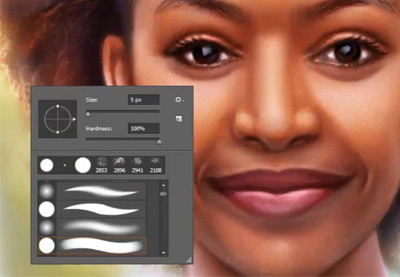 BrushesHow to Install Brushes in PhotoshopMelody Nieves
 BrushesHow to Create a Custom Smoke Brush in Adobe PhotoshopKirk Nelson
 Adobe PhotoshopHow to Create a Light Particles Photoshop BrushJonathan Lam

{excerpt}
Read More