As many have said: that escalated steadily and predictably. Days after groups of Trump supporters stormed Capitol Hill in riots that left five people dead including one police officer, social media companies continued to restrict the president’s acce…
Category: Tutorials
Tutorials,freelance,projects,joomla,php,mysql,wordpress,blancer.com
How to Make a Newspaper Template in InDesign

In this Adobe InDesign newspaper tutorial, you’ll learn how to make a newspaper template in InDesign, designing the front page for a tabloid newspaper template. The result will be a versatile Adobe InDesign newspaper layout you can use for future projects, allowing you to easily incorporate your own text and images into the newspaper template.
Looking for more newsletter templates or InDesign newspaper templates? You can find a wide range of newspaper styles and newsletter design templates, from traditional broadsheets to modern email newsletters, on Envato Elements.

-

20 Best Free Printable Flyer Design Templates to Download Now in 2021
When someone views your flyer design, it’s often their first time coming in contact with your business. With free or premium flyer design templates in 2021,… -

22 Best Free Newsletter Templates (InDesign, PSD and Word Newsletter Templates)
Looking for polished and professional newsletter templates? Today we’ll show you two sources for affordable, top-quality newsletter templates, as well as…
What You’ll Learn in This Tutorial
This tutorial is a great introduction to using InDesign for newspaper layout design, as well as a useful starting point for beginners to print design. We’ll look at:
- How to set up a tabloid newspaper template in InDesign.
- How to structure columns, margins, and grids to organize your front page design.
- How to create an effective masthead for your newspaper template.
- How to incorporate color, images, and typography into the layout.
Creating newspaper layouts is one of the most traditional forms of graphic design and typographic layout, but the columned style has endured because of its simple visual impact. Knowing how to create a newspaper template is a useful skill that is excellent preparation for creating other editorial designs in InDesign, such as magazines, flyers, or brochures.
Ready to start creating your newspaper template? Read on to find out how to make a newspaper template in InDesign.
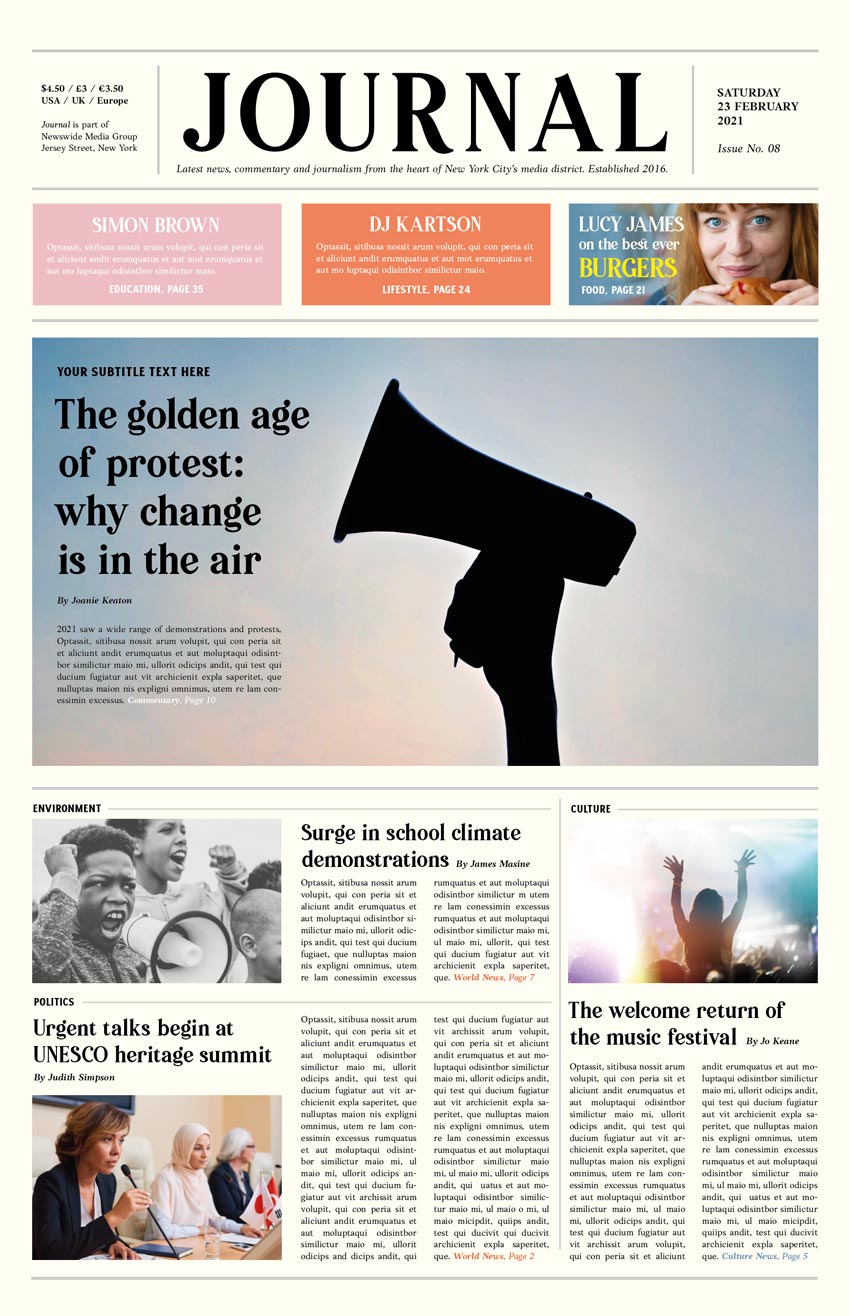
What You’ll Need to Create Your Adobe InDesign Newspaper
As well as access to the InDesign app, you’ll also need some fonts and images to use in your newspaper design. The fonts we will be using are:
- Pioggia for the masthead and titles
- Elmoder Regular and Elmoder Bold for subheadings
- Anko for body text
You may want to use your own images in your newspaper template, but if you’d like to use the images shown in the design here, the links to these are listed below.
- Woman with a burger
- Young boy at a protest
- Politician at a roundtable
- Megaphone silhouette
- Crowd at a festival
Download the fonts and images, and make sure the fonts are installed before you begin.
1. How to Set Up the Newspaper Template in InDesign
Step 1
Open InDesign and go to File > New > Document.
Choose Print from the options at the top of the New Document window, before selecting the Tabloid preset below (this will set a Width of 11 in and a Height of 17 in).
Deselect Facing Pages, as we’ll just be creating a single front cover page in this tutorial.
Increase the number of Columns to 3, with a Gutter of 0.25 in.

Set the Left, Bottom, and Right Margins to 0.4375 in and the Top Margin to a more generous 2.435 in.
As we’re creating this newspaper template for print, we’ll need to add a bleed. Set the Bleed width to 0.25 in, before clicking Create.


Step 2
Go to View > Grids & Guides > Show Document Grid.

The document grid is a useful tool for newspaper design, helping you to line up text baselines as you work. You can switch the visibility of the grid on and off by hitting W on your keyboard.

Step 3
Go to the Layers panel (Window > Layers) and rename Layer 1 as Background.
Choose New Layer from the panel’s drop-down menu, and rename this as Images. Repeat to create a third and final layer, Type.

Lock the Type and Images layers, keeping the Background layer unlocked and active.

Step 4
Go to the Swatches panel (Window > Color > Swatches) and choose New Color Swatch from the panel’s dropdown menu.
Set the Type to Process, Mode to CMYK, and the levels to C=0 M=0 Y=100 K=0.
Repeat to create five more new CMYK swatches:
- C=90 M=78 Y=62 K=97
- C=65 M=31 Y=21 K=5
- C=5 M=33 Y=16 K=0
- C=0 M=74 Y=80 K=0
- C=0 M=0 Y=7 K=0

Step 5
Working on the Background layer, select the Rectangle Tool (M) and drag across the whole page, taking the shape up to the bleed edge.
Set the Fill Color to C=0 M=0 Y=7 K=0.

2. How to Structure Your Newspaper Template With Lines
Dividing up a newspaper layout into columns and rows, as well as allocating space for a masthead, is important for organising the design and allowing the text-heavy content to feel ordered and balanced.
Step 1
Lock the Background layer and unlock the top layer, Type.
Switch to the Line Tool (\) and, holding Shift, click and drag across the top of the page, about 0.65 in down from the page edge, creating a single horizontal line that extends across all three columns.

Set the Stroke Color to C=90 M=78 Y=62 K=97, giving the swatch a Tint of 20%.
From the Stroke panel (Window > Stroke), set the Weight of the stroke to 2 pt and the Type to Thick – Thick.

Step 2
Edit > Copy and Edit > Paste the line, positioning it over the top margin line.

Paste again, positioning this line over the bottom margin line.

Paste another line, moving this one just below the top margin line, Y position 4.125 in. You can view the Y position from the top Controls panel.
Paste a final time, moving this line down to Y position 10.15 in.

Step 3
Use the Line Tool (\) to create a shorter vertical line, placing this between the two horizontal lines at the top of the page, at the center-point of the first left-hand column.
From the Stroke panel, set the Weight to 1.5 pt and Type to Thick – Thick.
As before, set the Stroke Color to C=90 M=78 Y=62 K=97, giving the swatch a Tint of 20%.

Copy and Paste the line, placing this on the right, across the center-point of the third column.

Step 4
Paste the line and lengthen it, positioning it across the center of the gutter between the central and right-hand column, on the bottom section of the layout.

3. How to Create a Masthead for Your Newspaper Template
Step 1
Still working on the Text layer, use the Type Tool (T) to create a large text frame across the top-central section of the page.
Type in the name of your newspaper and from either the top Controls panel or the Character and Paragraph panels (Window > Type & Tables > Character) adjust the Font to Pioggia.

You can add a subtitle below in Anko Italic, with around a 10 pt Font Size.

Step 2
Use the Type Tool (T) to create text frames in the spaces on either side of the masthead. This is a good place to include the price, location, date, and issue number. Set the text in Anko.

Step 3
Use the Line Tool (\) to create a horizontal line towards the top of the lower left section of the page, leaving a short space at the far left side for a text subheading.
From the Stroke panel, set the Weight to 1 pt, Type to Thick – Thick, and from the Swatches panel, as before, set the Stroke Color to C=90 M=78 Y=62 K=97, giving the swatch a Tint of 20%.

Create a small text frame to the left side of the line, typing in a subheading for the section the article will fall under, e.g. “Environment”. Set the Font to Elmoder Regular, Size 12 pt, and a C=90 M=78 Y=62 K=97 Font Color.

Select both the subheading and the line next to it and Edit > Copy, Edit > Paste, moving this below, to around Y position 12.9 in. Change the section title accordingly.

Paste again, moving this copy across to the top of the right-hand bottom section. Shorten the line so that it fits neatly within the column.
Top tip: Switch off the visibility of the Background layer as you work by clicking the eye icon next to the layer’s name. This will allow you to see the document grid, which can be helpful for lining up titles and typesetting.

4. How to Map Out Images on Your Newspaper Template
Step 1
Lock the Type layer and unlock the Images layer below.
Use the Rectangle Frame Tool (F) to ‘map’ out where the images on the page will go. In this design, I’ve used three frames at the same size (using Copy and Paste), positioning them in each section, as pictured below.

Create a much larger image frame for the headline article, using this to fill the space above the smaller article sections.

Step 2
Create three image frames with equal dimensions below the masthead, spanning the width of each column. Use the colors in your Swatches panel to give them a pink, orange, and blue Fill.

Step 3
Insert images into your prepared frames by selecting each frame and going to File > Place.


You can place an image into one of the colored image frames and preserve the background color by directly selecting the image inside the frame and going to Object > Effects > Gradient Feather. Apply a Linear gradient to bring through some of the color behind.


5. How to Typeset Text on Your Newspaper Design
Step 1
Before inserting article text into your template, you will need to split the design into more columns. A quick way to do this is to use guides.
Pull out a guide from the left-hand ruler (View > Show Rulers) and place this along the existing line between the first two columns.
Pull out two more guides for either side of the column line, creating a gutter, and three guides in total.

Drag your mouse over the guides to select all three, and Edit > Copy them.
Edit > Paste, dragging the copied lines over to the halfway point of the first column.

Paste repeatedly to create more copies of the guides trio, dividing up the three columns into six vertical sections.

Step 2
Working on the Type layer, use the Type Tool (T) to create a text frame for an article title, at the top of the first smaller article section. Type in the title, and set the Font to Pioggia, Size 25 pt.

Add another text frame for the author name, setting the Font to Anko Bold Italic, Size 9 pt.

Create a text frame for the article text, fitting this below the title and within the width set by the guides. Set the Font to Anko Regular, Size 8.5 pt. You can enter your own text or, for now, insert placeholder text (Type > Fill with Placeholder Text).
Click on the small square at the bottom-right of the text frame to pick up the text and thread this into a newly created text frame, in the next mini-column along.

Direct readers to the section inside the newspaper by highlighting the page number at the end of the text in a different color.

Step 3
Now that you’ve formatted the typesetting for one article, you can use this as a template for the other articles. Copy and Paste the text frames you’ve created, moving these onto the other sections below and to the right. Adjust the height of the body text frames as required.


Step 4
Create a larger text frame for the headline above, setting the text for this in Pioggia, Size 46 pt.
A subtitle above this can be set in Elmoder Bold, Size 12 pt.

Insert a text frame below with the first part of the article, setting the Font to Anko, Size 8.5 pt.

Step 5
The colored spaces below the masthead are a good place for article and interview teasers. Set the headings to Pioggia, All Caps, the body text to Anko, and the section/page number to Elmoder.

Highlight some of the key words in a brighter color, to draw the eye.

6. How to Export Your Newspaper Template
Once you’ve finished working on your newspaper layout, you will need to export your design as a PDF for printing or sharing online.
For print: Go to File > Export, and choose Adobe PDF (Print) from the Format menu. Name the file and click Save. In the Export PDF window that opens, choose Press Quality from the preset menu at the top.

Then click on Marks and Bleeds in the window’s left-hand menu. Check both All Printer’s Marks and Use Document Bleed Settings, before clicking Export.

For online: Go to File > Export, and choose Adobe PDF (Interactive) from the Format menu. Name the file and click Save. In the window that follows, adjust the options to your preference and click Export.
Conclusion: Your Finished Newspaper Template
Your newspaper template is finished—great job! You can save this document as an InDesign file so that you can return to it again. By simply dropping in different images and text, you’ll have a completely new front page for your next issue.

In this tutorial, you’ve expanded your skillset by learning how to make a newspaper template in InDesign. Along the way, you’ve picked up plenty of useful skills for creating print documents and tabloid newspaper templates in Adobe InDesign. Creating grids and guides and mapping out the placement of images are all handy skills for creating newsletter design templates too.
Looking for more newspaper templates and newsletter templates? These easy-to-edit InDesign newspaper templates from Envato Elements are great if you’re short on time:
A3 Business Newspaper Template (INDD)

Why not try a simple and elegant newspaper template that can be adapted as a company newsletter or business magazine? Perfect for presenting corporate, financial, or business news and articles.
Professional Tabloid Newspaper Template (INDD)

If you’re looking for a comprehensive and professional newspaper template, look no further. This 16-page newspaper template has standard tabloid dimensions and a range of color themes to choose from, to help introduce color in a subtle way into your design.
Classic A3 Newspaper Template (INDD)

A 20-page newspaper template available in three colorways, this InDesign newspaper template has been designed with e-readers and tablets in mind.
Elegant Lifestyle Newspaper Template (INDD)

This newspaper template has a refined and elegant style that would suit lifestyle, beauty, and fashion news. Sans serif typography gives the titling a modern feel.
Traditional Pink Newspaper Template (INDD)

Inspired by the famous pink paper of the FT, this rosy-hued newspaper template combines traditional newspaper styling with contemporary minimalism. Plenty of white space makes this newspaper design feel particularly elegant.
Discover more print design and InDesign tutorials to keep building your skillset:
-

How to Create a Newsletter Template (Tutorials & Resources)
Here’s a comprehensive article dedicated to everything newsletters. Let’s take a deep dive! -

How to Create a Newsletter Template in Affinity Publisher (Free Newsletter Template)
In this tutorial, you’ll learn how to create a newsletter template in Affinity Publisher. This business-friendly newsletter layout and simple newsletter… -

How to Create a Church Newsletter Template in InDesign
In this tutorial, you’ll learn how to create a four-page newsletter template. We’ll put this template together in no time, and you’ll be able to reuse it for… -

How to Create a One-Page Newsletter Template in InDesign
In this tutorial, you’ll learn how to create a one-page newsletter template. InDesign newsletter templates are quick and simple to put together and are…

{excerpt}
Read More
CPSC warning highlights fire risk of loose 18650 lithium-ion batteries
The Consumer Product Safety Commission is warning customers against purchasing loose lithium-ion battery cells that can be used for vapes, flashlights and other small devices. In particular, the CPSC has issued a warning for 18650 cells, which are sl…
This gesture-sensing band could make the Apple Watch more accessible
We often think of touchscreen displays as one of the more accessible ways to interact with our gadgets. But a variety of physical and cognitive disabilities, including conditions like ALS, can make even using a touchscreen nearly impossible. Enter a…
Donald Trump is trying (and failing) to get around Twitter’s ban
Only a few hours after Twitter announced a ban on President Donald Trump’s @realdonaldtrump account, he has attempted to tweet from at least two other accounts under his control. Tweets posted to the official @POTUS account were swiftly deleted, and…
Apple and Google crack down on Parler after violent threats
Apple and Google have told the “free speech” social media app Parler that it must begin moderating its users content, following violence at the US Capitol this week. The app — a Twitter alternative popular among Donald Trump supporters and the far-ri…
Donald Trump has been kicked off of Twitter
A few days ago, after Twitter temporarily suspended Donald Trump’s account, the company said that any further breaches of its terms could result in suspension. As detailed in a blog post, Twitter decided that some of the president’s tweets posted tod…
SolarWinds brings in a former federal cybersecurity chief as a consultant
As the fallout of the SolarWinds hack rumbles on, the embattled company has hired a security consultancy co-founded by Christopher Krebs, a former federal cybersecurity chief. Krebs led the Cybersecurity and Infrastructure Security Agency, a division…
Twitter cuts off QAnon conspiracy accounts as employees push to ban Trump
In July a “strong” enforcement action by Twitter banned several thousand accounts linked to the false conspiracy theory QAnon, however many of its most prominent backers remained on the platform. Today, NBC News reports that several people — who have…
GM modernizes its logo to highlight its EV-centric future
As GM focuses more heavily on electric vehicles, the company is modernizing its classic logo. For over 50 years, the automaker had used underlined all-caps white lettering on a blue square. The latest emblem switches things up with a lowercase "gm" o…
What to expect from an online-only CES 2021
Despite a global pandemic, the annual Consumer Electronics Show must go on. Well, virtually anyway. CES 2021 will officially take place from January 11th to 14th, but it’ll look very different this year. Instead of filling a giant convention center w…
Twitch will refresh the PogChamp emote image every 24 hours
A couple of days after Twitch yanked one of its oldest and most popular emotes, PogChamp is back with a twist. For the foreseeable future, Twitch will change the image every 24 hours. Soon after PogChamp vanished from the platform, Sean “Day9" Plott,…
Sony reveals full details on its upcoming 360 Reality Audio speakers
Earlier today, Sony announced plans to expand its 360 Reality Audio platform. The key updates were a two-fold approach for expanding the limited content library, licensing tech to other companies and — most importantly — news that it would ship its o…
NHTSA says users are to blame for reports of Teslas suddenly accelerating
Following a nearly year-long investigation, the National Highway Traffic Safety Administration (NHTSA) says Tesla vehicles don’t have a design flaw that makes them prone to sudden and unintended acceleration. The federal agency began looking into the…
9 Best Font Manager Apps for Mac, Windows, Linux and Online
If you or your business do any kind work with fonts, font management software can help you organize and manage the fonts you work with.
In this article, I’ll explain why you should consider using font management software and I’ll outline some of the most popular font manager packages for Windows and Mac users.
Fonts Explained
Back in the days of the printing press, a font was a specific size, weight and style of a typeface. The typeface may contain the different fonts of condensed, normal, italic and heavy, for instance.
In the digital age, the meaning of font has changed to become synonymous with typeface such that a font file contains the variations of condensed, normal, italic and heavy.
Many names describe the weight of a font, that is the thickness of the characters relative to their height. These range, in order of ascendency, as follows:
- Thin / Hairline
- Ultra-light / Extra-light
- Light
- Book / Semilight
- Normal / regular / plain
- Medium
- Semi-bold / Demi-bold
- Bold
- Extra-bold / extra
- Heavy / Black
- Extra-black
- Ultra-black / ultra
Next, let’s take a look at font management and a common font manager for Macs.
Font Management

The macOS operating system has its own font management software, Font Book, installed by default. Windows installs fonts to a specific folder and Linux generally doesn’t preload fonts on a system-wide basis thereby negating the requirement for a font management tool.
Default font management tools are useable, but fairly basic. For people who use many fonts, graphic designers and web designers for example, there’s a need for more sophisticated tools.
Why Font Management is Necessary
Working with hundreds, or even thousands, of fonts presents the computer user with a number of challenges not least being able to find the right font for the right reason at the right time.
Font management software protects system fonts to prevent accidental deletion and manages the activation of the fonts required. Such software sorts, renames, searches, views, fixes or uninstalls corrupted fonts.
Most importantly, font management software exists in order to preserve system performance and stability. Maintaining thousands of fonts on a system impairs the performance of the computer. Activating fonts, individually or in groups, only when required has clear benefits.
Now that you’ve learned some of the basics about font management, you may wish to learn more about fonts.
Discover New Fonts
The resources in this section can help you to discover exciting new fonts for your business or personal use.
Read Articles on Fonts
For any computer user or designer wanting to get started on a new project, inspiration is often the first block to progress.
Envato Tuts+ publishes high quality tutorials—on a daily basis—to inform, educate and inspire hobbyists and professionals alike.

If you’re looking for inspiration for a new project, be sure to check out these awesome articles:
 Typography100 Best Typography & Font Tutorials for Every DesignerDaisy Ein
 FontsA Brief History of Display FontsLaura Keung
 FontsThe Rise of the Sans SerifLaura Keung
 Fonts40 Most Popular Fonts of 2020Nona Blackman
 TypographyHow to Use Swashes in FontsLaura Keung
 Fonts30 Beautiful Modern Script Fonts (Typefaces for 2020)Melody Nieves
If that piques your interest, Envato Tuts+ has many more articles and tutorials about fonts.
Find Fonts on Envato Elements
Envato Elements is a subscription-based service that offers unlimited downloads of hundreds of thousands of digital assets, including fonts.
Browse the latest fonts on Envato Elements.

Its design without limits where you can find the perfect theme, video, photo, font or graphic. One low price, and the design possibilities are almost endless. And that includes in excess of 2,500 fonts.
The license is designed to make it easy for you to do the right thing and gives you the rights to use the item in a broad variety of projects, including those of a commercial nature.
The licensing is future proofed, even if you unsubscribe. Any existing uses for which you’re registered are still covered. Now that’s peace of mind.
9 Font Management Software Tools
Here are nine of the best font organizer tools:
1. FontBase (Mac/Windows/Linux)

Perhaps the best font manager for Mac, for most people, is also a free font manager. FontBase is also cross-platform for macOS, Windows and Linux machines.
Built for designers by designers, the premise behind FontBase is activation and deactivation of fonts. Activate specific fonts when required for particular projects then deactivate them so that they don’t hog system resources.
Fonts are automatically deactivated when the FontBase app is closed. When the app is open and a font is missing for a particular design document, the font is activated automatically.
Fonts can be arranged into groups, thus making the management of a large collection of fonts even easier.
2. Suitcase Fusion (Mac/Windows)
From Extensis, Suitcase Fusion is a professional font manager and font organiser for macOS and Windows.
Suitcase Fusion is designed with compatibility in mind to support profession workflows from Adobe Creative Cloud, Affinity, and Sketch and includes syncing, via the cloud, with the free app TypeSync. This negates concerns about lost fonts when working from, say, a desktop and a laptop.
FontDoctor is also included for corrupt font checking.
Suitcase Fusion’s FontSense technology examines and identifies fonts to ensure the correct font is always used. Again, fonts are activated and deactivated as required and the app allows for the browsing, previewing and organisation of many fonts.
3. Typeface (Mac)

Sporting a minimal interface putting the focus on fonts, Criminalbird’s Typeface is a beautifully designed font manager for Mac.
Typeface enables easy browsing, with live customisation of preview and size of each font—both default system installed and imported fonts—free from distraction.
A flexible and easy to use tagging system adds another way of maintaining particularly large font libraries. By pointing Typeface to a directory in macOS, any newly downloaded fonts are added automatically on refresh.
Fonts can be activated and deactivated manually and there’s a font auto-activation feature currently under development.
Font compare allows font professionals to distinguish minor differences between similar fonts with overlays to compare both.
Font filters help designers to locate the perfect font for any job by making searching easy. Select bold, serif or other characteristics of the desired font to discover those that match.
4. RightFont (Mac)

RightFont is another lightweight, fast font manager that claims to the best font app.
RightFont allows you to preview, synchronise and organise fonts in any location without the need to install them. Fonts are automatically synchronised from Adobe Typekit and Google Fonts.
Activation and deactivation of fonts is possible with a single click, regardless of location in which that font is stored. Fonts can be automatically activated for other applications such as Photoshop, Illustrator, InDesign and Sketch.
As a font manager, RightFont helps to filter fonts by a given classification such as serif, sans serif, script, width, weight and so on. It’s possible to search for fonts using keywords and further organisation is possible by listing fonts as favourites or creating custom font lists. What’s more, RightFont gives full access to font metadata information.
Importing and exporting new font files is as easy as drag-and-drop to and from RightFont that also boasts huge performance advantages over Apple’s Font Book and competitor applications.
RightFont includes a free iOS app to install and preview any font from email attachments, AirDrop sharing and iCloudDrive.
RightFont is an app for macOS 10.11 and above for which you must purchase a licence, though it does come with a free trial that it’s possible to download without prior registration.
5. FontExplorer Pro X (Mac)

Intended for professionals, FontExplorer Pro X is a Mac font manager that’s optimised for Retina Displays and supports Dark Mode.
It’s the complete font management tool with font organisation by sets, and the automatic enabling and disabling of fonts in order to preserve system resources. Particularly important when managing many hundreds of typefaces across tens of projects.
As expected with font management software, FontExplorer Pro X reveals detailed font information, character views and customisable previews.
Being a professional solution, FontExplorer Pro X integrates into macOS with support for Spotlight. Further, FontExplorer Pro X includes localised font information for 25 languages.
FontExplorer Pro X is an app for OS X 10.9 and above and macOS operating systems for which a licence is required. It’s possible to download a 30-day free trial though it does require prior registration.
6. FontExpert (Windows)

Designed specifically for Windows machines, FontExpert is a Windows font manager suitable for 32 and 64-bit versions of XP, Vista 7, 8, 8.1 and Windows 10.
FontExpert previews and manages installed and uninstalled typefaces and checks the system for font errors. FontExpert automatically detects corrupted and incomplete fonts and manages duplicates.
Fonts can be assigned keywords, can be rated and can be placed into categories to organise in the way that best suits the user. Particularly useful for designers who work with large numbers of fonts in their projects. The database of fonts is, of course, searchable.
FontExpert allows drag-and-drop installation of font sets, aids the organisation, activation and deactivation of fonts and includes Missing Fonts Loader plug-in for Adobe’s InDesign and Illustrator apps.
FontExpert integrates into Windows by adding Open, Print and Install Font menu commands to the Windows Explorer context menu. A custom property page displays detailed TrueType or OpenType attributes.
7. NexusFont (Windows)

NexusFont claims to be the best free Windows font manager.
Developed by Junghoon Noh, a software developer from South Korea, the fact that NexusFont is free makes it instantly attractive to any Windows user, especially as Junghoon allows use by both individuals and organisations.
If you download and use it, you may wish to be a good netizen and add your name to over a thousand people who have also supported this software through a donation.
NexusFont sports a sleek user interface conveying information in an easily understood manner that makes that management, comparison and choice of fonts much easier.
?For any Windows user seeking an easier way to manage a portfolio of fonts, NexusFont should be on your list to try.
8. Wordmark.it (Browser)

For casual users, a lighter-weight option is to go for a browser-based solution for font discovery, such as Wordmark.it. Typing a word or phrase is rendered, within the browser, in each and every font installed on the computer. Each example is listed together with the name of that font.
By its very nature, it lacks features such as activation and deactivation of fonts. That said, it’s a quick and easy way to review and discover system-based fonts.
As far as options go, there’s an input field to enter desired example text, there’s controls to increase and decrease the size of the font results returned.
Fonts can be selected and filtered. Essentially, this is choosing a small number of fonts to compare side-by-side.
There’s also a dark mode. In fact, the dark mode useful; it’s quite interesting to see fonts in inverted colours.
9. Flipping Typical (Browser)

When it comes to browser-based font managers, there’s not much to choose between Wordmark.it and Flipping Typical. It’s likely to come down to personal preference.
Again, aimed at the hobbyist computer user, rather than an amateur or professional graphic or web designer, Flipping Typical is a quick and easy way to browse the fonts already installed on the computer.
Using Flipping Typical is simplicity itself. Open a web browser and navigate to flippingtypical.com and you’ll see the first 70 or so fonts rendered in the browser.
At the top, in the black bar, is the name of the selected font. The large text beneath functions as both a preview and a search box. Click on the box and entered some text to preview that text across different fonts. Click on a chosen font to move it to the preview at the top.
Flipping Typical requires Adobe Flash to be installed in order to view more than the first 70 fonts.
Unlike Wordmark.it, Flipping Typical doesn’t have a font filter to choose a group of fonts and nor does it have a dark mode.
That said, for the ability to quickly view the installed font library—on any computer—Flipping Typical is worth noting for the casual computer user.
Conclusion
In this round-up, I’ve outlined the case for font management software, have pointed you to a resource to expand your own font library and I’ve given a number of different options for managing fonts
I’ve covered options suiting the casual computer user wanting to know what’s available right through to the power users, the designers that need to manage hundreds or thousands of fonts as efficiently as possible.
If you’re looking for inspiration for a new project, be sure to check out these awesome articles:
-
Typography100 Best Typography & Font Tutorials for Every DesignerDaisy Ein
-
FontsA Brief History of Display FontsLaura Keung
-
FontsThe Rise of the Sans SerifLaura Keung
-
Fonts40 Most Popular Fonts of 2020Nona Blackman
-
TypographyHow to Use Swashes in FontsLaura Keung
-
Fonts30 Beautiful Modern Script Fonts (Typefaces for 2020)Melody Nieves

{excerpt}
Read More