46 Best Cricut Cursive Fonts (Stylish Script Fonts to Download)

Looking for the best Cricut cursive fonts for your next project? Check out this Cricut script font collection for inspiration. We’ll focus on Cricut cursive fonts that connect. If you’re not sure about how connecting cursive letters in Cricut works, we’ll point you in the right direction for that too. So, let’s take a look at some good Cricut cursive font selections you can download today.

Envato Elements Cursive Scripts
Browse some of the best Cricut fonts on Envato Elements today.

What Is a Cricut, and How Do I Work With Cricut Fonts?

A Cricut machine is used for cutting out creative projects. Cricut fonts are used within Cricut Design Space, the design software used to assemble and make your Cricut projects.

Not sure how to work with Cricut fonts? Check out this free tutorial:

Prefer a written walkthrough? Read this free Cricut tutorial on Envato Tuts+. It will walk you through how to upload fonts to Cricut Design Space.

Learn About Connecting Cursive Letters in Cricut

Have you worked with a Cricut script font before, but the letters just didn’t connect properly? This free Cricut tutorial from Envato Tuts+ walks you through connecting cursive letters in Cricut, step by step.

Or read the written version of this tutorial here, if you need help working with Cricut connected fonts

Looking for the Best Cricut Script Fonts?

Finding the best Cricut fonts can be a challenge, especially if you’re looking for Cricut cursive fonts for business or sale purposes. But even if you’re looking for Cricut cursive fonts for your personal projects, you likely want high-quality, professional options to make your designs shine.

Check out Envato Elements. It’s a great place to look for the best cursive Cricut font for your project. Search thousands of fonts, and download as much as you want with unlimited access.

Vanilla Daisy Script Cursive Font
Download this Cricut script font on Envato Elements today.

Envato Elements has some of the best script fonts for Cricut at a bargain price. One low fee gets you access to thousands of professionally designed fonts. This also includes commercial licensing, so you can use them in your business ventures too. 

Cursive Cricut Font Envato Elements
Download this Cricut script font, as well as thousands of others, on Envato Elements.

But Envato Elements is more than just a giant collection of Cricut cursive fonts. There’s also clip art, graphics, stock illustrations, and much more. Looking for SVG files for Cricut? Envato Elements has that too. The best part is, everything is included. You get the entire library. That is a huge collection for one low price.

Coffee Time Font
Download SVG files, graphics, and much more, all included with unlimited downloads.

Let’s take a look at some of the best cursive fonts for Cricut over on Envato Elements. Download one (or all of them!) today, or enjoy the design inspiration for your next project.

1. Shelva Cricut Script Font

Shelva Cricut Script Font

Shelva makes a good Cricut cursive font for your projects. The swooping curves give a personal vibe, and its bold shapes are easy to work with and cut out. A great all-purpose cursive font!

2. Sweet Buttermilk Cricut Script Font

Sweet Buttermilk Cricut Script Font

This sweet buttermilk typeface makes for a great cursive Cricut font. It comes with a whole family of related fonts, making it a versatile choice for your Cricut projects.

3. Saltillo Cricut Script Fonts

Cricut Curved FontSaltillo Cricut Script Fonts

Check out this stylish cursive font that can be used for your next Cricut project. The long swooping lines make it easy to pull apart!

4. Eiffell Cricut Cursive Font

Eiffell Cricut Cursive Font

Bring a lovely whimsical flair to your projects with this Cricut script font. As an added benefit, this font comes with bonus watercolor textures!

5. Hello Honey Cricut Script Font

Hello Honey Cricut Script Font

This cheerful Cricut cursive font is sure to put a smile on your face! The bold shapes make it perfect for when you need your words to grab attention.

6. Clarkson Cricut Script Font

Clarkson Cricut Script Font

Give a vintage flair to your designs with this Cricut cursive font. The sweeping lines and serif peaks give it a classic vibe.

7. Wildlove Script Font

Wildlove Script Font

Check out this Cricut script font for when you are looking for a natural look. Try it out on a project that needs a rustic and natural look!

8. Hucklebuck Cute Cricut Script Font

Hucklebuck Cute Cricut Script Font

Another vintage-inspired font! The cursive script, with its classic serifs, really gives off some classic vibes while feeling personal and homey. Try it on your next wood project.

9. Bouquet Cricut Cursive Font

Bouquet Cricut Cursive Font

This bold, swooping, partially cursive font really grabs your attention! Try out this versatile font on a wedding invitation or birthday card!

10. Medinah Script Font

Medinah Script Font

Medinah is a fun, bold Cricut font that’s perfect as a centerpiece of a design. Try it out on a T-shirt design or the title page of a scrapbook.

11. Daisy Girl Cute Script Font

Daisy Girl Cute Script Font

Check out this cute daisy-inspired font. This Cricut font would look great on a T-shirt or anything that’s flower-themed. Try out this font on your next project!

12. Qanya Script Font

Qanya Script Font

Qanya is a Cricut cursive font with a really consistent width. This makes it a great fit for just about any project you’re working on. Try it on a wood or sticker project!

13. Hello Sweets Cute Cricut Font

Hello Sweets Cute Cricut Font

This cute Cricut cursive font is perfect for letters and stationery. Also try it out on greeting cards and just about any project which could use some sweet handwriting fonts.

14. Allessa Cricut Script Font

Allessa Cricut Script Font

Allessa Script is an elegant handmade font that’s perfect for when you’re looking for sophistication with a personal touch. Try it out on some stationery!

15. Adhellia Script Font

Adhellia Script Font

Check this bold, versatile Cricut script font. The bold shapes make it perfect for stickers and vinyl T-shirt designs!

16. Love Letters Cute Cricut Font

Love Letters Cute Cricut Font

Here’s another font that would be perfect on some stationery. This cute script font is perfect for when you really want to add a homely, personal touch to your projects.

17. Asthenia Cricut Cursive Font

Asthenia Cricut Cursive Font

Asthenia is a script font which combines both bold and thin lines to create something personable but also sophisticated. Try it out on your next Cricut project!

18. Squishy Script Font

Squishy Script Font

Check out this Cricut design font. This fun font is versatile and could be used in a lot of different projects. Try it out on a vinyl T-shirt design!

19. Shingitalis Typeface (Cricut Script Font)

Shingitalis Typeface (Cricut Script Font)

Click on this font to check out some great examples. See this font on a shirt and a shopping bag. This one could work for a wide variety of projects. It’s both legible and stylish.

20. Kaktoes Script Font

Kaktoes Script Font

This font comes with so many options. It’s a great choice if you love a vintage look or a baseball font aesthetic. Imagine this for school projects, uniforms, and other fun projects.

21. Delicimot Delicious Script Font

Delicimot Delicious Script Font

Looking for a new script font? This one was designed with food in mind, but it could be used for so many different projects. Picture it on a cup cozy or a personalized pillow.

22. Troyline Cricut Script Font

Troyline Cricut Script Font

This font download is a great choice because it’s a font duo. You get this lovely, decorative script font, but it also comes with a sans serif font. Try pairing them in your next project.

23. Soybeanut – Brush Script Font

Soybeanut - Brush Script Font

The fun swoops and strokes in this script font make it really memorable. It could be a cute choice for weddings, birthdays, and even for things like logo design.

24. Blackpearl – Monoline Script Font

Blackpearl - Monoline Script Font

This script font has a stylish look. It’s a monoline font with a steady line width. Try this one out on labels, name tags, packaging, and more. It has plenty of possibilities.

25. Aftergrows Cricut Script Font

Aftergrows Cricut Script Font

This script font has a steady line width, and it would likely cut well in several different materials. Picture this one in your next iron-on project or cut it out of paper for your next greeting card.

26. Lastnight Stylish Cricut Cursive Font

Lastnight Stylish Cricut Cursive Font

If you’re looking for an elegant, stylish cursive font for your next Cricut project, give this one a look. This look is very much in style right now, and it’s a versatile choice too.

27. Bellatine Pro Script Font

BELLATINE PRO - script font

Here’s a fun script font that also comes with two different alternates that you can experiment with. Mix and match them to come up with the perfect design for your next project.

28. Painted Cricut Cursive Font

Painted Cricut Cursive Font

The long strokes in this cursive font help push the aesthetic into a vintage space. You could dress this one up in gold foil or keep it casual in a solid color.

29. Monthelo Vintage Script Font

Monthelo - Vintage Script Font

Looking for a different script font? Check this one out. It has a bit of a baseball font vibe, doesn’t it? But it’s also got a touch of blocky flair. If you’re looking for something different, check this one out.

30. Roastypes | Handlettering Script Font

Roastypes | Handlettering Script Font

Isn’t this retro aesthetic fun? This quirky, memorable script font is such a fun choice for food labels, clothing, packaging, and so much more. Imagine this on your next T-shirt design.

31. Santoro Cricut Script Font

Santoro Cricut Script Font

Here’s a classic script font with a familiar look and feel. This one could be a fun font to pair with other fonts, like a serif or a sans serif. Give it a try today.

32. Glamori Script Font YH

Glamori Script Font YH

Check out the fun, chunky contrast in this Cricut script font. Try it on your next T-shirt, or iron it onto a pair of pajama pants. It could look great cut out of a variety of papers too.

33. Subjective: Modern Script Font

Subjective - Modern Script Font

Check out this stylish Cricut cursive font! The long, swooping lines give it a confident flair. Try it out on your next stationery project or even for a greeting card or invitation.

34. Brooklyn Cricut Script Font

Brooklyn Cricut Script Font

Looking for something with a tattoo style? This script font was inspired by a tattoo aesthetic, but could also be dressed up or down for a variety of design projects.

35. Riviera Cricut Cursive Font

Riviera Cricut Cursive Font

This cursive font is an awesome choice because it has so many language options, accents, and more. Use this script font for greeting cards, posters, and more.

36. Sullviya Modern Script Font

Sullviya Modern Script Font

This pretty, sweeping script font looks great in a number of projects. Check out the font previews to see it in action on a sweatshirt.

37. Santun

Santun

The best Cricut script fonts are sometimes the most versatile. This is one that could be easily dressed up for a classy look or kept casual for something more personal and friendly.

38. Halliway | Brush Script Font

Halliway | Brush Script Font

Check out this chunky, fun Cricut script font. It has so much playful energy, but could be used for a wide variety of different projects. This could be a great addition to any font collection.

39. Sonophone

Sonophone

In your search for the best cursive fonts for Cricut, have you considered a retro look? This font has such an elegant aesthetic. Try it in gold materials to add a classy look to your next project.

40. Silky Smoke Script Font

Silky Smoke - Script Font

Isn’t this font fun and bubbly? The best script fonts for Cricut often have a generous weight, like this one. Its width could make it work nicely on a variety of materials.

41. Kodute | Modern Script Font

Kodute | Modern Script Font

This modern, stylish font is such a fun choice. Use Cricut connected fonts, like this one, to bring some elegance and personality to your design projects.

42. Shatige | Moden Script Font

Shatige | Moden Script Font

If you’re looking for pretty Cricut cursive fonts that connect, this one is such a lovely choice. Imagine this one on invitations or greeting cards.

43. Chicago Font

Chicago Font

The fun, vintage flair in this font makes it a good Cricut cursive font for a variety of projects. Picture this one used for your next school event or sports project.

44. Hayline: Elegant Script Font

Hayline - Elegant Script Font

This would be a good Cricut cursive font for a number of design projects, like invitations, T-shirt designs, and much more. Try mixing and matching it with other fonts too.

45. Asking Mind

Asking Mind

Trying out several different fonts can be a great way to figure out the best cursive Cricut font for your project. Why not give an aesthetic like this a test run?

46. Signlia | Modern Script Font

Signlia | Modern Script Font

If you’re looking for a pretty Cricut script font, this one could be an excellent choice. Download this one today and try it in your design project.

Which Are the Best Cricut Cursive Fonts for Your Project?

There are so many awesome fonts out there to choose from. What’s the best look and feel for your next Cricut design project? If you’re still undecided and you’d like to sample a whole collection of fonts, remember to check out Envato Elements.

One low fee gets you access to an entire library of fonts. Download as many as you want, and even use them for paid projects. You can even pick up a new template for your website. So many assets, fonts, and templates are included with Envato Elements. It’s an amazing deal if you love to create content!

Looking for Free Cricut Tutorials, Cricut Fonts, and More Info?

Love working with Cricut? Check out these free tutorials, collections, and articles from Envato Tuts+. Happy designing!

{excerpt}
Read More

42 Best Web Fonts (Ready to Download and Use)

Looking for cool fonts for web design or some new web fonts to use on your website? In this article, we’ll take a look at some serif web fonts, sans serif web fonts, and other stylish fonts you can use on your website today. Whether you’re looking for the best web body fonts or some of the best web fonts for headlines and titles, there’s plenty to check out.

What Are Web Fonts?

Web fonts are a lot like how they sound: they’re fonts you can use on your website. While we could call upon system fonts when designing our website, we can’t guarantee that they’ll be installed on every computer that views the site. Web fonts, on the other hand, rely on a font outside of the user’s system fonts. These fonts, instead, are uploaded to a host, like your website, or another place on the web.

Check out this video for a simple explanation.

Looking for the Best Web Fonts?

Finding the perfect font for your project can be a challenge. There are some free options out there, like the web fonts on offer over at Google Fonts, but repetition can be an issue. We don’t always want to use the same fonts as every other website. How about something different?

If you’re looking for premium fonts at a bargain price, check out Envato Elements. You get access to a huge library of thousands of fonts, all for one low fee. They’re licensed for professional, commercial use too. Unlimited downloads means you can download as many fonts as you want. Try a whole bunch and download to your heart’s content.

Envato Elements Web Fonts
Enjoy unlimited downloads at Envato Elements from a huge web fonts library.

But Envato Elements is more than just an awesome collection of web fonts. It also includes graphic templates, stock photos, audio, WordPress templates, and much more. All of this awesome, professional content is included with unlimited downloads.

So why not download some new web fonts, a website template, a new business card design, and more? It’s all included, so you can download all the assets you need for your professional projects, without worrying about the price tag adding up.

Website Template
Why not download a new website template too? It’s all included with Envato Elements.

Here’s a collection of some of the best web fonts over on Envato Elements. Consider downloading some of these fonts today.

1. NORTH – Display Typeface + Web Fonts

North Display Envato Elements Web Font

This stylish font comes in two widths that you can mix and match. This one is an especially strong choice for headlines and points of interest.

2. Orion Pro Typeface Web Fonts

Orion pro Envato Elements Web Font

Here’s an all-around strong choice, if you’re looking for versatile, cool fonts for web design. It works well for both body copy and larger text.

3. Nerve Pro Typeface Web Fonts

Nerve pro Envato Elements Fonts

This thin, condensed typeface could be a great fit for your headlines. Use it to command attention in key places in your layout.

4. Kyrion Pro Typeface Web Fonts

Kyrion Envato Elements Fonts

This elegant, modern sans serif font is a great addition to anyone’s font library. It’s versatile and has a neutral feel that could work for so many projects.

5. Friary Pro Typeface Web Fonts

Friary Envato Elements Fonts

Like a typewriter look and feel? Then you might fancy serif web fonts like this one. Download this font today and give it a try on your website.

6. HAMLIN Minimal Geometric Typeface Web Fonts

Hamlin Envato Elements Fonts

The best web body fonts are going to be legible at smaller sizes, and this one could be a strong choice. This minimalist font also includes four different weights to try.

7. LORIN Modern Geometric Typeface Web Fonts

LORIN Envato Elements Fonts

Love geometric fonts? Check out this stylish sans serif typeface. If you’re looking for sans serif web fonts, this one is an awesome choice. 

8. Billy Handwritten UX Typeface Web Fonts

Billy UX Envato Elements Font

Looking for a whimsical font with some hand-drawn flair? Check out this font. It’s friendly, informal, and could be a fun choice.

9. Morrobay Unique Typeface With Web Fonts

Morrobay Envato Elements Font

Here’s another stylish choice, if you’re looking for a sans serif typeface. Its subtle decorative elements work well in display type situations.

10. Jadrien Duo Font Pack

Jadrien Duo Envato Elements Font

Looking for serif web fonts? Check this one out. This download is actually a font duo, so you get two fonts in one. Try out both the serif and sans serif font.

11. VISIA Pro – Elegant Geometric Typeface Web Fonts

VISIA Envato Elements Font

When you’re looking for the best web body fonts, make sure to look for a font that is clean and legible at smaller sizes, like this one.

12. BERLIN – Minimal Sans-Serif Typeface Web Font

BERLIN Envato Elements Font

Here’s another excellent choice for web fonts, especially if you’re looking for versatility. This one could work great for your body copy and for your headers too.

13. Exensa Grotesk Sans Serif Typeface & Web Fonts

Exensa Envato Elements Font

This sans serif font has a clean, modern neutrality that makes it a great choice for so many different projects. Try this one on your website today.

14. ORIGIN Modern Sans-Serif Typeface Web Fonts

Origin Envato Elements Font

Love a modern look? Then web fonts like this one might be right up your alley. Download this one today and try it out in a variety of situations.

15. ACCESS Modern Sans Serif Typeface Web Fonts

ACCESS Envato Elements Font

Check out the five different weights in this versatile font family. Mix and match these weights on your website to help establish hierarchy.

16. ARTICA – Display / Sans-Serif Typeface Web Font

Artica Envato Elements Font

Here’s a web font that’s an excellent choice for display type. Make your headers really stand out with this beautifully designed sans serif.

17. METZLER Minimal Sans-Serif Typeface Web Font

METZLER Envato Elements Font

This font is an excellent addition to any font library. It works well as a staple font; it’s the kind of font you can return to again and again, due to its neutral, adaptable aesthetic.

18. Frank Font Family (Web Fonts)

Frank Font Family (Web Fonts)

Looking for an impressive font family that you’ll turn to again and again? Check out this collection of 20 fonts, with web fonts included. It’s a content-packed download.

19. Fervour Sans Typeface Web Fonts With 3 Weights

Fervour Sans Typeface Web Fonts with 3 Weights

Three weights are included in this minimal font family. It’s a great choice if you’re looking for some of the best web body fonts to add to your library.

20. NOMA Sans Serif Font

NOMA Sans Serif Font

Check out this bold font family. This one is a great choice as a display font and for points of interest. Remember, these font downloads aren’t just for web fonts. You get OTF files too!

21. Cleon Sans Web Font

Cleon Sans Web Font

Isn’t this a stylish sans serif font? The geometric influence makes it a modern choice if you’re looking for aesthetic fonts to use on your website.

22. Perkin | Duo Font Pack

Perkin | Duo Font Pack

This font duo is an excellent choice if you’re looking for a pair of web fonts. Use these stylish serif web fonts paired with the sans serif for a completed look.

23. ATHENA Typeface Serif Web Fonts

ATHENA Typeface Serif Web Fonts

Speaking of serif web fonts, check out this awesome typeface. It’s bold, stylish, and memorable. Try it out on your website’s headers.

24. SUNN Serif Extended Font

SUNN Serif Extended Font

If you love a hand-drawn look and feel, there are web fonts out there for you too. Check out this fun serif font. It could be a great fit for school websites, projects, and more.

25. Modernhead Serif Typeface Modern Web Font

Modernhead Serif Typeface Modern Web Font

There are three weights in this stylish font family. Aren’t the serifs in this font design interesting? It’s a great choice if you’re looking to deviate from the norm.

26. Sandover Serif Font Family

Sandover Serif Font Family

Serif web fonts can be a great choice if they best match your branding. Here’s one to consider. It has a classy look and feel, perfect for a sophisticated look.

27. Zayley Serif Regular Font

Zayley Serif Regular Font

This slender, serif font has blockier serifs than some of the others we’ve taken a look at. This one is likely a stronger choice for display type. Try it out in your headers.

28. Hughe Serif Font Family

Hughe Serif Font Family

This is such a versatile font. Try this out in your web projects and print projects! It works well for body copy, headers, logos, and much more.

29. Immani Serif Font Family Pack

Immani Serif Font Family Pack

There’s a lot to love about this blocky serif font. Not only is it a bold, clean choice, but it also includes multilingual options, extended characters, and two different weights.

30. Pierson: An Essential Serif Typeface

Pierson An Essential Serif Typeface

Here’s another great choice if you’re looking for a solid, all-around typeface that can serve many purposes. Try this out in your web work and your print work too.

The Best Web Fonts From GraphicRiver

But maybe you’re not looking for access to an entire font library. Sometimes, we’re only looking to download one or two fonts. If that’s the case, consider checking out GraphicRiver. There’s the same professional level of content, but everything is a la carte.

Graphic River
Choose from a huge collection of web fonts on GraphicRiver.

GraphicRiver is a great option if you want to keep things simple. One download, one fee. Choose from thousands of fonts created by professional designers from around the world. Find your next favorite font today!

Here are some of the best web fonts from GraphicRiver you can download right now.

1. Enuy Rounded Web Font

Enuy Rounded Web Font

This rounded sans serif web font is a fun choice. Check it out at larger and smaller sizes too. It’s a highly legible font, making it suitable for a variety of type treatments.

2. Maleah Sans Serif 4 Font Family Pack

Maleah Sans Serif 4 Font Family Pack

A classy font family with four different weights, this font download is an elegant choice for your next design project. Use these fonts for both web and print projects.

3. Gerald Sans Font Geometric Modern Typeface

Gerald Sans Font Geometric Modern Typeface

If you’re looking for one font download with a lot of content, check this font out. This font family has eight different weights, and it’s a sleek, clean design.

4. Gerald Round Sans Font Geometric Elegant Soft Typeface

 Gerald Round Sans Font Geometric Elegant Soft Typeface

Love the previous font? Then you’re going to love its rounded cousin, right here. This design also includes web fonts, so you can use it in your next web project too.

5. Edina Sans Serif Minimal Typeface

Edina Sans Serif Minimal Typeface

Choose from five different styles in this elegant typeface. There’s even a fun outlined style to choose one, perfect for stand-out headers. Try this web font family today.

6. Enrique Sans Serif Font Family

 Enrique Sans Serif Font Family

This sans serif font has some stylish, rounded flair. Choose from three different weights: light, regular, and bold. Mix and match them in your next web project.

7. Ariona Simple and Clean Web Fonts

Ariona Simple and Clean Web Fonts

If simple, clean, and minimalist is your desired aesthetic, then these web fonts are a perfect choice. It has the perfect neutrality to pair with a variety of other fonts.

8. Myron Serif Typeface

Myron Serif Typeface

This beautiful serif font is a wonderful choice for points of emphasis. You get fonts both for print and web in this download. Try this one out in a variety of design projects.

9. Aster Slab Serif Font Family

Aster Slab Serif Font Family

If you prefer a slab serif, check out this font family. Slabs can be a fun choice when looking for serif web fonts, especially for their bold, stand-out look.

10. Carra Serif Typeface

Carra Serif Typeface

Here’s another fun serif font for your consideration. Try this one at large or smaller sizes too. It includes three different weights that you can mix and match.

11. Neuefay Sans Font

Neuefay Sans Font

Some of the best web fonts are the clean, minimalist ones that can be used and paired in a variety of ways. Check out this one. It has plenty of versatile potential.

12. Zevida 4 Sans Serif Font Family

Zevida 4 Sans Serif Font Family

Check out this stylish sans serif font. This is an example of the thin weight, and there are four others to choose from. Check out the bolder variants as well.

Which Are Your Favorite Web Fonts?

So, what are some of your favorite web fonts? What do you look for when searching for the best web fonts for your design projects? The best web body fonts are often the most legible and readable for our audience. However, sometimes the best web fonts for headers and points of interest are more decorative and visually different.

If you’re looking to try out a whole collection of new web fonts today, remember to check out Envato Elements. Not only does it give you access to a huge library of thousands of fonts, including web fonts, but they’re licensed for commercial usage too.

Prefer single downloads? GraphicRiver has so many professional fonts to choose from. Remember to check out their stylish web fonts for even more inspiration and downloads.

Looking for even more font inspiration? Check out these font collections from Envato Tuts+.

{excerpt}
Read More

Weekly Short Story: DNR

On Monday mornings, I send out a story via email: ultra-brief tales of 1,000 words or more, usually in genres including science fiction, horror, and the supernatural. Those stories collectively are called Once Upon A Time. I’ve also published three ebooks and one paperback anthology of those stories so far.

I’d love to have you as a subscriber to the weekly free story. You can subscribe via email here, or use the form below. Unsubscribe any time, from the link in every issue.

Continue reading “Weekly Short Story: DNR”

How to Connect Letters in Cricut

Final product image
What You’ll Be Creating

So, you’re working with Cricut cursive fonts that connect, but your Cricut cursive fonts just don’t stay together when it’s time to make your project. How do you connect cursive letters in Cricut Design Space? In this tutorial, we’ll show you how to connect cursive letters on Cricut and how to attach letters on Cricut too.

how to attach letters on cricut
Download this cute cursive Cricut font on Envato Elements.

What You’ll Need

In this tutorial, we’ll use the following Cricut font:

cricut fonts
Download this pretty Cricut font and other Cricut cursive fonts on Envato Elements.

We’ll use this cursive font in this tutorial, but you could use any cursive or script font you’d like for this demonstration. The techniques will apply to any Cricut cursive fonts of your choice, as connecting cursive letters in Cricut uses the same method, no matter the font.

Follow along with us over on our Envato Tuts+ YouTube channel:

Not sure how to use custom fonts in Cricut? We’ve got a free tutorial that will walk you through how to do it.

And if you’re looking for new fonts to add to Cricut Design Space, check out Envato Elements. It’s an amazing bargain—for one low, flat fee, you get access to thousands of fonts. They’re even licensed for commercial use, so you can use them in projects you plan to sell. Stock images, clip art, and all kinds of professional assets are also included. 

Here’s just a sample of some of the cute script fonts you can download right now—they’re all included.

cricut cursive fonts
Gain access to an entire library of fonts on Envato Elements. That’s thousands of fonts!

Now, let’s dig in and walk through how to connect cursive letters on Cricut. 

1. How to Connect Letters on Cricut

Step 1

Before we ask “how do you connect cursive letters in Cricut Design Space”, let’s set some text in our work area. Make sure you’re in Cricut Design Space. In this example, I’m in a new project.

Begin by selecting the Text button.

cricut text

Step 2

Before we start typing, let’s select a font. I’m going to select Sweetness Script from my system fonts. 

cricut font

Step 3

Then, go ahead and start typing. You’ll notice that the initial text is rather spaced out. This most likely not how you want your Cricut cursive fonts to look.

cricut text spacing

Step 4

We can adjust the overall letter spacing up in our font options, with our text selected. However, this is rather limited, as it adjusts all of the letters collectively. It’s an okay start, but definitely not the best solution for connecting cursive letters in Cricut.

cricut letter spacing

Step 5

So let’s talk about how to connect cursive letters on Cricut in a better way. Take a look at your layers. In this example, we see our text on one layer. Make note of this.

Begin by right-clicking on your text and selecting Ungroup

cricut ungroup

Step 6

After we’ve Ungrouped our text, take a look at your Layers. Now, every layer has been separated onto its own layer. This is exactly what we want—it gives us a customized way to connect cursive letters on Cricut.

cricut layers ungrouped

Step 7

Now, you can select each letter individually to position it just the way you’d like it. Click and drag on each letter so they connect the way you’d like them to.

The great thing about this is how custom you can make this. If you want some letters higher or lower, you can do that. You can also rotate and resize individual letters. Arrange the letters any way you prefer. 

cricut cursive font

Step 8

You may want to Group your letters, especially if you plan on working on another aspect of your design. This keeps your letters all together again. You can do so by selecting all of your letters, right-clicking, and then selecting Group.

cricut group

Step 9

However, while we’ve arranged our letters and made them connect, we haven’t discussed how to attach letters on Cricut. That process is a little different.

For example, if I click Make It right now, check out what my result looks like. Oh no! All of my cursive letters are separate again! What happened? 

connecting cursive letters in cricut

Step 10

Just because we’ve arranged or grouped our letters doesn’t mean they’re necessarily going to cut that way. Instead, we need to Weld the letters, so your Cricut Machine sees this content as one continuous shape, not individual letters.

To do this, begin by selecting all of your letters.

cricut font

Step 11

Take note of your layers. Then, at the bottom of your Layers, click Weld

cricut weld

Step 12

Take a look at your Layers again. Notice, after we’ve Welded our work, that we have everything on one layer again. Perfect! This is exactly what we want. 

Think of welding like merging layers together.

cricut welding

Step 13

Let’s test out what we’ve done by going to Make It again, at the top of Cricut Design Space.

cricut make

Step 14

Ta-dah! Now our Cricut font is displayed as one continuous shape, ready to be cut. No more separated letters.

cricut make connected letters

Step 15

These concepts also apply to other things you can do with your Cricut machine, like drawing. Check out the preview when we look at our work as a drawing, rather than a cut. We have one continuous outlined shape now.

cricut draw

Love Fonts? Check Out These Cute Cricut Cursive Fonts!

Try saying “cute Cricut cursive fonts” three times fast! Then, give these cute Cricut cursive fonts a look. They’re such a fun fit for so many projects, whether you’re designing for friends and family or you’re creating stuff to sell. All of these fonts come with a commercial license for professional use.

Now that you know how to work with Cricut connected fonts, add these to your collection and get making!

1. Hughoney Brush Script Cricut Font

Hughoney Brush Script Cricut Font

This cute, curly font is a great choice for so many projects. This one only has semi-connecting cursive letters in Cricut. Remember to weld the content, if you want any of the letters cut together.

2. Banoffee Cute Script Font (Cricut Cursive Fonts that Connect)

Banoffee Cute Script Font (Cricut Cursive Fonts that Connect)

If you’re looking for Cricut cursive fonts that connect, this one is a great choice. It has such a friendly, hand-drawn aesthetic, doesn’t it? Imagine this one on a shirt, mug, or even a poster design. 

3. Romantics Cute Script Cricut Font

Romantics Cute Script Cricut Font

Wouldn’t this font be fun in a sparkly vinyl or maybe in a foil sticker paper? These letters have so much potential as a Cricut font. Consider adding this one to your collection today. 

4. Catheline Cute Cricut Cursive Fonts

Catheline Cute Cricut Cursive Fonts

You’ll need to know how to connect letters on Cricut to get the most out of this one—and hey, now you do! This one could be great for greeting cards, Valentine’s Day, and much more.

5. Bright Candy Cute Cricut Connected Fonts

Bright Candy Cute Cricut Connected Fonts

If you love a handwriting look and feel, you’re going to love this one as your next Cricut font. It’s chunky, fun, and could be right at home in a child’s playroom or on party favors. 

Looking for Even More Fonts?

If you’re looking for even more font inspiration, there’s plenty more to see. Check out these fun collections of beautiful fonts today. 

Learn More About Using Your Cricut Machine

Love working with your Cricut machine? There are so many fun things you could create! Check out these free tutorials and articles from Envato Tuts+ for even more insights and inspirations for Cricut creations. 

{excerpt}
Read More

How to Reduce Your PowerPoint (PPT) File Size Way Down

Are you wondering “why is my PowerPoint file so large?”

PowerPoint presentations can easily increase in size over time. As you’re adding more video, images, audio, and slides, the file size will increase as well. 

Compress all your pictures in PowerPoint
Learn how to reduce PPT file size in this quick video + tutorial.

I’ve often found myself hitting my email attachment limit when sending PowerPoint presentations to others. I could put it in a Dropbox share or upload it online, but the real problem is that the presentation should be downsized first.

Luckily, there are some good techniques that’ll help you reduce the size of your presentation files. In this tutorial, I’ll walk you through several tips and tricks to reduce your PowerPoint file size.

Learn these skills to help reduce the size of your PowerPoint files—your clients and collaborators just might thank you for it.

Need Help? Download Our eBook on Making Great Presentations (Free)

Free eBook PDF Download Make a Great Presentation

We also have a helpful complement to this tutorial. Quickly grab it before you read on. Download our FREE eBook: The Complete Guide to Making Great Presentations. In it you’ll learn how to you write, design, and deliver the perfect presentation. 

Quick Ways to Reduce Your PowerPoint File Size (Watch & Learn)

In this quick video, I’ll teach you my techniques to reduce PowerPoint file sizes. I’ll walk you through, step-by-step, several tips that help you compress and optimize your PowerPoint presentations. These tips will help you trim a file before you share it with others.


How to Reduce You PowerPoint File Size 

Miss any of the tips in the video, or prefer a written version of these steps? Check out the instructions below to find out more about how to reduce your PowerPoint file size. Learn all about compression techniques and other ways to quickly shrink your PowerPoint PPT file size down:

1. Compress Selected Pictures in PPT File

Images are easily one of the largest parts of most PowerPoint presentations. Compressing them can decrease the overall size of your PowerPoint file.

Often, I find myself pasting images into a presentation from all over the web, on my computer, and using built-in graphics. As I’m doing this, I’m often bringing large image files into my PowerPoint without thinking of how the file size affects my PowerPoint file. That can make for a quick and fluid design process but will leave you with some cleanup needed. 

To get started with image compression, select an image inside of your PowerPoint PPT file. On the ribbon, you’ll see a Picture Tools > Format tab. Click on this tab, and then find the Compress Pictures option.

Compress image in PowerPoint
Choose the Picture Tools > Format > Compress Pictures option to start compressing an image in PowerPoint.

After you’ve selected the Compress Pictures option in PowerPoint, you’ll see a new pop-up menu to tweak the compression settings for the selected image.

On this menu, there are two key settings to double check:

  • I always ensure that Delete cropped areas of pictures is ticked. This removes any pixels that we’ve already cropped out of an image. Keep in mind that this will prevent you from re-cropping the picture to include those pixels later on.
  • Set a Resolution on the low-end of the options, such as 96 ppi to really reduce the fidelity of images and reduce the PowerPoint PPT file’s size.
Compress pictures in PowerPoint  settings
Use my recommended settings to really reduce the size that the image will occupy in the PowerPoint file.

If you’ve got several key, large images that you want to compress, use this feature as a starting point to downsize your presentation file. 

2. Compress All Pictures in Your PowerPoint

Now that we’ve learned the value of compressing images, let’s learn how to batch compress every image in a presentation.

On Windows, the feature is simple enough. Simply uncheck the Apply only to this picture option on the Compress Pictures pop-up window. PowerPoint will automatically shrink and reduce all the images in your presentation file.

For Mac PowerPoint users, the feature appears slightly differently in the Compress Pictures menu

Follow the same directions to access the Compress Pictures menu. With an image selected, go to Picture Format > Compress Pictures. On this menu, the option reads Apply to: All pictures in this file. This has the same effect and will downsize your images.

Compress all your pictures in PowerPoint
Compress all your pictures in PowerPoint with these settings. 

Be careful when using this feature! While it’ll certainly reduce the size of the images in your PowerPoint PPT file, make sure that you aren’t permanently removing any cropped areas of images that you’ll want to re-use.

3. Save a Low PPI Copy

In the Compress Pictures tip, we reduced the resolution of the images inside the PowerPoint presentation. This tip will have many of the same effects, but for the entire PowerPoint presentation.

Many of the amazing PowerPoint (PPT) themes on GraphicRiver, for example, come in ultra high resolution versions. These files look great on modern, high resolution laptops and tablets.

But most of my presentations are given on projectors or online where these high resolutions are overkill. It’s much better to save a lower PPI version to discard that unneeded resolution in the interest of compressing my PowerPoint presentation down to a smaller file.

o do just that, choose File > Save as when you’re ready to complete the presentation. On the save options, click the dropdown arrow on the Tools button, and choose Save Options.

On the Advanced tab, check the Discard editing data option, which will remove the edit history for your file and reduce the size of the file. Also, reduce the default resolution to a smaller size (like 96 ppi) to really reduce the final file.

Advanced Default Resolution
Advanced resolution setting to really reduce the final PowerPoint size.

These options are a great way to reduce the final PowerPoint file size. Remember that you can always save a copy of the original file so that your original, full resolution copy is preserved if needed.

4. Link to Videos in Your Presentation

Many presentations will include video files to add some variety to the presentation. But how you add them will really affect the size of your finished PowerPoint file. Another option to shrink your PowerPoint file size is to link to multimedia objects, instead of embedding them inside of the file. 

To begin inserting a video on your computer into your PowerPoint file, go to the Insert tab on the ribbon and click on Video > Video on My PC.

In PowerPoint, there are really two ways to include video files in your presentation:

  1. Insert the video directly into the PowerPoint file itself.
  2. Link to the video file.

Both of these options will place a video on the PowerPoint canvas, but in very different ways. Inserting the video will include it as a part of the PowerPoint file. It’s actually bundled inside of the PowerPoint file, so that you can send it to anyone, and the video will play.

To link to the video, browse to where the video file is stored. Click the dropdown arrow next to the Insert button and choose Link to File to insert the video inside of your PowerPoint file.

Link to file inside of PowerPoint
Choose Insert > Link to File to create a reference to a video file, instead of embedding it directly inside the PowerPoint PPT file bundle.

Linking to the video will reference the original file and simply link to it. Basically, you’re creating a reference to the video file instead of adding it to your presentation file.

Inserted video into PowerPoint presentation
A linked PowerPoint video file will appear the same as one you embed, but it won’t increase the size of your PowerPoint file.

The downside to this approach is that if you link to your video and send your presentation to someone else, the video won’t play correctly. PowerPoint will be looking for the video on the local device instead of inside the PowerPoint file.

Ideally, your video is hosted somewhere online, like YouTube. So, you neither have to embed the video in your PowerPoint file, or link to it on your computer. 

Best PowerPoint (PPT) Presentation Designs on Envato Elements (Unlimited Downloads)

Envato Elements has thousands of the very best PowerPoint presentation designs for you. It’s a compelling offer. Unlock unlimited downloads with a flat-rate monthly membership.

Reduce PowerPoint file size
Reduce PPT size in style with premium templates from Envato Elements.

Think that trying to reduce PowerPoint file size means cutting your style? Think again. Thanks to versatile Envato Elements templates, you capture the best of both worlds. Reduce PPT file size while you build stunning stylish slides for every occasion.

Reduce PPT Size
Join Envato Elements for unlimited PPT templates.

Elements helps you reduce PPT size with stylish templates featuring:

  • Infographics
  • Slideshows
  • Timelines
  • Animations

Simply drop in your content, and you’re on the way to the most impact at minimal size. Join Elements now

5 Top Templates to Reduce PPT File Size (From Envato Elements – For 2021)

These stunning templates from Envato Elements make it easy to reduce PowerPoint file size:

1. Librario | PowerPoint Template

librario how to reduce PowerPoint file size

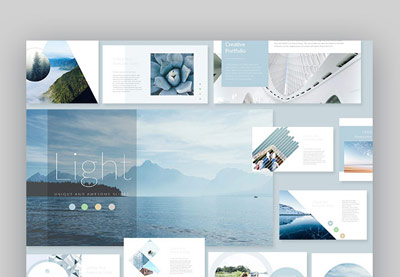
Never give up on style when you try to reduce PPT size. Librario is a spectacular PowerPoint template for any project. Inside, you’ll find over 150 slides in every layout imaginable. These are spread over five beautiful color themes. Master slide layouts make bulk edits simple. Plus, that helps reduce PPT file size too.

2. SENSASIONAL PPT

Template reduce ppt file size

When you think about how to reduce PowerPoint file size, consider what you’re trying to do. Likely, you want to share your slides with an audience virtually. That means giving them slide layouts they’ll be thrilled with. SENSASIONAL delivers, with 30 dark and stylish slides inside. Every element is fully customizable, with drag-and-drop graphics.

3. Visualizm – Pop Art & Graffiti PowerPoint Template

Visualizm how to compress PowerPoint file size

Thanks to Elements, you can add images and still reduce PowerPoint file size! Visualizm is a sleek, modern template to help you do exactly that. With cool, grungy vibes, it’s easy to adapt to your next project. Custom placeholders let you add in content with just a few clicks. There are even vector icons included for quick style changes.

4. Station PowerPoint Presentation

Station reduce PowerPoint file size

Station is another premium PPT template to reduce size and boost design. It’s illustrated in memorable shades of pink and purple. They’re sure to grab audience attention. Each slide is completely customizable, with some featuring world maps and unique icons. A handy reference guide is included if you need help getting started.

5. Defender – PowerPoint Template

Defender reduce PPT Size

Imagine how to compress PowerPoint file size while still sharing plenty of content. One way is to embrace minimalism. Trendy and modern, this design focuses on sharp contrasts and open spaces. Defender is a prime example, featuring 30 handcrafted slides. Master slides and image placeholders make it easy for you to build amazing slide decks.

More Top PowerPoint Templates

At Envato Tuts+, we’re passionate about PowerPoint templates. They help our readers save time and give great presentations without learning how to do everything on their own.

We keep the best PowerPoint templates listed in our guide, Microsoft PowerPoint Templates (Ultimate Guide to the Best PPT.) See even more of the best PowerPoint templates with these handcrafted selections:

Common PowerPoint Questions Answered (FAQ)

In this tutorial, you’ve learned how to reduce PowerPoint file size. This is an important skill to save disk space and make it easier to share with your collaborators. Reduce PowerPoint file size to be a considerate presenter and content creator.

It’s okay if you still have questions after you reduce PPT file size. Let’s tackle five of the most popular PowerPoint questions:

1. What Are PowerPoint Layouts?

One way to reduce PPT file size is to re-use similar designs with only minor modifications. PowerPoint layouts give you pre-built sets of slide designs that save you time.

Learn how to use layouts with the help of this tutorial:

2. What Dimensions Should You Use For PowerPoint?

Dimensions describe the shape and size of your PowerPoint template. Your settings matter because they’ll help you cover the screen completely. Choosing lower dimensions can also help you reduce PPT file size.

Read our tutorial to learn more.

3. How Do I Work With Images in Microsoft PowerPoint

Images are one type of content that can really increase your PowerPoint file size. It’s important to work with them carefully so that your PowerPoint doesn’t explode in file size. 

Pairing this tutorial with what you’ve already learned helps you master how to reduce PowerPoint file size. You’ll see options that show you how to compress PowerPoint file size by modifying images.

4. How Should You Show Data in PowerPoint?

Never create a slide that’s chock full of data and statistics in pure text format. Instead, lean on graphs charts to display the data in an intuitive way. PowerPoint makes this easy, and we’ll show you how.

By the way, mastering charts and graphs can also help you reduce PPT file size. When you use well-crafted visuals instead of embedding data, your file size will really benefit. Learn how below:

5. Can You Export 

Have you had issues reducing PPT file size to the point you can email it? Here’s an idea: export it as a video, then upload it to a service like YouTube.

Learning how to reduce PowerPoint file size is sometimes a matter of working around the app. You can export your PowerPoint presentation as a video, then use an online platform to overcome large files. Learn how with this tutorial:

Learn More About How To Use Microsoft PowerPoint

Pro presenters know that the work of learning is never done. They’re always sharpening their skills and improving their knowledge. PowerPoint has so many features that it’s impossible to know them all.

You know how to reduce PowerPoint file size to accommodate more options. Keep learning by checking out our resource, How to Use PowerPoint (Ultimate Tutorial Guide.) Here are three top tutorials to pair with your new knowledge of how to reduce PowerPoint file size:

Make Great Presentations (Free PDF eBook Download)

We’ve got a helpful compliment to this tutorial, which will walk you through the complete presentation process. Learn how to write your presentation, design it like a pro, and prepare it to present powerfully. 

Download our new eBook: The Complete Guide to Making Great Presentations. It’s available for free with a subscription to the Tuts+ Business Newsletter. 

Free eBook PDF Download Make a Great Presentation

Recap and Keep Learning More About PowerPoint

In this tutorial, I showed you some quick steps to reduce the size of your PowerPoint files. Following these simple workflows will optimize your presentations and keep storage space to a minimum.

There’s no reason to stop learning PowerPoint now. Here are tutorials to help you keep growing your presentation and PowerPoint skills:

How did these tricks reduce your files? Let me know in the comments, or if you’ve got any questions about how to reduce your PowerPoint file size, feel free to ask.

Editorial Note: This tutorial was originally published on May 1, 2017.  It’s been revised to make it current, accurate, and up to date by our staff—with special help from Andrew Childress.

{excerpt}
Read More