Category: Tutorials
Tutorials,freelance,projects,joomla,php,mysql,wordpress,blancer.com
Google says Chrome 89 was built to save memory and load faster
The Morning After: The worst way to watch ‘Tenet’
‘Pokémon Go’ trial gives players a peek at what might be inside their eggs
Apple’s 512GB Mac Mini M1 is back down to $829 at B&H Photo
Verizon’s 5G Home Internet arrives in 10 new locations
Jeep’s Wagoneer lineup is loaded with technology and touchscreens
Pakistan bans TikTok again for hosting ‘obscene’ content
How to Create a Glowing Fireflies Photo Manipulation in Adobe Photoshop
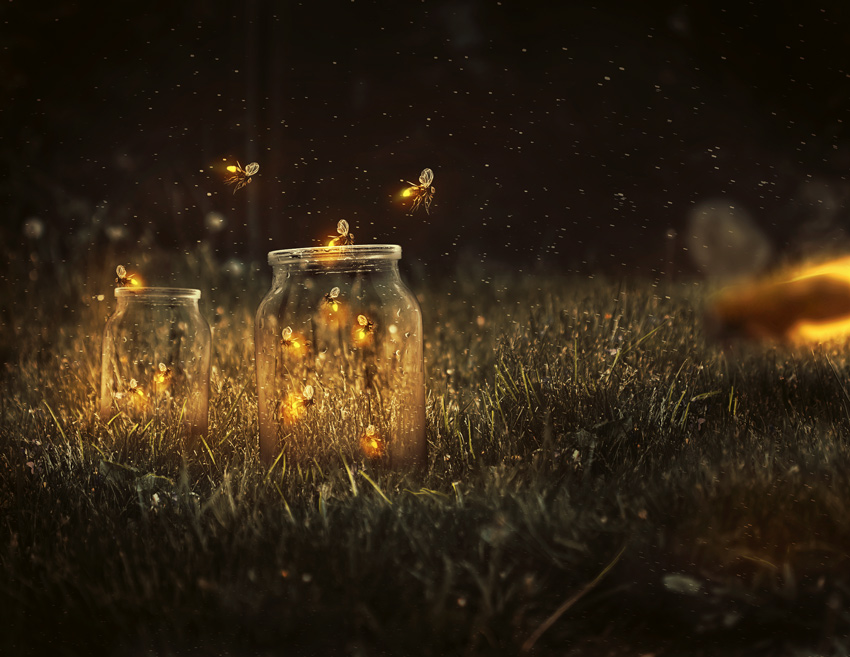
Have you ever caught fireflies on a warm summer night?
When I was a kid we used to call them “lightning bugs.” I was always fascinated by how they would shine and glow against the sky, and loved releasing them back into the night.
So in this tutorial, I’ll show you how to create your own firefly effect in Photoshop, using photo manipulation techniques and amazing tools in Adobe Photoshop. This firefly overlay then can be applied to a whole host of other images you want to try it out on.
Looking for a quick and impressive way to add a firefly overly effect to your images? Then check out Envato Elements. Envato Elements has many preset Photoshop elements which are perfect for getting started on your Photoshop manipulations.
50 Firefly Photo Overlays

Tutorial Assets
The following assets were used in the production of this tutorial:
Follow along with us over on our Envato Tuts+ YouTube channel:
Finding Inspiration
One of the best ways to stay inspired is to look for magic in everyday life. So for this manipulation, I’ll be creating a scene with a natural night feel using a collection of these stocks.

I typically gather references from various sources like Pinterest. But you can also prepare for the photo manipulation with a quick thumbnail sketch.
Mine was as simple as this little scribble below.

Let’s begin!
1. How to Remove an Object From a Photo
Step 1
Open the Grass stock in Adobe Photoshop.
Looks like we already have a furry friend in this picture! So we’ll have to remove the bunny from the photo to make room for the firefly overlay.

But first, let’s flip the image. Go to Edit > Transform > Flip Horizontal.

Step 2
Now crop the photo for a tighter composition.
Select the Crop Tool (C) and crop the image like below.
Feel free to adjust the overall image size to one similar to my final result at 2500 x 1932 pixels.

Step 3
Let’s remove the rabbit!

- Select the Rectangular Marquee Tool (M) and make a selection of some grass from the left side. Copy and Paste the selection onto a New Layer and rename it Rabbit.
- Flip the grass. Go to Edit > Transform > Flip Horizontal. Then place it over the bunny.
- Add a Layer Mask to this layer. Use a Soft Round Brush (B) (100% Opacity, 0% Hardness) to mask away the harsh edges of the square.
Tip: Feel free to take the masking as far as you need. This is just a quick way to remove the rabbit so we can move on.
2. How to Add the Glass Jars
Step 1
Now let’s work on the glass jar. We’ll need to remove it from the white background first so we can insert it into the composition. We’ll worry about how to add fireflies in Photoshop after this!

- Open your Glass Jar stock in Photoshop. Double-click the background layer to make it a normal one.
- Use the Magic Wand Tool (W) to select the white background.
- Then hit the Delete key to remove it completely.
Step 2
Create a New Layer above the rabbit cover and Copy and Paste the jar onto the grass.
Use the Free Transform Tool (Control-T) to rotate the jar at a slight angle. It’s sitting on grass after all, so perhaps it’ll rest a little off center.

If you’re using a jar stock similar to this one, then you’ll notice the inside is white just like the background. To make it more see-through like an actual glass jar, we’ll need to do the following steps.
First, select the Jar layer and hold Control-I to Invert it. This will turn it mostly black.

Step 3
Create a New Group and place the Jar layer inside.
Set the Layer Blend Mode of the jar to Screen, and then hold Control-J to make several more duplicates for a total of three copies.
We had to invert the jar first so that we can apply an effect that makes it more see-through. Duplicating the screen layers helps us bring the jar back without blocking the grass behind it. Here’s the result below.

Now select all the layers in the group and Right-click to Merge them together.
This will make the jar show up as black again, so make sure to set the Layer Blend Mode back to Screen.

Step 4
Continue to work on the jar.
Next, add a Layer Mask. Use a Hard Round Brush (B) (100% Opacity, 100% Hardness) to paint black onto the layer mask to remove the white reflection.
Then hold Control-J to duplicate this layer along with the new mask, setting the Opacity of the copy to 50%.

Now we have a clean glass jar that looks super realistic!
Step 5
Color correct the jar for more contrast and authenticity.
Create a New Layer above the Jar group. Right-click to set this layer as a Clipping Mask to the group.
Fill the layer with a pale pink color #b6a8b8 using the Paint Bucket Tool (G) before setting the Layer Blend Mode to Color Burn.

Step 6
Now paint shadow onto the jar. This step will help take away the harsh white lines.
Create a New Layer above the pink color fill and set it as a Clipping Mask to the Jar group as well.
Use a Soft Round Brush (B) (70-90% Opacity, 0% Hardness) to paint brown #262019 shadow all around the edges of the glass. Continue to paint more shadow on the bottom of the jar as well.
Layer the color as you go. Use the Eraser Tool (E) at any time to remove some shadow if it gets too heavy. Then set the Layer Blend Mode to Multiply.

Step 7
We’ve completed the first jar—great job!
Let’s add another.
To do this, select all the layers for the first jar (including the shadow and fill) and hold Control-J to duplicate them.
Now resize the second jar. While all the layers are still selected, hold Control-T to Free Transform the jar, resizing it to be much smaller in the back. Adjust the shadows and position as needed.

Here’s the result so far.

3. How to Add Fireflies in Photoshop
Step 1
Now that our jars are set in place, we can start to add fireflies in Photoshop.
Keep in mind that these aren’t real fireflies. I wasn’t able to find a stock of them flying so we’ll simply build our own.
First, download this 3D Fly stock at the right angle. A simple position like this one can be altered easily to make it look as if it’s flying.

Step 2
Copy and Paste the first fly onto a New Layer below both jar groups.
Free Transform (Control-T) to resize the fly, making it much smaller. Position the fly above the first jar.
To brighten the lighting on the fly, add a New Adjustment Layer of Curves above it and set it as a Clipping Mask to the fly layer. Adjust the curves for the RGB, Green and Blue Channels as follows. Then Merge the adjustment and fly layers together.

Step 3
Create more flies!
With the merged layer selected, hold Control-J to create several more duplicates of the lightened fly; a total of about 10 copies should do.
Position each new fly around the jars. Rotate, Resize, or Flip them to make the scene more dynamic. Make sure a few are sitting on top of the jars or just flying above them.

Step 4
Add one last fly. You can use the same angle or try a new one if you’d like.
Copy and Paste the original fly stock onto a New Layer above the rest. This stock should have the original lighting. Go to Edit > Transform > Flip Horizontal to flip it.
This fly will be flying in from the right side. So Resize it to be larger than the rest. Then position it at a downward angle for a sense of depth of field.

Step 5
To enforce the depth of field, blur the right fly.
Select the layer and go to Filter > Blur > Gaussian Blur, adding a Radius of 25 pixels.

Step 6
Now that all the flies are in place, we can cover the bottom of the jars with grass so that they fit perfectly into the ground.
Use the Rectangular Marquee Tool (M) to make a selection of the grass underneath the jars. Copy and Paste two copies of the grass onto two New Layers. Position each piece of grass over the bottom of a jar, and then Merge the layers together.

Refine the grass! Add a Layer Mask to mask away the harsh edges with a Soft Round Brush (B).
4. How to Finish the Fireflies Manipulation
Almost finished! Great work so far on your fireflies Photoshop image!
In order to get to the final stages of this manipulation, we still need to paint bright yellow glow onto the fireflies. This will help complete our fake lightning bugs in a jar. Then we’ll bring the entire composition together with more shadow and light adjustments.
Step 1
Copy and Paste the Starry Sky stock onto a New Layer above the rest.
Set the Layer Blend Mode to Screen and the Opacity to 87%.
This layer will instantly add a flurry of stars to the scene. Adjust the intensity with a simple Layer Mask.

Step 2
Change the color scheme with a few Adjustment Layers.
To change the scene from day to night:
Add a New Adjustment Layer of Color Lookup. Set the 3DLUT File to NightfromDay.CUBE.
Then set the Layer Blend Mode to Hard Light and the Opacity to 73%.

Step 3
Next, add a New Adjustment Layer of Gradient Map.
Set the color to dark red #270209 to red #d90f31, and then set the Layer Blend Mode to Linear Dodge (Add).
Lower the Opacity to 30%.

Step 4
Continue adjusting the colors.
Add another New Adjustment Layer of Color Lookup.
Set the 3DLUT File to Candelight.CUBE and the Opacity to 71%.

Then follow up with another New Adjustment Layer of Gradient Map.
Set the color to the Blue, Yellow, and Pink preset, and then lower the Opacity to 30% and change the Layer Blend Mode to Hue.

Step 5
Almost there!
Since the colors are right on track, we can now experiment with more shadow. Let’s create a slight vignette effect to draw more attention to the jars and fireflies.
Create a New Layer set to Multiply above the rest. Use a Soft Round Brush (70% Opacity, 0% Hardness) to paint brown #403a2c all around the edges of the composition.
Bring some of the brown into the grass to tie it all together.

Step 6
Brighten up the scene with some light!
Create a New Layer above the rest. Use a Soft Round Brush (0% Hardness, 70% Opacity) to paint yellow #b8b660 onto the ends of each fly.

Then create another New Layer above the previous one and set it to Overlay.
Now paint glow around the jars, flies and grass with a much brighter yellow #f7cb57.
Adjust the Layer Opacity as needed.

Step 7
Let’s finish up with a few more color adjustments. Our scene of fake lightning bugs in a jar is really starting to come together!
Start with a New Adjustment Layer of Selective Color.
Adjust the values for the Reds, Yellows, Neutrals, Whites, and Blacks to the following.

Then create a New Adjustment layer of Color Balance.
Set the values for the Shadows, Midtones, and Highlights to the following.

Here’s the result. We’ve added a lot more warmth and color intensity.

Step 8
To punch up the colors even more, create two New Layers and set them both to Overlay.
Use the Paint Bucket Tool (G) to fill the first layer with teal #2afbd1. Adjust the Opacity to 15%. Then fill the second layer with yellow #fbae2a. Set the Opacity to 40%.
Here’s the result.

Step 9
Our final details will help bring everything together for this manipulation. Use a Hard Round Brush to paint yellow #dcc95e highlights on the grass surrounding the glass jars.
A few highlighted strokes go a long way, so feel free to experiment with this step!

That’s it! Check out the final result below!
All Done! Great Job!
Relive your most nostalgic memories with a fun photo manipulation firefly effect in Photoshop! In this tutorial, we learned how to create an entire firefly overlay scene from scratch using beautiful stocks and 3D assets. Feel free to find similar stocks on your own to customize this manipulation with more details to create your own unique firefly images in Photoshop!
I hope you’ve enjoyed this tutorial! How’d you do? Share your comments and results below.

Firefly Effects From Envato Elements
Looking for some more effects from Envato Elements? Then check out these amazing effects that you can download and get using right away!
1. Sparks Photoshop Brushes (ABR)

Check out these amazing Photoshop brushes! They’re perfect for creating shiny sparks. As well as sparks, you can use these to create just about any shiny light source you want, even fake lightning bugs in a jar! This set comes with a total of ten different brush types, with the ability to completely customize the settings for each one.
2. Glory Photoshop Action (ABR, ATN)

This stylish effect adds a shiny glow which gives off a heroic vibe. Why not adapt it into a firefly effect in Photoshop? It comes in both ABR and ATN file types, making it easily compatible with Photoshop. Just check out the documentation and you’re off!
3. Magic Dust 2 Photoshop Action (ATN, ABR)

This colorful sparkle effect is a great addition to any project in which you plan on having a lightning bug effect. Or you can add a touch of magic to just about any photo! It comes with Photoshop actions that make it really easy to just start up and get going.
4. Abstract Extinguished Fire Backgrounds (JPG)

These cool and stylish abstract backgrounds provide the same vibes that a lightning bug effect in Photoshop would! The set includes ten designs which are hi-res and all in the JPG format, making them really easy to import into your projects!
5. 50 Golden Dust Photo Overlays (ATN)

These golden dust effects could work perfectly for a firefly overlay in your Photoshop projects. With over 50 overlays to choose from, you’ll be spoiled for choice! Documentation on how to use it is included! Once you get the hang of it, you can add these golden dust effects to all kinds of pictures!
For more photo manipulation tutorials like this one, check out these links:
 NeonHow to Create an Instagram-Inspired Neon Text Effect: Photoshop in 60 SecondsMelody Nieves
 Photo ManipulationHow to Create a Forest Self-Portrait Photo Manipulation in Adobe PhotoshopMelody Nieves
 Photo ManipulationHow to Create a Living Galaxy Photo Effect in Adobe PhotoshopAbbey Esparza
 Photo ManipulationHow to Create a Dramatic Mermaid Photo Manipulation in PhotoshopAbbey Esparza
 Photo ManipulationHow to Create a Wrapped Ribbon Photo Manipulation in PhotoshopAbbey Esparza

{excerpt}
Read More
Hand Lettering: Understanding Types of Type

At this point, after practicing the concepts in Letterforms at Their Core, you’re ready to start moving on to bigger and better things!
This tutorial will help you understand the various kinds of typography that exist all around us, such as the typography you see in books, billboards, store signage, and everything else in between. You’ll gain a great amount of knowledge to help you decipher typography characteristics and what their usage is in this day and age.
But perhaps you’re looking for different types of letters for your creative digital projects. In this case, we’ve got you covered. Envato Elements has the best sans-serif fonts, serif fonts, slab-serifs, script fonts, decorative fonts, blackletter fonts, and monospace fonts.

Scroll down after this tutorial—we’ve got a hand-picked selection of premium hand lettering fonts from Envato Elements.
What You Will Learn in This Hand Lettering Tutorial
- Letterform anatomy
- What types of letters are there
- How to do hand lettering
- Most popular letterforms
Letterform Anatomy Resources
Since this is a beginner class focused on hand lettering and typography, I will be using some terms you may not know. Here is a list of terms you may want to read up on just in case you’re not sure what they are:
- Typography Glossary
- Letterform anatomy: baseline, cap height, x-height
- Kerning
- Tracking
One last thing to note about this tutorial before we get too much further: this tutorial is about drawing letterforms, and it includes a lot of info about “why” we do certain things when it comes to typography. This tutorial is more of a guide to provide you with the basics and the understanding, while still allowing you to grow and practice on your own. If I provided you with the exact dimensions of little details and provided every little bit of information, I feel you wouldn’t learn and grow as much on your own. Lettering is all about practice and persistence.
With that said… Ready? Let’s get started!
1. Preparing the Tools You Will Need
Luckily, not many tools are needed this time around, since we’re basically just going to be drawing. Here is a very small list to help you begin:
- Pencil (whatever your favorite pencil may be—no specific brand is needed)
- 8.5″ x 11″ paper (no specific brand is needed—standard copy/printer paper works great)
- Eraser
- Sharpie or any thick black marker/pen
- Ruler
- Printer (not required, but is certainly useful)
- Download PDF

Step 1
Let’s go ahead and print this PDF out (or preview on whatever viewing device you please) for our reference throughout this entire tutorial. We’re going to view these faces as we grasp and understand each style of typography.
Why are we using HEAO? Well, those four letters are the perfect combination of vertical, horizontal, diagonal, and curved strokes. Those four basic strokes make up every single letterform imaginable. So focusing on those basics will give you a great start to help you draw the remaining 22 letters in the alphabet.
Here is the list of typefaces we will be studying. These are some standard faces that nearly every computer already has preloaded onto it (except Old London—you might have to download that elsewhere if you’d like it for future reference, but don’t worry, it’s free!)
- Helvetica (sans-serif font)
- Times New Roman (serif font)
- Rockwell (slab-serif font)
- Snell Roundhand (script font)
- Rosewood (decorative font)
- Old London (blackletter font)
- Courier (monospace font)

Step 2
We’re going to set up a “guide” or template to use throughout this tutorial. This page will contain the cap-height and baseline your letters will rest on throughout this tutorial.
All you need is a blank piece of 8.5″ by 11″ paper. Begin by measuring out 3″ from the bottom right-hand corner and making a mark. Do the same on the opposite side of the paper and connect the dots!

Step 3
Now that we just created the baseline, let’s form our cap-height. From the baseline you just created, measure out 2″ and make another mark in the bottom right-hand corner. Then, do the same on the bottom left-hand side. Connect those dots, and you’ve got yourself a finished guide page that we’ll be using in the rest of this tutorial.

2. Drawing Sans-Serif Letterforms
Step 1
Gather all your materials to draw letterforms. That will include paper, pencil, eraser, and pencil sharpener (if needed). Let’s begin by drawing and understanding the structure of sans-serif letterforms.
With your “reference sheet” in front of you, study the weight, contrast, negative space, and every little detail about the letterforms. Study exactly how that letterform is composed.
Have your guide page in front of you with a blank piece of paper on top. We’re going to use the guide page to allow our letterforms to fit within the 2″ space we created with the cap-height and baseline.

Step 2
It may sound silly, but what makes an H look great? What makes the H look proper? Well, the answer is, consistent vertical strokes (the same weight) as well as a slightly thinner horizontal stroke to connect the vertical strokes.
If you’ve been studying typography for a while, you’ll notice the little details such as a 0.5-millimeter difference in weight on the horizontal crossbar. Why is the crossbar nearly a hairline smaller than the vertical strokes? Because the H needs to feel balanced and not overweighted where the strokes meet. With the tiny hairline difference, the H becomes more pleasant to the eye and not an eyesore when being read at small sizes. Those little details are necessary not only for type design but for lettering as well.
Keeping all that in mind, draw two vertical strokes with the same width and a crossbar with a hairline difference. The width of the H is up to you if you’d like to explore—but for this tutorial, we’ll make it similar to our reference sheet.

Step 3
Next, let’s tackle the letter E. Just as you did with the H, study its characteristics. Pay attention to the little details! If you look closely enough, you can notice the middle crossbar is shorter than the top and bottom crossbars. Why is that? The middle crossbar is just a tad shorter to help balance and evenly distribute weight across the entire letterform. It essentially helps open up the negative space within the E so it doesn’t feel so heavy. Additionally, just like the H, the crossbars are a hairline thinner to aid the overall weight as well. Keep these things in mind when drawing connecting horizontal strokes and vertical strokes!
So draw one vertical stroke and three horizontal strokes to form the E. Make sure that middle crossbar is a bit shorter in width too!

Step 4
Now that our E is complete, let’s move on to the A. Again, study how the A is composed. What makes it feel balanced? What happens if the crossbar is raised? You can test that out in your own drawing, but I think you’ll find it looks rather odd, doesn’t it? The crossbar is optically centered so the negative space within the counterform is equal to the negative space just below the crossbar.
How do you know what angle to draw the vertical strokes? Well, you don’t really know, because that’s all dependent on the width of the letterform. If you want a really thin A, your angles will be incredibly steep. On the other hand, if you want a wide A, your angles will be more moderate.
Draw two angled strokes that meet in the middle. Then, add that crossbar, and it’s good to go! Use the below gif to understand how I’ve formed the A with each stroke.

Step 5
Alright, we’ve made it pretty far! Let’s finish off this sans-serif combination with the letter O. Let’s study the reference sheet once more and understand just how that O was created and balanced. You can see that the north and south (vertical) points of the O are ever so slightly thinner in weight than the east and west (horizontal) points. Why does the counterform of the O taper like that? That tapering is yet another balancing act to make the weight easier on the eyes when read within a word or sentence.
If you read through the Letterforms at Their Core tutorial, you know the curves of the O extend above and below the baseline and cap-height.

Step 6
That’s a lot of information in a short amount of time. There’s tons of practice involved with making your strokes the proper angle and your curves nice and smooth—don’t fret, it all comes in time! Just keep practicing! Repeat Steps 1 to 5 if you think you need the practice. If you’re not satisfied with the way your letterforms are looking, remove your paper from the guide page and begin again!

3. Drawing Serif Letterforms
Before we begin, I want you to study these letterforms for a bit longer. What makes a serif letterform different from a sans-serif? Well, a serif typeface has serifs, whereas a sans-serif has no serif. Hence, the word “sans”, which means without in French.
Additionally, there is more contrast in these letterforms. Some strokes are thin, while others are thicker. Why is that? If you think back to how these letterforms were first created, the thicks and thins are implied by the direction and angle of the pen or chisel. For example, if you’re pulling your pen downward towards yourself, generally the pen will release more ink since pressure is being applied. On the other hand, if you’re dragging the pen left to right or downward to upward, the stroke will be thinner, since the pressure isn’t being applied.
A serif is the finishing stroke of the letterform which generally projects outward of the stroke. So, to simplify things, just think of drawing sans-serif letterforms, but then adding serifs afterwards. You’ll see what I mean by the process below.
Step 1
Begin by studying the weights of the strokes in the H. Let’s draw a sans-serif H to start off.
Using that previous sans-serif H, let’s now add the serifs. They don’t extend too far from the stroke, so keep them about a quarter inch or less. It’s all up to you! The key is to make sure your serifs are consistent and similar across the entire letterform, as in the image below. And the last thing to notice is that the crossbar is much thinner in weight, so be sure to translate that in your drawing as well.

Step 2
Let’s move on to the E. Again, begin by drawing a sans-serif E (except keeping in mind the weights of the crossbars are much lighter), then adding the serifs afterward. The only difference with the E is that the serifs don’t extend left and right like the serifs on the H. Instead, the serifs extend downward and upward on the various crossbars.

Step 3
Unlike the sans-serif A, this serif A has more of a pointed apex rather than flat (it is technically flat towards the top, but so tiny it’s almost not noticeable! That flat apex makes all the difference, though). Again, start by drawing a sans-serif A, but make sure the left stroke is thin and the right stroke is thick. Once you have that done, add the serifs towards the bottom of the angled strokes, and it’s complete.

Step 4
Getting the curves of the O is probably still pretty difficult. It all just takes repetition and practice, so keep at it! Pay attention to the weight, width, and contrast of this letterform. Unlike the sans-serif O, this letterform has much less weight on the north and south curves (that weight is created by the pressure of the pen when drawing an O).

And with that, you’ve got a finished serifed HEAO!

4. Drawing Slab-Serif Letterforms
Slab-serif letterforms are pretty explanatory. Essentially, just think of a sans-serif typeface with “slabs” on either end of the strokes rather than the thin tapering serifs like the previous serif letterforms we just did.
The only thing to remember with slab serif faces is that the slabs are generally the same weight as the crossbars (which means they’re about a hairline thinner than the vertical strokes).
Step 1
Beginning with the H, let’s start by drawing another sans-serif H. Next, just add those slabs to the tops and bottoms of the vertical strokes. Pay attention to the weight—it may just be a hairline, but it makes all the difference!

Step 2
Move on to the E whenever you’re ready. Just as you did before, start with the sans-serif and add some slab-serifs! Just notice there is no slab on the middle crossbar of the E. There’s no slab because if one did exist, it would consume all the negative space within the letterform and feel way too heavy.

Step 3
Alright, you’ve got this A. No explanation needed really! It’s nearly identical to the sans-serif A. The only difference? That’s right, slab-serifs. Add ’em on, and you’re good to go!

Step 4
Now, anything with a curve generally doesn’t have a slab attached to it, unless it’s a curve such as a P, R, B, etc., which connect to a vertical stroke. Anyway, for this O, decide on a good width (obviously try to match our reference sheet—unless you’re trying something unique and different!) and begin drawing (almost) a perfect circle. Simple as that!

Here’s our completed Slab-Serif HEAO!

5. Drawing Script Letterforms
Let me throw out a little disclaimer before we get into this section. Script lettering is another subject in itself. I’ll be writing a separate class for script letterforms for you to truly grasp the dos and don’ts of script. We’re going to focus on a few minor details of script, based on the typeface Snell Roundhand, to give a little intro to script lettering.
Things to note while practicing: script lettering was generally done with some sort of calligraphy tool like a fountain dip pen, oblique pen, etc. That’s something to remember when trying to understand the thicks and thins and other characteristics. Additionally, with a script style of lettering, it’s usually only the first letter within the word that’s capitalized, not the entire word. I’ve only kept the HEAO capitalized to remain consistent with the other styles of typography we’re learning.
Keep that all in mind when practicing the below steps. Let’s get started!
Step 1
Beginning with the H, and all the other letterforms for that matter, we’re going to keep a constant angle of about 45 degrees. Let’s start by drawing the nice fluid 45-degree left-hand stroke of the H and do the same with the right-hand stroke. As I said above, the thicks and thins are determined by the pen. When a pen is pulled down, more ink is released, causing the thicker strokes. Knowing that, for this H, pay attention to the thin weights near the top and bottom of the stroke, and notice how it begins to get heavier in the middle.
Add that crossbar and the teardrop terminals, and this H is complete! (Note: the additional “swash” stroke on the left-hand stroke of the H is optional. More details and info about the “extras” will be covered in another tutorial.)

Step 2
If you take a look at this script E, you’ll notice it’s rather odd looking. Definitely a unique letterform. And the best part about it is that it’s formed with a single stroke of the pen.
To form this E, begin a bit below the cap-height, curve upwards toward the top-right, and bring it around counterclockwise and downward toward about the center of your 2″ space on your guide page. Once that’s complete, curve outward and down towards the bottom left and circle around to the top right, while still keeping that curve below the crossbar-line. This gif will help you understand the process a bit more.

Step 3
If you compare the right-hand stroke of the H and the right-hand stroke of the A, they’re exactly the same! (other than minor weight differences where the stroke begins).
With that said, begin with the right-hand side of the A (that’s just my preference) and essentially draw what you’ve already done with your H. Next, finish it off by drawing the thin stroke at that same 45-degree angle. You have the option to add the teardrop terminal or leave it off entirely.
Add that crossbar, and it’s good to go!

Step 4
The script O should feel pretty similar to drawing a serif O. The only difference here is the 45-degree angle and varying weights.
With that in mind, begin the O just a tad below the cap-height and maintain the thick strokes on the left and lower-left-hand side as well as the right and upper-right-hand side of the O.
The exit stroke where it extends outside of the O is another optional stroke. I’ll teach you more about flourishing, swashes, etc., in a later tutorial.

Here’s our completed script HEAO!

6. Drawing Decorative Letterforms
What makes a decorative letterform decorative? Essentially, it’s just the extra bells and whistles that are added to the face to give it an extra appeal. For example, in the Rosewood typeface we’re dealing with on the reference sheet, the drop shadow, diamond shape, and divided color make this “decorative“. If all those extra things weren’t included, this would just be a normal slab-serif typeface.
So, as far as teaching you this style goes, there’s not much I can teach since it’s totally up to you how you want to embellish your type. A great website to see tons of decorative styles would be Typefight.

Step 1
Let’s begin by using our slab-serif letterforms once again. The only difference with these letterforms is the width of the overall letterforms and the brackets within the slab-serifs. So draw out each letterform, H, E, A, and O. You’ve done it multiple times now, so it should be easier this time around!

Step 2
Now that you’ve got your basic letterforms drawn, it’s time to embellish. To do so, we’re going to use the same direction shade that Rosewood uses, but let’s change it up a bit and make a small drop shade rather than a large drop shadow. So, essentially, draw an extra line around each letterform on the right and bottom sides.

Step 3
Instead of copying the exact style of Rosewood, let’s fill in the letterforms with a light pencil shade to make them a light grey value.
To finish it off, let’s give our type some “spurs”. Essentially, let’s add a small triangle on whichever side of the letterform you please. I drew mine on the left.

Step 4
To add even more, let’s add the circle with two pointed triangles on the north and south of the circle. Repeat that across all the remaining letterforms, and I think we can call it a day.
As I said before, this entire process is totally up to you! You have creative freedom to embellish your typography however you’d like.

7. Drawing Blackletter Letterforms
Blackletter forms are another beast to tackle in a separate class, but I’m still going to provide some basics to get you started in the right direction!
To understand how they’re formed, you need a bit of history. Blackletter is also referred to as Gothic Script because it’s a form of calligraphy. It was used very widely in Europe for nearly any kind of document/book since everything was written by hand until the invention of printing by Johannes Gutenberg.
There are a wide variety of styles of blackletter forms. The capitals you will be practicing are of a more “modern” approach to the blackletter characters formed in the early 12th to 17th centuries.
Obviously, by the look of these characters, you can tell they’re pretty complex, with lots of vertical, angled, and curved strokes. To understand how they’re formed, you need to know what tools were used too. A simple broad-edged nib that produces a straight line of ink is the utensil of choice. If you’d like, you can purchase the Pilot Parallel Pen for practice. But, since this class is about drawing letterforms, let’s begin drawing rather than writing.
Step 1
Beginning on the H, let’s form the first left-hand vertical stroke. Draw that stroke, keeping in mind the thin weight towards the top and bottom and the thicker weight in the middle. It starts thin and gradually gets thicker because of the weight implied by the broad-edged nib and maintaining the 45-degree angle.
Next, let’s form the bottom horizontal stroke. It should now look almost like an “L”.
Continue further and add the second vertical stroke that eventually connects into the base of the horizontal stroke you just created.
Lastly, add that curve to finish off this H. Additional extra strokes that extend off the letterform are optional, but I included the process in the gif for your reference.

Step 2
Moving onward to the E. This should be relatively easy for you if you completed the Hand Lettering: Letterforms at Their Core tutorial.
Begin by forming a semicircle (the bowl of the E). Next, let’s add the vertical stroke that’s just a tad to the left of the center. Watch the weight as it connects into the bowl.
Next, add the “crossbar” or the horizontal stroke of the E towards the top. It’ll connect to the vertical stroke you just created. Watch the weight again. Make sure it doesn’t get too heavy at the top.
Lastly, let’s form the last horizontal stroke that sits just above the center of the E. Let’s first draw that thin vertical stroke down the center of the E. Then, connect the second horizontal crossbar directly to that thin vertical stroke we created. The finished letterform will look something like this.

Step 3
Moving onward with the A, let’s start with the right-hand vertical stroke. Pay attention to the weight once again, as it gets thinner to thicker from top to bottom.
Next, add the 45-degree angle stroke to complete the structure of the A. Then, add that crossbar.
Now here is where you have the choice to add all your embellishments. I say we add the curved stroke from the top of the A to the crossbar.

Step 4
With the O, this should be relatively simple as well if you’ve mastered your curves from the previous class. The only difference is the flat start of the stroke on the left-hand side of the O.
So begin by drawing the first left-hand curve, and next, add the right-hand curve to complete the circle. Keep in mind the top-left needs to be flat instead of round like the rest of the letterform.
Lastly, let’s add the one left-hand vertical stroke on the inside of the O. Again, you have the choice to draw the extra thinner lines. It’s up to you what you do with these letterforms!

To really understand the forms and structures these specific letterforms take, it’s best to write them with a broad-edged nib and understand your thicks and thins that are created by the angle and direction of the pen. Gothic script (blackletter) is an art form in itself. I highly recommend practicing that before beginning to draw the forms because it’ll help your eyes and hand compose the letterforms on paper without writing the forms.
Here’s the completed blackletter HEAO!

8. Drawing Monospace Letterforms
To be honest, I’ve never drawn monospace lettering for a client. It’s not as appealing as the rest of the styles you’re now capable of, but it’s still something to add to the knowledge base! You either have never seen this style of typography or barely at all. The reason is that monospaced fonts were used with the first computers and their terminals. Those computers had very limited graphical capabilities, so a fixed-width (monospace) typeface was needed.
Usually, every letterform within a typeface has different widths. For example, a “W” is much wider than a “J”. But with monospace letterforms, those widths would be the same.
With that said, certainly pay attention to the overall widths of your monospaced letterforms. Make sure they’re all equal!
Step 1
With these letterforms, they’re pretty similar to the slab-serif face we created earlier. Only difference? That’s right, rounded slabs, as well as the consistent width of every letterform.
Draw those vertical strokes, add a crossbar, throw on the slab-serifs, and you’re good to go!

Step 2
Same as the above, prepare this E by drawing a vertical stroke and attaching three crossbars just as we’ve done many times above. Lastly, add the rounded-slab-serifs, and it’s complete.
Pay attention to consistent weight, as if this was the very first exercise you completed during this tutorial.

Step 3
Again, same process as before. The only difference with this A is that a small exit stroke has been added to the top-left. Other than that, follow the same processes we’ve already practiced. It consists of two diagonal strokes, a horizontal stroke (for the crossbar) and the rounded slabs.

Step 4
Let’s finish this O, and we’ll be done! Extend the curves just slightly above and below the guidelines of your “guide page” you have underneath. Draw those curves, and make sure the width is the same as your previous letterforms.

Now, you’ve got yourself a completed monospaced HEAO!

5 Top Hand-Lettering Fonts From Envato Elements
You’ve learned everything about the different types of letters and how to do hand lettering in this tutorial. Next up, let’s see some of the best hand-lettering fonts from Envato Elements.
If you’re a digital creator with multiple projects, you’ll love our subscription-based marketplace. For a low monthly fee, enjoy unlimited downloads of the best hand lettering fonts. You can also get unlimited premium fonts, graphic templates, actions and presets, and more.
Let’s see some classic hand lettering fonts from Envato Elements:
1. Exensa Grotesk – Sans-Serif Font (OTF, TTF, WOFF)

Exensa Grotesk is a classic and clean sans-serif font inspired by the popular Helvetica sans-serif font. If you’re looking for modern sans-serif fonts for your projects, check this one out.
Exensa Grotesk features five weights and includes all web font formats. This is one of the best sans-serif fonts for creative projects.
2. Addington CF – Serif Font Family (OTF, TTF)
We’ve all worked with Times New Roman and know this classic serif font. And if you’re a fan of serif fonts, you’ll surely love this one.
Addington CF is one of the modern serif fonts we’ve got in Envato Elements. This beautiful serif font is excellent for all types of text. It includes seven weights, Roman and Italic sets, and more advanced features.
3. Synthesia Brush Script Font (OTF, TTF, WOFF)

Script fonts will always be popular, and this is one of the best script fonts we’ve got. Synthesia is a brush script font, which means it has a handwritten look.
The brush script font features stylistic sets, punctuation glyphs, and supports international languages.
4. Hypebeast – Vintage Decorative Font (OTF, TTF, WOFF)

Who doesn’t like decorative fonts with vintage looks? Hypebeast is one of the best decorative fonts of the Envato Elements fonts library.
This decorative font is really complete. Hypebeast comes with more than 500 glyphs, ligature and stylistic alternates, ornament vector bonus, and it’s accessible in many types of software.
5. Minerva – Blackletter Font (OTF, TTF)

If you like traditional blackletter fonts, Minerva is for you. This classic gothic blackletter font will look great on your creative digital projects. This gothic font includes uppercase letters, numerals, and punctuation symbols.
Explore More Hand Lettering and Calligraphy Resources
I hope you’ve liked this letterform anatomy tutorial. Now you know what types of letters there are and how to recreate them. After the hand lettering fonts from Envato Elements, I’m sure you’d like to discover more resources:
 Hand LetteringHand Lettering: A Project From Start to FinishScott Biersack
 Hand LetteringHand Lettering: How to Stylize Your LettersScott Biersack
 Hand LetteringHand Lettering: Mastering Brush-ScriptScott Biersack
 Hand LetteringNew Course: Hand Lettering for BeginnersAndrew Blackman
 TypographyThe Difference Between Typography & Hand Lettering: Typography in 60 SecondsMelody Nieves
 Hand LetteringHand Lettering: Scripts, Swirls, & FlourishesScott Biersack
 Fonts25+ Best Free Hand-Lettering Style Fonts (Designs for 2021)Melody Nieves
 Fonts29 Best Handwritten FontsMelody Nieves
Practice the Types of Hand Lettering Today!
Practice, practice, practice. Some of those first initial drawings might not look how you want them to, and that’s OK! I started in the same place. Just like anything in life, it all takes practice and patience. Give it time and effort, and you’ll be great.
If you need any help or have questions regarding the material above, feel free to comment. Good luck!
If you didn’t find the hand-lettering font you were looking for, go to Envato Elements and browse through its library today!

{excerpt}
Read More
50+ Best Free Photoshop Actions of 2021
Photoshop actions are terrific tools for creatively transforming your images with a single click. That’s because they allow one artist to record all the steps needed to create an effect and another artist—you—to add all those actions to your own work with the press of a button. This means that they save you time and can also be a great learning tool to help you improve your skills.

Today, we’ll take a look at over 50 of the best FREE Photoshop actions around, and for those looking for high-quality actions, we’ll first share a handful of premium Photoshop actions from Envato Elements that you shouldn’t miss.
Envato Elements: Best Source for Premium Photoshop Actions (Unlimited Downloads)
Envato Elements is the best source for professional, versatile, and easy-to-use Photoshop actions. With unlimited downloads for one low monthly fee, you can choose as many Photoshop actions as you want or need.
One low monthly fee = unlimited access not just to the high-quality actions, but also to thousands of premium digital assets like logos, fonts, photos, business card templates, and much more. Elements saves you both the time and energy needed when creating from scratch.
Let’s look at the most creative Photoshop actions to be found at Envato Elements.
11 Premium Photoshop Actions You Need to Try
1. Enso Art Photoshop Tool (ATN, ABR)
.jpg)
Create fantastic Japanese-inspired images in 2021 with Enso Art. This unique Photoshop action works with a couple of clicks and within a few minutes, saving you hours of time. If you want to create manga-style artwork in Photoshop, try out Enso Art.
2. Pencil Sketch Photoshop Action (ATN, ABR, PAT)

Turn your favourite portrait into a gorgeous pencil sketch with this Photoshop sketch effect action, which will make your portrait or other artwork look as if you spent hours drawing from scratch with a pencil and paper. It includes a terrific video tutorial to help you prepare your image for the action and show you how to customise your final artwork.
3. Double Exposure Action (ATN)

Double exposure is a cool photo effect that you can create yourself easily with this double exposure Photoshop action. The package contains a set of four Photoshop actions that simulate a double exposure effect and can be combined with any other actions. The final effect is fully editable.
4. Black and White Professional Actions for Photoshop (ATN)

If you’re looking for a great action to turn your colour photos into black and white, this is the action for you. The bundle contains 27 stunning black and white photo actions that will allow you to create everything from a dreamy vintage style to edgy, high-contrast black and white photos. The bundle comes with a 13-page PDF cheatsheet with a list of all the effects available and tips for best results.
5. Real Snow Photoshop Action (ATN)

For those times when you want to winterise your photos by adding both the colour and feel of winter as well as snow falling, you need to use this snow effect Photoshop action. You can run the action on your photo once or several times to vary the results. Either way, this is a great way to achieve a realistic feeling of snow floating down without spending hours trying to create the effect yourself.
6. Nebula Photoshop Action (ATN, ABR)

Space, the final frontier. Add a touch of the magic of the universe with this cloud and particle effect Photoshop action, which includes explosions, lights, clouds, and terrific colour grading. A help file is included to help you get the most from the action.
7. 50 Premium Matte Photoshop Actions (ATN)

This is the Photoshop edit action that photographers dream of. The bundle contains 50 matte actions that add tonal consistency and cohesion across a body of work to create a portfolio with a polished and professional look.
8. Skin Retouch Photoshop Actions Vol. 2 (ATN)

Portrait photographers will love this collection of Photoshop portrait actions designed specifically to make skin look flawless and gorgeous. This skin retouch action will let you retouch portraits in a fraction of the time it would take if you retouched each photo individually yourself. You can create a matte effect, airbrush, heal and improve skin, and much more using this versatile tool.
9. Grass Photoshop Action (ATN, ABR, PAT)

This is a fun Photoshop text action that scrapbookers and collage artists need to check out. Grass Photoshop Action covers your text and logos with a grassy effect. What’s even better is that you have a choice of different kinds and colours of grass, so think spring grass, autumn grass, tropical grasses, etc. How cool is that?
10. Radiant Photoshop Action (ATN, ABR)

Want to add some razzle-dazzle to your images? Wondering how to create particle effects in Photoshop or how to add a sparkle effect overlay? Wonder no more. This light particles Photoshop action allows you to add light particles, glitter, and shimmer just where you need the effects in any of your images.
11. Duotone Photoshop Action (ATN)

You’ve seen edgy and eye-catching duotone images all over the internet, but perhaps you have no idea how to make your own duotone effects. Why, with a Photoshop effects action, of course. This duotone Photoshop action pack contains 25 duotone Photoshop effects that allow you to add your chosen effects to any image with just one click. Now how’s that for getting the job done quickly and easily?
50+ Best Free Photoshop Actions 2021
1. Rainbow Photoshop Action
Harness the beauty of a rainbow in this rainbow light leak overlay. Add it to any type of image at any resolution, and bring a touch of vintage iridescence to your images.
2. Dots Shooter Photoshop Action
Try something unique with your projects with this free Photoshop action download. Create a static or animated pointillist result with this set of dot effects.
3. Light Rain Photoshop Action
Capture the look of light summer rain in your photos with this rain effect Photoshop action. Run the action once or several times to create different densities.
4. Convert Photos Into Pixel Art Action
Turn any photo or graphic into pixel art with this awesome pixel art Photoshop action that resembles vintage video games. The free download gives you six Photoshop actions for colour and B&W results.
5. 20 Free Black & White Photo Effect Actions for Adobe Photoshop
Create amazing black and white photos with this black and white Photoshop action that not only converts your images quickly but generates beautiful tones that enhance the overall mood of your images. The set contains 20 presets, which apply a range of stylish effects to your photos.
6. 40 Free Pastel Effect Photoshop Actions
This set of 40 Photoshop actions will give your images amazing pastel tones. It’s ideal for portraits, but will work equally well on landscape or nature shots.
7. Dehaze Photoshop Actions
For those times when there’s just a bit too much haze in your photos and you need to get rid of it without taking the time to slowly work on each photo, there is this dehaze Photoshop action that promises to do a better job than Photoshop’s native tools.
8. Light Leak Photoshop Actions
The light leak aesthetic seems to be sticking around for a while longer, so if you’re keen to add this effect to your photos, this light leak Photoshop action, which offers eight different effects, is a great choice.
9. Wedding Photoshop Actions
Weddings are among the most special of life’s moments, and you want your photos to reflect that. That’s why we’ve included this Photoshop dreamy glow effect action. Add it to your photos and create a fairytale quality that’s as magical as the day itself.
10. Free Animated Glitch Photoshop Action
Want to add a bit of edginess to your images? Try this glitch effect Photoshop action. What’s great about this action is that it contains a looping animated glitch that you can save as an animated GIF within a few seconds.
11. Simple Beautiful Borders
If you need to create borders around your images, this action is for you. The bundle contains six collections with a total of 30 different borders. The created effect is always layered, so you can customise it as needed.
12. Matte Photoshop Actions
These matte Photoshop actions will work equally well on portraits, landscapes, and street shots. They’ll add a wonderful unifying tonality to your images and give them a professional quality.
13. Free HDR Photoshop Actions
Create the perfect high dynamic range effect with this free Photoshop action. The three unique filters in the set work with RAW and JPEG images and offer non-destructive editing.
14. Photoshop Vintage Actions
Giving your photos a wonderful retro quality is easy with this vintage effect Photoshop action. The set contains seven vintage actions, and you can control the adjustment layer in each action to alter the intensity of the effects.
15. 5 Skin Retouching Photoshop Actions
One of the best Photoshop actions for portraits, this action allows you to heal, mattify, and airbrush skin with one click. It also includes actions for brightening eyes and increasing contrast without clipping highlights/shadows.
16. Retro Vintage Photoshop Actions
Whether you’re drawn to the cooler or warmer palettes of retro photos, this vintage effect Photoshop action contains nine beautiful coloured filters to suit every taste and need.
17. Dystopian Photoshop Actions
This grunge effect Photoshop action was designed specifically to bring a dystopic quality to night-time cityscape photos. Download it for free and add the effect to your photos with one click.
18. Photoshop Creamy Actions
Want to bring a big of warmth to your photos? Then try this Photoshop colour effects action. It adds just a hint of yellow to your photos to create a very safe and comforting feeling.
19. Fashion Photoshop Actions
This set of ten Photoshop actions for fashion photos has been designed to add an air of glamour to your photos. Use it to make your images truly eye-catching.
20. Chrome Effect Photoshop Action Download
Bring some shine to your creative projects with this chrome effect action. Apply this action to text, logos, and more. The chrome look really pops against projects with dark backgrounds.
21. Double Exposures
Double exposure is a photographic technique that combines two images into one, and this double exposure Photoshop action is designed to combine any two images you choose expertly.
22. EasyComic Free Photoshop Action
Want to add some humour to your images? Why not turn your photo into a comic-like image quickly and easily with this Photoshop comic book effect? Give it a try.
23. Photoshop Snow Action
For those times when you need to add snow to a wintry scene, there is this snow effect Photoshop action. Have fun running the action once or several times to layer the effect.
24. Silver
Want to convert your favourite photos to black and white? Try this silver effect Photoshop action. It offers eight film emulations, six film contrast effects, and two real film grain textures. All free to download and use.
25. Free Duotone Photoshop Actions
Give your images a stylish and modern duotone look with these free duotone Photoshop actions. There are seven different actions which offer different colour variations to enhance your photos. Just select the action you want and play it.
26. Architecture Sketch Photoshop Actions
Want to turn your photos of buildings into drawings? This sketch Photoshop action is for you. The free plugin, which offers a choice of three styles, also includes a watercolour effect Photoshop action.
27. 3D Retro Text Creator Photoshop Actions
If you’re looking to turn your text into 3D style, check out this 3D effect Photoshop action. Simply select the layer you want to transform, play any of the six actions offered, and Hey Presto! 3D text will be created for you.
28. Prestalgia: 10 Retro Effects With Light Leaks
This set of ten free light leak Photoshop actions will give your photos that vintage look that’s all the rage. Each effect gives a different variation, so experiment to see which you like the most.
29. Free Glitch Photoshop Action
Want that glitch effect that used to come from a corrupted VHS tape? Check out this glitch effect Photoshop action. Easy to download, easy to use.
30. 24 Ultra Faded Light Leak Photoshop Actions
More light leak fun with this light leaks Photoshop action that offers 12 ultra-faded film effects and 12 different kinds of light leaks. Fully editable and non-destructive.
31. Photoshop Night Actions
Want to create the effect of a photo taken in the late evening or night? Try this Photoshop action, which allows you to bring the dusky tones of an evening sky to any photo.
32. Separate Lines From BG Photoshop Action
Looking for a way to separate your traditional line drawing from the white background to create a transparent background? This is the action for you. Just download and press play after installing the addon.
33. Aesthetic Vintage Wedding Premium Photoshop Actions
Wedding Photoshop actions can really help your workflow. This free one offers 15 vintage Photoshop effects to give your images a beautiful ‘shot with film’ look.
34. 50 Free Winter Photoshop Actions
Winterise your photos with this collection of 50 free winter Photoshop actions that will bring the cool and quiet look of winter to any photograph with just a click.
35. Free Cinematic Photoshop Actions
Capture the glamour of the world of cinema with this glow effect Photoshop action. With just one click, you can change both the mood and style of your photos.
36. Free Warm Matte Photoshop Actions
Add some warmth to your photos with these warm matte Photoshop actions that are designed to be used on a wide variety of images.
37. High Fashion Skin Retouching Photoshop Action Free
Use these Photoshop portrait actions to bring the level of retouching found in high fashion to your photos. The action will let you heal and airbrush skin with just one click. It also includes retouching actions for brightening eyes and increasing contrast.
38. Free 40 Pastel Effect Photoshop Actions
Use these actions to give all your photos that soft, dreamlike effect that comes from pastel colours and tones. The actions work with RAW and JPEG files.
39. Free High Contrast Photoshop Action
Turn your images black and white with this professional pack of 15 black and white effect Photoshop actions. Perfect for photographers and graphic designers, the action is calibrated to give your photos a range of looks along the grey scale.
40. Bubble Tea Action
Give your photos that soft pink quality of early morning light with this free Photoshop dreamy glow effect.
41. Free Color Pop Photoshop Action
Differentiate your photo from all the others with this colour pop Photoshop action. It offers 14 actions that will boost the colour in your photos and make them stand out in a pleasing way.
42. Transform Photos Into Watercolors With a Free Photoshop Action
Give your photos that dreamy watercolour look with this watercolour effect Photoshop action. The free action is easy to install and run, and the files it creates are easy to customise.
43. BlackNull’s Modern Artist Action Set
Transform your photos into modern art with this gorgeous artist action, which uses the oil paint filter expertly without you having to do anything but press a button.
44. Mike Campau’s Looking Glass Effects
Get even more arty with this cool glass effect Photoshop action, which will transform any image with rectangular and circular glass-distortion effects. The action comes with a short how-to video to help you get the most from it.
45. Mockup Flat Shadow Photoshop Action
Want to create shadow effects for your graphics? This Photoshop action is for you. It’s specifically designed to add beautiful shadows to your 2D shapes like text or other graphics.
46. Spell
Bring a wonderful moodiness to your photos with this vintage effect Photoshop action. Free to download and easy to use on both RAW and JPEG files.
47. Attractive Free Cosmic Photoshop Action
The free Photoshop portrait actions will give your skin an amazing glow just with one click of the button. Download it and give it a try.
48. Shadow PS Action
Another awesome free action that will allow you to create realistic shadows that fall at any angle you desire.
49. Cinematic Photoshop Actions
Bring depth and high drama to your images with these fabulous cinematic Photoshop actions. The set contains 12 effects based on the colour-grading aesthetics of popular movie genres.
50. Orange Tones Photoshop Action
There are many ways to add warmth to your photos, but none as easy as this orange tones Photoshop action. Just download the free action and run it on your photos with a click. It’s as easy as that.
51. Five Black and White Actions
We complete our whopping list of over 50 free Photoshop actions with this cool black and white set that offers six different effects, from vintage to high contrast to soft contrast. Use it to quickly create the black and white look you want in your images.
Choose Your Favourite Photoshop Action Download Today
To find premium Photoshop actions, Envato Elements is an excellent place to look. It offers a wide range of professional, high-quality actions, and if you regularly need fonts, icons, templates, and other design resources, Elements offers unlimited downloads for one low monthly fee.
On the other hand, if your budget is non-existent, you should check out the range of actions featured here, and if you’re interested in more premium and free Photoshop actions, check out these terrific articles:
 Photoshop Actions22 Best Fire Photoshop Actions (Fire Text Styles and Photo Effects)Melody Nieves
 Photoshop Actions100+ Super Awesome Adobe Photoshop Actions From Envato ElementsMelody Nieves
 Photo Effects46 Best Photoshop Actions With Creative Photo EffectsSean Hodge
 Photoshop Actions20 Vintage Photo Effect Photoshop Actions & Old Retro StylesMelody Nieves
 Photoshop ActionsHow to Use Photoshop ActionsMelody Nieves
 Photoshop Actions100 Free Photoshop Actions (And How to Make Your Own)Josh Johnson
 Adobe Photoshop30 Best New Photoshop Actions & Photo Effects for 2021Melody Nieves
 Photoshop ActionsHow to Create a Smoke Effect Photoshop ActionMonika Zagrobelna
 Photoshop ActionsHow to Create a Cyberpunk Photoshop Effect ActionMarko Kožokar
 Photoshop Actions42 Best Photoshop Illustration Actions (From Photo to Illustration)Ivan Gromov

{excerpt}
Read More
44 Best Creative InDesign Brochure Templates (New for 2021)
Put your best foot forward with a professional brochure. Get the latest creative templates from this list of resources.
44 Best Creative Brochure Templates
Selling yourself is an art form. But not everyone feels that they can do it confidently.
So let a professional brochure do all the work for you! Today, we’ve got a wide selection of creative brochure templates you’ll definitely want to see.

Featuring many stylish and modern designs, these brochure templates are made by the talented creators at Envato Envato and Envato Market.
Save time with high-quality templates that are fully customizable. Update them with your brand details for a fast and efficient alternative.
Want to know how to make a brochure? Dive into the basics with this tutorial from Laura Keung.

Multipurpose Brochure Templates
Not sure where to begin? Tackle this first selection of multipurpose templates suitable for a variety of industries. Here are our favorites.
Multipurpose Life Brochure Template (INDD, INX)
With both form and function, this is an excellent InDesign brochure template for your brand. It features a simple contemporary layout and strong typography. This 22-page template comes in both A4 and US Letter sizes. Use it to showcase fashion, photography, architecture, and more.

Clean Square Brochure (INDD, INDML)
This brochure is clean, sophisticated, and ready for your content! Easily add your images in Adobe InDesign, change the colors, and more! This template is a perfect fit for projects that have engaging visuals to share with their audience.

Minimal Brochure Template (INDD, PSD, AI, EPS)
Looking for something simple and clean with a minimalist aesthetic? Check out this template. Change the key color to match your branding, and customize the included eight pages in either Adobe Photoshop, Illustrator, or InDesign.

Trifold Brochure (INDD)
Leave them stunned with incredible photography. This next trifold brochure is great for creatives like photographers and more. It includes paragraph and character styles, along with everything you need to customize it fast. Enjoy six unique pages at A4 size.

Creative Agency Brochure (INDD, INDML)
How will you make your creative agency stand out? Try a brilliant black brochure like this gorgeous template. This monochromatic design features a bold pop of yellow which you can easily replace with a new color. Jump-start your business the right way with this brochure template.

Brochure Template (INDD, INDML, INX)
Love abstract design? This next brochure template is modern and multipurpose. It can be used for a variety of industries in tech, business, or art. You’ll get four Adobe InDesign files that can be used with versions CS2 and above.

Creative Brochure Template (INDD)
What will it take for your business to reach new heights? Now you can try an exhilarating brochure design. Designed in standard A4 and US Letter formats, this smart template is well organized and fully layered. Get access to free fonts and more.

Basic Brochure Template (INDD)
Need something basic for your next project? Try this minimal yet elegant brochure template. This modern design features a refreshing, bright color scheme that can be easily changed to suit your brand. Get 12 custom pages and print-ready files in one great download!

Multipurpose Brochure InDesign Template (INDD)
Multipurpose templates help you express your individual style in less time. Take this brilliant InDesign template, for instance. This download includes professionally made files of a 16-page document that’s based on a clean, architectural theme. Add it to your collection!

Fashion Trifold Brochure (INDD, INDML)
Opening a shop or local boutique? Add this beautiful fashion trifold to your list of helpful templates. This brochure features a polished, cream design that’s perfect for designers, photographers, and freelancers. Best suited for Adobe InDesign CS4 and above.

Business Brochure Templates
Brochures are essential to the operation of many companies. Get high-quality designs with this next selection of professional templates.
Square Company Profile (INDD, IDML)
This brochure is super easy to customize in Adobe InDesign—just add your photos to the placeholders and voila! Add your content or use this design to jump-start your creative process. The only limit is your imagination.

Real Estate Brochure InDesign Template (INDD)
Need a pamphlet template for your real estate business? This next brochure design is sure to win your clients over. It features a 16-page document with print-ready files and a highly detailed instructional guide. Just follow along with the simple steps for the best result.

Corporate Brochure (INDD)
Business brochures help you understand a company’s services, history, and management team. This corporate brochure features a refreshing white and blue design with sharp, angular details. It also includes paragraph and character styles, swatches and more for easy customization.

Interior Design Brochure (INDD, INDML)
Combine your favorite images and fonts for a strong brochure cover. This sleek template is inspired by the interior design business but can also be applied to many industries. It includes 32 unique layouts, automatic page numbering, and a quick help guide.

Brochure Template (INDD, INDML)
Stylize your brochure covers with an incredible geometric design. This brochure template features a colorful, modern layout with a total of 16 pages available. Update the cover with your logo and company photo for a quick edit. Check it out!

Business Brochure (INDD, INDML)
Make your brand colors the star of your business brochure. This bold brochure design features a solid blue cover with geometric accents. Update the color to the one you prefer or insert a photo for more customization. Try it out with landscape or portrait photography!

Brochure Template (INDD, INDML)
Is your business brochure sending your clients the right message? Bring more customers in with a creative brochure template. Lay out all your future projects and current business activities with style and class. Enjoy 16 print-ready pages you can easily edit.

Bifold Brochures (INDD, PSD)
Here’s a brochure design with a modern, stylish edge. This awesome brochure features three layout options for covers and three more for inner pages. It’s like having multiple brochure templates in one download. Add it to your collection today!

Food Restaurant Trifold Brochure (INDD, INDML, EPS, AI)
Get three amazing color concepts for the price of one with this brilliant food restaurant trifold brochure. The helpful trifold design gives you plenty of room for food photos, menu details, and company information. Remember to add your own colors or logos for a whole new look!

Corporate Brochure (INDD, INDML)
Thinking of making a new company profile? Check out this next corporate brochure for a fast transition. Now you can add all your pertinent information to this very well-organized company documentation. Discuss financial information, expert quotes and more with this template.

Travel Resort Trifold Brochure Design (INDD, INDML, EPS, AI, PSD)
Sell the vacation of a lifetime with this stunning travel resort brochure template. You can easily swap out the tropical photos for a different location or adventure. Get access to multiple file formats for Adobe InDesign, Photoshop, and Illustrator.

ADVENT Adventure Business Brochures (INDD)
Does your business need more promoting? Take on the challenge with this modern brochure design. This InDesign template features one-click color changes and image placeholders. It also holds fully editable layers, making it the perfect design for beginners.
Business Brochure (INDD, INDML)
Earn more sales by building your own business brochure. This minimalist template features 32 layouts with master pages also included. Create your company’s profile quickly and easily so you can get back to business. Try it out today!

The Company Brochure (INDD)
Why will customers choose your business? This next company brochure is sure to draw them in. It features a colorful, geometric design with triangular placeholders for your company photos. Add additional details with the help of Adobe InDesign.

Company Profile (INDD)
Boost your company’s status with an informative marketing brochure. This company profile template is modern and minimal. Although the photos aren’t included, you can easily update the image placeholders with every picture you need. Jump-start your next project for under $15!

Bifold Brochure Corporate InDesign Template (INDD, INDML)
Bifold brochures, like this one, feature automatic page numbering and more for efficient design. This particular pamphlet template is available in A4 and US Letter sizes and is made with completely free fonts. Change the colors quickly with just a few clicks!

Gym Bifold Brochure (INDD, INDML)
Starting a new gym business? Build an effective client list with a brilliant bifold brochure. This brochure design features 18 custom pages that are perfect for fitness fanatics and gym enthusiasts. Edit it fast using standard software like Adobe InDesign.

Medical Healthcare Brochure InDesign Template (INDD, INDML, EPS, AI)
Visiting the doctor is an uncomfortable experience for some. Make your clients at ease with a helpful medical brochure. This InDesign template features three color variations along with additional file formats. Use it for hospitals, medical centers, and private practices!

Vineyard & Winery Brochure (INDD, INDML)
Do you have some of the best wine in the world? Your audience won’t know without a helpful brochure. This next template features an elegant vineyard and winery theme with beautiful pictures, elaborate fonts, and more. Get access to multiple formats with this download.

Creative Brief Template (INDD, INDML)
Design a company brief that’s strong yet creative. This next brochure template features a clean and professional design with bold, red details you can easily customize. Add your company photos, information and more for a whole new look!

InDesign Magazine Brochure Template (INDD, PSD)
Ready to kick start your career in writing? See how your ideas come together with a multipurpose template that’s great for creatives. This brochure features 26 pages, free fonts, and additional paragraph styles for a beautiful magazine design. Try it out!

Report Brochure Template (INDD, INDML)
Don’t clutter your reports with unnecessary details. This next brochure template is perfect for the avid minimalist. It features fully editable Adobe InDesign files along with a quick PDF guide to help get you started. Add it to your design arsenal today!

Exeelo Trifold Brochure (INDD, INDML)
Trifold brochures are often the go-to pamphlets for many entrepreneurs. The Exeelo brochure design is exciting yet minimal. It features a punch of purple color as well as plenty of space for your company details. Experience with Adobe InDesign CS4 and above is required.

Square Business Brochure (INDD, INDML)
You can also change the shape of your brochures for more impact. This square business brochure template is modern and compact. It features a basic visual aesthetic that can easily fit many industries. Download the bonus help file for more fonts and information.

Law Firm Brochure (INDD)
Create a long-lasting career in law with this brochure template. Just drag and drop your photos, colors and text into the efficient placeholders to secure your design. It also works well as a digital brochure for online content. Try it out!

Architecture Brochure (INDD, INDML)
Need a stunning brochure for your architecture business? Try this amazing design. This Adobe InDesign template comes in print and digital brochure formats to give you more possibilities for expanding your reach. Enjoy 26 unique layouts and so much more!

Creative Brochure Templates
Explore your creativity through your business. This last selection of brochure templates is perfect for creative entrepreneurs, designers, and business owners.
Brochure Template (INDD, INDML, INX)
Work in a creative field that’s heavily impacted by visuals? Check out this brochure. The example, below, showcases a barbershop, but this could work for a wide variety of creative pursuits. Show off your best work with this lovely design.

Creative Portfolio Brochure (INDD, INDML, INDT)
Get creative for your personal portfolio! This brochure features a clean-cut design that highlights your work remarkably. It includes 24 high-resolution pages with intriguing layouts and details. Customize the look to fit your brand in much less time. Try it out!

The Creative Brochure (INDD)
Are you running a creative agency or individual business? No matter your specialty, you’ll be able to describe your passions with this fantastic brochure template. This modern design features free fonts and master pages, along with text and images separated on completely different layers. Add it to your collection!

InDesign Fashion Catalog Template (INDD, JPG)
Want a smart fashion catalog for your growing boutique? This next InDesign template should do just the trick! It features 30 pages that are print ready with additional bleeds. Update the title with the font of your choice to match your own aesthetic.

Creative Bifold Brochure (INDD)
Business professionals can’t get enough of bifold brochures! These professional templates are not only easier to navigate but also include straightforward company information for your clients. Enjoy two popular color options for both blue and green results.

Vibrant Bifold Brochure (INDD)
Need a design that’s informative and vibrant? Create a forward-thinking brochure with this unique bifold template. Available in both A4 and US Letter sizes, this brochure is compatible with Adobe InDesign versions CS5 and above. Check it out!

Creative Agency Profile Template (INDD)
Build your creative agency from the ground up! This sleek brochure template might be just what you need to handle that task. It includes 16 pages, three covers, and fully editable details you’ll love to customize. Great for tech, art, and business professionals.

Extreme Sport Landscape Brochure (INDD)
Take your audience on an adventure with an extreme sports brochure. This brochure template features a landscape orientation with lots of room for text and large images. It also includes every shape, element, and page needed for a professional project. Try it out!

More Brochure Templates
Brochure templates give power back to business owners to help expand their brand over time. Create lasting, one-on-one experiences using high-quality templates for businesses and creatives.
Want more brochure templates? Check out these articles for inspiration:
 Brochure25 Best Pamphlet Templates (Tri-Fold Brochures, Bi-Fold, and More!)Melody Nieves
 BrochureHow to Make a BrochureGrace Fussell
 Adobe InDesignHow to Make a Bi-Fold Brochure in InDesignGrace Fussell
 Print DesignHow to Make a Marketing Brochure Template in InDesignLaura Keung
 Product Mockup21 Best Brochure Mockups (Using an Online Mockup Generator)Nona Blackman
 Brochure21+ Best New Product Brochure Templates (Modern Layout Designs for 2021)Andrew Childress
 Brochure20+ Best Modern Corporate Brochure Templates With Clean Designs for 2021Brenda Barron
 BrochureHow to Create a Science Brochure Template in Adobe InDesignGrace Fussell
Tried any of these assets? Let us know! Tell us your favorites in the comments below.
This has been a selection of premium resources perfect for the avid creator. For more brochure design templates, check out Envato Elements and Envato Market, or enlist the help of our talented designers at Envato Studio. Happy creating!

{excerpt}
Read More
How to Curve Text in Cricut Design Space

Looking to learn how to curve text in Cricut? Then you’re in the right place! In this quick tip tutorial, we will go over how to start a project in Cricut Design Space, how to use the Text Tool to write custom text, and how to curve letters in Cricut Design Space.
Handwritten and curvy fonts work great for curved text in Cricut Design Space. For the purposes of this tutorial, we’ll be using the Cute Bubble font from Envato Elements to add some curve writing in Cricut Design Space!

What You’ll Learn in This Tutorial
- How to use the Text Tool
- How to change the font and other properties of text in Cricut
- How to curve text in Cricut Design Space
Follow along with us on our Envato Tuts+ YouTube channel.
Also, if you’re looking for other fonts, you can check out the wide selection available to you on Envato Elements. There are of course many fonts which are ideal for trying out how to curve fonts on Cricut. Envato Elements also has a large variety of images and icons in the SVG format which are just perfect for giving your next craft project a kick start! In fact, we’ll even be using an SVG icon to finish up our design from the 40 Weather Icons Set.

1. How to Set Up a Project to Curve Text in Design Space
Step 1
Before you get started, make sure that you’ve installed the fonts you want to use. You can check out a tutorial here on How to Upload Fonts to Cricut Design Space. Once you have the fonts you want to use installed, go ahead and open Cricut Design Space on your computer. Cricut Design Space is the software that you use to create and edit designs for your Cricut projects. The instructions on how to install it come with your Cricut Machine.
Open up Cricut Design Space, and you will be presented with a Home Screen that looks like this.

Step 2
To get started curving text, we’ll have to create a New Project. You can do this by clicking New Project either on the top right or the bottom left.

Step 3
Now we are presented with the stage area of our project. You may be familiar with this if you’ve used Design Space before!
Now we’ll want to add text. To get started with this, go ahead and click the Text Icon on the left.

Step 4
We will now be presented with a text box. With the Text Tool selected, click anywhere on the stage and then type any text you want to see.
Cricut Design Space will then render our text for us.

Step 5
Now let’s go ahead and change the font of the text we’ve placed down! To do this, we will need to click the text to select it. Here you can see what it will look like once it is selected.

Step 6
With the text selected, take a quick look at the top area of the stage. You will see a variety of options that we can use to edit the appearance of our text. Keep in mind that these options only appear when the text is selected.

Step 7
Select the Font dropdown on the top left in order to select a new font.

Step 8
Go ahead and scroll down and select your font. In our case, we’ll be using the Cute Bubble Font from Envato Elements.

Step 9
Now that we’ve selected the new font, the appearance of the text has now changed.

2. How to Curve Text in Cricut Design Space
Step 1
Now that our text is prepared, how do you curve text in Cricut Design Space? All we need to use are a couple of properties. So let’s go ahead and add a curve to our text!
With the text selected, click on the Curve property above the text.

Step 2
Now click and hold the handle.

Step 3
While holding the left mouse button, drag left and right to change the Diameter of curvature for the text. When you’re happy with the curve, let go of the mouse button. This is how to curve words on Cricut Design Space!
Tip: You can also specify the Diameter of the curve by inputting a number.

Step 4
Now that you have your text curved, you will likely want to adjust it in various ways. You will get mixed results on this, depending on the font you have used and its natural Letter Spacing. You can adjust the Letter Spacing by using the arrows by the Letter Spacing property.

Step 5
Next, you may want to rotate your text! We can do this by clicking on the Rotate Icon when the text is selected here. Click and drag the Rotate Icon to rotate your text.

Step 6
Now use a combination of the Font Size, Letter Space, and Curve properties to get your desired results!
And there you have it! Now that you can curve text in Design Space, your creativity can take you from here. I went ahead and used a cloud icon that I got from Envato Elements. There are a lot of possibilities for fun designs when you know how to curve words on Cricut!

3. Where to Download Fonts for Cricut
Now that you’ve mastered how to curve words in Cricut Design Space, you’re probably itching to find some fonts which would be a great match. Luckily for you, we’ve picked some great hand-lettered fonts you can try from Envato Elements, which are just perfect now that you know how to curve text on Cricut. Check them out!
1. Happy Monday

Happy Monday is a really cute and energetic handwritten font! The playful text works great with Cricut curve text, so try it out! It also comes with a free vector icon as well as the font itself. This font is in the OTF and TTF file formats, which are perfect for Cricut Design Space.
2. Nashira

This fluffy, hand-drawn typeface is sure to give your next project a warm, friendly vibe. Now that you know how to curve font on Cricut, this is a great one to try. Try adding just a slight curve to it! It comes in OTF and TTF file type, so just install it on your desktop and quickly use it in Cricut Design Space.
3. Honey Peach

The Honey Peach font is a cute handwriting cursive font that works wonderfully with Cricut curve text! This warm and inviting hand-drawn font is sure to add a nice personal touch to your upcoming craft projects. It comes in a variety of different formats which are supported by Cricut Design Space.
4. Ze Typeface

The Ze Typeface is a handwriting font with a lot of personality! It’s great for practicing how to curve fonts on Cricut, and a perfect match if you’re going for that hand-drawn marker look. It comes with a large variety of different treatments such as regular, bold, and cursive—plus bonus materials!
5. Bonjour

Bonjour is a hand-drawn font which is bold and charming! The thick lines feel natural and flowing, while grabbing your attention. It’s great for any projects you’re planning that involve curve writing on Cricut, and it comes in a variety of formats such as TTF and OTF, making it a great fit for Cricut Design Space.
We hope you enjoyed this quick tutorial on how to curve letters in Cricut Design Space. If you’re looking for more great tutorials on Cricut and script fonts, check out our variety of tutorials here on Envato Tuts+.
 CricutHow to Upload Fonts to Cricut Design SpaceZap Layden
 CricutHow to Make Money With a Cricut (Cricut Project Ideas to Sell)Daisy Ein
 CricutHow to Make T-Shirt Designs With a CricutZap Layden
 Cricut20 Best Free Fonts for Cricut (Monogram, Cursive, Script)Daisy Ein
 Paper CraftsHow to Make Your Own Gorgeous Christmas CrackersEleanna Kotsikou

{excerpt}
Read More
Xbox March update adds toggles for old games, kills the live TV guide
Xbox consoles — from Day One Xbox Ones all the way up to Series X — are getting a new software update that adds some features and removes others. The Xbox Accessories app for PC as well as consoles both new and old will get a patch that adds compatibility with Microsoft's new Xbox Wireless Headset, so gamers can access all of the available audio controls and even the brightness of its lights.
One feature that's going away is the live TV listings in OneGuide that has been a part of the Xbox One since it launched. Microsoft's aspirations for controlling TV via the HDMI passthrough of the Xbox One didn't work out, and live TV viewing isn't nearly as important as it once was, so that feature will join Windows Media Center and WebTV in the great beyond. The OneGuide itself will stay for watching TV through the HDMI input or add-on tuner, but without the schedules of what is airing where.
However, the big addition that's relevant to current gamers is a new set of toggles for backwards compatible titles. They'll let gamers enable or disable Auto HDR and FPS Boost on a per-game basis in order to only have them when there's actually a benefit and they don't negatively affect the experience. Auto HDR is pretty easy to figure out, but can be more hassle than its worth, while FPS boost can up the framerate to 30, 60 or even 120 fps on certain games.
Smaller tweaks include the return of Achievements to the mobile Xbox app and improvements to "My games & apps" that more clearly explains what parts you need to install if you don't want to install every possible item for a particular title.
Hacked surveillance startup Verkada leaked live feeds for Tesla, others
A report from Bloomberg says that hackers breached the security of Verkada, an enterprise surveillance video company, and were able to access live feeds from over 150,000 cameras. The reporter were in contact with the hackers, who said they had access to hundreds of cameras in Tesla facilities, as well as other companies like Cloudflare.
In a statement, a spokesperson for Verkada said "We have disabled all internal administrator accounts to prevent any unauthorized access. Our internal security team and external security firm are investigating the scale and scope of this issue, and we have notified law enforcement."
The hackers said they lost access after Bloomberg contacted the company, but that they initially got in via a "Super Admin" login that was exposed on the internet, then used built-in camera features to obtain root access and remote control. Motherboardhad previously reported on Verkada employees who used surveillance cameras in their own office to harass others and take pictures of women they worked with, and now obtained a spreadsheet from the hackers identifying 24,000 organizations that may be using its cameras.
Verkada
On its website, Verkada touts its ability to provide secure remote access to camera feeds "providing real-time visibility into events across sites." It also advertises "video analytics" which can rely on facial recognition, identification and vehicle tracking using technology built directly into the cameras. One of the people in the group behind the breach told Bloomberg that this incident "exposes just how broadly we’re being surveilled, and how little care is put into at least securing the platforms used to do so, pursuing nothing but profit."