Building a feature-rich Ionic app with an elegant user interface can be challenging—even more so if it is to look native on multiple platforms. Fortunately, by using a ready-made Ionic template, you can save substantial amounts of time and effort.
Building a feature-rich Ionic app with an elegant user interface can be challenging—even more so if it is to look native on multiple platforms. Fortunately, by using a ready-made Ionic template, you can save substantial amounts of time and effort.
Learn how to create a watercolor font effect in Photoshop and Illustrator in this walkthrough. We’ll also take a look at some awesome watercolor texture Photoshop effects, actions, and more. Want to learn more about how to make a photo look like watercolor in Photoshop? We’ll check out some awesome watercolor filters for you too. So, if you love watercolor effects, let’s dig in.
Love fonts, textures, and effects? Then make sure to check out Envato Elements. One low price gets you access to millions of creative assets. This means you have unlimited access to thousands of fonts, but you also get watercolor textures, Photoshop actions, and more. It’s all included. Check it out today!
We’re going to use a host of assets in this walkthrough, including watercolor paper textures, Photoshop effects, and more. Consider this a suggested list, but you can also use any similar assets of your choice.
Interested in things like how to create a watercolor painting effect in Photoshop? If you’d like to explore how to make a photo look like watercolor in Photoshop, stay tuned.
We’re going to focus on watercolor filter Photoshop effects for text. However, there are some specific photo-to-watercolor Photoshop effects later in this walkthrough. We’ll even show you where to get started if you’d like to learn how to make a watercolor brush in Photoshop.
But for now, let’s begin with the basics of creating a font that looks like watercolor in Photoshop.
1. How to Create a Watercolor Font Photoshop Effect From Scratch
Let’s begin with creating a watercolor font effect, from scratch, in Adobe Photoshop. It takes some Photoshop know-how, but it’s doesn’t take all that many steps.
You can use any font you like for this demonstration. I’ll be using this script font from Envato Elements, but you could use a serif, sans serif, or any type of font you prefer! The concept works for almost all fonts.
Begin in Adobe Photoshop. Create a New Document, and use the Type Tool to create some text. Again, I’m using the Chamelia font. Move and reposition your type using the Move Tool.
Here’s an example you could try to emulate. Not sure how to change the font or the font size? Open the Character panel, by going to Window > Character. This panel can help you further customize your type.
Step 2
Next, let’s open up our watercolor texture. I’m using this watercolor texture from Envato Elements.
When we open up the watercolor texture, Photoshop will switch to this new document. First, go to Select > All to select the entire image. Then, go to Edit > Copy to copy it.
Once you’ve done so, go back to our original document. Go to Edit > Paste and Photoshop will paste our watercolor texture on a new layer, above our text.
Don’t see your layers? Go to Window > Layers to open up your Layers panel.
Step 3
Make sure your Layers panel is open. Our watercolor texture layer needs to be on top of our text layer.
Then, with the watercolor texture layer selected, right-click on PC or Control-click on Mac. From the resulting menu, select Create Clipping Mask.
This makes the watercolor texture only visible in the space occupied by the text. We can move and reposition the text any way we want. It won’t be visible outside of our text now.
Step 4
To finish up, try pasting a watercolor texture onto your background too. I tried this watercolor brush stroke from Envato Elements. This is the same process of copying and pasting as before, only without the Clipping Mask.
You can do this with more type too. Try repeating this process with even more text.
2. How to Use a Watercolor Photoshop Effect
Next, let’s try creating a watercolor font look using a Photoshop effect. This is different from a Photoshop action; all we’ll need to do is add our type, and the effect is done! Here’s the watercolor effect we’ll try out in this demo:
Begin by opening up the watercolor effect template in Adobe Photoshop. Then, open your Layers panel by going to Window > Layers.
We have a bunch of folders here we can sort through. In this case, click on the folder called Text 1. Inside of it, we have a Smart Object.
Double-click on the thumbnail of this Smart Object layer.
Step 2
Then, Photoshop takes us inside this Smart Object. Toggle visibility off on any of the existing layers, unless you want them to remain visible.
Use the Type Tool to add some new text to our Smart Object. In this demo, we’ll use the Sweet Pattern font. You can add as little or as much text as you’d like.
Once you’re happy with your text, Save this document by going to File > Save.
Step 3
Once you’ve saved your work within the Smart Object, go back to the template document. Photoshop has updated the content here for us. Simple, right?
Now your custom text has a watercolor font effect applied.
3. How to Use a Watercolor Effect in Adobe Illustrator
We can also work with watercolor font effects in Adobe Illustrator. Let’s try out this easy-to-use vector watercolor effect. It will also work with any font we’d like to try.
Let’s try out another font, too. This time, we’ll use this modern calligraphy font called Butterie. Again, hand-drawn fonts and script fonts tend to lend themselves well to a watercolor aesthetic.
Begin by creating a new document in Adobe Illustrator.
Then, open up the Graphic Styles panel by going to Window > Graphic Styles.
With the Graphic Styles panel open, click on the menu icon, at the top right-hand side. From this list, select Open Graphic Style Library > Other Library. Then, choose watercolor.ai, the style included in our Illustrator Watercolor effect.
This opens up a watercolor Graphic Style panel with multiple textures we can choose from, as shown below.
Step 2
Next, use the Type Tool to create some text.
To change the font and font size, use the Character panel. You can find it via Window > Character. In this example, we’ve used the calligraphy font Butterie at 230 points.
Step 3
Use the Selection Tool to make sure your text is selected.
Then, return to our watercolor Graphic Style panel. Choose one of the colorful textures supplied here, and Illustrator will apply it to your text for you. Here is an example of what this looks like. Pretty, right?
Once you’re happy with your selection, you can go to Object > Rasterize to rasterize your work.
Check Out These Watercolor-Friendly Fonts
Now that we’ve looked at some watercolor font Photoshop and Illustrator techniques, let’s check out some stylish fonts you could try. These fonts would be perfect for watercolor paper textures, Photoshop actions, watercolor templates, and more.
All of these fonts are included, for one price, on Envato Elements. When you sign up, you get to download them all with unlimited downloads. It’s an awesome bargain.
Check out these stylish brush, calligraphy, and textured fonts.
Here is a chunkier brush font. Check out the preview here with a gold overlay. It would look just as good with a watercolor overlay. You can apply these techniques to other textures too.
Don’t these brushstrokes have interesting contrast? We really see the tip get smaller where the strokes start and finish. Imagine this one with added texture.
This brush font has so much amazing texture. All of the little details really help make these brushstrokes look realistic. Imagine it with watercolor applied to it.
Isn’t this brush calligraphy font stylish and elegant? It already has organic edges that help make it look like ink. A watercolor texture could push this even further.
Here is another awesome brush font with natural variations in the strokes. This one has a lot of energy; it looks as if the strokes were drawn quickly, doesn’t it?
A rough edge can really push a brush font further. Check out this stylish brush font. It could be a wonderful choice for adding additional texture, like watercolor effects.
Prefer a thicker stroke with contrast? This font definitely has the “thick thin” aesthetic that we often see in hand lettering. Try this out in different colors and textures.
This brush script font has a lot of signature style. Try it in darker colors to simulate ink, or try it in vibrant, watercolor textures for an entirely different look.
This script font has thinner strokes, but plenty of texture to play off. Doesn’t it look good in gold? Imagine this one with pretty watercolor textures and varying opacity.
Brush fonts come in all caps too, just like this trendy brush font. Notice how we can simulate different paints here. In solids, it rather seems like a more opaque paint.
This handwritten font has some calligraphic inspiration and some stylish modern inspiration too. This one could look amazing on invitations, branding, and more.
Isn’t this a cute font? Try this sugary sweet design in a variety of different watercolor textures and colors. You could place this on a watercolor textured background too.
If you love the romantic look of a calligraphy font, then try a style like this one. It has alternates and extras to help create an elegant look and feel.
Watercolor SVG Fonts
Looking for a font that looks like watercolor, right out the box? Consider trying out some SVG fonts. These amazing SVG fonts have advanced opacity and can bring a whole new level to your digital watercolor work. Take a look!
This font download includes both an SVG font version and a solid version, so you can use it any way you prefer. Try out the beautiful, natural opacity here. It’s so pretty.
We really get the handwriting look and feel with this SVG font. Download this watercolor font today and start experimenting with these hand-drawn letters.
Watercolor Font Effects to Download Now
Looking for even more watercolor text effects? Check out these stylish choices. We’ve got options for both Adobe Photoshop and Adobe Illustrator, so choose your favorites. Whether you prefer actions or smart objects, there’s something for everyone.
This watercolor text effect is for Adobe Illustrator. It’s fully editable and vector, so you can scale it to the size you need. Download and try this effect today.
Prefer working in Photoshop? This Photoshop effect uses Smart Objects, just like the ones we tried out in this tutorial. Simply add your content and enjoy the results.
This watercolor effect Photoshop action is easy to use. Add your content, open your Actions, and then click play to have Photoshop create a stylish look for you.
Here is another stylish set of effects for Adobe Illustrator. This is a great choice if this is your preferred software and you’re looking to start with vector art.
This watercolor Photoshop effect uses smart objects like the ones in this tutorial. Try it with text and shapes to easily create beautiful watercolor designs.
Watercolor Photoshop Actions and Effects for Photos and More
Looking for an easy way to make a photo look like watercolor in Photoshop? Here are some awesome watercolor effect Photoshop actions and objects to try. There are different styles to choose from here too, so take in the design inspiration and download your favorites.
Isn’t this a beautiful watercolor style? Place your image and enjoy the artistic results in a snap. It’s easy to use, and the outcome is so pretty. Try it with many different photos.
Want to explore how to create a watercolor painting effect in Photoshop? Why not start with a Photoshop action like this one? It creates a beautiful, spattered look from your photos.
Prefer a higher level of detail? This watercolor Photoshop action is a popular one, and it’s easy to see why. Try it out with portraits, landscapes, and more.
Here is a different style to consider. You get the watercolor look here, but with pen included too. Isn’t it a stylish look? What photos would you try in this style?
Check out this trendy look. How about giving your favorite photo this artistic treatment? It’s easy to apply this style with this convenient Photoshop effect.
Watercolor Drawing Photoshop Brushes
Ever wanted to try a watercolor brush on Photoshop for drawing? With a watercolor brush, Photoshop has even more possibilities. Try using these alongside a real watercolor Photoshop action, to add extra details.
Try these wet watercolor brushes; Photoshop makes it easy to simulate the look and texture.
Looking for an even bigger set? Check out this collection of watercolor drawing Photoshop brushes. There are 48 brushes included, so there’s a lot to experiment with.
Aren’t these demo illustrations cute as a button? Create cute watercolor artwork with this giant set of 55 watercolor brushes for Photoshop.
Looking for a Watercolor Photoshop Tutorial?
Learn how to use your watercolor brush in Photoshop, here on Envato Tuts+. Ever wanted to learn how to make a watercolor brush in Photoshop? We’ve even got a watercolor Photoshop tutorial on making brushes of your own (and Illustrator too!).
Learn some new watercolor drawing Photoshop or Illustrator techniques today:
What would you create with watercolor effects? Which font do you think is the perfect watercolor font for your project? There are so many cool options out there, and so many different techniques to try!
Remember, you can download all of the assets we looked at on Envato Elements, for one low price. One fee, and you get access to a giant library of brushes, Photoshop effects, templates, fonts, and much more. This is with unlimited downloads, so you can download as many as you want. It’s an awesome resource. Sign up today!
Want to learn more about watercolor actions, watercolor text effects, and all things watercolor? Check out these free tutorials from Envato Tuts+:
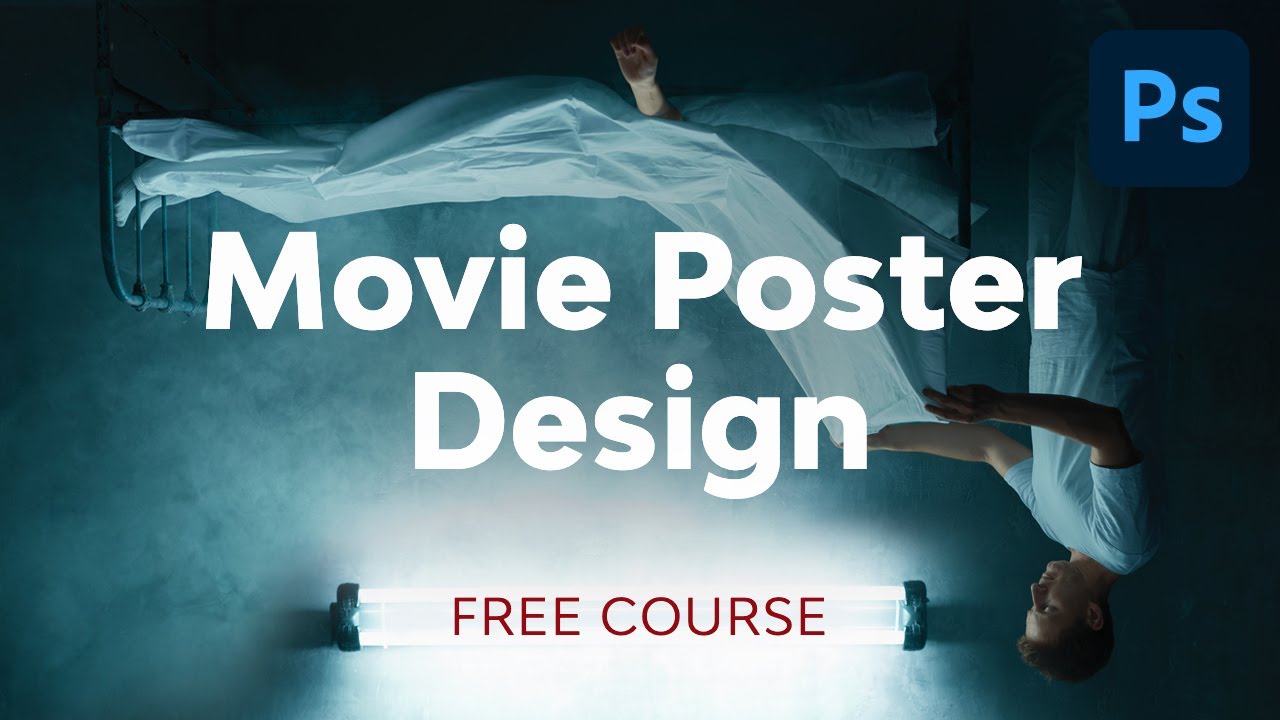
Today, we will be looking at how to make a horror movie poster using just two images in Photoshop! We’ll look at effective movie poster composition as well as your new go-to for horror movie poster typography.
Did you know that horror movie posters are most effective when they are simple and use minimal-style horror movie poster images and color? Combined with some classic horror movie poster typography, this horror movie poster layout can be adapted to fit everything from paranormal thrillers to zombie films!
Let’s start by looking at how to create a horror movie poster using only two images and a layer mask!
Step 1
For this composition, we are using two images from the same shoot, both similar but with slight differences.
Place your images on a New Canvas set to 27 x 40 inches if you want a full standard movie poster. You can shrink the canvas but keep the same aspect ratio if you don’t need the design to be so large.
Step 2
Move up the bottom image so that the light is slightly above the center of the poster. This is where our text will be placed as the area draws the most attention.
I added guides so you can better see my image placement.
Step 3
Add a Layer Mask to the lower image, and mask out the corners so they are no longer overlapping the upper image.
Use a soft round black brush for this.
Step 4
Create a New Layer, and paint away the darker areas on the left side of the light.
Color Pick a color from around the spots (#f4f8fb), and use a semi-hard round Brush to paint over the dark spots.
Step 5
Color pick a color from the floor (#070b0c), and use a soft hard round Brush to fill in the bottom of the poster.
2. How to Create a Horror Movie Poster Color Grade
Step 1
In this horror movie poster mockup, we have a simple color grade, bringing in a dark shadowy green.
Frist. a Levels adjustment layer to add a small amount of contrast.
Step 2
Then, above the Levels layer, add a Selective Color layer to adjust the Cyan, Blue, White, Neutral, and Black colors.
Step 3
Finish the color grade with a green #417337Color Fill layer, placing it above the Selective Color layer, and setting it to Multiply at 22% Opacity.
Set the Blend If settings to what you see below. Remember to hold Alt to split the toggles up:
This color grade does a particularly good job not only of bringing in a spooky green tone but also of deepening all of the shadows.
3. How to Create Horror Movie Poster Typography
Now, let’s add some simple typography to go with our classic horror movie poster images!
Step 1
When it comes to creating a horror movie poster Photoshop template, you want Trajan! Trajan is the go-to horror movie poster font, for everything from indie horror to major blockbusters.
The sharp edges of this thin serif typeface convey that creepy feeling you are after, especially when you make it bloody red #90191c.
Your title should be the biggest text on the poster. You can add some Letter Spacing, I added 1760 for my title, so that it takes up even more space.
Step 2
Finish up using a compressed sans serif font like Due Credit to add a credit block towards the bottom of the poster.
Finally, display your poster in all its glory using a movie poster mockup template like this one on Placeit!
That’s It!
And that is all there is to creating a horror movie poster Photoshop template! When choosing imagery for your movie poster, remember to keep it simple, using classic horror movie poster images, but also keep it impactful! You want the viewer to remember it after all.
If you are looking to save some time but still have complete control over your design, that’s where professional-grade Photoshop actions and presets come in! From color grades to full-on photo effects, you can create a horror movie poster in just minutes using any combination of the add-ons below.
If there’s anything scarier than a clown, horror movie fans don’t think so! And with this action, you can turn any model or actor into a killer clown instantly! The layers are well-organized and structured so you can refine the final look, ending with a Hollywood-level final effect.
This glitch effect set gives you a classic horror look in just seconds! With different colors and glitch styles to choose from, you can use the horror movie poster maker over and over again but get a new result every time. The layers remain intact so you can control both intensity and color after you have run the action!
Create a horror movie poster color grade instantly with any one of these 50 horror film presets for Lightroom! With a wide variety to choose from, you will find the perfect preset for your poster, no matter the genre.
Minimal and striking horror movie posters perform the best, which is what you will get if you use the Disturb distortion effect preset on your images! Create a horror movie poster in seconds: just add your title and you are done!
Looking to learn even more? Check out these tutorials:
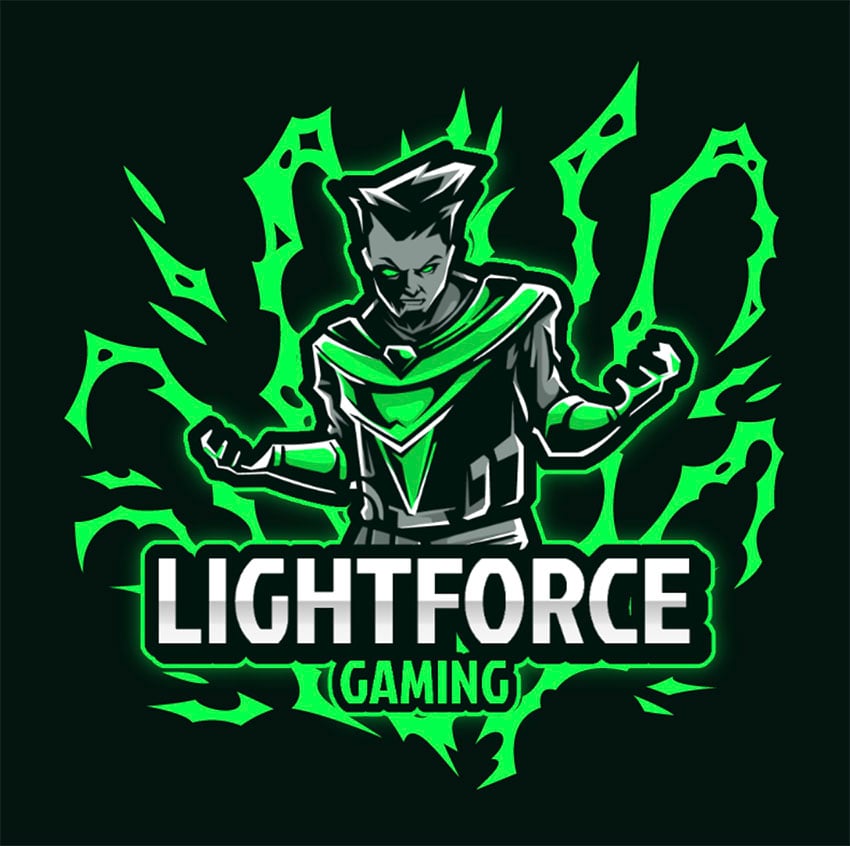
Trying to figure out how to make your own gaming logo? Well, we’ve got the perfect tool for you: the gaming logo maker from Placeit.
Read on to find out how to use this awesome online gaming logo maker to create your own gaming logos and to discover the 42 best gaming logo designs available at Placeit.
Premium Gaming Logo Maker From Placeit
Placeit is an excellent source for finding the best gaming logo templates. All of the templates are easy to customise using the online gaming logo maker.
You can buy just one gaming logo design at a time for a small fee or sign up for a monthly plan that allows you to create and download as many gaming logo designs and other resources as you like for one low monthly fee.
How to Make a Gaming Logo With the Gaming Logo Maker
Before we show you the kind of top-quality gaming logo templates available at Placeit, let me show you how to make a professional gaming logo in five simple steps.
Step 1
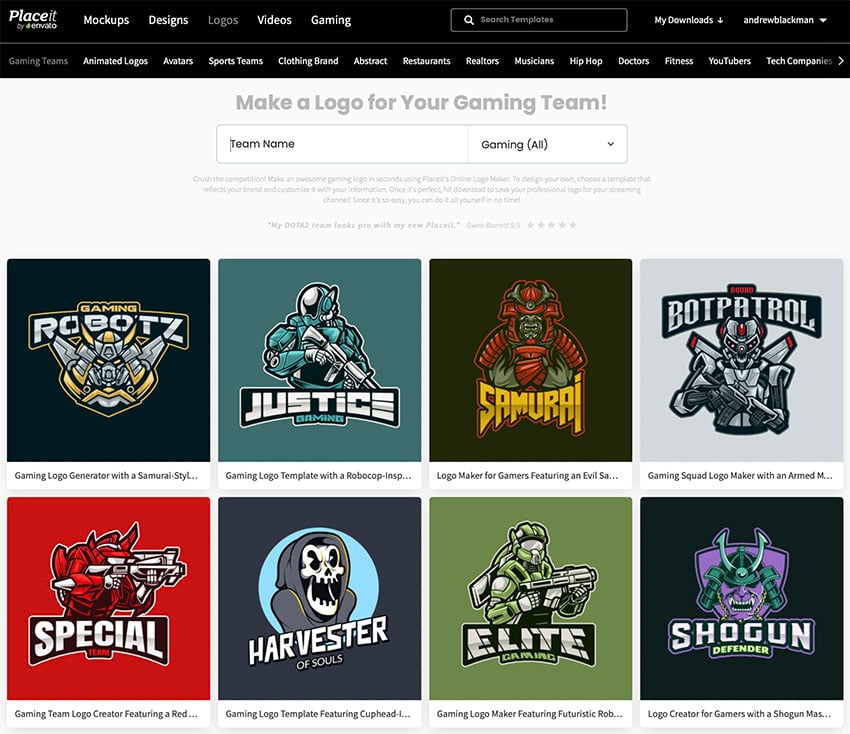
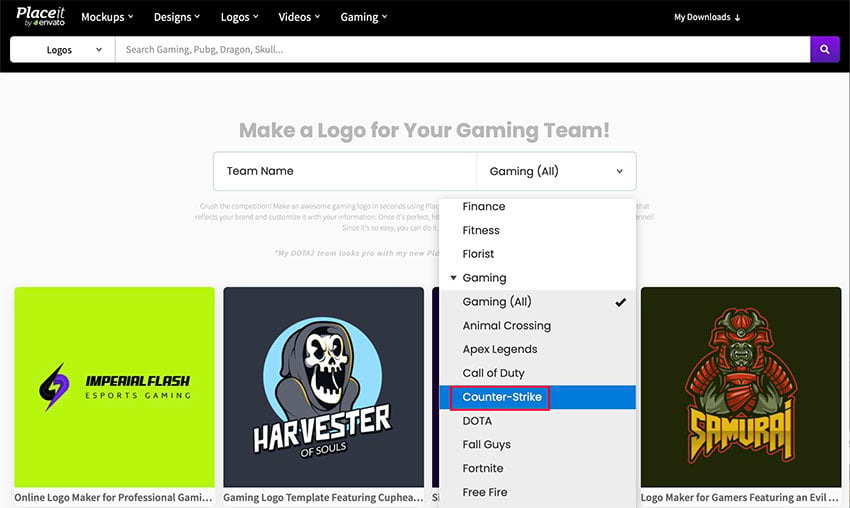
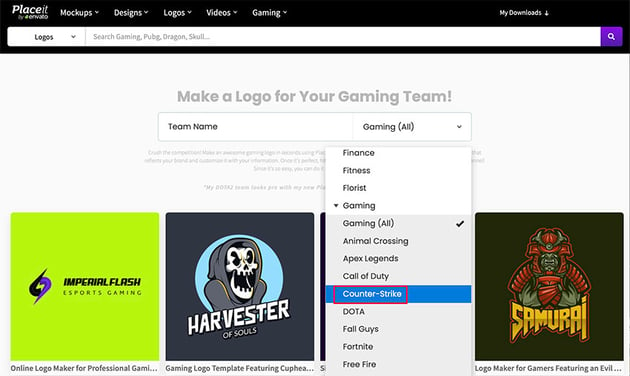
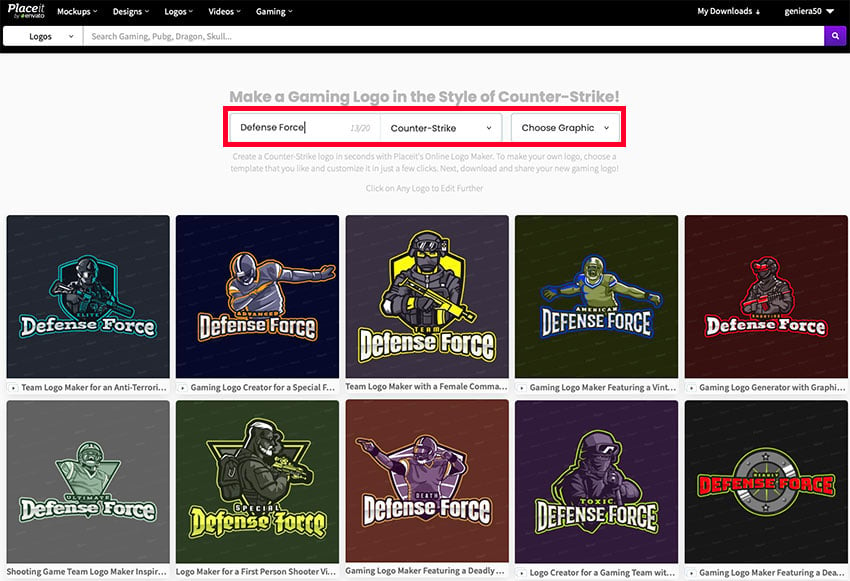
Go to Placeit.net > Gaming > Logos. In the bar under “Make a Logo for Your Gaming Team”, use the Gaming (All) dropdown menu to find the submenu of different games. I’ll choose templates for Counter-Strike.
Step 2
Now you can simply browse the available selection of templates and choose the one you’d like to open it and begin customisation. Or you can begin customisation immediately by adding your gaming name to get an idea of how all the templates would look with your gaming name.
Step 3
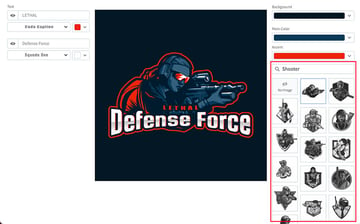
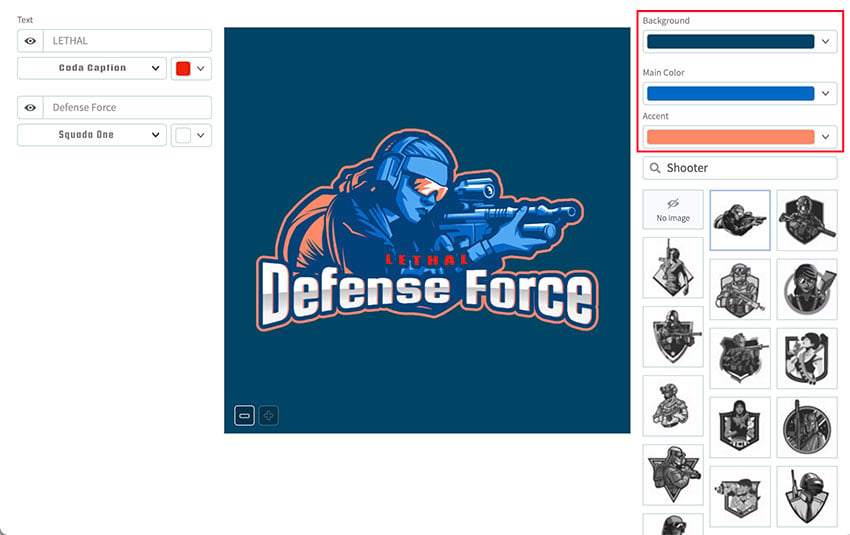
Click on your preferred template to open the gaming logo maker and continue customisation. Starting on the right, you can browse the available graphics to choose the one you like the most. If you have a specific image in mind, you can search for it here.
Once you’ve selected an image, it’s time to refine your colour scheme. Starting from the top bar, you can change the colour of the background, the main colour, and the accent colour of your graphic.
Step 4
Now move to the controls on the left of the template. Here you can make any changes to the text as needed. You can also change the font and its colour.
Step 5
When you are done, you can download your new logo by clicking the Download button at the top of the page.
Now that you know how to make a gaming logo, let’s look at 42 of the best gaming logo designs available at Placeit.
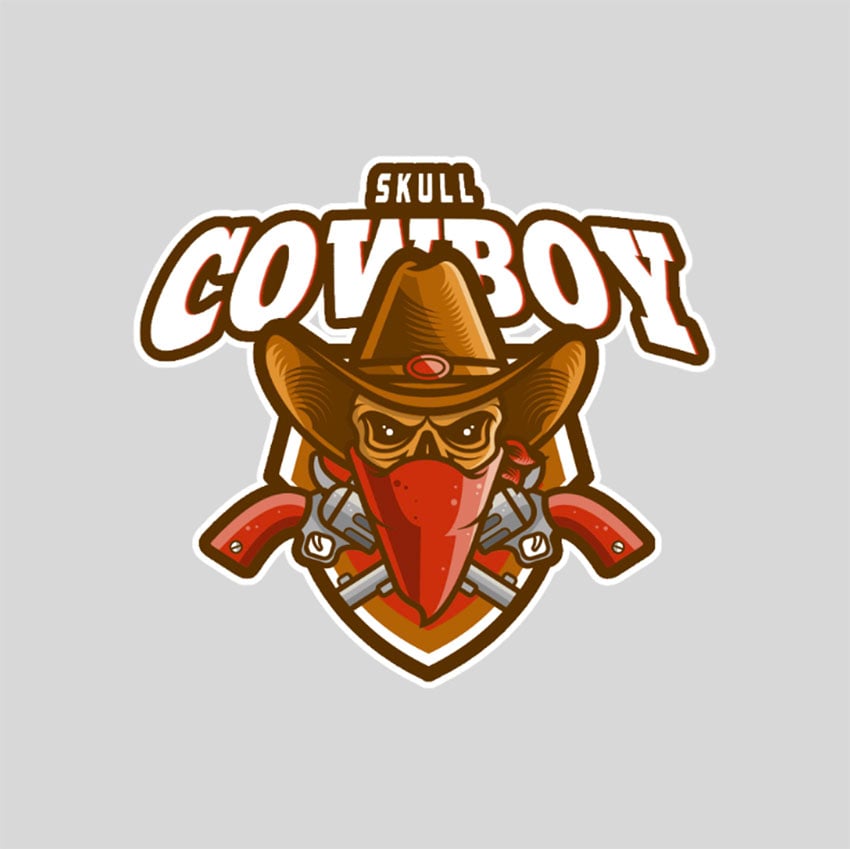
Adding a skull is a great way to update your cowboy gaming logo design. Use the gaming logo maker to add your own text and colours, and your template is ready to go.
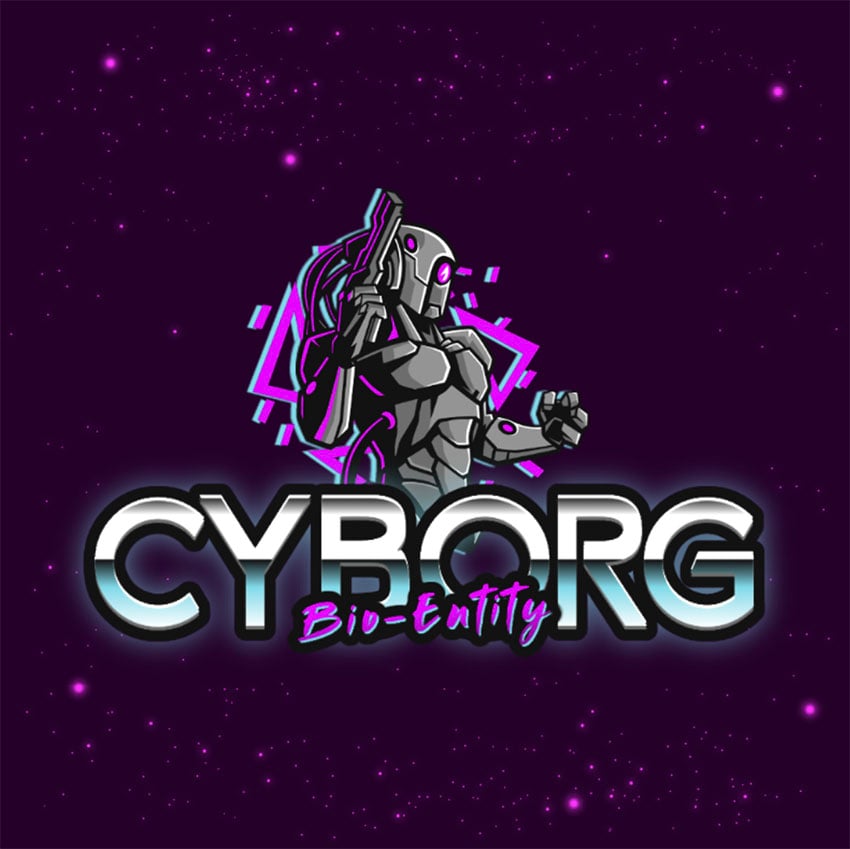
Battle with the cyborg when you select this gaming logo design. Awesome gaming logo designs like this one are an excellent way to promote your gaming identity.
How terrifying is this “crossbow killer” gaming logo maker? With this template, you don’t need to try to figure out how to make a gaming logo because the Placeit gaming logo maker does all the hard designing work.
There’s something quite chilling about a robot bee, maybe because it can use that painful stinger over and over again without fear of self-destruction.
You can’t see this gaming logo without thoughts of King Arthur removing the sword from the stone. To make your own gaming logo, just open the template, change your text and colour scheme, and your design is ready to use.
Menace your opponents with Captain Voltage, a petrifying avatar that’s an excellent choice of logo. The template is easy to use and yet versatile enough to meet any need quickly.
Fantasy has really gained ground over the past decade or so, and if your gaming preferences involve elves, guardians, warlocks, and such, this is the perfect gaming logo design for you.
Here’s a logo theme for our current Covid pandemic era. Use the gaming logo maker to add your own text and colours, and your template is ready to download.
Use this Warlock ProGamer Logo and unlock virtually unlimited creative options when you customise the template using a wide selection of custom text, fonts, colour palettes, accents, and more.
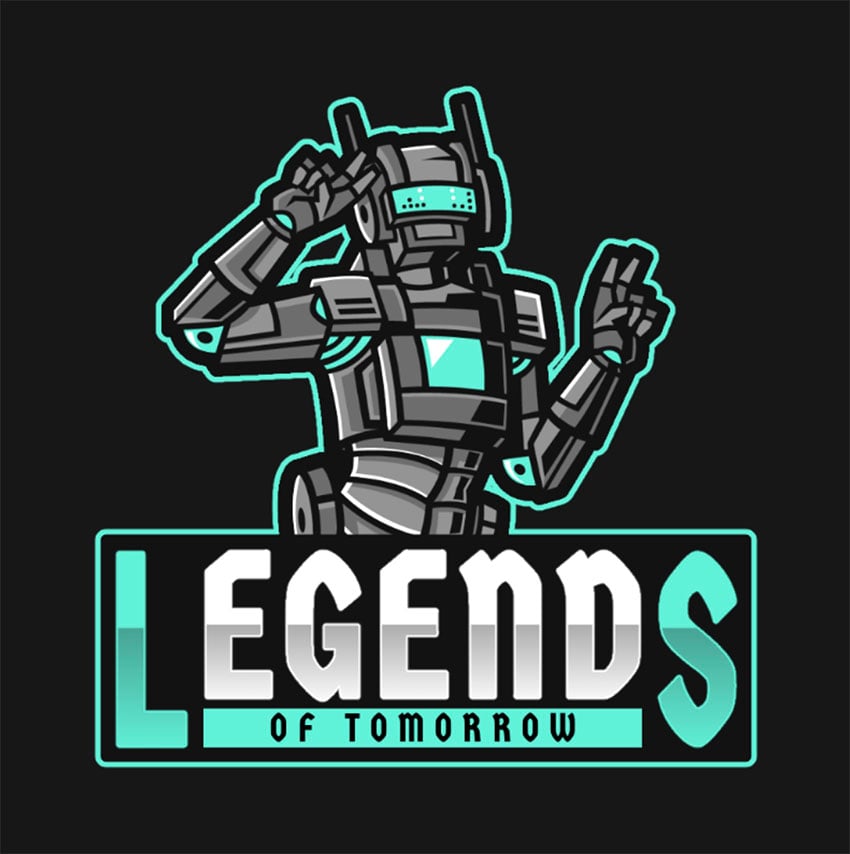
Be a legend today with this awesome template. This logo includes a great collection of attention-holding graphics with fully customisable text and colour scheme.
Not just a sniper, but an underworld sniper. Petrifying! You don’t have to wonder how to make a professional gaming logo when you have the Placeit gaming logo maker at your fingertips.
For those who dabble in the world of kings, queens, knights and such, there is this fabulous gaming logo maker. And the best part is that you can customise it to your taste in a matter of minutes.
A creative approach to the skull theme, this instant gaming logo maker is super easy to customise. Just use the gaming logo maker to add your own text and colours, and your template is ready to download.
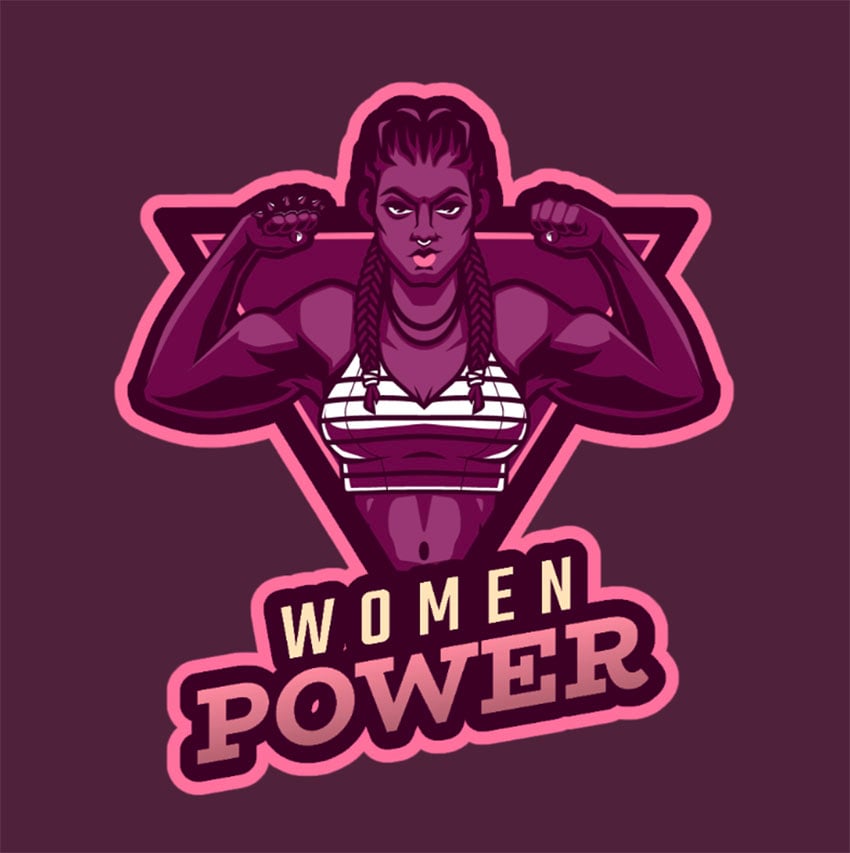
Placeit’s got quite a collection of battle-ready female icons like this one for you to choose from. And the best part is that you can customise them to your taste in a matter of minutes.
Need a gaming logo for an Asian-themed game? This theme has a selection of logos to suit a variety of needs. Check it out and choose the one you like the most.
Looking for a kick-ass logo? Here’s one that may suit your needs. Select the graphic you most relate to, add your text, and modify the colour scheme as needed.
Can a skull logo be more terrifying than this one? Well… probably, but this one is plenty terrifying. Use the gaming logo maker to customise this template, and you’re ready to strike fear into the hearts of your opponents.
You don’t have to worry about how to make a professional gaming logo when you’re using the gaming logo maker. Just choose an icon that corresponds with your theme or style, add your text, select your colour scheme, and you’ve got a great logo ready to download.
Lethal Hero means business, and that’s exactly why this would make a great gaming logo. When you use a Placeit template like this one, you never have to worry about how to make a gaming logo. That’s because the template does all the heavy lifting for you, so that by making a few choices you can create a custom logo in a matter of minutes.
Love the supernatural? Then you’ll love this wonderful gaming clan logo maker, which offers loads of terrific graphics, a handy colour picker, and loads of font options to customise your text.
Here a great option for ghost games. Macabre Ghost is nothing if not unsettling. You can customise this gaming logo template to reflect your own taste in a matter of minutes.
How sweet is this Fighter Girls gaming logo? Though a departure from many of the logos featured here, this one is as easy to customise as all the others we’ve covered.
This is a fantastic logo for those who want to communicate regality and darkness at the same time. Add your text, choose your colour scheme, and your template is ready for use.
Looking for a gaming logo that captures a post-apocalyptic nuclear wasteland? Then this is it. Just change the colour scheme, add your text, select your preferred font, and let the games begin.
This cool gaming logo is perfect for Asian-inspired characters. Select the graphic you most relate to, add your team text, and modify the colour scheme as needed.
Make Your Own Gaming Logo Today
That’s it for our list of the best gaming logos available at Placeit. Now that you know how to make a gaming logo, why not use the Placeit gaming logo maker to create a unique gaming logo and share your design with us in the comments below? We’d love to see what you come up with.
And if you’re interested in more info about gaming logos, check out these articles below.
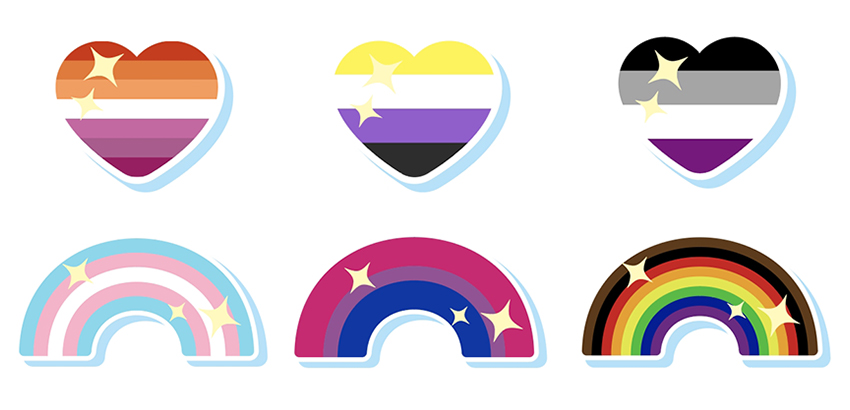
In this tutorial, you’ll learn how to make emotes for Twitch in Adobe Illustrator, perfect for sharing your LGBTQIA+ pride in your channel! We’ll explore some common pride flags and how to manipulate them into cute and simple emotes that stand out during your Twitch stream!
Before we start creating some pride flags, let’s have a word about pride flags in general. The LGBTQIA+ community has a plethora of flags and designs to show and share their pride in components of their identity. Many are familiar with the rainbow flag, which was designed in 1978. Since the late 70s, many more designs have been created, redesigned, and redefined over the years to express various points of sexual and gender identity.
There are so many identities to share, and it’s impossible to show all of them in the context of one tutorial, so today we’re going to focus on a couple of flags (lesbian pride and transgender pride) within this quick tutorial, with some notes on a few other communities’ pride flags. Share your LGBTQIA+ pride in the comments below with the tools and tips you’ve learned from this tutorial featuring some fantastic Twitch emote ideas!
Want to skip the tutorial and generate your own custom pride emotes for Twitch? Check out Placeit for tons of templates to create your own Twitch emote designs!
What You’ll Learn in This Tutorial
How to create pride flags in Adobe Illustrator
How to manipulate rectangles into rainbows
How to use the Pathfinder panel in Adobe Illustrator
How to make a quick and simple Clipping Mask in Adobe Illustrator
1. How to Create Pride Flags in Adobe Illustrator
Step 1
Let’s begin with the lesbian pride flag for our Twitch pride emotes! Create a New Document in Adobe Illustrator. We’ll be resizing our final product as needed, so start with something around 800 px x 800 px or whatever workspace feels comfortable to you. Also make sure your document’s Color Mode is set to RGB since we’re creating content for a digital space rather than a print space.
Using the Rectangle Tool (M), draw a long, thin rectangle and fill it with a dark orange (#C33D1E).
Step 2
Copy (Control-C) and Paste (Control-V) this rectangle six times for a total of seven stripes. Select all seven rectangles, and choose Horizontal Align Center and Vertical Distribute Center in the Align panel. This will give you seven equal stripes.
Step 3
Let’s give these stripes some color! Starting with the second stripe, the colors are as follows:
#DF7C3D
#F19E63
#FFFFFF
#C269A2
#A85C8E
#951F60
Step 4
Let’s make the transgender pride flag! Once again, draw a rectangle with the Rectangle Tool (M). Copy (Control-C) and Paste (Control-V) this rectangle four times, Align center and distribute evenly.
Step 5
The transgender flag colors are as follows:
#8FD6EA
#F3B3C9
#FFFFFF
#F3B3C9
#8FD6EA
Group (Control-G) the rectangles of each respective flag, and you’ve got yourself the start of some custom twitch emotes! Also note that this is the basis of simple striped pride flags. Not all pride flags are striped, but many are, with each stripe corresponding to an aspect of each community’s identity. Check out some additional pride flags below.
Above we have the 2017 redesign of the gay pride flag, the 2018 redesign of the lesbian pride flag, the transgender pride flag, the bisexual pride flag, the asexual pride flag, and the non-binary pride flag. Note the differences in stripe count and, in the case of the bisexual flag, the difference in stripe ratios.
If you’d like to use any of these other flags for your Twitch emote, check out their color breakdowns:
Gay Pride
#5B3B1B
#000000
#C22C27
#E2A037
#E4E553
#5BB947
#051F92
#692B82
Bisexual Pride
#C42B70
#925394
#1137A3
Asexual Pride
#000000
#A5A5A5
#FFFFFF
#75197D
Non-Binary Pride
#FDF35E
#FFFFFF
#915FC9
#000000
2. How to Make a Gay Heart Pride Emoji for Twitch
Step 1
Use the Ellipse Tool (L) to make a simple circle. Copy (Control-C) and Paste (Control-V) the circle and make the two circles overlap slightly. Unite the two shapes in the Pathfinder panel. Use the Delete Anchor Point Tool (-) to delete the three lower center anchor points of your shape.
Step 2
Use the Add Anchor Point Tool (+) to add one anchor point in the bottom center of the heart shape’s path. With the Direct Selection Tool (A), pull this anchor point down to make your heart shape. Use the Convert Anchor Point Tool (Shift-C) to convert this anchor point into a sharp point. Drag the Live Corner to round out the bottom of the heart. You may also want to adjust the handles of the heart’s side anchors for a fuller heart shape. This is entirely up to you! You’re the Twitch emote maker and entirely in control of the look of your custom Twitch emotes!
Step 3
Place your finished heart shape over your lesbian pride flag. Select both objects (make sure your pride flag is Grouped (Control-G) together) and Make a Clipping Mask (Control-7). You may need to adjust the size of your stripes so they fit within the heart evenly. Play with this a bit, and don’t be afraid to redo it if it’s not just right the first time.
Step 4
Copy (Control-C) and Paste (Control-V) the clipped heart shape. Set the fill color to null and the Stroke to white (#FFFFFF) with a thick outline (mine is about 10 pixels) Aligned to the Outside in the Stroke panel. Copy (Control-C) and Paste (Control-V) this shape and set both the fill and stroke color to light blue (#B8E0F7). Place the white outline shape directly behind your pride heart and the light blue shape behind that one, offset a bit to make a simple drop shadow.
Step 5
Let’s add some simple sparkles to your custom Twitch emote! Use the Ellipse Tool (L) to draw two small circles on your gay pride Twitch emote. I chose a light yellow (#FFF9C0), but you might want some other pastel color to add some sparkle and shine.
Select both circles and apply a 60% Pucker by going to Effect > Distort & Transform > Pucker & Bloat.Make sure to Expand your shapes under Object, and Rotate them a bit so the sparkles aren’t so static.
Step 6
Now that you’ve made your pride emoji for Twitch, you may want to check out the How to Make Twitch Emotes tutorial for specifics on emote sizes, file types, and instructions on how to upload them to your Twitch channel.
Or you can continue with this tutorial and learn how to make some cute rainbow Twitch emotes!
3. How to Make a Rainbow Pride Emoji for Twitch
Step 1
OK, now it’s time to make a very cute rainbow version to go with your expanding set of custom pride emoji for Twitch.
Take the transgender pride flag we made earlier and go to Effect > Warp > Arc to apply a HorizontalBend of 100%.
Step 2
You may want to adjust the length of your warp object for a chubbier, more compact rainbow emote. When you’re satisfied with the shape of your rainbow, go to Object > Expand Appearance to complete your rainbow.
Step 3
Use the Direct Selection Tool (A) to select the outer and inner bottom corners of your rainbow. Pull the Live Corners inward to round out the rainbow’s corners to your liking. I opted for a 0.24 inch radius, but yours may be different if you’re working with a different size object or if you just want more or less rounded corners.
Step 4
To complete your transgender flag rainbow for your Twitch emoji set, Copy (Control-C) and Paste (Control-V) your rainbow object, Unite it in the Pathfinder panel, and place the object behind your rainbow. Set the stroke and fill color to white (#FFFFFF) just like the lesbian pride flag heart we made earlier!
Step 5
Repeat the previous step with a light blue (#B8E0F7) fill and stroke, and just like the heart emote, place it behind the rainbow emote, offsetting it to the bottom right to create a simple drop shadow. Finish your custom pride Twitch emote with sparkles, as we did in Section 2 of this tutorial!
Great Job, You’re Done!
Now that you know how to make your own gay pride emotes for Twitch, why not share them with us on Twitter! Don’t forget to check out our How to make emotes for Twitch tutorial for full details on Twitch emote sizes, file types, how and where to upload, and more tips on making Twitch emotes.
Create Custom Pride Emotes With Placeit
At the start of this tutorial I mentioned you can skip the whole thing and just use Placeit to make your own custom Twitch pride emotes. Whether you’re expressing pride for your gender identity or sexuality, you can easily use Placeit to make a whole set of emotes without leaving your browser!
Check this list below for some fantastic pride emote generators or some Twitch emote ideas!
The first emote maker on our list features a bunch of fun options for a non-binary character (note the pride colors in the hair). Customize the phrase for your emotes to fit with your channel’s vibe!
Get emotional with your pride emotes! This queen has a lot to feel, and the best way to share those feelings is with a custom emote so that you can coordinate the colors with your Twitch channel’s theme!
Custom emotes make it so easy to share your pronouns or remind viewers or fellow chatters of your pronouns in your channel. You can even make a whole set for subscribers to share their pronouns too!
This fun Twitch emote creator lets you play with gender presentation thanks to a drag queen character’s endearing swag and style. Create a whole rainbow of characters to add to your exclusive channel emote collection!
You can also use more generic Twitch emotes and manipulate the colors to match the pride flag of your choice! Get creative when sharing your pride with custom Twitch emotes!
Do you need inspiration for your upcoming Android app? Are you on a tight budget and need to get an app up and running as soon as possible? App templates are a great way to jump-start your next project or to learn from other people's work. This article lists some of the popular Android templates available on Envato Market.
So, what’s the deal with the Impact font and fonts similar to Impact? Most of us have seen an Impact font meme before, but have you noticed that the Impact font style is relevant and successful elsewhere too? In this article, we’ll take a look at thick fonts like Impact and give some background on this bold typeface.
When you mention the Impact font, the first thing most familiar people will likely mention is memes. Impact is arguably one of the biggest “meme fonts”. It’s typically paired with some sort of image and used to convey an idea. Sometimes, this is very niche, while other times it’s far broader. Regardless, the Impact font seems to be a meme favorite.
An example of the Impact font in action. It’s a bold sans serif typeface with a blocky aesthetic.
But why Impact? The Impact font itself is more than 40 years old. It’s a blocky, industrial, grotesque typeface. Because it’s so bold, it tends to really command attention. Perhaps this is why the Internet took hold of it in the 2010s the way it did. It also likely has something to do with its availability: many have access to this font as a system font.
Ongoing Impact font meme associations have given this font Internet notoriety. Stock photo from Envato Elements.
Because of this, the Impact font provokes mixed opinions in the design community. All visuals potentially have preconceived ideas, so an association with memes can seem pretty iffy in some situations.
However, that’s not to say that Impact or a similar font couldn’t be successful. Memes aside, bold type can be an excellent direction when used well.
Bold sans serif type, especially with thicker strokes, is often a great choice for points of emphasis, like headlines or titles. Some of the best Impact font alternatives can be used for things like logo design, posters, T-shirts, and much more.
Take a look at these lovely examples, using fonts similar to Impact.
Thick, bold type isn’t exclusive to memes. In fact, type like this can be quite prevalent in industries like fitness, restaurants, and even technology. Keep your eye out for bold, dense sans serifs in the future. You might be surprised where you see them in action.
Fonts Similar to Impact (Thick Fonts Like Impact)
Let’s take a look at some similar Impact font designs: bold sans serif type, perfect for points of interest and emphasis.
This clean, bold sans serif font is a versatile addition to any font collection. It’s less condensed and is a stronger choice for body copy than Impact.
This stylish, blocky font has some Impact font style, but also works in some organic strokes with a hand-drawn feel. Give this fun take on the aesthetic a try.
Here is a take on the Impact font look, but it pushes the type design in a more angular direction. It’s got extra width to it too. Try out this font download; it even includes web fonts.
If you’re looking for a font similar to Impact but thinner, give this typeface a look. It’s bold and has interesting angles in its corners, making it quite memorable.
Isn’t this bold, condensed font classy? Check out how well it pairs with this photograph. Try fonts like this for movie posters, book covers, and much more.
How about a more geometric take on a bold sans serif font? This design is bold, round, and could work well for logo designs, T-shirts, and even packaging.
The letterpress aesthetic can be really stylish. This typeface isn’t as bold as Impact, but it includes both solid and textured versions. Try experimenting with them both.
Here is an elegant take on a bold sans serif font paired with a serif. This download is a font duo, so you get both of the fonts: a perfect match for each other.
If you love grotesque sans serif fonts, check out this awesome font family. It includes nine weights, so you can go for a bold look or you can use a thinner one for other type in your compositions.
Block sans serif fonts can be very stylish. Isn’t it interesting how this type is paired with a photo, but it doesn’t necessarily look like a meme? Design principles can really change how an image is perceived.
This font is similar to Impact but thinner, making it a great choice for movie posters, titles, and credits. It includes two different versions: a standard and all caps version.
Ever considered a bold sans serif but with hand-drawn lines? Check out this block handwriting font. It can give your work an organic edge with the same loud feel.
Bold sans serif type pairs really nicely with a script font, doesn’t it? Give this font a try. It’s wider than Impact, but still has that bold, thick stroke that will certainly stand out.
This one is a great choice if you’re looking for a font similar to Impact but thinner. This font download comes in a number of file types too, including web fonts.
This is a font that commands attention! It describes itself as high impact, and that’s certainly the case. Check out how bold a font like this is, when we use high contrast.
In contrast, notice how the aesthetic changes when we tone down the contrast. This sans serif typeface is a great example of how we can thin out the strokes and change the aesthetic too.
There are plenty of ways we could push this aesthetic. This font pushes the blocky aesthetic even further and pairs it with a badge-like look. Give this a try in logo design, stamps, and more.
Which Are Your Favorite Impact Font Style Typefaces?
So, which fonts similar to Impact do you prefer? Would you use the Impact font in a design situation, or are the preconceived associations and system font availability a pass for you?
If you’re looking for alternatives, remember to check out Envato Elements. One low fee gets you access to a library of thousands of fonts. Browse through the best Impact-inspired fonts and download as many as you like, without fees adding up. They’re all included with unlimited downloads. Sign up today and find your next favorite bold sans serif font.
Looking for even more font inspiration? Check out these collections from Envato Tuts+: