TUAW first look and giveaway: Courier simplifies Mac media sharing

Sharing your files, photos, movies, and images with others through online services can sometimes be a hassle for Mac users. For some of us, it’s possible to get all of the various interconnections between services set up in such a way that one tweet sends a photo to Facebook, Flickr, and a variety of other services. But for a surprising number of Mac users, it just isn’t that easy.

Realmac Software is in the business of making things easy. They’re the folks who make website design easy with RapidWeaver, and they’ve just come out with a tool to make media sharing as easy as putting a stamp on an envelope. Courier (US$19.95 introductory price) is designed so that anyone, even your Mom, can easily upload photos, movies, and the like to a pile of services.

A download of Courier is available for a limited trial, and you can make an in-app purchase of the app if you like it. We’re going to be giving away five copies of Courier to TUAW readers, so read up on how the app works and then enter the giveaway. Check out the gallery below for a few screenshots, and then read on for a look at this Mac application.

TUAWTUAW first look and giveaway: Courier simplifies Mac media sharing originally appeared on The Unofficial Apple Weblog (TUAW) on Wed, 08 Sep 2010 12:00:00 EST. Please see our terms for use of feeds.

Read | Permalink | Email this | Comments

Confirmed: Game Center for 2nd gen iPod touch, not iPhone 3G

Good news for 2nd generation iPod touch users! As reported by AppleInsider and MacDailyNews, the 2nd generation iPod touch will be compatible with Game Center, Apple’s new gaming and social networking application, but the iPhone 3G will not. Other compatible iOS devices are the 3rd and 4th generation iPod touch as well as the iPhone 4 and iPhone 3GS.

AppleInsider notes that the 2nd generation iPod touch, which has similar hardware specs to the iPhone 3G (in terms of game playability), had previously not been compatible with Game Center, in an iOS 4.1 beta build. However, in a turn of events, the 2nd generation iPod touch is now compatible, according to Apple’s official Game Center website.

Though both the iPhone 3G and the 2nd generation iPod touch were released in 2008, the 2nd generation iPod touch has a slightly faster processor, clocking in at 532MHz over the iPhone 3G’s 412MHz.

With the iPhone 3G suffering under the weight of an already slimmed down version of iOS 4, it’s no surprise to see that the 3G won’t be compatible with Game Center. Game Center will be available, for compatible iOS devices, with iOS 4.1

TUAWConfirmed: Game Center for 2nd gen iPod touch, not iPhone 3G originally appeared on The Unofficial Apple Weblog (TUAW) on Wed, 08 Sep 2010 11:30:00 EST. Please see our terms for use of feeds.

Read | Permalink | Email this | Comments

Cyberduck adds cloud file management improvements

My FTP app of choice, Cyberduck, has updated to version 3.6, and as you can see on the changelog, it’s a nice, chunky update. The developers have added in support for Google Storage, made things easier for Amazon S3 users, and added a lot of little features and bugfixes that make the whole experience easier and more compatible with other apps and platforms.

I still like Cyberduck as an app — a lot of Mac users praise the heck out of Transmit, and it’s also a very nice app, but I like supporting open source (and don’t mind the free downloads, either). And Cyberduck is still growing — they just recently announced that a Windows version is coming soon, so if you need to do some FTP’ing on Microsoft’s platform, but want a Mac-quality app to do it with, Cyberduck could be the one. That version is in beta now, and should be out for release soon.

Cyberduck, as open source software, is a free download, with the option to make a donation to the hardworking developers over here.

TUAWCyberduck adds cloud file management improvements originally appeared on The Unofficial Apple Weblog (TUAW) on Wed, 08 Sep 2010 11:00:00 EST. Please see our terms for use of feeds.

Read | Permalink | Email this | Comments

How to Update iPhone 4 to iOS 4.1 Without Updating Baseband 01.59.00

In this guide you’ll learn how to update iPhone 4 to iOS 4.1 without updating baseband 01.59.00 which is unlockable.

update iphone 4 to iOS 4.1

Restoring iOS 4.1 on iPhone 4 also updates its baseband 01.59.00 to 2.10.4 which is NOT unlockable at the moment. So, iOS 4.1 is an alarming update for all those depending on unlock. PwnageTool by Dev-Team has the ability to preserve iPhone baseband but unfortunately it’s not yet updated with iOS 4.1 support.

When we talk about the jailbreak community, there’s always an alternate way to get things done. Notcom, the dev behind TinyUmbrella app that let you save shsh blobs for iPhone, iPad and iPod Touch has updated TinyUmbrella to 4.1.3 which lets you update iPhone 4 to iOS 4.1 without updating Baseband (Preserves baseband at 1.59.00 ).  Lets learn how to use TinyUmbrella to update iPhone 4 to iOS 4.1 while preserving baseband 01.59.00.

WARNING: If unlock is the only way for you to use your iPhone as a phone, then we strongly recommend you to avoid iOS 4.1. If you’re brave enough to give it a shot, follow the steps below at your own risk.

THIS GUIDE APPLIES TO IPHONE 4 ONLY.

How to Update iPhone 4 to iOS 4.1 Without Updating Baseband 1.59.00

Step 1

Step 2

  • Run TinyUmbrella
    ***READ THE README TinyUmbrella README NOW Yes. You Read it.
  • Hit the Start TSS Server button

Step 3

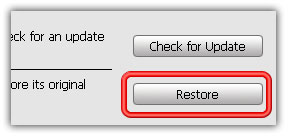
  • Now open the iTunes. Hold down the SHIFT (Windows) or Alt/Option (Mac) key and hit the Restore button on iTunes.
  • Then browse and select your downloaded iOS 4.1 firmware

Step 4

  • Let iTunes error with 1004 error (baseband update failed – we want this :) )

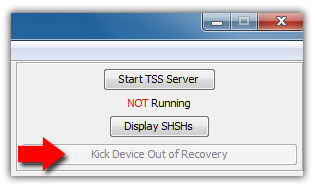
  • No simply hit the Kick Device Out of Recovery button on TinyUmbrella.

That’s it. You have successfully updated iPhone 4 to 4.1 with 1.59.00 baseband. Now wait for a new jailbreak tool to come out and then you’ll be able to jailbreak and then unlock iPhone 4 with UltraSn0w 1.1-1.

Also checkout:

How to: Downgrade iOS 4.1 to iOS 4.x

You can follow us on Twitter, Join us at Facebook, and also Subscribed to RSS Feed to receive latest updates.

Digg
Twitter
StumbleUpon
Facebook
Reddit
del.icio.us

iMovie 1.1 Released: Video Clips Splitting and iPod Touch 4G Support

iMovie 1.1 is now available in the AppStore for download. The updated iMovie application for iPhone comes with video clips splitting and iPod Touch 4G support via iOS 4.1.
Full changelog in iMovie 1.1 after the jump…

New in iMovie 1.1

  • Compatible with iPod touch (4th generation).
  • Ability to split video clips.
  • Automatic music looping when video extends beyond music track.
  • Scrub to preview clips in Video Browser.
  • In-app Tips page that illustrates how to use key features.
  • Updated Photos Browser with newest images at top.
  • Mute badge to indicate video clips with audio disabled.
  • Additional performance and reliability improvements.

Download iMovie 1.1

If you already own a copy of iMovie, version 1.1 comes as a free update. New users can purchase and download iMovie from the AppStore for $4.99. [iTunes Link]

You can follow us on Twitter, Join us at Facebook, and also Subscribed to RSS Feed to receive latest updates.

Also checkout:

Digg
Twitter
StumbleUpon
Facebook
Reddit
del.icio.us

iOS 4.1 Jailbreak: New Bootrom Exploit Found, New Jailbreak Tools to Come!

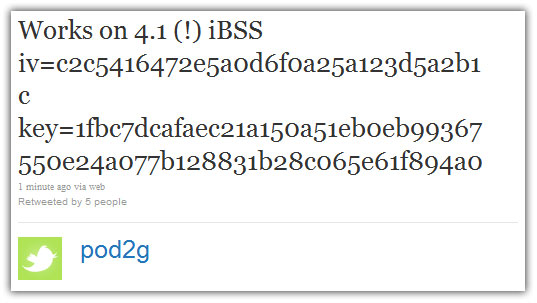
Pod2g from Chronix Dev Team has found a new bootrom exploit that could bring iOS 4.1 jailbreak tool for all iPhones and iPod Touches. Unlike a userland jailbreak (Spirit/jailbreakme for example), Apple cannot fix a jailbreak based on a bootrom exploit with a new firmware update. A bootRom based exploit can only be patched with a new hardware revision.

jailbreak ios 4.1This is what MuscleNerd and Pod2g has tweeted about the new exploit:

ios 4.1 jailbreak pod2g

ios 4.1 jailbreak musclenerd

Apple has pushed the iOS 4.1 firmware update for iPhone 4, 3GS, 3G and iPod Touch 4G 3G, 2G. If you depend on jailbreak and/or unlock, you’re strongly recommended to avoid iOS 4.1 until new jailbreak and unlock tools are released.

Stay tuned at iPhoneHeat.com. We’ll keep you posted on future developments.

You can follow us on Twitter, Join us at Facebook, and also Subscribed to RSS Feed to receive latest updates.

Digg
Twitter
StumbleUpon
Facebook
Reddit
del.icio.us

Download iOS 4.1 Firmware for iPhone and iPod Touch

iOS 4.1 firmware for iPhone 4, 3GS, 3G and iPod Touch 4G, 3G, 2G is now available for download. You can download iOS 4.1 firmware from the links below or via iTunes. iOS 4.1, among other features, comes with proximity sensor fix for iPhone 4, Game Center, HDR photos on iPhone 4, iTunes Ping, HD video uploads to YouTube.

download ios 4.1

WARNING: If you depend on jailbreak or unlock, you’re advised to avoid iOS 4.1 firmware update and wait for the new jailbreak and unlock tools.

Download iOS 4.1 Firmware

You can download iOS 4.1 firmware (IPSW files) for iPhone 4, iPhone 3GS, iPhone 3G and iPod Touch 4G, 3G, 2G from the links below.

Download iOS 4.1 for iPhone 4

Download iOS 4.1 for iPhone 3GS

Download iOS 4.1 for iPhone 3G

Download iOS 4.1 for iPod Touch 4G

Download iOS 4.1 for iPod Touch 3G

Download iOS 4.1 for iPod Touch 2G

You can download the latest iTunes 10 from the link below:

iOS 4.2 for iPad and all iPhones and iPod Touches will be released in November.

You can follow us on Twitter, Join us at Facebook, and also Subscribed to RSS Feed to receive latest updates.

Digg
Twitter
StumbleUpon
Facebook
Reddit
del.icio.us

Large iAds Profit Growth And Top Rankings After Open Sourcing App

I found a very interesting story of how the developer of iStrobe, Nick Vellios, featured on the open source iphone apps list has seen terrific growth in iAds profits (going from $6-$30+ in a day) for a free app.  Even now reaching reaching #25 on the most downloaded utilities list in the app store.

Is open sourcing an app a viable way to promote an app?

Well if you think about it, it could be – see this former post about how Nick was able to reach 1,000 downloads in a day after open sourcing a simple game that had previously only been receiving 40 downloads in a day.

Once an app is open sourced new opportunities for promotion arise, you could put the source code, and link to the app in the app store (developers will want to check out the completed app) on sites like Github, mention it on forums as source code for learning iPhone development, and have it listed in the open source iphone apps listing here on ManiacDev.Com and on other open source apps listings.  You could even write a tutorial about it, and post it around the web.

Anyone reading the tutorial, or thinking about downloading your app would likely download a finished copy of the app.

These extra downloads could mean valuable positions in the app store, and an increase in organic downloads.

If you have a free app, or even a paid app that is not earning you the profits you would like, what do you really have to lose?

You can check out iStrobe in the app store here and you can find the source code here.

Thanks for reading, please share this by using the buttons below!

[Source: Nick Vellios]

©2010 iPhone, iOS 4, iPad SDK Development Tutorial and Programming Tips. All Rights Reserved.

.

Share and Enjoy:

RSS
Twitter
Facebook
DZone
HackerNews
del.icio.us
FriendFeed

Animations In The Sparrow Framework Game Engine Explained

For those that are unfamiliar with the Sparrow Framework, this is the framework used in my iOS programming tutorial on how to create an action game as a beginner.  Designed to be as intuitive as possible, especially for those who have used Flash/Flex I think it’s the easiest open source game framework to get started with.

One of the more complicated aspects of the framework though is handling animations.  The pre-constructed animations built into Sparrow are known as “Tweens” and they are controlled by the “Juggler” (don’t worry if this all sounds odd, once you get into it things become much clearer).

There are 16 of these pre-made animations available, and you can find providing details on the available animations and how to start and stop the animations in a new guide here:
Tweens & Jugglers: Animating Your Stage

I am really a fan of how Sparrow handles animations, and this guide explains things very well.

Thanks for reading, please share this using the buttons below!

©2010 iPhone, iOS 4, iPad SDK Development Tutorial and Programming Tips. All Rights Reserved.

.

Share and Enjoy:

RSS
Twitter
Facebook
DZone
HackerNews
del.icio.us
FriendFeed

Open Source iPhone Project Enables Easy Settings View Creation

Users want customization, but adding in those small details like a custom view to modify the settings in a simple app can be a pain, and might not be worth the time to lay out all the interface elements and set everything up.  Apple has stated that they would like us to place these settings in a centralized location, Settings.app, but this can be confusing to many users who look to change settings within the apps and then can’t find them (seems like a small thing, but I know that this does happen often with those new to the iOS platform).

A very useful Open Source project has been released allowing you to create a Settings.bundle, and set up your settings page in Settings.app the way Apple likes it, but it also mimics that same page within your app so now any issues a consumer might have in using your app’s settings are removed.

The project can be found here:
InAppSettingsKit

If you’d like to know more about how to set up your settings  bundle you can check the Apple documentation here:
Settings Application Schema Reference

What I like about this project is that you can set up this page without taking up any extra time, you just set up your Settings.bundle as you normally would, add in the InAppSettingsKit files, and you now have a settings view that can be attached in your app.

Thanks for reading, please share this using the buttons below!

[Via: Joost Schuur]

©2010 iPhone, iOS 4, iPad SDK Development Tutorial and Programming Tips. All Rights Reserved.

.

Share and Enjoy:

RSS
Twitter
Facebook
DZone
HackerNews
del.icio.us
FriendFeed

Best of AppStorm in August

We’ve collected the top five reviews, roundups and how-to articles from across the AppStorm network in April. Whether you’re interested in Mac, iPhone, or Web apps, there’s bound to be something you didn’t spot over the course of the month.

Now would be a good time to explore a part of the AppStorm Network you’ve never seen before!

Best of iPhone.AppStorm

Apple Media Event: iPods, iTunes, Apple TV and More!

Earlier today Apple held its annual live media event covering all things new in the land of iPod, iTunes and even AppleTV.

They’ve released a ton of enhancements and upgrades across the board and we’ve got your one-stop coverage. Below you’ll find a brief overview of all the goodies you’ll be blowing your paychecks on in the coming weeks.

30 Helpful Apps to Bring on Vacation

Vacations can be quite complicated. Finding flights, booking hotels, procuring transportation, scouting tourist locations, and grabbing a quick bite to eat are just some of the daily tasks you’ll have to juggle. Fortunately, your iPhone makes the perfect travel companion and can make all of these tasks a lot easier.

Below we’ll take a look at 30 incredibly helpful apps that will help you spend more time enjoying your vacation and less time worrying about the particulars. Most of the apps are free so you can start downloading right away without dipping into your travel budget!

Flipboard for iPad: Does It Live Up to the Hype?

Today we’re going to look at an iPad application that has received quite a bit of hype over the past few weeks – Flipboard. Aiming to be your “personalised social magazine”, Flipboard comes with a gorgeous interface, and a wonderful concept.

Although there are plenty of RSS, Twitter, PDF and eBook readers available for the iPad, there hasn’t yet been anything along these specific lines. Flipboard sets a lofty target in terms of functionality – one that was never going to be easy to meet. Read on to find out how well I think they pulled it off!

Producteev: The Ultimate Free Productivity Solution

Today we’re going to take a look at Producteev, an awesome todo app that might just be enough to have you saying adios to Backpack and Remember the Milk.

Unlimited projects and tasks, labels, due dates, reminders, collaboration, automatic web/iOS syncing, email integration, this is the free task manager you’ve been waiting for.

100 Amazing AppStorm Recommended iPhone Games

Over the past few months, we’ve run a regularly weekly series entitled “Game Friday“. Each week, we take a look at five of the best new iPhone game releases, or five particularly great games in a certain category. With so many games available for the iPhone, it can be incredibly difficult to wade through all the sub-par apps. We’re here to help!

Today, we’re offering a one-stop shop for all your iPhone gaming needs. We’ll be looking back at the different games we’ve featured over the past few months, and selecting 100 of our favourites. That should be enough inspiration to keep you playing for weeks to come!

Best of Web.AppStorm

20 Killer Email Marketing and Promotion Apps

One problem with email marketing is that even a tiny mistake or a misplaced keyword could mean that your email will end up in the spam folder. There are a number of apps that help you to maintain the balance between being informative and less annoying. Today we’ve rounded up a list of prominent players in the marketing & promotion field, after the break.

30 Incredibly Useful & Fun HTML5 Mobile Apps

It might be in its infancy, but HTML5 is the next 500 pound Guerrilla and much more as far as Internet is concerned. With features like plugin-less video playback, offline storage, geo location etc., HTML5 is on the verge of giving walled gardens like Adobe Flash, Microsoft Silverlight, Cocoa a good run for their money. After the jump, we have compiled a list of HTML5 web apps developed for accessing from your smartphones.

15 Simple Ways to Integrate Facebook into Your Website

Since now that it is clear we can’t beat them it is time to join them. There are umpteen number of ways to plug websites of any shape & kind into Facebook thereby nurturing a community, encouraging conversations, improving user engagement and increasing page views.

The choicest options and tools to tap into the billion eyeballs audience are coming up after the jump.

20 Back to School Apps and Tools for Students

A lot of you may be dreading school, but it doesn’t have to be all bad, especially if you’re prepared. For all our student subscribers out there, we at Web.AppStorm have compiled a list of websites and tools that are guaranteed to help you get the most out of your education this semester. Go back to school with confidence!

Forrst: Share More Than Just Snaps

Forrst is a fantastic place for developers and designers only where you can share snapshots, links, and code snippets with colleagues or friends. Also, you will be able to ask questions publicly and receive answers from your counterparts, or perhaps from a Forrst Ranger.

The concept is pretty similar to Dribbble but you are able to share more than snaps, which gives you a brand new social experience in the web technologies environment.

Best of Mac.AppStorm

80 Of The Most Useful Mac Tools and Utilities

Macs are awesome straight out of the box, but that doesn’t mean that you can’t make them a lot better with a few quality downloads.

Today we’ve rounded up eighty of the most handy utilities to improve the basic functionality of your Mac in a number of ways. Below you’ll find almost every kind of utility you could need, from hardware controllers to maintenance software and file organization tools.

2001-2010: A Mac Odyssey

Apple have come an incredibly long way over the past decade. From the release of the very first version of OS X, right through to the iPhone 4 and iPad in recent weeks, the change we’ve seen both in technology and Apple as a company has been remarkable.

We’re paying homage to this fascinating journey today with our very own infographic, highlighting the rise of Apple over the past ten years!

5 Mac AntiVirus Tools for OS X (And Do We Need Them?)

Wait aren’t Macs supposed to be immune to viruses? Can Macs really be attacked by malware? Should you be protecting yourself?

Today we’re going to take a look at five popular Mac AntiVirus utilities and jump head first into the raging debate about whether or not they should even exist. No matter which side you’re on, you’ll definitely want to check out the information below.

Power Up Your Clipboard with ClipMenu

ClipMenu is an incredibly neat little app that we’ve mentioned in several recent articles here on AppStorm. However, we’ve never given it a proper review and wanted to take the time to show you just how cool it is.

If you’ve downloaded ClipMenu before and only given it a brief try, there is a lot of functionality that you might have missed. Below we’ll walk you through the full feature set so you can be sure to take full advantage of all that the application does.

50 Essential Mac Apps for OS X Beginners

So you just unboxed that shiny new Mac, fired it up and heard the glorious chime. Now what? It can be a little bit overwhelming to start from scratch and build a library of useful applications but we’re to help!

Today we’ll take a look at 50 awesome apps that are perfect for new OS X users switching over from a PC.

Share Your Ideas

Is there something in particular you’d like to see on the site next month? We’d absolutely love to hear your suggestions for articles, topics and giveaways – just let us know in the comments. Thanks for reading AppStorm!

iMockups: Easily Sketch Mockups On-The-Go

All designers among us have most likely been in this situation: you’re on the road, but you don’t carry a paper and pen with you when an idea strikes. Or a customer needs a basic layout mailed, but you can’t get that piece of paper into his virtual inbox.

With iMockups for the iPad, moments like these are a thing of the past. Now you can create incredible mockups quickly and easily – and in the next release even post process and share them with other iMockups users!

Target Audience

iMockups is geared mainly towards web designers who need to visualize an idea quickly, either for themselves or for a client. The app offers a wide range of elements used in layouts (image, video & text placeholders, containers to block space, lines to separate content etc).

It now also offers GUI elements used for interface design, specifically the iPhone and iPad. It’s less geared towards visual app development, but more towards how a website could look on the mobile device.

Getting Started

When first loading iMockups, the app doesn’t look like much. Only after creating a new project will you see where the magic happens. The canvas in the middle is framed by the project view on the left where you can see all the pages associated with a project (eg. Home, Services, Portfolio, Contact) and the tools palette on the right.

In the current version the tools for web, iPhone and markup are handily divided into separate sliders, making it much easier to find what you’re looking for.

Canvas, project pane and tool palettes

Canvas, project pane and tool palettes

Before you start your mockup, spend a second to decide whether you want your content to be distributed mainly horizontally or vertically on your website. You can easily adjust the size and orientation of the canvas by tapping the respective preview page on the left pane and then choosing canvas size. You can choose from three templates (small, medium, large) or set your own size.

Setting up your canvas size and orientation

Setting up your canvas size and orientation

Starting on a Blank Screen

Now that you’ve set up your project, you simply start by dragging and dropping elements (tools) from the right onto your canvas or by tapping them once in the tools palette. By tapping and holding an element on the canvas you can move it around.

Conveniently, iMockups presents you with orange guides that pop up when elements align (and for some reason they are impossible to capture in a screenshot). Sometimes it can get a bit tricky to place an element just right. That’s where the inspector comes in: double tap an element and then use the X/Y coordinates for placement or the W/H (width/height) fields for adjusting size.

Using the inspector for fine tuning

Using the inspector for fine tuning

You need to use two fingers to move the canvas. Using one finger will move only the element that was selected last.

Ease of Use

In case you need to select multiple elements, for example to group them, just tap and hold down two fingers until a blue area appear between your fingertips. By moving your fingers around, you can adjust the size of the area and which elements it includes.

That way you can easily group elements that belong together. That comes in very handy when you need to move a group of elements around or if you want to replicate them quickly. Once you find the perfect spot for an element, lock it, thereby avoiding moving it accidentally.

Quick commands

Quick commands

There are also a number of other commands easily accessible by tapping on an element. One of the best time savers is the clone command which replicates an element instantly. If you copy an element, you can paste it onto a different page, which is especially helpful if there are design elements which repeat on multiple pages.

Another time saver is the built-in “lorem ipsum” generator. Most designers will rely on filler text to test layouts, and it’s incredibly helpful to have it in iMockups. It takes a couple of tries to figure out what the difference between the text options is, but once you’ve mastered them, you can quickly create headings and paragraphs to fill your layout.

Headings do not have line breaks while paragraphs do; lorem ipsum is pre-made text which expands when the containing field is enlarged, but you can’t change any of the text; links are the only underlined text.

Importing Images

A new feature to iMockup is the ability to import images into your designs. I use this feature in one of two ways. On the one hand, some images in a layout can help the client to better understand what you are trying to show. In my experience, clients can rarely think in the abstract shapes we designers can and have trouble to visualize the final look.

On the other hand, you can also use a screenshot as a blueprint for a layout (if you want to analyze the elements used or build on top of an existing site). Unfortunately, iMockup can’t properly scale images up to their original size during import (they start to pixel), but it’s ok for basic guidelines.

Once You’re Done

After having created your mockup, you can admire it full screen by making both the right and left pane disappear. If you’re satisfied with your work, you can choose between two export options: export page or export project.

Both options give you the choice of either saving your layout as an image to your photo gallery or emailing a PNG. The difference with exporting a project is that it automatically saves all the different pages without forcing you to do so manually.

Final layout

Final layout

Verdict

iMockups is an incredibly useful tool for people who often need to layout web sites and share their mockups. It is easy to use once some of the app’s peculiarities are understood, and there’s always the help section to guide you.

The developers are very active and responsive to the community of users, pushing out regular updates and implementing requested features like the ability to import photos. The next release will feature even more icons (shapes like arrows, stars, etc) to give diversity to layouts, and it will enable you to share your mockups among other iMockups users and edit them.

Overall, the app delivers great value for the price!

First generation Apple TV owners: checkout aTV Flash

Like many first generation Apple TV owners, I was sad to see that we were being left behind with the advent of the new Apple TV. That said, I have no plans to get rid of my original Apple TV. In fact, Apple’s decision spurred me to take action I have been thinking about for a long time: installing aTV Flash.

aTV Flash is a set of programs that add features to your Apple TV. It adds SSH/FTP access, allows you to use an external hard drive for additional storage, adds Boxee support, and much more. One of the big additions is the ability to watch AVI, MP4, MOV, WMV, and DVD (VIDEO_TS) files. You can even install Firefox and use the AppleTV as a web browser.

I’ve actually owned the aTV Flash software for over a year but had never gotten around to using it, because after each Apple TV update I’d have to wait for the software to be updated again. aTV Flash updates come out fairly regularly, but it was just the hassle of the process that made me averse to doing it. Now that Apple has declared the product to be essentially End Of Life, I figured there was no better time to start.

Installing aTV Flash couldn’t be any simpler. You simply download the installer (available for Mac or Windows), and it installs the aTV Flash software onto a USB flash drive. Unplug your Apple TV, plug in the aTV Flash formatted flash drive, reboot the Apple TV, and wait for it to finish. The whole process took only a few minutes. After being updated, the Apple TV interface looks mostly the same, except there are some new menu options to choose from.

The aTV Flash software sells for $50 and includes a year of updates. They are planning to keep developing additional features for the first generation Apple TV units, including Last.fm support. When I first looked into this about a year ago, there were apparently ways to do much of what aTV Flash offers by yourself if you had the time and inclination to find the instructions on a variety of websites. Personally I found it well worth it to pay for an easy way, but if you are looking to save some money, you might take a look via Google to see what’s available; it may have gotten easier since I last checked.

TUAWFirst generation Apple TV owners: checkout aTV Flash originally appeared on The Unofficial Apple Weblog (TUAW) on Wed, 08 Sep 2010 10:00:00 EST. Please see our terms for use of feeds.

Read | Permalink | Email this | Comments

iTunes 101: Play other people’s music, increase contrast

Here’s two tips for the new iTunes 10 that you might not have seen yet. First up, 9to5Mac shares the news that you can now plug any iOS device with music on it into iTunes 10 and listen in to whatever music is available without having to enable “manual sync mode.” That’s a nice bonus — if you’re at a party, and your friend wants to hear a tune you’re carrying around on the iPhone, you can just plug it in, hit play, and dance the night away. I presume all of the usual restrictions on sharing music are still there (music bought on one account can’t be downloaded to another, obviously), but at least just for listening, iTunes 10 makes things much easier.

Mac OS X Hints also shares a tip for those disappointed by the look of the grayed-out icons in the iTunes 10 sidebar. By putting a certain line into Terminal, you can enable “high contrast mode” for the app. It won’t bring back the colors (it basically just inverses the sidebar from black-on-white to vice versa), but if you need a little more action in the iTunes sidebar, you can give it a shot.

TUAWiTunes 101: Play other people’s music, increase contrast originally appeared on The Unofficial Apple Weblog (TUAW) on Wed, 08 Sep 2010 09:00:00 EST. Please see our terms for use of feeds.

Read | Permalink | Email this | Comments