Countdown for iOS gives a highly customizable view of deadlines

I’ve used a countdown widget in OS X for ages, but recently, I wanted a program that could keep track of several events to count down to, and something specifically for my iPad, not just for my Mac.

I found a universal app simply called Countdown, and I figured that for $1, I’d give it a try. It turned out to be exactly what I was looking for, plus a little more.

Interface

The concept is fairly simple and so is the interface. You are asked to name the event and provide a date (time is optional). That’s all you have to tell it, but there’s more available. You can also choose the “Units” of measurement. This was one of the crucial features for me; If I have a deadline for a project coming up on March 1, I want to see how many days I have to work on it. By default, Countdown will show you year, month, day, hour and minute, so that my March 1 deadline is shown as “2 months, 13 days.” However, if I want to see just the number of days left, I can uncheck all of the “Units” except “Day,” and it will show “75 days” remaining.

If I wanted to show just weekdays (53 remaining) or just weekend days (22 remaining), I can do that as well. On the other hand, I am on a bicentennial committee, and that deadline isn’t until March of 2015, so I don’t need to see “days” for that. Instead of days, I have years and months listed until it gets closer. Finally, I’m going to Chicago in April, and I don’t need to see how many days that is, but I would like to know how many weeks (16!). You can group events by folder if you want (if you do, however, there is no way to see all of your events at once), and you can set them to “auto-sort,” where they will organize themselves chronologically.

Continue reading Countdown for iOS gives a highly customizable view of deadlines

Countdown for iOS gives a highly customizable view of deadlines originally appeared on TUAW on Wed, 15 Dec 2010 21:00:00 EST. Please see our terms for use of feeds.

Source | Permalink | Email this | Comments

iPhone 101: Save extensions in Contacts

Having friends with an office job in the typical corporate environment often times means having to dial a desk phone with an extension. As Lifehacker points out, this usually results in having to memorize a contact’s direct extension for use after dialing the office’s main line.

The difficulty comes from the fact that simply dialing someone’s extension immediately after the main line number will not work. The internal phone system of the company you are calling will not recognize the extension has been dialed until there is a connection between the caller and the system.

To solve this problem, cell phones have functionality that allows users to save a “pause” in between a main line number and a contact’s extension. This gives an automated phone system time to answer the call and then after the pause has occurred, receive the extension from the caller.

Your humble iPhone supports this functionality, and it’s very useful when needing to dial colleagues at the office rather than on their mobile phone. TheiPhoneWebsite.com has a handy tutorial that shows you how to save a “pause” followed by an extension using the iPhone Contacts app.

In order to input a pause in your contact’s phone number, you need to open the contact for editing using either the Phone or Contacts app on your iPhone or iPod touch. Tap on the number you wish to modify, and when the dial pad appears, press the “+*#” button on the lower left. This will change the dial pad as seen above and allow you to insert a pause (shown as a comma) into your contact’s phone number. Add the extension to the end of the number, after the comma, and hit Save.

Now when tapping on the contact’s office number to initiate a call, you will not be required to dial the extension after the phone system picks up. You will automatically be transferred to cell phone dialing nirvana, or at least to the person you were trying to reach.

[via Lifehacker]

iPhone 101: Save extensions in Contacts originally appeared on TUAW on Wed, 15 Dec 2010 20:00:00 EST. Please see our terms for use of feeds.

Source | Permalink | Email this | Comments

Visa releases iPhone app with discounts, merchant directory

TechCrunch reports that payment processor Visa has released an iPhone app in the US* that gives shoppers access to some 50 merchants. Visa’s new app comes with two services you can use, Offers and Locator.

Offers: Receive merchant discounts and special offers directly on your iPhone. The offers are stored on your iPhone and can be redeemed at physical retail locations, online, or by telephone. You can select your preferences for the types of offers that are sent to your iPhone.

Locator: Access maps and directions to nearby ATMs that accept Visa and retailers with special offers.

Visa’s app was developed in conjunction with the UK-based mobile banking firm Monetize. With financial firms showing growing interest in iOS apps, there’s no reason an app couldn’t eventually replace the plastic in your wallet. For now, Visa’s iOS app isn’t revolutionary. It’s more of a cautionary “dip your toe into the app pool to see how the water feels” approach.

*According to iTunes, it was released on November 24.

Visa releases iPhone app with discounts, merchant directory originally appeared on TUAW on Wed, 15 Dec 2010 19:30:00 EST. Please see our terms for use of feeds.

Source | Permalink | Email this | Comments

Engadget iPad app now available

engadget ipad app mom always did like her best

What’s better than a (non-existent) TUAW iPad app? A real, live Engadget iPad app! Our big sister Engadget just rolled out a shiny new iPad app featuring a ton of stuff like Evernote and Instapaper integration, support for the Engadget podcast and much, much more. Oh, did you know there’s an Engadget Podcast Bingo App as well? It’s true. This is not a dream. Get your greasy fingers out of that bag of chips and swipe your gadget ignorance away today. It’s free, so the most you’ll lose is hours of sleep basking in the big E’s glow.

Just a note: No, there’s no TUAW iPad app coming soon. We are working on an update to our iPhone app as we speak, however. Plus, we’ve got a few other surprises coming in 2011. Stay tuned!

Engadget iPad app now available originally appeared on TUAW on Wed, 15 Dec 2010 18:30:00 EST. Please see our terms for use of feeds.

Source | Permalink | Email this | Comments

Another week of big iOS releases: Real Racing 2, World of Goo, lots more

As expected, the App Store has released another round of new apps, and since we’re right in the middle of the busy holiday season, there are a ton of great and long-awaited games to play either out today or coming this evening.

Man oh man, that’s a whole lot of great games to play. Most of these apps aren’t quite out on the App Store just yet (though some of them are available in New Zealand, where it is already tomorrow), but they should all be live on the US store by 11:00 PM Eastern time.

Another week of big iOS releases: Real Racing 2, World of Goo, lots more originally appeared on TUAW on Wed, 15 Dec 2010 19:00:00 EST. Please see our terms for use of feeds.

Permalink | Email this | Comments

iBooks 1.2 Brings PDF Printing, Collections and Illustrated Books

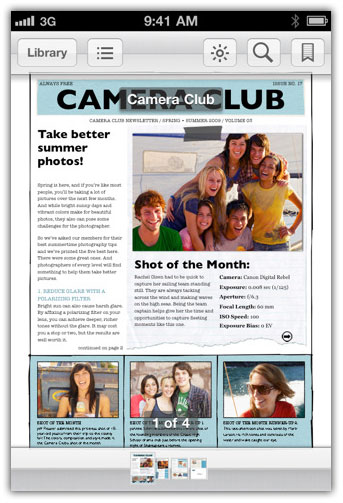
Apple has pushed iBooks 1.2 update that comes with better organization of books and PDFs into collections, PDF Printing, emailing PDF, possibility to experience fully illustrated books and more.

Full changelog after the jump…

What’s New In iBooks 1.2

  • Experience fully illustrated books, from children’s picture books to beautifully designed art books, available for download in the iBookstore.
  • Organize your books and PDFs into personal Collections. Swipe left or right to jump between Collections.
  • Print PDF documents and notes you’ve written in iBooks using AirPrint.
  • iBooks now fits more words per page by automatically hyphenating text, available only on iOS 4.2 or later.

iBooks Features

  • Enjoy a complimentary copy of the beautifully illustrated classic, Winnie-the-Pooh by A. A. Milne.
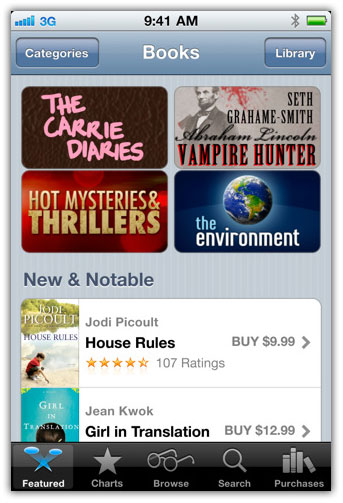
  • Download many of your favorite books from the included iBookstore.
  • Read a free sample of any book on the iBookstore before making it a part of your collection.
  • Reorder your books on your bookshelf or browse them in a list sorted by title, author, or category.
  • Organize your books and PDFs into personal Collections. Swipe left or right to jump between Collections.
  • Easily adjust your screen brightness to find the perfect lighting for any environment.
  • Change the font size and pick from six included type faces to make your books more comfortable to read.
  • Find a word, character, or phrase anywhere in your book with the built-in search feature.
  • Keep your bookmarks, notes, and your current page wirelessly in sync between iPhone, iPad, and iPod touch with the new automatic bookmark syncing feature.
  • Quickly find a specific page using the page navigator at the bottom of every page.
  • Read your books on white or sepia colored pages.
  • Choose left or fully justified text layout from Settings.
  • Highlight your favorite passages and add notes with the built-in bookmarking features.
  • Add books in the industry-standard ePub electronic book format to iTunes and sync them to iPhone, iPad, or iPod touch.
  • Add PDF documents to iBooks from Mail, or add them to iTunes and sync them to iPhone, iPad, or iPod touch.
  • Print PDF documents and notes you’ve written in iBooks using AirPrint.
  • Use iBooks with the amazing accessibility features in iPhone, iPad, and iPod touch – such as speaking the words on a given page.

Download iBooks 1.2

You can download iBooks 1.2 for iPhone, iPad and iPod Touch from the App Store for free. [iTunes Link]

You can follow us on Twitter, Join us at Facebook, and also Subscribed to RSS Feed to receive latest updates.

Digg
Twitter
StumbleUpon
Facebook
Reddit
del.icio.us

Create Your Own Comics with ComicStrip

ComicStrip – CS is an application from Sketch and Scotch that lets you either take a new photo or use a photo from your library to create a comic strip on your phone. It is a very well put together application with a clean interface, very easy to figure out and use. It’s a fun concept to be able to make a comic strip from your photos and add caption and action buttons onto the strip and save it to your library or go and publish it to your Twitter and Facebook accounts if you have them. All of those things are fun and simple to do.

On opening the application you’ll be shown a comic grid with plus symbols in the center. These are where you touch to add a photo or take a new photo. There is an arrow button on the bottom of the screen you can touch that will bring up the options menu for your strip. That’s where you want to start. The first tab is called “Change Template” this is where you select the grid that you’d like to use for your strip. You have from 1 to 5 panels per strip to choose from. Go ahead and pick your template there and then you can arrange the photos you want to work with.

Once you have those photos selected you can move onto the captions tab to pick what type of caption bubble, box, or action you’d like to include, there are a ton of choices here for you to use. You select the one you want to have and touch it, you will be given the option to drag the caption around the screen to set the location or a red X to remove it. Once set you tap in the caption to add your text message. After you’re done adding your caption and action boxes it’s time to move on to saving and publishing your strip.

When you go to the Save and Publish tab you’ll have the option to save the file and to post to Twitter and to Facebook. Those options are greyed out at first but you can click on each to go through and setup your accounts for Twitter and Facebook. You will be given an option when you post to Twitter and Facebook to add a message about your comic. Twitter will post the picture to Twitpic. Once you save and publish the picture you’re done, you’ve shared your comic genius with the world.

In all the ComicStrip-CS app is a wonderful fun way to make a mini-comic strip to share with friends and family. It’s solid and put together wonderfully. The interface works perfectly to do what you need. I can’t say anything bad about the application, if you’re looking for something small and fun like this, it’s perfect. I would give this a rating of 5/5, excellent application.

Is the iPhone stealing Verizon’s growth?

Horace Dediu of Asymco has provided analysis on data recently released showing Verizon’s smartphone sales over the last year.

The chart below shows the performance of all of Verizon’s smartphones vs. the iPhone at AT&T. The area chart shows how Verizon’s volumes grew from 2.7 million in Q1 to 3.3 million in Q3. Not a bad story in itself. However, the iPhone at AT&T went from 2.7 million to 5.3 million in the same time frame. Relative to just the iPhone, Verizon has been underperforming over the last quarter.

You can read the rest of Horace’s analysis here.

Unlock iOS 4.2.1 on iPhone 3G/3GS with Ultrasn0w 1.2

iPhone Dev Team has just released a new version of Ultrasnow to unlock iPhone 3G and iPhone 3GS, still there is no news about iphone 4 user and its looks like that they have to wait for some more times. If you are using iPhone 4 and using ultrasn0w for unlock then you should just stay away from iOS 4.2.1 update from iTunes because this version of ultrsn0w will not unlock iPhone 4?s baseband.

Here are the complete instructions posted by iPhone Dev Team:
Today we’re pleased to announce our free carrier unlock for iPhone3G/3GS owners with a baseband later than 05.13.04. The unlock for that baseband exploited the AT+XAPP command, thanks to a crash initially discovered by @sherif_hashim (@Oranav also found this crash). So what hole are we exploiting today, since Apple closed that AT+XAPP hole? Well, we’re exploiting the exact same hole!
It turns out that the very first iPad firmware 3.2.2 has baseband version 06.15.00 still vulnerable to AT+XAPP. The iPad baseband is built for the exact same baseband chip as the iPhone3G/3GS — they’re fully compatible! Some of us have been running 06.15 for weeks now on our iPhones in preparation for this release.
Since 06.15 is a higher version than 05.14 or 05.15 (where AT+XAPP is gone), anyone stuck at those versions can simply upgrade to 06.15 to unlock again! Luckily for us, Apple *still* provides the iPad FW 3.2.2 with this vulnerable baseband right from their own servers. (Grab it now, before they take it down!)
We’ve been busy updating both PwnageTool and redsn0w to make the baseband update as seamless as possible.
1. First up is “PwnageTool 4.1.3 Unlock Edition”. It has a special dialog box which will ask you if you want to update to the iPad baseband. You must already have the iPad 3.2.2 IPSW on your computer (see the above link)….so just point PwnageTool at it (or let it find it on its own if you’re in “simple” mode).
2. Directly after PwnageTool 4.1.3 is available, the official ultrasn0w repo http://repo666.ultrasn0w.com will be updated with ultrasn0w 1.2, which covers iPhone 4 baseband 01.59.00 and iPhone 3G/3GS basebands 04.26.08, 05.11.07, 05.12.01, 05.13.04 and now 06.15.00.
3. Finally, we’ll release an update to redsn0w today for those without Macs and can’t run PwnageTool. The new redsn0w will give you the option to update your baseband to 06.15 too.
WARNING — YOU DO THIS AT YOUR OWN RISK! PLEASE UNDERSTAND THE CONSEQUENCES OF UPDATING TO 06.15.
1. There is no way to come back down from 06.15, and there’s no hiding the baseband version from Apple. You’ll be voiding your warranty in a very obvious way.
2. If some future baseband comes out with a critical fix, you won’t be able to update to it if it remains down in the 05.xx sequence (then again, you wouldn’t update to it if you wanted to keep your unlock anyway).
3. Starting with FW 4.2.1 if you have 06.15 on your iPhone you won’t ever be able to restore to stock firmware (it will fail). You’ll need to only restore to custom IPSWs (then again, if you’re unlocker you should already be doing that).
Certainly don’t update to 06.15 if you don’t need to! Only do this if you need the unlock and you’re stuck on 05.14 or 05.15, and you’re willing to assume the above risks.
This PwnageTool also contains a 4.2.1 bundle for iPhone3G owners…for all else, it’s still only 4.1. If you have an iPhone3GS with an old bootrom, the new redsn0w will handle 4.2.1 for you (in fact it covers 4.2.1 for all devices, even though some of them are still tethered at 4.2.1 until @comex can work some untethering magic). iPhone3GS users with old bootroms who want to go to 4.2.1 should not use this PwnageTool! Update to stock 4.2.1 first, then use the upcoming redsn0w to update your baseband.
Please feel free to use our comments section for questions. We have some very knowledgeable and helpful moderators: angiepangie, Confucious, dhlizard, and Frank55!
Official Bittorrent Releases

PwnageTool 4.1.3 – PwnageTool_4.1.3_Unlock_Edition.dmg.5994102.TPB.torrent

SHA1 Sum = adda6d882dce1b5117d01586037de289407e038a

Related posts:

  1. redsn0w 0.9.2 Download
  2. News: released Redsn0w 0.9beta3
  3. How to Jailbreak iOS 4.2 Beta on iPhone 3G & iPod Touch 2G with Redsn0w 0.9.6

Download iTunes 10.1.1

New In ITunes 10.1.1
This release provides a number of important bug fixes, including:
Addresses an issue where some music videos may not play on Macs equipped withNVIDIA GeForce 9400 or 9600 graphics.
Resolves an issue where iTunes may unexpectedly quit when deleting a playlist that has the iTunes Sidebar showing.
Fixes a problem where iTunes may unexpectedly quit when connecting an iPod to a Mac equipped with a PowerPC processor.
Addresses an issue where some music videos may not sync to an iPod, iPhone, or iPad.


The previous iTunes 10.1 was released a month ago featuring AirPlay, iOS 4.2 support, and important stability and performance improvements.

Download ITunes 10.1.1

You can download iTunes 10.1.1 via Software Update or from the link below.

  • Download iTunes 10.1.1 for Windows & Mac.

Related posts:

  1. Will Apple Announce Web Based iTunes Tomorrow?
  2. Download iOS 4.2 beta for iPad, iPhone and iPod Touch [Devs Only]
  3. Download IOS 4.2 for iPhone iPod Touch and iPad

How to Break Into Your iPhone Apps

Every app on your iPhone syncs with iTunes, which means it also resides on your Mac. Unlike the iPhone, our wonderful Macs are fairly open and make it easy to dig around in important files. Put these two statements together and you get the realization that you can use your Mac to tear apart your iPhone apps to see what’s inside (no jail-breaking required).

Today I’ll walk you through the basic process of breaking into an iPhone app in addition to discussing why on Earth you would want to do such a thing.

What and Why

First of all, don’t read this as an article teaching you how to actually use iOS apps on your Mac. If there is a way to do that beyond just the developer simulation tools, I’m unaware of it! Instead, this guide will show you how to dig into the contents of an iPhone app to get at the resources that comprise it.

Believe it or not, the reasoning behind this exercise is fairly practical. Say you have an app containing video tutorials that for whatever reason you’d like to watch on your Mac. Perhaps they’re eating up too much room on your iPhone or you simply want to watch them on a bigger screen. Or maybe there’s a game with a soundtrack that you really like and you want to see if you can throw it into iTunes. All of this is potentially possible with the process below.

Here’s How

To start off, make sure you have an iOS device (iPhone, iPod Touch or iPad) synced with iTunes. This will take all the apps you’ve downloaded on the device and stick them in a folder on your Mac for backup purposes. Chances are, if you own an iOS device, you’ve already got a bunch of apps on your hard drive to start from so you can proceed to step one below.

Step 1: Find Your Apps in iTunes

When you open up iTunes, you should see a column on the left with various categories: Library, Store, Shared, Genius, Playlists, etc. Under the “Library” heading, click on the “Apps” item shown below.

screenshot

Select Apps in the sidebar

This will bring up an icon view of all the apps on your device. You’re probably already familiar with this screen but if not, this is where you can go to see if there are any updates for the apps you’ve downloaded. Whether or not you still have them installed on your iOS device, you can still keep them up to date in your iTunes library.

Step 2: Select an App to Break Into

Once inside the apps section of iTunes, simply select an app whose contents you’d like to poke around in. Make sure the app is one that actually contains some interesting content. For instance, I’m going to take a look at Guitar World Lick of the Day because I know that it contains some awesome video tutorials for guitarists and I’d like to see if I can download these to my Mac.

screenshot

Right-click and select Show in Finder

Once you’ve decided on a good app, right click on it and select “Show in Finder.” Obviously, this brings up a Finder window with the app selected.

You can also simply navigate to the Mobile Applications folder inside of your iTunes folder and skip iTunes entirely.

Step 3: Copy The App

Step three is easy, just copy the app somewhere (I threw it on my desktop). Make sure you never go messing with the original app, even if you know what you’re doing. It’s much safer to work with a duplicate so you can be 100% sure that if you screw something up, in won’t matter in the least.

screenshot

Copy the app to your desktop

Step 4: Change the Extension

To actually get into the app, you’ll need to change the file extension from .ipa to .zip. This will allow you to double click the .zip file and turn it into a plain old folder.

screenshot

Chang the file’s extension

Step 5: Show Package Contents

Once you expand the .zip into a folder, find the app icon inside. Since it won’t run on a Mac, it should be a circle with a line through it. Right-click on this icon and select “Show Package Contents.”

screenshot

Show Package Contents

That’s it! This step should open up the secret folder containing all the goodies you’re not supposed to see.

Poking Around

Once you’re inside the app you’ll find all kinds of great stuff. For instance, in Lick of the Day I found the video files I was looking for, some fonts, the interface graphic files, sound files and more!

screenshot

Show Package Contents

Conclusion

To sum up, all you really have to do to break into an iPhone app is copy the file to your desktop, change the extension to .zip, find the actual app file within that folder and tell your Mac to “Show Package Contents.”

If you tried this on your own apps, leave a comment below. Which apps did you break into and what cool resources did you find?

Momento 2: The Best Diary Writing App Just Got Better

How do you currently keep track of your daily thoughts and events going on right now in your life? If you read our last review of Momento, you probably already downloaded this application and are currently using it. If you are, or the idea of a digital diary sounds interesting, you’re going to want to download Momento 2.0.

Momento 2 adds several key features that were missing from the first version of the application, such as Retina Display support, even more feeds to import data from, landscape support, and backup/restoring your data. All these features and more were just added to Momento, which is now updated on the iTunes App Store.

Dual orientations:

Entering text has never been so easy with the Landscape keyboard.

Momento now supports Landscape orientation, allowing you to hold your iPhone on its side. This enables you to record your moments using the larger landscape keyboard, allowing for easier and more accurate typing. Momento features a new landscape view for the calendar, providing an easy way to swipe across days to events on the day. Swipe below it to change from month to month, and swipe above it to change the year.

It’s now even easier to find events by the day.

Momento’s beautiful landscape calendar makes it easy to find the events you're looking for.

Stay backed up:

iOS 4 users can backup and restore their Momento data using iTunes application file sharing. Select the backup options to backup your feed data and plug your device into iTunes just like you would if you were syncing it. In your device apps pane in iTunes, you will see Momento and the backup file. Copy the backup file to your computer so that you can restore your data if you ever lose or have to wipe your device. Bring your data to a new iPhone without having to restore from a backup, just copy your old backup file to the iPhone and click Restore from the Momento Settings pane.

Momento’s Backup and Restore menu for saving your data makes it easy to backup your feed.

Venture about:

Momento integrates amazingly well with Gowalla, adding your check-Ins with your daily journal

Momento 2.0 also adds integration with location based check-in services like Gowalla and Foursqure, which allow your journals to paint a better picture of your daily events. Say for instance you’re visiting a friend from college and wish to save the memories for a later date. Check in to the restaurant on Gowalla or Foursquare, upload pictures on Flickr, and tweet about it on Twitter. By integrating your accounts into Momento, all those entries will be recorded together and grouped by the date.

Without changing your workflow at all, you have a complete collection of these memories. Momento also adds support for YouTube, Digg, and Vimeo; adding another level of memories to your feed. Connect Momento to your favorite blogs using the new RSS feed feature to automatically grab new posts from your friends and family’s blogs. Connect your accounts and start recording.

Setting up Feeds:

The process for settings up new feeds in Momento is quite simple. Tap the settings gear in the menubar and go down to Manage Feeds. Tap “Add Feed” and select a service, in this instance Flickr. Tap the authorize button and you’ll be brought through Flickr’s OAuth login screen. Momento supports OAuth when available from services, meaning your Facebook, Flickr, and Twitter passwords won’t be stored in Momento. Once you have successfully added a feed, you can now configure options for what sort of information should be downloaded and added to Momento, and settings about importing past data.

Conclusion

Momento 2.0 adds several new features to an already amazing application. With the added support for more feeds, it makes it really easy to keep track of your memories. You can archive your check-ins, YouTube videos, and blog posts with the push of a few buttons.

The improved graphics for Retina Display and the new landscape calendar are two examples of the high caliber of graphics in Momento. Not only does it have great graphics, but it also has a solid set of features that work together to make archiving your memories easy and intuitive. Tag your friends and locations, rate your moments, and start making memories. How does your diary compare to Momento?

Momento is really one of a kind for a diary/archiving application. Although there are several diary applications, none to my knowledge offer the ability to import and export your data so easily. Momento doesn’t require you to change how you work, whether you like to Tweet, check-in to places on Foursquare, or post Flickr photos, Momento can help you archive that information for later use.

Control Your Computer with Touchpad: The Ultimate Remote App

It’s that time of day again, when I like to kick back on my bed and watch the latest episode of “The Big Bang Theory” on Hulu.  The only source of illumination now is the glow of the monitor sitting on my desk across the room.  It is all quite nice until the neighbor’s dog starts barking and I need to get up and out of bed, walk over to the computer and turn up the volume.

My first solution to this dilemma is the obvious one- bring my bluetooth mouse and keyboard to bed with me.  This is fine, but without a surface for the mouse it can be cumbersome to manage and the keyboard seems superfluous when all I need to control is the volume.  If only there were some way I could control the mouse, the volume, the play/pause functions and when the show ends, put my computer to sleep… What!?! TouchPad for the iPhone/iPad can do all of that and so much more!?! That’s great!

Remote For What?

In a word: Your Computer. With Touchpad you can use your iPhone or iPad as a keyboard, mouse, remote for applications from VLC to Hulu to iTunes. Play your music, control your movies, heck, I’m even typing this with Touchpad!

But before you can use all of these features and more, there’s a quick set-up process that you’ll need to follow. I’m going to briefly outline the 2-step process required to use Touchpad with my MacBook Pro, but complete steps along with additional information (including set-up with Windows and Linux computers) can be found on Edovia’s Touchpad support section.

Set Up

Step One: Enable Screen Sharing (From System Preferences… -> Sharing)

Sharing Preferences

Sharing Preferences

Screen Sharing

Screen Sharing

Step Two: Add your computer as a server from “Settings” section of the Touchpad app.

Touchpad Server Settings

Touchpad Server Settings

The Basics

Touchpad is extremely simple to use, but it packs some nice features for almost any remote controlling need you might have. The first screen is just a normal mouse that looks quite similar to any typical MacBook touchpad. Just move your fingers around on the surface, (I like to use my thumb with my iPhone) and the cursor will follow on your connected device.

Touchpad on the iPhone

Touchpad on the iPhone

In the upper-left hand corner of Touchpad there is a menu of buttons that allow you to show or hide the keyboard or the universal remote, and on the iPad there is a button for the extra keys such as “Cut”, “Copy” and “Paste”, “Undo”, “Minimize”, etc… We’ll talk more about these features later.

Beyond the Basics

When you’re comfortable handling the mouse functionality, it’s time to move on to the big leagues. Touching the gear icon in the upper-right corner will take you to the “Servers” screen, where you can choose a server (computer) to connect to, adjust the settings or get some help from the in-app instructions.

Servers

Servers

The server selection process is explained in detail on the Endovia support page that you probably used to set up Touchpad, and the instructions are pretty self-explanatory, so let’s take a minute to look into the different settings available:

When you enter the “Settings” screen, you are given several options from the look-and-feel (Try the Dark Theme), to the app behavior. I’d like to highlight the ability to use two, three and even four finger gestures with Touchpad. If you don’t already have a multi-touch input device for your computer, these may be a little bit confusing at first, but there’s really not much to them. (It is worth noting that some hardware will probably not be able to process multi-touch gestures, so be warned.)

Assuming that your computer does do multi-touch, it’s really convenient to use the inertial scrolling (like a scroll wheel on a mouse), swipe around with three-finger moves and even activate special functions such as Exposé on the Mac.

Settings

Settings

Hitting the Keys

As noted earlier, you can also use Touchpad as a wireless keyboard, which can come in handy in some of the most unexpected scenarios, although I wouldn’t recommend using it to copy “War And Peace” into digital form for your private e-book collection.

Touchpad keyboard on the iPad

Touchpad keyboard on the iPad

But what I have really found useful has been the “Special Keys” keyboard that gives you a whole range of quick-access functions that you would commonly encounter. I already mentioned some of those functions earlier, but a quick glance at a screenshot will give you a better idea as to the limits and abilities of this feature.

Touchpad function keys

Touchpad function keys

Remote Control for Entertainment

In the end though, one of the main reasons that I came across Touchpad was in my search for an easy-to-use, yet versatile universal remote for my movie-watching and music-listening convenience. This is easily my most used feature and I love it! Again, a quick glance at a screenshot will speak volumes, so check it out:

Touchpad Media Remote

Touchpad Media Remote

The Summary

After the initial set-up, the app is extremely user-friendly and intuitive to use. The functionality and convenience has been well worth the $4.99 price tag for me! What do you think? Do you use Touchpad or another remote app?

10+ Great Party Games for Your iPhone

For many, the holidays are a time of family get togethers. Unfortunately, it’s not always the case that getting the family together leads to a good time! Why not help out this year by breaking out some hilariously fun party games? No you don’t need to pack a bunch of boxes and pieces that you’re sure to lose, all you need is your iPhone!

Below you’ll find over ten great party games that are sure to make you a hit with your friends and family.

Word Party

“Do you enjoy the game Password, Taboo, or Catch Phrase? Then you will love Word Party, the first (August release) multi-player, multi-team, word party game for your iPhone and iPod Touch! You only need one device to get the party started. Have a ball playing with all of your friends at the same time. This game is great fun for all ages, parties, and even long car rides. Why play Sudoku by yourself, when you can throw a Word Party?”

Price: $2.99
Requires: iOS 3.0 or later
Developer: GingerMonkey Games

screenshot

Word Party

Would You Choose … Online

Get ready to play this classic game of difficult choices but this time with a modern twist! Instead of just answering one question after another, Would you choose … (online edition) allows you to see how others answered the question as well as submit your own questions for public debate. The always expanding bank of questions ensures you will always have difficult, interesting, and bizarre situations to ponder. To top it off, its free.

Price: Free
Requires: iOS 3.0 or later
Developer: ALL CAPS APPS, LLC

screenshot

Would You Choose … Online

Party Games!

“Have you ever been sitting around with your friends on a weekend wondering what to do? Now you can be the one to save your friends from a boring night with Party Games! The ultimate 6-in-1 social gaming app for the iPhone and iPod Touch. Instead of sitting awkwardly in the corner of a party playing solitaire on your cell phone, you can share your phone with everyone and have them all laughing and playing together in no time. Finally, a quality app designed specifically with the socialite in mind.”

Price: $0.99
Requires: iOS 2.2.1 or later
Developer: Synaptic Mobile Gaming

screenshot

Party Games!

Phrase Party! (Catch It)

“Phrase Party! is guaranteed to make even the biggest party poopers come to life and join the fun. It all starts with a few of your closest friends getting together and choosing sides. As long as there are 2 team members on each side, let the party begin. Each side takes turns trying to describe the phrase on the screen to their teammates. When that team answers correctly, Phrase Party! is passed to the next team. Play continues until the buzzer sounds and the team who’s left holding the device is declared the loser of that round. With up to 4 teams competing, this game can get interesting in a hurry!”

Price: $1.99
Requires: iOS 3.1 or later
Developer: iParty! Mobile

screenshot

Phrase Party!

Spin My Party for iPhone

“Make your own prize wheels and play the games you love most! Spin My Party is a cool way to have fun playing games with friends and family. At each turn, the players must spin the wheel and get a challenge to perform. If they do it, they earn the points at stake. Whoever reaches the game ending score first, wins. ”

Price: $1.99
Requires: iOS 3.1 or later
Developer: Bliss Applications

screenshot

Spin My Party for iPhone

Best Party Games

“Best Party Games brings you the ultimate collection of games for all occasions and all ages. It contains the coolest, most entertaining games you’ll ever need for a party, sleepover or drinking night. We’ve got old favorites like Fizz Buzz, Spin the Bottle, Snaps. And a load of new games to liven up any event. This edition includes 6 groups of games ”

Price: $0.99
Requires: iOS 3.0 or later
Developer: Fingerspark

screenshot

Best Party Games

What Would You Choose? Party Game

“Enjoy over 400+ questions that will add life to any party, get together, or meeting. These questions are always a hit as they have you deciding between things that you both really want or the lesser of two evils. For example, would you choose to have the superpower of being able to make multiple copies of yourself or of making multiple copies of other people? Think of the fun, pranks, revenge, and response to both decisions!”

Price: Free
Requires: iOS 2.1 or later
Developer: LOLriffic Stuff

screenshot

What Would You Choose? Party Game

2000s Trivia – Party Time Trivia

“Do you know trivia from your lifetime? Want to know more, learn more interesting facts faster, quickly become the know-it-all who has all the answers. This trivia app covers the events of 2000-2009. Two Thousand (2000) multiple choice questions covering the major happenings of the first decade of the 21st century. ”

Price: $0.99
Requires: iOS 2.2 or later
Developer: Trivia Company

screenshot

2000s Trivia – Party Time Trivia

Wordi

“Pack a party in your pocket with this fast-paced and insanely addictive group word game! When the timer starts, give your teammates clues about the phrase on your card, quick! as soon as your team guesses it, pass Wordi to the next player.”

Price: Free
Requires: iOS 3.0 or later
Developer: Hainix games

screenshot

Wordi

Charades

“Charades, the family favorite for the Holiday season gets some digital assistance with Charades for iPhone. Instead of struggling to think of a film, book or song simply push the lever and the curtain is raised on a fresh Charades challenge! Pass the phone around to each player and act it out for all to see.”

Price: $1.99
Requires: iOS 3.0 or later
Developer: Shiny Development

screenshot

Charades

Scene It? Movies

“Scene It? Movies for iPhone features classic Scene It? trivia and puzzles pulled from the past 3 decades of Hollywood hits. The game features movie clips, images and custom puzzles designed to take full advantage of the latest iPhone features.”

Price: $1.99
Requires: iOS 2.2.1 or later
Developer: Screenlife, LLC

screenshot

Scene It? Movies

Conclusion

I hope the party games above will help make your family gatherings a little more memorable. Leave a comment below and tell us which iPhone games you think are perfect for a group setting. Also be sure to mention your favorites from the list above!

Band streams concert live via iOS app

A band named Everything, Everything is streaming a concert live today from London, and they’re sharing that content on the App Store. NME says that the Manchester band has released a free app for iOS that will not only stream the show live, but will eventually have an archive of the show available, along with information about the band and backstage pre- and post-show access.

Unfortunately, I don’t know if everything is working as planned — the concert has probably finished up by now, and I don’t see the app live in the US App Store, even though it was supposed to have been released worldwide. It’s possible that the band figured they’d release the app quickly, without realizing that Apple’s approval process is a little busy around this time of year.

But at any rate, it’s an interesting idea. We’ve already seen musical acts use Apple’s platform to share content with fans, and live streaming shows as a “virtual ticket” is another cool idea that even smaller bands can use to gain an audience. I think we’ll see more of this in the future (and maybe then it won’t be so lost in the huge rush of apps during this holiday season).

[via Macgasm]

Band streams concert live via iOS app originally appeared on TUAW on Wed, 15 Dec 2010 18:00:00 EST. Please see our terms for use of feeds.

Source | Permalink | Email this | Comments