Nintendo 3DS Review

My lovely wife Lauren gave me a Nintendo 3DS for Christmas, and I’ve been playing it extensively (mostly The Legend of Zelda: Ocarina of Time 3D) since then.

My last handheld game system was a Nintendo DS Lite (I also have a Wii and a PS3), and I suspect that there are many DS users out there who are wondering whether to upgrade to the 3DS. I decided to write up a few thoughts from my first week of owning the device.

Continue reading “Nintendo 3DS Review”

Create the Soundtrack For Your Life With SoundTracking

Recently, I reviewed an niche social networking app called Oink, which let’s you share the things you love with friends. Mainly, Oink is used to share a specific item, such as a Big Mac at McDonald’s or your favorite cup of coffee at the local diner. While Oink fills this particular niche nicely, other apps are available in the App Store that fill the roll other social niches. Instagram, for example, allows users to share photographs, and a little-known but highly usable app called Peepapp allows you to share the apps you’ve installed on your iPhone.

While food, photos and apps (especially apps) are great to share with friends, music is often one the most shared topics of discussion. Enter SoundTracking, the nifty little app that helps you “share the soundtrack of your life.”

Getting Started

When you fire up the app for the first time, you’ll be prompted to sign-in with either your Facebook, Twitter or Foursquare account. The inability to create an account with an email address may irk some people, but using Facebook and Twitter to post a SoundTrack is a major part of how the app works. Once you’ve successfully logged in, you’re ready to start posting.

If you have the Facebook app installed, Soundtracking uses it to verify your Facebook credentials.

If you have the Facebook app installed, SoundTracking uses it to verify your Facebook credentials.

Posting a SoundTrack

To post your first SoundTrack, start by tapping the off-center tab button in the bottom navigation bar. From here, you can search for the song you’d like to SoundTrack, use the Music ID function (similar to using Shazam) or select the song that’s currently playing in the iPod app on your phone. While the aforementioned options are very handy for most user, I typically listen to music via the Rdio app, so the search function tends to work best for me.

If the song you wish to SoundTrack is playing audibly, the Music ID function is very handy.

If the song you wish to SoundTrack is playing audibly, the Music ID function is very handy.

When doing a manual search, start by entering the artist’s name. Once you’ve done so, a new screen will appear with a list of the artist’s most popular songs (an extremely handy feature). When you’ve selected a song, you’ll be taken back to the search page, but now the song will be listed below the artist’s name. In addition, a green play button is present next to the song, which is a great way to make sure you’re about to SoundTrack the right tune (especially if multiple versions are available).

Doing a manual search for a song is a simple two-step process.

Doing a manual search for a song is a simple two-step process.

That next thing you can do is add a photo with your post. SoundTracking offers the ability to take a new photo or upload a photo from your phone. Additionally, you can choose from a collection of artist images, which I tend to use as a way of introducing the artist to friends. The last two steps include adding your location to your post, which is useful if you’re at a concert or live event, and adding a description, which will appear as the main text in your status update and/or tweet.

Most artists have a large number of images to choose from.

Most artists have a large number of images to choose from.

When all the pieces have been put in place, tap the Preview button in the top right corner. The screen will transition in to a preview of the SoundTrack you’re about to post. Above the preview are icons for Facebook, Foursquare and Twitter. If you’ve connected SoundTracking to any of these services, they’ll automatically be highlighted to share your post, so make sure to tap on any icon you don’t want to use.

When you are finished filling out the desired fields, tap the Preview button to begin final preparations.

When you are finished filling out the desired fields, tap the Preview button to begin final preparations.

Below the preview is a handy option to customize your tweet, which is only available to iOS 5 users. When you tap the Post button in the top right corner to submit your SoundTrack, an additional screen will appear that let’s you alter the text that appear in your tweet. Personally, I haven’t found any reason to use this feature, but perhaps some users don’t like the formatting SoundTracking uses for tweets.

Perhaps you can see something wrong with the formatting that I'm just missing.

Perhaps you can see something wrong with the formatting that I'm just missing.

What Your Friends Will See

When you’ve posted a SoundTrack to Facebook and Twitter, your friends and followers will see your description, as well as a link to preview the song. If your friend click the link on a computer, your friends will be taken to a SoundTracking page that will include an option to preview the song, the photo and description you included, and an option to Get the Song via iTunes or Spotify (done by clicking the plus icon to the right of the preview button).

Your friends can preview the song right from the page.

Your friends can preview the song right from the page.

From a mobile device, your friends will view a very similar, but scaled down, layout. In addition to iTunes and Spotify, the Get the Song feature includes an Rdio option. When choosing this option however, I was taken to a new page soliciting the Rdio service. The page included a option to open the Rdio app, but the song did not play as advertised.

Barry Manilow doesn't seem very impressed with the Rdio functionality offered by Soundtracking.

Barry Manilow doesn't seem very impressed with the Rdio functionality offered by SoundTracking.

Design

It wouldn’t be fair to talk about SoundTracking without talking about the app’s design. Steve Jang and his team at Schematic Labs did an amazing job on the overall look and feel of the app. SoundTracking is elegant and minimalistic, and does a great job of not bombarding you with too much to view at once. Additionally, the wood texture used for the header and post a SoundTrack button compliment the app design very well.

The overall use of brown, tan and black really makes colors stand-out in the app.

The overall use of brown, tan and black really makes colors stand-out in the app.

Do I Really Need an App to Share Music?

If you’re a user to multiple social networking services, this is a very fair question to ask. It’s true that if you’re into a song and would like to share it with friends, you can easily post a status update or tweet. When you do that though, it’s up to your friends to find the song you’ve posted (unless you were generous enough to include a link).

With SoundTracking, all the grunt work is done for you and your friends. Even better, if you tap on a post in the app’s Feed page, the song preview will automatically begin playing. So, if you’re really into music and sharing with other, I’d say SoundTracking is most definitely worth your time.

Final Fantasy Tactics: A Cult Classic Comes to iOS

Final Fantasy Tactics is one of the most popular turn-based strategy games of all time. It originally debuted on the PlayStation, achieving cult status and lasting through the years as one of the strategy games that needed to be played.

2007 saw a re-release of the original game on the PlayStation Portable, with enhanced graphics and new additions to keep the game fresh for new audiences. Now the iconic game has landed on the iPhone, and we have a full review.

Story

This section will be brief, as I don’t want to give too many of the story points —which are excellent — away. The story is mainly presented with cutscenes from the in-game engine, but there are several that look like an old, coffee-stained animated film. The main character is Ramza, a squire that is thrust into battle from the Akademy.

A squire has lost his lord; the beginning of a story arc.

A squire has lost his lord; the beginning of a story arc.

FFT features a storyline that helped to earn its status as a cult classic, deviating from the typical cookie-cutter “get the crystals!” formula of other games from the same period. Instead of a simple journey to find the crystals or save the princess, FFT features a deep, arcing storyline that focuses more on betrayal and political intrigue than it does on traditional RPG tropes.

Gameplay

Porting something from its original birthplace is never easy. There have been numerous ports from consoles to iOS devices, with some successes and more than a few misfires. Final Fantasy Tactics is a bit of a mixed bag, offering its fair share of smiles and headaches.

Moppet? Oh, now it's on.

Moppet? Oh, now it's on.

Square Enix didn’t rest on their laurels with some aspects of the game; as FFT is largely menu-driven, they devised a way to scroll through the various items by sliding your finger along the screen. I found this motion to be natural, but I was definitely confused when I tapped the screen and it didn’t register as a selection. In most cases, you need to tap the OK button for something to happen (note: this can be changed in the settings pane).

Menu, menu, menu.

Menu, menu, menu.

Scrolling through menus aside, the game does its best to offer you full control of your current view and access to the various sub-menus. It’s clear that Square Enix took their time thinking out the overall experience, and even some of the more annoying bits (battle prompts after you’ve already played through the game) can be turned off.

In short, whether or not you’ll like FFT has less to do with this port, as the mechanics are handled very well. Instead, you need to ask yourself if this is the game — and, indeed, version of the game — for you.

Presentation

Unfortunately, the attention given to how the game plays was clearly taken away from how the game looks. A recent update brought the game into the wonderful world of Retina Display-optimized graphics, but things still look oddly dated. This may be a product of the iPhone’s limitations or it might be Square’s attempt to stay faithful to the original game’s graphics; whatever the case, things look slightly blurrier than I would like.

Where the art style really shines is with the cutscenes. As I said above, the cutscenes look like they’re classically animated films, with strong sepia tones and the feeling of age. For every bit that I can’t stand the wasted opportunities offered by the Retina Display, I find myself enjoying the cutscenes and their vintage style.

The cutscenes look fantastic in this game, with a great style.

The cutscenes look fantastic in this game, with a great style.

The music in this game is good; by no means is it my favorite soundtrack, but it’s passable. Most of the time I play the game while I’m on the go, so I don’t actually hear the music. I imagine that this is the case for most people, but if you do decide to put those earbuds in, you’ll find yourself properly engaged with the game’s soundtrack.

Any Port in a Storm

FFT finds itself in this weird state where Square Enix keeps trying to do its best to milk the game for all that it’s worth without making it seem as though they’re being unfair to customers. There have been numerous re-releases of the game, including the one on the PSP and a copy available for PlayStation 3 users. Does the iPhone version stand up to those other games? That depends.

See, FFT was developed specifically for a console that was attached to a television at all times. There was the expectation that the time to play the game thoroughly and at length was available. This goes against the practical use-case for the iPhone as a mobile device, where gaming is often restricted to the time that you can find during your lunch break or in the car. While Square Enix has done their best to try and meld these two worlds, the result is less than the sum of its parts.

Which tile are you going to move to? Better decide soon, your bus is coming.

Which tile are you going to move to? Better decide soon, your bus is coming.

Sure, there are iOS conventions like auto-save and the ability to continue from where you left off. Technically, the game can be played for short periods of time instead of marathon sessions; it’s the player that gets in the way of this.

Tactics. It’s right in the title, and yet it’s hard to hold onto why exactly you put one character on this tile instead of that tile, or whether or not you actually had enough HP to perform that manuever. Really it comes down to memory; if you can remember exactly why you were doing what you were doing when you left off, you’ll be just fine. If you’re busy, say, working or trying to hit the right bus stop, you aren’t going to remember what was happening, and that’s a shortcoming that can cost you battles.

Conclusion

Is this cult classic a must-have for the iPhone? That depends on how you’re going to play it. If you’re expecting a game that you can launch and play for a few minutes while you’re busy doing other things you will be sorely disappointed. If you want a handheld version of a classic game that you plan on devoting some well-deserved couch time to, then I’d say that it’s a buy.

Let’s be honest, though: you had already decided whether you would buy this game as soon as you saw the title or the price. Either you’re a fan that is willing to buy every version of the game, you’ve been following the lore and want to finally play this classic, or you scoffed at the relatively-high price tag.

At $15.99, Final Fantasy Tactics is a fairly steep investment. The return on investment really depends on your own personal preference and whether you’re willing to work with a game that was developed at a time that  something like the iPhone seemed like a pipe dream.

Google Reader On The Go With GoReader

Google Reader is by far one of my favorite services. In case you haven’t used it, Google Reader allows you to read all your RSS feeds on the same place, share them and add notes to them easily. It’s been available for quite some time now, and it’s just great because it’s simple and reliable. Since I got my iPhone, I’ve been reading my feeds using Google Reader straight from Safari since they have a mobile version (which is pretty good I might add). Lately though, since Flipboard for iPhone was launched, I’ve been reading all my Google Reader news from that app.

But to change things up a bit, I decided to take a look at GoReader. It’s an app that works specifically with Google’s service and syncs everything as well. Let’s see if it’s a viable replacement for its competitors.

Getting Started

Since it syncs with Google Reader, you’ll obviously going to need a Google account. GoReader asks you for your credentials upon launching the app for the first time. Be sure to uncheck the “Subscribe to newsletter” if you don’t want to receive it.

Logging in and your feeds

Logging in and your feeds

Just after you enter your details, GoReader will go into action. It’ll sync all your news feeds and items (only 1000 by default, though). If you’ve been using Google Reader prior, the app will take some time to finish syncing, since it also caches all images present on articles (which is configurable), so hang in there.

Reading Your Feeds

Once it’s all synced up, you’ll be greeted with your news feeds. The app is very intuitive in terms of distinguishing which items you’ve read and which you haven’t. Numbers in blue mean unread items, where gray numbers mean items already read. The green and orange colors mean items you’ve shared and starred, respectively.

Blue's good, means there's reading material

Blue's good — it means there's reading material

I prefer to read my news by feed, but you may prefer to read them all on the same list. Tapping on “All news” will congregate all of your feeds into one single list, where tapping single feeds will filter news items by its source. Reading news items in GoReader is great. The colors and font in which the text is rendered is easy on the eyes and great for reading.

Checking your feeds and reading an article

Checking your feeds and reading an article

Pulling down when reading an item takes you to fullscreen mode, and pulling down again exits fullscreen.

Apart from Google Reader’s share feature, there’s also the ability to share what you’re reading using Twitter, Facebook, Delicious and even SMS. Just tap the share icon on the bottom right to reveal a menu. There, you can share to your different social networks easily, even copy the item’s URL to quickly share elsewhere.

Sharing a great article

Sharing a great article

Accounts And Subscriptions

Even though you were allowed to use a single account when first opening the app, you can configure multiple accounts on the settings panel. Simply tap the gears icon at the top left from the main screen and tap Account Management. There, you’ll be able to add as many accounts as you need (although I would never need more than one).

Managing your accounts and subscriptions

Managing your accounts and subscriptions

In the same fashion, adding subscriptions isn’t limited to the web version of Google Reader. Tapping the gears icon and then the SubscriptionManagement button, you can manage your feeds easily. You can sort them, delete them and add new ones using the feed’s URL.

Other Settings

Tapping on the aforementioned gears icon on the top left, reveals the settings panel, where, apart from managing accounts and subscriptions, you can change, for example, how many items you want to sync each time. You can also change the sync period, which lets you choose between syncing the last day’s worth of items or more. Other than that, you can change the font size, whether to cache images or if you only want to be able to sync on Wi-Fi.

The app's settings

The app's settings

In my opinion, this part of the app could use some organizing. It feels a little cluttered and hard to get at a quick glance.

Final Thoughts

This app is very well made. It’s stable and it never crashed on me during testing. I’m not a big fan of the user interface for some reason, although the choices the developers made in terms of fonts, colors and sizes is great for reading. One thing that does come to mind is that it’s actually a little too slow to sync (especially compared to Flipboard). That’s something that could be improved, perhaps removing syncing altogether and going with an “online” approach, not having to wait for it to finish downloading everything.

Another thing that caught my eye is that when sharing through Twitter, the app doesn’t use iOS 5′s built-in Twitter sharing. Not really sure if it’s even possible, but if it is, that’s another thing that could be easily improved (and would actually be great).

Other than that, it’s a great app; very robust and a great choice if you’re looking for something to read your Google Reader items on the go, especially if you need to have them available offline.

Day One: a Gorgeous, Synchronized Journalling App

There’s something romantic about cataloguing our own lives. Thinking through our day and choosing the important parts, reveling in our successes and coming to grips with our failures, expressing thoughts that we wouldn’t even whisper to our closest of friends; those are the opportunites that a journal offers. Journals have been, traditionally, paper books that we hide in nooks and crannies, writing in ink by a flashlight so no one could see what we told to our inner selves.

Now, with the devices that we all carry in our pockets, on our nightstands, or on our desks, the journal needs to evolve. Why not make it easier and more secure to journal? That’s what Day One is for.

Interface

The first thing that will strike you about Day One is how gorgeous everything is. Each element of the application was clearly thought out, with not a pixel misplaced or a color off-hue. Why is this important? Because a journal is a deeply personal thing, something that we are meant to confide in and share our deepest thoughts.

Day One's starting screen, for the first time (left) and subsequent launches (right)

Day One's starting screen, for the first time (left) and subsequent launches (right)

By having such a well thought out interface, Day One is at once inviting and comforting. The blues are bright and friendly, practically begging to be touched and trusted, all while the dark, textured grey instills you with the feeling that Day One is a vault that no one can enter without your permission.

The interface led me to enjoy Day One. Make no mistake: that is key to this application. If you don’t enjoy journalling you won’t journal, and there are far too many benefits to keeping track of your thoughts for this opportunity to be wasted.

From Your Mind to the App

Adding an entry into Day One is simple. All you need to do is tap that huge Add button that I mentioned earlier and you’re taken to a writing screen. Day One shines here as well, giving you multiple options for your writing.

Another distraction-free writing app? Ha! This is distraction free journalling. Totally different.

Another distraction-free writing app? Ha! This is distraction free journalling. Totally different.

First is the default screen, which allows you to not only write your entry, but also decide what date the entry belongs to if, say, you forget to create an entry one day but decide to catch up on the next. There’s also the option of Starring an entry and just deleting it entirely, which might be used but will probably be tapped infrequently.

Second is the full-screen mode. Instead of showing you all of the options and interface elements that are present in the default mode, the full-screen writing mode just presents you with the iPhone’s keyboard, a white canvas, and your words. This can be useful if you want that extra bit of space to see what you’re writing or if you find yourself distracted by the icons and other elements present in the default view.

Markdown? You Bet.

One of the more popular markup syntaxes to take text editors by storm is Markdown, a project from John Gruber. Markdown is a markup language that allows you to create a human-readable document that will also create valid HTML. This comes in handy for Day One when you want to add emphasis to what you’re writing without having the ugliness of HTML tags interrupting your thoughts.

Let’s say, then, that I’m particularly excited about something, so I want to make it bold. Instead of typing text I could type **text**, which is easier to read and much easier to type.

Writing with Markdown on the left, the output on the right.

Writing with Markdown on the left, the output on the right.

While most people won’t take advantage of Markdown within Day One, for those of us that already use the language it’s a nice addition that makes the app feel more complete.

An Archive of the Past

Writing down your thoughts is only half the battle. Often the point of a journal is not only a sense of peace and reflection in the present, but also the opportunity to study our thought processes and emotions with greater detail than we would normally be able to recollect.

Day One lets you get to your old entries in a few ways. First is with the All Entries view, which can be useful if you’re relatively new to journalling but cluttered if you’ve been faithfully adding an entry (or more) every day. This is where Starred entries and the ability to view your entries by year might come in handy.

Viewing your Starred entries.

Viewing your Starred entries.

Starred entries are fairly self explanatory. You mark an entry with a star and it shows up in this view, giving you a chance to review something that you knew was important at the time or marking something that you don’t have the time to read at this very moment for later. I’d recommend being conservative with your stars though, as what seems important enough to star today might seem trivial tomorrow.

Viewing your entries by year could be a fun exercise.

Viewing your entries by year could be a fun exercise.

The ability to view your entries by year offers a unique opportunity, though. Let’s say that each day I want to know what I was doing that same day the year before; Day One makes this possible, offering me the chance to view the previous year with a new light and allow me to reflect on the current year more clearly.

Synchronized and Secure

One of the great things about Day One is its portability and its scope. By having a journalling app in my pocket I can record my thoughts as they happen or when I have a spare moment, making capture easy. Let’s say that I have something longer to say though, that I don’t want to tap out on my iPhone’s keyboard. This is where Dropbox comes in.

By syncing with Dropbox, Day One allows you to keep your journal up-to-date across your Mac, iPhone and iPad, giving you easy access wherever you are. Unless you happen to be doing something that would put your devices in danger, you’ll probably have one (or all three) within arm’s reach at all times. A few years ago this would have been a nightmare, with entries in different states across all the devices.

Through Dropbox, Day One feels seamless. Syncing was fast, and I never lost any entries. As with any journal though, the question of security may be more important than portability. Thankfully, Day One has you covered.

And you thought a lock screen could never be sexy.

And you thought a lock screen could never be sexy.

You can optionally set a passcode within Day One’s Settings page, allowing you to require the passcode’s entry upon each launch of the app. I’d recommend choosing a fairly complex or unique passcode, but even if you choose something relatively simple, if whoever is poking through your iPhone guesses incorrectly they are immediately booted from the app, hiding your thoughts from their prying eyes.

Inviting, Simple, Synchronized, Secure: Day One

I can’t recommend this app highly enough. If you have even a passing interest in journalling your thoughts, Day One is worth a try. Not only is the application all of those adjectives that I listed above, it’s also affordable and being actively developed.

Try Day One today.

Weekly Poll: Would You Buy an iPhone Game Controller?

There’s been a lot of complaining around these parts (mostly by me) about games being ported to the iPhone that are ridiculously difficult to control. It’s just the inherent nature of holding a small phone in your hands and controlling things by touching a glass screen, but it could be improved upon.

Well, looks like someone has gone ahead and made that mythical controller that I’ve been dreaming of, the only problem is there aren’t many games for it — yet. It’s called the GamePad, and it sells for $49.99. It seems to solve most of my problems, but here’s the thing: Is having a game controller for your iPhone worth the money?

It’s your call, people. Vote in the poll to the right and let us know!

7 Ways Siri Could Be a Better Personal Assistant

Siri Problems

iPhone 4S users,

Can we all agree that Siri has been a bit underwhelming?

While Siri is arguably the most advanced voice-powered personal assistant on the mobile market, there is still a lot left to be desired.

I often use Siri to send text messages, perform Google searches, set timers, and get directions — works great for all of the above — but there are some things that I would expect Siri to do and find myself surprised that it is incapable of doing.

Below are seven features that Apple should add to Siri to make it live up to the hype. Apple has admitted that Siri is still in its Beta stage, so let’s hope these changes are coming to Siri soon:

  1. Open apps. If you tell Siri to “open camera” or “open Photos,” it is incapable of doing so. At the moment, Siri can only perform tasks within the Siri interface. So if you tell it to send an email or write a text message, it will do so within the Siri interface and send it off without ever opening the app. But if you ask it to open any app, it will tell you that it does not have permission.
  2. Deeper integration with native apps. Siri interacts well with native iPhone apps. You can send messages, send emails, add calendar items and get directions within Siri. However, I would like to see Siri more deeply integrated within these applications. For example, it would be great if I could tell Siri when to alert me about a new calendar item, or to drop a pin at my current location in the Maps application.
  3. Interact with third-party apps. At the moment, Siri can’t interact with any third-party apps from the App Store, although I predict that Apple will introduce API’s for developers to incorporate Siri commands into their applications. I would love to be able to tell Siri to add a task in my Appigo Todo app, to add a new station in Pandora, or to Shazam the song that is playing in the background. The ability to interact with third-party apps would make Siri truly groundbreaking.
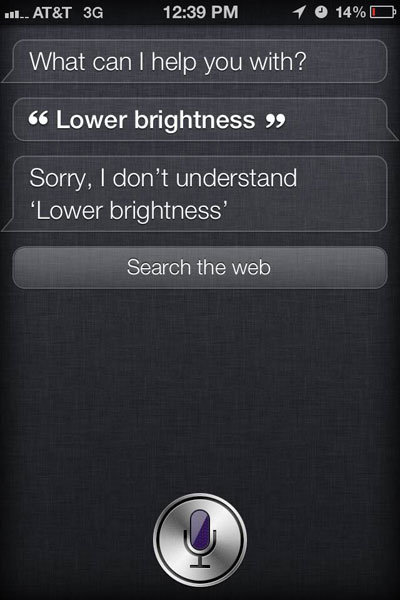
  4. Adjust settings. I wish Siri could change my iPhone settings with a simple voice command. Imagine telling Siri to adjust your screen brightness, or to connect to the nearest Wi-Fi network, or to turn on Airplane Mode.
  5. Read notifications. Currently, Siri can only read your latest text message to you. But I would love for Siri to be able to read all of my notifications to me. “Read unread emails” should prompt Siri to read my latest emails aloud, and “Read Facebook notifications” should prompt it to tell me who recently liked my statuses or commented on my wall.
  6. Say bad words. If you say a curse word, Siri will often understand it and repeat it, but if someone sends you a text message with the word “sh*t” or “f*ck” in it, Siri will simply say nothing, which is a bit confusing. Adult iPhone users should have the option to allow Siri to say bad words.
  7. iPhone 4 compatibility. Don’t expect this to ever be permitted by Apple, but I don’t see a reason why Siri shouldn’t be available on iPhone 4. Hackers have proven that Siri can be ported to iPhone 4 with no problems.

    Unfortunately, Apple often restricts software features to new hardware models, most likely in an effort to encourage customers to buy more of their products. This reeks of the time Apple prevented its multitasking feature from being added to the iPhone 3G, even though jailbreakers proved that the 3G could handle multitasking just fine.

What features would you like to see in the next version of Siri? Please add your recommendations to the comments.

7 Ways Siri Could Be a Better Personal Assistant is a post from Apple iPhone Review.


Apple brings in former Adobe VP to help out iAd

Apple’s iAd service hasn’t been as successful as the company hoped. While Apple has been able to keep iAd “premium” by keeping up ad costs and only bringing in high profile clients interested in putting out high quality advertisements, it hasn’t actually made much money with the service, either for itself or developers who are trying run the ads.

Hopefully that will change now that Apple is bringing in a former Adobe VP named Todd Teresi to reinvigorate the iAd service and turn it back into the premiere ad and money generator that Steve Jobs hoped it would be. Teresi formely oversaw Adobe’s media solutions division, and he may either tweak the system so it’s a little more appetizing for advertisers or bring more and bigger accounts on board so these ads can be served to developers.

As for the developers we’ve talked to, they’re more than happy to keep serving iAds as long as they can also serve ads from other services. Competing ad services may not pay as much to developers, but at least they pay something — many iAds never get shown simply because advertisers aren’t willing to pay for them. Hopefully Teresi can fix that and get iAd back up to where Jobs originally wanted it to be.

Apple brings in former Adobe VP to help out iAd originally appeared on TUAW – The Unofficial Apple Weblog on Wed, 04 Jan 2012 22:00:00 EST. Please see our terms for use of feeds.

Source | Permalink | Email this | Comments

6.5 million downloads for Angry Birds on Christmas Day

Rovio says that it saw a whopping 6.5 million downloads of Angry Birds this past Christmas Day, which is just phenomenal, even for this overwhelmingly popular game. That number is very close to the number of iOS and Android devices activated overall, which means that most people who got an iPhone or other mobile device that runs Angry Birds over the holiday ran to download the game as quickly as they could.

I’ve heard this before. One of the creators of Doodle Jump told me a while ago that whenever Apple released a new device, that app saw jumps of approximately the same numbers in downloads. Angry Birds is obviously quite a phenomenon, and it’s so synonymous with the mobile experience that apparently the only limit on it out there is simply how many mobile devices manufacturers can sell.

Rovio also says there’s more coming in 2012. We’d hope for Rovio to get back to actually making mobile games not about Angry Birds (the company made more than 30 before Angry Birds hit), but given its popularity, we’ll probably still see these frustrated avians even more in the future.

[via Joystiq]

6.5 million downloads for Angry Birds on Christmas Day originally appeared on TUAW – The Unofficial Apple Weblog on Wed, 04 Jan 2012 21:00:00 EST. Please see our terms for use of feeds.

Source | Permalink | Email this | Comments

Osmos tips to help push you along

We’ve seen a couple rounds of Infinity Blade tips so far, but what if your iOS gaming tastes run a little bit less combative and a little bit more trajectory-based? Here are some excellent tips for the physics-based puzzle game Osmos, hosted by the game’s music composers. The core mechanic of Osmos is that you control a globe of mass, and you can trade that globe’s mass for movement, by kicking a stream of mass out in a various direction, trying to reach and “eat” other globes on the screen to get more mass. Controlling the game is simple, but winning it is another thing entirely. Fortunately, these tips should help.

And they also go a long way to showing just how complex and well constructed Osmos is. You can not only use your mass to propel your planet forward, but you can also propel other planets away from you, and even push those into other planets, causing a domino effect to your own advantage. And using walls is another big one. They can affect your movement strongly without costing you anything, which make the edges of the screen very valuable.

All good stuff. If you haven’t played Osmos yet, you definitely should: It’s available on the App Store right now, for iPhone or iPad.

Osmos tips to help push you along originally appeared on TUAW – The Unofficial Apple Weblog on Wed, 04 Jan 2012 20:00:00 EST. Please see our terms for use of feeds.

Source | Permalink | Email this | Comments

Walmart acquires iOS development agency Small Society

There have been quite a few strange acquisitions in the world of iOS development lately, but I think this one takes the cake: Walmart, of all places, has picked up an iOS development house named Small Society, in order to strengthen its customers’ experience on Apple’s mobile devices. Small Society has worked on apps for Starbucks, ZipCar, and Whole Foods and will bring its expertise to the biggest retailer in the world, working on iOS apps and interfaces for the WalmartLabs incubator division.

This isn’t the first tech development group Walmart has picked up, though in my recollection it is the first iOS-specific purchase the company has made. But strange as it may seem, the purchase makes sense. As we’ve said a few times here, shopping in 2011 on mobile devices was higher than ever, and Walmart obviously wants a piece of that pie.

We’ll have to see what comes out of this partnership in the future. If Small Society continues its good work, Walmart may have some interesting iOS apps coming down the pipeline.

Walmart acquires iOS development agency Small Society originally appeared on TUAW – The Unofficial Apple Weblog on Wed, 04 Jan 2012 19:05:00 EST. Please see our terms for use of feeds.

Source | Permalink | Email this | Comments

Apple loses bid to keep information sealed in Psystar case

In its ongoing suit against unauthorized Mac clone maker Psystar, Apple has been denied in its bid to keep certain information about OS X sealed from public view. According to Bloomberg, Judge William Alsup noted that information Apple claims are “trade secrets” are already publicly available on the internet from a variety of sources.

Apple attempted to claim that although this information about OS X was already publicly available, since the company itself hadn’t confirmed its veracity the information still qualified for trade secret protection. Judge Alsup disagreed, saying, “Apple cannot have this court seal information merely to avoid confirmation that the publicly available sources got it right.”

Apple is suing Psystar for copyright infringement over Psystar producing and selling unauthorized clones of the Mac running Apple’s proprietary Mac OS X software. Apple successfully obtained a sales injunction against Psystar years ago, and that injunction was recently upheld in court — a somewhat moot point, as the company hasn’t produced any hardware since 2009.

Apple loses bid to keep information sealed in Psystar case originally appeared on TUAW – The Unofficial Apple Weblog on Wed, 04 Jan 2012 17:30:00 EST. Please see our terms for use of feeds.

Source | Permalink | Email this | Comments

TUAW TV Live: Steve and Doc Rock predict what’s ahead for 2012

Yeahhh, as if we know! Well, actually Doc Rock and I probably have as good a track record at predicting what is going to come out of Cupertino as some of the Wall Street analysts who have been prognosticating this week, and we’re certainly more fun to listen to.

Hawaii’s finest and I will be meeting in the virtual TUAW TV studio this afternoon / evening at 5 PM ET to try to make some sense of the foggy future, and of course we’ll be checking your commentary in the chat room.

Below, you’ll find a Ustream livestream viewer and a chat tool. The chat tool allows you to participate by asking questions or making comments.

If you’re driving somewhere and would like to watch TUAW TV Live while you’re stuck in traffic, please don’t — keep your eyes on the road! However, if someone else is doing the driving, you can watch the show on your iPhone and join the chat by downloading the free Ustream App. It’s a universal app and is wonderful on an iPad, both for viewing and participating in the chat.

We’ll start at about 5 PM ET, so if you’re seeing a prerecorded show, be sure to refresh your browser until you see the live stream. For those of you who are not able to join us for the live edition, you’ll be able to view it later this evening on our TUAW Video YouTube channel and as part of the TUAW TV Live podcast viewable in iTunes or on any of your Apple devices.

TUAW TV Live: Steve and Doc Rock predict what’s ahead for 2012 originally appeared on TUAW – The Unofficial Apple Weblog on Wed, 04 Jan 2012 16:55:00 EST. Please see our terms for use of feeds.

Source | Permalink | Email this | Comments

iPad users download 3 billion apps

Technology market intelligence firm ABI Research provided some fascinating numbers today that show that Apple is still maintaining the lead in the tablet market despite the release of a plethora of Android tablets.

According to the ABI Research numbers, iPad users have downloaded three billion apps since the launch of the iPad in April of 2010. The iPad made it to this milestone in just a year and a half, while it took the iPhone two years to reach this point. Owners of Android tablets have only downloaded about 440 millions apps to date.

ABI Research associate Lim Shiyang notes that “Many Android tablets in the market are still using older versions of Android, which disadvantages users from enjoying the better effects of apps produced from more advanced software development kits.” The ABI article notes that “Apple’s iPad apps are generally considered to be of a better quality compared to Android tablet-specific apps.”

Dan Shey, practice director of mobile services for ABI, noted that “Android is currently being used on many low end tablets that do not offer experiences anywhere near the iPad and this dampens the download momentum for users.” Shey believes, however, that things will change as more tablet manufacturers move to Android 4.0 and device specs become closer to those of the iPad.

[via The Loop]

iPad users download 3 billion apps originally appeared on TUAW – The Unofficial Apple Weblog on Wed, 04 Jan 2012 15:00:00 EST. Please see our terms for use of feeds.

Source | Permalink | Email this | Comments