Add number to incrementing list on button click in JavaScript not working

Ok so in my code I’m supposed to enter a number between 4 and 15. Then I click a button to add it, Once that happens the number will be added to the total number of ages and to one of the leagues I have created (it should be incremented by 1, for example, if I enter a 12 it will be 1 if I enter 12 again the total will say 2). When I try and run the code it does nothing.

<html>
<head>
<title>Soccer Manager</title>
<script>
function addAge()
{
// gets the input age
var age = Number(document.getElementById("age").value);

// clears the input field
document.getElementById("age").value = "";

// checks if age is between 4 and 15
if(age >= 4 && age <= 15){
// table cell to display total number of children
var total = document.getElementById("total");

// table cell to display total number of junior
var junior = document.getElementById("junior");

// table cell to display total number of intermediate
var intermediate = document.getElementById("intermediate");

// table cell to display total number of senior
var senior = document.getElementById("senior");

// increase total number of children by 1
total.innerHTML = Number(total.innerHTML) + 1;

// if its a junior age
if(age<=7)

// increase total number of junior by 1
junior.innerHTML = Number(junior.innerHTML) + 1;


// if its a intermediate age
else if(age<=11)

// increase total number of intermediate by 1
intermediate.innerHTML = Number(intermediate.innerHTML) + 1;


// else it will be a senior age
else

// increase total number of senior by 1
senior.innerHTML = Number(senior.innerHTML) + 1;

}

// if age is not between 4 and 15 alert an error
else{
window.alert("Age should be between 4 and 15");
}
}
}
</script>
</head>
<body>

<center>
<h1>
Soccer Manager
</h1>
<div>

<table>
<tr>
<th>Total Children</th>
<td id="total">0</td>
</tr>
<tr>
<th>Junior</th>
<td id="junior">0</td>
</tr>
<tr>
<th>Intermediate</th>
<td id="intermediate">0</td>
</tr>
<tr>
<th>Senior</th>
<td id="senior">0</td>
</tr>
</table>


<input type="number" placeholder="Age"  id="age">

<button onClick="addAge()">Add</button>
</div>
</center>
</body>


</html>
return json value through fetch function

I am trying to output the players name from a JSON array using fetch and just returning it where I call it at for, I can insert the return into html elements.

The console logs the results I want perfectly but the return, returns undefined in the element.

JSON:

{
    "PlayerID": 10000439,
    "Jersey": 8,
    "Position": "RF",
    "FirstName": "Nick",
    "LastName": "Castellanos"
}

HTML

 <div id="PlayerName">

 </div>

JS

 function PlayerName(id) {
            var url = `JSON FROM ABOVE`;
            fetch(url)
                .then(response => response.json())
                .then(data => {
                    console.log(`${data.FirstName} ${data.LastName}`)
                    return data.FirstName + ' ' + data.LastName;
                })
        }

        var nameDiv = document.querySelector('#PlayerName')
        nameDiv.innerHTML = `Batting: ${PlayerName('10000439')}`;

console: Nick Castellanos
PlayerName div: Batting: undefined

Local storage is not saving my inputs and goes away on refresh

I finally got my local storage to show the value of the text area but now my local storage is not saving the value of the text input. The value will show up in local storage like I said but when I refresh the page the text input does not stay. Not sure if I’m calling it wrong or my local storage itself is written wrong. The deployed page is here if it helps with seeing it. https://doolittle28.github.io/work-day-scheduler/

var time9 = (parseInt($('#9').attr('data-value')));
var time10 = (parseInt($('#10').attr('data-value')));
var time11 = (parseInt($('#11').attr('data-value')));
var time12 = (parseInt($('#12').attr('data-value')));
var time13 = (parseInt($('#13').attr('data-value')));
var time14 = (parseInt($('#14').attr('data-value')));
var time15 = (parseInt($('#15').attr('data-value')));
var time16 = (parseInt($('#16').attr('data-value')));
var time17 = (parseInt($('#17').attr('data-value')));

// Keeps date on the page
var date = moment().format("dddd, MMMM Do YYYY");
$("#currentDay").html(date);


// Event listender for saving activities in timeslots to local storage
$('.saveBtn').on('click', function () {

    localStorage.setItem("time9", $("#input9").val());
    localStorage.setItem("time10", $("#input10").val());
    localStorage.setItem("time11", $("#input11").val());
    localStorage.setItem("time12", $("#input12").val());
    localStorage.setItem("time13", $("#input13").val());
    localStorage.setItem("time14", $("#input14").val());
    localStorage.setItem("time15", $("#input15").val());
    localStorage.setItem("time16", $("#input16").val());
    localStorage.setItem("time17", $("#input17").val());
});

// Changes color of timeslot container depending on time
function color() {
    var currentTime = moment().hour(); // variable to pull current time from

    // 9am timeslot
    if (time9 > currentTime) {
        $('.acts9').addClass('future')
    }
    else if (time9 === currentTime) {
        $('.acts9').addClass('present')
    }
    else {
        $('.acts9').addClass('past')
    };

    // 10am timeslot
    if (time10 > currentTime) {
        $('.acts10').addClass('future')
    }
    else if (time10 === currentTime) {
        $('.acts10').addClass('present')
    }
    else {
        $('.acts10').addClass('past')
    };

    // 11am timeslot
    if (time11 > currentTime) {
        $('.acts11').addClass('future')
    }
    else if (time11 === currentTime) {
        $('.acts11').addClass('present')
    }
    else {
        $('.acts11').addClass('past')
    };

    // 12pm timeslot
    if (time12 > currentTime) {
        $('.acts12').addClass('future')
    }
    else if (time12 === currentTime) {
        $('.acts12').addClass('present')
    }
    else {
        $('.acts12').addClass('past')
    };

    // 1pm timeslot
    if (time13 > currentTime) {
        $('.acts13').addClass('future')
    }
    else if (time13 === currentTime) {
        $('.acts13').addClass('present')
    }
    else {
        $('.acts13').addClass('past')
    };

    // 2pm timeslot
    if (time14 > currentTime) {
        $('.acts14').addClass('future')
    }
    else if (time14 === currentTime) {
        $('.acts14').addClass('present')
    }
    else {
        $('.acts14').addClass('past')
    };

    // 3pm timeslot
    if (time15 > currentTime) {
        $('.acts15').addClass('future')
    }
    else if (time15 === currentTime) {
        $('.acts15').addClass('present')
    }
    else {
        $('.acts15').addClass('past')
    };

    // 4pm timeslot
    if (time16 > currentTime) {
        $('.acts16').addClass('future')
    }
    else if (time16 === currentTime) {
        $('.acts16').addClass('present')
    }
    else {
        $('.acts16').addClass('past')
    };

    // 5pm timeslot
    if (time17 > currentTime) {
        $('.acts17').addClass('future')
    }
    else if (time17 === currentTime) {
        $('.acts17').addClass('present')
    }
    else {
        $('.acts17').addClass('past')
    };


};

color(); // Runs color function to color code schedule

// Pulls time and activity from local storage for each timeslot
$("#input9").val(localStorage.getItem("abc"));
$("#input10").val((localStorage.getItem('.acts10')));
$("#input11").val((localStorage.getItem('.acts11')));
$("#input12").val((localStorage.getItem('.acts12')));
$("#input13").val((localStorage.getItem('.acts13')));
$("#input14").val((localStorage.getItem('.acts14')));
$("#input15").val((localStorage.getItem('.acts15')));
$("#input16").val((localStorage.getItem('.acts16')));
$("#input17").val((localStorage.getItem('.acts17')));
<div class="container-fluid">

    <div class="row">

      <section class="col-12 mb-3 row">
        <div class="col-2 timeslots hour" id="9" data-value="9">9:00am</div>
        <textarea class="col-8 border border-info acts9" id="input9" style="resize: none;"></textarea>
        <button type="button" class="col-2 btn btn-info saveBtn">Save</button>
      </section>

      <section class="col-12 mb-3 row">
        <div class="col-2 timeslots hour" id="10" data-value="10">10:00am</div>
        <textarea class="col-8 border border-info acts10" id="input10"></textarea>
        <button type="button" class="col-2 btn btn-info saveBtn">Save</button>
      </section>

      <section class="col-12 mb-3 row">
        <div class="col-2 timeslots hour" id="11" data-value="11">11:00am</div>
        <textarea class="col-8 border border-info acts11" id="input11"></textarea>
        <button type="button" class="col-2 btn btn-info saveBtn">Save</button>
      </section>

      <section class="col-12 mb-3 row">
        <div class="col-2 timeslots hour" id="12" data-value="12">12:00pm</div>
        <textarea class="col-8 border border-info acts12" id="input12"></textarea>
        <button type="button" class="col-2 btn btn-info saveBtn">Save</button>
      </section>

      <section class="col-12 mb-3 row">
        <div class="col-2 timeslots hour" id="13" data-value="13">1:00pm</div>
        <textarea class="col-8 border border-info acts13" id="input13"></textarea>
        <button type="button" class="col-2 btn btn-info saveBtn">Save</button>
      </section>

      <section class="col-12 mb-3 row">
        <div class="col-2 timeslots hour" id="14" data-value="14">2:00pm</div>
        <textarea class="col-8 border border-info acts14" id="input14"></textarea>
        <button type="button" class="col-2 btn btn-info saveBtn">Save</button>
      </section>

      <section class="col-12 mb-3 row">
        <div class="col-2 timeslots hour" id="15" data-value="15">3:00pm</div>
        <textarea class="col-8 border border-info acts15" id="input15"></textarea>
        <button type="button" class="col-2 btn btn-info saveBtn">Save</button>
      </section>

      <section class="col-12 mb-3 row">
        <div class="col-2 timeslots hour" id="16" data-value="16">4:00pm</div>
        <textarea class="col-8 border border-info acts16" id="input16"></textarea>
        <button type="button" class="col-2 btn btn-info saveBtn">Save</button>
      </section>

      <section class="col-12 mb-3 row">
        <div class="col-2 timeslots hour" id="17" data-value="17">5:00pm</div>
        <textarea class="col-8 border border-info acts17" id="input17"></textarea>
        <button type="button" class="col-2 btn btn-info saveBtn">Save</button>
      </section>

    </div>
    <!-- Timeblocks go here -->
  </div>

Access objects/methods outside of useEffect in React/Three.js

I need to add controls for manipulating the rubiks object that is declared in useEffect. The controls are a series of buttons that need to call functions built into the cube class (of which rubiks belongs to) that exist in a separate component named ‘ControlBar’. I tried using useRef and declare the object above useEffect but I get an error when trying to pass the reference of the rubiks object to ControlBar with “ref={rubiks}”. I also attempted to use props but also wasn’t successful. Any and all help is appreciated. Thank you.

CubeContainer Component:

const CubeContainer = () => {
    
    useEffect(() => {
        const playground = document.getElementById('playground');

        const scene = new THREE.Scene();
        //@ts-ignore
        const camera = new THREE.PerspectiveCamera( 75, playground?.offsetWidth / playground?.offsetHeight, 0.1, 1000 );

        camera.position.set(5,5,5);

        const renderer = new THREE.WebGLRenderer();
        // @ts-ignore
        renderer.setSize( playground?.offsetWidth, playground?.offsetHeight );
        playground?.appendChild( renderer.domElement );
        const light = new THREE.HemisphereLight( 0xffffff, 0xababab, 1 );
        scene.add(light);

        let rubiks = new Cube(scene);
        rubiks.build();
        const fullCube = rubiks.getParentObj();
        
        scene.add(fullCube);
        
        //@ts-ignore
        const controls = new OrbitControls(camera, playground);

        // camera.worldToLocal(fullCube.position)
        const axesHelper = new THREE.AxesHelper( 1 );
        scene.add( axesHelper );
        

        function animate() {
            
            requestAnimationFrame( animate );
            controls.update()
            renderer.render( scene, camera );
        }

        animate(); 
        
    }); 

    return (
        <>
            <div className="col-span-5 row-span-5 playarea">
                <div id="playground"  className="h-full"></div>
            </div>
            <MoveBar />
            <ControlBar /> <
        </>
    );
}

export default CubeContainer;

ControlBar Component:

const ControlBar = () => {

    return (
        <div className="col-span-7 bg-zinc-800">
            <div className="col-span-5 text-center inline-block">
                <div className="float-left">
                    <FButton/>
                    <F_Button/>
                </div>
                <div className="float-left">
                    <RButton/>
                    <R_Button/>
                </div>
                <div className="float-left">
                    <UButton/>
                    <U_Button/>
                </div>
                <div className="float-left">
                    <DButton/>
                    <D_Button/>
                </div>
                <div className="float-left">
                    <LButton/>
                    <L_Button/>
                </div>
                <div className="float-left">
                    <BButton/>
                    <B_Button/>
                </div>
                <div className="col-span-2 float-left">
                    <ShuffleButton/>
                    <SolveButton/>
                </div>
            </div>
        </div>
    )
}

export default ControlBar;

Sample Button Component:

const FButton = (props: any) => {
    return (
        <div className="colspan-7">
            <button className="turn-button-class" onClick={props.rotateFaceClickHandler}>F</button>
        </div>
    )
}

export default FButton;

I want to deploy a web create react app to heroku but failed, my log screen is attached

works locally when i start running npm but fails on heroku. Although the build is successful, the access will be my Application error and your github “https://github.com/hoangthai22/estella-app”

enter image description here

enter image description here

enter image description here

enter image description here

enter image description here

enter image description here

How to keep div size when showing submenu on top Tailwind and React

Using Tailwind an React – When clicking on an icon I show a submenu but it happens that when the container div is shown it becomes bigger in its height automatically.

How can I display this submenu on top of the other elements so that it doesn’t make its container div bigger? I tried with fixed but it moves from the place I require it to be displayed.

This is the code:

Table where I show the submenu when clicking:

            <div className="flex flex-wrap m-5 mx-auto w-full pr-2 pl-2">
              
              <div className="w-full px-4">

                <div className="flex flex-wrap">
                  <div className="flex flex-col min-w-0 break-words w-full mb-6 shadow-lg rounded bg-white">
                    <div className="block w-full overflow-x-auto">
                      <table className="items-center w-full bg-transparent border-collapse">
                        <thead className="bg-sky-50">
                          <tr>
                            
                            <th className="px-6 align-middle border border-solid py-3 text-xs uppercase border-l-0 border-r-0 whitespace-nowrap font-semibold bg-blueGray-50 text-blueGray-500 border-blueGray-100">
                              Opciones
                            </th>
                          </tr>
                        </thead>
                        <tbody>
                          <tr className="hover:bg-slate-100">
                            <td className="border-t-0 px-6 align-middle border-l-0 text-center border-r-0 text-xs whitespace-nowrap p-4">
                              
                              <div>
                                <OptionsDropDown
                                  showDropdown= { showDropdown }
                                  setShowDropdown = { setShowDropdown }
                                  dataDropDown= { dataDropDown }
                                />
                              </div>
                            </td>
                          </tr>
                        </tbody>
                      </table>
                    </div>
                  </div>
                </div>
              </div>
            </div>

Menu Component, Here I have the icon and what I show when I click on it but it widens the parent div:

        <div className="flex justify-center">
            <button ref={ref} 
                className="flex items-center 
                         text-black  py-2 px-2
                           text-2xl hover:text-cyan-700"
                onClick={ ()=> setShowDropdown(!showDropdown) }>
                <FiMoreVertical/>
            </button>
            
            {
                showDropdown && ( 
                    <div className="relative bg-white text-base z-50 py-2 rounded shadow-lg">
                        {
                            dataDropDown.map( (option, index) => (
                                <div key={index}>
                                    <a  href="" className="block px-4 py-2 hover:bg-indigo-300">{option.edit}</a>
                                    <a  href="" className="block px-4 py-2 hover:bg-indigo-300">{option.delete}</a>
                                </div>
                            ))
                        }
                    </div>
                )
            }
        </div>

Here is a screenshot of what it looks like right now on click, making the size of the parent div higher:

Here it is before clicking:

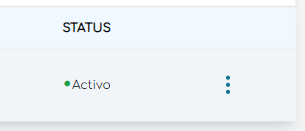
submenu icon

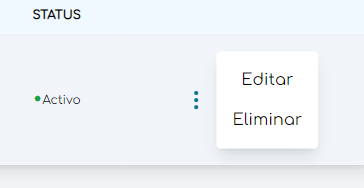
Clicking the container div makes it wide:

open submenu

How to resolve the question of typescript generic function

class Context {}

declare function call<C>( method: ( value: unknown, context: C ) => unknown ): any;

declare function fn1<T>( value: T, context: Context  ): Promise<T>;
declare function fn2( value: unknown, context: Context ): unknown;

call( fn1 );
call( fn2 );

I have code above, and you can also view it in Playground.

call( fn1 ) triggered error message:

Argument of type '<T>(value: T, context: Context) => Promise<T>' is not assignable to parameter of type '(value: unknown, context: unknown) => unknown'.
  Types of parameters 'context' and 'context' are incompatible.
    Type 'unknown' is not assignable to type 'Context'.(2345)

But call( fn2 ) works well.

Is it because fn1 is a generic function and why?

convert screenshot taken from protractor to pdf

I have a small code written using protractor to take screenshot. But I want to save that screenshot as a pdf. Below is my code.

await browser.get(url);
const img = await browser.takeScreenshot();
const buf = Buffer.from(img, 'base64');
writeFile("example.pdf",buf,(err)=>{
    if (err)
          console.log(err);
     else {
          console.log("File written successfullyn");
          console.log("The written has the following contents:");
          console.log(readFileSync("example.pdf", "utf8"));
       }
     });

but the file seems corrupted. I’m getting below error when I opened the file.
enter image description here

So how can I convert the image I’m getting from this line const img = await browser.takeScreenshot(); to pdf ?

I want the checkbox to control all switch buttons

good people of StackOverflow, I greet you all. I wrote this code and I think I really messed it up. The main focal point of this problem is the checkbox (which should control all switch buttons)

NOW THE PROBLEM…

You will notice that after you turn on one or two of the switch buttons, when you try checking the checkbox (which is the table head of that column) the switch buttons seem to jolt or jerk back and forth in opposite directions.

What I’m trying to achieve here is to make all switch buttons follow the same direction whenever the checkbox is checked on or off.

Please help me out guys, thank you 🙂

<!DOCTYPE html>
<html lang="en">
<head>
    <meta charset="UTF-8" />
    <meta http-equiv="X-UA-Compatible" content="IE=edge" />
    <meta name="viewport" content="width=device-width, initial-scale=1.0" />
    <style>
        body{
            background-color: #e0e0e0;
        }
        .ads_banner_list .ads_banner_list_head{
            background-color: #f0f0f0;
            text-transform: capitalize;
            padding: 10px 0 10px 20px;
        }

        .ads_banner_list .ads_banner_list_body{
            width: 100%;
        }

        .ads_banner_list .ads_banner_list_body table{
            border-collapse: collapse;
            width: 100%;
        }

        table td:not(th){
            font-size: 12px;
        }

        table th{
            font-size: 12px;
        }

        table select{
            font-size: 12px;
        }

        table button{
            font-size: 12px;
            padding: 5px;
            text-transform: uppercase;
        }

        table .chk_line{
            width: 50px;
            height: 4px;
            background-color: #807b10;
            display: inline-block;
            position: relative;
            cursor: pointer;
        }

        table .chk_line .chk_btn{
            position: absolute;
            line-height: 25px;
            width: 25px;
            height: 25px;
            background-color: #fff;
            text-transform: uppercase;
            font-size: 10px;
            top: 50%;
            transform: translateY(-50%);
        }

        .chk_btn.chk_off{
            left: 0;
        }

        .chk_btn.chk_on{
            right: 0;
        }

        thead tr{
            border-bottom-width: 2px;
            border-bottom-style: solid;
            border-bottom-color: #000;
        }
        tbody tr:not(:last-child){
            border-bottom-width: 2px;
            border-bottom-style: solid;
            border-bottom-color: #000;
        }

        th,td{
            text-align: center;
            padding: 10px 0px;
        }

        .td_img img{
            width: 70px;
            height: 40px;
        }

        .approved{
            color: chartreuse;
        }
        .pending{
            color: palevioletred;
        }
        .disapproved{
            color: maroon;
        }
    </style>
    <title>Document</title>
</head>
<body>
    <div class="ads_banner_list">
        <div class="ads_banner_list_head">banner list</div>
        <div class="ads_banner_list_body">
            <table>
                <thead>
                    <tr>
                        <th>I.D.</th>
                        <th>Type</th>
                        <th>Banner</th>
                        <th>Status</th>
                        <th>Validity</th>
                        <th>Expiration</th>
                        <th>Section</th>
                        <th>Clicks</th>
                        <th><input type="checkbox" /></th>
                    </tr>
                </thead>
                <tbody>
                    <tr>
                        <td>1</td>
                        <td>Static</td>
                        <td class="td_img"><img src="./assets/media/images/ads/vita_malt.jpg" alt="" /></td>
                        <td>Showing</td>
                        <td>30 Days</td>
                        <td>15 Days</td>
                        <td>Home</td>
                        <td>100</td>
                        <td class="chk_td">
                            <div class="chk_line chk_line1"><div class="chk_btn chk_btn1">off</div></div>
                        </td>
                    </tr>
                    <tr>
                        <td>2</td>
                        <td>Animated</td>
                        <td class="td_img"><img src="./assets/media/images/gif/heineken.gif" alt="" /></td>
                        <td>Queued</td>
                        <td>1 Day</td>
                        <td>5 Hours</td>
                        <td>General</td>
                        <td>0</td>
                        <td class="chk_td">
                            <div class="chk_line chk_line2"><div class="chk_btn chk_btn2">off</div></div>
                        </td>
                    </tr>
                    <tr>
                        <td>3</td>
                        <td>Static</td>
                        <td class="td_img"><img src="./assets/media/images/ads/indomie.jpg" alt="" /></td>
                        <td>Showing</td>
                        <td>7 Days</td>
                        <td>3 Days</td>
                        <td>Politics</td>
                        <td>76</td>
                        <td class="chk_td">
                            <div class="chk_line chk_line3"><div class="chk_btn chk_btn3">off</div></div>
                        </td>
                    </tr>
                </tbody>
            </table>
        </div>
    </div>
</body>
</html>
<script>
    let checkbox = document.querySelector('input[type="checkbox"]')
    let chk_btn = document.getElementsByClassName('chk_btn')
    let chk_line1 = document.querySelector('.chk_line1')
    let chk_line2 = document.querySelector('.chk_line2')
    let chk_line3 = document.querySelector('.chk_line3')
    let chk_btn1 = document.querySelector('.chk_btn1')
    let chk_btn2 = document.querySelector('.chk_btn2')
    let chk_btn3 = document.querySelector('.chk_btn3')

    checkbox.onclick = () => {
        for (let i = chk_btn.length - 1; i >= 0; i--) {
            let checkedButton = chk_btn[i];
            checkedButton.classList.toggle('chk_on')
            if (checkedButton.classList.contains('chk_on')) {
                checkedButton.textContent = 'on'
            } else if (!checkedButton.classList.contains('chk_off')) {
                checkedButton.textContent = 'off'
            }
        }
    }

    chk_line1.onclick = () => {
        chk_btn1.classList.toggle('chk_on')
        if (chk_btn1.classList.contains('chk_on')) {
            chk_btn1.textContent = 'on'
        } else if (!chk_btn1.classList.contains('chk_off')) {
            chk_btn1.textContent = 'off'
        }
    }

    chk_line2.onclick = () => {
        chk_btn2.classList.toggle('chk_on')
        if (chk_btn2.classList.contains('chk_on')) {
            chk_btn2.textContent = 'on'
        } else if (!chk_btn2.classList.contains('chk_off')) {
            chk_btn2.textContent = 'off'
        }
    }

    chk_line3.onclick = () => {
        chk_btn3.classList.toggle('chk_on')
        if (chk_btn3.classList.contains('chk_on')) {
            chk_btn3.textContent = 'on'
        } else if (!chk_btn3.classList.contains('chk_off')) {
            chk_btn3.textContent = 'off'
        }
    }
</script>

How can I trigger Safari to save email and password at registration and autofill it when logging in again?

I’m currently working on my very first Flask web app, which includes an email form.

I would like to know what specific triggers Safari looks for in my code so that it

  1. Offers to save email and password after registration
  2. Autocompletes email and password, when using the login form.

My registration form makes safari suggests an email at the right place (hurray, don’t know why though) and you can even have it create a safe password randomly. After registration there is no dialog though to offer to save the submitted data.

Registration.html

 <form method="POST" action="">
        <input id="csrf_token" name="csrf_token" type="hidden" value="Ijg2MTQ3MDViZmVlhNGiNDg5ZTY1ODczZjQyODJiNjMwMGUi.YlI1pw.4vZVCPQbwSb4-0jD2BpQ1U0">
        <fieldset>
            <div >
                <label class="form-control-label" for="username">Name</label>
                    <input  id="username" maxlength="20" minlength="2" name="username" required type="text" value="">
            </div>
            <div>
                <label for="email">Email:</label>
                    <input  id="email" name="email" required type="text" value="">
            </div>
            <div>
                <label for="password">Password:</label>
                    <input  id="password" name="password" required type="password" value="">
            </div>
            <div>
                <label  for="confirm_password">Confirm password:</label>
                    <input id="confirm_password" name="confirm_password" required type="password" value="">
            </div>
        </fieldset>
        <div>
            <input class="button" id="submit" name="submit" type="submit" value="Create Account">
        </div>
    </form>

My login form does not evoke any autocomplete feature. (Actually Safari even mistakes the email input for another password input for some reason)

Login.html

<form method="POST" action="">
    <input id="csrf_token" name="csrf_token" type="hidden" value="Ijg2MTQ3MDViZmVlNDFhNQwOTViNDg5ZTDczZjQyODJiNjMwMGUi.YlHp2w.8MT2N8Otm-1dZT0tVlivh8h4">
    <fieldset type=email>
        <div>
            <label for="email">Email: </label>
                <input id="email" name="email" required type="email" value="">
        </div>
        <div>
            <label for="password">Password: </label>
                <input id="password" name="password" required type="password" value="">
        </div>
    </fieldset>
    <div>
        <input id="submit" name="submit" type="submit" value="Log in">
    </div>
</form>

I’ve tried

autocomplete = "username"

as suggested everywhere and also tested setting all other attributes like name, title, placeholder and so on. Never worked.

What am I missing out?

Console log showing NaN and color function isn’t setting class correctly

Console log is showing NaN for any var I put into it. Also color function is not changing classes correctly likely because of the number issue. Still have to figure out local storage but my main concern is getting the var to show a number like it should and getting the class to change according to the time of day.

var time9 = (parseInt($('#9').children('div').attr('data-value')));
var time10 = (parseInt($('#10').children('div').attr('data-value')));
var time11 = (parseInt($('#11').children('div').attr('data-value')));
var time12 = (parseInt($('#12').children('div').attr('data-value')));
var time13 = (parseInt($('#13').children('div').attr('data-value')));
var time14 = (parseInt($('#14').children('div').attr('data-value')));
var time15 = (parseInt($('#15').children('div').attr('data-value')));
var time16 = (parseInt($('#16').children('div').attr('data-value')));
var time17 = (parseInt($('#17').children('div').attr('data-value')));

// Keeps date on the page
var date = moment().format("dddd, MMMM Do YYYY");
$("#currentDay").html(date);

//var time = $('.row').children('section'); //loop through this
console.log(time10);

// Event listender for saving activities in timeslots to local storage
$('.saveBtn').on('click', function () {

    var activities = $('.acts').val();


    localStorage.setItem(activities, time9);
    localStorage.setItem(activities, time10);
    localStorage.setItem(activities, time11);
    localStorage.setItem(activities, time12);
    localStorage.setItem(activities, time13);
    localStorage.setItem(activities, time14);
    localStorage.setItem(activities, time15);
    localStorage.setItem(activities, time16);
    localStorage.setItem(activities, time17);
});

// Changes color of timeslot container depending on time
function color() {
    var currentTime = moment().hour(); // variable to pull current time from

    // 9am timeslot
    if (time9 > currentTime) {
        $('.acts').addClass('future')
    }
    else if (time9 === currentTime) {
        $('.acts').addClass('present')
    }
    else {
        $('.acts').addClass('past')
    }

    // 10am timeslot
    if (time10 > currentTime) {
        $('.acts').addClass('future')
    }
    else if (time10 === currentTime) {
        $('.acts').addClass('present')
    }
    else {
        $('.acts').addClass('past')
    }

    // 11am timeslot
    if (time11 > currentTime) {
        $('.acts').addClass('future')
    }
    else if (time11 === currentTime) {
        $('.acts').addClass('present')
    }
    else {
        $('.acts').addClass('past')
    }

    // 12pm timeslot
    if (time12 > currentTime) {
        $('.acts').addClass('future')
    }
    else if (time12 === currentTime) {
        $('.acts').addClass('present')
    }
    else {
        $('.acts').addClass('past')
    }

    // 1pm timeslot
    if (time13 > currentTime) {
        $('.acts').addClass('future')
    }
    else if (time13 === currentTime) {
        $('.acts').addClass('present')
    }
    else {
        $('.acts').addClass('past')
    }

    // 2pm timeslot
    if (time14 > currentTime) {
        $('.acts').addClass('future')
    }
    else if (time14 === currentTime) {
        $('.acts').addClass('present')
    }
    else {
        $('.acts').addClass('past')
    }

    // 3pm timeslot
    if (time15 > currentTime) {
        $('.acts').addClass('future')
    }
    else if (time15 === currentTime) {
        $('.acts').addClass('present')
    }
    else {
        $('.acts').addClass('past')
    }

    // 4pm timeslot
    if (time16 > currentTime) {
        $('.acts').addClass('future')
    }
    else if (time16 === currentTime) {
        $('.acts').addClass('present')
    }
    else {
        $('.acts').addClass('past')
    }

    // 5pm timeslot
    if (time17 > currentTime) {
        $('.acts').addClass('future')
    }
    else if (time17 === currentTime) {
        $('.acts').addClass('present')
    }
    else {
        $('.acts').addClass('past')
    }


};
.timeslots {
  text-align: center;
  border-radius: 15px;
}

.row {
  white-space: pre-wrap;
  height: 80px;
  border-top: 1px solid white;
}

.hour {
  background-color: #ffffff;
  color: #000000;
  border-top: 1px dashed #000000;
}

.past {
  background-color: #d3d3d3;
  color: white;
}

.present {
  background-color: #ff6961;
  color: white;
}

.future {
  background-color: #77dd77;
  color: white;
}

.saveBtn {
  border: 1px solid black;
  /*border-top-right-radius: 15px;
  border-bottom-right-radius: 15px;*/
  border-radius: 15px;
  background-color: #06aed5;
  color: white;
}

.saveBtn i:hover {
  font-size: 20px;
  transition: all 0.3s ease-in-out;
}

.timeslots {
  display: flex;
  justify-content: center;
  font-size: 24px;
}
<div class="container-fluid">

    <div class="row">

      <section class="col-12 mb-3 row">
        <div class="col-2 timeslots hour" id="9" data-value="9">9:00am</div>
        <textarea class="col-8 border border-info acts" style="resize: none;"></textarea>
        <button type="button" class="col-2 btn btn-info saveBtn">Save</button>
      </section>

      <section class="col-12 mb-3 row">
        <div class="col-2 timeslots hour" id="10" data-value="10">10:00am</div>
        <textarea class="col-8 border border-info acts"></textarea>
        <button type="button" class="col-2 btn btn-info saveBtn">Save</button>
      </section>

      <section class="col-12 mb-3 row">
        <div class="col-2 timeslots hour" id="11" data-value="11">11:00am</div>
        <textarea class="col-8 border border-info acts"></textarea>
        <button type="button" class="col-2 btn btn-info saveBtn">Save</button>
      </section>

      <section class="col-12 mb-3 row">
        <div class="col-2 timeslots hour" id="12" data-value="12">12:00pm</div>
        <textarea class="col-8 border border-info acts"></textarea>
        <button type="button" class="col-2 btn btn-info saveBtn">Save</button>
      </section>

      <section class="col-12 mb-3 row">
        <div class="col-2 timeslots hour" id="13" data-value="13">1:00pm</div>
        <textarea class="col-8 border border-info acts"></textarea>
        <button type="button" class="col-2 btn btn-info saveBtn">Save</button>
      </section>

      <section class="col-12 mb-3 row">
        <div class="col-2 timeslots hour" id="14" data-value="14">2:00pm</div>
        <textarea class="col-8 border border-info acts"></textarea>
        <button type="button" class="col-2 btn btn-info saveBtn">Save</button>
      </section>

      <section class="col-12 mb-3 row">
        <div class="col-2 timeslots hour" id="15" data-value="15">3:00pm</div>
        <textarea class="col-8 border border-info acts"></textarea>
        <button type="button" class="col-2 btn btn-info saveBtn">Save</button>
      </section>

      <section class="col-12 mb-3 row">
        <div class="col-2 timeslots hour" id="16" data-value="16">4:00pm</div>
        <textarea class="col-8 border border-info acts"></textarea>
        <button type="button" class="col-2 btn btn-info saveBtn">Save</button>
      </section>

      <section class="col-12 mb-3 row">
        <div class="col-2 timeslots hour" id="17" data-value="17">5:00pm</div>
        <textarea class="col-8 border border-info acts"></textarea>
        <button type="button" class="col-2 btn btn-info saveBtn">Save</button>
      </section>

    </div>
    <!-- Timeblocks go here -->
  </div>

ckeditor 4.18.0 does not want to display on phone browsers anymore

My cKdeditor 4.18.0 installed from a CDN, doesn’t want to work anymore on my website from the browsers of my phone and PC, what can cause this problem please?

Here is my code:

Header

<script src="https://cdn.ckeditor.com/4.18.0/standard/ckeditor.js"></script>

Here the code HTML

<div class="evvw87y0 css-1v72kp5-ContactForm et2r1rz0">
                    <div class="css-design-field-input-textarea">
                        <label for="about_you" class="css-design-label-sign-up"><?= language('_REGISTER_LABEL_ABOUT_YOU') ?></label>
                    </div>
                    <div class="css-div-search-input-articles izivoAbc" name="about_you" id="about_you"></div>
                    <span id="about_you_error" class="text-danger"></span>
                </div>

Footer

CKEDITOR.replace("about_you", {
    filebrowserUploadUrl: "/upload.php",
    filebrowserImageUploadUrl: "/upload.php",
    filebrowserUploadMethod: "form"
})

Please help me?

How to transform excel VBA code into Javascript for Google Sheets?

everyone. I need to change a code that I created in VBA to javascript and put it into Google Sheets. Does anyone know how I can do this? The code is below

Sub Influencers_automacao()

Sheets(1).Activate

Range(“A1”).Select

Selection.End(xlDown).Select

k = Selection.Row

For t = 2 To Sheets.Count

j = 2

For i = 2 To k

If Sheets(1).Cells(i, 1) = Sheets(t).Name Then

Sheets(t).Cells(j, 1) = Sheets(1).Cells(i, 2)

Sheets(t).Cells(j, 2) = Sheets(1).Cells(i, 3)

j = j + 1

End If

Next

Next

End Sub