Multi-links checker (Windows)

Description
Multi-links checker with a fedora hat checking a link with his galactic looking glass.
Multi-links checker, checks Web sites for broken links. Link verification is done on “normal” links, images, frames, plug-ins, backgrounds, local image maps, style sheets, scripts and java applets. It displays a continously updated list of URLs which you can sort by different criteria. A report can be produced at any time.

Additional features:

Simple, no-frills user-interface
Can re-check broken links (useful for temporary network errors)
Simple report format, can also be e-mailed
Executable file smaller than 1MB
Supports SSL websites ("https:// ")
Partial testing of ftp, gopher and mail URLs
Detects and reports redirected URLs
Site Map

Download Multi-links checker (Windows)

Google Address Autocomplete for WooCommerce (WooCommerce)

Google Address Autocomplete for WooCommerce simplifies the checkout process helping your customers to enter their address with the Google Places suggest API. You make them save time and prevent typing errors.

Screenshot :

Google Address Autocomplete for WooCommerce

Under the hood (a.k.a how it works) :

  1. The plugin regroups and hides the components of the address : address_1, address_2, city, state, postcode, country.
  2. It adds a new “Address field” based on Google Places API.
  3. The user begins to type his address, Google completes it.
  4. The user chooses the correct address among Google suggestions.
  5. The hidden fields appears, automatically fielded with the Google’s informations.

The customer can now go to payment right away !

Download Google Address Autocomplete for WooCommerce (WooCommerce)

Social Mosaic Wall (Animations and Effects)

Build your own mosaic grid with your social media staff and more…

Key features:

  • Only HTML and CSS – easily editable (no javascript).
  • Unique and beautiful design.
  • 28 Social icons includes.
  • 1 x PSD file with social icons (so you can create new).
  • Set how many tiles you want eg. 4×3 or 100×300 or …..
  • Put whatever you want into any tile: social icons, text (as long as you want) and graphics, video and animation.
  • Adjust the size of tiles (mosaic brick).
  • Use any image as a background of your mosaic grid.
  • Put as many mosaic grids as you want on your website.
  • Mosaic grid can be built from tiles of different dimensions (bigger/smaller).
  • All browsers support.

Download Social Mosaic Wall (Animations and Effects)

Ultimate 500px (Galleries)

Ultimate 500px by Inceptive Design Labs provides an easy way to add image galleries from 500px photography community.

Key Features

  • Shortcode support for posts/pages usage
  • Widget support
  • Multiple image gallery types (simple gallery, prettyPhoto, Nivo Slider, Galleria, Camera Slider).
  • Multiple 500px API calls support (popular, fresh, upcoming, user photos, user favorites, tag based search)
  • Ready for translation

Examples

Nivo Slider

Galleria gallery

Camera slideshow

Prettyphoto gallery

Admin Features

Shortcode Functionality

Widget Functionality

Changelog


    v1.0 - March 19th 2013
    * initial release


Support


Download Ultimate 500px (Galleries)

Inactive Tab Title Ticker (JavaScript)

Live preview

To see the live preview visit http://kriix.com/ittt (Please – close the envato frame!)

Preview video

Click here to see the youtube video of the plugin

Description

Inactive Tab Title Ticker allows you to set an ticking message once the user navigates to any other tab – the message ticks and tries to get the user back to concentrate on your site – once he returns the message disappears and the title returns to the original state.

You can turn off the ticking feature just to show a different title on the inactive tab.

Download Inactive Tab Title Ticker (JavaScript)

Gravity Forms Geo Conditional Fields (Forms)

At times, you need to display certain fields for certain users based on their geographical location, be it their country or continent. Perhaps a user is from Australia and you need to collect a different set of information to those users who are in the rest of the world. Perhaps in certain countries you may need to collect extra information for verification purposes or feed your users different terms and conditions based on their geographical location. What about even using conditional logic to send specific notifications to an admin or user based on which part of the world the form is being submitted from.

If you can identify with any of these scenarios, then you have come to the right place. The Gravity Forms Geo Conditional Fields plugins creates an additional 2 hidden field types that you can use to determine what country and what continent the user filling out your form is from. Whether it’s purely for viewing this information when a submission is made, geographically customising who receives notifications using conditional logic or customising the fields the user will complete based on their geographical location, this field is for you.

It’s simple. Just install and activate the plugin and you’re good to go. All you need to do is add a Geo Conditional (country or continent) field into your form and then save it. The plugin will immediately start collecting data the next time your form is submitted.

The plugin will determine the users geographical location based on their IP address which is a unique identifier of the user completing your form. It will perform a lookup using the MaxMind GeoLite2 database to find a match. The plugin will also ensure this database is automatically downloaded on a monthly basis to ensure it stays up to date and current.

The plugin has been set up for translation and includes the English translation.

You must have Gravity Forms 1.7.x or higher installed and activated on your WordPress site. If you want to use conditional logic for notifications, you must have Gravity Forms 1.8.x or higher installed.

This product includes GeoLite2 data created by MaxMind, available from
http://www.maxmind.com. The accuracy of this plugin is subject to the accuracy of the GeoLite2 database provided by MaxMind.

You must have the WP Cron system enabled so regular updates can be downloaded from MaxMind. Updates will be downloaded from MaxMind so long as the database remains open and free to download.

You are welcome to email [email protected] if you require support or have any questions/comments.

Download Gravity Forms Geo Conditional Fields (Forms)

Save the Penguin – HTML5 Game (Games)

About the Game:

This is a physics puzzle game. In this game, you must help the penguin to reach the ground by picking ices that are beneath its feet.
This game has 20 levels and all graphical elements of the game can be easily changed.
This game is completely responsive and its resolution will automatically change according to the screen size of mobile platform or desktop.

How to play:

You can play this game with mouse or touch.

Features:

» HTML5 Game
» Supports Touch
» High Resolution
» Auto Resize (Responsive)
» Works On all HTML5 Browsers
» Ability to Change and Personalize the Game’s Appearance
» Ability to Change the Game’s Sounds

And at the end,
We will be happy to hear your ideas and opinions about the game, so if you like write a comment or send it to our e-mail:
[email protected]
And if you liked it, don’t forget to rate it!

Come & See Our Website: www.01Smile.com

Download Save the Penguin – HTML5 Game (Games)

WP e-Commerce Car/Parts Filter Plugin (WP e-Commerce)

WP e-Commerce Car/Parts Filter Plugin

“WP e-Commerce Car/Parts Filter Plugin” is the best plugin for Vehicle or Vehicle Parts Website. Admin can show filter plugin on Sidebar or Footer widget. Admin can add Make and Model from backend and also add each product Make, Model and Year. Admin can add multiple Model and multiple Year for a Make. So it is the best plugin for vehicle. “WP e-Commerce Car/Parts Filter Plugin” is compatible upto wordpres version 3.8.1 and wp-ecommerce 3.7.8 to 3.8.13.3. We are ready to give you support all time.

Online Documentation

Check The Demo

Frond end Preview

After Filter Preview

Product Meta Box

Add Make Panel

Add Model Panel

Settings Panel

Features of WP e-Commerce Car/Parts Filter Plugin

  • Best for WP e-Commerce Car/Car parts websites
  • Filtering Based on Make, Model & Year
  • Admin can add “Make” & “Model” from Backend.
  • Admin can add each product Make, Model & Year
  • Admin can show plugin Sidebar and Footer Widget
  • Customize All Text & Color
  • Ensure full Support

Download WP e-Commerce Car/Parts Filter Plugin (WP e-Commerce)

Spinning Earth Globe (Animations)

  • Edge Animate project
  • Loop of smooth animation based on 90 frames
  • 3D globe simulation
  • Resolution independent scalable vector graphics – SVG files
  • 11 versions of the globe (as seen in the preview)
  • Easy to customize colors, opacity of elements (with or without Adobe Edge software)
  • 30 fps (frames per second) animation
  • PSD file included

Download Spinning Earth Globe (Animations)

Polaroid Slider – A fun & unique WP slider Plugin (Sliders)

Polaroid Slider plugin for WordPress let you create a eye-catching slider with cool CSS3 filter effects and realistic animated thumbs that can be used as a main slider, or a neat photos gallery in your posts and pages.

If you have a blog and don’t like to waste time in Photoshop to give that little more to your photos… now with just one click you can select the effect you want to apply on the slides and thumbs (more effect to come in future update)

This plugin features a really simple settings page (You’ll not be lost!), a cool “camera like” preloader, autoplay that can be stop on user interaction, a cool init animation for all thumbs, and lots more to discover.

Biggest difference to other slider plugins is the effort we’ve done with the thumbs to highlight them, the file size (2kb minified and gzipped) and really easy to use!

Features:
  • Eye-catching animated thumbs
  • Filter effect on slides and thumbs using CSS3 and no image! (can use different ones)
  • Simple and intuitive admin page with drap and drop support
  • Responsive
  • Cool loading effect (with animated charge battery in CSS3)
  • Multiple slider supported on the same page
  • Control the size of the slider and thumbs even after images uploads
  • Nice CSS3 transitions cross fading current and next slides with JavaScript fallback
  • Settings for transition and timeout durations
  • Works in all major desktop and mobile browsers
  • Possibility to randomize the order of the slides
  • Can be paused while hovering slideshow and/or controls
  • Images can be wrapped inside links
  • 2kb minified and gzipped
Changelog:
- 2014/03/21 - Version 1.0 :
  · First release.

Download Polaroid Slider – A fun & unique WP slider Plugin (Sliders)

Advanced YouTube Uploader (Social Networking)

Advanced YouTube Uploader

Advanced YouTube Up-loader is the massive undertaking of upgrading our old YouTube upload script. We have taken all your suggestions and compiled them into one awesome script! Thanks to everyone who bought our older script, and for those who don’t need something as full featured as this, please feel free try out the other version!

Features

  • Multi Account Support
  • Multi Channel Support
  • Add Unlimited Accounts
  • Upload To Unlimited Accounts
  • Old Keys Are Automatically Regenerated
  • Uses Youtube V3 API (Newest)
  • Uses Google OAuth 2.0!

Download Advanced YouTube Uploader (Social Networking)

RSS Check-up (Miscellaneous)

Make a check-up of your RSS feeds !

With this script, you will easily determine the unnecessary RSS feed and so remove all URLs that no longer valid…

Just enter your OPML file or your list of RSS Feed (xml), and determining for each feed :
-the last article / post published date ……………. useful for identifying sites or blogs writing no more articles
-if the feed still exists
-if the link returns to an 404 page error
-…

Get a clear page report with different color and status for clear reading

Features
-You can indicate a OPML file or a text file (which includes all the feeds)
-Clear report (URL links you can click, indicators with different colors)
-Several indicators for each feed (OK, duplicate rss feed URL, duplicate domain, URL not responding, empty feed title, last feed updated more than 6 months or 1 year)
-Script tested with files containing more than 500 feed
-The script is ready to use, you do not need to install something.
-No database required
-100% source code
-Documentation guide very clear
-Sample files are included

Requirement
-PHP with CURL

Download RSS Check-up (Miscellaneous)

PHP Configuration System (Miscellaneous)

Features

Introducing NeatConfig – The simple way to manage the configuration of your application. Supports multiple environments!

  • Store your configurations as simple .php arrays
  • Manage multiple environments with ease
  • Use array dot-notation to get nested config values
  • Includes an example of a static facade
  • Well-documented, clean object-oriented code!

Installation & Basic use

This script is one single class, in 1 file. So it should be fairly easy to get started. However, here’s a basic introduction.

Also, I recommend you read through the two example files located in the ‘examples\’ directory of the ZIP File, they should get you going pretty quickly.

I assume your application has a file structure similar to this:

MyApplication\
    index.php
    classes\
    lib\

To integrate NeatConfig, simply place the Config class somewhere:

MyApplication\
    index.php
    classes\
    lib\
        Afflicto\
            NeatConfig\
                Config.php

Now, create a config directory:

MyApplication\
    index.php
    classes\
    lib\
        Afflicto\
            NeatConfig\
                Config.php
    config\

Now, probably the most common kind of configuration is database information, like host, database, password etc. Let’s create a “database.php” file in our new ‘config’ directory:

config\
    database.php

Now, in your index.php, instantiate (create) a new instance of the Config class. It takes two parameters, the path to our config directory, and the ‘environment’ we’re in. You can leave out the second parameter if you don’t use multiple environments (Like one for production and one for local development).

The path to the config directory can be either a relative path of the script or a full path.

$config = new Afflicto\NeatConfig\Config('config');

Remember our database.php configuration file? let’s put some stuff in there. Each config file must return an array. Perhaps our database config looks like this:

<?php

return array(
    'driver' => 'mysql',

    'connection' => array(
        'host' => 'localhost',
        'username' => 'affy',
        'database' => 'somedb',
        'password' => 'secret',
    ),
);

Now, to get the values from our database.php config, we can do this:

$databaseConfig = $config->get('database');

Note that you can also use array dot-notation to get nested values of the config array, like so:

$password = $config->get('database.connection.password');

Also, if you’re using multiple environments, you can (if you need to) specify that you want a specific environment like so:

$developmentDatabase = $config->get('database', 'development');

That concludes this short introduction to NeatConfig, I hope you like it. If you have any questions or feature requests, be sure to give me a comment.

Multiple Environments

Most often, some of the configuration is different depending on what environment you’re in, whether on a local development machine, or on a live server somewhere, where some values might be different (like the URL or database).

You should probably keep all your configs in the root of your ‘config’ directory, and override them by creating a folder for each environment in the ‘config’ directory.

Let’s say, for our application, we’re using a different database driver or a different database name/password, let’s create a new folder called ‘local’ in our ‘config’ directory, and create a ‘database.php’ file there as well:

MyApplication\
    index.php
    classes\
    lib\
        Afflicto\
            NeatConfig\
                Config.php
    config\
        database.php
            local\
                database.php

Now, when we initialize $config, we set our current environment in the second parameter:

$config = new Afflicto\NeatConfig\Config('config', 'local');

Now, when we request the database config, it will first search for one defined in our ‘local’ directory, then fall-back to the root ‘config’ directory if that specific environment does not override it.

Download PHP Configuration System (Miscellaneous)

Referral Manager (Miscellaneous)

Overview

Are you tired of creating links to your affiliate programs?
Do you find it monotonous and sometimes tedious to track users?
Does not clear how to attract the attention of more users for their affiliate programs?

ReferralManager offers the solution to all these problems, and incorporates some tools to take care of the tedious, boring and monotonous work. Focus in the most important task earn much more money with their affiliate programs.

¡Important! ReferralManager not work, at least in its original version, with referral systems like Envato Marketplace.

ReferralManager is designed to function as an intermediary between the end user and your affiliate programs, in programs where it provides a link with a variable field (in this case an identifier for referred user) only way for the moment, that you can make an effective track records of users.

ReferralManager has been designed to reimburse the user a percent of income earned by your own record. In this way the user feels encouraged to share their own link with others to get more revenue.

ReferralManager hides the actual affiliate link with a unique link generated automatically for each user and allows you to share this link massively in social networks. So with one click many people receive the link to the user, and for each record winning both: you and the user.

How it works

  1. The operating cycle begins with each new record.
  2. Once the user registers, the system generates the affiliate links automatically to that user.
  3. The user should follow the links and register for any of the proposed sites.
  4. The system administrator confirms that it has been registered and has received payment.
  5. Part payment received is later reimbursed by the user. So the user is motivated to share the link on your social networks or send it to a friend by email.
  6. Thus the possibility of new registrations is increased and completes the cycle of operation.

Features

  • Automatic user registration.
  • Automatic generation of user links, links based on Administrator’s referrals links.
  • Tracking system users through its unique identifier.
  • Installer included.
  • Ability to send an email to the administrator with registration of each user.
  • Highly customizable, you can set title, description, notification messages and so on.
  • Statistics records, bonds, payments and income. Only in administration.
  • History of operations and the state in which each is.
  • Multilanguage. Spanish and English Languages.
  • Tracking system operations across four states:
    • Registered, Deposited, Collection Management, Paid
    • Sending mail to the user with each state change

<center>
This is just a background. What waiting for?
Demo here

Administration: User – admin Password – admin
UI: User – user Password – 123

</center>

Just for starters

Some sites that work with Referral Manager

links.empiremoney.com
binaryperform.go2cloud.org
affiliate.optionfairpartners.com

Download Referral Manager (Miscellaneous)

Peekaboo Timer (Utilities)

Peekaboo Timer is a handy wordpress plugin which allows web sites owners to control visibility of the content in accordance with various time-related criteria.
You can choose to automatically display or hide content through time using any of the 28 shortcodes, and thus make your WordPress site more dynamic and “intelligent”.
Hide or show the content on specified days of the week, months, days of the month, time periods, date intervals, etc…
Shortcodes can be combined for even more specific and precise time frames.
They can be used in text widgets as well.
Many criteria can be set to use either blog time (specified in the admin dashboard of the WP site) or visitors’ times.
Even though the total of 28 shortcodes and the variety of attributes make this a Swiss army knife of plugins, using it is extremely easy and user-friendly because it comes with an intuitive set of click-through dialogs and friendly forms integrated in the WordPress’s text editor.

INSTALLATION

  1. Unzip the package
  2. Upload the whole directory into your Plugins folder of WordPress. Make sure you keep the name of the directory and the filenames intact.
  3. Activate the plugin in the Admin Dashboard of your WP site.
  4. There is no step four

BASICS OF THE USAGE

Peekaboo Timer uses shortcodes for marking the parts of the content you wish to have affected. There are two sets of shortcodes: one set is consisted from the shortcodes that are meant to HIDE the selected content, and the other set is consisted of the shortcodes that will DISPLAY the content to visitors, both according to various time-related criteria. Every HIDE function has it’s SHOW counterpart.
There are 14 shortcodes in each set, which makes a respectable total of 28 shortcodes, but fear not – you don’t have to remember the exact syntax for any of them, as Peekaboo Timer comes with a user-friendly extension for WP’s text editor and an intuitive click-through dialog for setting the shortcodes and their parameters.
Once you install the plugin, you will see a couple of new buttons in the text editor.
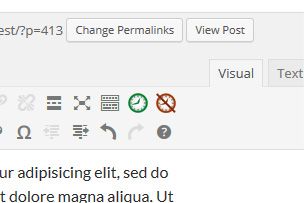
Selecting a part of the text and then clicking on an icon opens up a modal dialog where you can choose which criterion for displaying/hiding content you want to use.
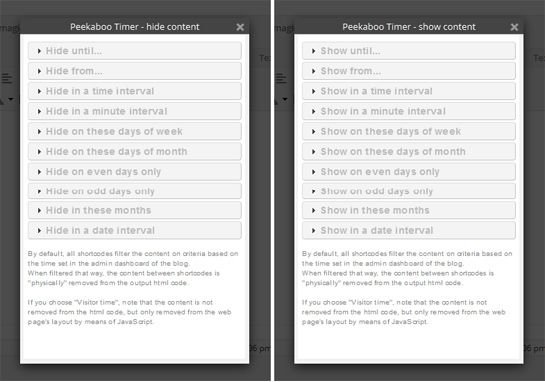
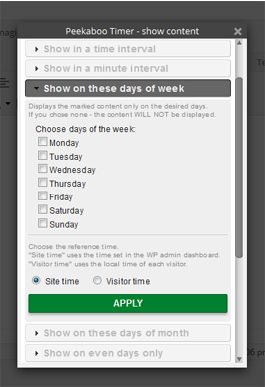
Clicking on an item from the list opens the accordion and reveals options for tailoring the shortcode to your needs.
Like this:
SHORTCODES

Show until… / Hide until…

SHORTCODE: pbt_show_until and pbt_hide_until
ATTRIBUTES: date and time

These shortcodes display/hide content until a specied moment in future – date and time. The time attribute value is not included in the interval.

[pbt_show_until date=”23-Jun-2014” time=”16:45”]This content will be visible to visitors until 23rd of July 2014, at 16:45[/pbt_show_until]
[pbt_hide_until date=”15-Nov-2015” time=”9:13”]This content will be visible to visitors until 15th of November 2015, at 9:13[/pbt_hide_until]

Show from… / Hide from…

SHORTCODE: pbt_show_from and pbt_hide_from
ATTRIBUTES: date and time

These shortcodes display/hide content from a specied moment in future (date and time) onward. The time attribute value is included in the interval.

[pbt_show_from date=”10-May-2015” time=”23:20”]This content will be visible to visitors from 23rd of May 2015, at 23:20[/pbt_show_from]
[pbt_hide_from date=”25-Apr-2015” time=”12:10”]This content will be hidden from visitors from 25th of April 2015, at 12:10[/pbt_hide_from]

Show in a time interval / Hide in a time interval

SHORTCODE: pbt_show_time and pbt_hide_time
ATTRIBUTES: start and end

These shortcodes display/hide content during a time period each day. There are four spinners in the dialog, which allow you to choose the parameters. The final minute is not included in the interval.

[pbt_show_time start=”9:45” end=”17:30”]This content will be visible to users from 9:45 to 17:30, every day.[/pbt_show_time]
[pbt_hide_time start=”22:10” end=”2:35”]This content will be hidden from visitors from 22:10 to 2:35 next day, every day.[/pbt_hide_time]

Show in a time interval / Hide in a time interval – CLIENT TIME

SHORTCODE: pbt_show_time_visitor and pbt_hide_time_visitor
ATTRIBUTES: date and time

These shortcodes display/hide content during a time period each day, according to the time set in the client’s operating system. The final minute is not included in the interval.

[pbt_show_time_visitor start=”9:45” end=”17:30”]This content will be visible to visitors from 9:45 to 17:30 - their times.[/pbt_show_time_visitor]
[pbt_hide_time_visitor start=”22:10” end=”2:35”]This content will be hidden from visitors from 22:10 to 2:35 next day - their times.[/pbt_hide_time_visitor]

Show in a minute interval / Hide in a minute interval

SHORTCODE: pbt_show_minute and pbt_hide_minute
ATTRIBUTES: start and end

These shortcodes display/hide content during a time period every hour, 24 times a day. The ending minute is not included in the interval.

[pbt_show_minute start=”50” end=”15”]This content will be visible to users every hour from the 50th minute to the 15th minute in the next hour.[/pbt_show_minute]
[pbt_hide_minute start=”23” end=”42”]This content will be hidden from visitors from 23rd to 42nd minute, every hour.[/pbt_hide_minute]

Show in a minute interval / Hide in a minute interval – CLIENT TIME

SHORTCODE: pbt_show_minute_visitor and pbt_hide_minute_visitor
ATTRIBUTES: start and end

These shortcodes display/hide content during a time period every hour, 24 times a day, according to the time zone set on the client’s computer. The ending minute is not included in the interval.

[pbt_show_minute_visitor start=”50” end=”15”]This content will be visible to users every hour from the 50th minute to the 15th minute in the next hour - users’ times.[/pbt_show_minute_visitor]
[pbt_hide_minute_visitor start=”23” end=”42”]This content will be hidden from visitors from 23rd to 42nd minute, every hour, users’ times.[/pbt_hide_minute_visitor]

Show on these days of the week / Hide on these days of the week

SHORTCODE: pbt_show_week and pbt_hide_week
ATTRIBUTE: days
These shortcodes display/hide content only on the selected days of the week. Attribute values have to be in the form of 3-letter abbreviations.

[pbt_show_week days=”Sat, Sun”]This content will be visible to visitors only on Saturdays and Sundays.[/pbt_show_week]
[pbt_hide_week days=”Mon, Wed, Fri”]This content will be hidden from visitors only on Mondays, Wednesdays and Fridays[/pbt_hide_week]

Show on these days of the week / Hide on these days of the week – CLIENT TIME

SHORTCODE: pbt_show_week_visitor and pbt_hide_week_visitor
ATTRIBUTE: days

These shortcodes display/hide content only on the selected days of the week, according to the time zone set on the client’s computer. Attribute values have to be in the form of 3-letter abbreviations.

[pbt_show_week_vistor days=”Sat, Sun”]This content will be visible to visitors only on Saturdays and Sundays, their times.[/pbt_show_week_visitor]
[pbt_hide_week_visitor days=”Mon”]This content will be hidden from visitors only on Mondays, their times. [/pbt_hide_week_visitor]

Show on these days of the month / Hide on these days of the month

SHORTCODE: pbt_show_day and pbt_hide_day
ATTRIBUTE: days
These shortcodes display/hide content only on the selected days of month (1-31).

[pbt_show_days days=”1, 10, 21”]This content will be visible to visitors only on 1st, 10th and 21st day in each month.[/pbt_show_days]
[pbt_hide_days days=”7, 14, 21, 28”]This content will be hidden from visitors only 7th, 14th, 21st and 28th day in each month.[/pbt_hide_days]

Show on even days only / Hide on even days only

SHORTCODE: pbt_show_even and pbt_hide_even
ATTRIBUTE: –
These shortcodes display/hide content only on even days of the month (2nd, 4th, 6th,…, 30th). No attribute is needed.

[pbt_show_even]This content will be visible to visitors only on even days of the month.[/pbt_show_even]
[pbt_hide_even]This content will be hidden from visitors only on even days of the month.[/pbt_hide_even]

Show on odd days only / Hide on odd days only

SHORTCODE: pbt_show_odd and pbt_hide_odd
ATTRIBUTE: –
These shortcodes display/hide content only on odd days of the month (1st, 3rd, 5th,…, 31st). No attribute is needed.

[pbt_show_odd]This content will be visible to visitors only on odd days of the month.[/pbt_show_odd]
[pbt_hide_odd]This content will be hidden from visitors only on odd days of the month.[/pbt_hide_odd]

Show in these months / Hide in these months

SHORTCODE: pbt_show_month and pbt_hide_month
ATTRIBUTES: months
These shortcodes display/hide content only on the selected months. For the attribute’s value use months’ ordinals (01, 02, 03, …, 12), or 3-letter abbreviations (jan, feb, mar, …, dec)… or simply use this friendly form with checkboxes.

[pbt_show_month months=”01, 03”]This content will be visible to visitors only in January and March.[/pbt_show_month]
[pbt_hide_month months=”sep, oct, may”]This content will be hidden from visitors only in September, October and May[/pbt_hide_month]

Show in a date interval / Hide in a date interval

SHORTCODE: pbt_show_dates and pbt_hide_dates
ATTRIBUTES: start_month, start_day, end_month and end_day
These shortcodes display/hide content only during the desired date interval each year.
Use dropdown lists and spinners to select the start and the end date. The starting date can be earlier than the end one, which means that the interval will span into the next year.
Use 3-letter abbreviations (jan – dec) or ordinals (1 – 12) for start_month and end_month attributes’ values. The end day is included in the interval.
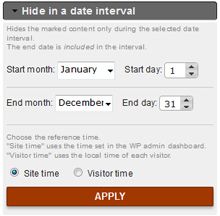
[pbt_show_dates start_month=”jan” start_day=”21” end_month=”may” end_day=”1”]This content will be visible to visitors only from 21st January to 1st May.[/pbt_show_dates]
[pbt_hide_dates start_month=”8” start_day=”15” end_month=”12” end_day=”10”]This content will be hidden from visitors only from 15th August to 10th December[/pbt_hide_dates]

Show in a date interval / Hide in a date interval – CLIENT TIME

SHORTCODE: pbt_show_dates_visitor and pbt_hide_dates_visitor
ATTRIBUTES: start_month, start_day, end_month and end_day
These shortcodes display/hide content only during the desired date interval each year, according to the time zone set by the visitor.
Use dropdown lists and spinners to select the start and the end date. The starting date can be earlier than the end one, which means that the interval will span into the next year.
Use 3-letter abbreviations (jan – dec) or ordinals (1 – 12) for start_month and end_month attributes’ values.
The end day is included in the interval.

[pbt_show_dates_visitor start_month=”4” start_day=”15” end_month=”sep” end_day=”20”]This content will be visible to visitors only from 15th April to 20th September - their times.[/pbt_show_dates_visitor]
[pbt_hide_dates_visitor start_month=”Jun” start_day=”24” end_month=”oct” end_day=”3”]This content will be hidden from visitors only from 24th June to 3rd October - their times.[/pbt_hide_dates_visitor]

ADDITIONAL INFO

– functions that use visitor time do not “physically” remove the marked content from the HTML code, but only from the layout of the web page. Bear that in mind if you want to make sure the non-displayed content is unreachable from a user’s side.
– feel free to combine and nest Peekaboo Timer shortcodes

[pbt_show_until date=”15-apr-2015” time=”8:30”][pbt_show_odd]This is going to be visible on odd dats of month only, until 15th April 2015, at half past nine in the morning.[/pbt_show_odd][/pbt_show_until]
[pbt_show_month months=”apr”]
[pbt_show_week days=”sat, sun”]
[pbt_show_time_visitor start=”13:30” end=”20:00”]
This is going to be visible only on weekends in april, from 13:30 to 8 in the evening, user’s time zone.
[/pbt_show_time_visitor]
[/pbt_show_week]
[/pbt_show_month]

– you can use Peekaboo Timer shortcodes in text widgets

FINAL NOTES

If you like Peekaboo Timer, please rate it with 5 stars.
Before assigning it a mark lesser than 5* please feel free to contact us and let us know what you didn’t like about our plugin. We will do are best to fix it ASAP.
Thank you!

Download Peekaboo Timer (Utilities)