
Wondering
what an outline stroke is in Illustrator and what it’s used for?
Well,
outline stroke is a simple way to convert a path with a thick stroke
into an object and then use it as a building block in your designs.
Adobe
Illustrator turns your object’s stroke value into the dimensions of a
new shape.
In
this tutorial, you’ll learn more about outline stroke and how you
can use it for various purposes in your designs like creating
decorative borders, masking specific elements in your design, or
creating shadows. You will also learn how to make new Illustrator
brushes that we will then use to create a beautiful winter holiday text effect. Learning how to install brushes in Illustrator is an
important step, and I will show you how to successfully do this for scatter and pattern brushes in order to obtain a great final result
of the text design.
Expand
your brush library by going to GraphicRiver,
where you’ll find a great selection of Illustrator brushes
in
various styles, shapes, and themes. Also, check out the text
effects section,
where you’ll find plenty of inspiration and resources for your
projects.
Tutorial
Assets
To
complete the tutorial, you will need the following assets:
1. How
to Open a New Document
Launch
Illustrator
and
go to File
> New to
open a blank document. Type a name for your file, set the
dimensions, and then select Pixels
as the
Units
and
RGB
as the
Color
Mode.
Next,
go to Edit
> Preferences > General and
set the Keyboard
Increment to
1
px and, while there, go to Units
to
make sure they are set as in the following image. I usually work with
these settings, and they will help you throughout the drawing process.

2. How
to Create the Text
Step
1
Let’s
obtain the letters that we need to create this text effect. Grab the
Type Tool (T) and write “NOEL” on your artboard using the
Comfortaa Font, Bold, Size of 190 pt. Under Tracking, choose a value of 75 or 100 in order to get more
space between the letters (1).
While
the text stays selected, apply a 12 pt Stroke using any color (2);
then drag the bounding box upwards a little to make the text taller
(3).

Step
2
Keep
the text selected and go to Object > Path > Outline Stroke to convert the stroke into a shape and to get the letter
shapes (1). Now, select only the two shapes that make up the first
letter, and press Unite in the Pathfinder panel to merge them into a
new shape. Continue to do the same thing for the other letters (2).
This is a good example of how to use outline stroke to obtain thicker and
bolder text when this version is not available for your preferred
font or when you need a bigger surface to apply textures and details to your Illustrator effects.

Step
3
Fill
the newly obtained letters with the color indicated; then grab the Ellipse Tool (L) and draw two 35 x 37 px ellipses above the letter “E” as the umlaut. At this point,
we are ready to create the text design.

3. How
to Create the Colored Stripes Design on the Text
Step
1
Grab
the Line Segment Tool (\) and use it to draw a 400 px line at a 135-degree Angle. Give it a 16 px red Stroke and place it on the bottom
left side of the first letter. Make a copy of it and move it to the
upper right side of the last letter of the text (1). We are focusing on the letters for now and will take care of the umlaut later.
With both paths still selected, go to Object > Blend > Blend Options
and choose 13 Specified Steps. Hit OK and then go back to Object >
Blend > Make (Alt-Control-B). As a result, your text will be
covered with red stripes at an equal distance (2).

Step
2
We
will use the same technique to create the green lines in our text
design. Use the Line Segment Tool (\) to draw another 400 px line at
a 135-degree Angle. Give it a 2 pt green Stroke and then place it in
front of the first red line. Make a copy of it and move it after the
last red line (1).
Blend
these two lines using 14 Specified Steps, and you will get the rest of
the green stripes between the reds (2).
Note:
Increase the number of steps used to blend the red and green stripes
if your word is longer and you have more letters to work with.

Step
3
Select
the four letters and then Copy and Paste in Place (Shift-Control-V)
to make copies of them in front of everything. Set the copies to
stroke-none and fill-none; then go to Object > Compound Path >
Make (Control-8) to obtain the “Noel compound path” (1).
Now,
select the two blend groups along with the “Noel compound path” and go
to Object > Clipping Mask > Make (Control-7) (2).

Step
4
Select
the “Noel compound path” again, and Copy and Paste in Place
(Shift-Control-V) to make a copy of it. Give it a 5 pt Stroke in
green, and press the Align Stroke to Outside option in the Stroke
panel. This will create a green border around the text.

Step
5
Copy
and Paste
in Front (Control-F)
the “Noel compound path” again, and color it with white. Go to Effect >
Stylize > Inner Glow and apply the settings shown to create a
shadow inside the edges of the letters. Set the Blending Mode to
Multiply to make the white fill transparent while the shadow remains
visible.

4. How
to Create the Stripes Border Around the Text
Step
1
Let’s
learn how to make a brush in Illustrator that will help us add more
stripes to the design, but more quickly and easily. Grab the Line Segment
Tool (\) and draw a 40 px line on your
artboard at a 45-degree Angle. Give it an 8 pt black Stroke and then drag it into the
Brushes panel to save it as a New Pattern Brush.
In
the Pattern Brush Options window, type “Stripes Border Pattern
Brush” as the name, and choose Auto-Between for the Outer Corner
Tile (1) and Inner Corner Tile (2) in order to define the way the
brush will act in the corners. Also, choose Tints as the Colorization
Method so the brush will change color each time we change the stroke
color. Hit OK.

Step
2
Select
the “Noel compound path” and then Copy and Paste in Place
(Shift-Control-V) to make a copy of it in front of everything. Stroke
it with the Stripes Border Pattern Brush, change the stroke color to
red so the stripes become red, and then reduce the Stroke Weight to
0.5 pt. You now have short stripes all around the letters.

Step
3
Select
the green border made earlier in the tutorial, and
then Copy and Paste in Place (Shift-Control-V) to make a copy of it
in front of everything. Go to Object > Path > Outline Stroke to covert it to a border shape (1).
We
are going to use this border shape to mask the short red stripes
around the letters, and this is another good example of how you can
use an outline stroke to mask edges or specific elements in your design,
especially when it comes to Illustrator effects.
Keep the border shape selected along with the stroked path, and go to
Object > Clipping Mask > Make (Control-7). Now, the short red
stripes are only visible on the outer green border as an extra detail
in our text effect (2).

Step
4
Copy
and Paste in Place (Shift-Control-V) the “Noel compound path”
again and give it a 1 pt white Stroke. Next, go to Object > Path >
Offset Path and apply an Offset of 2.5 pt to move the white
stroke to the middle of the green border (1). Set the Blending Mode
to Overlay, and this will highlight the striped border (2).

5. How
to Create and Apply a Holly Leaf Pattern Brush
Step
1
Let’s
learn how to make a brush in Illustrator. The first one is a holly
leaf turned into a simple pattern brush.
First,
use the Pen Tool (P) to draw the shape of the leaf, as shown in the image
below, and color it with dark green (1). Continue to draw a similar
but smaller shape inside, and color it with light green (2). Keep
these two shapes selected, and go to Object > Blend > Blend
Options. Choose Smooth Color and hit OK; then go back to Object >
Blend > Make (Alt-Control-B) (3).
Now,
grab a copy of the first leaf shape; move it a little to the right,
and change the fill color to a darker shade of green. This will
create a small shadow on the right side (4).
Finally,
draw the shape of the main vein going through the middle of the leaf,
followed by three thinner veins on each side. Use the color indicated
to fill them (5).

Step
2
Learning
how to save a brush in Illustrator is the next important thing.
Group
(Control-G) all the shapes that make up the holly leaf and Rotate -25 degrees in the Transform panel. Now, drag it into the Brushes
panel to save it as a New Pattern Brush.
In the Pattern Brush Options
window, type “Holly Leaf Pattern Brush” as the name and choose
Auto-Between for the Outer Corner Tile (1) and Inner Corner Tile (2)
from the drop-down menu. Hit OK.

Step
3
You
have learned how to install a brush in Illustrator successfully, so
now let’s incorporate it into our text design.
Select
the letter “N” and then Copy and Paste in Back (Control-B) to
make a copy of it. Stroke it with the newly saved Holly Leaf Pattern
Brush; then go to the Appearance panel and open the Stroke Options
window. Scale the brush 40%, and also set the Spacing to 20%. Hit OK.
At
this point, the holly leaves are not entirely visible, so we need to
fix this. With the letter still selected, go to Object > Path >
Offset Path and apply an Offset of 7 px to move the stroke
more towards the outside.

Step
4
Repeat
the same process and apply the Illustrator brush to the other
letters. If you get an empty space in a corner, just grab a copy of
the holly leaf that you drew earlier and arrange it in that
place. Send it to the back.

6. How
to Create and Apply a Holly Berry Scatter Brush
Step
1
Grab
a copy of the holly leaf that you drew earlier and rotate it as shown
in the image below. Select the veins and change the fill color to
light green (1). With the leaf still selected, go to Object >
Transform > Reflect, check Vertical, and hit Copy to get a copy.
Move the second leaf to the right; then select only the shadow shape
from inside the group and change the fill color to light green (2).
Now,
let’s create the berry. Use the Ellipse Tool (L) to draw a circle
filled with dark red followed by a smaller circle filled with lighter
red on top. Keeping both circles selected, go to Object > Blend >
Blend Options, and choose 6 Specified Steps. Hit OK and then go back
to Object > Blend > Make (Alt-Control-B) (3). Finalize the
berry by drawing another small circle on top, filled with burgundy
(4).
Draw
two more berries in the same way, or just make copies of the one we
just finished, and arrange them as shown below (5).

Step
2
Group
(Control-G) all the shapes that make up the holly berry and drag it
into the Brushes panel to save it as a New Scatter Brush. In the
Scatter Brush Options window, just type “Holly Berry Scatter Brush”
as the name and leave the other settings as they are for the moment.
Hit OK.

Step
3
You
have saved the brush in Illustrator, and it’s ready to be used.
Select the letter “N” and then Copy and Paste in Place
(Shift-Control-V) to make a copy of it in front of everything. Stroke
it with the Holly Berry Scatter Brush; then go to the Appearance
panel and open the Stroke Options window. Change the settings as
shown below, and set the Rotation relative to Path. Hit OK.
We
need to move these leaves towards the outside a little to make them more
visible. We did this earlier for the other brush. With the stroked
path still selected, go to Object > Path > Offset Path and
apply an Offset of 10 px.

Step
4
Repeat
the same process and apply the Holly Berry Scatter Brush to the other
letters to complete the Illustrator effect.

7. How
to Create Highlights on the Text Effect
Step
1
Use
the Pen Tool (P) or the Line Segment Tool (\) to draw a straight path
on the letter “N”, as shown in the image below. Give it a 10 pt Stroke
and select Width Profile 4 in the Stroke panel, with the tip going
downwards. Use a transparent white to white linear gradient at a 90-degree Angle for the stroke; then go to Effect > Blur >
Gaussian Blur and apply a Radius of 3 px to make it smoother.

Step
2
Use
the technique explained above to create more highlights on the
letters. This will make them shinier.

8. How
to Create a Shadow Under the Text Effect
Step
1
In
the next steps, we are going to use an outline stroke to obtain a
shadow. Simply applying the Drop Shadow effect to the letters will
not work well in this case because of our complex edges.
Select
the copy of the letter “N” that was stroked with the Holly Leaf
Pattern Brush, and then Copy and Paste in Place (Shift-Control-V) to
make a copy of it. Go to Object > Path > Outline Stroke to get
the individual leaves (1).
With
the group of leaves still selected, press Unite in the Pathfinder
panel, followed by Object > Compound Path > Make (Control-8). As
a result, you will get the orange compound path shown in the image
below (2).

Step
2
Now,
select the copy of the letter “N” that was stroked with the Holly
Berry Scatter Brush, and then Copy and Paste in Place
(Shift-Control-V) to make a copy of it. Go to Object > Path >
Outline Stroke to get the individual holly berry groups. In each of
these groups, there is a rectangle with no stroke and no fill at
the bottom. You need to remove all of them before you continue (1).
With the group of holly berry leaves still selected, press Unite in the
Pathfinder panel, followed by Object > Compound Path > Make
(Control-8). You will get the blue compound path from the image below
(2).

Step
3
Keep
the orange and blue compound paths that you obtained in the
previous step selected, and press Unite in the Pathfinder panel
followed by Object > Compound Path > Make (Control-8) (1).
The
newly obtained shape is exactly what we need to create the shadow for
this text effect. Send it to the back by going to Object > Arrange >
Send to Back (Shift-Control-[); then go to Effect > Stylize >
Drop Shadow and apply this effect twice (2).

These
are the settings for the Drop Shadow effects:

Step
4
Use
the technique explained above to obtain the shadow compound path for
the other letters and, once done, apply the Drop Shadow effect with the same settings.

Step 5
Let’s get back to the umlaut so we can finalize the text effect. Apply all the techniques that you’ve learned so far to the two ellipses, and you will get the same look.

Congratulations! You’re Done
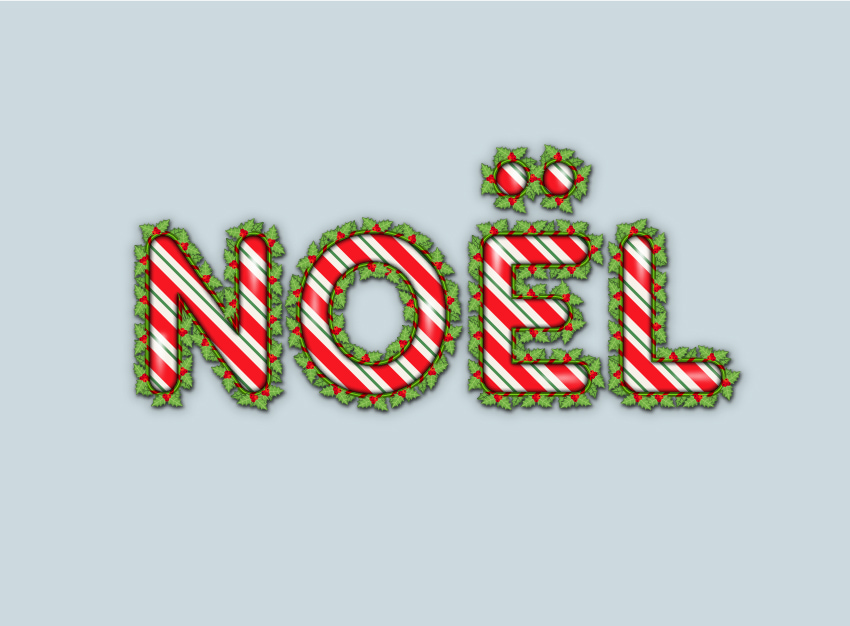
Here
is the final image of the winter holiday text effect. I hope this tutorial was
fun for you and that you learned some new things today. Now you know how to use outline stroke for various purposes in your designs
and how to create and install brushes in Adobe Illustrator.
Expand Your Text-Effect Designing Skills!
Keep drawing and learning with these recommended tutorials:
-

How to Make a Brush in Illustrator
Learn to create a custom paint brush, a scatter brush and a texture brush in Adobe Illustrator, using nothing more than some basic geometric shapes and effects. -

Quick Tip: How to Create a Pencil Pattern Brush in Adobe Illustrator
In the following steps you will learn how to create a pencil pattern brush in Adobe Illustrator. -

How to Make a Texture Brush in Illustrator
Have you always liked to draw using texture or grunge brushes? Why not create your own vector Illustrator brush? What if I’ll tell you that it’s easy and… -

How to Create a Flag Bunting Pattern Brush in Adobe Illustrator
In the following steps you will learn how to create a flag bunting Pattern Brush in Adobe Illustrator. -

How to Make a Pickle Pattern Brush in Illustrator
Learn how to make a creative pickle pattern brush in Adobe Illustrator and give it a special twist inspired by Pickle Rick. -

How to Create a Coconut Text Effect in Adobe Illustrator
Learn to create a fun coconut text effect that will make you dream of a tropical vacation. -

Use a Pattern Rope Brush to Create a Rope Text Effect in Illustrator
In the following steps, you will learn how to create a pretty simple rope brush in Illustrator and how to use it to create a nice text effect. -

How to Create a Multi-Layered Text Effect in Adobe Illustrator
In the following steps, you will learn how to create a fully editable, multi-layered text effect in Adobe Illustrator.

{excerpt}
Read More