
You
must be a lover of all things Halloween related if you are here, so
let’s have some fun and create a not-so-scary voodoo doll in Adobe
Illustrator. We will start with the shape of the body and, after that,
you’ll learn how to create the burlap texture. With highlights and
shading we’ll give dimension to the body, and after that we’ll add the
stitches. At the end, we’ll sew the eyes and the heart patch and poke it
with as many needles as you want. Let’s have some fun with this one!
If
you are hungry for more scary content and more spooky vectors or you
need some inspiration for this Halloween, then Envato Market has you
covered with plenty of designs to choose from.
1. Start
a New Project
Launch
Illustrator
and
go to File
> New to
open a blank document. Type a name for your file, set up the
dimensions, and then select Pixels
as
Units
and
RGB
as
Color
Mode.
Make sure that Align
New Objects to Pixel Grid is
not checked.
Next,
go to Edit
> Preferences > General and
set the Keyboard
Increment to
1
px and
while there, go to Units
to
make sure they are set as in the following image. I usually work with
these settings, and they will help you throughout the drawing process.

2. Create
the Body of the Voodoo Doll
Step
1
Grab
the Ellipse Tool (L) and use it to draw the first 173 x 153 px
ellipse on your artboard. Use the Add Anchor Point Tool (+) to add a
few extra points along the path, and move them using the Direct
Selection Tool (A) in order to distort the shape. The head of the
doll shouldn’t be perfectly round.

Step
2
It’s
time to draw the body of the doll. You can use a 172 x 162 px ellipse
as a reference to help you (the red ellipse), or you can draw the shape
directly with the Pen Tool (P) as in the image below.

Step
3
Continue
with the shapes of the hands and legs.

Step
4
Before
you continue, make sure that your doll fits more or less into a 340 x
490 px rectangle. This should be the final size of your doll in order
for all the settings, brush strokes and effects that will come next
to work for you as well.

3. Create
the Burlap Texture
Step
1
Select
the six body parts and fill them with a cool shade of brown. In the
Appearance panel, add a New Fill above the first using the same color, and then go to Effect > Texture > Texturizer and apply the
settings shown.

Step
2
With
the shapes still selected, add a New Fill at the top and keep the
same color. Apply the Texturizer effect again, but this time under
Light select Top Left instead of Top (previous step). Set the
Blending Mode for this Fill attribute to Soft Light.
The
Top Light makes the lines in the burlap texture go horizontally, and
the Top Left Light makes the lines in the texture go vertically. As a result, you’ll get the criss-cross burlap look.

Step
3
Now,
select the hands and the legs and Copy and Paste in Place
(Shift-Control-V) and after that, remove all existing appearances for
these copies.
Use
the Pen Tool (P) or the Pencil Tool (N) to draw a curved path at the
end of each arm and leg, as shown in the following image.

Step
4
Next,
select the copy of the left hand along with the curved path and press
Divide in the Pathfinder panel, and as a result, you’ll get two
separate shapes. Ungroup (Shift-Control-G), keep only the ellipse at
the end of the arm and delete the other shape because you don’t need
it.
Repeat
the same thing for the right arm and for the legs.

Step
5
Fill
the four shapes at the end of the arms and legs with brown. In the
Appearance panel, add a New Fill above the first and use the same
color. Go to Effect > Texture > Texturizer and apply the
settings shown; then set to Blending Mode Overlay and 25% Opacity.

4. Create
Shading and Highlights on the Body
Step
1
Use
the Pen Tool (P) or the Pencil Tool (N) to draw a path following the
left edge of the head, body, and legs. Give them a 15 pt black Stroke
and use the Width Profile 1.
Draw two other paths following the inside edge of the arms, and give them a
15 pt black Stroke using the Width Profile 4. If your brush stroke is
flipped (the tip of the brush goes downwards), press the Flip Along
option in the Stroke panel.

Step
2
While
the stroked paths from the previous step stay selected, go to Effect
> Blur > Gaussian Blur and apply a Radius of 10 px, except for
the stroked path on the body, which has a Radius of 15 px applied. Set
the Blending Mode to Overlay for all of them.

Step
3
Select
only the stroked paths indicated below, and then Copy and Paste in
Front (Control-F). Keep the settings as they are, but change the
Blending Mode to Soft Light for these copies. This will make the
shading a little more intense.

Step
4
To
intensify the shading on the body of the doll even more, draw a new
path following the left edge. Select a 15 pt black Stroke and the
Width Profile 1, apply a 15 px Gaussian Blur, and set the Blending
Mode to Soft Light.

Step
5
Let’s
add some highlights. Grab the Pen Tool (P) or the Pencil Tool (N) and
draw a path following the right edge of the head, body and legs and
the outside edge of the arms. Give them a 15 pt Stroke using the
Width Profile 1. For visual reasons, the stroke color is yellow, but
you should use white.

Step
6
While
the stroked paths stay selected, go to Effect > Blur > Gaussian
Blur and apply a Radius of 5 px. Set the Blending Mode to Overlay and
reduce the Opacity to 50% for all of them.

5. Create
the Big Stitch Lines
Step
1
Use
the Pen Tool (P) to draw a slightly curved path on the head, arms and
legs, as shown in the next image. Select a 2 pt black Stroke and the Width
Profile 3.

Step
2
While
the five stitch lines stay selected, go to Effect > Stylize > Drop
Shadow and apply this effect twice using the settings shown below.
Set the Blending Mode to Luminosity for all of them in order to make
the stitches less warm-toned. You can also reduce the Opacity to 75%
if needed.

These
are the settings for the Drop Shadow effect:

6. Clean
Up the Edges of the Body
Step
1
Select
the shape of the head and then Copy and Paste in Place
(Shift-Control-V) in order to make a copy of it. Set this copy to
fill-none and stroke-none by removing all the existing appearances
(the blue path).
Now,
select this copy along with the big stitch line, the shading and highlight
paths and also the original shape of the head, and go to Object >
Clipping Mask > Make (Control-7).

Step
2
Next,
select the shape of the body and then Copy and Paste in Place
(Shift-Control-V) in order to make a copy of it. Remove all existing
appearances (the blue path).
Now,
select this copy along with the shading and highlight paths and also
the original shape of the body, and go to Object > Clipping Mask >
Make (Control-7).

Step
3
Select
the left arm and then Copy and Paste in Place (Shift-Control-V) to
obtain a copy of it and remove all existing appearances. Now, select
this copy along with the big stitch line, the shading and highlight paths,
the ellipse at the end of the arm and also the original shape of the
arm, and go to Object > Clipping Mask > Make (Control-7).
In
the Layers panel, move the big stitch behind the ellipse at the end
of the arm to hide the small piece of shadow that goes over the edge.

Step
4
The
same thing goes for the right arm. First make the copy of the arm;
then select all the shapes and create the mask. Don’t forget to move
the big stitch behind the ellipse at the end in the Layers
panel.

Step
5
Repeat
the same process for the legs.

Step
6
Now
everything looks clean. Before you continue, make sure that the body
parts are in the correct order. The arms and the right leg should be
behind the body, and only the left leg is in front. Keep the head in
front of everything.

7. Create
the Small Stitch Lines
Step
1
Use
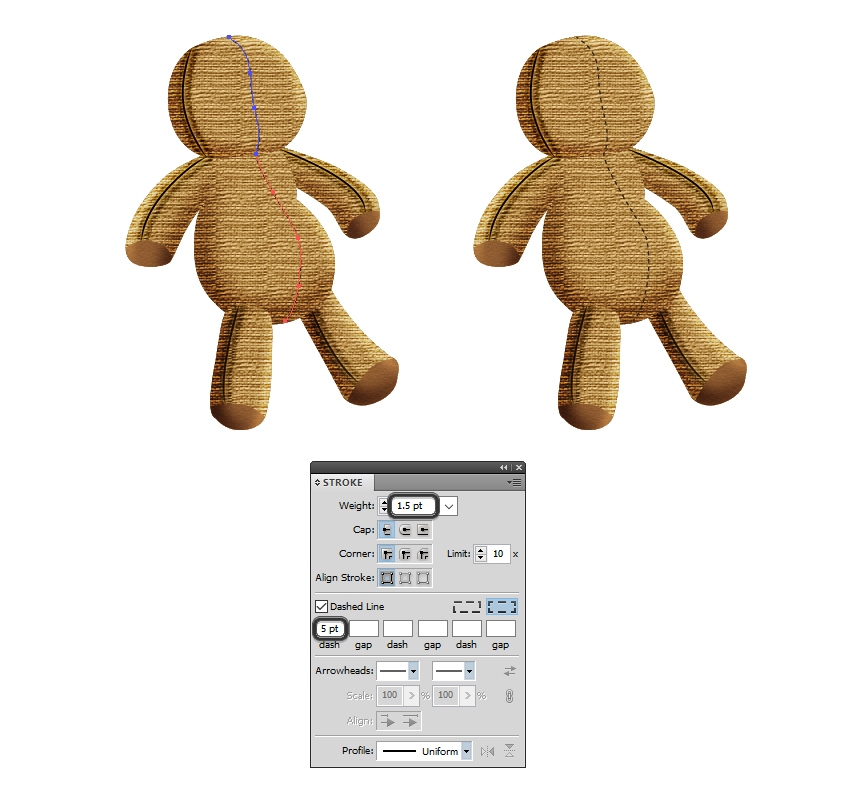
the Pen Tool (P) or the Pencil Tool (N) to draw a path through the
middle of the head and another path through the middle of the body.
In the Stroke panel, increase the Weight to 1.5 pt, check the Dashed
Line option, and type 5 pt in the dash field.
Step
2
While
the two dashed lines stay selected, go to Effect > Stylize >
Drop Shadow and apply the settings shown.

Step
3
Let’s
add more stitches. Use the Pen Tool (P) to draw more paths following
the edges of the body parts, as shown in the next image. Give them a 1 pt
Dashed Stroke and after that, apply the Drop Shadow effect using the
settings shown in the previous step.

8. Create
the Mouth of the Voodoo Doll
Step
1
First,
draw a slightly curved path as the mouth. Select a 3 pt black Stroke
and the Width Profile 3 in the Stroke panel and after that, apply the
Drop Shadow effect twice using the settings shown below. Set the
Blending Mode to Luminosity.

These
are the settings for the Drop Shadow effect:

Step
2
Next,
take the Pencil Tool (N) and draw some short random paths over the mouth as
the thread. Give them a 2 pt Stroke and use the Width Profile 3.

Step
3
While
all the thread paths stay selected, choose Expand Appearance from the
Object menu in order to turn the strokes into fills. Group
(Control-G) all the resulting shapes and fill them with the radial
gradient shown.

Step
4
Draw
and arrange a small 5 x 5 px circle at the ends of each piece of
thread, and fill all these circles with a radial gradient from black
to white. Group (Control-G) all of them and then set the group to
Blending Mode Multiply and 50% Opacity. Move the group of circles
behind the group of thread in the Layers panel.

9. Create
the Thread Stitches on the Body
Step
1
Take
the Pencil Tool (N) again and draw short random paths over the big
stitch line on the head. Give them a 2 pt Stroke and use the Width Profile
3 just like earlier (1).
With
these paths still selected, choose Expand Appearance and after that,
Group (Control-G) all the resulting shapes. Fill them with the radial
gradient shown (2).
Draw
and arrange a small 5 x 5 px circle at the ends of each piece of
thread, filled with a radial gradient from black to white. Group (Control-G) all the circles and set the group to Blending Mode Multiply and 50% Opacity (3). Don’t forget to send the group of circles
behind the group of thread in the Layers panel. You can see the final
result in the image below (4).

Step
2
Use
the technique explained in the previous step to add more pieces of
thread on the body, especially over the big stitch lines. You
can add as many as you want.

10. Create
the “Eyes” of the Voodoo Doll
Step
1
Use
the Ellipse Tool (L) to draw a 52 x 52 px circle and fill it with the
radial gradient shown.

Step
2
Draw
a new 30 x 30 px circle in the center and fill it with a radial
gradient from white to black. Also, select a 0.5 pt gray Stroke. Set
this circle to Blending Mode Multiply and 55% Opacity.

Step
3
Draw
four smaller circles as the holes and after that, draw a moon-like
shape at the top of the button. Fill this shape with a radial
gradient from white to black and then set to Blending Mode Screen and
75% Opacity.

Step
4
Group
(Control-G) all the shapes that make up the blue button and move it
onto the head. While the button stays selected, go to Effect >
Distort & Transform > Free Distort and drag the corner points
as shown below to distort the button a little. Next, go to Effect >
Stylize and apply the Drop Shadow effect.

Step
5
Now, let’s sew the button to the head of the voodoo doll. Use
the Pen Tool (P) to draw two short paths between the holes as the
thread. Give them a 3 pt Stroke and use the Width Profile 3. Expand
Appearance and then fill the resulting two shapes with the radial
gradient shown.

Step
6
Let’s
continue with the missing eye of the voodoo doll. Draw three paths on
the right side of the face and give them a 3 pt Stroke using the
Width Profile 3. Expand Appearance and then fill the resulting three
shapes with the radial gradient shown.

Step
7
Group
(Control-G) the three shapes that you have obtained in the previous
step and apply the Drop Shadow effect to the group.
Finally,
arrange a small 5 x 5 px circle on each end filled with a radial
gradient from black to white. Change the Blending Mode to Multiply
and reduce the Opacity to 50%. Group (Control-G) all these circles
and send them in back.

11. Create
the Heart Patch
Step
1
Grab
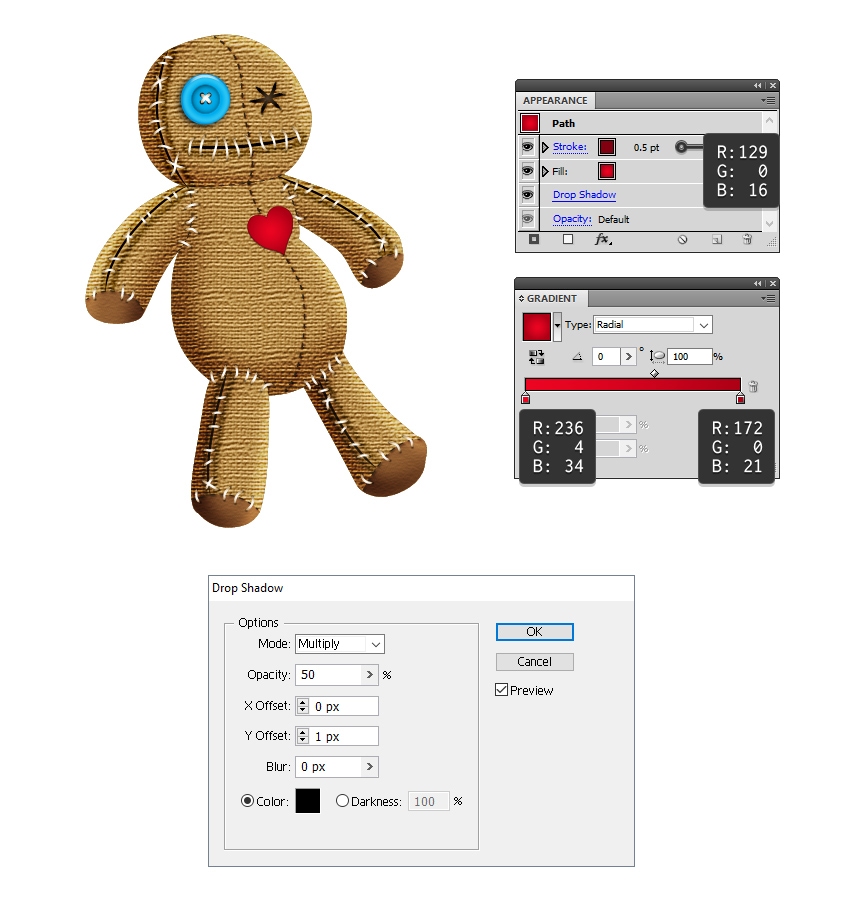
the Pen Tool (P) and draw a heart shape on the body. Fill it with the
radial gradient shown and also select a 0.5 pt dark red Stroke. Next,
go to Effect > Stylize > Drop Shadow and apply the settings
from the image below.
Step
2
Let’s sew the heart patch to the body of the voodoo doll. Use
the Pencil Tool (N) to draw a bunch of short paths over the edge of
the heart and give them a 1 pt Stroke with the Width Profile 1. Group
(Control-G) all these paths when you are done.

12. Create
the Big Needles
Step
1
Use
the Pen Tool (P) to draw the shape of the needle and then draw a
smaller shape at the top as the shadow. Fill this shape with a linear
gradient from white to black at an 80 degrees Angle and then set
it to Blending Mode Multiply and 75% Opacity.

Step
2
Draw
a 35 x 35 px circle at the top of the needle filled with pink (1) and
after that, draw a smaller shape in the upper left side of the circle
filled with a lighter shade of pink (2). Now, select both shapes and
go to Object > Blend > Blend Options. Choose 20 Specified Steps
and hit OK; then go back to Object > Blend > Make
(Alt-Control-B) (3).

Step
3
Draw
a small ellipse at the top of the pink needle head filled with a
radial gradient from white to black. Go to Effect > Blur >
Gaussian Blur and apply a Radius of 1 px, and then change the Blending
Mode to Screen (black becomes transparent).

Step
4
Group
(Control-G) all the shapes that make up the big needle; then rotate
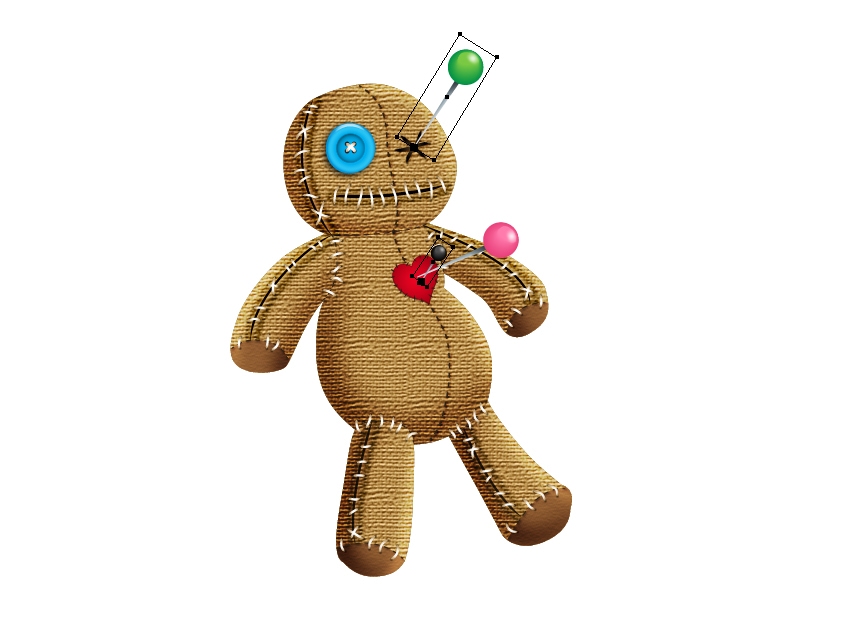
and arrange it in the desired position (1). Draw a rectangle that
covers the needle except for the tip and set it to stroke-none and
fill-none. Now, select this rectangle along with the needle and go to
Object > Clipping Mask > Make (Control-7). As a result, you
will get the appearance of the needle going into the doll’s body (2).
Next,
draw a small 5 x 5 px circle filled with a radial gradient from black
to white right where the needle pokes the body. Set the Blending
Mode to Multiply and the Opacity to 25% and send this circle behind
the needle (3).

Step
5
You
can multiply the pink needle and simply change the colors to create
others. Following the technique explained above, you can poke the
doll’s body with as many needles as you want.
13. Create
the Hair of the Voodoo Doll
Grab
the Pencil Tool (N) and draw a few random paths on top of the head.
Stroke them with the Dashed Circles 1.1 Pattern Brush, which you can
find in Brush Libraries > Borders > Borders_Dashed, and
increase the Weight to 2 pt. From the Appearance panel, open the
Stroke Options window, and set the Scale to 20% and the Colorization
Method to Tints and Shades. Now, you can select any stroke color and
the brush will change color as well, and as a result you’ll get the
multicolored hair made of beads.

14. Create
the Shadow Behind the Voodoo Doll
Step
1
Select
the six body parts and then Copy and Paste in Place (Shift-Control-V)
in order to make copies. Move these copies to a new layer behind the
voodoo doll and remove all existing appearances.
While
the copies of the body parts are still selected, press Unite in the
Pathfinder panel to obtain the shape of the doll.

Step
2
Select
the shape of the doll with the Selection Tool (V) and flatten the
bounding box to distort the shape. Fill it with a linear gradient
from white to black at a -70 degrees Angle.

Step
3
While
the shape of the doll stays selected, go to Effect > Blur >
Gaussian Blur and apply a Radius of 5 px. If you are using a colored
background, change the Blending Mode to Multiply and reduce the
opacity if needed.

Congratulations!
You’re Done
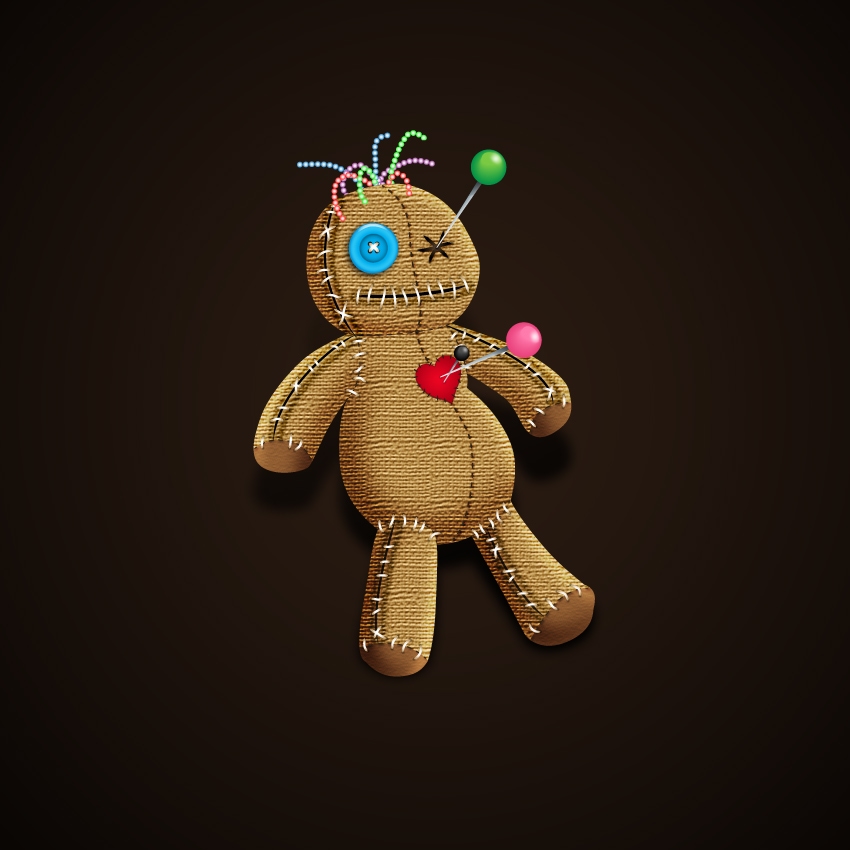
This
is the final image of the voodoo doll. Spooky or not? You can get creative and use
more needles and decorations or make it way more scary. Don’t forget
to share your recreation with us because I would love to see it.

{excerpt}
Read More