
It’s been a long
time since we last did a quick tip on icons, so I thought that it would be nice
to make one about some Apple products, and see how easy it is to create them
using Adobe Illustrator.
We’ll be creating
four different products: an iPod, an iMac, a Mighty Mouse and a Wacom Tablet,
which isn’t actually made by Apple but it is part of their Photography &
Creativity line of accessories.
You can always expand the pack by adding your own icons, for which you
can find inspiration by taking a look at Envato Market, where you can
find tons of good icon packs with great themes.
1. Adjust
Illustrator’s Settings
As always, start
out by tweaking and adjusting some of Illustrator’s settings, in order to make
sure that you have a strong foundation to work with. Usually the things that I tinker with are the Grid and
the Units.
Now, I won’t go
into detail since we already have two articles that talk about these settings, so what I am going to do is show you the values that I usually go with.
Step 1
First, make sure you have Illustrator open, and then go to Edit > Preferences > Guides &
Grid and set the Gridline every option
to 1 px and the Subdivisions to 1.

Quick tip:
You can read more about the reason behind these settings by checking out one
of my previous tutorials that thoroughly talks about Illustrator’s Grid System,
which I promise will make things a lot clearer.
Step 2
Once you’ve adjusted the Grid,
we can then move on to the Units tab,
and set your General and Stroke Units to Pixels since we’re aiming to create a batch of pixel perfect icons.

Quick tip: You
can learn more about the process by reading my piece on how to adjust Illustrator for
a pixel-perfect workflow.
2. Set Up a New
Document
Assuming we’ve
managed to fine-tune Illustrator to our liking, we can start working on our
little project, and we will do so by setting up a new document.
Go to File > New or use
the Control-N keyboard shortcut, and
create a new project with the following settings:
- Number of Artboards: 1
- Width:
800 px - Height: 600
px - Units: Pixels
And from the Advanced tab:
- Color Mode: RGB
- Raster Effects:
Screen (72 ppi) - Align New Objects to
Pixel Grid: checked

3. Layer the
Document
Whenever I start a
new project, I always take a couple of moments and try to figure out how I can
layer each asset, so that I can easily access and edit it if I need to later
on. This way I can
focus on just one item at a time, since I’ll usually lock all the other layers,
and work on the present one until I feel I’m happy with the results.
Sure, everybody
has a different workflow, but for the present tutorial I’m just going to share
with you some of my default steps and let you figure out if they work for you.
That being said,
let’s open up the Layers panel, and
create five different layers, one for our reference grids, and four for our
icons.
Usually I like to name them using simple keywords or descriptions that
help me easily identify them.
- Layer 1: reference
grids - Layer 2: ipod
- Layer 3: imac
- Layer 4: mighty
mouse - Layer 5: tablet

4. Create the
Reference Grids
A Reference Grid, or Base Grid, is a precisely delimited surface that is constructed and
used in order to guide you through the process of creating your icons.
The size of the Base Grid reflects the overall size of
your final asset, which usually follows one of the already adopted values that
can stretch anywhere from 8 x 8 px all
the way to 512 x 512 px or even
higher.
In our case, we’re
going to be creating the icons using a 96
x 96 px square as a reference surface, and add an all-around 12 px inner padding to it using four
little red squares.
As you can see, I’ve created a Base
Grid for each icon, and positioned them about 60 px from one another.

5. Achieve
Consistency Through Style
Before we start
creating the actual icons, I want to take a couple of seconds and talk to you about consistency and how it can be
achieved.
With every
project, your icons have to fall within the same visual language, which means
that they have to adhere to the same style. Now, style can easily be defined by
the type and amount of details that you put into your work. From the weight of
your stroke to the roundness of your corners, you can quickly make an icon
your icon, since no two lines are identical, and that’s the beauty of it.
Now, the thing is that all these style elements are linked to the basic building
blocks or shapes that make up your assets. You should always try to break your
design apart into small pieces, and figure out how you can come up with
something visually appealing by playing with their appearance.

Whether it’s the
exaggeration of a feature or a reinterpretation of a line, it doesn’t really
matter, since as long as you find that special something and apply it
throughout your work, you will always create something that is not only
consistent, but also personal and therefore unique.
Now, in our case, the style of our project is actually fairly common,
which makes consistency easy to achieve.

We will be creating each icon using 4 px thick Stroke lines, giving each shape a nice 6 px Corner Radius. When it comes to details, we will be adding
some different highlights and a couple of shadows here and there to give the
icons a little pop.
6. Creating the
iPod
Let’s begin by
creating the iPod, since all the other icons are going to follow a pretty
identical pattern, which is pretty easy to replicate once you get the hang of
it.
Step 1
Make sure that
you’re on the correct layer, and then zoom in on the first Reference Grid in order to have a better view of your drawing
space.
Select the Rounded Rectangle Tool
and create a 54 x 68 px shape with
a 6 px Corner Radius, color it using
yellow (#eac363), and then position it towards the center of its Grid.

Step 2
Since each icon
has a hard outline, we will have to create a copy of the shape that we’ve just
created (Control-C) and paste it in front
(Control-F) so that we can then
adjust it.
With the duplicate in place, flip its fill with its stroke using the Shift-X keyboard shortcut, and then
change the color to a dark grey (#303338), making sure to set the Stroke’s Weight to 4 px.

Step 3
Using the Rounded Rectangle Tool, add
a 42 x 24 px shape (#303338) with a 2 px Corner Radius and position it
towards the top of the icon, leaving a gap of 4 px on its left, top and right side.

Step 4
Once we’re done
adding the screen, we can move on and work on the iconic scroll dial.
First, grab the Ellipse Tool (L) and create a 24 x 24 px circle, which we will color
using a slightly darker shade of yellow (#c69d4b).
Then give it a nice 4 px outline
as we did with the iPod’s main body, and position the two in the center of
the empty bottom section of the icon.

Step 5
Finish off the
icon by adding an 8 x 8 px circle (#303338)
in the center of the dial.
At this point it would be a good idea to select all of its composing
elements and group them (Control-G)
so that things won’t get misplaced by accident.

7. Create the
iMac Icon
Once we’ve
finished working on the first icon, we can lock its layer, and move on to the
second one, which is the all-worshipped iMac.
Step 1
Using the Rounded Rectangle Tool, create
a 68 x 52 px shape, giving it the
same 6 px Corner Radius to keep
things consistent. Color the shape using #eac363 and then position it towards
the top section of the Grid, leaving
a gap of 2 px for the outline.

Step 2
Create a copy of the previously created shape (Control-C > Control-F), and adjust it by removing its bottom
round corners, changing its color to #303338, and then shortening its Height to just 40 px.

Step 3
Give the iMac’s upper section a 4
px outline (#303338), and then add a small 4 x 4 px circle (#303338) where you would normally find the Apple
logo.

Step 4
Grab the Pen Tool (P) and draw the middle
section of the icon that connects the display to the bottom stand, making sure
that the shape’s Height is exactly 10 px.
Color it using a slightly darker shade of yellow (#c69d4b) and then give
it an outline.

Step 5
Finish off the icon by adding the bottom section of the stand, and then
group all the shapes together so they’ll act as a whole.

8. Creating the Mighty
Mouse Icon
This one is by far
the easiest icon you’ll ever make, since it only requires you to create three
things: a fill shape, an outline, and that little scroll ball.
Step 1
Position yourself onto the fourth layer, and then using the Rounded Rectangle create a 40 x 68 px shape with a 20 px Corner Radius. Color the shape
using #eac363 and then give it a nice 4
px outline, making sure to center the two to the third Reference Grid.

Step 2
Using the Ellipse Tool (L), create a 6 x 6 px circle and position it towards
the top.
As always, don’t forget to select all of the mouse’s shapes and group
them using the Control-G keyboard
shortcut.

9. Create the
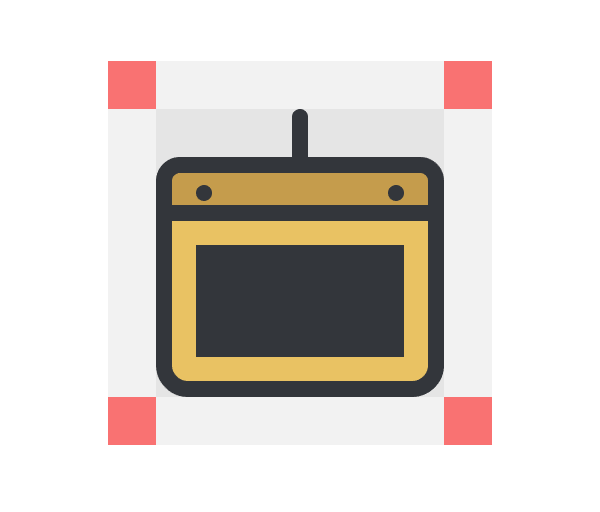
Wacom Tablet Icon
At this point you
probably already know the drill. Check your layers, zoom in on the last Reference Grid, and let’s finish off the
pack by creating the last icon.
Step 1
First, grab the Rounded Rectangle Tool and create a 56 x 68 px shape with a 6 px Corner Radius. Set its color to #eac363
and then adjust its top corners by lowering their Roundness to 4 px.
Then give the shape the usual 4
px outline, and position the two towards the bottom side of the drawable
section of the Reference Grid.

Quick tip:
Yeah I know, I’m kind of breaking that consistency
rule with the Corner Radius, but
sometimes little changes like this will actually add more appeal to your
shapes.
Step 2
Create a copy of the yellow shape (Control-C > Control-F), and adjust it by removing its bottom
corners and shortening its Height to
12 px, coloring it using #c69d4b.

Step 3
Add a 4 px thick line towards
the bottom section of the previously created shape, in order to delimit the two
different sections of the tablet.

Step 4
Using the Rectangle Tool (M), create a 52 x 28 px shape (#303338)
and position it in the center of the larger section from underneath the delimiter
line that we just created.

Step 5
Finish off the icon by adding the remaining details, like the little
cord, and the two circle buttons. Then select all the icon’s shapes and group
them using the Control-G keyboard
shortcut.
10. Add the
Finishing Touches
At this point
we’re pretty much done with the main building blocks of the icons, which means
we can now move on to the last stage, that of adding details—remember those
highlights and shadows that I was talking about towards the beginning.
Now I’ll only be showing you the process for the first icon, since I
want you to use what you’ve learned in this little tutorial and finish off the
rest of the assets by yourself.
Step 1
Go back to the
second layer, the one that houses the iPod, and let’s start by adding the
all-around highlight.
Quick tip: As you might remember, I had you group all the icon’s shapes together,
so we will have to enter Isolation Mode in
order to add the finishing touches. To do so, either double click on the group
itself, or right click > Isolate
Selected Group.

Once in Isolation Mode, create a copy of the
outline (Control-C > Control-B)
and change its Stroke Color to white
(#FFFFFF), making sure to align the Stroke
towards the inside.
Quick tip: Now since the yellow fill shape will end up covering the highlight, you
will have to select it, then right click
> Arrange > Send to Back to position it under.

Step 2
With the Stroke still
selected, lower its Opacity level to
60%, setting its Blending Mode to
Soft Light.

Step 3
Next, add two diagonal highlights with different width values, using the
same Blending Mode (Soft Light) but a slightly lower Opacity
level (40%).

Quick tip:
You can easily create the highlight shapes, by drawing them using the Pen Tool (P) and holding down on the Shift key in order to get those perfect
45° angles.
Step 4
Create that cute
star-shaped highlight, by drawing it using the Pen Tool (P) and then lowering its Opacity to 40% while
leaving its Blending Mode set to Normal.
Then simply position it somewhere along the screen, towards its bottom
right corner.

Step 5
Finish the
detailing process for the iPod icon by adding an inner shadow to the scroll
wheel. Follow the same process used for the all-around highlight, but make sure
to set the shape’s color to black (#000000) and its Opacity to 30%.
Once you’ve added the shadow, you can exit Isolation
Mode by pressing the Escape key.
As soon as you’re done with the first icon, move on to the next one, following the same workflow and adding details where you feel they would be needed. Take your time and make sure that you get a consistent and overall balanced amount of detail to each of the remaining icons.

It’s a Wrap!
There you have it: an easy and fairly quick tutorial on how to create some cute-looking icons using the most basic tools that Illustrator has to offer.
I really hope that you’ve found most of the information displayed here useful, and learned something new during the process.


{excerpt}
Read More