
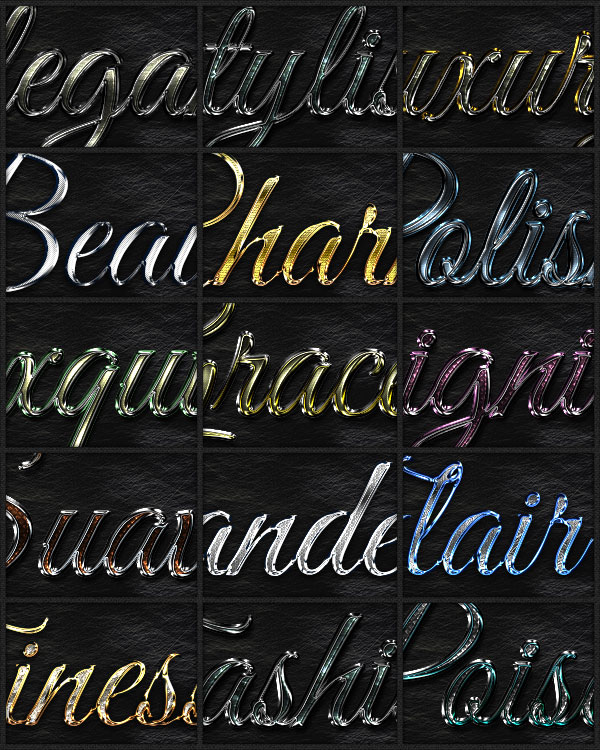
In this tutorial, you’ll learn how to create this gorgeous text effect in Adobe Photoshop. It’s one of a series of 15 Elegant Text Styles, as well as many other styles available to purchase on Envato Market.
Tutorial Assets
The following assets were used during the production of this tutorial:
- Great Vibes font
- Damask pattern by onethirtytwo
- Tileable Stone, Pavement, and Marble Textures by Webtreats
1. Create the Background
Step 1
Install the Damask
pattern by double clicking it.
Step 2
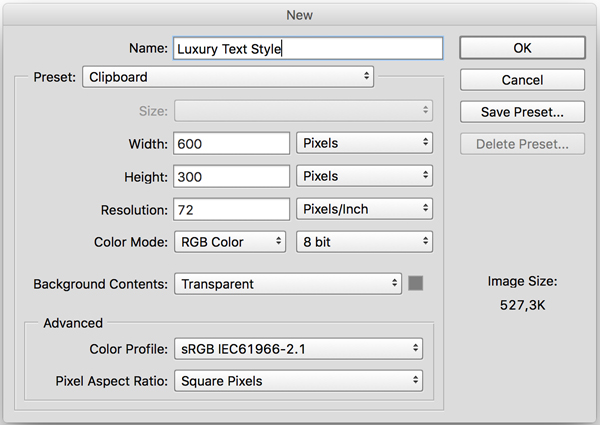
Create a new document (File > New) and set the Width to 600 px, the Height to 300 px and the Resolution to 72.
Step 3
Select > All, then Edit > Fill and pick White from the drop-down list. Then Select > Deselect. Let’s rename the
layer (Layer > Rename Layer) to Background to keep it nice and clean.
Step 4
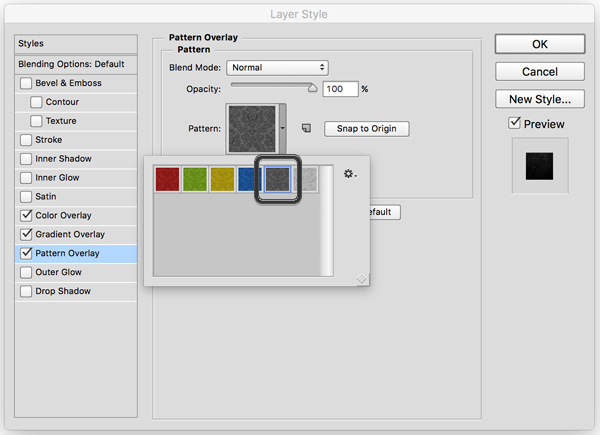
Now double-click the Background layer to enter Layer Style. You’re going to add a Pattern Overlay. From the drop-down
list, select the dark gray Damask pattern.
Step 5
Now add a Color Overlay with the following
settings:
- Blend Mode: Vivid Light
- Opacity: 2%
- Use the color
#000000

Step 6
Then you’re going to add
a Gradient Overlay with the
following settings:
- Blend Mode: Overlay
- Make sure you tick Reverse
- Style: Radial
- Angle: 0
- Scale: 150%
Click the Gradient box to create the gradient. Click each color stop to modify
the Color and use the colors #060606 to the left and #3c3c3c to the
right.

Step 7
While you’re still in the
Gradient Overlay section, click on
the canvas and hold while dragging upwards to move the gradient. You’ll see it
gives the background a nice soft light that spreads from the top.

2. Create the Text and Add Effects
Step 1
Install the Webtreats
pattern by double clicking it.
Step 2
Install the font Great Vibes. Then back in Photoshop, create
the text by typing Luxury or
something else of your choosing and select the font you just installed (it’s
called Great Vibes Regular in the
font list). Set the size to 200 pt.
It doesn’t matter what color you choose because we’re going to add a lot of
effects that’ll cover it.
Step 3
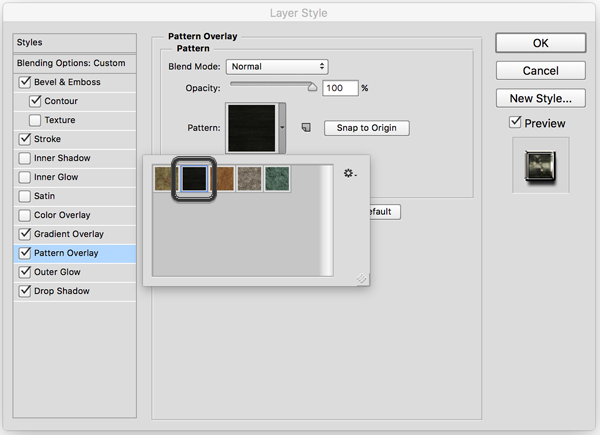
Double-click the Luxury layer and let the fun begin! Under
Pattern Overlay, add the black
pattern from the Webtreats pack. Unfortunately, it doesn’t have a unique name, but luckily all the patterns have different colors, and you’re going to use the
only black one there is. It’ll add a dark stone pattern to the text:
Step 4
Add a Gradient Overlay to the mix, so the
text comes to life:

Step 5
To make the text pop, add
Bevel & Emboss with the
following settings. Make sure the Gloss
Contour is the one called Ring –
Double.

Step 6
Then add some Contour to adjust the Bevel & Emboss. Make sure the Contour is called Gaussian.

Step 7
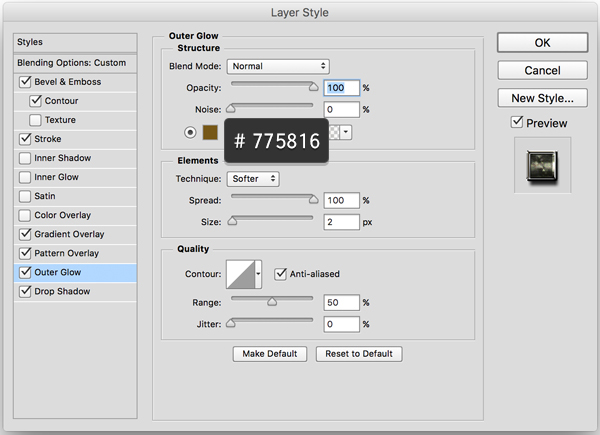
Now frame the whole text
with a golden border by adding an Outer
Glow:
Step 8
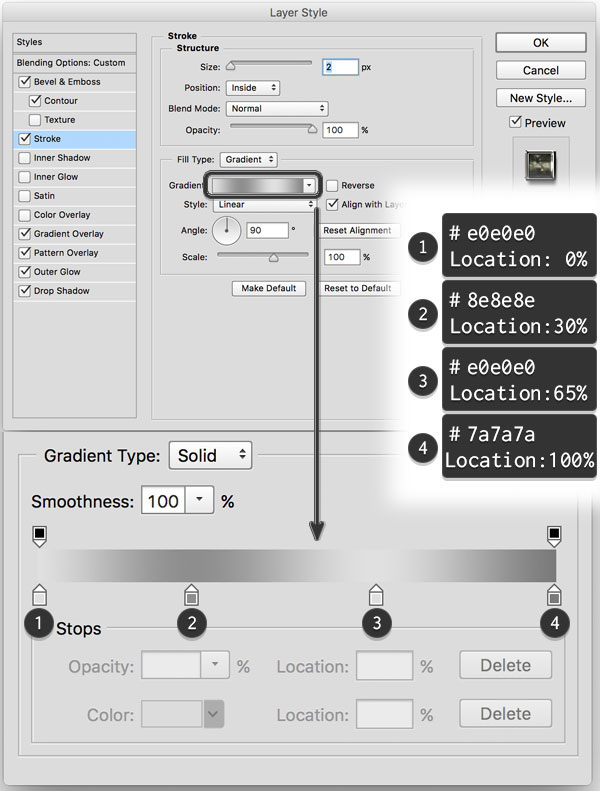
By adding a silver Stroke to the text, you’ll make it
shine and stand out even more:
Step 9
Lastly, add a Drop Shadow to separate the text from
the background:

Step 10
Hit OK and you end up with a shiny new text effect.
3. Save the Text Effect for Future Use
Step 1
But of course you’ll want to save the effect
so you can use it over and over again on other text or objects. If you take a
look at the Styles panel, you’ll
notice the small icon that looks like a piece of paper with a folded corner.
Click on it to add the style to your active styles and give it a memorable
name.

Step 2
You still need to save
it to the library, so go ahead and click on the small drop-down icon and then Save Styles. Save it anywhere you want,
although I recommend saving it in the Photoshop folder:
- Location of the Styles Folder
on Windows: Program Files > Adobe
> Adobe Photoshop (your version) > Presets > Styles - Location of the Styles Folder
on Mac: Programs > Adobe Photoshop (your version) > Presets >
Styles


Congratulations! You’re Done!
In this tutorial, we learned
how to create a luxurious text effect in Photoshop.
We started out by creating
a subtle dark background with a Damask pattern. Then we created a text
layer and added a lot of different effects in order to create an elegant and
luxurious text effect that really pops out at the viewer.
After that, we made sure
to save the text style so we can use it later in other projects.
Please feel free to
leave comments, suggestions, and outcomes below.

{excerpt}
Read More