The Drummer and the Track
In true Apple fashion, Drummer inside of Logic Pro X is an almost seamless collaboration of virtual “hardware” and scripting software. When you create a new Drummer Track by either going to Track > New Drummer Track or by selecting the New Tracks icon and selecting Drummer, Logic Pro X will create a Drummer Track and load a Channel Strip Setting with the new Drum Kit Designer among other effects . You can think of the Drum Kit Designer as the “hardware” and the Drummer Track as the “software” that is being used in tandem with the “hardware”.
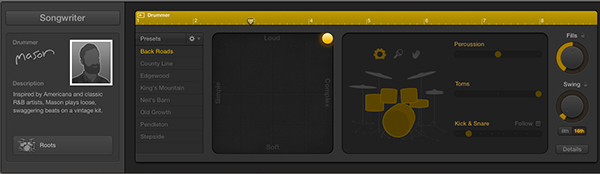
The key concept to realize is, the Drum Kit Designer is just like any other plug-in. For example you can create a new Software Instrument sequencer track and load in a Drum Kit Designer just like any other plug-in. What is unique however is the Drummer Track itself. Instead of the traditional piano roll, it is using a scripting engine to control the playback of the drums to not only give you lifelike playing, but also unique styles of playing in the form of the virtual drummers.
Setting the Drummer Track Free
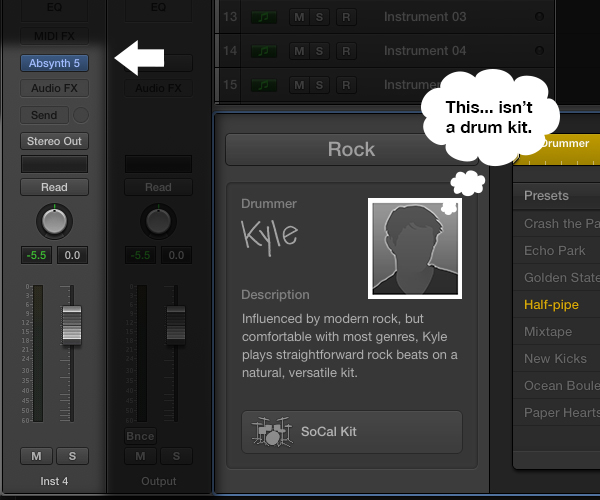
I mentioned before that you can create a Drum Kit Designer plug-in using a regular Software Instrument sequencer track. The great news is you can also do the opposite and load any plug-in into a Drummer Track. This allows you to use the new Drummer Track scripting engine, along with all the controls and virtual drummers, to play any plug-in you have.
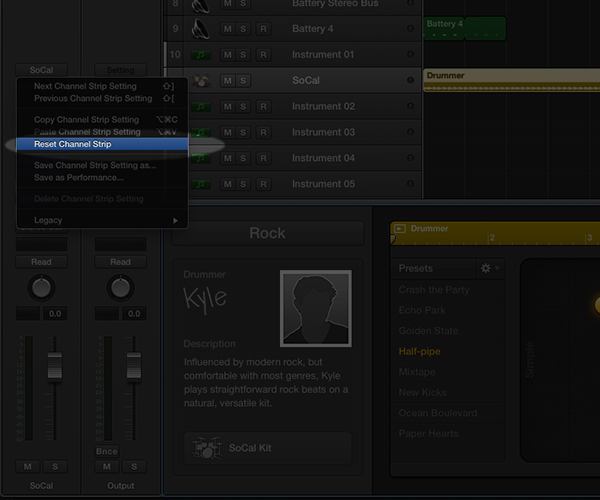
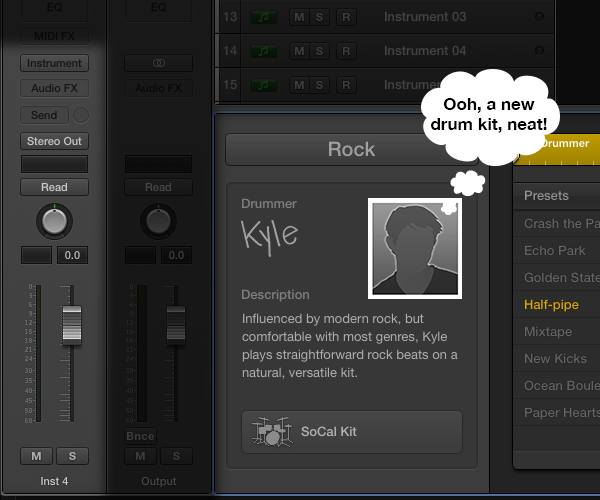
This will remove the Drum Kit Designer plug-in and all the Audio FX plug-ins; but if you look in the Main Work Area you will see that the dynamic Drummer Regions are still there, along with the Drummer Track Controls. You can now load in any plug-in you want just like usual, and the Drummer Track controls will be available to control the playback.
Example Uses
The following audio examples all use a Drummer Track to sequence the demonstrated sounds. There are other elements to help with the demonstration, but they were kept to a minimum. For comparison the examples play again without the Drummer Track mid-way through.
Percussive Top Layer
This example uses an instance of MOTU MachFive 3 with one of the included patches from the Universal Loops and Instruments library to create a nice, percussive top layer that you can add over your main drum track. Creating simple Top Layers is a great way to save on purchasing third party loops.
Rhythmic Atmosphere
This example of a rhythmic noise atmosphere uses an EXS24 with the Atmospheric FX patch loaded from the Textures > Cinematic Textures subcategory of the factory content. This is more complex than the simple percussion Top Loop, and could almost be a main part of the production. The drum part consists only of a crash, kick, snare and open hi-hat.
Epic Timpani
This example of a rolling timpani section uses the Timpani SingleStrokes EXS24 patch loaded from the Orchestral > Tuned Percussion subcategory of the Logic Pro X factory content.
Tips
In experimenting with using a Drummer Track to control other plug-ins, I found some useful tips and tricks to keep in mind.
Rhythmic vs. Tonal
As the name should suggest, the Drummer Track is best used for achieving rhythmic and groove style results. You can load in any plug-in, but keep in mind you don’t have control over the notes played in the way you would normally with the sequencer. So a piano, for example, isn’t going to sound very good as a piano part because the notes being played are ignoring the pitch of each note in favor of the swing and groove.
Effortless Variations
Using the Drummer Track Controls gives you effortless variations to your loops. A simple parameter change to the drum parts being played or a change in the complexity of the playing style will quickly give you a new version of your loop or a completely different loop depending on the degree of parameter change.
One Drummer Per Session
As much sense as this does make, it is kind of a disappointment that you can only have one Drummer Track per project. A simple solution to this is to Bounce in place the Drummer Regions to render out the audio while keeping the Drummer Track available.
Changing the Drummer
You can change the drum preset to try out different drum grooves, but changing virtual drummer will cause the Channel Strip to be reset. I don’t think there’s any getting around this because changing the Drummer also changes the drum kit and the Audio FX for that kit.
Multi-output
If you want to have multiple outputs for drum or percussion sequences, you need to first change the Drum Kit Designer to multi-output before replacing the plug-in with another multi-output plug-in. If you don’t first set the Drum Kit Designer to multi-output, you will only have a stereo output available when you load another plug-in.
Conclusion
Drummer inside of Logic Pro X is a great tool for adding a drum or percussion part to your production. Using the Drummer Track to control other plug-ins besides the new Drum Kit Designer opens up a new world of sound design possibilities, from quickly creating new drum grooves with your third party drum plug-in, to experimental sound design.

{excerpt}
Read More