Teenager shot dead in West Bank

BBC Map

A 14-year-old Palestinian boy has been shot dead in the West Bank.

Palestinian witnesses and security sources say the teenager was shot by Jewish settlers after rocks were thrown at their car.

Israeli police are investigating but did not confirm that the boy, named as Ayssar Yasser from the village of Mizra al-Sharqiah, had been shot by settlers.

The Israeli army confirmed there was a shooting in the area, near Ramallah, the West Bank’s administrative capital.

This article is from the BBC News website. © British Broadcasting Corporation, The BBC is not responsible for the content of external internet sites.

Cameron calls for Scots ‘respect’

Alex Salmond and David Cameron

Prime Minister David Cameron is travelling to Scotland for talks with First Minister Alex Salmond.

Mr Cameron, who is making good his pledge to head north within days of an election victory, has promised to treat the devolved government with "respect".

Mr Salmond will press the prime minister to concede further cash and spending powers for Holyrood.

Mr Cameron wants a "new spirit of co-operation" between the Scottish Parliament and Westminster as a whole.

The head of the UK’s new Tory-Lib Dem government is also meeting Scottish opposition leaders.

Mr Salmond will call on Mr Cameron to bring forward £350m of capital spending to aid Scotland’s economic recovery, and will also argue Scotland is owed £165m over five years in "consequential" funding, as a result of public spending in relation to the London Olympics.

The SNP leader will also request the Treasury releases cash for Scotland held in the fossil fuel levy, worth £180m, and will press the case to give enhanced borrowing powers to Holyrood, as recommended by the Calman Commission review of devolution.

Mr Cameron will be accompanied by Danny Alexander, the Liberal Democrat MP who has been appointed Scottish secretary.

The visit comes after Scottish Tory leader Annabel Goldie said the public had grown tired of past rows between the Scottish and UK governments, which have often focussed on funding, the proposed independence referendum and more powers for the Scottish Parliament.

The prime minister has said Westminster would not seek to override Holyrood’s role on devolved matters, but also stressed the Scottish government must respect areas reserved to the UK parliament.

Mr Salmond said he would always support UK government policies which were in the "interest of the Scottish people", but added SNP ministers would, at all times, be making the argument to "advance the cause of Scotland".

This article is from the BBC News website. © British Broadcasting Corporation, The BBC is not responsible for the content of external internet sites.

Cameron defends rule change plan

Cabinet members

David Cameron has defended plans to change the rules on how an election is called, saying they will help the stability of his coalition government.

The Lib Dem-Tory deal agrees to fixed-term parliaments which can only be dissolved with support from 55% of MPs.

Labour MPs say it is a "fix" as 50% of MPs plus one can currently trigger a no confidence vote in the government.

Mr Cameron said he was the first prime minister to give up power to call an election and this was a "good change".

Speaking on a visit to the Scottish Parliament, Mr Cameron said there needed to be a "mechanism" to dissolve Parliament and the procedure he was proposing would help to secure a "strong and stable government" over the next five years.

"It is an important change and one I think should be welcome," he said, on a visit to Scotland to meet First Minister Alex Salmond and other party leaders.

"I’m the first prime minister in British history to give up the right unilaterally to ask the Queen for a dissolution of Parliament. This is a huge change in our system, it is a big giving up of power.

"Clearly, if you want a fixed-term Parliament you have to have a mechanism to deliver it.

"Obviously that is a mechanism that can be debated in the House of Commons, it can be discussed, but I believe that it is a good arrangement to give us strong and stable government."

Downing Street says Labour put through fixed-term laws in Scotland requiring 66% of MSPs to dissolve Parliament.

Five-year term

The prime minister has the power to ask the Queen to dissolve parliament at any time within a five-year period – which critics say benefits the ruling party.

The new coalition government has instead proposed to have five-year fixed term parliaments. But in a coalition agreement drawn up between the Conservatives and Liberal Democrats, it says legislation "will also provide for dissolution if 55% or more of the House votes in favour".

Graphic showing mix of MPs required to dissolve Parliament

Currently a majority of MPs – 50% plus one – are needed to carry a vote of no confidence. In 1979 James Callaghan’s minority Labour government fell after losing a confidence vote.

Four senior Labour figures – and two Conservative backbenchers, Christopher Chope and Charles Walker, have expressed concern about the plans.

Mr Walker said: "This is perhaps just a little too much for our unwritten constitution to bear". And his colleague Mr Chope told BBC Radio 4’s World at One the coalition deal seemed to have been "cobbled together in quite a short space of time".

‘Totally unworkable’

He said: "It could mean in practice that if the present government was to lose its majority in Parliament, and wasn’t able to operate as a minority government because it didn’t enjoy the confidence of a sufficient number of MPs … that then what’s being suggested is that it would be able to carry on but that would be basically a recipe for anarchy, because it would mean that the government wouldn’t have a majority."

Former Transport Secretary Lord Adonis called it a "brazen attempt to gerrymander the constitution which calls into question the legitimacy of the coalition from day one".

Mr Straw said the plan was "completely undemocratic and totally unworkable" while Mr Blunkett described it as a "stitch-up".

Labour former Lord Chancellor Lord Falconer – a supporter of fixed-term parliaments told BBC Newsnight he feared it would result in a "zombie government" – as it would mean 53% of MPs could vote against a government but it would still continue until the fixed date.

But former Lib Dem MP David Howarth, a legal academic who drew up the original Lib Dem plans for a fixed-term parliament, told the BBC the vote of confidence and dissolution of Parliament were "entirely different things" and said Mr Straw was "totally confused".

In other countries with fixed-term parliaments, if a government lost a vote of confidence the parties would have to try to work out a new government within the fixed term, he said.

He said critics had got "entirely the wrong end of the stick" adding: "This dissolution vote, the 55% for a dissolution, is not the same as, for a vote of confidence."

‘Iffy politics’

A Downing Street spokeswoman said the old rule would still apply to no confidence votes – but should a government be defeated, it would not automatically trigger an election as a 55% vote would be required to dissolve parliament.

She said the details would all be debated and voted on in parliament and the former Labour government had put through the fixed-term legislation in Scotland which requires a 66% vote to dissolve parliament.

There is also some confusion among constitutional experts. Professor Peter Hennessy, of Queen Mary University of London University, told the BBC it looked like "very very iffy politics indeed" and there was a "certain brutal efficiency… about traditional confidence votes that one is enough and confidence votes under our system trump everything else".

But Professor Robert Hazell, director of the Constitution Unit think tank, told the BBC he understood the 55% threshold was intended to prevent the government from calling an early election without the consent of both coalition partners – effectively protecting the Lib Dems.

"It certainly won’t prevent the opposition from tabling confidence motions on which the normal threshold of 50% will and should, continue to apply."

Read a round-up of analysis by lawyers, MPs and academics

The Conservatives currently have 306 out of 649 MPs – a 47% share.

One seat, Thirsk and Malton, is empty, pending a by-election on 27 May, while Sinn Fein’s five MPs have not taken the oath of allegiance allowing them to sit in Parliament.

It would be impossible for opponents, even if fully united, to muster the 55% needed to dissolve Parliament, unless at least 16 Tories rebelled against their party leadership.

This article is from the BBC News website. © British Broadcasting Corporation, The BBC is not responsible for the content of external internet sites.

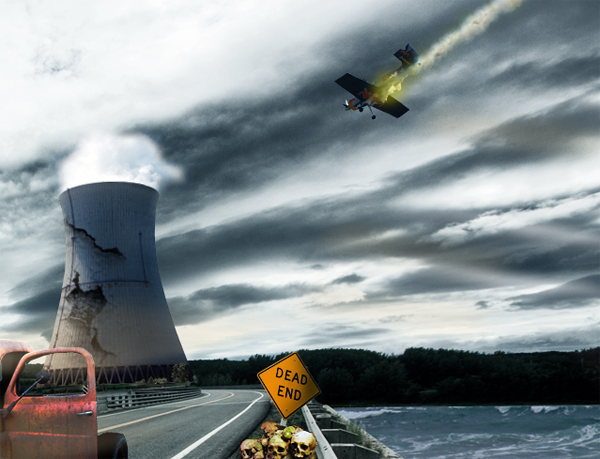
How to Create a Nuclear Disaster Landscape – Basix

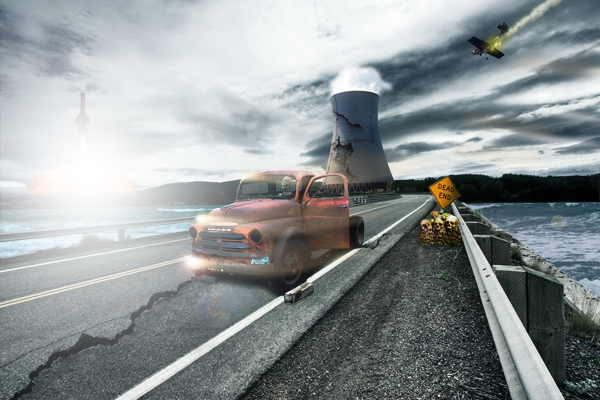
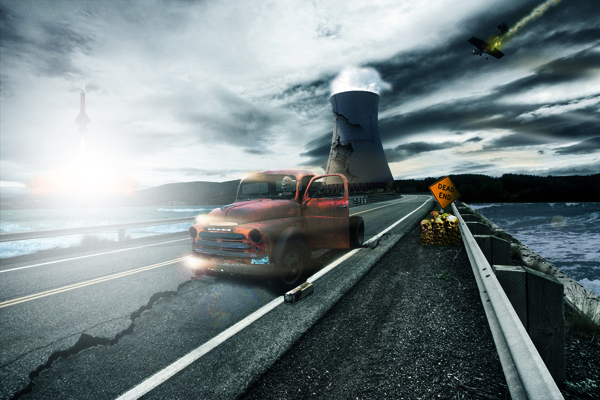
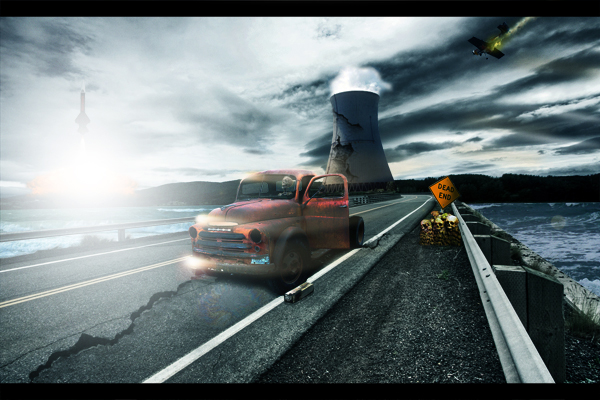
As designers we are often asked to create fictitious landscapes for whatever project we are working on. Creating an image such as this usually takes a combination of careful image selection and knowledge of Photoshop’s tools and techniques. In today’s tutorial we will demonstrate how to create a nuclear disaster landscape using a dozen or stock photos.


Resources

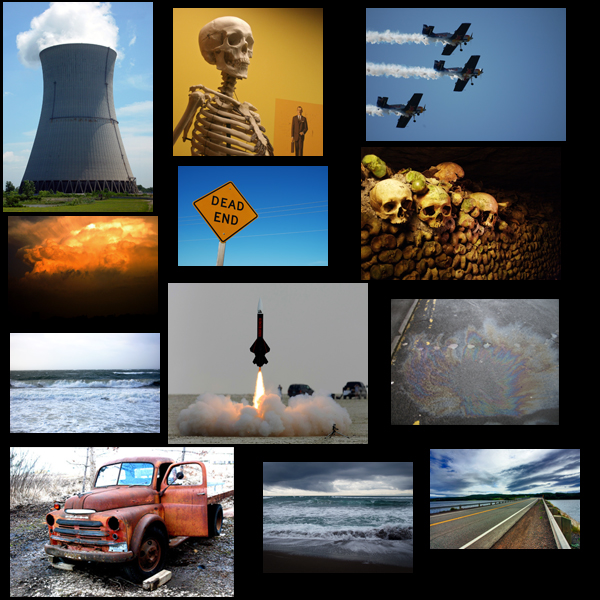
The following images and resources were used in this tutorial. They can be seen in the image below.

Step 1 – Adjust the Background

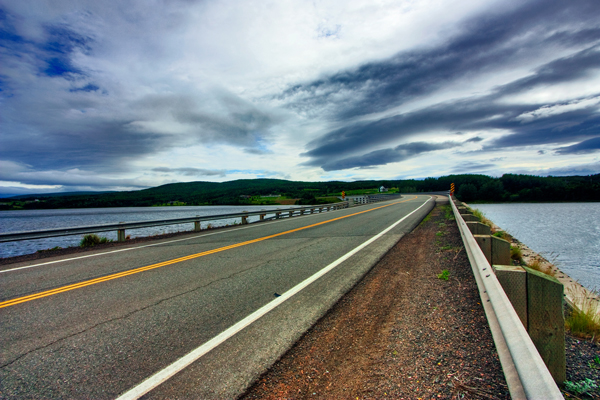
First, Open of the Road image.

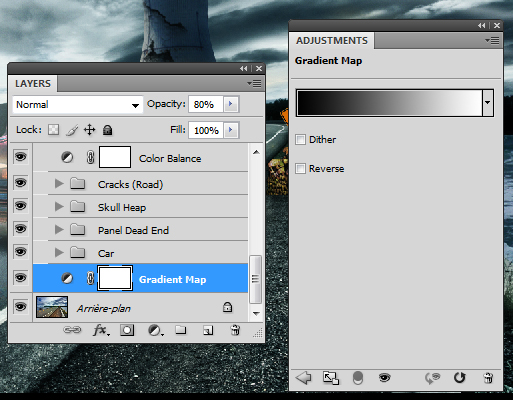
Use a gradient map by going to Layer > Adjustement Layer > Gradient Map to darken this photo a bit. Use the settings below:

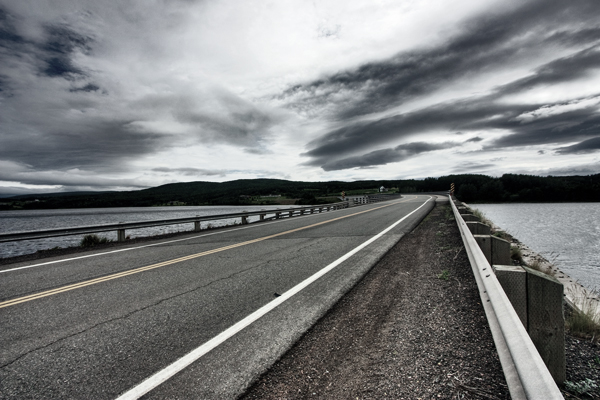
The resulting image should look something like this.


Step 2 – Add the Car

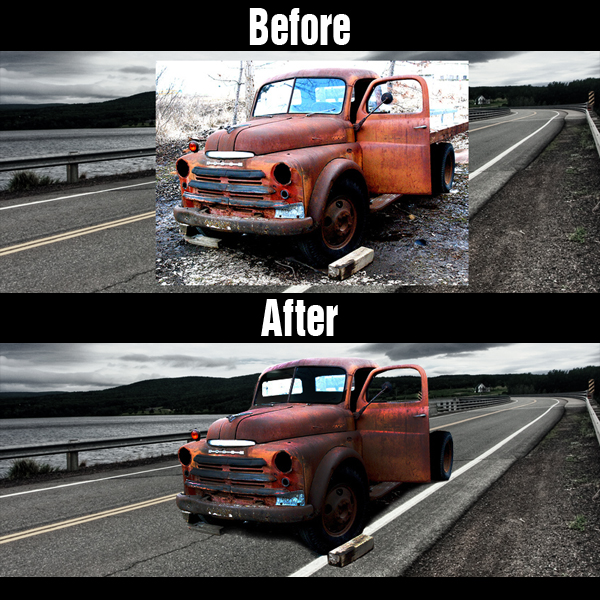
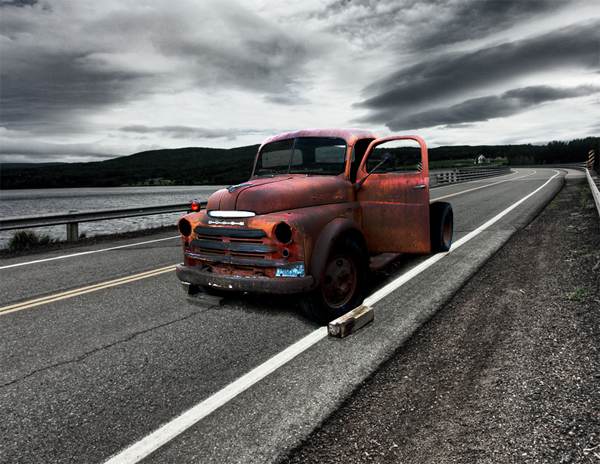
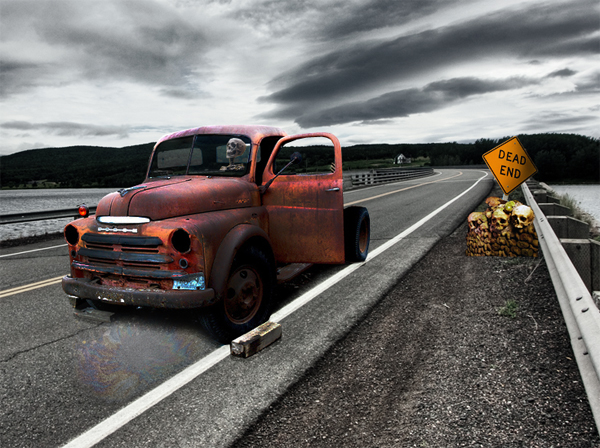
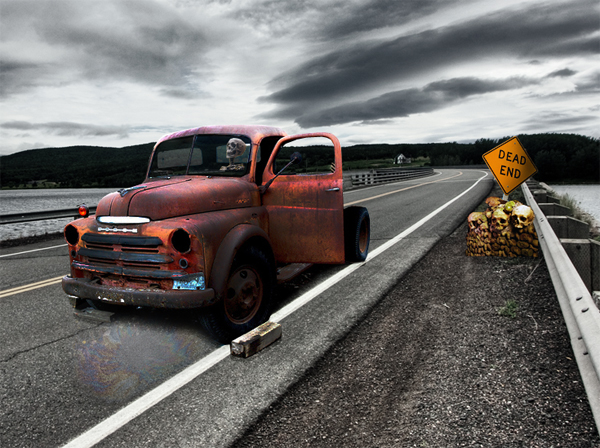
Now, open the Car Stock Image and copy and paste it into your working document. Name the layer “Car.” Use any method to remove the Car/Truck from its background.

At this point we also need to adjust the “Car” layer’s Brightness/Contrast. Go to Image > Adjust > Brightness/Contrast and set to -10/+5.


Step 3 – Add a Shadow Under the Car

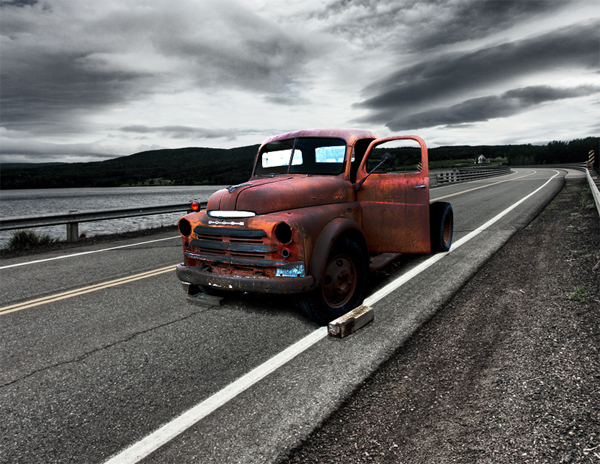
To create a shadow for the car, Duplicate the “Car” layer and place the layer under the “Car” layer. Name the new layer “Shadow Car.” Cmd-click to select the pixels of the “Shadow Car” layer and fill it with black by going to Edit > Fill > Black with 100% Opacity. Set this layer’s blending mode to Soft Light and move it slightly under the car as shown.


Step 4 – Adjust the Car Windows

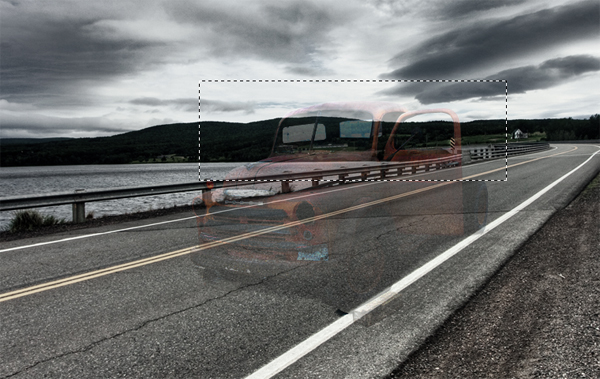
In this step we will make sure that we can see the background through the windows of the car. To do this, take the Rectangular Marquee tool and make a selection of the background layer directly behind the windows. If you need to, feel free to lower the opacity of the Truck to ensure that you are selecting the right spot. Paste this selection directly above the “Car” layer and hide it.

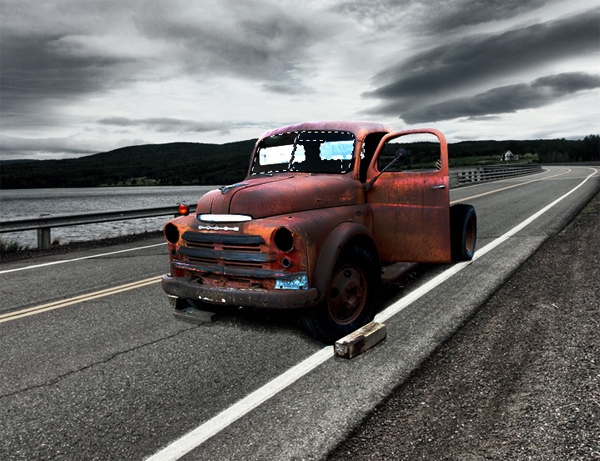
Make a selection of the windows of the car as shown below. Once your selection has been made unhide the selection of the background that you just made, make an inverse selection of the windows and press Delete. This should remove the excess area from your new windows.
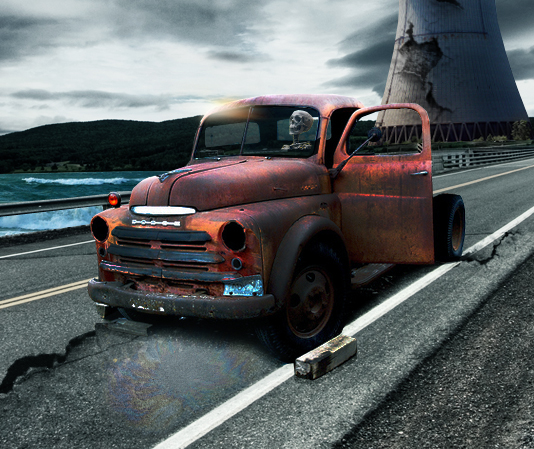

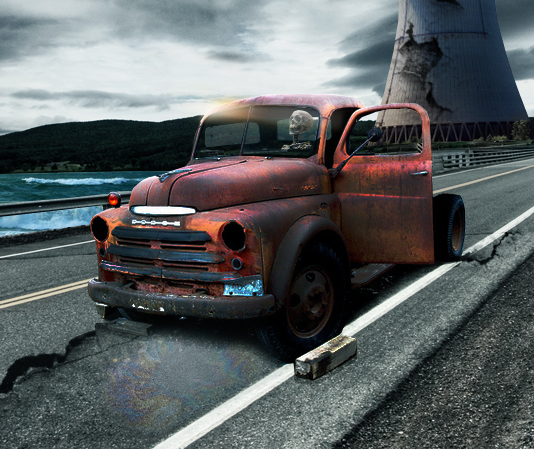
Step 5 – Add a Skeleton Inside the Car

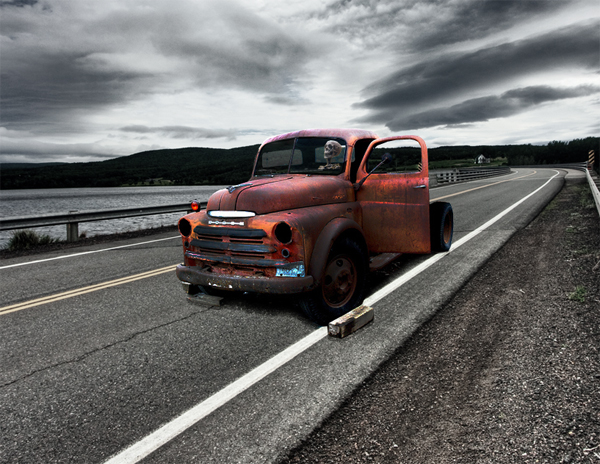
To add the skeleton, extract it from its background and then copy and paste the end result into your working document. Resize and position it as shown below. Place it above the “Car” Layer and Delete the excess areas. Lower the Opacity a bit and name this layer “Skeleton.”

Step 6 – Add a Pool of Gasoline

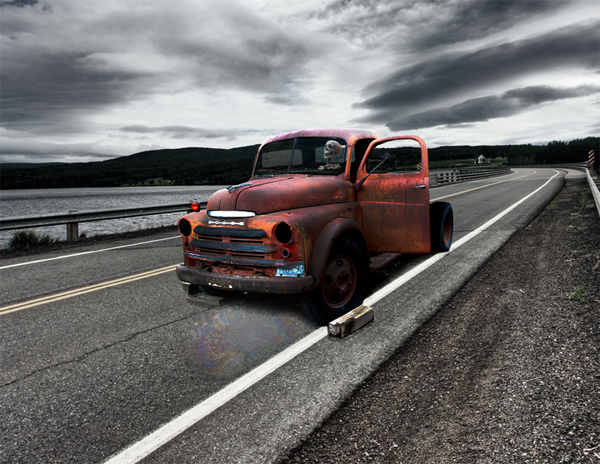
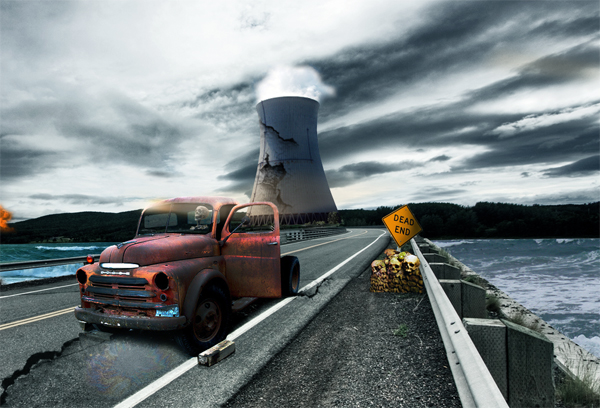
Paste the Gasoline photo into your working document. Resize, position and transform as shown below. Use a soft brush to erase the parts that you do not need. Now adjust the Brightness/Contrast. Name this layer “Pool of Oil.”

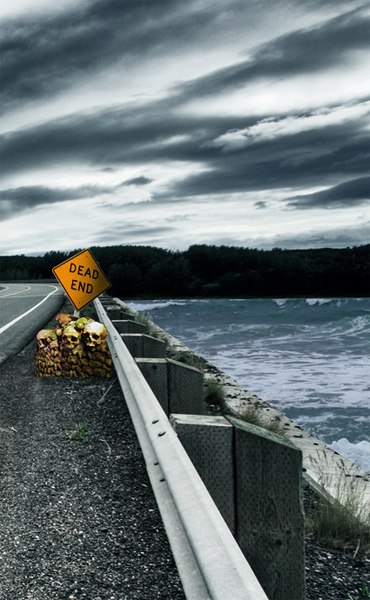
Step 7 – Add the Dead End Sign

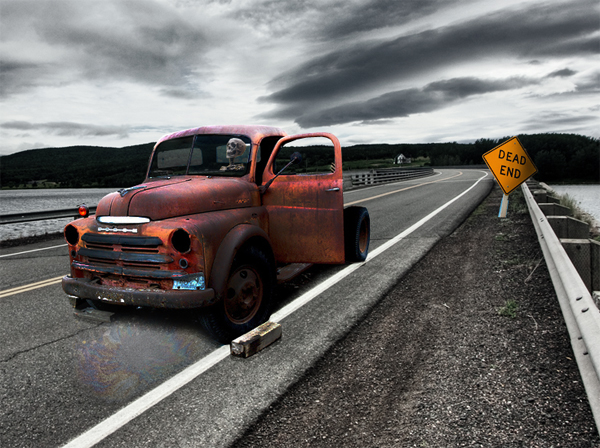
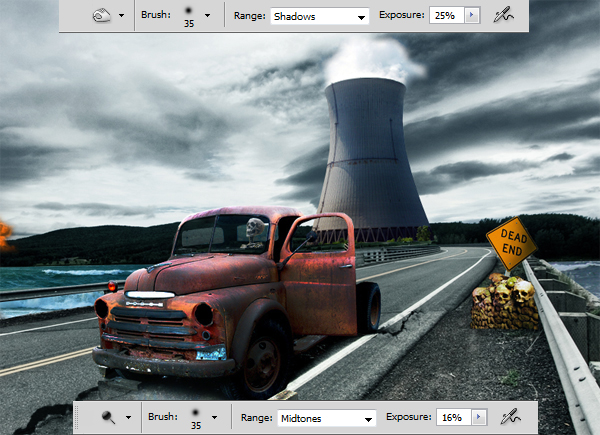
Paste the Dead End Sign into your working document and extract it from its background. Place it as shown below. Use the Burn Tool to darken the right side of the sign. Name this layer “Panel.”

Step 8 – Add a Skull Heap

Paste the Skull Heap image into the document. Extract it from its background as shown below, flip, and position it appropriately. Use the Burn tool to darken it a bit and name the layer “Skull Heap.”


Step 9 – Add Shadowing Under the Skull Heap

Add a shadow to the heap using the same technique that we used in Step 3. Name the shadow layer “Shadow Heap.”


Step 10 – Add Cracks to Road

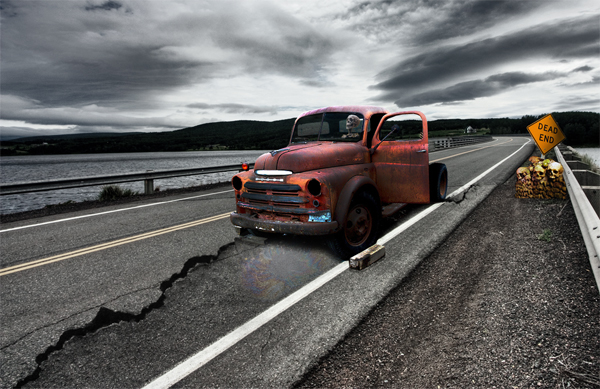
We want our road to look a bit less pristine. To break up the pavement we will use these Brushes. Select a black brush and place a crack as shown below.

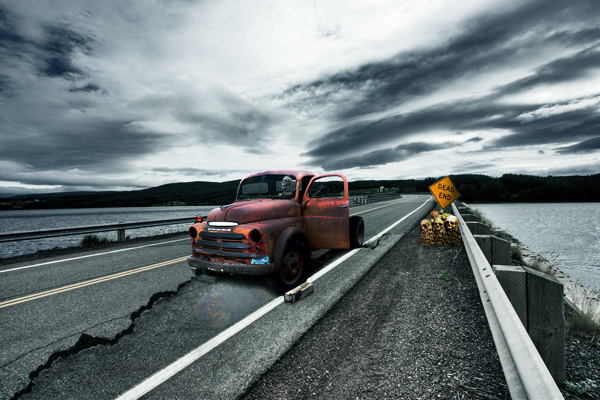
Step 11 – Add Color and Contrast

To add some color to add a new adjustment layer by going to Layer > New Adjustment Layer > Color Balance > -15/+10/+10.

Now add some Contrast by going to Layer > New Adjustment Layer > Brightness/Contrast > 0/+15.


Step 12 – Add a Nuke

Copy and Paste the Nuclear Missile into your working document and extract it from its background as best as you can. Resize and place it as shown below. Name this layer “Nuke.”

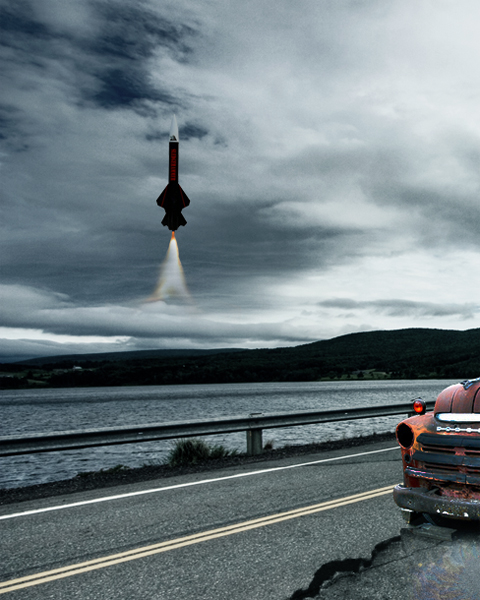
Step 13 – Add an Explosion Under the Nuke

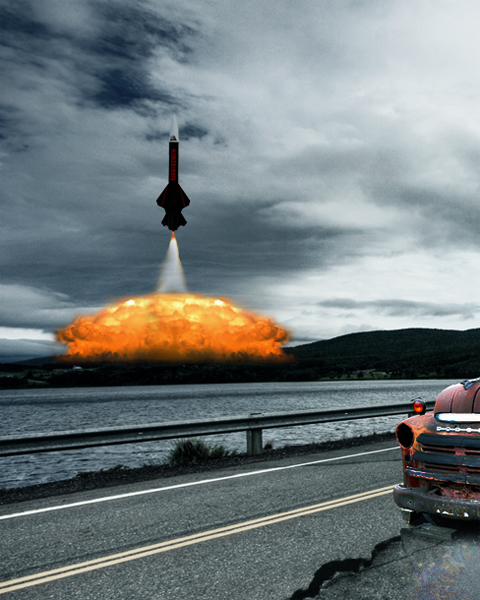
Now copy and paste the Explosion photo into your working document. Use a soft eraser to remove the unwanted areas of the explosion and place it as shown below. Name this layer “Explosion.”

Step 14 – Add the Shockwaves

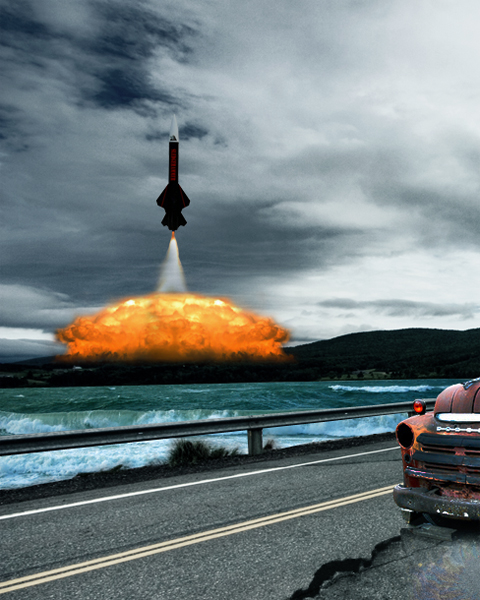
As you know an explosion would cause some shockwaves. You can add the shockwaves by copy and pasting a photo with some nice waves into the document and by erasing the unwanted areas. First do this on the left side and then do it on the right as well. Name each side “Left Water” and “Right Water” respectively.


Step 15 – Adjust the Shockwaves

Adjust the color of the waves using the Color Balance Adjustment under Image > Adjust > Color Balance and set to +19/-16/-8. Do the same for the "Right Water" layer.


Step 16 – Add a Nuclear Reactor

Now extract the Reactor from its background and paste it into place. Name it “Nuclear Reactor.”


Step 17 – Adjust Shading on Reactor

Use the settings below to adjust the lighting of the reactor using the Burn and Dodge tool.


Step 18 – Add Cracks on the Nuclear Reactor and Darken Vegetation

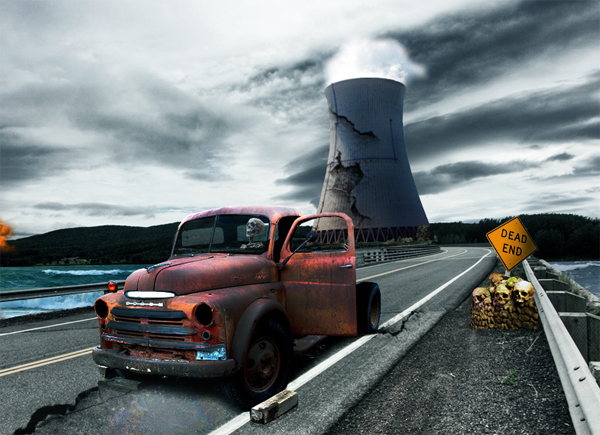
Using the same technique you used in Step 10, use the crack brushes that you downloaded earlier to apply some cracks to the reactor.

Now grab a black brush, lower the opacity to 76% and change the brushes blending mode to Color. Use the brush to darken the vegetation.


Step 19 – Add Lights and Smoke to the Roof

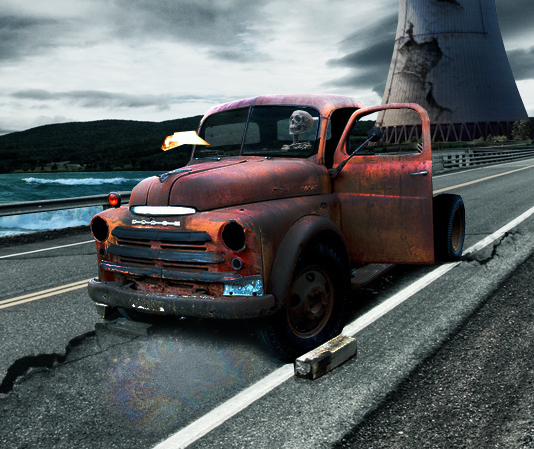
Find a photo of fire similar to the one placed on the roof below. Use a soft eraser to remove unneeded areas.

Next go to Filter > Distort > Motion Blur > set the Angle in the direction of your fire (in my case > 0), and the Distance to 24.

Next, take the Eraser Tool (E) and use a soft brush with low Opacity to erase all except the source of light, like this :

Name this layer "Roof Light 1", duplicate it, then go in Filter > Distort > Motion Blur, same Angle as before, but this time enter a Distance of 144. Replace it and lower the Opacity to 70%.

Duplicate “Roof Light 1” and name the new layer "Roof Light 2", set Opacity to 100%, place it next to “Roof Light 1” as shown.


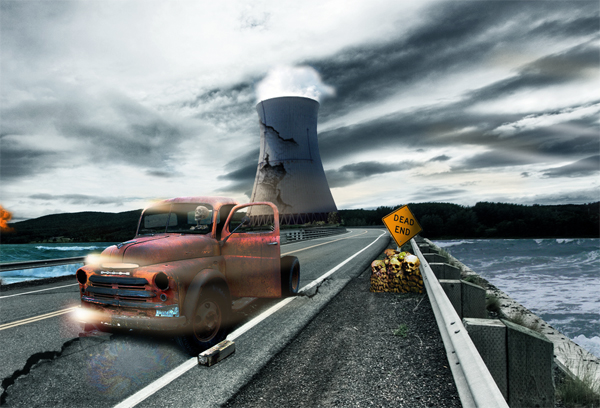
Step 20 – Add Lights and Smoke on the Hood and Bumper

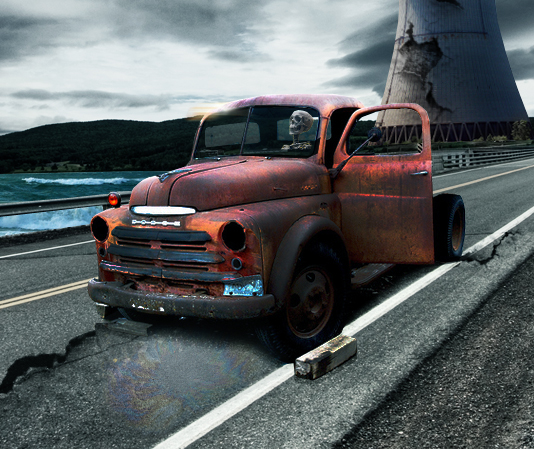
Use the same technique outlined in Step 19 to place some lights on the hood and bumper as shown below.


Step 21 – Add the Plane

Copy and paste the plane photo into your working document and extract it from its background. Resize the image and place it as shown below. Now apply a Brightness/Contrast adjustment to this layer using the following settings -20/+10.

Apply some shading to the plane using the Burn and Dodge Tools. Name this layer “Plane.”


Step 22 – Add Flames to the Plane

On a new layer, brush a strong yellow color using a soft brush over the smoke. Lower the Opacity to 36%. Name the new layer “Flames Plane.”


Step 23 – Add Nuclear Detonation

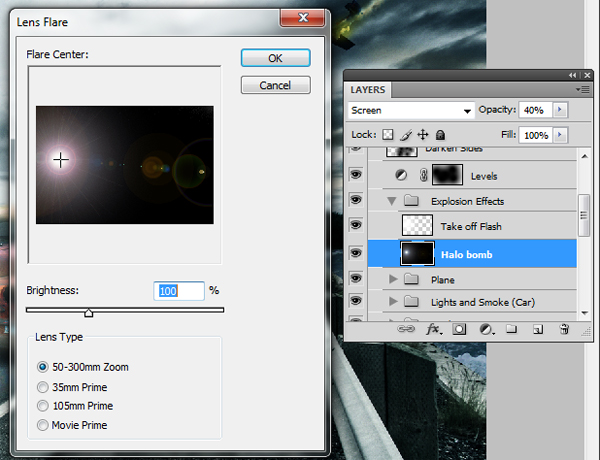
Create a new layer and fill it with black. Name the new layer “Halo,” and set the opacity to 40% . No go to Filter > Render > Lens Flare and use the settings below.


Step 24 – Touch Up the Detonation

Take a large soft white brush and paint over the flare that we created in Step 23.


Step 25 – Darken the Edges

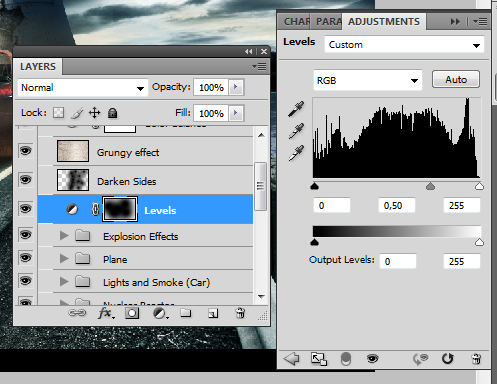
To darken the edges of the image create a new Levels Adjustment by going to Layer > Levels. Use the settings below. After that add a layer mask to the adjustment layer and take a soft black brush and paint the middle as shown. Set the layer’s opacity to 66% and its blending mode to Soft Light.


Step 26 – Add Grungy Effect

Now let’s add a layer of grunge to our composition. To do this, find a grungy texture and place it on the topmost layer. Set it to Overlay and lower the opacity to 10%. Name it “Grungy.”


Step 27 – Final Adjustment

Now add one last final adjustment layer. Go to Layer > Adjustment Layer > Color Balance and set to -10/5/+10.


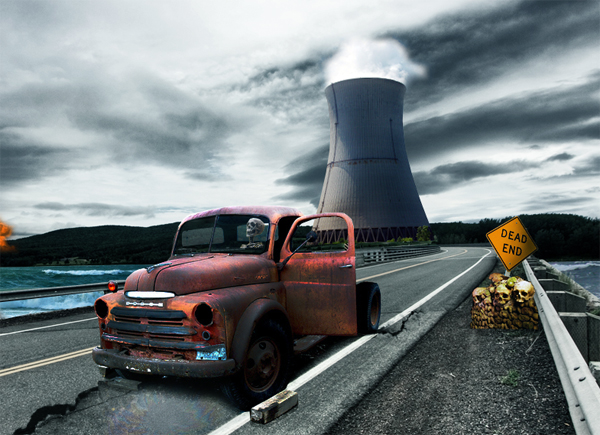
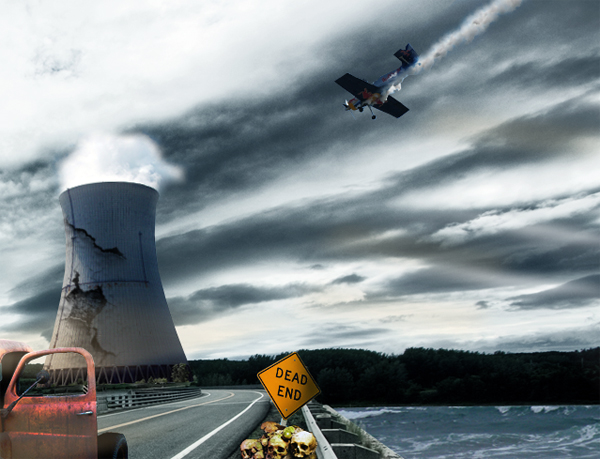
Final Image

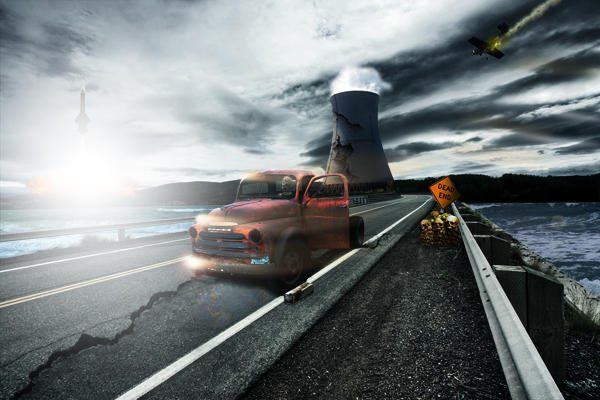
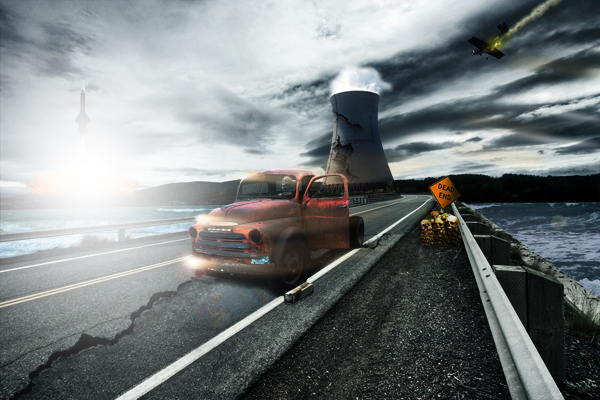
Take a look at the final image below.