I have an existing website and need some improvement on it in addition of designing a logo. (Budget: $30-250, Jobs: Graphic Design, Logo Design)

Freelance Projects, Design and Programming Tutorials
I have an existing website and need some improvement on it in addition of designing a logo. (Budget: $30-250, Jobs: Graphic Design, Logo Design)
Hello Everyone,
I have an extremely simple image editing work.
The only reason m outsourcing this is because i don’t have too much time.
Please see this image,
http://www.solomobi.com/pic/iphone%20W360/iphone%20w360%2001.jpg
I need it edited like this,
http://i25.tinypic.com/xqb6ah.png
I have attached the required layers too.
You will just need to copy and paste the layers at the right places.
I will pay $0.10 per image.
I have 300 images to be done.
I will deleted automated responses.
A sample would help to consider your bid.
For sample, you should use this image,
http://www.solomobi.com/pic/E9000/E9000%2005.jpg
Thank You.
Need my classifieds site f150ads.com to be redesigned (index page only) to look more like classifiedsgiant.com
1) Need new logo same color as classifiedsgiants
2) Need “Free Post An Ad” same place as classifiedsgiant just not exact same image (button)
3)Want same color header navigation bar. Nav links in this bar will be Home / Post An Ad
4) Want my search below header nav bar same as classified giant
5) Want text (provided by me) where the states drop down is on classifeidsgiant
6) Want catogories 3 wide and same colors as classifiedsgiant
7) Next to that need the states listed 2 rows wide on right hand side of page
8)Under catogories want the featured ads area
Simple form already created but need altered along with script. I want the results to go to the administrator and also to whatever Agent was selected from the drop down in the form.
Since the early release of the Adobe Creative Suite, integration between its products has been one of the key features. After Adobe’s merger with Macromedia, Creative Suite integration extended to cover products such as Flash, Dreamweaver and Fireworks. This tutorial demonstrates how we can use Flash, Photoshop, Illustrator and After Effects together to build a single project.
Integration between Adobe Creative Suite products improves your workflow through these applications by giving you the ability to move between each of them easily and efficiently. This is down to compatibility between them and the CS products’ ability to read common formats and objects. The unified interface is another side of the integration between products; once you learn how to work with one product, you will be familiar with the rest of the family.

Integration takes many forms in Adobe Creative Suite. The ability to take your work to mobile devices and test using Adobe Device Central is another form of integration as you can use the same application you run on computers on different types of devices. The third form of integration is the integration between designers and developers who work in the same environment, becoming familiar with the workflow of one other and the tools they both use.
This article will cover the integration between Flash and other Adobe Creative Suite products such as Photoshop, Illustrator and After Effects to give an idea of how these products efficiently integrate between each other. We will simulate a project to create an animated banner in Flash that uses resources from Photoshop and Illustrator. Also, we will use After Effects to enhance the Flash animation using the After Effects presets.
While this article jumps between Adobe Creative Suite 5 applications, you do not have to have much experience with these applications as we will only cover how to integrate workflow between each of these applications through our example.
Let’s take a look at the final result we will be working towards:
The first step is to create the base Flash banner file which will be the center point to integrate with Flash and Photoshop, Illustrator and After Effects.
Let’s create a document for the banner with 336px x 280px and with 30 fps speed. And set the background color to black from the Document Setting dialog box.

This document size will be the standard size for all the documents that we will create in Photoshop and After Effects, just to keep things neat.
After creating the flash document, we will produce the first animation in the banner using the Deco tool. Before going through the following steps, you can review a previous article that covers the Deco tool Using the New Deco Drawing Tool in Flash CS5. Now, let’s see the first steps of the animation:
Select the Deco tool and from the Deco tool options in the Properties panel, choose Grid Fill.
In the Grid options, set its properties as following:

Select the first frame in the Timeline panel and click with the mouse on the stage to create a random grid. In frame number 3, press F7 to create a blank frame and repeat the above step to create another random grid.
Repeat the above step every two frames for 20 frames to create an animation for random grid animation.

At this point, we will move to Photoshop to prepare the resources that we will use in the further banner animation.
In previous versions of Flash, there was only one method to import bitmap resources to Flash, it was through importing image formats such as JPG for best image compression and PNG for transparent images. However, importing multiple layered Photoshop files took much time to save each layer as a separate image and import it to Flash separately. The new PSD importer in Flash enables you import PSD files directly into Flash with a variety of options as we will see later.
In the following steps, we will import the Photoshop file Banner.psd to Flash using the Flash PSD import dialog box:
In the File menu, choose Import > Import to stage and choose PSD file. We will use the psd_banner.psd file from the Source download (link at top of the tutorial).

Let’s take a look over the PSD import dialog box and its available properties. The dialog box consists of the following parts:
The layers section, you can preview in this section the PSD layers in the document and check or uncheck the layers that you would like to import to Flash. Also, it gives a preview to the type of the layer. For example, the editable text layer has a T letter on the layer to identify that the layer is editable.
On the other hand, the bitmap layer includes a bitmap icon to show that the layer is not editable. And you can merge between two layers by selecting them using Shift key and pressing the Merge layers button.
Under the layers section, you can convert the layers to either Flash layers or keyframes. And, you can choose to place the layers in their original position and change the Flash stage to be as the same as the Photoshop file.
In the right section, you can set the properties of each of the selected layers in the layers’ section. At the top area, you can choose how to import the layers. For example, in the text layer, you can choose to import the layer as either editable text, vector paths or flattened bitmap image. Additionally, you can choose to import the bitmap layers merged with its styles or separated from it.
You can cover the imported layer to movie clip and give it an instance name directly from the PSD import dialog box without the need to convert it after importing it. At the end of this section, you can set the publishing settings for the imported layer such as the compression type and quality.
Now, let’s get back to our example and set the import options.
Set the PSD Import dialog box to import all the PSD layers as Flash layers and convert the imported layers to movie clips. Notice that the imported layers appear above the Flash layer that we previously created. Move the background layer to appear at the frame number 10 in the Timeline and the man layer to appear at frame 15
Extend all layers of the animation to frame 50, right-click the first layer and choose Motion tweening
Select the background image in the first frame of the motion and set its alpha to 0%, then go to the frame 15 and set the background alpha to 100%. Repeat the above alpha animation to the man layer movie clip to appear after the full appearance of the background.

At this stage, we have integrated Photoshop resources with a Flash project using the PSD Import dialog box. In the next stage, we will import resources from Adobe Illustrator.
While Photoshop is more specialized in bitmap and image editing, Adobe Illustrator is the best choice to build vector and illustration resources for your project. In this part, we will import vector resources to Flash using the AI import dialog box that will import the Adobe Illustrator file content as an editable vector layer.
During the following steps, we will import the Illustrator file Flora.ai from Illustrator to Flash and use it in the banner animation.
From the File menu, choose Import > Import to Stage and select the Flora.ai file. The AI import dialog box appears. Although it is similar to the PSD import dialog box, it has some additional features to give more options working with the Illustrator files such as the ability to choose specific Artboard and choosing to import the unused symbols or import the layers as single bitmap image.
In the AI import dialog box, make sure that the AI layer is selected and check the movie clip check box to create a movie clip based on the imported layer.

The imported vector is placed on a new layer, move the new layer behind the man layer.
Create a new mask layer and set the vector layer as the masked layer. In the mask layer, create a small movie clip for a cycle which will work as the mask for the vector floral and will be animated to reveal it.
Right-click the mask layer and choose motion tweening. In the first frame of the motion reduce the cycle movie clip in the center of the floral. In the last frame resize it to cover all the floral and reveal it under the mask.

Here, we saw how Flash integrates easily with Illustrator to bring vector resources to the Flash stage. We used the AI import dialog box which provides customized options based on the Illustrator imported file structure.
After this stage, we will create the text in Adobe After Effects and add it to the banner as the last stage in our integration example.
Whilst you can create text animation and effects in Flash, Adobe After Effects provides extended ability to create more effects either using the effects presets or create custom effects using the effects menu. In this example, we will see how to create text effects easily without knowledge of After Effect and export these effects to the Flash banner animation.
Open Adobe After Effects. Right-click the project panel (If it is not there, you can reveal it from the Window menu), and choose New Composition
Set the composition dimension and fps as the same as the original Flash size we created at the beginning of this tutorial

Use the Text tool to write the text on the stage and select it using the Arrow tool. Choose the Effects and presets panel on the right, if it is not there, you can reveal it from the Window menu.
In the Effects and presets panel, navigate for Animation presets > Text > 3D Text and choose 3D Fall Back Scramble & Blur

Press the space bar to preview the animation on the timeline. You can view the animation details by clicking the arrow next to the text layer in the Timeline. You can view the animation keyframes as well.
Before exporting the animation to Flash, we need to crop the area that will be exported from the timeline to only have the text animation. To crop the animation timeline, drag the Work Area End bracket at the far right of the timeline under the frame numbers and position it after the animation ends.

From the File menu choose Export > Adobe Flash Player (SWF). In the options menu, set the JPG quality to Maximum and Unsupported features to Rasterize.

The After Effects animation is not limited to text animation, as you can use it to create other animation effects and export them to use in Flash projects.
After exporting the After Effect as SWF, the next stage is to import the animation to Flash as animated frames. After Effects can support exporting content as a vector, but in some cases, it can’t read the vector information (such as when importing 3D content). To avoid problems, After Effects rasterizes the exported content as a bitmap sequence. In the coming steps, we will import the After Effect animation to Flash.
In the Flash animation, choose File > Import > Import to Stage and choose the text animation SWF that we previously created in After Effects.
The SWF is imported to Flash as a sequence of images; move the sequence images to start appearing after the man layer animation finishes.

We’ve seen that you can import the After Effect resources to Flash, but you can also import the Flash animation to After Effects as a SWF and apply effects to the Flash animation directly. You can then export it as a SWF or Flash FLV video from After Effects. In this case, you can apply the After Effects animation effects to the whole Flash SWF animation.
The purpose of this tutorial is in understanding the integration workflow between Flash and other Adobe Creative Suite products such as Photoshop, Illustrator and After Effects. By the end of this tutorial, you should be familiar with the cross workflow between applications in the Adobe Creative Suite.
I hope you liked this tutorial, thanks for reading!
In this Quick Tip, I will show you how to create a basic search application featuring the Google search engine.
Let’s take a look at the final result we will be working towards:
Using a TextField and some Events, we’ll send the search terms to Google and display the result in the browser.
Launch Flash and create a new Flash Document, set the stage size to 320x100px and the background color to #181818.


This is the interface we’ll be using, it includes an Input TextField and a button. Set the TextField instance name to searchTerms and the button to searchButton.
This is the class that carries out all the work, please read the comments in the code to fully understand its behavior.
package
{
	import flash.display.Sprite;
	import flash.events.MouseEvent;
	import flash.events.KeyboardEvent;
	import flash.ui.Keyboard;
	import flash.net.navigateToURL;
	import flash.net.URLRequest;

	public class Main extends Sprite
	{
		public function Main():void
		{
			searchButton.addEventListener(MouseEvent.MOUSE_UP, google);//Listens to a button release and executes the search function
			addEventListener(KeyboardEvent.KEY_DOWN, google);//Listens for the Enter key and executes the search function
			searchTerms.addEventListener(MouseEvent.MOUSE_DOWN, selectText); //Selects the current text of the textfield for an easy input
		}

		//Notice the * (special type), this allow the function to be run by different types of events, avoiding the creation of separate functions with the same code

		private function google(e:*):void
		{
			if(e.type == "mouseUp")//If called by a MouseUp event
			{
				navigateToURL(new URLRequest("http://www.google.com/search?q=" + searchTerms.text)); //Search google
			}
			else if(e.keyCode == Keyboard.ENTER)//Called by Enter key
			{
				navigateToURL(new URLRequest("http://www.google.com/search?q=" + searchTerms.text));
			}
		}

		private function selectText(e:MouseEvent):void
		{
			searchTerms.setSelection(0, searchTerms.length); //Selects the current text in the Textfield
		}
	}
}
As you can tell by reading the code, the key is the Google URL that lets us add the search terms to the query, this is http://www.google.com/search?q=[search terms here].
You can also try this example with different search engines such as Yahoo! for example: http://search.yahoo.com/search;_ylt=?p=[search terms here] or ActiveTuts: http://active.tutsplus.com/?s=[search terms here].
Remember to add the class name to the Class field in the Publish section of the Properties panel.
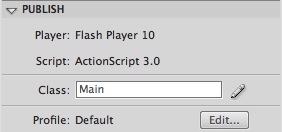
You can create simple and effective search boxes using this technique, try different search engines and create your own search box!
I hope you liked this tutorial, thank you for reading!
In this tutorial, Jarlan Perez covers the process of unwrapping a hard-surface model in 3DS Max. Covering the importance of keeping UVs clean and stretch free, Jarlan also looks at how to keep the process as simple as possible, whilst at the same time giving you full control over the results.
In the download you will find a folder named “Max Scene.” Inside the folder are two Max files – the start and end files for this tutorial. You can either follow along with the start file scene, or with a model that you’ve created yourself.
Let’s get started! Go ahead and launch 3Ds Max and open the “unwrap_Start.max” file. Inside you should see an unshaded wall shelf object. This object is not super complex but it has enough faces and different shapes to allow me to show the different techniques and how to apply them.

We’ll begin by setting up a checker pattern. A checker pattern? Why in the world do we need a checker pattern? Well it actually will become a very important part of our unwrapping process. With the checker pattern applied we can visually see where stretching is occurring in our maps, and go on to easily fix the problem.
Go ahead and open the material editor by going to Render > Material Editor in the top menu of Max or by simply hitting the shortcut M.
Once in the material editor, select a material slot (Figure 1 in the picture below) in which to build you checker pattern. Next, under the Blinn Basic Parameters, you’ll see three properties named Ambient, Diffuse, and Specular.
We want to add our checker pattern in the Diffuse property. Click on the little Diffuse square (Figure 2 in the picture below).

Clicking that square will bring up the Material/Map Browser. From that list go ahead and double click on the Checker map.

Now that the map is loaded into our material, we want to setup tiling so that we can see a little more clearly where stretching will occur. Under the Coordinates section locate the U and V Tiling and change the 0 to a higher value like 20.

Click and drag the material you just created over to your model.

Even though we dragged the material over to our model it still shows up grey. To make our checkered material visible we have to toggle on one more setting. With your material selected click the Show Standard Map in Viewport button (shown below). The checkered pattern should now be visible in the viewport.

Looking at our model we can see that there is some very bad stretching going on. We’re going to fix that now!

First and foremost we’re going to have to add an unwrap modifier to our model. To do this, go to the Modifier dropdown menu and select the Unwrap UVW modifier.


Once you’ve added the modifier, we’ll be able to edit our model’s UVs. In the Parameters section of the Unwrap modifier there’s a big button called Edit… (shown below) Go ahead and click that button to bring up the Edit UVW window.

This window contains all you UV information for your model. As you can see the UV layout is all over the place and it’s very hard to tell what is what (shown below).
Trying to texture a layout like this will get you terrible results and bring about lot of frustration. So we’re going to be laying them out in a way that allows you to know exactly where everything is, which will make your texturing process a lot simpler.

3Ds Max has a nice little way to automatically flatten every single face in your model and make a perfect starting point for laying out UVs for hard surface models. To begin flat mapping, in your Unwrap modifier select face (shown below) from the drop down or hit 3 on your keyboard.

Once you’ve done that, move over to your Edit UVW window and select everything in there either using click, drag, select, or by simply using the shortcut Ctrl+A.

Next go up to the top toolbar and click on Mapping > Flatten Mapping…

This will bring up the Flatten Mapping window. In this window you’ll find several properties, however I tend to leave these at default when I use this method, as it’s only really being used as a starting point. Go ahead and leave the settings as they are and click Ok.

As you can see our UV layout is already much cleaner that it was previously, and you can now identify specific areas of the model. It’s still not perfect though, and we’ll need to arrange thing a little better so as to take advantage of as much of the UV space as we can.

Before we continue with our unwrapping let go ahead and set up a shortcut for the Stitch Selected command, which will make our lives much easier during this process. In the top menu of Max click on Customize > Customize User Interface…

In the Customize User Interface window locate Stitch Selected from the list (figure 1 in the image below). Once you find it we’re going assign a hotkey shortcut to it. In the Hotkey field you can add whatever shortcut key you want to make it. I personally use the letter S just because it makes sense (figure 2 in the below image). Once you’ve added this in, click the Assign key to make it official (figure 3 in the below image).

To make sure that your shortcut has been assigned, locate Stitch in the list view again. The key combination we just added in should appear next to it.

So what does this Stitch thing do? It’s simple. First select the edge option in your Unwrap modifier. Now if you select any edge in your UV map, it will show you any other edges connected to it on the 3D model, by highlighting them in blue. For instance in the image below, our red selected edge is connected to the top blue edge on our model. The Stitch command re-arranges the UVs so that these two edges sit correctly together in the UV map, and then Stitches them together.

Start selecting edges, remembering to look for the blue highlighted edges on disconnected UV sections. When you find one, hit Stitch to bring them together. Once you’ve done this several times, you’ll see something similar to the image below. In it, the only highlighted edges are already attached to the same UV section, and don’t require stitching! That’s when you know that you can move on to the next area.

Continue moving from piece to piece, stitching all of the disconnected sections together as explained above.

After going through the entire object and stitching all of the disconnected pieces together, you should end up with something similar to the image below :

Looking at our model now we can see that it looks much better than it did before. However, there is still some stretching going on in our UVs, but this is a simple fix.

In the Edit UVW window toolbar we can find several Scale tools. In the image below, figure 1 scales everything uniformly in all directions, figure 2 scales your object horizontally, and figure 3 scales your object vertically.

Go through your model and find the areas where stretching is happening and correct them with the scale tools, by scaling the connected UV sections. Note : Make sure to select the entire sections, not just individual polygons as that will add even more distortion into your map!

Once you’ve finished scaling all of the sections, your checkers should be as close to perfect squares as you can get them. Having them square is a sign that you have a very minimal amount of stretching in your textures.

We’re almost finished! The only thing left to do now is to organize the individual UVs so that they fill up as much of the UV space as possible. The more space we can get them to fill whilst maintaining square, evenly-sized checkers, the more resolution we will be able to have in our final texture maps, which is only a good thing! Right now however, our pieces are everywhere.

Go back in and use the previously mentioned scale tools to fit all of your pieces inside the UV border as best as you can.
You can scale larger or smaller depending on your needs but make sure that your checker squares stay as close to the same size as possible. This will ensure that you have an even distribution of quality/resolution when you add your final textures to your model. If one area takes up a lot more of the space, it could look a lot sharper than the other sections in the final render.
The thing here is consistency so try to keep the sections as close to each other as possible as you can without overlapping!

Once you lay everything out as suggested above you are all set to start texturing your model!

I hope this demonstration was helpful and if you have any questions feel free to leave a comment below!
Don’t miss more CG tutorials and guides, published daily – subscribe to Cgtuts+ by RSS.
In the third and final part of this detailed 3-day Premium tutorial series, Alvaro Castañeda continues showing the workflow he uses to integrate CG elements with live action footage. With the skateshop built and textured, it’s now time to light, render and then put everything together using Maya Composite. ‘The Skateshop’ is an unmissable tutorial for anyone looking to learn a PFTrack, Maya and Maya Composite VFX workflow! Can’t wait to get started? Become a Premium member, or learn more after the jump!
With the footage tracked and the skateshop modelled and textured, the first task is to add scene lighting that matches our backplate. With that done we’ll take a look at rendering out multiple passes, and finally we’ll composite everything together to create our final shot!
The Tuts+ network runs a membership service called Premium. For $9 per month, you gain access to exclusive high quality screencast tutorials, downloadable content packs, and freebies at CGtuts+, Psdtuts+, Vectortuts+, Audiotuts+, Nettuts+ and Aetuts+! For less than the price of a movie, you’ll learn from some of the best minds in the business all month long!!. Become a Premium member today!
Don’t miss more CG Premium tutorials and content packs, published weekly – subscribe to Cgtuts+ by RSS.
In a previous article, I supplied you with a recipe for the world’s best frozen margarita. Along this same spirituous vein, I am here to unveil another killer recipe – but this time for a cosmopolitan. Cosmos are extremely popular these days, and if you follow the cooking and drinking scene you’ll note that a very popular fruit which has been gaining more and more notoriety is the pomegranate. Pomegranate juice is readily available in stores and is one of the ingredients for this drink. So, without further adieu, I present an awesome Pomegranate Cosmopolitan recipe.
Add the following ingredients to a cocktail shaker:
Shake thoroughly and strain into a glass of your choice. This recipe should make at least two decent size cosmos. I like to use the stemmed triangular glasses for this drink. I also like to serve it with ice in the glass, but that is your choice. You could just use the leftover ice that is in the shaker.
No matter which way you choose to serve it, relax and enjoy…and let me know how you like it!
Overcoming writer’s block is hard – really hard. You could spend hours staring at that blank screen and not even come up with the title for an article. I’ve suffered through it many times since I started contributing actively to my own blog and various other sites.
Although a writer’s block could fade away with time, it is better take some immediate measures to battle it as it strikes and get started with writing without significant loss of time. This article talks about how to overcome writer’s block by temporarily shifting your attention to something else, possibly unrelated.1. Stop Thinking and Write Anything
The thinking process can sometimes prolong the block. A better way out is to stop thinking and start writing…anything. Just anything. It doesn’t need to center around the topic you need to write about. At the moment your primary aim is to get into the flow. So just start churning out the words without thinking.
Shut down the computer for a day and take a trip to a local destination of your choice. Take a small notebook and a pen along with you so that you’ve got something to jot down in case the ideas begin to show up.
Download some podcasts that relate to the topics you love and listen to them. You could also put them on your iPod or mp3 player and listen while on the go.
Listening to music is something you should do as often as possible. Research has it that music tickles the brain to increase the flow of creative juices. It might help you get rid of writer’s block too.
Admit it, you hardly watch TV. Who needs it when you’ve got services like Hulu? Well, try something a little different. Watch TV on a TV.
Wipe the dust off those books in the shelf and start reading. Another thing you could do is to go out and get an issue of a magazine like Wired, instead of visiting the online version.
Browse the web aimlessly. Read stuff on Wikipedia, political sites, tech blogs, news…whatever. Just browse and read.
Talk to a friend. Better if he’s a writer too, or someone who knows enough about what you do. Tell him about your situation. Discuss various topics related to your work. And you might just start getting those elusive ideas.
I’m sure you’ve got a lot of stuff – like pictures, documents, books and all stored in your hard drive. This is the time to scour through them.
If you are like me, you’ve tons of ebooks downloaded on your PC. And you never got the time to read them. Now, when you’ve got nothing to write, why not check those ebooks and start reading them.
Dig into your email account and re-visit the conversations you had with your contacts, the ideas you shared and the things you discussed. Reply unread emails, if any.
This is a good time to take a look at the long list of bookmarks you’ve got saved in your browser. It’s likely that you never visited them again after saving. Check them out.
Why spare your neglected Del.icio.us account. It has a huge list of bookmarks too, isn’t it? Check them out too.
Not the time to look down upon these services as mere distracting tools. You need them now. You need them to provoke the idea-generating portion of the brain (which one-left or right?). So login and start interacting. Also, see what your friends are sharing.
Videos, especially those on TED, make you think differently and thus produce ideas you’ve never had before. YouTube isn’t bad either.
A picture can tell a story. And you need to write that story. Hence seeing that picture is essential. Flickr will help you do exactly that.
Got 1000+ unread items in your RSS reader? Got some blogs which you never happen to check? Go through them now.
If any of you wonderful folks have been following my WorkAwesome articles, you would find that I tend to pick up ideas from blog comments. And it’s a good practice because in you end up writing about what the reader wants to read.
Organize your workspace and declutter your desktop. You might come across ideas while doing it.
Brainstorming through charts and mindmaps could be a nice way to get into the flow.
Done all of it, and still can’t find anything to write about? Don’t worry, take it easy. Just let go. Give your mind the time it needs. The flow will come eventually.
“I don’t have time for this!”
How many times do you say that every day? Likely too many. Many of us keep wondering how we can squeeze in some extra time during our 24/7 work schedule to help reduce the long list of pending tasks.
Well, the number of hours in the day are not going to increase. So, it’s up to you to create that extra time you need. The following six tips will get you started on making the most of the time you do have.
If you think multitasking will get things done faster, think again. Focusing on one thing at a time is a more productive thing to do. You’ll end up finishing tasks faster.
Learning how to delegate work is something I’ve already recommended. Don’t try to do everything yourself. Get help.
Outsourcing chores and errands would be a good idea as well. There are services like DoMyStuff that help you with it.
Try to simplify all the areas of your life – be it your home, your office, the tools you use everyday, things you consume…everything. Focus on eliminating non-essential items that suck up your time.
As James Chartrand mentioned in a previous WorkAwesome post, being productive in the real sense means focusing on quality instead of quantity.
If your commute time is significant, you could ask your boss to let you work from home. If you can convince her that you’ll be more productive, she might agree.
Being “good at what you do” is an asset to your career, and it fosters a great attitude and a solid self-esteem boost.
But, unfortunately it’s not enough to get you a promotion. In fact, if you’re excelling at your current position, it might be a good reason to keep you where you are instead of promoting you. It’s quite the conundrum; if you’re great at your job, your company might never dream of putting you anywhere else.
So, if it isn’t excelling at your work, then what makes someone “promotable”?
Quite a bit of research has been done on promotability. We’ve also discussed different strategies to move your way up. Although it’s difficult to conduct fact-based research on it, they have come to a few general conclusions on how to get promoted:
So, how do we get promoted? Ironically, it sounds like we have to break a few rules.
Moving into a new house or apartment is stressful enough. But when you work from home, and you’re moving both your household and your home office, things get a whole lot hairier, as I discovered during my own move earlier this summer. It’s been a few weeks, and things are finally (!) starting to settle down and I’m getting settled in my new home.
Here are some of the strategies I picked up during my recent move:
As much as possible, I tried to anticipate the projects I had coming up around the time of my move and complete them early. Depending on the relationship with the client, I might send it in early to wow them or hold off to give myself more time to proofread and polish the assignment. And for the sake of my sanity, I tried not to schedule any important deadlines close to my moving date. Packing and repainting is stressful enough without worrying about missed deadlines! I also made sure to schedule my wifi installation at the earliest opportunity so I wouldn’t be stuck without internet for long.
Obviously, if you have people snail mailing checks or other important documents to your home, you’ll want to alert them well in advance of your move and file a change of address form with the post office. This also gives you an excuse to reconnect with clients and see if they might have any projects coming up before or after your move. If you anticipate being unavailable for more than a day or two, then let your clients know and try to find a trusted colleague who can cover for you if necessary. Some people also include effective dates and new addresses in their email signature (for safety reasons, I only give out my address by request). If you’re worried about things getting lost between the old and new address, you can also set up a PO box to ease the transition. Since I had some overlap between my old and new place, I was able to go back to my previous apartment and check the mailbox one last time for peace of mind.
Most of us have extra home office equipment or supplies lying around that we don’t really need. Ditto on miscellaneous paperwork, magazines, and so on. Moving is a great opportunity to purge the excess stuff and set up your new space so it’s organized and tidy (not to mention that if you’re moving yourself, you’ll appreciate fewer boxes to carry). I sold a bunch of items on Craigslist so I could buy newer, nicer versions of the things I really need and say sayonara to the rest. Freecycle is also an option for people who have random home office supplies or old computer equipment they don’t need.
When it comes to packing, the usual wisdom is to pack each room separately and label each box carefully. But the reality is that most of us pack in stages (or we find ourselves frantically throwing stuff into boxes at 2am the night before the movers arrive). I wanted to cram as much as could safely fit into each box, so if there was a hairdryer-sized space left in a box of books, I’d pack that baby with the books (after all, it’s all going the same place). The one exception was my office. The contents of my desk were packed last and lovingly labeled “Susan’s Office” so I could quickly find them later.
Sure, it’d be nice to immediately find places for my colander or my cream-colored shift dress. But each time I’ve moved, my goal has been to minimize downtime, so I set up my bed (after all, a girl’s gotta her beauty sleep or she’ll be too groggy to please her clients) and office areas early on. First order of business? My laptop and printer/scanner. I also make sure I know where to find extra printer paper, business cards, pens, and paper clips so I don’t waste money buying extras. Even if your laptop is propped up on big brown boxes and your office supplies are stashed in a Tupperware container because you’re waiting for your brand new desk to be delivered, clients will never know the difference. If you’re one of those people who truly can’t work amidst chaos, then you might want to work in a coffee shop or a coworking space in your new neighborhood. That’ll come in handy as you get settled, too.
What about you? Have you moved recently or are you gearing up to relocate? How did you handle this situation?
Hi, I’m Carl, and I’m a blogger.
I really started blogging back in 1997 when I created an e-mail newsletter for the newspaper. I would start each daily e-mail with some personal insights then list the day’s headlines. I didn’t know it but it was blogging.
I thought I could quit whenever I wanted. But I kept posting updates. And that led to Facebook and Twitter accounts.
So now I’m very comfortable sharing personal aspects of my life with complete strangers. But some people I share my life with aren’t social media exhibitionists. They don’t blog, tweet, friend or check in. And they’re not thrilled to be part of my social networks by associations.
We talk a lot about balancing work and life. But how well do we balance internet life with real life? Do you need to keep your personal relationships quarantined? Here are some tips for achieving harmony:
On your first date, confess your blogging and social media habits. Your date needs to know that this may be the subject of a blog or Facebook update. Better yet, give them veto power. They need to be able to express discomfort and keep their private life private.
Set up ground rules with the people in your life. Understand what they don’t want revealed to the world.
No matter what the rules are, your friends and family will appreciate if you ask before you blog.
Your personal life can have a lot impact on what you write. You can use personal anecdotes to add punch and protect the shy members of your life. Instead of using their names, identify them as “My Better Half” or “No. 1 Son.” Give them a little bit of cover.
We’ve all thought of the perfect comeback after losing an argument or point in a debate. Social media offers a chance to make that point after the fact. Which really isn’t fair. And don’t write anything you wouldn’t say to someone’s face.
Even if it’s totally professional, you want to consider the people at work and clients part of your private life. They may not appreciate reading about themselves in your blog or Facebook timeline. Ask.
Do you have rules to separate your real and social media lives?
Being a software professional for the past 20 years or so, I have found that I cannot leave my work at the office. I am constantly trying to figure out answers to problems that I may have at work.
In fact, more often than not, on the drive home, I tend to solve a problem that I may have been having all day long. Even though I do bring my PC home with me, I may not even turn it on while I am at home. Simply the process of leaving the office, and getting away from the workplace environment, stirs something within my mind that allows me to figure things out.
Where do you find is the best place for solving work problems?