An arranger often needs to create a guitar solo track. When there is no guitar (or guitarist) available, he needs to apply various VST instruments, samplers, and so on. His hardest task is imitating live guitar playing techniques with controllers. Especially the most unique and “tasty” guitar sounds – those made with string bending and glissando (sliding up and down the neck).
It is important to understand the difference between imitation of these two techniques. Usually, bending imitation is achieved while playing MIDI-keyboards using the pitch wheel in real time. Definite skills are required here, and we’ll discuss them in the upcoming tutorials. Imitation of the sliding technique with the pitch wheel, on the other hand, is rather difficult, as the pitch is not altered slowly, but quickly and unevenly (imitating the sliding finger as it comes into contact with each fret on the guitar neck).
The size of alteration is always the same – one semitone, no more and no less. It’s impossible to be this precise with a pitch wheel only. Working in MIDI Editors (like Cubase 5) makes it possible to achieve the correct pitch change only with help of Key Editor window (different programs call it Matrix Edit or Piano Roll window) by using a drawing instrument (Draw or Pencil Tool). Exact calculation is essential in achieving the most realistic result. That is exactly what we will learn in this tutorial.
I’ve created for you some examples of the described sliding imitation technique, combined with some other tricks – like string bending imitation. As you work through this series with me, you’ll learn to produce these sounds too.
Download audio file (example-1.mp3)
Download audio file (example-2.mp3)
Well, are you ready? Let’s start!
Note: This tutorial is good for any MIDI editor you use. I tried to make it as universal as possible, mentioning the commands, controllers, and window names of most programs – they may differ by name, but their functions are similar. I also explain the distinctions of programs with alternative system of numeric values. This makes the tutorial longer – but this way you can use it for your preferred MIDI editor. That is why you’ll sometimes find screenshots from several programs at one step. Enjoy!
In Part 1 we’ll discuss the small range of sliding – glissando for two semitones. The actions we take depend on the glissando range we need. This range – two semitones – is quite a popular one, so we’ll start with it first, moving to wider range of sliding in future tutorials.
Step 1
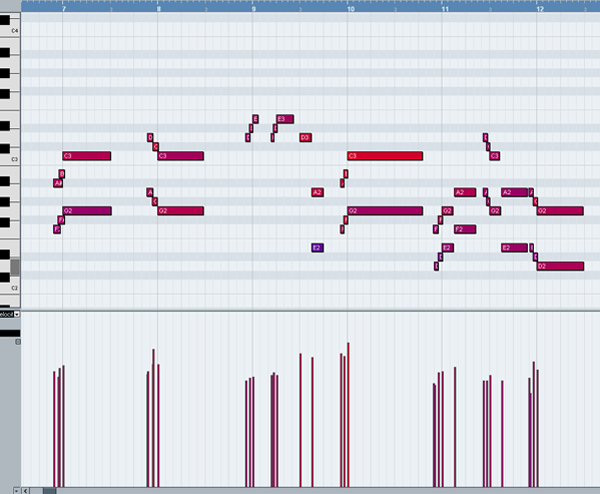
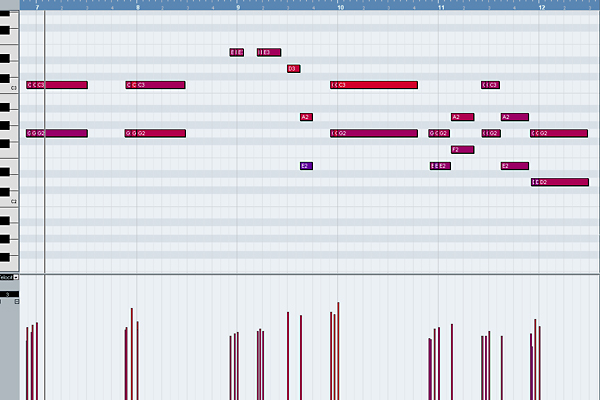
The first step lies in playing the music fragment as if sliding to every new fret the “guitarist’s” finger reaches is played as a new separate note (refer to the image below). The resulting sound is quite recognizable as a sliding sound, but it does not sound realistic at all, does it?
Download audio file (1-1.mp3)
Make a copy of this fragment or track or object (various programs use different terms), so that later (in Step 7) we can recover some event attributes – in particular, the time of the notes’ beginning (“Note On”). The thing is, we are about to make some changes, and later we will refer to altered numbers.
Step 2
In the main field of the Piano Roll window let’s change some notes included in every glissando. As we’re talking about glissando for two semitones, there are three notes included in this case: the source note (1st), middle note (2nd), and the last one (3rd) – the main (target) one, that is usually longer than others. The first source note is 2 semitones lower (or higher, depending on the sliding direction) than the target note, the second middle note – only one semitone lower or higher. Pitches of these notes must become equal with the main note.
We will return the initial pitch to these notes in the next steps, using a different approach.
Step 3
Now it is important to combine the notes with the altered pitch (from the previous step) with the main note using the Glue or Merge Tool. Otherwise, we’ll have separate plucking sounds – distinct notes. Our task is to imitate sliding on the guitar string, where there is only one pluck involved – when playing first note. The sounds of the other notes come not from the contact of finger and string, but from the intermittent changing of the length of the string.
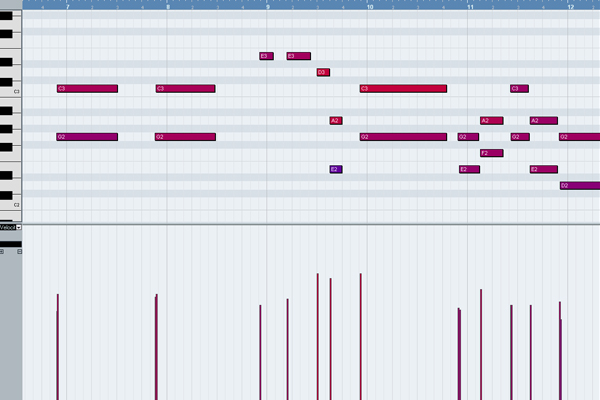
Therefore, the other two notes do not need to have the specific features of the beginning of the sound (be it sampler or synthesizer). That is what we just made – only one sound is extracted, as we see on the image below.
Step 4
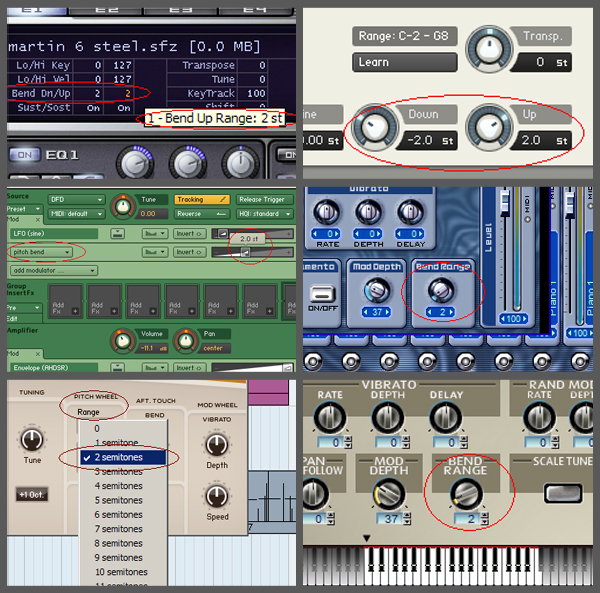
Make sure that on the VST Instrument or sampler you use the value of the Pitch Wheel range = 2, which means that maximum shift of the pitch wheel will result in changing note pitch to 2 semitones. Most (but, unfortunately, not all) instruments allow to adjust Pitch Wheel Range (look at the images below). Many VST Instruments (samplers) make the value we need (2) a default setting.
If for some reason you couldn’t find a way to change the Pitch Wheel Range for your instrument, you can try another method. Select the track where your guitar party will be and open List Editor window (Event List). At the beginning of track, enter three lines as in the image below (other columns – event time and MIDI channel number – may be different, of course).
There should be three controllers (not simultaneous, but one by one in small period of time) with these values: 100 (value = 0), 101 (value = 0), and number 6. The value of the last controller manages Pitch Wheel Range, in our case its value should be 2.
If you are lucky enough and your instrument supports specification General MIDI, it will recognize this message, “read” it, and the result will be our Pitch Wheel Range = 2. Of course, these messages should come before the notes to appear on the track. All these actions are possible for any pitch wheel range, for instance equaling 12 (an octave). However, the smaller the scale – the more precision for every graph. So, I recommend to choose pitch wheel range = 2.
Step 5
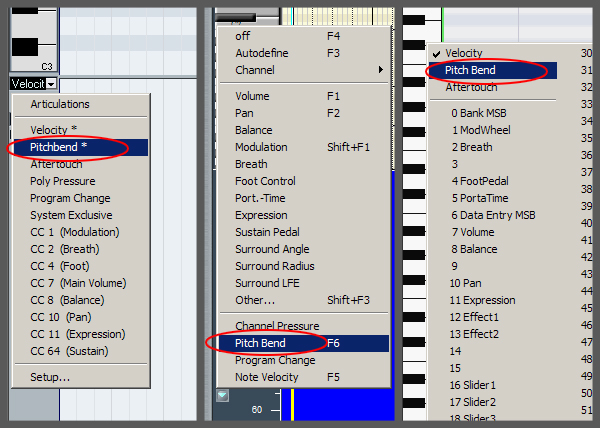
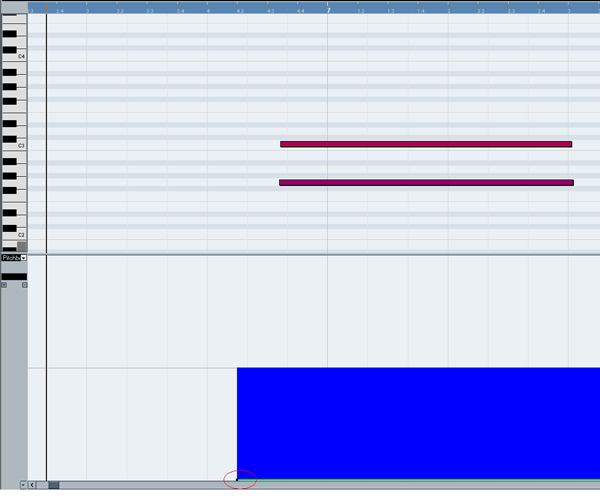
In the Piano Roll window, at the left part for graphic editing, select Pitchbend (Pitch Wheel) from the dropdown list. This is the controller we need to help us change the pitch of note. Here is how it looks in different MIDI editors.
This tool will allow us to “create” new notes when, actually, there are no new notes, while previous note is playing. Only changing its pitch bend value will lead to increasing or reducing the pitch, as if the finger moves to different fret.
Step 6
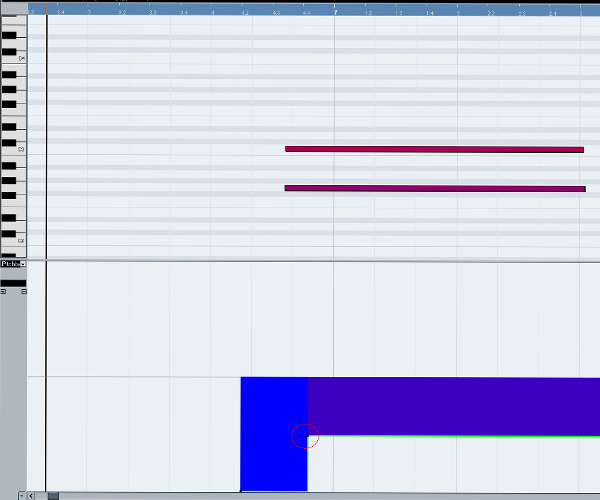
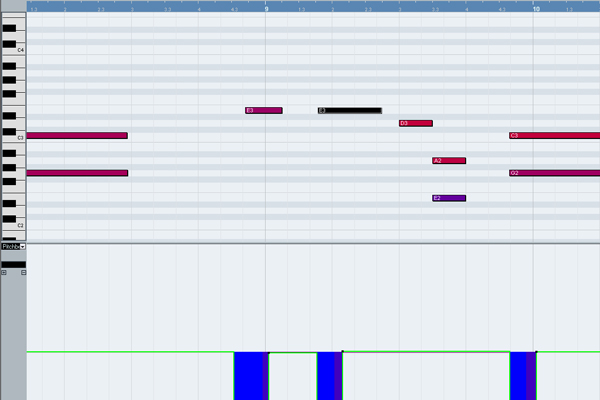
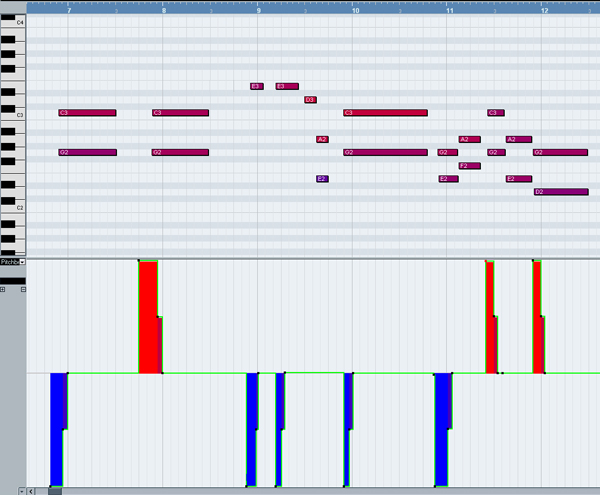
This is the most important step – “drawing” to assign the needed pitch to each fragment, putting the right points in the graphic editing section. For the vertical axis it is either maximum or minimum value of the pitch bend controller: it may be +8191 or -8192 (one tone up or down); ±4096 (half of maximum value, equaling one semitone up or down); or 0. For horizontal axis, the points must precisely match the beginning of three notes taking part in glissando.
So for the first note in our fragment draw a point before it corresponding value of -8192 vertically, because this note was initially one tone lower. This way we will give it its initial pitch that we changed in Step 2. Horizontally, the point must correspond the “Note On” event. If there are no other notes right before this one, the point on the graph can be placed even earlier on horizontal axis – just make sure it does not affect any other sounds.
Step 7
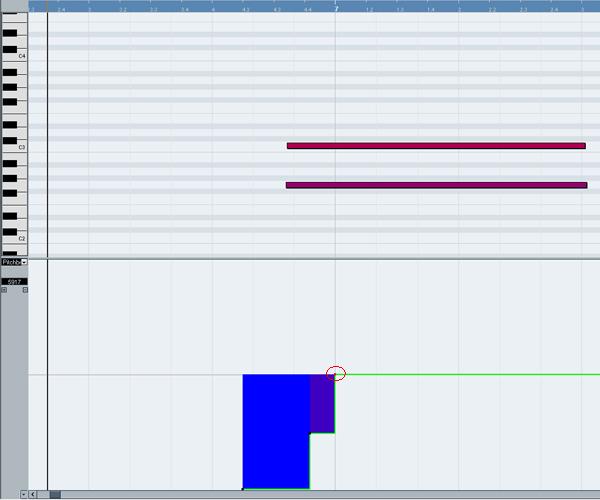
Let’s do the same for the middle note, but the pitch bend value in this case will be twice as small (-4096), equaling a semitone down. On the horizontal x-axis, the point must correspond the beginning of the second note from the initial fragment. To know the exact number, we’ll refer to saved copy of our first fragment (Step 1) and take precise timing value from it.
It is worth mentioning that some minor deviations of timing values are acceptable, as long as there is no extremely artificial sound. It will be strange to hear the guitarist stopping on one fret longer than others – why would he do it? Would he get stuck? So the timing intervals between points of changing pitch should be equal or almost equal (except for “long glissando”, which we’ll talk about later).
Step 8
The last step in the graphic part is drawing points with a zero pitch bend value, corresponding to the beginning of the main target note in our three-note glissando. This way we imitate the first fragment that includes sliding technique.
Step 9
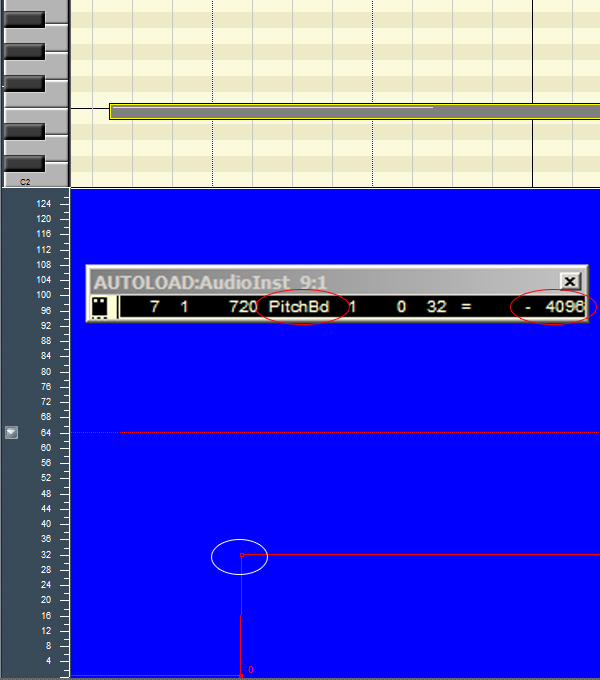
While drawing points in the last three steps, you may have had no difficulty choosing the maximum or minimum values (Step 6) and zero controller value (Step 8). However, when you drew points for the semitone value in Step 7, you may have faced some problems.
If your monitor is too small, or your vision is not good enough (like mine, for instance – I wear glasses), or if you drank too much wine last night and your hands are shaking, you may find precise point positioning on vertical axis impossible. But don’t worry. When a real guitarist uses a glissando technique, additional increase or decrease in string tension is inevitable. It is caused by the effect of finger pressing a string, that slides a surface – not a perfectly smooth one, but sculptured surface with relief on frets. That is probably why there are no perfect semitones on a real guitar.
But, if you are a perfectionist and you like everything precise, you still can assign the absolutely exact numeric value – and there are two ways of doing so:
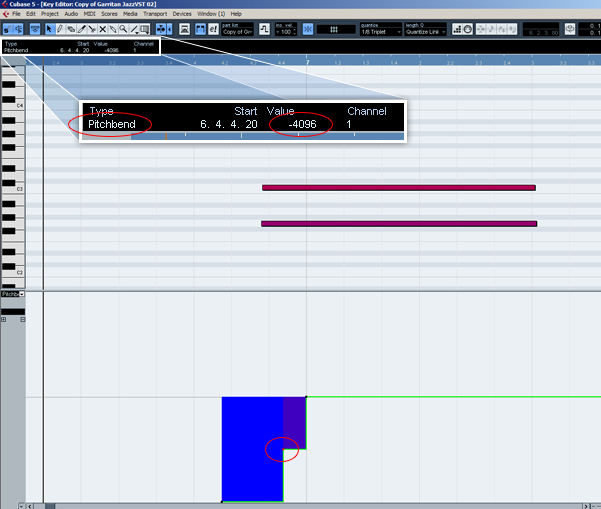
1. Every professional MIDI editor has so-called “MIDI Inspector”. Here the values of selected event parameters are shown, and you can edit them.
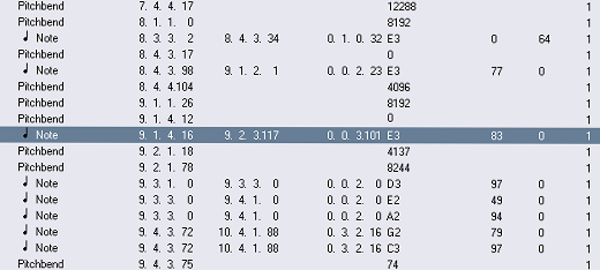
2. You can see all the events at once from the opened List Editor window (Event List). Before you open it, select the note you are working on now in the main arrangement window – for example, E3 in the 9th bar.
When you open List Editor window, you’ll see a selected line with a message “Note” – the one you just selected in Piano Roll window.
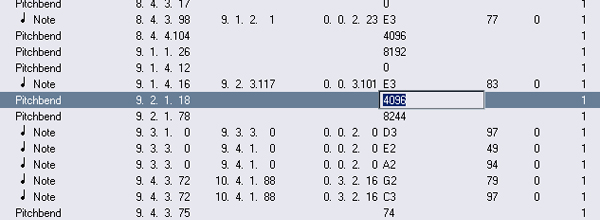
The next closest event is the pitch bend value. In the next line (of “pitch bend” type) you’ll find the value you entered. Try to assign this parameter the needed value (-4096). It’s not hard now to precisely enter it in needed field.
It is worth mentioning that pitch bend in the List Editor window of some MIDI ?ditors changes from -8192 to 0 in the lower part of graph, and from 0 to +8191 in the upper part. Others chose to show this value from 0 to 8192 in the lower graph part (and here the number 8192 corresponds a zero-shift of pitch), while the upper part changes from 8193 to 16383. In these cases the simple arithmetic comes in handy. For every value we spoke about just add 8192, and we’ll get the correct value for List Editor.
Step 10
What we need to do for now is repeat the four last steps for the rest of the fragments containing glissando (we have eight fragments in total in our example – five up and three down). The difference is simple: for sliding down you have to draw a point for first note with coordinate equaled +8192 rather than -8192, and for middle note it should be +4096 rather than -4096 – we just take positive numbers instead of negative.
Download audio file (1-2.mp3)
After listening to the result, it’s not hard to notice a significant difference between the initial and final audio files. Some further adjustments and corrections are possible – and oftentimes even necessary. This applies to both the pitch bend value, and moment of time when the pitch is changing (the new point horizontal coordinate). It is very simple to adjust this using List Editor window (Event List).
Conclusion
Well, that is all for today! We learned how to imitate a realistic guitar sliding technique with MIDI keyboards in any MIDI editor. I hope it gave you some useful tips and you’ve enjoyed it. Use it to create your own live guitar tracks with MIDI editor.
In the next tutorials we’ll be looking at imitating glissando for 3-4 semitones, and imitating glissando for an entire octave. See you then!