We would like a you tube view exchange built, similar to enhanceviews.net. Our users will be able to sign up, add videos to there account, and watch other videos to earn points for there videos.

Freelance Projects, Design and Programming Tutorials
We would like a you tube view exchange built, similar to enhanceviews.net. Our users will be able to sign up, add videos to there account, and watch other videos to earn points for there videos.
NOTE: Read all of the details and rules for this project. If you have any question just ask. If you cannot follow ALL of the details and rules posted here then do not bid on this project.
*************************************************************************************************************************************************
You will have to send us 30 good quality leads before we hire you.
–Payment–:
$0.30 For Every Qualified Lead Depending Upon The offer.Every offer has a specific rate.
Offers will be just a simple Zip Code entry, Email entry, Short Survey,First Page Registrations.
Very Important
********************
–There Will Be NO UP FRONT PAYMENTS–
You will be paid -NET 30- (After a few months this will decrease and you will be paid faster)
Example: Leads generated from December 1st to December 31 2010 will be paid by the last day of January 2011.
Why Net 30?
That is when our affiliate company pays us. You will only be paid once we receive the money from our affiliate company. The reason we do this is if we pay you up front for the leads and the affiliate company tells us that our leads are garbage then we will lose out on all of the money.
****************************************************************************************************************************************************
If you send us garbage leads and we get our account banned then you will not be paid! We will also leave you with the worst possible rating which will ruin your reputation here on Freelancer.Com
***************************************************************************************************************************************************
—–Here are a few rules for you—–
• Must Be Unique IP Address for each submit
• Only USA Traffic Allowed
• No Fraudulent Signups-Must Be Real People!
• No Posting on Classified Ads Sites
• No Duplicates
• No Black Hat Methods
• No Rotating IP Sign Ups
• No Illegal Methods
• No Incentivized Traffic
• No Proxy Servers
• No Spam
• No AUTO Bots or Software
****************** All sign-ups [MUST BE REAL PEOPLE] Must Follow the Rules************************
You will receive a daily report of how many leads you have sent for the day before.
You will only be paid $30 via Freelancer.Com and the rest will be paid by PayPal. So do not bid more than $30 for this project.
****************************************************************************************************************************************************
If you think that you can complete this job please send me a PM with the following details:
• How many leads do you think that you could generate every day?
• What type of advertising will you be using? You don’t have to tell me where you are getting the leads from but I do need to know what methods you are using. (This is important)
•This project can become long term can provide high quality service.We will need to verify that your traffic is quality traffic and then we will order increased volume and you will earn more money.
•More Details Will be given before starting the project.
Need 3 functions on site…
Negotiate- users are able to negotiate prices click of a button
Dispute- if something isnt delivered user can create a dispute.
Feedback and comments- able to provide feedback and comments
Think of ebay and freelance sites for examples
Integrating Facebook Chat
http://developers.facebook.com/docs/chat#code
Also check out xmppframework for iPhone :
http://code.google.com/p/xmppframework/wiki/iPhone
This application is just basically a facebook chat app. Supporting both ipad and iphone and retina. I have all the graphics done, so no need for any design or planning, just th coding needs to be done. If you are successful and would like to continue after this project, an Android version will be made next.
It will include facebook login using the standard oAuth system and Facebooks Graph API. It will contain a list of friends, and allow you to send direct messages, or posts to their walls as well as obviously chat with online friends.
It will support push notifications and custom ringtones (sounds) for notifications from the app.
The app will also include basic profile pages for users, and have a feature to ignore certain people.
I have attached a very basic demo screen.
I’m looking for someone to add a set of links to adult websites and forums and bulletin boards. You need to research and find at least 100 adult forums and bulletin boards, register for each forum, and then post about 1200 links to these forums one at a time. If you have an automated way to do this I would like the scripts you use.
We are looking for a programmer to create a tool that will pull data from Google Analytics, Google Webmaster Tools, plus a few other systems.
It should work like this:
1) User configures the spreadsheet to access specific GA, GWT, accounts
2) User enters some data in predefined columns in the spreadsheet
3) Data is pulled from GA, GWT, etc. and populated in the spreadsheet
4) The user can then add more information and the services are requeried but only to populate the rows for the newly entered data.
If a row is populated don’t pull data for that row unless the user requests that that row be repopulated with updated data.
We’ll give more details in private message and to the winner of the project.
Looking forward to working with you.
I need a header for a subdomain on my website. The header when completed must be installed at www.hotspots.hothuskers.com “Hot Spots” is a photo gallery where my photographer displays his photos taken a night clubs. The header will display some text Hot Spots powered by HotHuskers.com and my photographers logo. I am looking for something that looks good and fits with the page
Hello,
I need a good writer who will write 5 original articles for me
For submission to article directory
I will provide you with the title, you will do research and write the article
The article must be unique and original
I will pay $2 per article
Bid only if this is ok with you
Andrew Devis has 2 more tutorials, this time on the AE camera:
“Cameras are notoriously difficult to get to grips with in After Effects. In this tutorial, Andrew Devis explains some of the behaviors and problems that are common to camera animation and then shows how … to create a simple camera rig, and why it is important to get the order of the layers correct to achieve predictable results.”
Here’s a few more resources on the AE camera, mostly collected at AE Portal:
There’s much more in the AE Help page Adjust a 3D view or move a camera, light, or point of interest and in many AE Portal posts tagged AE camera.
Here’s a sample from the Birnholz training:
Find more videos like this on MyToolfarm
In this tutorial we are going to cover different techniques and approaches for creating interface elements using shape layers and various other filters. Hopefully this will inspire you and give you some ideas on how to use After Effects effectively to create stunning interface designs.
File size: 138MB
Chris and Trish Meyer parse some of the results of “who makes how much” found in the 2010 Motion Graphics Design Census.
For background on this survey by Bran Dougherty-Johnson and Jake Sargeant, see 2009 Motion Graphic Census: Who, What, Why and How at Motionographer.
Today I am excited to bring you Totem 4! This very special totem is made entirely made from Vectortuts Flickr Group submissions! This is the last Totem in the series, but it doesn’t mean the end of the Vectortuts+ Community Projects! Find out more at the jump.
DeviantART released their group’s platform this time last year. It’s spawned 1,000′s of groups ranging from digital art groups to fan art groups. Let me introduce you to the only Adobe Illustrator resources focused group on DA and some of it’s many AI resources.
Continue reading “Free Resources for Adobe Illustrator on DeviantART”
I am an acoustic guitar lover. I have been playing guitar since I was a kid but it wasn’t until I was 22 that I started loving my acoustic guitar much more than I ever did my electric. Recently I had to sell my acoustic in order to buy a new one. Sounds peculiar but due to travel constraints I couldn’t travel with all my guitars, forcing me to sell my precious acoustic.
Since I couldn’t live without a proper acoustic guitar I decided shortly thereafter to buy a new one. Buying a guitar, for me, is an intense project. I absolutely can not buy guitars online and need to weigh every option before I part with my cash. If you are in the same predicament I was, keep these few things in mind when you are deciding on your acoustic guitar. It will get you an amzing axe, regardless of budget.

When you go in to buy your guitar, set aside some time in the store to test out guitars. Se aside a budget and play every guitar in your budget. I had a budget of $350 which isn’t a huge amount but by trial and error got me an amazing sounding guitar. I’m not kidding about this one, if you are serious about your next guitar purchase, actually try out every guitar in the store.
For me, a few strums can often tell me everything about a specific guitar. If you like the sound, make a mental note of the copy and move on. Don’t come back to a specific guitar until you are through with each one. Maybe the first one you played was so amazing sounding that it blew all the other ones away. But unless you try each one out, you might not find the perfect make for you.
Guitars aren’t restrung that often in the store. So an otherwise great sounding guitar might sound dull and lifeless just because it has worn out strings. I restring my acoustic every three months or so because I can hear the life of the instrument getting sucked out by the corrosion of the strings.
Also, I feel that some gauge strings are better for some models than others. A lighter set of strings sometimes do not compliment the fullness of an instrument, making it sound sharp and toppy. I accidentally put a lighter gauge of strings on my old acoustic and the sound changed dramatically for the worse. Needless to say, I quickly changed the strings back to a heavier gauge to get my old sound back. Strings can have a lot of say in the sound, especially on an acoustic guitar.
I bought and acoustic guitar I thought was really good. I thought, “This sounds really good for the price, and I can even feel the strings being worn out. Imagine how it would sound with a new set of strings?”
But when I brought it home and started playing it for a while I noticed fret buzz that I should have checked right away in the store. Check for every type of technical problem the guitar might have, or move on to another guitar if you think it isn’t worth it.
Certain types of woods sound a certain way. Depending on what you are going to use your acoustic for, just for playing live or primarily in the studio, some woods might have a more balanced sound suitable for recording for instance. For a detailed run down on the various woods check out Sweetwater’s Acoustic Guitar Buying Guide.
Do those open chords sound great? Ringing out and awesome? Cool, but have you checked how it is to play chords up on the neck? Do those power chords feel harder to play because of the action?
If the action of the guitar is too high it’s a good indication that you should put it down and move on. I want my guitars to be set up properly and playable from the get go. When I’m moving around the store, playing every guitar I can, I completely disregard and don’t think twice about guitars that have their action too high.
Are you lucky enough to happen upon a guitar package that comes with a bag, picks and new strings? Great! Check and see if there are any extras you can squeeze out of the store. Sometimes you can negotiate new strings if you make a convincing argument that the current ones are too worn. I got mine for $50 off because there was an offer in the store and I was lucky. See if it’s your lucky day, you might gain something from it.
If you find your dream guitar make sure it’s set up right intonation wise. If you strum a nicely in tune open E chord but when you start playing up on the neck it suddenly sounds a little out of tune the guitar might have an intonation problem.
Obviously, guitar stores should be aware of these problems and not have guitars that have them but sometimes they get overlooked. Most stores offer free set up for your guitar, especially if it has a problem to begin with. There’s nothing worse than finding these things out after you’ve taken it home. The hassle of bringing it back really takes away from the pleasure you should have of having bought your new acoustic.

Next time you find yourself with a wad of cash in one hand, a pick in your pocket and your feet inside a guitar store, keep these simple things in mind. It can help you weed out the sub-par ones from that make and model of your dreams. You don’t have to buy that $2000 Martin to get a great sounding guitar. If it’s the right fit for you, sounds good to you and is properly set up, it can last you a long time.
This is a list of the most useful default Photoshop keyboard shortcuts that you can use them to speed up your workflow. Some of them are rarely mentioned, some are more common and some are only available in Photoshop CS5. I hope everyone will find some new and useful shortcuts in this article. So let"s get started!
Command/Ctrl + Space + Click and Drag Left or Right. Fastest way to zoom in and out with one keyboard shortcut (only in CS5 and only with GPU enabled).
Alt + Shift + Right Click (Win) or Control + Option + Cmd + Click (Mac). Gorgeous color picker with a color wheel (only in CS5 and only with GPU enabled). Preferences are under General tab.

Hold Down H + Click, Reposition View and Let Go of the Mouse to Zoom Back). Works great with large images, when you need to work closely. Fast way to fit the image to screen and then zoom back into another area with the previous zoom ratio quickly.
Ctrl + Alt + Right Click (Win) or Control + Option + Click (Mac). Drag your mouse to right/left to change the size and up/down to change the hardness. It only works with CS5 in both directions. In CS4 only the size change works. You can change the color of the brush preview under Preferences/Cursors. You also need GPU turned on under the Performance tab to be able to see the brush preview.

Hold Down Shift. Works with nearly every drawing tool.
Hold Down Command/Ctrl. Fastest way to move something quickly and then switch back to the previous tool.
Shift + Ctrl + Space (Win) or Shift + Command + Space (Mac). Best way to compare or work on more than images at the same time.
Hit Tab. You can always show them again by pressing Tab once more, or just simply hover over the edges to show the panels and toolbar temporarily.
Space and Then Arrow Keys. It works the same way as in Bridge. Make sure that you deselect the images in MiniBridge or collapse the panel when you continue working in Photoshop.
Command/Ctrl + Shift + . or , you can use it for selected text. It won’t work by only selecting the text layer.
Command/Ctrl + Shift + K. Quick way to switch between lowercase and uppercase text. Make sure you type without Caps lock to be able to use this.
Alt/Option + Left and Right Arrow Keys. Useful way to make equalize the distance between characters. If you select a word, a line or a whole paragraph then you change the Tracking. If you click between two characters you change the Kerning.
Alt/Option + Up and Down Arrow Keys. Quickly change the distance between selected lines.
Alt/Option + Shift + Up and Down Arrow Keys. Easy way to use one text layer but have different positions for the text.
Command/Ctrl + Backspace – Foreground Color, Alt/Option + Backspace – Background Color, Shift + Backspace – Fill Options. Great way to fill color into selections or change the color of text and vector shape layers.
Alt/Option + Click on Cancel. Instead of canceling a dialog box and returning to it try Reset and save time and effort.
Numeric Keys, Shift + Numeric Keys. This will change the opacity and fill of the selected layer (or even more than one layer at the same time in CS5) and it will change opacity and fill of the tool if you select a drawing tool.
Command/Ctrl + I. This is a fast way to invert visible parts of a layer if you invert the colours of the layer mask.
Hit Caps Lock. If you don’t want to see the edges of the brush you can switch to precise mode easily by having Caps lock on.
Ctrl + Alt + Shift (Win) or Command + Option + Shift (Mac) When Loading Photoshop. If you want to start with the default settings and user interface hold down these buttons while Photoshop is loading.
Press (X). Fast way to switch between the selected colour.
Alt/Option + Click on a Layer Mask. Great way to clean up the mask after you save it from a selection. Using it again will switch back to normal view again.
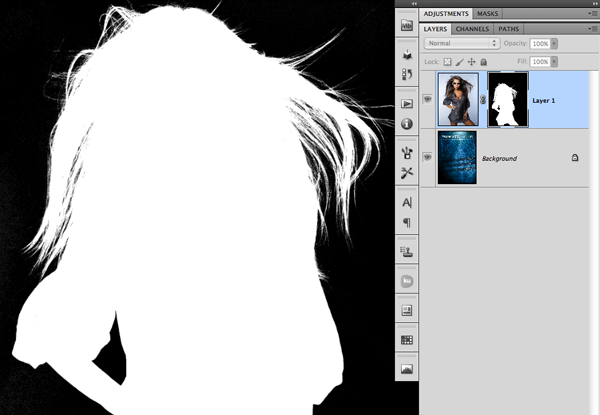
Shift + Click on a Layer Mask. You can quickly show the original contents of the layer with this keyboard shortcut. Using it again will enable the mask again.
Alt/Option + Shift + Click With a Selection Tool Over Another Overlapping Selection. Easy way to keep only a specific part of a selection.
Ctrl + Alt + Shift + E (Win) or Command + Option + Shift + E. If you want to keep all your layers but you also need to merge them together to be able to use something you can convert them all into one Smart object or use this keyboard shortcut to make a duplicate merged layer.
Alt/Option + Click on Panel options under the options of Layers panel.
Of course you can use Photoshop without keyboard shortcuts, but you can be much faster and productive if you spend a little time on getting used to have one of your hands over the keyboard all the time and memorize some of these combinations. Feel free to include some other useful shortcuts in the comments section.