TUAW’s Daily App: Mirror’s Edge

Usually, we like to use this space to highlight developers and apps that could use a little more exposure, not call out big-budget titles from developers like Electronic Arts. But this one’s worth it — Mirror’s Edge is a pretty terrific, completely original translation of the plaforming game that arrived on consoles last year. It was out on the iPad at launch earlier this year, and now the game has made its way to the iPhone, bringing Retina Display graphics and the same well done gameplay.

Out of all of the “major” game publishers, EA has shown Apple quite a bit of love in the past, and this is probably the company’s best original (in mechanics, if not actually name or premise) title for the iOS platform. It’s a real shame that it took so long for this one to make it around to the handheld, but now that it’s here, it is worth the $4.99 purchase price for those looking for a premium iPhone experience.

And heck, if that’s too much, just be patient another eight months or so and you’ll probably see the game on sale. If you’re interested in this gameplay at all — basically a complicated Canabalt, with heroine Faith running, sliding and shooting her way across rooftops — definitely give it a look.

TUAWTUAW’s Daily App: Mirror’s Edge originally appeared on The Unofficial Apple Weblog (TUAW) on Fri, 03 Sep 2010 08:00:00 EST. Please see our terms for use of feeds.

Read | Permalink | Email this | Comments

Steve Jobs: Facebook had "onerous terms" for Ping

Steve Jobs was surprisingly candid with All Things Digital’s Kara Swisher yesterday — he reportedly told her that both Facebook and Apple had spoken about integrating more closely with the new iTunes social network Ping, but Facebook asked for “onerous terms that we could not agree to” regarding Facebook friends connecting on Ping.

He didn’t elaborate, obviously, but you can see in Facebook’s public documentation that Apple probably wouldn’t have appreciated handing any more of its network over to Facebook than it did. All Ping seems to be at this point is a system of “liking” certain content (specifically on the iTunes Store, to the frustration of many of us who want to do it directly from our personal library of music), and if Facebook required that all of the “like” buttons went their way, you can see why Jobs wouldn’t agree.

Turns out that even after Ping’s launch, things got even more fractious between the two companies — Apple did kick off Ping with the option to add friends with Facebook Connect, but Facebook blocked access when it was discovered that Apple wasn’t playing by the rules. It’s actually an open service, unless Facebook decides that it isn’t, and apparently Apple’s Ping network was an unwelcome guest with a lot of traffic since Apple didn’t come to terms with FB ahead of time. Apple removed the service from Ping, but you’ll still see some notes around suggesting you can bring in friends from Facebook.

So. Looks like Ping is already making a splash with much larger social networks. If Apple can build up its network without using Facebook’s services, it seems much less likely that they’ll find a way to share users in the future. As you can see above, Facebook is still implemented on iTunes, in the form of sharing albums and songs that you like, but it’s completely separate from what’s been built for Ping.

Despite the sour start to the social mixup between Ping and FB, Engadget suggests that conversations between the two companies are still ongoing. It may not be long before all this is a hearty laugh between friends.

TUAWSteve Jobs: Facebook had “onerous terms” for Ping originally appeared on The Unofficial Apple Weblog (TUAW) on Thu, 02 Sep 2010 20:30:00 EST. Please see our terms for use of feeds.

Read | Permalink | Email this | Comments

Epic’s Mike Capps talks about Epic Citadel and the future of iOS gaming

Gamasutra cornered Epic Games’ Mike Capps (he of the very impressive Epic Citadel demo yesterday at the Apple special event), and Capps confirms that what you see running on your iPhone is the real deal — Unreal Engine 3, with all of the bells and whistles that it has on the major HD consoles. The actual game that Project Sword will become is being designed by Chair (which is the same group that did the popular Shadow Complex game for Xbox 360), and we’ll see the full project soon.

Capps also confirms that UE 3 needs at least an iPhone 3GS to run, but he says that in terms of hardware, Apple’s devices are right where they need to be. High-resolution textures are an issue (you can’t install a 15gb game on an 16gb portable device), but the memory and speed are actually there, says Capps. “You’ve got 16 gigs of flash memory,” he says, “which is way better, faster memory than what most people have generally on a home PC. So that stuff works really well.”

The biggest issue holding handheld gaming back is larger environments, but game developers are getting better and better at designing worlds that render quickly and well to all kinds of platforms. And Capps looks into the future, and sees even more possibilities for Apple and their product lines. “It doesn’t take a whole lot of leaps of faith to say, ‘Right now, I can display from my iPad to my Apple TV on a big screen TV.’ How far away are we from ‘that’s my game console, and it’s displaying wirelessly to my television set?’ It’s not far away.”

That’s kind of a trippy thought — that Apple had to finally move away from the Mac to earn a larger foothold in gaming. It’s very heartening, as a gamer and an Apple fan, to hear Capps as excited as he is about the possibilities for iOS and the App Store.

[via Joystiq[

TUAWEpic’s Mike Capps talks about Epic Citadel and the future of iOS gaming originally appeared on The Unofficial Apple Weblog (TUAW) on Thu, 02 Sep 2010 19:30:00 EST. Please see our terms for use of feeds.

Read | Permalink | Email this | Comments

Apple releases preview 3 of Xcode 4

Okay, I might be a little bit fangrrlish about the new Xcode 4 IDE. But seriously, it’s really an awesome update to the existing Xcode tools. Yes, it’s still majorly buggy and yes, there are still many features missing in action — but it’s such a treat to see how the new tools are evolving into their final form.

Today, Apple has released developer preview 3 of the new Xcode 4 suite, which you can download by heading over to the developer.apple.com site. You will need to sign in with your online or paid developer credentials to access the page and the preview dmg. I’m a little iffy about what the NDA situation is with regards to the release (I believe it is under NDA until it leaves beta) so I’ll leave finding out about the details (there’s a Readme and release notes) to you.

TUAWApple releases preview 3 of Xcode 4 originally appeared on The Unofficial Apple Weblog (TUAW) on Thu, 02 Sep 2010 18:45:00 EST. Please see our terms for use of feeds.

Read | Permalink | Email this | Comments

OpenFeint announces PlayTime, real-time multiplayer with voice chat for iOS and Android

Game Center is almost out in consumers’ hands, but that hasn’t stopped the folks at OpenFeint from pushing forward on their unofficial social network for gamers. PlayTime is a newly-announced feature of the third-party social networking software that will allow players on both iOS and Android to play in real-time with each other, and even use voice chat while doing that. OpenFeint is splitting its multiplayer services into two different paths: “Casual” games will use highscores to offer up multiplayer and even co-op challenges, while “Core” games will actually run real-time multiplayer, in conjunction with a system from a company called Exit Games.

Sounds interesting — the new features are being tested by developers right now, and will be available in OpenFeint sometime later on this year. Game Center will definitely make a big splash in iPhone gaming when it gets released next week, but OpenFeint is still planning on sticking around and innovating where even Apple hasn’t yet dared to go. iOS game players will be glad to have both around when all is said and done.

TUAWOpenFeint announces PlayTime, real-time multiplayer with voice chat for iOS and Android originally appeared on The Unofficial Apple Weblog (TUAW) on Thu, 02 Sep 2010 18:00:00 EST. Please see our terms for use of feeds.

Read | Permalink | Email this | Comments

iTunes 10 quick tip: Liking a song in Ping


Here’s a quick tip for iTunes that puzzled a few of us this morning: once you’ve gone ahead and set up Ping in iTunes 10, how do you ‘like’ a song instead of an album? The albums have those handy thumbs-up buttons, but it’s not as obvious for songs.

A bit of exploration reveals that the ‘Like’ command is under the pop-up menu for each song, along with the other song-specific actions like gifting, sharing, wish-list-adding and the ‘Other Versions’ search.

We’ll have more iTunes 10 tips and tricks coming right up.

TUAWiTunes 10 quick tip: Liking a song in Ping originally appeared on The Unofficial Apple Weblog (TUAW) on Thu, 02 Sep 2010 17:30:00 EST. Please see our terms for use of feeds.

Read | Permalink | Email this | Comments

iTerm 2 in early development

Power users of the command-line are no doubt familiar with iTerm, the free replacement terminal application. iTerm has been the go-to alternative for people who wanted tabbed windows and other advanced features.

Development of iTerm has been fairly slow and irregular. The initial release was back in 2002 and the 0.10 release is almost a year old. A look at the version history shows very little has happened since 2006.

A “fork” of the project is now available on Google Code and goes by the name iterm2. The current version, labeled “Alpha 6” was just released yesterday. On the surface it looks pretty much the same, until you get into the bookmarks, preferences, and profiles which have been completely rewritten.

Thanks to TUAW reader Nikola Knezevic for sending this in!

TUAWiTerm 2 in early development originally appeared on The Unofficial Apple Weblog (TUAW) on Thu, 02 Sep 2010 17:00:00 EST. Please see our terms for use of feeds.

Read | Permalink | Email this | Comments

Twitterrific 3 for the iPad: change, tough love, and better

Here’s a good sign that you’ve made some pretty significant changes to your application: three different people from the company write three different posts about the new design. That’s what the folks from Iconfactory did about Twitterrific 3. David Lanham wrote about Redesigning Twitterrific, not just the timeline, but also the settings, contacts, filtering, and more to “optimize the user experience.” Gedeon Maheux wrote about Twitterrific’s Tough Love, and realizing that Twitterrific had gotten out of hand, along with the steps they took to make it better rather than just pile more on top of it. Craig Hockenberry wrote about not designing for early adopters, whose expectations may limit making something better by expecting you to simply build on what you had before.

I was an early adopter of Twitterrific on the Mac, and still compare all other applications to Twitterrific when I am using them. When I first heard about the changes in Twitterrific 3, I was sure I was going to hate them. After having used it for awhile, I still think Twitterrific is my favorite iPad app. I’ve been using it since I bought my iPad back in mid-June, and although I’ve tried some of the others, I keep coming back to Twitterrific. Many others have just started using Twitterrific 3 for the iPhone or iPad because Twitter turned off “basic authorization” logins. All Twitter applications now must use Twitter’s (severely, thoroughly flawed) OAuth system for logging in.

Read on for my thoughts on the app, as well as what TUAW heard directly from Iconfactory about the future of the app.

TUAWTwitterrific 3 for the iPad: change, tough love, and better originally appeared on The Unofficial Apple Weblog (TUAW) on Thu, 02 Sep 2010 16:00:00 EST. Please see our terms for use of feeds.

Read | Permalink | Email this | Comments

iPod Touch 4G Teardown

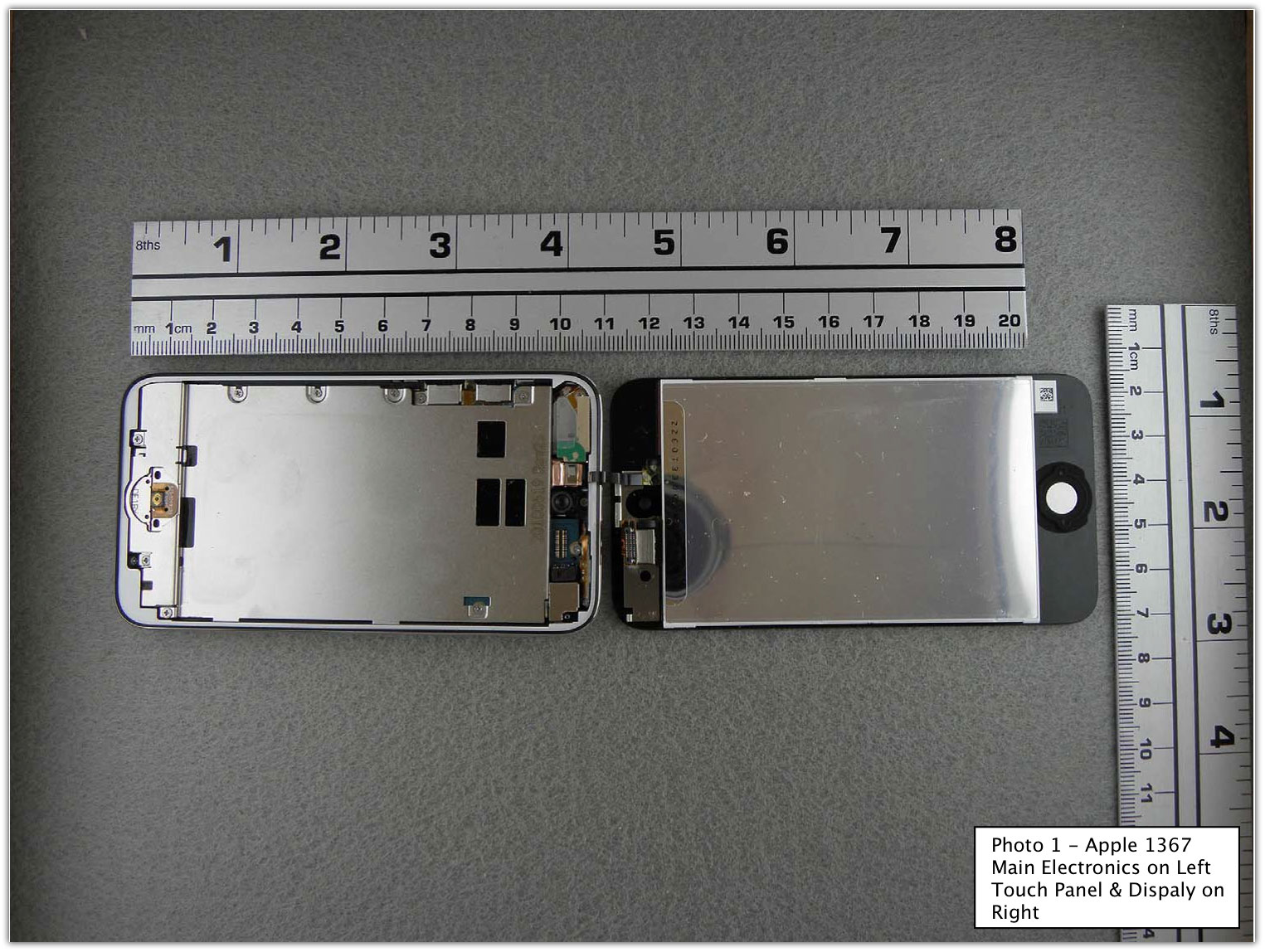
The FCC has posted images of the iPod Touch 4G teardown. Apple announced the iPod Touch 4G on Wednesday, Sept 1st 2010 along with iOS 4.1 and iOS 4.2 for iPad. Checkout the iPod Touch 4G Specs.

Teardown images of the new iPod Touch after the jump…
iPod Touch 4g

ipod touch 4g teardown

ipod touch 4g teardown
ipod-touch-4g-teardown-2
ipod-touch-4g-teardown-3
ipod-touch-4g-teardown-4
ipod-touch-4g-teardown-5
ipod-touch-4g-teardown-6
ipod-touch-4g-teardown-7
ipod-touch-4g-teardown-8
ipod-touch-4g-teardown-9
ipod-touch-4g-teardown-10
ipod-touch-4g-teardown-11
ipod-touch-4g-teardown-12
ipod-touch-4g-teardown-13
ipod-touch-4g-teardown-14
ipod-touch-4g-teardown-15
ipod-touch-4g-teardown-16
ipod-touch-4g-teardown-17
iPod Touch 4g

You can follow us on Twitter, Join us at Facebook, and also Subscribed to RSS Feed to receive latest updates.

Also checkout:

Digg
Twitter
StumbleUpon
Facebook
Reddit
del.icio.us

Twitter for iPad is Now Available for Download

The official Twitter for iPad is now available for download in the AppStore for Free! With this release, the official Twitter app is now a universal application for Twitter available for iPhone, iPad and iPod Touch.

The iPad version of the Twitter app comes with an amazing user interface. The introduction of panes and multi-touch gesture makes the app the most complete twitter client available for iPad.

What is Twitter for iPad? And how is it different from our iPhone app?

Twitter for iPad brings your Tweets together with web pages, photos, videos and more. Tap on any tweet, and a related content pane will open, displaying any linked content from the tweet, including web pages, profile information, hashtag searches and similar users. Slide panels from side to side and quickly navigate through related content.

There’s also easy ways to quickly peek into a tweet

  • Pinch on a tweet to quickly unfold related information and actions
  • Use two fingers to drag on tweet and reveal replies

Download Twitter for iPad [iTunes Link]

twitter-ipad-1
twitter-ipad-2
twitter-ipad-3
twitter-ipad-4
twitter-ipad-5
twitter

Digg
Twitter
StumbleUpon
Facebook
Reddit
del.icio.us

Communicating With iOS App Graphic Designers

At times I’ve had difficulty working with graphic designers.  Usually problems occur when the designer starts getting some great ideas and throws deadlines out the window.

I found a great post on communicating with designers from Mike Berg, and here are three concepts that I took out of the article that I think will be very useful:

1. Find reference material and put together a mood board showing different images so the designer knows what sort of mood the graphics should be in. (see the article to know what a mood board is).

2. Set clear deadlines.  If the artist starts to change scope make sure they can meet the deadline.

3. Always get the source image files from a graphics (eg. PSD files) .. do not just get the .PNG or other finished graphics files just in case you want to change or have the images changed.

You can read the article here that shares many other useful ideas for communicating with designers:
How To Effectively Communicate With Designers

Thanks for reading, please share this article by using the buttons below!

©2010 iPhone, iOS 4, iPad SDK Development Tutorial and Programming Tips. All Rights Reserved.

.

Share and Enjoy:

RSS
Twitter
Facebook
DZone
HackerNews
del.icio.us
FriendFeed

FlickStackr: Flickr on Your iPad & iPhone

When recently scouring the App Store for a full-featured Flickr app, I came across FlickStackr. It comes with a grand claim: “FlickStackr allows you to browse photos in the Flickr universe, upload your images, and easily edit metadata.”

Packing so much functionality into one iPad application is no simple feat, and all too often this type of grand aim results in a fiddly, difficult-to-understand app. If you’re a Flickr user, FlickrStackr offers a promising solution for interacting with photos on-the-go. Let’s take a look and see whether it can pull off all that it claims to!

Connecting to Flickr

Although FlickStackr does have some functionality when not linked to a Flickr account, it’s limited. The first thing you’ll want to do is authorise the application to access your Flickr content – it’s able to do everything except delete your images. This is a straightforward process, and works well.

The only bug I found was that if you enter your password incorrectly, you need to exit the authorisation process and start again – be sure to get it right first time around!

The Interface

The Basic Interface

The Basic Interface

As I mentioned before, FlickStackr packs a great deal of functionality into one app. The interface is split into the traditional two-panel iPad view, with navigation on the left and content on the right. Broadly speaking, you can either access your own content, or flick through public areas such as “Explore”, “Recent from Everyone”, and “Search”.

Although the interface is fairly easy to understand on the whole, it breaks down in a few areas. The icons, for instance, are really poor. Each one is exactly the same colour, with similar imagery across the board. I’d actually prefer it if these were simply removed altogether.

Typography isn’t perfect, either. Font sizes and spacing aren’t standard throughout the app, and it becomes frustrating after a while. If the developer took the time to hire a professional interface designer, it would make the next version a far more pleasant experience to use.

Browsing & Editing Your Photos

After tapping on your name in the top left, you can browse through your Photostream, Sets, Favourites, and Contacts. Clicking on “Profile” simply pops up an in-built web browser to display your Flickr profile page.

Browsing through your photos is a pleasant experience. They load quickly, and you’re spoiled for choice by the different range of viewing modes available:

Interface Options

Interface Options

If anything, this range of choices could be a little confusing for new users. I’d have preferred FlickStackr to focus upon one design decision and execute it perfectly, rather than leave it up to the user to pick the one they feel is best.

Viewing photos is an enjoyable process, though – you can browse thumbnails, read comments and meta data, or flick through images in full-screen mode if you prefer.

My niggles with the interface design culminate in the wonky layout of the page displaying comments and metadata:

Comment Display

Comment Display

If you’d like to edit the metadata of your photo, this can be instigated by tapping “Edit” towards the top right of the screen. It works well, and lets you adjust the Title, Caption, Tags, Sets, and Groups relating to the photo. You can also change various size and security settings, specifying whether an image is viewable to public/family/friends, and what permissions people have.

Uploading Photos

If you’d like to upload new photos – granted, an unusual thing to do from an iPad – the process is fairly straight forward. You first select the source of your images; Camera Connection Kit, iTunes File Sharing, Saved Photos, or Photo Library.

Uploading Photos

Uploading Photos

After doing this, you tap on the images you’d like to upload, and set the process going. It’s possible to edit the metadata, sets, and permission information on a photo before uploading.

Once in progress, the interface and feedback is very odd. Providing the application remains open, you receive a small dialog at the start of each photo upload, informing you that the image is being resized.

After that, there’s no feedback until FlickStackr begins uploading the next image. The obvious solution would have been to design a progress bar screen, detailing how the upload process is going.

Other Features

FlickStackr has another few useful features, focused around the public aspects of Flickr. Search is particularly useful, and gives you a range of advanced options for fairly accurate results:

Searching

Searching

Because the application is a universal app, it also works great on the iPhone (your $1.99 goes a long way!). The functionality is almost identical, so I’m not going to delve into this aspect deeply today. The interface is very similar, and shares a few of the same quirks as on the iPad:

iPhone Version

iPhone Version

Conclusion

On the whole, I’m really pleased with FlickStackr. I honestly didn’t expect to find an application that had so much functionality – especially at the bargain price of $1.99 for the iPad and iPhone version. Everything worked well in my testing, and I didn’t come across any major bugs.

The one thing that might stop me opening the application on a regular basis is the interface. I know how difficult it is to pack so many features into an app and still have it look simple, but I do think that FlickStackr can do better. If the look and feel is improved in a future version, I can see it wiping the floor with every other Flickr client available.

Despite this annoyance, I wouldn’t hesitate to recommend the app if you’re a regular Flickr user. The sheer amount of functionality on offer for $1.99 is incredible.

Apple Media Event Summary: iPods, iTunes, AppleTV and More!

Earlier today Apple held its annual live media event covering all things new in the land of iPod, iTunes and even AppleTV.

They’ve released a ton of enhancements and upgrades across the board and we’ve got your one-stop coverage. Below you’ll find a brief overview of all the goodies you’ll be blowing your paychecks on in the coming weeks.

iOS 4.1: Launches Next Week

The next iteration of Apple’s iOS features a few bug fixes that Steve jokingly noted that they’ve been receiving emails about. These mostly revolve around Bluetooth, the proximity sensor and the reported iPhone 3G issues. iOS4.1 will be a free download for all users and should show up sometime next week.

screenshot

iOS 4.2

HDR Photos

An unexpected but welcome update comes in the form of automatic HDR photos. These aren’t the heavily stylized versions you see in countless blog posts but rather a practical way to get great photos from a not-so-great cell phone camera.

screenshot

HDR Photo Comparison

Activating the HDR option will cause your device’s camera to take three photos in rapid succession: one underexposed, one normal, and one over exposed. These three photos are then automatically combined to create a single photo with a much better range of highlights and shadows than you could otherwise achieve.

Game Center

Game Center brings social gaming to iOS devices. Using the new game center app you can hook up with friends and compete/cooperate in live game matches, compare scores, and more.

screenshot

Game Center

Other providers have been experimenting with social game networks for a while on iOS but Game Center promises to be the ultimate experience by bringing in truly interactive multiplayer gaming.

iOS 4.2: Launching in November

iOS4.2 brings all the cool new features of the iPhone and iPod Touch to the iPad. So starting in November iPad users will get multitasking, Game Center, folders, etc.

One interesting thing to consider is that Steve listed “HDR Photos” as one of the features that will be coming to the iPad. However, there is currently no camera on the iPad, nor was one announced. It’s probable that this just refers to overall system support for the new format and might indicate that iPhoto will require a similar update.

iOS4.2 is coming in November and will be a free download.

AirPlay

AirTunes has been around for ages and is now being upgraded to AirPlay. Where AirTunes streamed only music, AirTunes will stream music, video, photos, etc. over a Wifi Connection.

New iPods

Steve claimed that the entire iPod lineup was getting an update, but the Classic was strangely ignored. They didn’t exactly say they were killing it and it is in fact still on the store, but they sure didn’t include it in the current lineup of products.

Everything else got a complete makeover. Let’s take a brief look at each below.

iPod Shuffle

In the last generation of the iPod Shuffle, Apple ripped off all the buttons and made it a VoiceOver only device. Obviously, users completely hated this idea and missed the presence of a physical way to control the device.

screenshot

iPod Shuffle

Consequently, Apple has reverted to the older design, albeit a slimmer, sleeker version of it. Here is a rundown of the features and specs:

  • 5 Colors
  • Clothing Clip
  • 15 Hour Battery Life
  • Genius Playlists
  • VoiceOver
  • $49: 2GB of Storage

iPod Nano

Thanks to the iPod Touch, the iPod Nano has been knocked off its throne as the most popular iPod. Apple has responded by changing just about everything about it in the newest generation (the 6th).

screenshot

iPod Nano

The most notable change is that the Nano is now a Multi-Touch device running a sort of scaled-down version of iOS without custom apps. But it doesn’t stop there. The previous version was widescreen, this version is square. Also, the previous version was the first to record video, this version has dropped that ability completely.

Despite the fact that it would suck to watch movies on, the new design is quite stylish. Steve made a joke about one of the Apple board members wanting to wear it as a watch and I can already see arm band and case producers scrambling to create just such a product. Heck, I almost think a multi-touch iPod Watch sounds cooler than just another Nano so sign me up on the list of people that would buy such a ridiculous contraption.

Here’s the feature rundown:

  • Mutli-touch
  • 42% Smaller
  • Clothing Clip
  • Physical Volume Buttons
  • FM Radio
  • Rotating Screen (pinch and twist)
  • 7 Colors
  • $149: 8GB
  • $179: 16GB

I can’t imagine why anyone would buy the 8GB version when you can double the storage for an extra $30!

iPod Touch

The iPod Touch finally received the update we’ve all been waiting for. Apart from being even thinner (it’ll be invisible soon) it now has the beautiful retina display, an Apple A4 chip (like the iPhone), a 3 axis gyro for improved gaming, two cameras (front and back), FaceTime video conferencing with other iPods and iPhones, HDR photos, Game Center and HD video recording.

screenshot

iPod Touch

In case you were digging the bullet points, here’s all that in a list:

  • Thinner
  • Retina Display
  • A4 Chip
  • 3 Axis Gyro
  • Front and Rear-Facing Cameras
  • FaceTime
  • HDR Photos
  • HD Video Recording
  • Game Center
  • iMovie Compatible
  • 8GB: $229
  • 32GB: $299
  • 64GB: $399

iTunes 10: Available Free Today

Apple launched a new version of iTunes today, ditching the antiquated CD-themed logo and replacing it with a simple round icon.

screenshot

iTunes 10

iTunes 10 has been given a slight facelift with a few UI improvements including inline album art in list mode. By far though the biggest new enhancement is Ping.

Ping: A Social Network for Music

For years, LastFM has cultivated and grown a music-based social network. Today Apple dealt them a major blow by dishing out a competing network built right into iTunes.

screenshot

iTunes Ping

Ping allows you to follow your friends and favorite artists just like you can on Twitter. You can view their favorite songs, what they’ve been listening to and purchasing, upcoming concerts that they’re either playing or attending, leave comments, make posts and more.

Apple is spinning this primarily as a new way to discover music. Ping is also an iOS app that you can use right from your iPhone and iPod Touch.

It’s interesting to note Apple’s strategy here. First, they’ve discovered the holy grail: a monetized social network. This is something the major players like Twitter and Facebook are still struggling with. Second, Steve made a big deal about privacy. This is key because Facebook has made so many people angry about it. With Ping you can elect whether or not you want everyone to be able to follow you, no one to be able to follow you, or just open following up to a specified “Circle of Friends.”

It’ll definitely be interesting to watch Ping unfold and evolve in the future. Will this be a major milestone for Apple or a failed experiment that we’ll laugh at five years from now? Let us know your thoughts.

One More Thing: AppleTV

Today’s “One More Thing” was of course the AppleTV, which has not been rebranded to iTV as many predicted. It is also not the iOS wonder device that many thought it would be but rather a refocused attempt at a media console.

screenshot

AppleTV

The Apple TV is now black and is a quarter of the size of the old version. It has a brand new interface and a new strategy: rentals. You can no longer purchase movies or shows on the AppleTV, only rent them. This may sound like a bad thing but in reality it does in fact solve countless storage and syncing problems and you can in fact stream purchases from your Mac, iPad, iPhone, etc.

The AppleTV will feature new release rentals for $4.99 with older movies being even cheaper. ABC and Fox have jumped on board to provide TV show episodes for a mere $0.99 a pop with the hope that other networks will soon follow.

AppleTV is integrated with a number of services including Netflix, Youtube, Flickr, RottenTomatoes and MobileMe. On top of being a place to consume video content it also has some awesome new photo slideshows that can be wirelessly streamed from your Mac or iOS devices.

What Do You Think?

That’s the latest from Apple. Be sure to stop by Apple.com to check out more detailed information and to grab the new iTunes.

Before you go, leave a comment and let us know what you think of all the new goodies. Do you love or hate the new iPod Nano? Will the new AppleTV make up for the poor sales of the previous version? Will Ping be the next big social network? Tell us your thoughts!

Quick Look: ProCamera

Quick Look posts are paid submissions offering only a brief overview of an app. Vote in the polls below if you think this app is worth an in-depth AppStorm review!

In this Quick Look, we’re highlighting ProCamera. The developer says Daemgen.net today updated its famous ProCamera iPhone camera app to version 2.9, introducing the Easy Expert Mode with advanced focus/exposure control and real-time white balance adjustment. By setting focus and exposure separately to different spots on the viewfinder, users can easily benefit from technologies even high-end digital cameras and camcorders cannot provide.

Read on for more information and screenshots!

Screenshots

ProCameraProCamera

ProCamera

About the App

Here are the top five features you can expect to see in the latest version:

  • Maximum native resolution for photos and videos
  • Expert Mode for both videos and photos
  • Various capture modes for best possible shots
  • Photo Studio
  • Arrangement guides for both videos and photos

Requirements: iOS 4

Price: 2.99

Developer: Jens Daemgen

Vote for a Review

Would you like to see us write a full review of ProCamera? Have your say in our poll:

Would you like to see ProCamera reviewed in-depth on AppStorm?Market Research

Quick Look posts are paid submissions offering only a brief overview of an app. Vote in the poll if you think this app is worth an in-depth AppStorm review! If you’re a developer and would like to have your app profiled, you can submit it here.

Track Your Money with iMoneyPad Pro

Tracking your spending habits and establishing a budget can be a completely life changing experience. To many people all over the world, it’s the difference between losing a house and keeping it, between stressing out about bills or managing them easily, and even between financial contentment and bankruptcy.

So if budgeting is so great, why do we all suck at it? Aside from the fact that it’s simply not fun to impose harsh rules on our consumer lifestyles, budgeting is usually a ton of work. You have to analyze your spending habits against income trends, decide what to allot where, perform daily calculations to see how you’re progressing and a lot more.

Fortunately, your iPhone can take much of the work out of this task. Today we’re going to look at one of the many budgeting apps available for iOS: iMoneyPadPro. This app boasts tons of features and comes with a hefty $10 price tag. Below we’ll walk you through how it works and then discuss whether or not it’s worth the investment.

Getting Started

Since you carry your iPhone with you pretty much at all times, it provides the perfect solution to staying on top of a budget. With a few quick taps you can track every dime you spend, view trends, make adjustments and see where you need to cut back.

iMoneyPad Pro is a powerful solution for tracking both your income and expenses as well as setting up budgets for various areas of spending. The app is divided up into four main functions: History, Budget, Analysis, and Automator.

History

The History screen is where you input your income and expense items as the occur. This screen is split into two columns and shows a month at a time. The left column allows you to sort transactions based on a specified criteria. You can either sort transactions by date, category or payment type (cash, credit, checking or savings).

screenshots

History

To add a transaction, you simply tap the “Add” button at the top right of the screen. From this screen you can either input an expense, income or transfer.

Then you can set the amount and identify and account and category (you choose from a number of handy presets). You can also set a date just in case you’re inputing the transaction early or late. Finally, there’s a large notes area for any extra information that you want to remember.

screenshots

New Transaction

Budget

Setting up a budget can be intimidating. Fortunately, iMoneyPad Pro makes the process extremely simple and completely customizable. You can be as brief or thorough as you like with your tracking.

How this works is you have the option to set an overall budget and/or create category specific budgets to be sure you’re staying on track in those troublesome areas such as eating out.

screenshots

Budget

The meter at the top left shows you how much of your total budget you have left and the circular graphs below track your progress on individual category budgets. This is awesome for helping you make decisions about whether or not you can afford to go out or stay in. Simply check your budget and decide if you have enough of your monthly allowance left.

Analysis

Whether or not you’re interested in setting up a budget, it’s always cool to be able to track your history of financial transactions in graphical form. Simple visualizations really help you wrap your mind around complex data to spot trends and areas of interest.

Under the analysis section iMoneyPad Pro has a number of reporting options. You can view category comparisons and daily transaction histories in either bar or pie charts. You can also compare your six month income vs. expenses.

screenshots

Analysis

Each chart is interactive and can be tapped and dragged around to view more information. The data is also shown in a list format below the chart.

Automator

The Automator helps ease repetitive tasks by allowing you to setup transactions that you would frequently enter in manually. Under this section there is two screens: activities and schedules.

screenshots

Automator

Activities are a bit like a template for a transaction. So if you get paid the same amount for certain jobs or frequently order the same meal for lunch, you can enter the amounts of these transactions here and add them to your history as needed.

Schedules are for recurring transactions that come occur regularly such as bills. These run automatically on the intervals you set up so you don’t have to spend time entering them in every month.

The Verdict

iMoneyPad Pro is an awesome app. The interface is classy and fun to use and it has most of the features that you need to track your transactions and setup budgets. It’s not immediately apparent how to use the app when you first launch it but hitting the little “i” button on any screen will pop up a little tutorial showing you how that feature works. This is an awesome feature and really helps you get the most out of your money.

iMoneyPad Pro is a completely offline solution, which is both a pro and a con depending on what type of user you are. If you’re afraid of putting your personal transaction information online, this app is an awesome budgeting solution.

However, I’m personally an avid Mint.com user. I have all my various accounts entered into Mint and track them both in the web interface and through the iPhone app. The major benefits for Mint are that it is both completely free and completely automated. Instead of taking the time to enter in a transaction every time you buy a sandwich, Mint hooks up to your bank account and records this information automatically.

Because I’m used to the effortless budgeting and expense tracking of Mint, iMoneyPad Pro seemed like a lot of work. However, I know several people that will either never sign up for a Mint account or have signed up and just didn’t agree with the automated nature of the app. For this audience, iMoneyPad Pro is perfect.

Unfortunately, though I loved using iMoneyPadPro, I think its major downfall is definitely the price. On one hand, it does have a ton of really great functionality wrapped into a solid interface. Further, getting on track financially is well worth a measly $10. On the other hand, Jumsoft Money offers much of the same functionality, syncs with a Mac desktop app, and the iPhone app is completely free; a hard combination to beat!

screenshots

Jumsoft Money

Conclusion

To sum up, iMoneyPad Pro is an excellent application with plenty of power and a slick UI. You can easily track both income and expenses, setup broad reaching and/or targeted budgets and analyze your financial data with attractive charts.

The major downfalls are the lack of an option for tracking transactions automatically, the hefty price tag and the lack of a companion desktop application.

Despite these issues, I can still definitely recommend the app to anyone who has tried Mint.com and Jumsoft Money but is still looking for an app that suits their particular needs better. Leave a comment below and let us know what financial tracking applications you use and how they stack up to iMoneyPad Pro.