Plan Your Complicated Life with Pocket Informant


There is an almost indefinite number of task & time management apps out there. Some are very similar in their approach, but there is the occasional app that stands out from it’s competitors by offering a twist to the way it handles or displays tasks and events. Pocket Informant for iPad is such an app.

While with almost all other apps in the productivity category you have to choose between task and time management, Pocket Informant takes an integrated approach. Read on to find out how well it works out in every day life.

The idea behind Pocket Informant

As mentioned in the introduction, Pocket Informant treats your days as an entity that can consist of both events and tasks, giving equal weight to both. This approach is reflected in the layout of the app, which is basically a calendar that shows all your important events (something that occurs at a set time and date) and tasks (things you have to do).

The Different Views

Pocket Informant offers a wealth of different views to accommodate different needs and different tastes. Views can either be changed by selecting one of the tabs on the right or buttons on the top if the selected index card offers them.

screenshot

Today View

As you can see in the Today View, the current tab displays both the name and icon, while the deselected tabs only display icons. Since there aren’t that many of them and the icons depict quite clearly what is meant, navigating the app is very simple and comfortable.

The Today View offers an overview of all events happening during the current day, with the duration being displayed to the left and a list-like summary of events and tasks shown to the right. The benefit of the layout becomes immediately apparent: you don’t need to open your calendar app to check on your appointments and then your task management app to see what you have to do – everything is right at your fingertips, summarized on one screen.

The Calendar View offers – as the name implies – a much broader view of your time. To the right you always have the months listed; you can move forward or backward quickly by simply sweeping up or down, depending on whether you want to check on past events or plan future ones.

screenshot

Day Calendar

Except for the day view, both your tasks and events are displayed in a calendar layout. You can move between dates by swiping left or right, again depending on where you want to go. Overall, navigation is very intuitive and comfortable.

screenshot

Week Calendar

When selecting the Task Tab all events are left out and you can focus exclusively on the tasks at hand. You can manage your tasks according to three different approaches (Franklin Covey, Getting Things Done, Toodledo), which you can specify in the app’s settings. To see all tasks, you have to select the filter “All Active”; just tapping on “Projects” or “Context” will only reveal their respective sub-categories, but not show the tasks associated with them. It’s a little confusing at the beginning.

screenshot

Task View

Create Tasks and Events

So, now that you know what goes where in Pocket Informant, how about taking a look at how to get information into the application? (apart from syncing which I’ll mention later) On the top right of the screen you can see two icons, a plus and a plus with a checkmark. With the plus, you can add events, via the other symbol tasks.

screenshot

Adding an Event

As you can see, there is a wealth of information you can enter, from due dates/times over alarms, attendees, tags and calendars. One very cool feature is the ability to add location information to events, right from Google Maps, without having to leave the application.

A very user friendly feature is available when having either the Days, Week or Month view selected in the Calendar tab. By tapping and holding down your finger on a day, you’ll be presented with a popup letting you choose between a new task or event. The benefit of this method: the date is already preset (you can change it, of course), while you have to set it yourself when using the icons on the top right.

screenshot

New Task/Event Popup

Online Service & Other Settings

Pocket Informant is available both for iPhone and iPad (and there’s a sync for Outlook as well), but how do you actually manage data on the separate devices? Quite easily, actually, via Google Calendar and Toodledo. Just provide your login data and Pocket Informant does the rest.

screenshot

Calendar Popup

There is a huge number of other settings (way too many to get into) that allow you to tweak almost every little aspect of Pocket Informant. The app comes with an introductory video that runs for almost 20 minutes and it’s time totally worth spending if you really want to get the most out of the app.

Verdict

Pocket Informant is an incredibly powerful app for people who are serious about managing their time and tasks. It takes some time to set up to suit the individual workflow and watching the intro video is highly recommendable. While the seemingly endless options can seem overwhelming at first, Pocket Informant convinces with its practicality. It works much better on the larger iPad screen compared to the iPhone, but it’s very useable on both devices. A direct sync with iCal would be really nice and is being developed, so the extra route via Google can’t be avoided for the time being. Apart from some minor issues I had with the design of the app (I do look for beauty & Pocket Informant sometimes does look a little Windowsy), Pocket Informant is an awesome app.

BlackBerry and Samsung Tablets: The Rise of the iPad Competitors


Ever since rumors surfaced claiming that Apple was working on a tablet, we knew the coming of such a device would launch a new product war. Despite the looming certainty that copycats would arise, in the months following the launch of the iPad, the tablet market has remained fairly lackluster regarding viable alternatives.

However, with a few recent and quite impressive entrants, the tablet war is finally upon us.
Today we’ll look at the new BlackBerry PlayBook and the Samsung Galaxy Tab, both of which pack a feature set to rival (and top in many cases) Apple’s iconic device.

Will Apple dominate this market as they’ve done with the iPod (what’s a Zune?), or will these shiny new competitors deal a decisive blow to the iPad’s reign? You be the judge.

The Samsung Galaxy Tab

First of all, this one definitely loses the name game. “Samsung Galaxy Tab” or even just “Galaxy Tab” are certainly not equipped to be common household terms. Let’s hope if this one survives everyone just calls it “The Tab” (I’ll encourage this trend by henceforth referring to it thusly).

The first thing you’ll notice about the tab is its size. Samsung is betting on consumers thinking that the iPad is unwieldy and wanting something that is easy to grip.

screenshot

The Samsung Galaxy Tab

While the first generation iPad measures in at 9.56 by 7.47 inches, the Tab is 7.48 by 4.74 inches. The good news is that it fits in your hand, the bad news is that you’ve just sacrificed a couple inches of screen real estate. The Tab’s screen measures 7 inches on the long side with a 1024 by 600 resolution, compared to the iPad’s 9.7 inches and a 1024 by 768 resolution.

Features

The Samsung Tab runs Android and therefore has access to the wide variety of apps and features you’re familiar with on other devices.

It also takes a page out of the iPhone 4 PlayBook with both a front and rear facing camera (1.3MP and 3.2MP respectively). Also as with the iPhone, the cameras can be used for live video-conferencing. It’ll be interesting to see whether or not the Tab will one up the iPad by allowing video-conferencing over a cell network.

Other notable features include 16-32GB of storage plus expandable memory of up to 32GB, a 1.0 GHz processor and onboard GPS.

screenshot

Tab side view

Flash? You Bet.

All that stuff above is nice, but what you really want to know is “Does it support Flash?” The answer is yes. In fact, both of the tablets we’ll be looking at today do.

This is a powerful bragging point for other tablet manufacturers and you can expect them to flaunt it. Apple’s outspoken animosity towards Flash is unlikely to be recanted any time soon but if they’re not careful they’re likely to end up the only competitor in the entire category that can’t handle Flash content.

The BlackBerry PlayBook

As cool as the “Samsung Galaxy Tab” seems, it’s likely to end up as just one of a slew of Android tablets with similar features. A far more formidable iPad opponent in my opinion is the BlackBerry PlayBook.

The loyal BlackBerry and iPhone users already have quite the rivalry going even before you throw a new dimension into the mix. Now with the new PlayBook, things are bound to heat up. I have to admit, it’s a beautiful device with an OS that looks amazing:

screenshot

The BlackBerry PlayBook

The aforementioned OS is simply titled “BlackBerry Tablet OS” and contains POSIX-driven multi-tasking and a WebKit browser. And yes, BlackBerry isn’t hesitating to proclaim that the thing is built to run Flash. The quote in the image below is an obvious jab at Apple: “Internet the way it’s meant to be.” It goes on to say “Built-In support for Adobe Flash. What would the Internet be without it?”

screenshot

A few interesting feature descriptions

BlackBerry is even putting a call out to Flash application developers to make sure they know they’re welcome.

While they’ve got the knife in they decide to twist it further by saying “Real-time video-conferencing. Would you buy a tablet without it?” Fortunately, the next iPad is sure to remedy this problem but this still serves as a painful reminder to anyone holding a first-generation iPad.

PlayBook Specs

The PlayBook will have a 7-inch, 1024 x 600 screen, 1GB of RAM, both a front and rear-facing camera (3MP and 5MP respectively), an HDMI port and a microUSB jack.

The killer feature here is not one but two 1GHz ARM Cortex A9 processors, which aside from indicating that its blazing fast, means 1080p HD video.

Combine all of this with BlackBerry’s enterprise software/reputation and you’ve got one heck of a tablet that few BlackBerry toting executives will be able to resist.

Your Move Apple

It’s hard to believe that we’re already looking at devices that make aspects of the iPad look outdated. Such is the speed of technology.

However, Apple isn’t sitting idly by waiting to see how RIM’s wonder-device is accepted. Instead they’re preparing for the launch of the iPad 2 and you can bet it will address many of the downfalls that the BlackBerry site is so eager to point out in its not-so-subtle fashion.

As I said above, I don’t really expect the Samsung Galaxy Tab to change the world but instead be more of a foreshadowing of what you can expect from every electronics manufacturer with a handful developers who know their way around Android (look for Sharp and Sony to make announcements in the near future).

Even though I’m a devout Apple fanboy, I can’t wait to at least play with a BlackBerry PlayBook to see if it lives up to the hype. The significant barrier here is that, Flash or no, RIM can’t touch Apple’s huge horde of apps and developers.

Closing Thoughts

Apple is on top of the touch-screen world and will vigorously defend that position against any and all competitors. Which means that it’s bound to be an exciting year for iOS fans.

In all honesty, any one of these tablets is unlikely to rival the hugely popular iPad. However, collectively they represent a new wave of competition that Apple hasn’t yet had to face in this category unless you count the Kindle and Nook, which really feel more like a separate category of their own than true iPad competitors.

Leave a comment below and let us know what you think of the devices above and any other iPad clones on the horizon. Will they succeed in stealing the iPad’s thunder or are they doomed to suffer the same fate as failed “iPhone-killers” such as the Palm Pre?

Waze Social GPS: Should Driving Be a Game?


Social networks and point systems have been successfully worked into location-based apps like Foursquare and Gowalla with such great results that Facebook recently decided to pick up some similar features as well. Today’s app takes this same idea to a new area of travel that’s a little more extreme: driving.

In our review of Waze Social GPS we’ll answer some critical questions: Is a free GPS app a good alternative to the many paid navigation apps? Is it safe to attempt to gather points, report road hazards and make social connections while driving? Find out below!

Overview

The App Store has become littered with GPS apps, but most of the major players are quite pricey: Navigon ($49.99), AT&T Navigator ($9.99 a month), TomTom ($39.99), and Magellan RoadMate ($49.99) just to name a few. In a crowded market of somewhat pricey apps, Waze stands out because it’s free and offers true spoken turn-by-turn directions.

screenshot

Waze Social GPS

There’s a lot to like about the concept behind Waze. Simply drive around with Waze open on your iPhone and it will gather all kinds of information from you. Is your car going incredibly slow due to traffic? Waze will note that without you having to tell it. Is the road not quite right on the Waze map? The more you and others drive with Waze, the more accurate it gets. Did Waze tell you to take a detour through Chicago in order to get to the movie theater when you live in Boise, Idaho? Simply head the right direction and Waze will learn the quickest routes.

The more Waze is trained by you and other people using it, the smarter it gets.

Getting Started

As with many apps, Waze wants you to start by setting up an account with them. It’s a streamlined process that simply requires choosing a username and a password and allows you access to a whole host of social media integration (Twitter, Facebook, Foursquare) and features on the Waze website.

screenshot

Social Network Integration

From there you’re presented with a short tutorial on how Waze works, which you won’t need because you cleverly read this review, but should probably check out anyway so that there’s not so much pressure on me.

Following the tutorial you’re launched into the bread and butter of any GPS app: the top-down 2-D map. You’re ready to give Waze a spin.

GPS Results

It’s pretty important for me to explain something at this point: I live in Springfield, Missouri. Our city has over 160,000 people living within its borders; we’re larger than your average city and much smaller than places like Chicago or Los Angeles. Thankfully we make up for it by being the epicenter of progressive culture.

Because of Waze’s dependence on its users to provide an optimal experience, the app should theoretically work better in densely populated areas. I knew this going into it and assumed that Springfield would yield decent results, but not spectacular ones. I was wrong.

The first thing I mapped was a local movie theater. From my house the movie theater is about a 3.5 mile drive. Waze directed me to travel 16 miles and approximated my trip as taking 29 minutes. However, it also told me that the “route might not be optimal, but Waze learns quickly.”

screenshot

Taking the long way

I drove to the theater using my normal route, then had it route me back to my home. Waze did better, telling me to take a route that was a little over 4 miles; it didn’t lead me back the same way I came because one of the roads I used inexplicably showed up as a dead end on Waze’s map.

Other venues I tried routing had similar results: never the optimal path, but some were better than others. I can only assume that I might have better results in other cities.

Waze has a lot of social features that I won’t dedicate tons of space to, but are worth mentioning. You can share your location and where you’re headed on Twitter, Facebook, and Foursquare. You get “points” for using Waze by driving with Waze turned on, driving new roads where no Waze has gone before, driving over special bonus point items Waze leaves on its virtual roads (like cupcakes), and reporting traffic. And while some of this might sound dangerous (“hey, a cupcake!” – CRASH!), Waze wants you to know that they discourage fiddling with the app and driving at the same time.

screenshot

The questionably safe point system

In fact, they’ve disabled text entry while the car is moving just to show how serious they are. And it takes an entire millisecond to press the button that overrides this feature.

Critique

My biggest problem with Waze is that it potentially introduces a plethora of safety hazards. One of the most significant of these arises from the reporting system. Waze encourages you to be a good social citizen by alerting other drivers of speeding traps, heavy traffic, road hazards, etc. The problem with this is that you become a road hazard if you’re driving and reporting a road hazard simultaneously. Texting while driving has been shown to have a greater impact on an individual than driving drunk. I can’t imagine that filing Waze reports while driving is any safer and can absolutely see how it could easily distract you enough to have an accident.

screenshot

Reporting Hazards

I would definitely recommend that if you do use Waze while driving, make sure you have a passenger that can take care of the demands of the app while you focus on the road.

Final Thoughts

I had bad luck with Waze. It seems that there are several fans of the app, so I don’t want to hate on an application that works well in areas I don’t live. Unfortunately I can only speak to my experience. At this point in its development, Waze is completely unreliable for directions, traffic, or speeding trap warnings. In fact, the closest notification to Springfield was 116 miles away. I can’t see myself ever depending on Waze to route me for a long road trip.

And even if Waze worked perfectly, I don’t like that it encourages unsafe driving. We already have so many distractions as it is, I don’t feel like playing what resembles a game is a great idea while driving down the road. No, you don’t have to do that, but there’s a point system for crying out loud. For some people a point system is like insta-crack: they MUST have the high score.

Waze is an interesting concept and it’s free to download. Just please be careful not to pay for it with your life.

TUAW First Look: AUDIOPRESS for iPhone

AUDIOPRESS is a new app and free audio digest service available on iPhone that is designed to create a custom “radio stations” for you to listen to on your device. You add AudioArticles, “MyUpdates,” Podcasts, and Radio Stations to a playlist, then the information is streamed to you on demand.

AudioArticles are professional audio recordings of print articles. At the time I was testing the app, the AUDIOPRESS website showed only one source — the Associated Press — and that source wasn’t working. But the idea is great; any time you want to hear short news bites, you listen to the channel and get the latest news in less than three minutes.

“MyUpdates” will be other, personalized audio updates. There’s only one source right now: the local weather updates for U.S. cities from the National Weather Service. You can add the update to your list by city name, zip code, or current location, then receive a frequently updated, 15-second current weather brief and forecast.

Podcasts are… podcasts. You can either import your own podcast subscriptions from iTunes or add them from within the app. I was happy to see that the TUAW Talkcast shows up in the list, and of course, I added it to my playlist. There are a lot of different podcast categories available, with “Mac Fanatics” being one of them. Cool!

TUAWTUAW First Look: AUDIOPRESS for iPhone originally appeared on The Unofficial Apple Weblog (TUAW) on Mon, 11 Oct 2010 09:00:00 EST. Please see our terms for use of feeds.

Read | Permalink | Email this | Comments

TUAW’s Daily App: feelforit

I visited IndieCade here in LA this past weekend, and I got to play some of the best indie games on offer over the past year. There are a few more write-ups on upcoming iPhone and iPad titles coming out later on today, but feelforit is one of the finalists that’s already out for you to download (for free) on the App Store, so I suggest you give it a try. Developer Chris DeLeon is quite a character — he made “an experimental interactive thing every day for ~7 months” for a game-a-day project. Just loading up feelforit shows you what he’s talking about: interactive experiences that make you consider the world from a new angle. That’s exactly what feelforit does — it offers up random puzzles that require you to tilt the iPhone or iPad to a certain place in order to line up colored lines in the right locations.

Even after playing around with the app for a while, I still feel like I have no acuity for it (pardon the angular pun). But DeLeon was right when he told me that you can’t think your way through it. You need to move the iPhone around until it “feels” like you’re in the right place. It’s barely a game since there’s no time limit or requirement; there’s just a reward once you’ve reached your goal. It’s fascinating, though, and even more so because it only uses the iPhone’s accelerometer, not the gyroscope or compass.

Anyway, the concept is hard to explain, but just trust me and give the game a download. DeLeon and his games are one reason that the iPhone and the App Store are so popular with indie developers — they can easily release their experiences to a wide audience without having to worry about commercial pressure. App Store customers should be glad to have them around.

TUAWTUAW’s Daily App: feelforit originally appeared on The Unofficial Apple Weblog (TUAW) on Mon, 11 Oct 2010 08:00:00 EST. Please see our terms for use of feeds.

Read | Permalink | Email this | Comments

TUAW Talkcast tonight: 10:00:10pm EDT on 10-10-10

It’s a very digital day today, so we’re celebrating by starting the TUAW Talkcast 10 seconds later than normal to capture the true silliness of being fixated on digits.

The past week was pretty fascinating: our very own Mike Schramm was bringing us loads of Apple gaming news from GDC Online 2010 in Austin, Texas, the Verizon iPhone rumor bubbled up again, iPads are showing up on the shelves at Target and Walmart stores, and Apple TV news continued to dominate our headlines.

We’ll be talking about those and other topics tonight on the Talkcast, and we’d love it if you joined us. To participate on TalkShoe, you can use the browser-only client, the embedded Facebook app, or the classic TalkShoe Pro Java client; however, for maximum fun, you should call in. For the Web UI, just click the “TalkShoe Web” button on our profile page at 10 pm on Sunday. To call in on regular phone or VoIP lines (take advantage of your free cellphone weekend minutes if you like): dial (724) 444-7444 and enter our talkcast ID, 45077 — during the call, you can request to talk by keying in *8.

If you’ve got a headset or microphone handy on your Mac or your PC, you can connect via the free Gizmo or X-Lite SIP clients or by using the TalkShoe client’s ShoePhone tool; basic instructions are here.

We’ll kick things off at 10pm ET/ 7pm PT. See you there!

TUAWTUAW Talkcast tonight: 10:00:10pm EDT on 10-10-10 originally appeared on The Unofficial Apple Weblog (TUAW) on Sun, 10 Oct 2010 16:30:00 EST. Please see our terms for use of feeds.

Read | Permalink | Email this | Comments

iPad already showing up on Walmart shelves

The retail range of the iPad has expanded dramatically over the past few weeks, with Target now carrying them and Best Buy expanding sales to all stores (instead of the original footprint that only included stores with Apple specialists). Rumors of the Big Kahuna, however, have occupied the minds of would-be buyers; as noted last week, Walmart and iPad would be a match made in mass-market heaven.

Over the weekend, rumors have gradually converted into reality. MacRumors cleared the decks late Friday night with internal Walmart correspondence that indicated a 1,000-store launch in October with additional outlets coming online in November. Later on, an eagle-eyed Denver shopper snapped a picture of an iPad actually out on the shelves in a local Walmart.

For our readers outside the US who may be saying “Target, Walmart, what’s the big deal?” — keep in mind that Target has about 1,750 outlets in the States, while Walmart has more than 4,300. Once the iPad rolls out across the full field as a Walmart offering, it will be front and center for the vast majority of US shoppers.

Update: Thanks to reader Brian H., we’ve added his photo of the iPad neatly ensconced in the iDevice display at his local Walmart in Searcy, AR.

TUAWiPad already showing up on Walmart shelves originally appeared on The Unofficial Apple Weblog (TUAW) on Sun, 10 Oct 2010 14:30:00 EST. Please see our terms for use of feeds.

Read | Permalink | Email this | Comments

My Mac Setup: Gameday Edition in the UK

My girlfriend Danielle recently emigrated from the US to live with me in Wales. Her move meant leaving behind family and friends, but most importantly she abandoned decent live coverage of her beloved Michigan Wolverines. Here in the UK, our only broadcast option for college football is ESPN America with a paltry 75 non-Bowl games per year. In the first five weeks of the season, only two Wolverines game were broadcast, and one of those was two days after the game was played. Even if you’re prepared to go illegal and use bittorrent to download the broadcast, sports fans abroad still need to tiptoe around spoilers for anything up to a few days after the game.

Yesterday, just a few hours before the grudge match with Michigan State, she discovered ESPN Player; the Flash-based streaming service offers excellent coverage of college football games for £13 (around $20) per month, and unlike many streaming options it isn’t locked down to be US-only (commenter SimDan notes it doesn’t work in the US at all, a complete list of countries it’s available in is in the ESPN Player FAQ). Sadly, I couldn’t find a DVI-HDMI cable to show the game on my television, so she was facing the prospect of having to watch the big game on a small screen — a 13″ Macbook Pro, to be exact, complete with tinny speakers and optional lap-cooking technology. Hardly ideal. Fortunately though, if there’s one thing I know how to do, it’s how to solve problems with too much technology. So I jury-rigged the system you see in the picture above.

TUAWMy Mac Setup: Gameday Edition in the UK originally appeared on The Unofficial Apple Weblog (TUAW) on Sun, 10 Oct 2010 13:00:00 EST. Please see our terms for use of feeds.

Read | Permalink | Email this | Comments

Save SHSH blobs for iOS 4.1 (iPhone 4, 3GS, 3G, iPod Touch 4G, 3G, 2G)

Limera1n is out to jailbreak iOS 4.1. Now, it’s best time to save SHSH blobs for iOS 4.1 so that you may always downgrade to iOS 4.1 and jailbreak your iPhone and iPod Touch. In this guide you’ll learn how to save SHSH blobs of iOS 4.1 for iPhone 4, 3GS, 3G, iPod Touch 4G, 3G, 2G with a single click using TinyUmbrella.


NOTE:

  • You can save SHSH blobs for iOS 4.1 only if it’s being signed by Apple. Go grab your SHSH blobs for iOS 4.1 before it’s too late. Apple stops signing a firmware when an updated version is out.
  • TinyUmbrella can save SHSH blobs regardless of jailbreak.
  • With TinyUmbrella you can save SHSH blobs for iOS 4.1 even if you’re on older iOS.

Let’s save SHSH blobs for iPhone and iPod Touch iOS 4.1.

Save SHSH blobs for iiOS 4.1

Steps to save SHSH blobs for iOS 4.1 are exactly similar to the guide posted earlier. So, please navigate to the guide linked below and follow the steps there to save SHSH blobs.

Also Checkout:

Digg
Twitter
StumbleUpon
Facebook
Reddit
del.icio.us

How to make an iPhone App for beginners – Part 2: Memory and Controllers

Memory is probably the most boring part of iPhone development, but also one of the most important. Depending on the iPhone you have you will have available more or less than 256MB’s (iPhone 3GS), where part of that is shared with the OS, leaving you less than 128MB’s, so you have to be very careful managing memory or Apple may reject your app.

Memory Management

“If you create an object, it’s your responsibility to release it”. That’s the golden rule you have to follow in memory management.

Let’s open the project we were working on in the previous chapter of this series, i called it “ClassTest”. Remember?. In that project we created a class called “Person” and an instance of the class with the object called “p”.

“p” was created with:

Person *p = [Person new];

That’s the easiest way to create and initialize an object. But there is also an other way which is more customizable and makes a better example to explain how memory works.

Person *p = [[Person alloc] init];

With “Alloc” we are saying “Go and claim the mount of memory necessary to hold this object”. Then with “Init” we are initializing that space of memory, we are putting something inside. But what is the idea of doing initialization this way?. Well, init can be customizable, you can override the init method or, for example, if you are creating a string you can use other built-in init variations like:

NSString *s = [[NSString alloc] initWithString:@"Hello World"];

Release Method

Ok, we have created an object, now it’s our responsibility to release it when we are done using it. To release an object we call the “Release” method before the return stament:

[p release];

When we call release, we are asking the computer to destroy the object, we won’t need it anymore. If you want to use it in the future you will have to create it again, so be very careful when you release your objects.

A very common error people commit is to try to use an object when it has been already released. If you do so your program is going to explode and the console will insult you.

Some times you may see a method called “Dealloc” in the implementation of a class. This method is part of the NSObject class, it is called when you say “release”, some people like to override this method when they need to do something before releasing an object. Here is an example:

-(void) dealloc{
	NSLog(@"Bye");
	[super dealloc];
}

If you are going to override dealloc just make sure you call “[super dealloc]” at the end of the method. Dealloc is must not be defined in the .h file of the class, it is inherited, to override it.

Autorelease Pools

And autorelease pool is an object than can handle for us the releasing of our objects. This is how to create an autorelease pool:

int main (int argc, const char * argv[]) {

	NSAutoreleasePool *pool = [[pool alloc] init];

	NSLog(@"Hello World")

	[pool drain];
	 return 0;
}

This sounds very convenient. Why don’t we always send our objects to an autorelease pool?. Because it means that our objects are living more than they should, so you must avoid using them, they are made for very few cases.

Lets say you have a function like this:

-(a) something {
	A *a [[A alloc] init];
	[a release];
	return a;
}

If you do this you application is going to crash, because we are releasing an object and then trying to return it. In this cases you have to say “Release it later”. To do so we have to send it to the autorelease pool and it is going to call [a release] a few second or milliseconds later, it is hard to say when it is going to release it, that’s why you shouldn’t use it all the time. Here is how to do it:

-(a) something {
	A *a [[A alloc] init];
	[a autorelease];
	return a;
}

Your first iPhone App

Now that you know how to handle memory let’s create an iphone app that reads your name and say “Hello, [typed name]”. Are you excited?.

Go to File->New Project, click iPhone OS->Application and double click “View-Based Application” in the right list. This is the most used template to create iPhone Applications. Give it a name, i’m going to call it “FirstApp”.

Go to the resources folder in the “Group and Files menu” and double click “FirstAppViewController.xib”, if you gave your project a different name than mine it is going to be “[ProjectName]ViewController.xib”. Interface Builder will appear.

In the “Library” window find text field, and drag it to the “View” window like this:

Then drag the right side of the field to expand it.

How to make an iPhone App - image 2

With the text field selected go to the “Inspector” window, it will be showing the textfield properties, find “Placeholder” and type “Please, type your name”.

How to make an iPhone App - image 3

Then drag a “Round Rect Button” and place it below the text field, double click it and type “Ok”. Last, drag a label to the view and expand it to match the width of the text field, double click it and erase everything inside. Your View should look like this:

How to make an iPhone App - image 4

Now save and go to Xcode. Open the “Classes” folder and click FirstAppViewController.h. This is the class where we are going to add our code to make the view we did in Interface Builder do what we want.

First you need to ask your self “What elements i have in my user interface that are going to hold information?”. We have a text field and a label. Fine, let’s create the logical representation of it.

#import 

@interface FistAppViewController : UIViewController {
	IBOutlet UITextField * Name;
	IBOutlet UILabel * Output;
}

@property (nonatomic, retain) IBOutlet UITextField * Name;
@property (nonatomic, retain) IBOutlet UILabel * Output;

@end

I created two objects one for the text field and one for the label, then i used @property (nonatomic, retain), with this we are saying to our getters and setters to retain the information and not release it. This may be a little confusing right now, but don’t worry.

Now we need to add a method to be fired when we tab the button. Make sure to add it right before @end.

-(IBAction) ProcessName;

Now go to the implementation file “FirstAppViewController.m”. Right after the implementation line: “@implementation FirstAppViewController” we need to synthesize the objects. This means that the getters and setters will be created for me. Type this:

@synthesize Name;
@synthesize Output;

Then, after that we need to write the implementation of out “ProcessName” method:

-(IBAction) ProcessName {
  	NSString * message = [[NSString alloc]
                         initWithFormat:@"Hello, %@",Name.text];
        [Output setText:message];
 	[message release];
}

First i created the message to be displayed in the label. Next i set the text attribute of the label to be the message. And last, just because i created the message, i have to release it. Save and build the project.

Now we have everything ready, except for one little thing, we need to connect the interface with the code. Go back to Interface Builder and right click the “File’s Owner” icon in the “Document” window. Notice that a small black window will pop up will all the object and the actions we just created. Find Output, in the right border you’ll see a little circle, click and drag it to the label in the “View” window.

How to make an iPhone App - image 5

Then do the same for the text field, drag the circle in “Name” over the text field in the view. For the button we wrote an action, not a object, so drag the circle in ProcessName at the “Received Actions” section to the button and a small black menu will show up, select “Touch Up Inside” this means that ProcessName is going to be called when the user touch the button.

How to make an iPhone App - image 6

Click File->Save and go to Xcode. Click “Build and Run” to test the app.

How to make an iPhone App - image 7

Click the text field, write your name and hit ok.

How to make an iPhone App - image 8

Cool. Now let’s see how we can hide the keyboard when the button is touched.

Let’s go back to the “ProcessName” method in FirstAppViewController.m. Right before the message declaration add “[Name resignFirstResponder];” this will make the text field resign the first responder, which in this case is the keyboard. The method should look like this:

- (IBAction) ProcessName {
    [Name resignFirstResponder];
    NSString * message = [[NSString alloc]
                                    initWithFormat:@"Hello, %@",
                                    Name.text];
    [Output setText:message];
    [message release];
}

Build and run the app and now the keyboard should go away the you touch the button.

If we want to hide the keyboard when we tab the return button we need to do something called delegation.

Delegation

To delegate means to leave a certain responsibility to another one. In this case we are talking about telling the iPhone to leave the responsibility of hiding the keyboard to us. But how we do this?

Go to Interface Builder, click the text field in the “View” window and in the inspector click the second tab. In the “Outlets” section you’ll find “delegate”

How to make an iPhone App - image 9

Drag the circle from “delegate” to the “File’s Owner” icon in the “Document” window.

How to make an iPhone App - image 10

What we just did is made the “View” the delegate of the text field. Open “FistAppViewController.m”.

After the “ProcessName” method we are going to write the method that we are delegating.

-(BOOL) textFieldShouldReturn:(UITextField *)textField{
	[textField resignFirstResponder];
	[self ProcessName];
	return YES;
}

This method is built-in, we are just overriding it. You can find more methods in the documentation, search for UITextFieldDelegate.

Now when you tab the return button in the keyboard it goes away.

Conclusion

In this tutorial we have learned many things. Try to practice making more applications to not forget them because they are fundamental.

In the next chapter we are going to talk about alerts and table views, don’t miss it.

Just about everyone thinks the iPhone is coming to Verizon

Add the New York Times to the chorus of reporting claiming the iPhone is coming to Verizon early next year. The sources seem credible, even though there have been no end to rumors about our favorite phone making the trek to the big V.t

With a good deal of dislike for AT&T and its policies, it will be interesting to see if Verizon is more liberal about the various hiccups Apple has had with its current carrier. It will also be worth seeing what kinds of concessions Verizon might get Apple to make — it certainly seems like they’d want to load the iPhone up with crap-ware and the Verizon music or video services. Then again, Apple’s holding most of the cards here, so if they do accept a Verizon deal, it’ll probably be on their terms.

It’s starting to look like iPhone/Verizon may be the real deal, and instead of denials, both companies are now saying nothing. Stay tuned.

TUAWJust about everyone thinks the iPhone is coming to Verizon originally appeared on The Unofficial Apple Weblog (TUAW) on Sat, 09 Oct 2010 14:00:00 EST. Please see our terms for use of feeds.

Read | Permalink | Email this | Comments

limera1n jailbreak released, greenpois0n jailbreak delayed

Jailbreak limera1n was released today for 4.1 iDevice users in what appears to be a contentious situation in the hacking community. Windows-only, the new jailbreak is not expected to work with Apple TV or debut on Linux and OS X for a bit.

The previously announced dev-team jailbreak, which was due out tomorrow, may be put on hold while the team works on revising their tools for the limera1n exploit rather than exposing multiple exploits that will quickly be patched.

Jailbreaking, while legal, is based on finding system weaknesses to allow hobbyists to inject code that will open their devices to full system read-write access. It is this full access that allows third party developers to customize the OS and install new applications and extensions.

Having looked forward to developing for Apple TV starting tomorrow, count me among the disappointed.

Update: The Limera1n page has updated to indicate that Apple TV jb is “technically supported”. I can confirm that I put my ATV2 into DFU mode and was able to “jailbreak” it. But since no AFC services or OpenSSH were installed (let alone APT), there’s nothing that really can be done with it at this time.

TUAWlimera1n jailbreak released, greenpois0n jailbreak delayed originally appeared on The Unofficial Apple Weblog (TUAW) on Sat, 09 Oct 2010 22:00:00 EST. Please see our terms for use of feeds.

Read | Permalink | Email this | Comments

GDC Online 2010: Moon’d hands-on

On the last day of GDC this week, I heard from developer Anthony LaMantia, who had a new game named Moon’d that he wanted to show me. We met up in the lobby of the Austin Convention Center, and I got to play around for a bit with his game, a platformer with a strange twist. Instead of playing as a cartoony character like Mario or Sonic, you play as a 3D block and use left and right buttons (along with a jump) to “roll” the block around some abstract stages.

It’s a weird setup, but it works. The controls are a little flighty, but responsive, and the physics allow you to do some interesting things while moving around, like catching the edge of a block on a platform, or pushing a ball underneath you. LaMantia said that the plot involves saving the cow that jumped over the moon, but I didn’t see any sign of the cow anywhere except the title screen. The stages involve getting your cube to the end of an area, or collecting a certain number of coins along the way.

TUAWGDC Online 2010: Moon’d hands-on originally appeared on The Unofficial Apple Weblog (TUAW) on Sun, 10 Oct 2010 09:00:00 EST. Please see our terms for use of feeds.

Read | Permalink | Email this | Comments

Jailbreak iPod Touch 4G / 3G iOS 4.1 with Limera1n

Limera1n jailbreak is out now. To jailbreak iPod Touch 4G, iPod Touch 3G iOS 4.1 with Limera1n follow the steps below. Limera1n can jailbreak iOS 4.1 on iPod Touch 3G, iPod Touch 4G, iPhone 4, iPhone 3GS, and iPad. Limera1n is currently available for Windows OS only.

NOTE: Your iPod Touch 4G / 3G must be running iOS 4.1. iOS 4.1 download link is available below.

Disclaimer: This guide is for information and educational purposes only. Follow it at your own risk. We cannot be held responsible if anything goes wrong.

How to Jailbreak iPod Touch 4G / 3G iOS 4.1 with Limera1n

Step 1

Rest of the steps to jailbreak iPod Touch 4G iOS 4.1 and iPod Touch 3G iOS are exactly similar to the guide posted earlier. So, please continue reading steps here:

limera1n jailbreak

Have Fun!

You can follow us on Twitter, Join us at Facebook, and also Subscribed to RSS Feed to receive latest updates.

Digg
Twitter
StumbleUpon
Facebook
Reddit
del.icio.us

Jailbreak iPhone 4, 3GS iOS 4.1 with Limera1n

Limera1n jailbreak is out now. To jailbreak iPhone 4, iPhone 3GS iOS 4.1 with Limera1n jailbreak follow the steps below. Using Limera1n you can jailbreak iOS 4.1 on iPhone 4, iPhone 3GS, iPod Touch 3G, iPod Touch 4G. Limera1n is currently available for Windows OS only.

IMPORTANT

  • Limera1n requires you to be running iOS 4.1 firmware on your iPhone/iPod Touch in order to jailbreak it. If you’re an iPhone user and depends on unlock, do NOT use Limera1n/update firmware to iOS 4.1 because UltraSn0w doesn’t support latest baseband. Wait for the PwnageTool.
    However, iPhone 4 users can still update to iOS 4.1 without updating baseband using Tinyumbrella. Here is how to: update iPhone 4 to iOS 4.1 without updating baseband
  • iPhone 3GS new bootrom users should not use Limera1n because there’s still a bug that need to be addressed for this device.

How to Jailbreak iPhone 4, 3GS iOS 4.1 with Limera1n

Step 1

Download Limera1n

Step 2

Execute the downloaded Limera1n.exe and hit the make it ra1n button

jailbreak iphone 4 3gs iOS 4.1

Step 3

Now connect your iPhone 4 / iPhone 3GS

jailbreak iphone 4 3gs iOS 4.1

Your device will go into Recovery Mode

jailbreak iphone 4 3gs iOS 4.1

Step 4

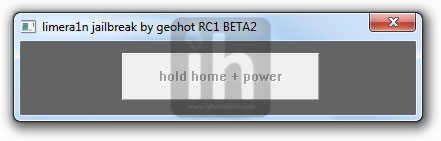
Hold down the Home + Power buttons.

jailbreak iphone 4 3gs iOS 4.1

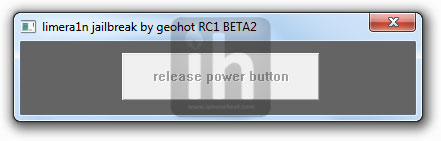
Release the Power button and keep holding the Home button.

jailbreak iphone 4 3gs iOS 4.1

You iPhone 4/3GS will now be in DFU Mode. Then Limera1n logo will appear on your iPhone screen.

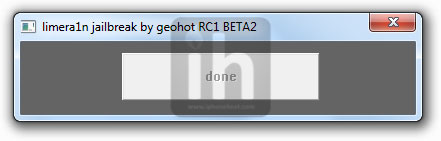
The follow message will appear when Limera1n is done with the jailbreak process
jailbreak iphone 4 3gs iOS 4.1

Step 5

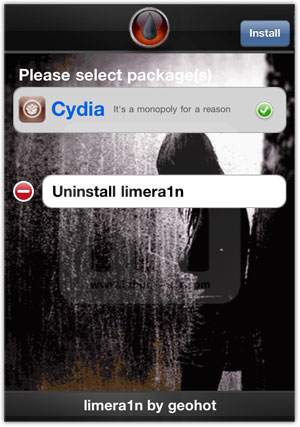
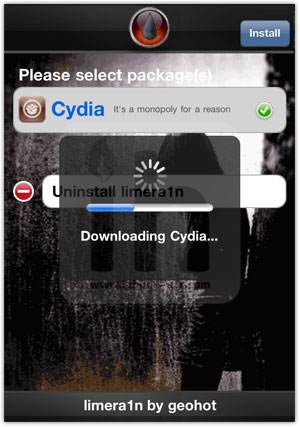
Open the Limera1n app from your iPhone home screen and install Cydia from there. Once Cydia is installed, Reboot your iPhone and you’re Done!

jailbreak iphone 4 3gs iOS 4.1jailbreak iphone 4 3gs iOS 4.1

Have Fun!

You can follow us on Twitter, Join us at Facebook, and also Subscribed to RSS Feed to receive latest updates.

Digg
Twitter
StumbleUpon
Facebook
Reddit
del.icio.us