TUAW’s Daily App: FlightBoard

I can’t say I’m a huge traveler — even though I’ve hit up quite a few conventions this year for work, I haven’t been flying so much that I need to keep tabs on what’s going on at the airport. But I like the idea of FlightBoard anyway. It’s an app that will automatically create a departing flights board for any airport in the country, so you can see flight numbers, gate arrivals, and departure times for all the flights in the airport.

Like I said, I personally don’t fly enough that I’d necessarily need an app just for this, but if you find yourself running off to the airport a lot for a certain reason, this app seems like it would be very helpful. Even beyond the specific function, I like the idea and design of FlightBoard — it’s modeled after the flight board at Charles de Gaulle airport in Paris, and it is terrific example of how an app can successfully use an interface metaphor. In the real world, flight boards are often just a standard LED display (or, more recently, a series of monitors). But in this case, the app represents the idea of a flight board, so it recreates the LED display, and it makes the information more familiar to the user. We’ve all seen and used a flight board, and this app benefits from that previous experience in its interface.

In any case, that’s just some interesting UI design insight. If nothing else, this app will tell you when and where planes are leaving at whatever airport you choose. FlightBoard is on the App Store right now for US$3.99.

TUAW’s Daily App: FlightBoard originally appeared on TUAW on Mon, 18 Oct 2010 08:00:00 EST. Please see our terms for use of feeds.

Source | Permalink | Email this | Comments

Jailbreak iPod Touch 2G iOS 4.1 with Greenpois0n

GreenPois0n can now jailbreak iPod Touch 2G (MC & non-MC models) iOS 4.1. With Greenpois0n RC4, you can jailbreak iPod touch 2G iOS 4.1 in Windows and Mac OS X, Linux support will be added soon. Follow the steps below to jailbreak iOS 4.1 on iPod Touch 2G MC and non-MC models.
jailbreak ipod touch 2g greenpois0n
Disclaimer: This guide is for educational and information purposes only. Follow the steps below at your own risk. We cannot be held responsible if anything goes wrong.

Lets jailbreak iPod Touch 2G iOS 4.1 using Greenpois0n jailbreak.

How to Jailbreak iPod Touch 2G with Greenpois0n

Step 1

Download the required stuff:

Rest of the steps to jailbreak iPod Touch 2G iOS 4.1 are exactly similar to the guide posted earlier. Please follow the guide linked below and continue from Step 2:

How to: jailbreak iPod Touch iOS 4.1 with Greenpois0n

You can follow us on Twitter, Join us at Facebook, and also Subscribed to RSS Feed to receive latest updates.

Also checkout:

Digg
Twitter
StumbleUpon
Facebook
Reddit
del.icio.us

How to make an iPhone App – Part 3: Table Views

Table views are probably the most common control in iPhone apps. If you have used the Messages app, Mail app, Twitter app, between many others, then you know what i’m talking about. You may have seen them with just text, with a tittle and a description, with an image but they are all table views.

To get started you only need to know that Table views are only one row wide, every row contains a UITableViewCell and every Cell is loaded with data that has to come from a source, the source may be any class in your project or it may come from a web service, and so on. We also will be using delegation to tell the iPhone what to do when one row is selected.

Creating the Table View in Interface Builder

Open Xcode and create a new view based application just like we did in the previous tutorial. I’m going to call mine “tableTut”.

Go to the resources folder and double click your view controller to open up Interface Builder, mine is tableViewController.xib.

In the “Library” window, locate the Table View object and draw it to your application window.

It will look like it has some data but actually it doesn’t, those rows are only demonstrative, if you save and run your app you’ll get an empty table in the simulator.

With the table selected in the app window go to the Inspector Window and click the connections tabs. There are going to be two outlets that need to be hooked up to a class in our project, so click the little circle and drag and drop it in the “Files Owner” icon in the “Document Window”.

Creating the Data Source

As i said earlier, the data source can me many things. In our case it is going to be a property list. This kind of files stores serialized objects, if this sounds to technical for you then just be satisfied to know this way is one of the easiest to read data from when populating table views.

Right click the resources folder and select Add->New File…, then scroll down to the Mac OS X section and click “Resource”, in the right side of the window double click the Property List icon. Give it a name, i’m going to call mine “TPL.plist”.

Here we are going to add al the row our table is going to have. I’m going to fill it with the tutorials i have in my site The Programmer Lifestyle.

First we need to change the type to Array:

And to add a property, having selected one row, just click the small icon in the right and type the text, use string in all of them:

I added the following:

  • How to make an iPhone App for beginners – Part 2: Memory and Controllers
  • Your first Game in Cocos2D – Part 3: The Gameplay
  • Are you an Appleholic?
  • How to make iPhone Apps – Part 1: Xcode suite and Objective-C
  • Your first Game in Cocos2D – Part 2: Sprites and More Transitions
  • Survive a full day of programming
  • Your first iPhone Game in Cocos2D – Part 1: Menus and Transitions
  • Installing Cocos2D for iPhone
  • Setting up WordPress in Dreamweaver CS5
  • Live free or code hard

Now my List looks like this:

Populating the Table

As we said that we were going to take care of the DataSource and the Delegate in interface builder, now we need to say make that true in the code.

In the classes folder click the header of your ViewController, mine is tableTutViewController.h. And right before the opening curly brace type:

And define an array to hold the properties of the list. So now tableTutViewController.h should look:

	#import 

	@interface tableTutViewController : UIViewController

	{
		NSArray * tutorials;
	}

	@end

Now we have to load the information in the property list when we open the app. In the implementation file, “tableTutViewController”, find the viewDidLoad method and uncomment it. By uncomment i mean remove the /* and */ before and after the method.

Before the [super viewDidLoad] statement create a path for the plist:

	NSString * theFile = [[NSBundle mainBundle]
					pathForResource:@"TPL" ofType:@"plist"];

And fill the tutorials array with the file contents:

	tutorials = [[NSArray alloc] initWithContentsOfFile:theFile];

Now the method should look like this:

- (void)viewDidLoad {
	NSString * theFile = [[NSBundle mainBundle]
		pathForResource:@"TPL" ofType:@"plist"];
	tutorials = [[NSArray alloc] initWithContentsOfFile:theFile];
    [super viewDidLoad];
}

There are two methods that are required for loading data into the table, those are:

(NSInteger)tableView:(UITableView *)tableView numberOfRowsInSection:(NSInteger)section
(UITableViewCell *)tableView:(UITableView *)tableView cellForRowAtIndexPath:(NSIndexPath *)indexPath
To know what methods are required when you are coding things like this look in the documentation for the objects that you’re using. I looked for UITableViewDataSource and found this two methods.

We must implement both of them but i’m more interested in the second one.

After “@implementation tableTutViewController” add the first method. Just add the opening and closing curly braces and return the number of rows of the array of contents like this:

(NSInteger)tableView:(UITableView *)tableView numberOfRowsInSection:(NSInteger)section{
	return tutorials.count;
}

This will return the number of rows that the table will have. We are returning the size of “Tutorials” because it is supposed to have the same number of positions than the table of rows.

Now let’s move to the important one, the one that return the cells for each row in the table. Add the method and type the curly braces. Inside we want to create a cell, load content on it and return it, but before that, to make things more efficient we are going to dequeue the first row and add it to the bottom.

Confused?.

Apple recommends to reuse cells. This means that when we scroll down our table, the cell that leaves the screen we are going to take it an add it to the bottom of the screen with the data that follows in the list, that way we give the effect of scrolling through many cells without loading all of them in memory.

In order to do so we need to type this inside the method:

UITableViewCell * RowContent =
	[tableView dequeueReusableCellWithIdentifier:@"MyCell"];

This @”MyCell” is just a tag or and id to identify our cell

Now if the cell is null, we create a new one:

if (RowContent == nil){
	RowContent = [[UITableViewCell alloc]
			initWithStyle:UITableViewCellStyleDefault
			reuseIdentifier:@"MyCell"];
}

Then we load the content:

RowContent.textLabel.text = [tutorials objectAtIndex:indexPath.row];

And last we return the cell:

return RowContent;

If you did everything right both methods should look like this:

-(NSInteger)tableView:(UITableView *)tableView numberOfRowsInSection:(NSInteger)section{
	return tutorials.count;
}

-(UITableViewCell *)tableView:(UITableView *)tableView cellForRowAtIndexPath:(NSIndexPath *)indexPath{

	UITableViewCell * RowContent =
	[tableView dequeueReusableCellWithIdentifier:@"MyCell"];

	if (RowContent == nil){
		RowContent = [[UITableViewCell alloc]
				initWithStyle:UITableViewCellStyleDefault
				reuseIdentifier:@"MyCell"];
	}

	RowContent.textLabel.text = [tutorials objectAtIndex:indexPath.row];

	return RowContent;

}

Build and run the app and the table should appear:

I didn’t add enough rows in the plist to let the table scroll, but no problem, just add a few more to the file and you’ll make it scroll. Thats your homework.

Now select one row. Nothing will happen. We need to add a new view and switch, but that is going to be part of the next tutorial.

Conclusion

You have learned how to populate a table view from a file. In the next tutorial we are going to add a new view so when you tab a row the table will move to a side to give way to the new view.

Stay hooked to the series!

Are cheap iPhone games killing the handheld gaming industry?

In last week’s news roundup I linked a story about how the founder of n-Space, Dan O’Leary, blamed low sales on the iPhone and iPod touch.  It seems his Nintendo DS development company is experiencing some rough times and he needs to find a scapegoat. I would like to take a closer look at the article and share my opinion.

“Huge budget titles have to sell massive numbers to return a profit and the App Store has disrupted our industry in the same way iTunes changed consumer expectations for music.”

First, whose fault is that? I don’t think that titles with a large budget requiring tons of sales to make a profit is the fault of the App Store. Perhaps you should try doing a little market research and give your customers games what they want.  Consumers don’t care how much money you spend creating a game if it sucks.

“People that use to buy many games every year now buy a few AAA titles, supplementing their need with games that are free or cost less than a pack of gum.”

You know why that is Dan? Because game developers are coming out with sub par games and expecting consumers to buy them just because. It is awesome that the games look so realistic but if they are no fun what is the point? I would much rather take a chance on a 99 cent game because I won’t be out much, unlike a DS game where I will have to pend in excess of $30 only to find out it is terrible and Gamestop will buy it back from me for a third of what I paid.

Interestingly, O’Leary revealed development of an iPhone and iPod touch game at n-Space that will be announced next week.

Now you are headed in the right direction. To be successful in tough economic times you have to be willing to make some changes. Many companies have shown that you can develop a great game and find great success in the App Store while laughing all the way to the bank.

Fix Spirit Jailbreak and Blackra1n Various Problems with iFixer

iFixer is a new utility released by Kirma to fix various problems that jailbreakers face with Blackra1n and Spirit jailbreak. iFixer utility essentially fixes the iTunes version error with Spirit jailbreak and Blackra1n ASL.dll when you have iTunes 10 installed.

How iFixer works?
Put the Blackra1n or Spirit jailbreak and iFixer in the same folder. Run the iFixer as an Administrator. The iFixer interface comprises two buttons, one for Spirit jailbreak Fix and the other for Blackra1n jailbreak fix. Hit the button labeled with the Jailbreak tool you’re going to use. that’s it.

Download iFixer

Related Posts

  1. iTunes 9.1.1 ? iFixer Fix for Spirit and Blackra1n Jailbreak
  2. Jailbreak iPod Touch 3.1.2 with blackra1n, Resolution Problems
  3. Spirit Untethered Jailbreak 3.1.2 – 3.1.3 iPad, iPhone, iPod is Released

How to unlock iPhone 4.1 and Jailbreak

We provide you with all up to date software to help you unlock and jailbreak your iphone. Then in just a few easy to follow steps, you’re done!

Unlock iPhone ios 4.1
Our 4.1 full unlock is now available for iPhone 4 ,  3G and 3GS. You can turn your iPhone off and on at will, and you can also upgrade within iTunes without fear of re-locking. ONLY true unlock in the world right now.

Related Posts

  1. Carrier Unlock for iPhone 4 – 3G – 3GS on iOS 4.1 Released
  2. Spirit Untethered Jailbreak 3.1.2 – 3.1.3 iPad, iPhone, iPod is Released
  3. FIX iPhone Stuck in Constant Reboot After Jailbreak.

Talkcast tonight, 10pm ET: Back to the Mac

With quarterly earnings due tomorrow and Wednesday’s ‘Back to the Mac’ event coming up right afterward, there’s plenty to cover and speculate upon tonight on the TUAW Talkcast.

We’d love it if you joined us. To participate on TalkShoe, you can use the browser-only client, the embedded Facebook app, or the classic TalkShoe Pro Java client; however, for maximum fun, you should call in. For the Web UI, just click the “TalkShoe Web” button on our profile page at 10 pm on Sunday. To call in on regular phone or VoIP lines (take advantage of your free cellphone weekend minutes if you like): dial (724) 444-7444 and enter our talkcast ID, 45077 — during the call, you can request to talk by keying in *8.

If you’ve got a headset or microphone handy on your Mac or your PC, you can connect via the free Gizmo or X-Lite SIP clients or by using the TalkShoe client’s ShoePhone tool; basic instructions are here.

We’ll kick things off at 10pm ET/ 7pm PT. See you there!

Talkcast tonight, 10pm ET: Back to the Mac originally appeared on TUAW on Sun, 17 Oct 2010 14:00:00 EST. Please see our terms for use of feeds.

Source | Permalink | Email this | Comments

FolderEnhancer Now Supports iOS 4.1

FolderEnhancer has been updated to now supports iOS 4.1 firmware. FolderEnhancer is a jailbroken tweak which brings some cool improvements to the iOS folders capability.

folderenhancer

iOS 4 brought with it the ability to put apps and bookmarks into folders. Unfortunately, the implementation is quite limited. FolderEnhancer takes this feature and improves upon it, making it a viable solution for organizing and accessing your apps.

FolderEnhancer Features

  • Open folders faster.
  • Add up to 320 icons to a folder (20 pages, 16 per page).
  • Create folders inside of folders.
  • Create folders on the dock.
  • Supports Iconoclasm for custom layouts inside of folders.
  • Extends MultiIconMover to allow moving multiple icons into/out of folders.
  • Options include hiding the folder name and wallpaper, as well as disabling animations.

What’s New in This Version

  • NEW: Added support for iOS 4.1.
  • FIX: With “Close on App Launch” OFF, closing an app launched from a folder while the task switcher was visible would cause the folder to fail to reappear.
  • FIX: With wallpaper off, toggling the task switcher would cause parent folders to become visible, appear stacked.

You can purchase and download FolderEnhancer from the Cydia Store for $1.99. CategoriesSB owners can get the app at $0.99 until the end of October.

You can follow us on Twitter, Join us at Facebook, and also Subscribed to RSS Feed to receive latest updates.

Digg
Twitter
StumbleUpon
Facebook
Reddit
del.icio.us

Download Greenpois0n Jailbreak for Mac OS X

Chronic Dev Team has released GreenPois0n jailbreak for Mac OS X. You can download Greenpois0n Jailbreak for Mac OS X from the link below. Greenpois0n can jailbreak iOS 4.1 on iPhone 4, 3GS, iPod Touch 4G, 3G and iPad 3.2.2 just like Limera1n jailbreak.

greenpois0nGreenpois0n is already available for both Windows and Linux OS. There’s also Limera1n, an alternate jailbreak for iOS 4.1 by GeoHot. Both the jailbreaks feature the same exploit developed by GeoHot and provides untethered jailbreak.

Steps to jailbreak iPhone 4, 3GS, iPod Touch 4G, 3G on iOS 4.1 and iPad iOS 3.2.2 are exactly similar for all OS. All jailbreak guides are linked below.Jail
Mac version of the guide will be up soon. Stay tuned for that!

Download

Jailbreak iOS 4.1

You can follow us on Twitter, Join us at Facebook, and also Subscribed to RSS Feed to receive latest updates.

Digg
Twitter
StumbleUpon
Facebook
Reddit
del.icio.us

Jailbreak iPhone 3G, iPod Touch 2G iOS 4.1 with RedSn0w 0.9.6b1 (Windows & Mac)

RedSn0w 0.9.6b1 can jailbreak iPhone 3G, iPod Touch 2G on iOS 4.1. In this guide you’ll learn how to jailbreak iPhone 3G iOS 4.1 and iPod Touch 2G (MC, non-MC) iOS 4.1 using RedSn0w 0.9.6b1. Read the IMPORTANT part first. Steps are exactly same for both Windows and Mac versions.
redsn0w 0.9.6b1
IMPORATANT

  • iPhone 3G Users: If you need unlock, do NOT use RedSn0w/Limera1n/Greenpois0n. Wait for the PwnageTool.
  • iPod Touch 2G Users: RedSn0w 0.9.6b1 can jailbreak both MC & non-MC models. But for iPod Touch 2G MC, it’ll be a tether jailbreak (On each reboot you must connect iTouch to computer to boot it.) MC users should consider rolling back to iOS 4.0.x and use jailbreakme or wait for Greepois0n support.

Let’s jailbreak iPhone 3G, iPod Touch 2G iOS 4.1 with RedSn0w 0.9.6b1 (Windows & Mac).

Disclaimer: This guide for educational purposes only. So, try it at your own risk. We can NOT be held responsible if anything goes wrong.

How to Jailbreak iPhone 3G, iPod Touch 2G iOS 4.1 with RedSn0w 0.9.6b1

Step 1

Step 2

Connect your iPhone 3G / iPod Touch 2G to iTunes and restore iOS 4.1.
ATTENTION iPhone 3G Users: iOS 4.1 will update your baseband which is not unlockable ATM.

Step 3

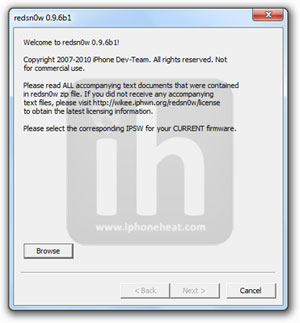
Once your iPhone 3G / iPod Touch 2G is running iOS 4.1, execute the downloaded RedSn0w 0.9.6b1.

redsn0w 1

Step 4

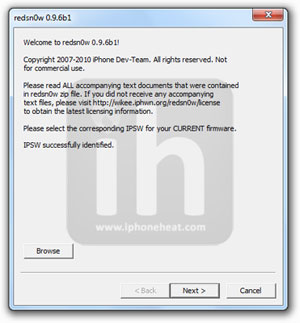
Hit the Browse button and select the downloaded iOS 4.1 firmware. RedSn0w will recognize the firmware, now hit the Next button.

redsn0w 2

Step 5

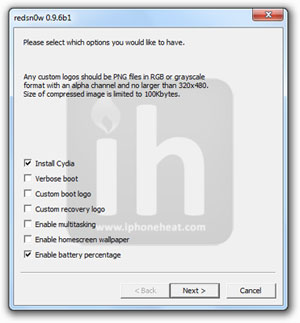
Now select your desired options. Make sure that atleast Install Cydia is selected. Now hit Next button.

redsn0w 3

Step 6

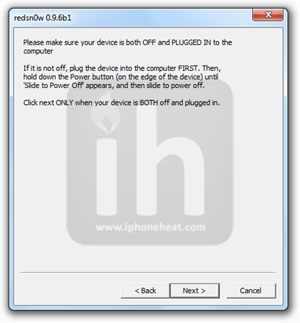
RedSn0w will ask you to turn off your device. When it’s off and plugged in, hit the next button

redsn0w 4

Step 7

Now you’ll be instructed to put your device into DFU Mode. Follow the on screen instructions.

redsn0w 5redsn0w 6redsn0w 7

Once your device goes into DFU mode, RedSn0w will start jailbreaking it. Once done, you can find the Cydia icon on your iPhone 3G / iPod Touch 2G home screen.

That’s it. You’ve successfully jailbroken iPhone 3G / iPod Touch 2G iOS 4.1 firmware with RedSn0w.

Troubleshooting

Any Windows users seeing “Waiting for reboot” for too long (more than 20 seconds or so), please try “shaking” the JB process by unplugging then replugging your USB cable (while letting redsn0w continue to run). Also, try using a USB port “closer” to your computer (as opposed to on your monitor or behind another hub). We’re still tweaking the Windows flow and so any feedback you can provide will help!

Jailbreak iPhone 4, 3GS, iPod Touch 4G, 3G, and iPad

iPhone 4, 3GS, iPod Touch 4G, 3G and iPad users can follow the Limera1n and Greenpois0n guides linked below:

You can follow us on Twitter, Join us at Facebook, and also Subscribed to RSS Feed to receive latest updates.

Also checkout:

Digg
Twitter
StumbleUpon
Facebook
Reddit
del.icio.us

Yahoo Entertainment: A Brilliant iPad Experience


Yahoo Entertainment is a beautiful way to get your daily dose of Yahoo News. A major improvement to the browser experience, this app contains several sections, each with its own unique experience.

Some might see it as a random collection of interface clichés, but I couldn’t help but find it to be an attractive and enjoyable way to enjoy my new iPad. Read on to see what the app has to offer.

The Home Screen

When you first fire up Yahoo Entertainment, you’ll be taken to a virtual living room. As you can probably guess, each of the three items in the center of the scene takes you to a different feature in the app.

The magazine on the left takes you to the news section, the magazine with the picture of a television takes you to the TV schedule and the DVD case takes you to the videos section.

screenshot

The three parts of the app are represented by items in the scene

I normally roll my eyes at virtual room setups as a means to navigate content but this one gets a few things right.

First, it looks great. Instead of an awkward medley of photographic and illustrated objects, Yahoo has stayed towards the high-end illustration feel. The dark room filled with rich colors and textures has a really immersive effect.

Most importantly, you can hit the little “?” button at the bottom left of the screen to see a more traditional and easy to use menu. The boxes that pop up point out what each item in the scene does but they also double as something else you can click to access those features.

screenshot

Hitting the question mark makes a user friendly menu appear

As you’ll see below, the attractive visuals extend throughout the rest of the app. Each feature has it’s own unique custom design, which makes for quite a rich user experience perfect for the iPad.

News

The news portion of the app is divided into six different sections: Top Stories, Dear Abby, Book Reviews, Fashion, Odd Stories and Comics.

Top Stories

The Top Stores section loads with an attractive animated grid not unlike that in Flipboard, though more uniformly structured. The squares alternate between solid colors with text and large photographs.

screenshot

Top Stories

Tapping on a square brings up the full story. Keep in mind that this ins’t a full-blown news app but more of a daily bite-sized preview of what’s going on in the Entertainment world. There are less than 20 stories to choose from, all from music or Hollywood, and there’s no option to load additional content.

screenshot

A sample article

Dear Abby

Next up in the news section is the popular “Dear Abby” column originally founded in 1956 and carried on now by the original author’s daughter.

screenshot

Top Stories

It’s basically an advice column that people write into for help with family and relationship issues. I’m not sure what qualifications Abby has for answering such questions but I guess people trust her opinion!

The theme here as seen above is a desktop with a postmarked letter and a pencil. As with the other sections, the graphics are quite nice but here the resolution seems a little low on both the wooden texture and the pencil and shouldould definitely be improved.

Book Reviews

The book reviews section shows a sliding horizontal list of book covers on a wooden background (the same low-res texture we saw earlier). Tapping on a book brings up the review and a larger preview of the cover.

screenshot

Book Reviews

The reviews are quite brief and can be read in their entirety in only a minute or two. The genres covered seem to be random and span everything from historical biographies to mystery novels.

Fashion

The fashion area seems to be where the designers spent the least amount of time contriving a clever interface. Instead of a noticeable theme, the stories are displayed simply on a colored background.

screenshot

Fashion

There’s no main list or grid view here, you simply tap on the left and right sides of the screen to view other articles (this trick works in most of the app’s sections).

Odd Stories

The Odd Stories section brings us back into the land of themed interfaces, this time with a bulletin board background and scraps of colored paper containing headlines. Tapping on a scrap expands it into a longer sheet of paper with the full story.

screenshot

Odd Stories

True to its name, this section does indeed have some bizarre stories that are really fun to read through. You’ll find stories on everything from armless pianists to surprise visits from Johnny Depp.

Comics

The final section of the news portion of Yahoo Entertainment is obviously the best: comics. Here you’ll find a free sampling of the latest Dilbert, Garfield and Marmaduke comic strips.

screenshot

Comics

Tapping the index button at the bottom will bring up a list of all 15 comics to choose from. Other notable mentions include Peanuts, Ziggy and Foxtrot.

Yahoo Guide

Back at the home screen, the TV Guide in the middle of the scene brings you to an interactive listing of show and movie times from your local cable provider.

The guide is so good that it could easily be a standalone app that Yahoo charges for so it’s a real bonus to get it here free.

screenshot

Yahoo Guide

You can scroll through the times and stations just by flicking around or easily go straight to the one you want using the controls at the bottom. You can also search for specific titles, filter the results by TV and Movies and keep a list of your favorites for quick access.

You’ll also find detailed descriptions of each show along with cast and character lists and complete season episode guides.

screenshot

Searching and Show Detail

Yahoo Video

The final section of the app is accessible by tapping either the DVD or the television from the main scene. This brings up a nice theater room interface with hanging curtains and shelves displaying the various video channels.

screenshot

The Yahoo Video View

Each video channel has multiple selections available and range in content from current affairs and weather to sports and comedy. I’m a big fan of the Onion News Network and was quite happy to see that they were included in the offering along with JibJab and StupidVideos.com.

screenshot

A video from The Onion

Worth A Download?

To be honest, when I first saw the Yahoo Entertainment app in the App Store, I didn’t expect much. However, I was pleasantly surprised to find a well-rounded, beautifully designed application simply packed with features.

There are definitely a few sections that need some work but there’s a surprising amount of depth here for a free app. Though there are only three primary sections, there’s enough here to keep you occupied for hours at a time.

Because it’s so diverse and attractive, Yahoo Entertainment is one of those apps that provides you with a great way to show off your fancy iPad to some friends. If only for this reason, I recommend that you download it and keep it on hand.

Conclusion

To sum up, Yahoo Entertainment is a really great free application that helps you remember why you bought an iPad. Even if you’re like me and couldn’t care less about celebrity gossip and Dear Abby columns, there is still plenty of other great content like funny videos and comics to keep you interested.

Go give it a download and let us know what you think.

Is Depositing Checks on Your iPhone a Good Idea?


Have you seen the new PayPal app? It comes with an awesome new feature that allows you to deposit checks.

Today we’ll go over how the new feature works along with whether or not users are using the new feature and finish off with a discussion of whether or not the feature should even exist.

Skipping the Bank

Ever since the day that I made my first online transaction, I knew that the future of the banking industry had changed. For years we’ve all been taking dramatic steps towards cutting a weekly trip to the bank out of our lives for good.

For instance, in many parts of the US, including where I live, it’s entirely possible and in fact quite common to live a fairly cash-less lifestyle. Whether I’m buying a $1,500 sofa or a 79¢ Coke, I simply whip out my debit card. It might seem absurd to some, but I simply don’t see the point in carrying around pockets full of jingling change.

As time goes on, the reasons for me to go to carry cash are rapidly disappearing. Every business I know of accepts plastic and even cases that call for pooling money amongst friends can be handled with a quick mobile phone PayPal Bump or Venmo transaction (admittedly, few of my friends go for this at the moment but they’ll come around).

I’ve found that as my need for physical cash reduces, so do my necessary trips to the bank. I can check my balance and manage my accounts from my living room, so why make the drive? In fact, there is literally only one reason that I ever go to the bank anymore: to deposit a check.

For years I’ve been complaining about how this whole check-depositing business is cramping my bank-less lifestyle and could easily be replaced with an online service and a scanner. It seems I’ve finally got my wish.

PayPal Check Depositing

The newest version of PayPal for iPhone allows you to deposit checks from anywhere. You simply use your iPhone’s camera to photograph the front and back of the check and PayPal will process the transaction and add the money to your account in a few days.

screenshot

PayPal’s new features being touted on their website

PayPal may not be the only company to release this feature, but they’re definitely one of the most significant entries into the market yet. USA Today and others are reporting that upwards of $100,000 was deposited into user accounts via this new feature in the first 36 hours!

However, despite all the buzz and the obvious success, I can’t help but wonder about how this will turn out in the long run.

A New Era of Check Fraud?

I understand that the good folks at PayPal are smart, a lot smarter than me in fact. Even still, I can’t help but wonder if they’ve really considered the door they’re opening up to the less-than-trustworthy members of society.

Check fraud is something that banks have struggled with for years despite being able to actually hold and examine checks that are deposited, how is this not going to be an even bigger issue when all they have to examine is a photograph!?

Again, I’m sure they’ve given this no small amount of thought but I can’t find any information on just how these virtual check-cashing companies are preventing tomorrow’s Frank Abagnales from taking advantage of the system.

After some digging, I discovered that PayPal uses a company called BankServ to handle the new digital check transactions. BankServ uses a system called DepositNow!, which lists lots of information on their site about how safe their servers are but nothing about how blurry iPhone photos won’t lead to fake check deposits.

What Do You Think?

How much do you trust online transactions? I do business on the web every day but still know plenty of people that refuse to spend a single cent online for fear of identity theft. As online check depositing becomes more popular, do you think it’ll be a new potential way for someone to steal your money or is this actually going to somehow make us safer from check fraud?

Leave a comment below with your opinion (especially if you’re in banking and understand how it all works). As for me, despite my concerns, I’m thrilled with the possibility of now being able to abandon trips to the bank altogether!

Beautiful Content Sharing With Droplr for iPhone


If you’re an avid reader of Mac.AppStorm, you’ve probably heard me rave about Droplr for Mac a time or two. Today we’ll be taking a look at its new counterpart: Droplr for iPhone.

With the iPhone version, you get all of the same link sharing goodness wrapped up in a beautiful mobile interface. Read on to see what awesome features await!

What Is Droplr?

Droplr for Mac is one of my favorite menu bar utilities (and it’s completely free!). This simple app makes sharing images, text, code, links and more a two-step process that couldn’t be easier: just select something and drag it to your menu bar. The item is then uploaded and the URL is copied to your clipboard. Simply paste the URL into Twitter, Facebook, iChat or anywhere else.

screenshot

Droplr for Mac

One of the greatest things about Droplr is that there is also a web-based element to the service. All of your past drops are kept in a beautiful online gallery for you to access, share or delete at a later time.

screenshot

Droplr web interface

Droplr for iPhone

Droplr has now made the jump from Mac to iOS and the implementation is excellent. Since Droplr is a cloud-based service, the iPhone and desktop versions are seamlessly and effortlessly integrated.

screenshot

Droplr for iPhone

When you startup the iPhone client for the first time, you’ll be asked to login. This isn’t a custom Droplr account but instead uses your Twitter credentials. If you don’t have a Twitter account, it’s time to give in and join the 21st century because Droplr alone is worth the sign up.

The Main Interface

I was very pleased when I first saw the Droplr iPhone interface. It’s very attractive and extremely easy to use. I love that it feels familiar and yet has a look that is all it’s own.

After you sign into your account, all of your previous drops from the desktop version are loaded into the app. As you can see in the shots below, each type of drop has its own custom icon so you can instantly tell what it is. Images simply show a preview of the file but links, .zips, text files and code snippets all have icons that instantly convey their contents.

screenshot

Your list of drops

Each item in the list also contains either the file name or a preview of the text inside the drop along with a number that shows you how many times the drop has been viewed.

At the top of the list is a simple search bar that allows you to quickly find the drop you’re looking for without scrolling through an endless list.

Sharing a Drop

Much of the interface ideas are noticeably a nod to Tweetie (now Twitter) for iPhone. To refresh the page, you pull the list down and the sharing bar is positioned similarly to the tweet options in Tweetie.

To bring up the sharing bar, simply tap on any item in the list. Here you’ll be presented with five different options represented by icons: view drop, copy drop URL to clipboard, email drop URL, tweet drop URL and delete drop.

screenshot

Tap a drop to bring up the sharing options

To view a drop, tap on the eye icon. Droplr does a great job of integrating different types of drops into the application. Fro example, for an image, you’ll see a scaled down preview and the option to view the image in its original size. Notes show up as simple text right in the app and links will bring up a preview of the web page that they point to.

screenshot

You can view drop previews right in the app

Adding a Drop

Droplr for iPhone doesn’t just allow you to share drops that you’ve made on your Mac, it’s also great for creating new drops. From the main list, tap the “+” button at the top right to create a new drop.

This will bring up a window that will allow you to grab a photo or video from your library, shoot a new photo or video, shorten a link or compose a note.

screenshot

Adding a drop and shortening a URL

The link shortener and note creator brings up a notebook-themed screen. If you’re shortening a link, the contents of your iPhone’s clipboard will automatically be pasted onto the screen and all you have to do to shorten it is hit the little checkmark button.

Twitter Integration

Twitter is the service that you’ll most likely be creating drops to share on. Fortunately, the good folks behind Droplr realize this and built some very flexible Twitter integration right into the app.

screenshot

Selecting a Twitter app

In Droplr’s preferences, you can choose from a number of popular Twitter iPhone apps to push content to. Then when you hit the Twitter button on the share bar, your selected app will open with the drop URL in the compose window.

Pro and Cons

I’m a huge fan of Droplr for Mac so my expectations were pretty high for the iPhone app. Fortunately, it lived up to my standards. Droplr for iPhone is a breeze to use and does just about everything that the desktop/web version does. The interface is perfect and the workflow is nice a brief with most actions only a tap or two away.

My favorite feature by far is that the app integrates right into the web service so I can easily and quickly share content between my Mac and iPhone and have access to my complete drop history from anywhere.

My biggest complaint with the iPhone app is that there doesn’t seem to be a way to filter the list of drops by type like you can with the web app. This would make finding your desired drop much easier and allow you to just search through image drops, browse through link drops, etc. I also noticed that the previews for code snippets seem to have some formatting issues and can show up really tiny with no zoom option.

Other than that, the app is quite stellar and I highly recommend giving it a shot.

Conclusion

Whether or not you’re a fan of Droplr for Mac, if you like to share links, notes, code snippets or images, you should absolutely check out Droplr for iPhone. Unlike simply attaching these items directly using your favorite Twitter app, Droplr keeps a history of everything you’ve shared, allowing you to go back and reuse old items.

Stop by the iTunes store and give Droplr a shot. Leave a comment below and let us know that you think. Also, stay tuned because we liked Droplr so much that we’ve got a few licenses we want to give away! Look for a giveaway post soon.

Weekly Poll: Have You Ever Jailbroken Your iPhone?


In this week’s poll question, we want to know if you’ve ever jailbroken your iOS device.

Jailbreaking is a popular method of adding more functionality to your iPhone, iPod Touch or iPad by hacking the system to allow some functionality that Apple doesn’t offer out of the box (it’s perfectly legal but Mr. Jobs sure isn’t happy about it).

Leave a comment below and let us know what you think of jailbreaking, what method you use and whether or not you’ll keep jailbreaking your devices in the years to come.

Help Solve the World’s Water Problems With Your iPhone


This year AppStorm is taking part in Blog Action Day to raise awareness about clean water and water conservation.

We’re going to look at a few things iPhone owners can do to help the water movement. Not only will you be contributing to an awesome cause, you’ll also get a few benefits out of the deal such as a cool new product or some nice savings on your water bill. Read on to see how you can help!

What Is Blog Action Day?

Blog Action Day is an annual event held every October 15 that unites the world’s bloggers in posting about the same issue on the same day with the aim of sparking a global discussion and driving collective action.

screenshot

The Blog Action Day Website

This year’s topic is water. Did you know that nearly a billion people don’t have access to clean drinking water? Or that 42,000 people die week year from unsafe water?

The numbers are staggering enough to make each of us feel insignificant in the face of such a huge problem, but it turns out there is plenty that you can do to help.

GelaSkins and Charity: Water

One of the easiest ways iPhone users can contribute to the cause is by purchasing a charity: water GelaSkin. A GelaSkin is a super thin, scratch resistant covering for your iOS device. It’s a non-permanent covering that is easily removable and offers a cool way to customize the back of your device.

screenshot

charity: water iPhone 4 GelaSkin

GelaSkins has jumped on board the charity: water project and offers a number of GelaSkins with charity: water artwork. You can order skins for your iPhone, iPod Touch, iPad and tons of other devices. Here are a few more designs that are available:

screenshot

Available charity: water artwork

In addition to showing your commitment to clean water via the GelaSkin, you can download the charity: water artwork as a background picture for your iOS device.

How Does This Help?

Proudly displaying the charity: water logo is a great conversation starter and an easy way to help build awareness about the lack of clean water in many countries. However, buying a charity: water GelaSkin does a lot more than raise awareness.

According to the GelaSkins website, “for every charity: water GelaSkin you buy, 50% of the proceeds go directly to fund sustainable water projects.” That means that by merely treating yourself to a stylish and protective covering for your iOS device, you’re directly contributing to the cause of clean water. How cool is that?

If you’re a swag lover, charity: water also has t-shirts, bracelets, thermoses, and even neckties available in their shop, the proceeds of which will of course go to the clean water cause.

Donate Your Birthday

You know how you always ask your friends and family to spring for iTunes gift cards every year for your birthday? One final way you can help out charity: water is to donate your birthday for the cause. Instead of asking for cool Apple stuff, you encourage your friends and family to take the money they would’ve spent on you and give it to charity: water to help provide clean water to the world. A mere $20 can help provide clean water for one person for 20 years!

If you get a enough donations, you could win a trip to Africa with Will Smith! Admit it, that’s way cooler than an iTunes gift card.

5 Water Conservation Apps

In addition to donating funds to help supply people with clean water, you can do your part to help the planet by engaging in water conservation techniques. Water is a key element in the creation of usable energy that we all use and cutting back a little goes a long way towards creating a sustainable future.

Below you’ll find five awesome apps for helping you and your family monitor your water usage.

Erika Knows Green: Water Conservation

“This book teaches young kids simple ways to be green through their daily actions. Kids can learn to be green and more environmentally-conscious in this water conservation story. It’s a great way to teach them simple things that they can do at home to save water.”

Price: $0.99
Developer: StoryBoy

screenshot

Erika Knows Green: Water Conservation

Water Buddy – Water Usage Tracker

“Water Buddy keeps a history of your water meter readings provides an instant overview of your usage and whether you are keeping within your target. Whether your target has been set by local water companies or you just want to save money, Water Buddy will help you meet those targets. Local government and water organisations sometimes set responsible usage targets for residential customers and these can be used with Water Buddy.”

Price: $0.99
Developer: acooper

screenshot

Water Buddy – Water Usage Tracker

Waterprint

“You’ve heard of carbon footprints, but what about water footprints? Waterprint is a one-of-a-kind iPhone application that helps you calculate just how much water is imbedded in your daily activities, including what you wear, eat and drink. This application even includes a Waterprint calculator that quickly and easily allows you to determine exactly how much water it takes to grow one banana, manufacture a tshirt, or brush your teeth.”

Price: Free
Developer: Waterprint

screenshot

Water Buddy – Water Usage Tracker

Save H2O

“Find out your water usage on your iPhone! Sloan offers this free application which helps people understand all aspects of their restroom water usage. In just seconds you can calculate your savings like those provided by engineering firms. Try it yourself and see your potential water savings!”

Price: Free
Developer: Sloan Valve Company

screenshot

Save H2O

How Blue Are You?

“How Blue Are You? is part of American Standard’s Responsible Bathroom campaign to raise awareness for water conservation and provide tips to make your home more water friendly. Take our quiz and learn practical ways to save more water, use the calculator to see how American Standard products can help you save water and money, locate rebates available in your area for saving water and more.”

Price: Free
Developer: How Blue Are You?

screenshot

Save H2O

How Will You Contribute?

Many of us are privileged to live in a place where clean, drinkable water is as close as the nearest faucet. Consequently, it’s hard for us to even grasp the scarcity of this basic necessity. If we all do just a little bit to offer aid to those less fortunate while doing our part to contribute to sustainable water practices, we can change the world for the better.

Leave a comment below and let us know how you are contributing to the cause. Have you found any other great water-focused apps? What are some organizations you know of that offer aid to the clean water problem?