Jailbreak iOS 4.1 with PwnageTool 4.1 [Custom Firmware]

PwnageTool 4.1 has been released to jailbreak iOS 4.1 on iPhone 4, 3GS, 3G, iPod Touch 4G, 3G on iOS 4.1. PwnageTool 4.1 jailbreaks iOS 4.1 by creating custom iOS 4.1. PwnageTool also preserves iPhone baseband.


In this guide you’ll learn how to create custom iOS 4.1 to jailbreak iPhone 4, 3GS (New & Old bootrom), 3G, iPod Touch 4G, 3G while preserving iPhone baseband so that you may use UltraSn0w to unlock iPhone later.

Disclaimer: This guide is for educational and information purposes only. Follow the steps below at your own risk. We cannot be held responsible if anything goes wrong.

Lets create custom iOS 4.1 (Jailbreak’d iOS 4.1) to jailbreak iPhone 4, 3GS, 3G, iPod Touch 4G, 3G on iOS 4.1.

How to Jailbreak iOS 4.1 with PwnageTool 4.1

Step 1

Step 2

Open the downloaded PwnageTool.dmg and copy the PwnageTool.app to your desktop and execute it from there.

Hit the OK button.

Step 3

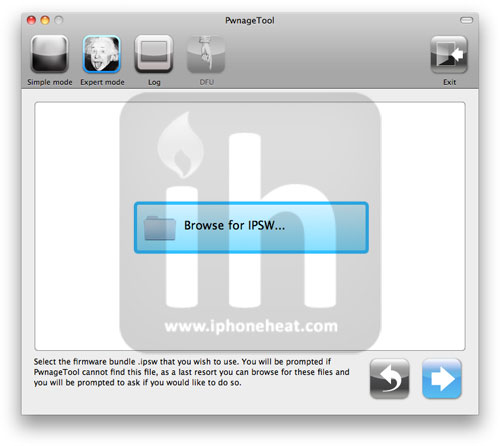
Now select Expert Mode from the top left side of the window.

and then select your iDevice. Hit the Next button.

Step 4

Now hit the Browse for IPSW button and select iOS 4.1 firmware for your device (downloaded from Step 1).

Step 5

On next screen, Select General and hit the Next arrow button.

Step 6

iPhone users:

  • Select Activate the phone option if you’re on unofficial carrier.
  • Do NOT select Activate the phone option if you’re on official carrier e.g. AT&T.

Step 7

Keep hitting Next button until you’re back to the same screen where you selected General.

Now Select the Build Option and Hit Next.

PwnageTool will prompt you to select a destination folder to save custom iOS 4.1.

PwnageTool will start building your Custom IPSW.

During the build process it’ll prompt you for your admin password.

Step 8

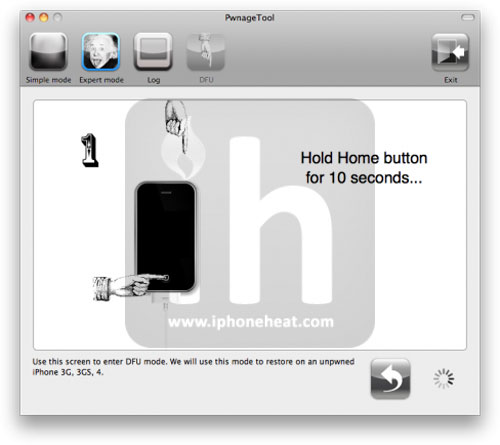
Once the custom IPSW has been built, PwnageTool will ask you to connect your iDevice to your computer. Once your device is detected, you’ll be instructed to put your iDevice into DFU mode.

  • Press and hold the power + home buttons for 10 seconds.
  • Release the power button but continue holding the home button for 10 seconds.

Once the iPhone/iPod Touch is in DFU mode, the follow popup message will appear. iTunes will also pop-up.

Step 9

In iTunes, hold the Alt/Option key and hit Restore. From the popup window, browse to the Folder where you saved custom iOS 4.1 and select you custom .ipsw file that you just created and click Open Button. (Make sure you’re selecting custom firmware, Not official one)

iTunes will now restore the firmware on your iPhone. This can take up to 10 minutes.

When done, you have successfully Jailbreak iOS 4.4 firmware with PwnageTool 4.1.

Unlock iPhone

Now those iPhone users looking for a how to on unlocking iPhone, please navigate to the link below to unlock your iPhone 4/3GS/3G:

Also checkout:

Digg
Twitter
StumbleUpon
Facebook
Reddit
del.icio.us

Download PwnageTool 4.1: iOS 4.1 Jailbreak

PwnageTool 4.1 is now available for download. iPhone dev Team has released PwnageTool 4.1, the iOS 4.1 jailbreak. You can download PwnageTool 4.1 from below to jailbreak iPhone 4, 3GS, 3G, iPod Touch 4G, 3G, Apple TV iOS 4.1, and iPad iOS 3.2.2.

Download PwnageTool 4.1
PwnageTool creates custom iOS 4.1 and jailbreaks iOS devices. For iPhones, it does NOT update baseband so you unlock iPhone with UltraSn0w after jailbreaking with PwnageTool 4.1. PwnageTool 4.1 came into existence through a combination of the recently released geohot limera1n exploit , @comex’s recently released pf kernel exploit, and pwnage2 exploit.

PwnageTool 4.1 can jailbreak (untethered) these devices on iOS 4.1:

  • AppleTV 2G
  • iPad 3.2.2
  • iPod touch 4G
  • iPod touch 3G
  • iPhone 4
  • iPhone 3GS (New & old bootrom)

PwnageTool 4.1

Guides on how to jailbreak iOS 4.1 with PwnageTool will be posted shortly. Stay Tuned!

Download PwnageTool 4.1

PwnageTool is available for Mac only. Follow the link below to download PwnageTool 4.1:

Download PwnageTool 4.1 for Mac [Torrent] [Mirror]

You can follow us on Twitter, Join us at Facebook, and also Subscribed to RSS Feed to receive latest updates.

Also checkout:

Digg
Twitter
StumbleUpon
Facebook
Reddit
del.icio.us

Sports App Roundup – Must have apps for sports fans

Right now we’re in the middle of the MLB playoffs, almost halfway through football season, at the beginning of hockey season, and the NBA regular season is rapidly approaching. That’s what it’s essential for anyone with any sort of interest in sports to have a sports app.  But why have an app for every sport or for every team you follow, when you can have one app that covers everything? That’s why we’re providing you with a review of these four comprehensive sports apps.

Yahoo! Sportacular (free/pro version for $1.99)

This app seems like a fantastic app with tons of great features and lots of news and statistics, and while this is true, it is not executed in the best manner. Sportacular provides the user with scores for over 20 sports and sporting events, standings, news, and the ability to create your own profile. All this information can be sorted by sport, and editing your profile allows you to customize your favorite teams, select game and team alerts for scoring plays, score changes, and more, select “picks” where you try to predict winners of games, and “check-ins”, which just help you represent your teams by “checking-in.” Here you can also select how often it updates scores, plays, etc., and choose the sports you want it to display. If all of that is not enough for you, Sportacular also allows you to view team info, news, rosters, and schedules for any team in any league. You can also create your own custom team and add players to it, and it will give you their season stats and stats from the last game, which is a great feature. Now all of this makes it seem like a great app, and while it is very good in my opinion, it does have its share of flaws. The interface is not the most intuitive, and the app is slow and may take a few seconds to load information, and sometimes is will tell you the network is slow or unusable, even when I know the internet is fine. Aside from these problems, which are not always a huge issue, this is a great sports app, and $1.99 for an ad free version isn’t a bad deal.

ESPN ScoreCenter (free)

For an app put out by a company that focuses on exclusively sports, you would think their app would be more functional. What it can do it does great, but it lacks some pretty important features. ESPN ScoreCenter allows you to choose your favorite teams from all different sports, and easily follow scores, when their next game it, and sign up for various types of alerts for those teams, all from the page labeled “myTeams.” Sliding this page to the left reveals “Top Events,” which does not provide much information except for a few current games. Right now it shows two playoff baseball games, so those are important, but then there is also a hockey game and a basketball game, and I can’t figure out why those two games were picked over others from the same sport that are on right now as well. They do not seem any more important, but at least they have the playoff games. One great feature is that clicking on any game brings up a gamecast style display, with a lot of stats and information about the game. The last page is just ESPN advertising other apps it puts out and other websites they have. This seems to load slower than Yahoo! Sportacular, but what baffles me is that there is no way to view standings, news, or scores from other sports. Unless it is your favorite team or happens to be a top event, you cannot see the score of any other game, and no one wants to add all 32 NFL teams just to see all the scores, not to mention scores from other sports as well. The lack of news from all sports as well as no standings is strange, and these missing features are a huge downside, and let’s not forget the annoying ads.

Fox Sports Mobile (free)

Although it does not have the most attractive interface, Fox Sports Mobile is a great app. The home page provides recent sports news articles, some videos, and has a “Scores” tab, which allows you to select a sport, then view past and current scores, as well as games scheduled on a certain day. When you select a sport, you can now view the most recent news from only that sport, view scores, playoff information (obviously only if its during the playoffs), standings, stats by category, or pick a team. Picking a team gives you team news, the schedule, stats roster, and injuries, all in an easy to navigate manner. Games in progress can be followed in the app via Gametrax, which is similar to ESPN’s Gamecast, and it provides a lot of in-game info, although is slow to update after each play. It takes a couple of taps to get to a teams page or current scores, and adding the option to add favorite teams would be a welcome addition. A paid, ad-free version and support for iOS4 and multitasking would also be welcome, and with an interface change, favorite teams, and a few small fixes, this could become a much better app.

CBS Sports Mobile (free)

Unlike Fox, CBS Sports Mobile supports iOS 4 and multitasking, but the first time I tried using this app it froze on me and I had to quit it from the multitask menu, then re-open it. Its home page consists of top news stories from around sports, and you’ll notice right away the tab at the top called “My Teams.” Unfortunately, this is for managing your CBSSports.com fantasy teams, and not for adding your favorite teams for quick access. Oddly enough, tapping the “Scores” tab at the bottom, then selecting a sport, does not bring you to scores form that sport, but instead to that sports main page (which can also be accessed through the home tab at the top). Here you can view stats, standings, teams, and player profiles, but only players who show up on the stats page. Viewing a team gives you their record, schedule, news, some stats, injuries, and trades/transactions. Although this app features a lot, I was never able to view scores and this is huge problem that needs to be fixed. It also froze often, loaded slowly, viewing a team’s schedule would not always work properly, and ads would sometimes take up the whole screen. CBS Sports has many bugs and kinks that need to be worked out in order for it to be a primary sports app.

We’re thrashing Google…Steve Jobs tells it like it is

It seems that Steve Jobs struck a nerve during Apple’s earnings call on Monday when he took five minutes to trash Google’s Android smart phone strategy. He said “Google likes to characterize Android as open and Apple as closed. We find that a bit disingenuous… Android is fragmented… Compare this to iPhone, where every App works the same… [Anderoid’s] multiple hardware and software iterations present developers with a daunting challenge…”

Android creator Andy Rubin chose to respond with the following tweet:

@Arubin the definition of open: “mkdir android ; cd android ; repo init -u git://android.git.kernel.org/platform/manifest.git ; repo sync ; make”

Many believe that Rubin’s response did nothing more than support Jobs stance on the issue. A lot of marketers would have us believe that something being “open” is a good thing, and for a lot of products or services it is. What good is it that Android is open, if most people have no idea how that benefits them? All they know is they buy a phone and download apps.

I can guarantee you that 98% of the people I know who own iPhones, iPods, and iPads are not concerned at all that the architecture for their devices is not considered to be open. All they know is they can find an app for practically anything they want to do, it looks nice, and works as advertised.

How to Identify Any Song With Your iPhone


Have you ever been sitting in a bar (or standing in a lift) and heard a song you think is just great? You ask your friends what it is and they shake their heads. So you try in desperation to remember just a smattering of the lyrics…

Well struggle no more! The iPhone has a multitude of Apps that are crying out to help you and I’m going to look at three of the best contenders.

Shazam

Shazam is the leader of the pack in the field of music recognition and the only one of the following Apps that has a free version. The free version only allows you to ‘tag’ five tracks a month but you can upgrade to Shazam Encore for $4.99.

screenshot

Shazam

Features

Shazam has a plethora of features that go above and beyond just recognising what song is playing. Once you’ve ‘tagged’ a song Shazam shows you the details of the track and gives you the option to buy it from iTunes. Shazam Encore adds to that the extra functionality of being able to preview 30 seconds of the track and gives you a Tag chart and recommendations based on what you’ve tagged in the past.

screenshot

Charts and Recommendations

In addition Shazam helps you learn about the music you’ve tagged by giving you access to track and album reviews, artist biographies and discographies, and song lyrics.

How Was It?

Shazam’s core functionality is good and it quickly recognises most tracks – although in situations with excessive atmospheric noise it can struggle! The ability to instantly buy any songs you like through iTunes is a good feature – although one that all these Apps share! The extra features that come with Shazam Encore do make it a great App for keeping in touch with the music around you.

That you can try a slightly stripped down version before you buy the fully featured upgrade gives you no excuse not to try it!

MusicID

MusicID is another App that prides itself on fast accurate music recognition but this time with a much bigger focus on finding you the lyrics. It costs $0.99 and has functionality to rival Shazam’s so must be worth a serious look.

screenshot

CMusicID

Features

MusicID is able to identify music in seconds and then gives you extensive details: including artist biographies, related YouTube videos, and licensed lyrics. It is this final aspect that helps make MusicID stand out – by tapping into the largest database of lyrics available it quickly brings up accurate lyrics for any identified songs.

Building on this base functionality MusicID also features a search function for its lyric database and integrates with your iPod. You can add any of the songs from your library or even see the lyrics and details of the song currently playing!

screenshot

CMusicID

How Was It?

MusicID’s integration with your iPod is handy and the ability to search the lyrics database is a great feature! The interface is not as pretty as Shazam or SoundHound but the feature set does compare favourably, as does the price. MusicID only costs $0.99 compared to the $4.99 you have pay for Shazam Encore and SoundHound!

If you’re always forgetting the words to your favourite song then MusicID might be the perfect App for you!

SoundHound

The final music identification App in our comparison is SoundHound by Melodis. It’s standout features include blazing fast music recognition and the ability to identify tunes that you sing or hum!

screenshot

SoundHound

Features

It must be said, the feature set on SoundHound is pretty comprehensive. Once SoundHound identifies a song it brings up an information page that includes a link to buy the song on iTunes, links to bookmark or share the song, biographies, discographies, tour dates, and of course lyrics.

SoundHound’s key selling point, however, is it’s ability to identify songs quickly and even take a guess at songs that you sing or hum yourself – ease your frustration and find that song that’s been stuck in your head!

screenshot

Song View

How Was It?

Many of the features included in SoundHound are also featured in Shazam or MusicID but SoundHound scores over them on its slick interface and its ability to recognise songs that you sing or hum. It also has the ability to search for songs just by saying the artist or song name, which is a nice touch!

It’s worth noting that when trying to identify songs that you are singing or humming SoundHound is only capable of taking a good guess – the factors at play are so varied that unless you are a true virtuoso this feature will be reasonably hit and miss!

Conclusion

When comparing the feature set of the Apps it’s clear that they all try to take a slightly different angle. Shazam leans more towards giving you recommendations and tracking your music ‘journey’, MusicID places its core value in providing accurate lyrics, and SoundHound focuses on providing fast identification of any song you can hear or sing.

I prefer the interface design of Shazam and SoundHound to that of MusicID – Shazam’s tagging button is particularly satisfying! The ability to identify songs you sing yourself gives SoundHound the edge in terms of truly useful features, while Shazam has a free version for those of you who aren’t sure you would use the extended functionality of a paid App.

Many of the features such as providing you with lyrics, links to iTunes, biographies, discographies, and recommendations are available in various guises on all three Apps, which brings you back to what the overall purpose of a music identification App should be.

As the main function of these Apps is to identify the music around you SoundHound succeeds by having the most extensive core functionality – you finally have a way to name that tune you’ve been humming all day!

Quick Look: Minesweeper


Quick Look posts are paid submissions offering only a brief overview of an app. Vote in the polls below if you think this app is worth an in-depth AppStorm review!

In this Quick Look, we’re highlighting Minesweeper By Layer Studio. The developer describes Minesweeper as a clone of the classical puzzle game. Please enjoy the new-made puzzle game with the attractive designs by yourself or play with your friends. We provide for the world ranking depending on the level , 2-player mode for the multiplay* games and three level (Easy, Normal, Hard).

* The multiplay game is only available on the iPad.

Read on for more information and screenshots!

Screenshots

screenshot

Minesweeper

About the App

Here are the top five features you can expect to see in the latest version:

  • Classic Minesweeper Game
  • Provide World Ranking
  • UI optimized for iPhone and iPad
  • 2 Player mode for iPad – This is very fun!

Requirements: Compatible with iPhone, iPod touch, and iPad. Requires iOS 3.2 or later

Price: 0.99

Developer: Layer Studio

Vote for a Review

Would you like to see us write a full review of Minesweeper By Layer Studio? Have your say in our poll:

Would you like to see Minesweeper reviewed in-depth on AppStorm?Market Research

Quick Look posts are paid submissions offering only a brief overview of an app. Vote in the poll if you think this app is worth an in-depth AppStorm review! If you’re a developer and would like to have your app profiled, you can submit it here.

80 Apps to Learn a New Language


You’ve been telling yourself for years that you’ll learn a new language or at least dust off those high school Spanish skills. How about starting when you’re in line at the grocery store or waiting for the bus? Having language lessons on your iPhone means you can learn at your own pace, wherever and whenever you have the time.

Below you’ll find 80 apps for learning a number of different languages: everything from Chinese to sign language! A few of the apps come in multiple language variations so if you find one you like in a given language, keep scrolling to see if there are other versions.

Spanish

Spanish! – Spanish! is a learning tool similar to flashcards, but with AUDIO and an intelligent progress tracking system that helps you learn faster. After you “flip” to the answer, you pick if you were Right or Wrong.

screenshot

Spanish!

iStart Spanish! – This App will take you from scratch all the way to basic conversational level in Spanish. The App contains 50 enjoyable lessons packed with many hours of high quality audio instruction by three language professionals (two native Spanish speakers, one from Spain, the other from Colombia, and an English native tutor for grammar explanations).

FREE Spanish Tutor – 24/7 Tutor Spanish goes beyond the simple talking phrasebook or flashcard programs, providing a set of engaging, interactive study tools that help you really learn the language. FREE Spanish Tutor Lite Edition (LE) is a fully functional version containing a useful subset of vocabulary and phrases drawn from several of the learning modules in the 24/7 Spanish series.

AccelaStudy Spanish | English – AccelaStudy is the award-winning language education software that helps you understand and pronounce words in the shortest possible time. Learn new Spanish words quickly, easily, and permanently with AccelaStudy.

Basic Spanish For Dummies – Whether you want to take up Spanish from scratch or brush up on your existing skills for work or travel, this practical app is for you! Fun flashcards highlight common words and phrases written in English and their translation in Spanish with audio playback. A Spanish-English and English-Spanish mini-dictionary gives you flexible and easy word lookup. Video tutorials offer pronunciation of the alphabet, vowels and consonants; and the rules for using formal and informal greetings and introductions. Special interactive features let you mark your favorite phrases and share with friends on e-mail or Facebook. This app is your one-way ticket to speaking Mexican Spanish with confidence.

screenshot

Basic Spanish For Dummies

Spanish-English Dictionary from Accio – The Spanish-English dictionary by Accio is an excellent Spanish to English/English to Spanish translation reference. Browse its impressive library of more than 65,000 headwords and 165,000 definitions with a search as you type view! Simply begin typing an English or Spanish word and watch the results window filter as you type.

Spanish Anywhere – Learn and communicate in Spanish and English, anytime, anywhere! Spanish Anywhere is perfect for travelers, students, business people, and anyone who wants to speak, read, study, pronounce, or translate Spanish & English.

Memorize Words for Spanish – Each day you’ll review words and learn new words selected automatically based on word use frequency. In addition, you can select individual words or categories of words to your daily lessons. Students of Spanish can quickly and easily adjust the level of the words, making Memorize Words an ideal app for a Spanish student of almost any level!

uTalk Spanish – Developed by a company with 20 years of experience in language learning and over ten million customers, uTalk gives you the key words you need and a fast, scientific way of remembering them. Unlike a phrasebook or translator, this beginners app hardwires basic spoken Spanish into your brain so that it feels like your first language.

screenshot

uTalk Spanish

Toddler Time! – Spanish – Toddler Time! – Spanish is a bright and cheerful, educational game, focused at the 2-4 year age group when the native language is Spanish. This app is great for introducing a new language to children of all ages.

French

French in Space – Improving your French vocabulary just got fun. Rather than slaving away with flash cards, you can now enjoy a fun, retro-style, arcade game to increase your French knowledge.

screenshot

French in Space

iSpeak French – iSpeak has been redesigned from the ground up to work natively with the iPad, as well as a new interface for the iPhone. iSpeak is a universal app, which means we don’t charge you for twice for your other devices like other software developers. You buy it once and it works everywhere.

French-English Dictionary from Accio – This translation dictionary allows you to easily swap from English to French and back again. No internet connection is required.

AccelaStudy French | English – Learn over 2,400 basic and advanced VOCABULARY words in 60+ subject areas, including Colors, Days, Months, Seasons, Numbers and Counting, Time, Weather, Directions, Food and Drink, Cooking, Meals, Clothing, Moods and Attitudes, Shapes, Anatomy, Medical, Nature and the Outdoors, Animals, Banking and Business, Family and Relationships, Music.

Basic French For Dummies – Whether you want to take up French from scratch or brush up on your existing skills for work or travel, this practical app is for you! Fun flashcards highlight common words and phrases written in English and their translation in French with audio playback. A French-English and English-French mini-dictionary gives you flexible and easy word lookup. Special interactive features let you mark your favorite phrases and share with friends on e-mail or Facebook. This app will have you speaking French quickly and confidently.

Talking French Phrasebook – Whether you’re exploring the French Riviera or braving the heights of the Eiffel tower, Paris, be sure to download your Talking French Phrasebook! Providing over 500 professionally translated words and phrases, this Talking French Phrasebook is the fun and easy way to get chatting with the locals. Say anything from I have lost my passport to frogs legs and snails please!

screenshot

Talking French Phrasebook

World Nomads French Language Guide – Have you ever been stuck in a country wanting to be polite but having no idea how to even say ‘please’ or ‘thank you’? Or needed to get somewhere quickly but been frustrated because you couldn’t even ask for basic directions in the local language? At WorldNomads.com, we have, and so we produced a series of free language guides for adventure travelers that contain a conversational language lesson with a local, plus 50 basic spoken phrases, and about 100 other useful travel phrases to help keep you traveling safely.

English / French dictionary – New French / English dictionary application for the iPhone now available from Larousse, leading dictionary and reference book publisher.

French Word of the Day – Start improving your French today with this easy to use application. Learn daily with this app to improve your French vocabulary (verbs, nouns, adjectives, adverbs).

iStudy: French Vocabulary – iStudy: French Vocabulary is a French study tool designed to help you learn more than 400 common French words.

screenshot

iStudy: French Vocabulary

French for Kids – We researched the most effective language programs in the market – Rosetta Stone, Berlitz, Pimsleur – and modeled the best features of each. From Pimsleur we took spaced repetition. From Rosetta Stone, positive feedback and engagement. From Berlitz, understanding in context.

Lingolook FRANCE – Master pronunciation of essential French travel phrases with Lingolook, an invaluable foreign language phrasebook application for the iPad, iPhone and iTouch, featuring illustrated digital flashcards, easy phonetics and “talking translations!”

German

German Travel Pro – We offer more native voice translations than any other translator. Tested by travelers and teachers around the world to bring you powerful results.

screenshot

German Travel Pro

Gengo Flashcards – German – Gengo Flashcards provides a revolutionary way for you to quickly grow your vocabulary. The application combines visual cues with the voices of native speakers to provide you with the most effective method of learning and retaining hundreds of vocabulary words. With these special flashcards, we’re adding another sensory receptor to your learning experience so you’ll learn German that much faster! You’re now learning just like a native speaker.

Hello Word Deluxe German | English – Hello Word is software for learning foreign languages, which allows the user to remember vocabulary in an easy and pleasant way. You can also compete with other users and compare your results in a ranking both within the software and on our web page. The software is dedicated for beginners, intermediate and advanced users. As far as the age is concerned, thanks to a simple and intuitive navigation both younger and older persons can use our program.

Book&Dic – Classics(German) – Are you having trouble reading English novels because you’re tired of finding words in the dictionary? With Book&Dic, it’s really easy to read English classic novels, even if you are not good at English. Just simply touch the words if you want to find meaning in the dictionary.

500 German Flashcards – PFG Software’s German to English Flashcards app contains the German translation of the 500 most commonly used English words. Also, an easy-to-use glossary allows you to quickly look up the definitions of all 500 words.

screenshot

500 German Flashcards

AccelaStudy German | English – Learn over 2,400 basic and advanced vocabulary words in 60+ subject areas, including Colors, Days, Months, Seasons, Numbers and Counting, Time, Weather, Directions, Food and Drink, Cooking, Meals, Clothing, Moods and Attitudes, Shapes, Anatomy, Medical, Nature and the Outdoors, Animals, Banking and Business, Family and Relationships, Music.

Intense German – Can’t say much in German? Need to expand your German vocabulary? This app will help you memorize TONS of German words fast! Thanks to its unique methodology, you will be able to learn up to 100 WORDS / DAY!

German Audio FlashCards – German Audio FlashCards is a foreign language vocabulary learning tool by Declan Software. The German version includes around 3000 words and phrases each with a native speaker audio recording. Words are organized into approximately 100 WordFiles with each WordFile containing up to 100 words.

Byki German – Byki is the fun and addictive way to learn a language. Byki locks German words and phrases into your memory so you can recall them perfectly and remember them forever. Over 3 million people have used Byki to learn a language on their computer, and now the same proven learning method is available in an iPhone app!

screenshot

Byki German

German-English Dictionary from Accio – This translation dictionary allows you to easily swap from English to German and back again. No internet connection is required.

English

Conversation English – Conversation English is an excellent app for anyone learning English as a second or foreign language. Practice and improve your English conversation skills with 20 complete Conversation English Lessons. You will learn over 200 common English Idioms and Expressions, improve your Listening Skills, and develop your Speaking Skills.??

English Grammar in Use Activities – Millions of learners around the world owe their success in English to the best-selling grammar book, English Grammar in Use by Raymond Murphy. With English Grammar in Use Activities you can work on your grammar skills wherever you are and whenever you want. So what are you waiting for? Practice makes perfect!

screenshot

English Grammar in Use Activities

English At Work – English at Work is a fun English course to help second language English students practice and improve their use of workplace English and Business English. You will learn over 150 useful English words, phrases, idioms and expressions for use in your office or workplace. You’ll also develop your listening skills, improve your telephone skills, email skills, and conversation skills, and much more. This course includes 14 complete English-at-Work lessons.

EnglishPod – Learn English – EnglishPod is a mobile learning network that helps you learn English on-the-go. Each lesson has an audio file, dialogue, vocabulary section and expansion sentences. Sample three lessons for free then signup on EnglishPod.com for a trial account to continue to receive new lessons as they are published.

15500 Useful English Phrases – Do you wish for better communication skills? Vocabulary building will surely help, but what if we could somehow get the needed ready-made templates – the phrases as and when required. Use the App to find the right template for the perfect communication, always. So, the right phrase will be at your disposal from now on.

WordBook English Dictionary & Thesaurus – WordBook is a comprehensive, quick and intuitive dictionary and thesaurus of the English language. It’s a great combination of comprehensive contents and fast intuitive interface.

Advanced English Dictionary & Thesaurus – Advanced English Dictionary is distinguished from the other (paper, electronic) dictionaries in many ways. Not because it contains far more words than a conventional paper dictionary, but because it uses a radically new approach and technology. Instead of just listing the words and their definitions, Advanced English Dictionary shows how every word is linked to another. Type in the word “tree” and you will get not only the definition, synonyms and opposites, but the hypernyms (a tree is a kind of what?), meronyms (what are the parts of a tree?) and more.

screenshot

Advanced English Dictionary & Thesaurus

Italian

Collins Pro Italian-English Translation Dictionary – Carry a dependable Italian and English language reference in your pocket with the Collins Pro Italian-English Translation Dictionary. You’ll have definitions, translation, examples of use, verb conjugations, and more at your fingertips – take a look at the reviews to see why users love this app!

Basic Italian For Dummies – Whether you want to take up Italian from scratch or brush up on your existing skills for work or travel, this practical app is for you! Fun flashcards highlight common words and phrases written in English and their translation in Italian with audio playback. An Italian-English and English-Italian mini-dictionary gives you flexible and easy word lookup.

Italian 101 – Learn or refresh your Italian, anytime and anywhere with your own personal language lab.

screenshot

Italian 101

Italian Verbs – More than 3000 verbs and their conjugation in the palm of your hand!

WordPair English – Italian Translation – WordPair English – Italian Translation is your handiest and quickest English – Italian pair reference in your pocket with more advance features. It provides direct and precise word to word translations (pair) between English and Italian.

uTalk HD Italian – Learning fewer words which trip off the tongue like your own language is far better than learning heaps that aren’t there when you want them, so uTalk HD focusses on the basics – 275 of the words and phrases you’re most likely to need including how to order a drink, find a chemist and ask for an aspirin! Plus food, phrases, colours, numbers, shopping and more.

Italian Study Buddy! – Italian Study Buddy is a fun and effective Italian study tool designed to help you learn basic Italian vocabulary.

Italian Gestures – Thanks to the body language of Italians, communicating with locals is quite feasible, as their extravagant hand gestures say it all. A word of warning, however, be cautious because not understanding certain gestures may cause great confusion, not to mention embarrassment.

L’impiccato (Italian Hangman) – L’impiccato is a very popular word guessing game, a hangman game for italian speakers and students. It is also an educational application where you can improve your vocabulary.
Play alone or with a friend via bluetooth.

screenshot

L’impiccato (Italian Hangman)

You Have Words Italian – Quickly build your Italian vocabulary with a minimum of effort. By optimizing when you need to review words you waste less time with words you already know and more time improving your vocabulary.

Chinese

FREE Chinese Essentials by AccelaStudy – Join over 1,000,000 people worldwide who have used AccelaStudy to master a language. Perfect for students, travelers, executives, and anyone who wants to quickly increase their fluency.

eStroke Animated Chinese Characters – Recommended by the Hong Kong Education Department for Stroke Order. Traditional/Simplified Chinese all in one package. Learn them both to have a complete understanding of Chinese.

KTdict+ C-E (Chinese-English dictionary with flashcard trainer) – KTdict+ C-E for iPhone and iPod touch provides you a comprehensive, easy to use and fast Chinese-English dictionary combined with a powerful flash-card trainer. It includes the data of the renowned CC-CEDICT dictionary with over 70.000 entries – no Internet connection required.

screenshot

KTdict+ C-E (Chinese-English dictionary with flashcard trainer)

iCED Chinese Dictionary – iCED Chinese Dictionary presents a unique way to use a Chinese dictionary. After you’ve found the entry you were searching for, iCED will continue to search for compound or component entries to complement your search. Component entry dissection allows you to quickly understand the meaning of components in longer words or phrases.

U Learn Chinese-Audio Video App for Learning Mandarin Chinese – This app is a Mandarin Chinese Course that will help you to speak Chinese in no time! Thousands of people around the globe have found our method extremely helpful. They are able to speak beautiful Mandarin, with correct tones and clear pronunciation. It’s very easy to join and follow along. The lessons start from the basic ‘hello’ and continue towards proficiency in spoken Mandarin Chinese.

Transwhiz English/Chinese (simplified) Translator/Dictionary – In addition to convenient two-way dictionary lookup, Transhwiz for iPhone provides you fast and high quality translation between English and Chinese with unique translation engine. A handy translation tool for business, travel and school use.

Chinese For Munchkins – Chinese for Munchkins takes children on a journey, teaching them how to say animals and numbers in Mandarin and Cantonese – the two most common Chinese dialects in the world (there is an English option too). Whether they want to roar with the “lau fu” (tiger), munch on bamboo with a “hung mao” (panda) or count “yak, yee, saam” (1-2-3), kids will be drawn to the flashcard pictures, sounds and animations. The interactive Memory Match and Counting Pig games will also help children reinforce what they’ve just learned while keeping them engaged and entertained.

HippoDICT Plus ~ Chinese English Dictionary – HippoDICT Plus is a Chinese-English dictionary that seamlessly integrates online and offline resources in a clean, elegant, and ultra-fast interface.

WCC Chinese Flashcards with Audio (Character) – The frequency in which different Chinese characters appear in common everyday text varies substantially. Some characters are rarely ever encountered while some characters appear in practically every other sentence. For this reason, we have developed our Chinese Character Flashcards to help you learn in a systematic sequence starting from the statistically most commonly occurring characters.

screenshot

WCC Chinese Flashcards with Audio (Character)

Chinese Flashcards – For ages 1+ – Chinese Flashcards is a great tool for children to learn Chinese. Be it a first or second language, the flashcards will help you begin speaking and reading Chinese with your child. Your child will be engaged and entertained by the bright and colorful graphics.

Sign Language

Sign Language! – Let’s begin learning American Sign Language alphabet, numbers & colors in VIDEO with a Deaf ASL teacher. This free app is a small part of our huge SIGN LANGUAGE 101 app where you can later upgrade to learn 1,000 more categorized words & short sentences in ASL!

iASL (Translate English to American Sign Language) – iASL is your revolutionary one-stop resource for converting English to ASL. This one-of-a-kind iTunes application features a video dictionary of more than 5,800 signs, however because our application has the ability to combine words to make sentences, the possibilities are practically endless.

Sign 4 Me – A Signed English Translator – Our 3D character can be zoomed in or out and rotated to give you the best vantage point for every sign. YOU control the placement of the character – not us! No other product lets you do this! The library includes more than 11,500 words. Type in sentences, phrases, words and even the alphabet. Everything you enter will be saved in your History. Easily locate your entries by date or alphabetically. You can delete whatever you don’t want to keep.

screenshot

Sign 4 Me – A Signed English Translator

Baby Sign ASL – Baby Sign is the Ultimate Gold Standard VIDEO phrase book with 229 Baby Signs (ASL) right at your fingertips. Baby Sign is the perfect reference for parents who want to communicate and connect with their child through sign language.

ASL Dictionary – Translate English into ASL, from A-Z, plus the entire numerical system, common English phrases, symbols and much more. A must have educational iPhone, and iPad app.

Signing Time ASL – Dictionary Flash Cards – Signing Time is an early childhood application that focuses on developing language skills using American Sign Language (ASL). The application contains a collection of 145 professional quality flash cards based on the award winning Signing Time and Baby Signing Time series.

GotMyBSL – GotMyBSL – British Sign Language fingerspelling. Designed with BSL students in mind, GotMyBSL is a great first step in learning this vibrant language – and an App Store first!

screenshot

GotMyBSL – British Sign Language fingerspelling

ABC Sign – ABC Sign is an application designed to help children to learn the American Sign Language alphabet. Beautiful colorful photographs illustrate each sign. A letter is spoken aloud and the user is presented with 3 choices for the correct sign. You can choose until the correct sign is found. A reward sound is played and the user can move to the next letter.

My Smart Hands Baby Sign Language Dictionary – Want a sign language tool that you and your baby can use together? My Smart Hands Baby Sign Language Dictionary teaches you and your little one the 300 ASL signs you need to know for clear communication. You’ll get detailed instruction, great memory tips and more.

iSign – iSign is an animated phrase book of 800 American Sign Language (ASL) gestures. Each of the gestures is modeled with a 3D character and completely animated. The vantage point for each sign was chosen so that the user can see the details of the hand positions. These are the ASL signs, not finger spellings.

Miscellaneous

Learn a Language with Michel Thomas – Learn another language the way you learned English! Choose from French, Spanish, Italian and German. Get the free preview now, then “pay as you learn,” purchasing lessons hour by hour!

screenshot

Learn a Language with Michel Thomas

123 Color Talking Coloring Book (Including English, Spanish, French and German) – 123 Color teaches numbers, upper and lower case letters, shapes, and colors, with voice-overs by adult speakers in English, Spanish, French, and German, engaging artwork, sound effects, music, and animation.

iStart Japanese! – Mirai Japanese (Mirai Language Systems) – iStart Japanese! is the premier tutor-based iPhone and iPod Touch Application aimed at beginner-level learners of Japanese. The App is produced by Mirai Japanese, the Japanese-language specialists of Mirai Language Systems!

iTranslate – Global Language Translator with Voice – This is a very easy to use translation app powered by Bing. This app was based on the suggestions from a group of individuals who are frequent international travelers.

Free Japanese WordPower – WordPower – Lite is the ideal solution as you learn to read, say and understand essential Japanese vocabulary in just seconds. WordPower – Lite comes with audio recordings of a native Japanese speaker and a voice recorder so you can master perfect pronunciation of words and phrases anywhere, anytime. Study at your convenience at times and places that work for you!

Hawaiian Language – Our Hawaiian Phrases application contains common terms, phrases, and sayings found in the Hawaiian language. Whether you are a professor teaching the Hawaiian language or Hawaiian History, a student studying the Hawaiian culture, a vacationer to Hawaii, or someone interested in the linguistics of other cultures, the application puts a wealth of information right at your fingertips.

What Language? – Stumbled across some foreign text and want to know what language it’s in? What Language, by analyzing the text as you type, will let you know it’s best guess and or translate it to another language. What Language can currently distinguish between 90 languages (and counting)!

screenshot

What Language?

Language Tests – The ‘Language Tests’ application by LSI – Language Studies International (www.lsi.edu) lets you test your English, French & German skills. You may also find out about LSI courses and our 19 language-learning destinations worldwide.

iHiTranslate – Visual Language Translation Phrasebook – Worldwide phrase book in your hands avoiding difficult pronunciation by filling the screen with your message: just hold it up to be understood!

Translator ~ translate with voice – Translate and speaks 53 Languages for iPhone, iPad and iPod Touch.

iKanji touch – iKanji touch is a powerful kanji study tool, containing over 2000 kanji characters and over 16,000 example compounds. This covers the kanji taught in the JLPT and in Japanese school grades 1 to 6. More than 700 kanji have stroke animations and more will be added with each update.

screenshot

iKanji touch

Multi Lang Dictionary with Text To Speech – The popular Android app, the Multi-Lang Dictionary is finally available for iPhone! This app uses Google Dictionary and Google Translate Services to give you accurate and multiple translations and definition entries!

What Are Your Favorites?

The apps above should be enough to make you an awesome multilingual genius. Leave a comment below and let us know what language apps you have found to be the most effective.

Also be sure to let us know what languages you’re interested in learning!

Do You Need an iPad Stylus?


When the iPhone was first released, Steve and the gang were pretty adamant about how direct interaction with the screen through your fingers provided a much better experience than other touchscreen devices that required a stylus.

However, despite Apple’s claims that you don’t need one, manufacturers quickly started churning out iPhone compatible styluses that are now of course compatible with Apple’s newest toy: the iPad. Today we’ll answer your questions about whether or not you need a stylus for your iPad or iPhone, how well they work, and which iOS device is really best suited for using a stylus in certain situations. We’ll start off by taking a look at a few of the stylus options available to see how they compare in design and price.

Pogo Stylus

Pogo has two styluses (styli?) that function on the iPhone, iPod Touch and iPad: The Pogo Stylus and the Pogo Sketch. These are definitely among the most popular iPad styluses and are even sold in most Apple stores.

Both Pogo products are fairly similar and feature a stylish aluminum body with a soft tip (the sketch has a built-in clip). Both options come in multiple color variations and sell for the same price.

Price: $14.95

screenshot

Pogo Sketch

screenshot

Pogo Stylus (note the squishy tip)

Acase Apple iPad Capacitive Stylus

The Acase stylus is another popular option available from Amazon. Just as with the Pogo options, this one comes in multiple colors and has a metallic construction. The Acase stylus is a little thicker than the Pogo Sketch and feels more like a pen. It shares the squishy tip of the Pogo but seems much more rounded.

Price: $16.00

screenshot

Acase Apple iPad Capacitive Stylus

Overstock Stylus Two-Pack

If you really want to take the cheap way out, Overstock.com has a two-pack of iPad styluses for a mere five bucks! The construction is likely noticeably poorer than that of the Pogo or Acase models but the basic concept isn’t hard to master so it probably works a level reasonably close to that of the pricier versions.

Price: $5.01

screenshot

Overstock Stylus 2-Pack

My Experience

I recently purchased the Pogo Sketch and gave it a go on my iPad. The first thing I noticed as soon as I tried it was that the “magic” of using a big beautiful multi-touch screen was instantly sucked away and in its place was a very non-Apple feel.

I completely understand the squishy tip, but didn’t expect it and was initially quite disappointed with the friction it caused. Further, your initial instinct is to use the stylus like a pen and hold it at an angle, but it only works properly if the stylus is held in a near-vertical position. Also keep in mind that the tip, though much smaller than your finger, is still fairly broad and not at all like that of a pen.

Despite all this, I’ve found that the more I force myself to use the stylus, the more I like it. After lots of testing, there are definitely some areas where the finger is a much better instrument and some where the stylus wins.

The Cold

I saw this situation listed on many of the stylus websites: Imagine it’s winter and you’re wearing gloves, how are you going to use your iOS device? Since I live in Phoenix, this isn’t ever a problem. I also don’t imagine that too many people are sitting outside using their iPad when it’s freezing cold.

However, if your iPhone is your primary communication device, I can absolutely see how a touchscreen would be a pain in colder climates when there are gloves involved.

Verdict: If you live in a cold place, you should pick up a stylus and keep it in your coat pocket or get a little clip to attach it to your iPhone. And I guess iPad owners should pick one up as well if they find themselves constantly sketching snowy scenes while laden in winter gear.

General Navigation

Weather aside, when you first pick up your iPad and start swiping around and navigating the home screens, your finger wins hands down. It’s simply a much richer, smoother experience when you’re interacting with the screen directly.

This should come as no surprise, remember that iOS was designed for your fingers. I find this to be especially true on the iPad. On your iPhone, there are quite a few tiny controls and buttons that you have to hit and if you’ve got big fingers, it’s not going to be easy. However, on the iPad, everything is so large that I almost never find myself frustrated for lack of a precision instrument.

Verdict: Skip the iPad stylus for general home screen navigation, app launching, etc. If you’re on an iPhone and have giant man hands though, the stylus could definitely help ease your frustration.

Typing

This is another case where the fingers clearly win. If you’re the peck and hunt type, the stylus might be the way to go but I’ve been using iOS long enough that I can type quite quickly on the touchscreen and found that the stylus slowed me down considerably.

Remember that the iPad’s keyboard in the horizontal position is almost as large as that of a MacBoook. With such large buttons there’s simply no need for a precision instrument.

Verdict: For typing, skip the stylus completely. If you’re new to iOS, you might find that you make lots of errors and are easily frustrated, but just give it time. In a few months you’ll be much faster with your hands than you ever could be with a stylus.

Writing

Taking notes is one of the biggest sales pitches you hear for styluses and for good reason. Once I got over the awkwardness of holding the stylus vertically, it felt much more natural to write with the stylus than it did with my finger. I found that I could take notes quicker without being distracted by the touchscreen too much.

However, despite the fact that it felt more natural, I didn’t actually find it to be true that the stylus significantly increased my writing legibility, especially with an auto-smoothing app like Adobe Ideas. In the image below you can see my side-by-side comparison of writing with my finger vs. the stylus. It’s interesting to note that occasionally the finger version looks a little better!

screenshot

Finger vs. Stylus Comparison

Verdict: If you find yourself taking a lot of handwritten notes and want to use your iPad in place of a legal pad, the stylus is worth the investment. Not only does it feel more natural and allow for quicker writing, it makes you look like less of a finger painting kid in front of your colleagues.

Since I’m finished with school and work mostly at home from my MacBook, I don’t find a whole lot of need to take handwritten notes on my iPad. Before you rush out and buy one of these ask yourself how often you’d really use it.

Sketching

Sketching is pretty much the same situation as writing, you can do it with your finger, but it feels a lot more natural with a stylus. Unlike with the handwriting, here I actually did notice the extra precision. It can be quite difficult to pick up your finger and put it back down in the exact spot you want without creating some accidental line overlapping. With the stylus though it was much easier to draw a line, lift up, then continue right where you want.

screenshot

My first attempt at drawing with the Pogo Sketch

Verdict: If you like to sketch, you should definitely try out an iPad stylus. It really helps take your iOS device from something that’s fun to play with to something that you could legitimately consider creating professional quality art with.

Bonus Tip: Make Your Own iPad Stylus!

While I was researching styluses online I came across quite a few people claiming that it was super easy to just make your own. If you’ve ever tried to simply take the non-writing end of a plastic pen to one of Apple’s devices you’ll know that it doesn’t work. However, it turns out if you cover the pen in aluminum foil first, it will work.

The trick here is to place some scotch tape on the end so the pointy foil doesn’t scratch your screen. In the image below you can see my 30 second attempt at a homemade stylus shown next to my Pogo stylus.

screenshot

My Pogo Sketch and homemade stylus

My homemade contraption did in fact work. It was nice to have something without the squishy tip but I cringed every time I touched my screen for fear of scratching. Unfortunately, the more tape you put on to protect your screen, the less the stylus works.

The moral of this story is that while this method certainly does produce a functioning stylus, just be careful that you don’t ruin a $500 iPad so you could save less than $20 on a stylus. And if you do try this and end up scratching your screen, don’t blame me as I would definitely recommend forgoing this method in favor of an actual stylus.

What Do You Think?

Leave a comment below and let us know whether or not you plan on buying a stylus. Also let us know if you’ve tried any and what you thought.

As for me, I probably would’ve never purchased one if not for this article, but it’s definitely handy and fun to have around!

Weet: Your New Favorite Twitter Client


Even before Tweetie had been gobbled up by Twitter, I had been uncomfortable with its seemingly endless feature-base; while it was better than most of its competitors, in my opinion, it had simply grown too complex to be enjoyable to me. When Twitter acquired Tweetie, renamed it and replaced its icon, I was ready to remove it from my home screen: Tweetie and I broke up, in a way. After months of jumping from Twitter client to Twitter client, I heard about Weet, the new kid on the block, and was eager to try it. And, dear readers, the results are encouraging.

Keep reading after the fold to find out what I think of Weet, how it measures up against its competitors, and whether you should try it too!

Getting Started

When you first open Weet, you’ll see that it is arranged in many ways similarly to other, more familiar Twitter clients. There is a tab bar at the bottom, which lets you switch between the timeline, your mentions, your direct messages, searches, lists, retweets, and favorites. Tweets are arranged in a list, and when you want to check for new tweets, just pull down to refresh (a user interface idiom invented by Loren Brichter of Tweetie/Twitter for iPhone fame). If you’ve only ever used Twitter for iPhone, it should be pretty easy for you to get started with Weet.

screenshot

Choosing or setting up a new Twitter account is super easy!

If Weet is so similar to Twitter for iPhone, why pay for it at all when the other is free? The answer is simple: Weet takes the good from Twitter for iPhone, and leaves out the bad.

screenshot

A mix of familiar and fresh

Weet borrows some ideas from Twitter for iPhone (such as pull-to-refresh), but shows its uniqueness in other parts, such as the tweet-viewer.

Design & Interface

The first thing I noticed about Weet was its icon: simple, beautiful and definitely worth of a spot on my dock. Believe it or not, my primary criterion for judging an app is its icon: for whether or not the app itself is good, if it is to appear on one of my home screens, it must measure up to the icons competing for the same space. When Tweetie 2 turned into Twitter for iPhone, the icon-change disappointed a lot of users, myself included; so when the new kid on the block featured an icon that looked as though it had been constructed with love and forethought, I knew it was a good sign.

Much of Weet is custom-themed; that is to say, it doesn’t use the standard styles for many controls (such as navigation bars, navigation bar buttons, tab bars, etc.). Those of you who know me will know that one of my pet peeves is when app developers use custom themes for the sake of “branding”, but pay no attention to the overall norms of the platform. The idea that your brand recognizability should transcend the native experience is faulty, and seems to be perpetuated mostly by the pointy-haired bosses we often ridicule. There are only a few applications which really pull off the custom look-and-feel gambit, and luckily, Weet is one of them.

screenshot

A custom tab bar control, which features an innovative, compact interface

Weet features a theme that appears to be based on the pantone cerulean color, with controls that seem to be painted with a subtle matte finish; because of this, navigation bars, buttons, and table cells are all provided with beautiful, Retina-quality custom drawing. This color scheme lends a relaxed feel to the app that differentiates itself from its competitors, which tend to be either very bright or very dark.

The only thing that could be criticized about Weet’s custom theme is its tab bar, which is semitransparent and indicates selection in a way very different from the default behavior; while most of the other controls seem to have been redrawn in order to fit with the cerulean color-scheme, I fail to see the reasoning behind this rather foreign tab control, other than to be pretty and different. That being said, I really like it and think it looks better than the default in this case; I just am a little bit uncomfortable with custom controls for the sake of custom controls.

Functionality

I’ve bounced around between Twitter clients, and had at one point even landed on one for a while (namely Icebird). But I find at this point that I have no desire to leave Weet, because of nice, thoughtful innovations that make my day every time I use them. For instance, a tweet that is marked as a reply to another is indicated by a little icon in its upper-right corner; but even better, you can tap this little icon and it will bring you directly to a listing of the conversation, so you can catch up. This far better than Twitter for iPhone’s system, in which you have to keep jumping through “in reply to” links; Icebird has a similar easy-to-use conversation view, but in order to get to it, you have to view the tweet by itself first. The ability for me to catch up on a conversation in one tap is incredibly refreshing, and reminds me of the fact that Weet’s great user interface design is coupled with greater user experience design.

Like many other Twitter clients, Weet lets you save links to be read later using a third party service (you can choose between Instapaper and Read It Later). In fact, Weet makes it easier than ever to save a link to be read later, by reducing the number of taps necessary by one: once you are viewing the tweet, you’ll see a Read Later button that you can tap to have the link immediately saved. This is invaluable to me, since I never have time to read articles immediately; I like to sit down with my coffee in the morning and peruse my Instapaper, and Weet makes it even more painless to fill up my queue every day.

screenshot

It’s just one tap to save a link for later using either Instapaper or Read It Later!

Just as you can choose which service Weet uses for its Read Later feature, you can also set which URL shortening, image uploading, and video uploading services you want it to use. The real star of the show here is CloudApp, a new and beautiful way to share files and shorten links, which Weet fully supports out of the box.

screenshot

Full CloudApp integration

With Weet, you can choose to use one of a few different services for URL shortening, image uploading, and video uploading; I’m really pleased that Weet supports CloudApp for all of these features!

I have only one complaint: the thing I loved best about Weet is the fact that it follows the principle of convention over configuration, which means that it makes the most common tasks dead-simple, but allows us to configure it to behave otherwise if necessary. Unfortunately, in the latest update which added tweet-quoting (to complement modern retweeting), tapping the Retweet button will always bring up a choice between retweeting and quoting. I find this frustrating, since I never quote tweets (and I recommend that you don’t either, but that’s a different story!); I would prefer if this feature were tucked away into Settings somewhere, disabled by default.

Performance

Weet has performed admirably on my iPhone 4, and based on my completely unscientific tests, has beat out every competitor in smoothness. Tweetie pioneered the slick-scrolling table view, and Weet continues that legacy with intensely smooth scrolling. The only thing I have noticed is that sometimes, it takes a really long time for Weet to save an article to my Instapaper queue, but I suspect that this is no fault of the app, but an idiosyncrasy of the Instapaper service itself. Overall, I’m floored by Weet’s fantastic performance.

Measuring Up

Throughout this review, I’ve made frequent reference to a few of Weet’s competitors, and by now, it should be clear how I feel. It seems like every Twitter client I’ve used has some sort of problem: it has too many features, it has too few features, it is over-designed, it is under-designed. But like Goldilocks, I’ve found my “just right”, in Weet. Whether Weet has all the same buttons as Twitter for iPhone (hint: it doesn’t) is neither here nor there: what I really want is an app that will do what I need, and nothing more. What we all want is an app whose icon is beautiful, and whose interface is a pleasure to use. That’s Weet, and no one else comes close.

Pricing

Weet is currently priced at $0.99, a steal if you ask me. The full version of Twitterrific, for instance, costs $4.99, the same price as the full version of Echofon. Weet is priced significantly lower than its paid competitors (ignoring the fact that its best competitors generally are Universal apps which support iPad), and is yet of a higher caliber of design. I wholeheartedly recommend you purchase Weet; we have seen that its developer is very responsive to user-suggestions, and is enthusiastically maintaining the app with updates.

Conclusion

To sum up, Weet has both excellent visual design and superb user experience design; especially notable was the prevalence of one-tap operations for which competing apps required several taps. Weet’s features are, in my mind, only what is necessary: not too minimal, but not too complex. Weet just gets it right, and because of this, I’m going to rate Weet at 10/10. At $0.99, Weet is the best app I have ever bought, and I don’t say that lightly.

Buy Weet on the iTunes App Store, and let us know what you think in the comments section below!

Core Graphics 101: Lines, Rectangles, and Gradients

Core Graphics is a cool API on iOS. Developers can use it to customize their  UI with some neat effects. Most of this can be done without getting an artist involved… just tweak the code and see results instantly!

However, to many iOS developers – Core Graphics can be quite intimidating to begin with. Because it’s a fairly large API and it has plenty of snags to get caught in along the way – mastering its concepts can be quite a challenge.

Ray Wenderlich, founder of Razeware – a small iPhone development studio, has recently posted a very informative tutorial that takes the mystery out of Core Graphics. He has presented things in a step by step series of practical exercises.

His first article of the series, shows how to make a beautiful table view cell with Core Graphics. It covers how one can get started with Core Graphics, how to fill and stroke rectangles, how to draw gradients, and how to deal with 1 pixel-wide line issues.

In future articles in the series, he says that he will talk about how you can work on beautifying the rest of the app – the table view header, footer, and finishing touches.

Visit his blog post to see how you can get started and have some fun with Core Graphics on iOS!

Report: Android ad revenue beats iPhone, iOS and smartphone market still growing

Millenial Media has released its latest report on cross-platform mobile advertising, and the iPhone has lost another step on the Android platform. According to Millenial’s reporting, revenue for advertising from the Android platform has exceeded iPhone-only revenue. That’s not quite as bad as it sounds — the Android platform, as we already know, has outstripped the iPhone in terms of user numbers, just because there are so many more available handsets and carriers for those devices. Android ad requests, according to the company, are up a crazy 1283% since January of this year, and have gone up 26% month over month.

That’s not to say that iOS is slouching — its revenue growth increased 316% in the last quarter, and impression growth increased by 156%. Apple is still the leading device manufacturer on the network, with a 30% market share, and the company makes two of the top four “connected devices” in the iPad and the iPod touch, with the Sony PSP and PS3 rounding out that list.

It’s also interesting to note that smartphone impressions overall are still growing — this isn’t a down and dirty fight between the manufacturers yet, as there are still new customers to grab out there. Smartphone impression share went up 7% month-over-month, so this is still a growing market.

Report: Android ad revenue beats iPhone, iOS and smartphone market still growing originally appeared on TUAW on Tue, 19 Oct 2010 22:00:00 EST. Please see our terms for use of feeds.

Source | Permalink | Email this | Comments

Greenpois0n jailbreaks the Apple TV

A tweet from developer p0sixninja would seem to show a neatly jailbroken Apple TV, which is good news for those looking forward to hacking and tweaking Apple’s $99 hobby. No word yet on when the jailbreak will be publicly available.

Among our speculations looking forward to Wednesday’s Apple event, despite its ‘Back to the Mac’ focus, is the announcement or pre-announcement of an App Store and SDK for the iOS-based Apple TV.

[via 9to5 Mac and Engadget]

Greenpois0n jailbreaks the Apple TV originally appeared on TUAW on Wed, 20 Oct 2010 00:45:00 EST. Please see our terms for use of feeds.

Source | Permalink | Email this | Comments

VTM Conference was GREAT

Well, I’m back from the conference. Back to normality and the everyday tasks we all need to do, but oh boy am I excited. The conference was just fantastic. There were some amazing speakers sharing detailed, useful and highly specific information with the audience. Both Arron Hillegass and Mike Lee did great key notes setting […]

New Kindle app for Macs adds many desired features

I do most of my reading of books purchased from Amazon on my iPad, but there are times where my laptop and desktop Mac would be just dandy for catching up on my non dead-tree efforts.

Amazon has released a new version of Kindle for Mac, and it brings the Mac version up to feature parity with the iOS versions. The new version includes these capabilities:

  • Add, edit or delete notes and highlights
  • Search for words or phrases in a book
  • Multi-column text is now supported
  • The overall look and feel are improved and a bit more contemporary

The update is free of course, and a quick download. I’d like to use the Apple iBookstore more often, but the selection of books just isn’t there. Also, Apple doesn’t even have an app that will let you access your iBooks on Mac desktops or laptops, which is a pretty big omission in my view.

New Kindle app for Macs adds many desired features originally appeared on TUAW on Tue, 19 Oct 2010 20:30:00 EST. Please see our terms for use of feeds.

Source | Permalink | Email this | Comments