HyperMac to return as HyperJuice

As of tomorrow, November 2nd, HyperMac will stop selling MagSafe-Compatible charging cables, in compliance with a lawsuit filed by Apple. Now, the company has announced its intentions to re-brand itself “HyperJuice,” though what that will entail other than a name change is unknown.

Daniel Chin, President of Sanho Corporation, told Engadget that the soon-to-be HyperJuice is in “comprehensive licensing negotiations” with Apple over a “wide array of technologies and issues.” HyperMac has produced a number of small, portable batteries that can provide power to a variety of Apple portable devices. When connected to a MacBook Pro with their MagSafe-like connector, the “MBP-PRO,” the external batteries could be used to charge the computer’s internal battery.

Apple objected to sales of the devices, saying they violated patents related to MagSafe cables and other cables using a 30-pin connection.

If you want one, you’ve got to act fast as sales will end at midnight, 00:00 U.S. Pacific Time. Good luck to the team at Sanho Corporation.

HyperMac to return as HyperJuice originally appeared on TUAW on Mon, 01 Nov 2010 11:00:00 EST. Please see our terms for use of feeds.

Source | Permalink | Email this | Comments

TUAW’s Daily App: Virus Strike

Virus Strike is an intriguing little puzzle game that presents a mix between Dr. Mario and line-drawing games. The idea is that you have little viruses made of various colors dropping down onto the screen, and you can draw a little path on the screen for them to fall down into. Every once in a while you’ll have antibodies show up as well, and your job is to guide those antibodies into a virus of the same color. Grouped viruses will all disappear together, so the overall goal is to group up the various colors, then drop an antibody on them when you’re ready.

The gameplay starts simple but gets frantic. There’s a line in the middle of the screen, and if your viruses ever pile up and you touch an antibody to the wrong color, it’s game over. The game’s free right now, but that price doesn’t come with any extras — there’s no social integration or other game modes to play.

Still, if you’re just on the hunt for a good puzzler experience, it’s worth a download. You can check out Virus Strike on the App Store right now.

TUAW’s Daily App: Virus Strike originally appeared on TUAW on Mon, 01 Nov 2010 08:00:00 EST. Please see our terms for use of feeds.

Source | Permalink | Email this | Comments

Mark/Space introduces GoGadget media synching software

Accurately syncing content and data between portable devices and computers has long been a hassle for users, especially those who tried to venture out of closed ecosystems. Mark/Space and its Missing Sync product came to the rescue of countless users, especially those with Macs who want to sync Palm and Windows Mobile devices. Mark/Space has just introduced a product called GoGadget designed to sync media content such as photos, videos and music to a variety of phones, digital photo frames and media players.

So far Mark/Space has released only a Mac version with a Windows variant promised soon. On the Mac, GoGadget promises to sync iTunes playlists and iPhoto albums directly to the likes of the Palm WebOs phones, Nokia N900 and Sandisk Sansa clip. GoGadget promises a simple user interface and offers a seven-day free trial. For now version 1.0 is priced at US$19.95 but that will be going to $29.95 eventually. We’ll be trying it out shortly and providing a review with some of our non-Apple devices.

[via MacMegasite]

Mark/Space introduces GoGadget media synching software originally appeared on TUAW on Mon, 01 Nov 2010 09:00:00 EST. Please see our terms for use of feeds.

Source | Permalink | Email this | Comments

Canalys: iPhone most popular smartphone in the US, Android top OS

Tech analyst group Canalys has released a new report this week, showing that the iPhone is the most popular smartphone in the U.S., while Android remains the top OS.

The group found that Apple’s iPhone U.S. market share has jumped 26.2 percent since last quarter, making it the most popular smartphone (as far as hardware) in the U.S. In fact, it’s a complete turnaround, as BlackBerries beat iPhones 32 to 21.7percent last quarter.

Globally it’s another story as Android is firmly at the top of the heap, experiencing an incredible 1.309 percent increase from this time last year. It held 43.6 percent of the U.S. smartphone market in the third quarter. Microsoft is on the outside looking in with just 3 percent of the global smartphone OS market. However, Redmond is hoping that Windows Phone 7 (and the massive advertising blitz behind it) will change that.

Canalys: iPhone most popular smartphone in the US, Android top OS originally appeared on TUAW on Mon, 01 Nov 2010 10:05:00 EST. Please see our terms for use of feeds.

Source | Permalink | Email this | Comments

iOS Daylight Saving Time bug hits Europe (and the US too?)

Update: Some of our commenters are reporting that they’re also seeing hour-early alarms in parts of North America. It’s not yet clear if this is widespread or idiosyncratic, and if all 4.x devices are affected.

Update #2: Engadget points out that alarms set never to repeat, or set to repeat every day, are unaffected; just the selective repeat alarms (only weekends, only weekdays) are getting munged.

The iOS bug that caused recurring alarms to go off an hour early in New Zealand after its switch to Daylight Saving Time subsequently hit some territories in Australia following their switchover a week later. Apple promised a fix to the problem, and it’s likely the fix will be bundled with the forthcoming iOS 4.2 update — but that update hasn’t come soon enough to stop the problem from striking Europe. With the switchover to Standard Time in Northern Hemisphere nations, European and Middle Eastern countries that have switched are now experiencing the same problem we saw in New Zealand and Australia, but in reverse: Europeans’ recurring alarms are going off an hour later following the switch to Standard Time.

In New Zealand, the issue eventually resolved itself. A couple weeks after the switch to DST, recurring alarms started going off at the correct time again. The going theory was that Apple’s time zone programming in iOS relied on obsolete protocols for DST; New Zealand used to switch to DST on the first Sunday in October, but switched to the last Sunday in September in 2007. It’s possible the issue may eventually sort itself out in Europe as well, but not before a lot of Europeans who rely on their iPhones to wake them wind up late for work.

Continue reading iOS Daylight Saving Time bug hits Europe (and the US too?)

iOS Daylight Saving Time bug hits Europe (and the US too?) originally appeared on TUAW on Mon, 01 Nov 2010 04:30:00 EST. Please see our terms for use of feeds.

Source | Permalink | Email this | Comments

App Review: Tantrix Strategy connects luck and strategy

The beautiful Tantrix Strategy game app [US$2.99] is an example of why it’s sometimes good to wait for the second or third version of an iPad app before plunking down your money in the App Store. We’re reviewing Version 1.1 here, and it improves on the original with an AI opponent (three levels). This is a huge boost, and it turns a so-so app into something all strategy gamers will want to at least look at. If you just want to dive in and check it out yourself right now, there is a free “lite” version of the app available here.

For the rest of you, here’s the scoop. The iPad-only Tantrix app is a tile-laying strategy game that includes a fair bit of luck. It should not be confused with Tantrix Match, a $1.99 solitaire puzzle game that uses the same pieces as Tantrix, or Connext, a $1.99 two-player game that looks similar but offers different gameplay. If you’re already feeling a bit confused, that’s OK. The tabletop version of Tantrix is also one set of colored tiles that can be used to play a variety of different games (think dominoes or a deck of cards). The Tantrix app offers us the basic strategy game in a refined, pretty package. Read on to see if you want to get all tantric yourself or with a friend (speaking of apps that aren’t this game…)

Continue reading App Review: Tantrix Strategy connects luck and strategy

App Review: Tantrix Strategy connects luck and strategy originally appeared on TUAW on Sun, 31 Oct 2010 20:00:00 EST. Please see our terms for use of feeds.

Source | Permalink | Email this | Comments

Download RedSn0w 0.9.6b2: Jailbreaks iOS 4.1 on iPhone, iPad and iPod Touch

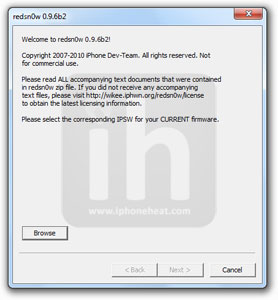
Redsn0w 0.9.6b2 is now available for Download. You can now Jailbreak iOS 4.1 on iPhone 4, 3GS, 3G, iPod Touch 4G, 3G, 2G, iPad 3.2.2 and Apple TV 2G. RedSn0w 0.9.6b2 now comes loaded with Limera1n exploit, Custom Boot Logos, Pwned-DFU Mode to restore Custom IPSW.


RedSn0w 0.9.6b2 includes the following extras:

  • Custom bootlogos for iPhone3G/iPhone3GS/iPod2G users (with qualifying bootroms)
  • An option that implements the “DFU” button in PwnageTool. This button (which you can use from Windows) lets you prepare your device for a custom DFU. Even if you’re purely a Windows user, you can get a trusted friend to run PwnageTool over your IPSW to create a custom IPSW. You can now install that custom IPSW on your own Windows box, after you run this redsn0w version.

Download RedSn0w 0.96b2

Warning: If you depend on unlock, better stay away from RedSn0w, Limera1n and Greenpois0n because these tools requires you to be running iOS 4.1 which comes with 05.14.02, 02.10.04 baseband (not unlockable ATM) and wait for an UltraSn0w update or use PwnageTool to preserve current baseband.

Instructions to jailbreak iOS 4.1 on iPhone 4, 3GS, 3G, iPod Touch 4G, 3G, 2G, iPad 3.2.2 and Apple TV 2G using RedSn0w 0.9.6b2 are exactly similar to the RedSn0w 0.9.6b1 guide. Navigate to the link below and follow the steps mentioned there to jailbreak iOS 4.1 with RedSn0w 0.9.6b2. (Steps are same for both Mac and Windows)

Download

You can follow us on Twitter, Join us at Facebook, and also Subscribed to RSS Feed to receive latest updates.

Also checkout:

Digg
Twitter
StumbleUpon
Facebook
Reddit
del.icio.us

How to make an iPhone App – Part 5: The Accelerometer

Yes, your iPhone has an accelerometer. I know this is not a physics class but the best way to define it is saying that it is a device to detect the magnitude and direction of acceleration. iDevices uses it to detect rotation, shake gestures, among others.

To get started we are going open Xcode and go to File->New Project, in iPhone OS select Application and in the icons of the right double click “View-based Application”. Nothing new.

I’m calling my project “Accelerometer”, you can give it the name you want.

Reading Accelerometer Data

There are three accelerometers in the iPhone, one for each axis. The X-axis reads from left to right, the Y-axis running up and down and the Z-axis for acceleration from back to front.

To read this data you need to call the object UIAccelerometer, you don’t have yo create it nor destroy it, just use it. It contains all the information you need from the accelerometer. Lets create an interface to display this data.

Double click the AccelerometerViewController.xib in the resources folder and drag to the view three labels and a round rect button.

Double click and erase the text of the labels, then save and return to Xcode.

Now we have to create the code for the labels. Click on AccelerometerViewController.h in the “Clases folder”. Right before the opening curly brace of the @interface add to let it know we are going to use the accelerometer data in this view, then declare the three atributes of the class to appear in the labels, like this:

@interface AccelerometerViewController : UIViewController 

{
	UILabel *x;
	UILabel *y;
	UILabel *z;
}
@property (nonatomic, retain) IBOutlet UILabel *x;
@property (nonatomic, retain) IBOutlet UILabel *y;
@property (nonatomic, retain) IBOutlet UILabel *z;
@end

We are done here. Go to the implementation (AccelerometerViewController.m). First of all don’t forget to @synthesize x, y, z;. Then find the method “viewDidLoad” and uncomment it. Before the [super viewDidLoad] statement create an object and assign it the [UIAccelerometer sharedAccelerometer], with this we are creating a reference to the accelerometer data. Then set the accelerometer delegate to the view and the update interval for the values to ten times per second. The method should look like this:

- (void)viewDidLoad {

	UIAccelerometer *accel = [UIAccelerometer sharedAccelerometer];
	accel.delegate = self;
	accel.updateInterval = 1.0f/10.0f;

    [super viewDidLoad];
}

At this point we have prepared the view to take the data from the accelerometer. Now we need to really take it. There is a method called “accelerometer didAccelerate”. This will allow us to read the data and display it in the labels:

- (void)accelerometer:(UIAccelerometer *)accelerometer
		didAccelerate:(UIAcceleration *)acceleration
{
	x.text = [NSString stringWithFormat:@"X is: %f", acceleration.x];
	y.text = [NSString stringWithFormat:@"Y is: %f", acceleration.y];
	z.text = [NSString stringWithFormat:@"Z is: %f", acceleration.z];
}

The code is ready, the only thing left is to connect the variables to the interface.

Now let’s build and run. The iPhone simulator will show up and your app will run, it may look like you did something wrong because the data is not appearing, well, the problem is that the simulator has no accelerometer, to test your app you need to deploy it to a real device, and in order to do so you need to pay at least $99.

But there is one thing the simulator can do, simulate rotation to landscape.

Switching to Landscape Mode

You may be wondering what was the round rect button for. I created it to demonstrate this part of the tutorial. If you build and run the app we just created and you press command+left or righr arrow, the iPhone will switch to landscape mode, the problem is that our app wont.

Go to the “AccelerometerViewController.m” and find the method “shouldAutorotateToInterfaceOrientation” and uncomment it. Here we say what orientations our app will support. Replace the method with this one:

- (BOOL)shouldAutorotateToInterfaceOrientation:(UIInterfaceOrientation)interfaceOrientation {

    if (interfaceOrientation == UIInterfaceOrientationPortrait ||
		interfaceOrientation == UIInterfaceOrientationLandscapeLeft ||
		interfaceOrientation == UIInterfaceOrientationLandscapeRight)
		return YES;
	else {
		return NO;
	}

}

With this we support rotation to landscape left and right. If you build and run you’ll se that the view now is switching to landscape mode but it isn’t adjusting very well to the new size of the window.

One way to solve it is to create a new view and switch to that when the iPhone rotates. The other way is to change a few properties in the inspector window of interface builder, the problem is that it doesn’t work for all the cases, sometimes you have to take the first option. In our case the second option works.

Double click the “AccelerometerViewController.xib” in the resources folder to open interface builder. Click the rounded button and select the “Size” tab of the Inspector Window. In the section for “Autosizing” you’ll notice there is a square with two red lines perpendicular to the left side and the upper side. This means that the button is linked to left and the top of the view to maintain that distance to that sides.

Click the left side to uncheck it and select the right side. Now if you save and build and run the button should stick to the left.

There are other properties, like resizing. If you click the horizontal arrow inside the square and the line in the left outside the square, the button will resize maintaining a proportion.

it will look like this:

Conclusion

The only way to master this is practicing. Make more iPhone apps and make them rotate.

Stay tuned because we are getting closer to the end. The next stop is saving data.

Some Tidbits on Mobile Application Development

Are you a newbie planning to try your hand at mobile application development? I know it can be very daunting especially if you do not have advanced knowledge of any particular development platform or don’t know which language to concentrate upon.

In my search for some basic information on this area, here’s what I came across:

What Language to Use?

Mobile applications today use a myriad of technologies — of course, apart from the common stuff such as Cocoa for iPhone app development.

A survey showed that the use of VoiceXML has increased lately and almost 23% of mobile developers use it, whereas the use of Macromedia Flash has gone up too — almost 38% of developers use it. RFID is also another technology that is gaining popularity among wireless developers.

This page gives some useful tutorials on building VoiceXML Applications.

If you are looking for a tool to connect your back-end application, you can do it by using XML/SOAP/XML-RPC. Some developers also doing this using ADO.net or messaging, but that’s not a very popular method.

Different Ideas for Applications

An amazing blog post here outlines the eleven most popular app development trends for this year. Here are some that I found quite interesting:

A big entry barrier for newbies

There are hundreds of large development companies that focus their entire resources — backed up by venture capital — in developing new apps quickly and adding regular enhancements to them. In such a scenario, a new developer may have an even harder time trying to get accepted by users.

In other words, you probably can’t treat mobile app development as a pet project on the side anymore. If you have a killer idea, try to get some big guns behind you and do it like any other business would do. Otherwise, chances are you may remain obscure despite having created a great application.

iPhone App Development is As Good as Over for New Guys

It is not unheard of for Apple to rub its appstore developers the wrong way and force them to conform to their rigid standards. Therefore, many experienced developers and major companies are waiting for an opportunity to move to something else that provides them with more freedom.

You might want to keep that in mind when you choose a particular platform for your project.

Augmented Reality

I don’t think I should say much about this other than to provide you with an excerpt from the original page:

Imagine walking by a retail store, have an alert pushed to your device that the store has the exact brand and size of jeans you’ve put on your wish list, then being able to hold up your phone and find that exact pair within inches inside a 20,000 square foot warehouse, or to instantaneously search the web for the best price on that pair of jeans, all through one mobile app.

Tell me you don’t find that cool!

If you have heard of any other such cool ideas, feel free to leave your comment.

Capture Extraordinary iPhone Photos with Instagram

There are, right now, a host of iPhone Apps available to help you transform an ordinary photo into something extraordinary! Whether that is by utilising simple photo editing and adjustment with an App such as Photoshop Express, or by redesigning the experience of taking snapshot photos and applying filters with Apps such as Hipstamatic and Swankolab.

Instagram desires to help you take photo sharing to a whole new level by integrating it with your social networks, enabling you and your friends to share your lives through a series of snapshot images! It claims to be reinventing the way we share photos and is totally free so lets have a look.

Getting Started

When you first open Instagram it presents you with the current most popular photos from around the world and gives you a delicious first taste of the experience Instagram is trying to achieve. You can browse these favourites as much as you like but to truly get involved you must first create an account.

I can hear many of you groaning already – not another social network to keep track of! Don’t panic, Instagram is not another social monster dedicated to devouring your time and productivity! It’s very easy to sign up and uses Facebook, Twitter, and Flickr to connect you with those around you who want to share the experience. Instagram does allow you to have the bare bones of a profile (picture, gender, and date of birth) but wisely keeps it simple.

screenshot

Signing up for an Instagram account

Design & Interface

Before we get into the functionality of Instagram it’s definitely worth mentioning its design. Instagram has clearly had a lot of care put into its development and it shows in the interface. The design is stylish but not distracting, while the interface is intuitive and clear. The real beauty of the app comes from the photos uploaded by you and those around you! To this end Instagram keeps its design simple and stays out of the way, allowing photos from friends and strangers all over the world to be the center of the experience.

screenshot

The attractive Instagram interface

Taking A New Photo

Once you have signed in you can then begin sharing your life in pictures with those around you. To get started, you simply head to the ‘Share’ tab and take a new photo or select an old one from your camera roll.

screenshot

Adding a new photo

In its effort to replicate the distinctive qualities of a Polaroid camera and film, Instagram takes square shots or requires that you crop your camera roll shots to fit.

There’s every chance that if you like Instagram you’ll already have Hipstamatic – all those Hipstaprints you have saved in your camera roll are perfectly suited to the Instagram experience!

screenshot

Instagram photos must be cropped so that they are square

Using Filters

Once you have taken or cropped your new photo Instagram takes you to the lab to add filters to your print! Currently there are 11 different filters that the developers have built from scratch – ranging from black and white to high contrast to aged faded effects. It’s a great touch that you can instantly preview the effect each one will have. If you find choosing between different lenses and films on Hipstamatic or having to combine chemicals in Swankolab a chore then Instagram’s filter selection process will be a breath of fresh air!

screenshot

Filters change the appearance of a photo

Instagram’s 11 built-in filters come with such intriguing, if nondescript, names as:

  • X-Pro II
  • Lomo-fi
  • EarlyBird
  • Lily
  • Poprocket
  • Inkwell
  • Apollo
  • Nashville
  • Gotham
  • 1977
  • Lord Kelvin

Sharing Your Photo

Once you have selected your desired filter you can then name and locate your photo. Instagram encourages descriptive naming – giving a naming example that’s more akin to a Facebook status. It also then lets you give your print a location by allowing you to select from nearby locations or create new ones. It is slightly confusing however, given the iPhone’s now ubiquitous use of geotagging, that Instagram doesn’t currently include the option just to tag your photo with your current location.

screenshot

Adding your location to a photo

Once you’ve named and added a location to your photo, it’s time to share it with the world (or perhaps just some of your mates). Instagram will automatically share your photos with anyone who is ‘following’ you but can also be configured to post your uploads to Twitter, Flickr, Facebook, and Tumblr. You can decide how contained your Instagram experience will be, you can just follow your Instagram friends within the App or allow Instagram access to your other social networks and spread the photo sharing fun!

Instagram does include the helpful ability to search for friends who are using it by connecting with Facebook and Twitter or just using your contact list.

screenshot

Adding new friends

Your Feed

Your feed is what distinguishes Instagram from other photo editing Apps and gives it purpose – sharing your photos with the world is a little pointless if there is no interaction! Your feed is where you can see all of the photos that have been posted by you and the people you are following and where Instagram begins to make sense. You can experience a new way of interacting with your friends through a stream of images and begin sharing your life in pictures!

Instagram gives you the option to “like” or comment on any photos in your feed or in the “Popular” section and lets you request to follow anyone you’d like to. You can build up a group of people whose pictures inspire you – from your friends, to strangers who live thousands of miles away!

screenshot

Your Instagram social feed

Final Thoughts

If you were hosting a party for all the iOS photography Apps it would be starting to look pretty crowded by now, fortunately for us Instagram is a worthy addition! It was released fairly recently and has already developed quite a serious following. With it being a new app there are inevitably some minor bugs and glitches but the developer has already managed to release version 1.0.2. In addition to this, it’s worth reminding you again that Instagram is free!

Instagram is succeeding in its attempt to create something new and different – its eagerness to have you sharing your life through pictures is infectious! Instagram’s ability to turn simple snapshots into a fascinating experiment in social interaction is amazing and well worth a try, especially considering you don’t have to pay for the privilege.

Best of AppStorm in October

We’ve collected the top five reviews, roundups and how-to articles from across the AppStorm network in October. Whether you’re interested in Mac, iPhone, or Web apps, there’s bound to be something you didn’t spot over the course of the month.

Now would be a good time to explore a part of the AppStorm Network you’ve never seen before!

iPhone App Entrepreneur Now Available!

iPhone App Entrepreneur

iPhone App Entrepreneur

Just in case you missed it earlier this month, we launched the first ever AppStorm eBook! iPhone App Entrepreneur provides you with the knowledge and the techniques you need to spot a great opportunity, get the most from the App Store, make smart decisions about development, craft a stunning interface, and promote your app successfully!

We surveyed thousands of iPhone users, conducted interviews with a few incredibly talented developers, and generally pulled together a great resource for anyone interested in developing for the iPhone!

Best of iPhone.AppStorm

Weet: Your New Favorite Twitter Client

Even before Tweetie had been gobbled up by Twitter, I had been uncomfortable with its seemingly endless feature-base; while it was better than most of its competitors, in my opinion, it had simply grown too complex to be enjoyable to me.

When Twitter acquired Tweetie, renamed it and replaced its icon, I was ready to remove it from my home screen: Tweetie and I broke up, in a way. After months of jumping from Twitter client to Twitter client, I heard about Weet, the new kid on the block, and was eager to try it. And, dear readers, the results are encouraging.

80 Apps to Learn a New Language

You’ve been telling yourself for years that you’ll learn a new language or at least dust off those high school Spanish skills. How about starting when you’re in line at the grocery store or waiting for the bus? Having language lessons on your iPhone means you can learn at your own pace, wherever and whenever you have the time.

25 Apps for Tweeting With the Best

Since the beginning of iOS time, there have been a number of Twitter applications ranging from the most simple to the utterly complex. If you can do it with Twitter, then there’s probably an app that can do it too.

If you are unsure of the Twitter clients available for iOS, are unsatisfied with your current client, or are even curious to glance at some alternatives, read on. I’ve listed 25 iOS apps that range from feature-packed to action-specific just for you!

AppStorm iOS Wallpaper Pack #1: The Garden

Today we bring you the first post in a new series of free wallpaper packs for your iPhone, iPad and iPod Touch. These photographic backgrounds are exclusive to iPhone.Appstorm and have in fact been captured by yours truly. They look beautiful on both the lock screen and home screen and have been sized to the appropriate resolution for your device.

Use Your iPad as a Second Display and Wacom Tablet

How would you like to use your iPad as a second (or third) display for your Mac? Now, how would you like to get a glimpse into what it would be like to experience OS X apps on a touchscreen? Finally, what would you say to using your iPad to draw in Photoshop and Illustrator just like a Wacom Cintiq? If you answered “heck yes!” to any of these questions, read on to see how to make this dream a reality using only a single app!

Best of Web.AppStorm

The Ultimate Dropbox Toolkit & Guide

Dropbox, the app we all (at least many of us) know and love, has a plethora of advanced uses to make life so much easier in managing data between multiple computers and online. We’ve posted several roundups of tips and tricks for Dropbox and now we present our ultimate toolkit and guide.

We’ve pulled all our tips and tricks together and added quite a few more. Additionally, share your Dropbox tips and tricks and we’ll update the list to share the fun with everyone.

The 10 Best Blogging Platforms

Do you want to blog but you don’t know where to start? Or maybe you’re already a blogger and you’d like to check out other platforms and their offerings? Blogging is common place these days but new people are discovering and jumping into platforms like WordPress everyday.

We’ve gathered ten of the best blogging platforms around, along with some resources for things like themes, plugins and tutorials. Take a look at the best of the best and share your favorite resources or platform of choice.

Penzu Goes HTML5 Mobile

Awhile ago we took a look at Digital Journaling with Penzu and since then the Penzu team has been hard at work making their app even more outstanding and feature rich. The biggest changes, however, have been the addition of mobile support using the power of HTML5—including offline support.

With well rounded support for all the major mobile platforms, Penzu is certainly a web app showing others how its done. We’ll take a quick look at a few of the new features in the desktop app then check out what they’re offering for mobile devices.

10 Great HTML5 Video Players

You’ve probably heard about the HTML5 video hype relatively recently and the excitement over what is has to offer in comparison to Flash. That’s all great but not many people know what players or sites they can use to jump on the HTML5 video bandwagon.

I’ve rounded up 10 of the best sites that offer HTML5 video playback, embedding and/or customizable HTML5 video players. Read on and let us know what, if any, you use for HTML5 video!

58 Killer New ThemeForest Themes & Templates

ThemeForest authors are always working hard at producing amazing themes, designs and templates, so it’s easy to miss all the fantastic new items coming through every day. I’ve rounded up 58 killer new themes and templates from ThemeForest for WordPress, HTML/CSS, PSD, Mobile, Email & Newsletter, Joomla and Magento. Check’em out!

Best of Mac.AppStorm

Mac Software for Advanced OS X Users: 70 Apps

Early in August, we helped to get you started with your Mac by introducing 50 Essential Apps for OS X Beginners. Today, we will take you to the next level with an incredibly comprehensive list of 70+ apps geared towards advanced users.

The Definitive A-X Guide to Your Mac Utilities Folder

Hidden deep inside your Applications directory is a folder marked “Utilities”. To a lot of people, this cold, generic title will scare you away, and many will never venture inside, or if they do, won’t want to open up any of those frightening-sounding applications for fear of ruining something.

In this bumper article, I hope to show you what you can do with these mysterious apps, and how your Mac might just get a whole lot better!

OS X Lion: Features, Thoughts and Analysis

The announcement of a new operating system is no small deal, so today has proven to be an exciting time for Mac enthusiasts everywhere. OS X Lion seems set to be a huge step forward for the Mac operating system, and there are some significant changes to be expected.

A few of the top highlights include a Mac App Store, Launchpad, full-screen apps, and “Mission Control”, but read on for the full lowdown on what to expect from Apple’s next big cat.

5 OS X Features You’ll Love as a Mac Switcher

Apart from obvious things like being the coolest looking operating system on the fastest hardware available (and being totally immune to viruses and spyware), there are a lot of reasons why I consider my MacBook Pro to be my best purchase of the decade. You can find five of the top reasons that made me a Mac fanboy after the jump.

Head to Head: Text Expander Mac Software Compared

With the help of a “text expander” application, all you need to do is memorise a couple of quick abbreviations, and repetitive typing can be a thing of the past. Although TextExpander itself arguably holds the crown in this department, we wanted to put it to the test against some other competing software today. Read on for our head-to-head comparison of four popular text expanding applications for OS X!

Share Your Ideas

Is there something in particular you’d like to see on the site next month? We’d absolutely love to hear your suggestions for articles, topics and giveaways ‚Äì just let us know in the comments. Thanks for reading AppStorm!

Quick Look: Protector: The Planes

Quick Look posts are paid submissions offering only a brief overview of an app. Vote in the polls below if you think this app is worth an in-depth AppStorm review!

In this Quick Look, we’re highlighting Protector: The Planes. The developer describes Protector: The Planes as “a medieval fantasy themed tower defense game with a focus on unit upgrades and strategic placements of warriors and magicians.”

Since its first release in 2008, Protector series has been played over 50 million times on the PC. Protector 4 is ranked in the top 25 games on Kongregate.com (Kongregate.com has over 30thousand flash games with 10million monthly visitors).

Read on for more information and screenshots!

Screenshots

screenshot

Protector: The Planes

screenshot

Protector: The Planes

About the App

Here are the top five features you can expect to see in the latest version:

  • 5 basic units and 5 advanced units to unlock
  • 32 maps to conquer
  • 10 superpowers to unlock
  • Over 20 hours of game play
  • Over 40 different enemies to encounter

Requirements: Compatible with iPhone, iPod touch, and iPad. Requires iOS 3.1.3 or later

Price: 1.99

Developer: NTT Resonant

Vote for a Review

Would you like to see us write a full review of Protector: The Planes? Have your say in our poll:

Would you like to see Protector: The Planes reviewed in-depth on AppStorm?online survey

Quick Look posts are paid submissions offering only a brief overview of an app. Vote in the poll if you think this app is worth an in-depth AppStorm review! If you’re a developer and would like to have your app profiled, you can submit it here.

GodFinger All-Stars: An Even Better Way to Rule the World

Have you ever wanted to rule over an entire civilization? How about create a world, impart wrath, control the weather, reshape the landscape and even be worshipped?

With GodFinger, all of this becomes possible. The latest installment, GodFinger All-Stars has all the hilarity you know and love from the original version with some great new features. Like the original, GodFinger All-Stars is completely free and your account transfers over so you don’t lose all your hard work. Let’s take a look!

What Is GodFinger?

For those of you that aren’t familiar with the game, GodFinger is a bit like all of those other games where you oversee a community and engage in basic mundane tasks like farming, only on crack. The characters that you rule over, called followers, are crazy little people that scurry about dressed in all manner of silly attire (everything from knights to pirates), making all sorts of noises (often of the flatulent variety) and working diligently to serve you their god.

screenshot

GodFinger

Gameplay

GodFinger gives you a small planet to rule over. As you swipe across the screen the world spins and you are taken to different sections. A pinch will zoom you in closer so you can see and interact with specific items.

Your basic goal is to build structures, which are then manned by followers, who work to earn you gold. You then use that gold to buy more structures, decorations and followers so you can expand your planet and grow your following (it’s sort of an endless cycle of earning gold to build more to earn more gold).

When you purchase a structure, you pick up a few followers and drop them on it so they can commence construction. Once the structure is built, your followers will display icons showing you how to power up the building.

screenshot

GodFinger

The icons shown match one of three weather “wonders”: sun, rain and lightning. To power up a building, you position the appropriate weather wonder over it, then tap and hold the wonder until it flashes. You can then release and sunshine, rain or lightning will burst forth (as you advance, you can hold the wonders longer for more powerful effects).

Wonders are also uses to affect your planet in different ways. You can create fishing ponds, grow plant life and destroy objects using your weather arsenal.

Replenishing Followers

As your followers work to earn you gold, they will eventually become too exhausted to go any further. At this point, you drag them over to a tent, tavern, fountain or other refreshing station for some relaxation and replenishing sustenance.

screenshot

Refreshing Your Followers

Goals, Awe and Experience Points

As you perform wonders for your followers, you earn awe, which can be used in a number of ways including to purchase items from the store and immediately replenish a follower’s energy.

screenshot

The Store and Goals screens

GodFinger also has a goals system that you can use to earn various rewards. You unlock goals as you progress and then try to complete them to advance even further. The goals are usually pretty straightforward such as connecting with a friend’s planet or building a certain number of structures.

Completing goals and earning gold build up your experience points. As this happens, you gain levels and unlock even more content. Again, it’s all very repetitive and yet is somehow a blast.

New Features

GodFinger All-Stars is the most significant update yet and brings about plenty of new goodies and features. Among these is the new Follower Stars system. As you power-up your buildings, if your followers are in the path of the sun, little star bubbles begin floating all around them. As you pop these bubbles, your followers earn star power, which will eventually lead to exciting rewards.

screenshot

Your followers now earn stars

You’ll also notice the presence of circular rainbows on your planet after the update. There are two types of rainbows that serve different purposes. The first type is a normal rainbow, shown below on the left. These can be created by combining rain and sun in a single spot. Tossing your followers through a rainbow will generate stars.

screenshot

Two types of rainbows

The second type of rainbow, shown above on the right, is actually a new mini-game. Tossing a follower into this portal will transport them to a cloud-jumping adventure full of gold and other treasures.

screenshot

The new Jump Game

Those are the major advancements that I’ve noticed, as always there are plenty of new structures to create, crazy followers to nab and goals to unlock.

GodFinger All-Stars for iPad

GodFinger All-Stars is also available in a beautiful, super-sized iPad version. The larger screen makes for a much better experience that you won’t want to miss whether you’re a veteran or newcomer.

screenshot

GodFinger All-Stars for iPad

Amazing or Annoying?

I must confess that I typically hate these types of games. I’d much rather get a root canal than be forced to play Farmville on Facebook. However, GodFinger’s unique spin on the genre sucked me in. I quickly got into a routine of checking in on my little planet once every day to collect my gold and I came to really appreciate the long-term value of the game.

I was just reaching the point of starting to slack off and regularly let my piles of gold turn into rust when All-Stars came out and grabbed me anew. As I said above, the game is infinitely better on an iPad and makes for a lot less frustration when you’re dragging those little guys all over creation.

My annoyances with the game are few and fairly minor. The sound effects get old in about fifteen seconds but can easily be adjusted or muted completely. My biggest complaint is just how long it takes from the time that I tap the icon until I actually get to play the game. First, you have to endure a number of startup screens. Then you have to dismiss a few messages about what’s new in the GodFinger store or what new app you should download from the App Store. After this you are taken to the menu where you hit the “Play” button, which brings up a loading screen. Then you have to deal with screens for the daily lottery and decide what gift you want to bequeath to your friends today. It simply goes on forever!

Once you finally get to the actual game, everything is great. The colorful illustrations and deep gameplay provide you with a rich experience not easily found in a free app.

Conclusion

To sum up, whether you love or hate life-sucking farming games, you should give GodFinger All-Stars a download. It’s crazy unique and is a great way to kill a few minutes at various points throughout your week when you’re tired of all the games on your iPhone that you’ve already played through.

Leave a comment below and let us know what you think of GodFinger All-Stars. Are the new features enough to regain your interest?

Can Apple Break Into the Corporate World?

Business Week reported earlier this week that Apple is teaming up with Unisys Corp. to manage relations with corporate and government customers. The article also noted that Steve Jobs made it a point to recently state how well Apple multi-touch devices are doing among Fortune 500 companies.

These events seem to suggest that Apple, not satisfied with stealing away average consumers, is now gunning for RIM’s most sacred turf: the corporate world. Blackberry products are synonymous with professional communication and has had a firm grip on the market even in these recent years after the iPhone’s release. As I consider how Apple will continue to pursue this new customer, one other group comes to mind.

Repeating The Education Strategy?

Apple has had its ups and downs with selecting specific areas of the market to target. When I was at the age where I first used one of the strange and wonderful devices known as a personal computer, Apple products were beginning to make an appearance in schools all over the country.

These purchases were the first computers that many schools ever procured for student use and were an ingenious strategy for Apple to secure the education market for years to come. However, as Apple fell into a slump that nearly killed the company completely, Windows gained a foothold and grabbed up just about the entire PC market, including education.

screenshot

Apple’s not so subtle student-focused marketing

With the glorious return of Steve Jobs we saw Apple once again zeroing in on the education market, this time though the strategy was different: Apple began targeting the students directly. The astounding success of the iPod served as a gateway drug for many young people into the euphoric world of the Apple cult. To help this along, Apple launched its long-running Student Union program, which offered students a free iPod with the purchase of a laptop.

With the iPod generation finally off to college, what else would they bring with them other than shiny new MacBooks? Some generous estimates report that as many as 70% of incoming college freshman own Macs. In a perhaps more realistic study, Fortune showed that 27% of the college laptop market belongs to Apple, which makes them number one, sitting just above Dell at 24%. You read that right, Apple is no longer a minor player but is actually at the top of the market with student laptops. As these students advance out of college, they’ll buy Macs for work, then for their own children; you get the point.

Enterprise: A Tougher Nut to Crack

As you can see, Apple definitely knows how to play the long game and is just now beginning to reap the benefits of seeds sewn several years ago. However, it’s important to note that college kids are right in line with Apple’s core marketing strategies. This market wants well-designed, edgy products that can be perceived as the fashionable and superior underdog.

The corporate/government world on the other hand is a different beast entirely. These customers want security and powerful enterprise tools. The kind of tools that RIM has built a company on while Apple struggled to even launch a basic push-enabled email platform.

The iPad seemed to be a natural entrance point for many companies as the pull of such a portable, affordable and powerful device is quite significant especially in light of a complete lack of initial competition. However, even this avenue is showing signs of a serious threat as Blackberry readies its new PlayBook tablet. Though many skeptics see the PlayBook as more fiction than fact at the moment, RIM promises some impressive specs including two 1Ghz processors, 1GB of RAM and both a front and rear-facing camera.

screenshot

The BlackBerry PlayBook

Needless to say, RIM seems well aware of Apple’s intentions for their customers and won’t be going down without a fight. If Apple does succeed in getting iOS devices into the hands of business professionals everywhere, you can bet their ultimate goal will be to pull the same trick as they did with students by using iPhones and iPads as a gateway to the Mac business.

What Do You Think?

Now I turn the discussion back to you. Do you think Apple will be successful in winning over a significant portion of the enterprise market? What needs to change about both their products and strategy for this to happen?

Leave a comment below and let us know your thoughts.

Look-Up: Augmented Meets Alien Invasion

How often have you been hanging out in your drab environment — office, dorm, house, post office — and thought to yourself, “You know what would make this place more exciting? UFOs flying around my head.”

Probably at least once a day, right?

Look-Up, a new “augmented reality” game from Soulbit7, promises to shake things up by invading your space with alien attacks. Does the game deliver?

screenshot

New Game

The Concept

Look-Up is an “augmented reality” game: it uses your iPhone’s camera to present your actual environment in the game and then superimposes interactive layers on top of it. In Look-Up, those superimposed layers are UFOs and weapons to attack them with. The objective of Look-Up is to point your iPhone toward the sky to discover incoming UFOs and blast them to tiny bits and pieces.

screenshot

In Space No One Can Hear You Bark

Getting Started

Look-Up is easy to pick up and play; the epitome of casual gaming. There are really only two “buttons” you can press: the “shoot” button (red) and the tractor beam/H-bomb button (blue).

Once you choose to start a new game, you must select whether you want to play in 360 degree mode or 180 degree mode. The 360 degree mode will have aliens attacking you from all around; not only will you have to hold your iPhone up to find the UFOs, you’ll also have to turn your body in circles.

screenshot

Level Selector

A multiplayer option is also available via BlueTooth, allowing you to team up with a friend to fight off the invaders.

Gameplay

Gameplay is pretty simple: shoot the UFOs with the red button; use the tractor beam to pull in health power-ups and H-bombs.

In order to be successful you’ll have to move your iphone all over the place to spot the UFOs. The higher the level goes, the harder they are to take down. Their movements become more jerky and their speed increases. If you play in 360 mode you’ll also be spinning around a lot trying to keep up with the alien ships.

screenshot

Shooting an H-Bomb

The gameplay is fun for a while. If you’ve never played an “augmented reality” game it will pleasantly surprise you the first time you see the little UFO crafts layered onto your actual surroundings. The saucers are cartoonish and fun to look at, the music and sound effects are very fitting for the genre, and the buttons are big enough that you’re never frustrated with the actual controls. It also makes for a great game to show off some of the iPhone’s capabilities to people who are curious.

It’s fun to pass the game around between friends and see them walking all over the room and turning in circles while trying to save the earth from conquering hordes of alien lifeforms.

Shortcomings

Unfortunately, while the gameplay is interesting for a while, Look-Up quickly stops being enjoyable. There’s very little variation between levels, the H-bomb isn’t nearly as fun to use as it should be, and most of us got dizzy and felt a little nauseated after only a few minutes of playing. We even tried sitting in a rotating office chair so that turning in circles would be easier, but the combination of having to look up at often extreme angles and spinning around quickly to shoot down threatening UFOs made it similarly sickening.

screenshot

Tractor Beam

The game mechanics keep it from being playable in a public locale. Turning in circles and staring up in the sky while waiting in an airport would probably get you arrested, and doing it at school would probably ensure that you unwittingly wind up as the star of a popular YouTube video. This gives Look-Up limited appeal because you certainly won’t be playing it while trying to pass the time at the Department of Motor Vehicles (and if you do, you won’t be getting your license).

Graphically the game has not yet been updated for the iPhone 4 Retina Display.

Final Thoughts

Look-Up has a fun concept, and it’s a pretty cool game the first time you launch it. The comical little UFOs hovering around your environment and the sound effects/music are all well done.

Unfortunately, its lack of variety and dizzying gameplay quickly make it a bore after only a few play-throughs. There’s just not much here to keep you coming back for more.

Look-Up is currently available for $0.99 on the App Store.