Jailbroken iPhone 3GS gets FaceTime… sort of

Jailbreaking team iPhoneIslam has managed to enable FaceTime on a jailbroken iPhone 3GS… sort of. iPhoneIslam’s app, “FaceIt-3GS,” is currently available in the Cydia store, and allows users to enable FaceTime in the iPhone 3GS’s Settings app.

However, the functionality is quite limited. The most obvious stumbling block is hardware-related — without a front-facing camera, the FaceTime experience will be quite limited on the iPhone 3GS no matter how creative jailbreakers get. iPhoneIslam’s FaceIt-3GS app doesn’t enable FaceTime via the 3GS’s rear-facing camera either, though, so the only added functionality this hack appears to give 3GS owners is the ability to accept FaceTime calls from an iPhone 4, newest-generation iPod touch, or Mac, and view the sender’s video stream.

Not being able to use the rear camera for sending video is disappointing, but if your iPhone 3GS is already jailbroken, you might want to give this a try anyway. Only being able to view someone else’s FaceTime video is limiting, but it’s better than having no FaceTime on the 3GS at all. You can see a video of the hack at work above — but make sure to turn your volume down before you get to the end of the video.

Jailbroken iPhone 3GS gets FaceTime… sort of originally appeared on TUAW on Sun, 07 Nov 2010 23:20:00 EST. Please see our terms for use of feeds.

Source | Permalink | Email this | Comments

Enable FaceTime Video Calling on iPhone 3GS with Faceit 3GS

FaceIt 3GS is a new Tweak that enables FaceTime video call on iPhone 3GS (Jailbroken). You can download Faceit 3GS from Cydia to enable FaceTime on iPhone 3GS via iPhoneIslam repository. Officially, FaceTime is an iPhone 4/iPod Touch 4G-only feature.
facetime
NOTE : Faceit 3GS is a jailbreak tweak available exclusively via Cydia. iPhone 3GS must be running iOS 4.1 How to: Jailbreak iOS 4.1

How to Enable FaceTime on iPhone 3GS

We assume that your iPhone 3GS is jailbroken and running iOS 4.1

  • Open Cydia
  • Add the following repo: http://apps.iphoneislam.com (How to add repo to Cydia)
  • Go to search tab, and search for Faceit-3GS
  • Install Faceit-3GS and reboot your iPhone 3GS
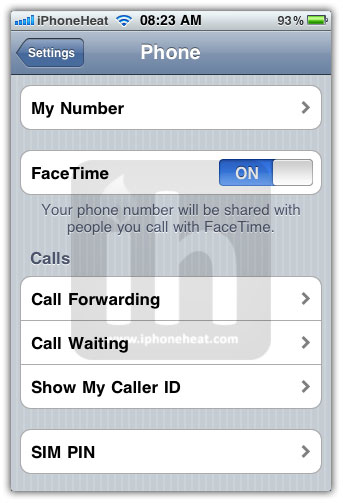
  • After reboot, go to: Settings > Phone and turn FaceTime ON.

That’s it. You’ve enabled FaceTime on iPhone 3GS with Faceit 3GS.

enable facetime on 3gsenable facetime on 3gs

You can follow us on Twitter, Join us at Facebook, and also Subscribed to RSS Feed to receive latest updates.

Also checkout:

Digg
Twitter
StumbleUpon
Facebook
Reddit
del.icio.us

How to make an iPhone App – Part 6: Saving Data

It might not look like so, but your iPhone does have a file system, the thing is that is not the kind of file system that we are used to. To save your data you will only have a directory and you won’t be able to choose it.

If you have an iPhone you might notice that there is no application that has a save button, all your apps save data transparently a few seconds before you quit it.

This is not magic, you have to apply some techniques that i’m going to show you.

When you press the home button, a method called applicationDidEnterBackground is called. To override ApplicationWillTerminate method was the most used way to save data in days previous to iOS 4, now to close an app, you have to send it to background, double tab home button and hold the app icon in the open apps list and touch the minus button.

Today applicationDidEnterBackground method is one of the most used ways to save data, but you have to do some stuff before this.

Open Xcode, and let’s create a View-Based application. I’m going to call it “saveApp”.

Go to the Resources folder and double click saveAppViewController.xib. When Interface Builder loads, drag two text fields (One for a question and one for an answer) and save.

How to make an iPhone App | Saving Data | image 1

In Xcode go to the Classes folder click saveAppViewController.h and add the code for the text fields.

@interface saveAppViewController : UIViewController {
	UITextField *Question;
	UITextField *Answer;
}
@property (nonatomic, retain) IBOutlet UITextField *Question;
@property (nonatomic, retain) IBOutlet UITextField *Answer;
@end

Then connect the objects with the interface elements in Interface Builder. Question is the upper text field and Answer is the lower.

Back in Xcode in saveAppViewController.m add the synthetize statement:

@synthesize Question, Answer;

Nothing new yet.

Saving Data

Now is when we start with the cool stuff. First we need to add a method where we get the directory for our application, saveFilePath. It is going to return a NSString object specifying the path for the directory.

- (NSString *) saveFilePath
{

}

Inside we create a NSArray pointing to NSSearchPathForDirectoriesInDomains it is an object containing the directory, the user domain and a boolean specifying if we want the full path or the relative path, i want the full path.

NSArray *path =
	NSSearchPathForDirectoriesInDomains(NSDocumentDirectory, NSUserDomainMask, YES);

Finally we return the path but appending an string to the directory, the name of the file. If you don’t do this it is going to return just a directory, and this is not what you want, we want the path for the file. I’m going to call my file safefile.

return [[path objectAtIndex:0] stringByAppendingPathComponent:@"savefile.plist"];

Now your saveFilePath method is:

- (NSString *) saveFilePath
{
	NSArray *path =
	NSSearchPathForDirectoriesInDomains(NSDocumentDirectory, NSUserDomainMask, YES);

	return [[path objectAtIndex:0] stringByAppendingPathComponent:@"savefile.plist"];

}

Ok, we have our save file. Let’s move to the “saving” method.

As i said before we need to override a method called applicationDidEnterBackground to make it save data to our file.

In that method we are going to add the Question and the Answer to an array and say “Write them to the file”, like this:

- (void)applicationDidEnterBackground:(UIApplication *)application {
	NSArray *values = [[NSArray alloc] initWithObjects:Question.text,Answer.text,nil];
	[values writeToFile:[self saveFilePath] atomically:YES];
	[values release];

}

If you go to saveAppDelegate.m you are going to find that there is also a method called applicationDidEnterBackground. When you close an app the method that is called is the one in the AppDelegate not yours in the viewController, to be called we need to add our terminate method to the dispatch table, and to do so we have to add a few lines of code to the viewDidLoad method in the viewController.m.

Find and uncomment viewDidLoad and add the following lines of code:

UIApplication *myApp = [UIApplication sharedApplication];

[[NSNotificationCenter defaultCenter] addObserver:self
					selector:@selector(applicationDidEnterBackground:)
					name:UIApplicationdidenterBackgroundNotification
					object:myApp];

Now the app will save data, cool. But there is no point in saving data if we don’t load it.

Loading Data

In the viewDidLoad method first call the method to get the path to the file where to read the data. Then, if the files exist, we read and load the data to the Question and Answer objects.

NSString *myPath = [self saveFilePath];

	BOOL fileExists = [[NSFileManager defaultManager] fileExistsAtPath:myPath];

	if (fileExists)
	{

		NSArray *values = [[NSArray alloc] initWithContentsOfFile:myPath];
		Question.text = [values objectAtIndex:0];
		Answer.text = [values objectAtIndex:1];
		[values release];
	}

Now the viewDidLoad method should look like this:

- (void)viewDidLoad {

	NSString *myPath = [self saveFilePath];

	BOOL fileExists = [[NSFileManager defaultManager] fileExistsAtPath:myPath];

	if (fileExists)
	{

		NSArray *values = [[NSArray alloc] initWithContentsOfFile:myPath];
		Question.text = [values objectAtIndex:0];
		Answer.text = [values objectAtIndex:1];
		[values release];
	}

	UIApplication *myApp = [UIApplication sharedApplication];

	[[NSNotificationCenter defaultCenter] addObserver:self
					        selector:@selector(applicationDidEnterBackground:)
						name:UIApplicationdidenterbackgroundNotification
						object:myApp];

    [super viewDidLoad];
}

Testing the App

Build and run the app. Type a question and an answer.

How to make an iPhone App | Saving Data | image 2

Press the home button and double tap it. Now hold the app icon and close it clicking the minus button.

How to make an iPhone App | Saving Data | image 3

Relaunch the app and the text in the text fields should remain.

Conclusion

There are more complex ways to save data in the iPhone, but this one is just fine for beginners. The next tutorial is the final chapter of this series. I’m going to talk about the final touches you have to give to your app. Cheers.


Take your app to the next level with marketing advice from Marketing Your App

Matthew of Marketing Your App has agreed to answer questions from developers on promoting your mobile apps. While we enjoy bringing you app development tutorials, news, and reviews we also want to help you successfully market the apps you spend so much time working on. Matthew can answer your questions on the best ways to market your app and turn it into a money maker.

If you are interested in asking a question please feel free to leave a comment or email us, we will make sure as many questions get answered as we can. In the meantime feel free to check out the Marketing Your App site where they offer a lot of free tips and and app marketing resources.

Galaxy Game Engine for iPhone and iPad is Impressive

Here’s one open source game engine for iOS4 that continues to impress me with its rich features and abilities.  The Galaxy Engine is a full game development kit for aspiring iPhone and iPad game developers – complete with a 3D graphics engine – that apparantly uses OpenGL ES platform, a sound engine that uses OpenAL and game center.

One also gets access to tools that are included for level editor, terrain editor, model editor, particle editor and shader IDE.  The tool kit can also be used for Mac development. It is licensed under BSD terms – which makes it pretty impressive for the zero cost price.

Below is a 10 minute video that will walk you through all the features and the capabilities of the Galaxy Game Engine –

Click here to view the embedded video.

Here is a brief extract from JAM studios Google Code site. More can be found by visiting the link at the end of this post.

What is Galaxy Engine?

Galaxy Engine is a complete game development package for Mac, iPhone, and iPad. It is programmed in Cocoa and uses the OpenGL, OpenGL ES, and OpenAL libraries to give you a powerful core with direct access to iPhone SDK features such as Game Center. Galaxy Engine is designed with indie developers in mind. Which means that it is designed to be as efficient and flexible as possible. It also is one of the only Open Source game engines to include critical tools for game development such as: Level Editor, Terrain Editor, Model Viewer, Particle Editor, and Shader IDE. It also includes features such as: vertex animation, advanced lighting, dynamic shadows, vertex and pixel shaders, normal mapping, parallax mapping, and massive outdoor environments.

Why use Galaxy engine?

Intuitive complete object orientated Objective-C framework designed in the same style as Cocoa allows you to quickly write your game with a relatively small learning curve compared to other C++ based systems. Galaxy engine is extremely flexible and not based on a specific game type which allows you start on your game no matter what it is on day one. Comprehensive source code allows you to confidently configure, edit, and expand the engine right out of the box. Extensive documentation allows you to quickly understand how classes work and how you can use them. Proven stability used in several commercial products from iPhone games to space shuttle simulation software. Powerful and stable tools developed over several years with consistent and clean interfaces will save your company tons of time in programming and game content creation. Native cross platform support with graphics abstraction layer and automatic compilation of all resources to platform specific formats allowing you to develop for iPhone, iPad, and Mac all the time with minimal code and resource changes. JAM Studios and the open source community will continue to support the Galaxy engine by adding new features and updates to the base framework and all its tools so you can be sure it will remain competitive and continue to expand its feature set.

If you want to get started and download the source code etc, please visit the Google Code repository for Galaxy Game Engine.

Track your favorite runners with the ING New York Marathon app

There are some people who regard the prospect of a 26 mile-long run across the bridges, avenues and streets of New York City’s five boroughs with eager anticipation, who train diligently for months with single-minded focus to be able to say with well-deserved pride, “Yes, on November 7 2010, I completed the NYC Marathon.”

Let me be perfectly clear: I am not one of these people. I do, however, live just steps away from the marathon route, so it’s a family tradition for all of us to traipse down the block early tomorrow morning to watch the mayor’s motorcade, the wheelchair racers and the lead runners followed by an absolute flood of humanity — quite a spectacle.

Whether you’re a casual fan or an eager follower of a specific runner, you might want to grab the official race app for iPhone. Bearing the awkward moniker “NYRR Presents the ING New York City Marathon 2010,” the free app includes race details, course facts, time updates and more. With an in-app purchase, you can watch live video of the race or track up to five specific runners by name or bib number (the developer notes that you may need to restart your device after the upgrade to make sure tracking is working as expected).

Best of luck to all tomorrow’s competitiors; stay safe out there, and remember to be on time for your start — best not to depend on your iPhone alarm during Daylight Saving wacky fun time.

Track your favorite runners with the ING New York Marathon app originally appeared on TUAW on Sat, 06 Nov 2010 23:00:00 EST. Please see our terms for use of feeds.

Source | Permalink | Email this | Comments

Turn your iPhone or iPod touch into a gamepad with stick-on buttons

Software developers have been able to do some amazing things with games on portable devices like the iPhone and iPod touch, but just as some people prefer to type on a physical keyboard, gamers occasionally miss using a gamepad. A Japanese company has come up with a stick on plastic nubs that you can apply to your touch screen device to “replicate” the feel of the buttons on a game pad.

While the transparent appliques are applied like a screen protector, they really seem to be of dubious benefit. While having tactile feedback is helpful when playing on a console or computer and looking up at the display and having the pad out of your line of sight, it doesn’t seem helpful in this case. On a touchscreen handheld you are already looking at the controls on the display and the controls may not be in the same place for different games.

If you still feel like trying out the Tactile+Plus stick-on gamepad controls, they can be ordered from Japan for ¥630, or around $7.80.

Turn your iPhone or iPod touch into a gamepad with stick-on buttons originally appeared on TUAW on Sun, 07 Nov 2010 12:30:00 EST. Please see our terms for use of feeds.

Source | Permalink | Email this | Comments

BMW to use iPads for specification panels at American auto shows

bmw ipad spec panel

At this week’s South Florida International Auto Show in Miami, BMW is debuting some new interactive technology that will be appearing at other shows over the coming weeks. The traditional static specification panels that appear next to all the fancy new cars at auto shows are being replaced by mounted iPads. The limited space on a show floor means that automakers can’t show every available color and option combination.

The iPads will allow visitors to use the same configurator found on the BMW website to see what combinations are available and build and price their own favorite. Visitors can enter their contact information for a call from a local dealer or to schedule a test drive after the show. Text of the BMW press release follows.

Continue reading BMW to use iPads for specification panels at American auto shows

BMW to use iPads for specification panels at American auto shows originally appeared on TUAW on Sun, 07 Nov 2010 14:00:00 EST. Please see our terms for use of feeds.

Source | Permalink | Email this | Comments

ScreenSteps 2.8.7, documentation gets social

ScreenSteps, an app for creating screen-based documentation and a TUAW favorite, has just released a pretty big update and a brand-new social document service called ScreenSteps.me. The desktop update includes, among other improvements, a totally-rewritten screen capture tool that makes the documentation process quite a bit simpler.

The coolest part of the new screen capture tool is the ability to remember snapshot positions. If you’re repeatedly taking screenshots of the same window or the same section of a web page, you can grab the exact same part of your screen each time. This not only saves time, it gives your documentation more uniform images, improving clarity.

Among the other new features is a blur tool in the image editor, perfect for obscuring email addresses and personal information in screenshots. Also, ScreenSteps has added Zendesk as a service with which it can directly interface (the list already included WordPress, MindTouch, Confluence and others).

ScreenSteps.me, in beta right now, is a social document service, similar to Skitch.com or Jing, but for documentation. Send a lesson directly from the desktop application and get back a short url and/or styled or unstyled HTML, ready for pasting on the web. It’s simple, and it’s great for everything from sharing on Twitter to posting to Basecamp or HTML newsletters.

You can sign up for the ScreenSteps.me beta right now for free, and you can download a 14-day trial of ScreenSteps Desktop at Blue Mango. A license for the desktop version (good for both Mac and Windows) is US$39.95 for standard, US$79.95 for the Pro version (version comparison). Academic pricing is available.

ScreenSteps 2.8.7, documentation gets social originally appeared on TUAW on Sat, 06 Nov 2010 17:00:00 EST. Please see our terms for use of feeds.

Source | Permalink | Email this | Comments

Square card reader: Now anyone in the US can accept credit cards

Headline updated to acknowledge that Square is a US-only service for now.

Remember the Square card reader and payment service from our first hands-on video in January at Macworld Expo 2010? Square makes it possible for anyone, whether an individual or small business, to take payments via credit card. Shortly after Macworld Expo, I signed up for the service; I finally received my free credit card reader yesterday.

The reader is a tiny square box that plugs into the audio port on iOS devices or other smartphones. Rather than using an expensive (usually $75 or more) “sled” reader like those used in Apple’s retail stores, Square developed a reader that did not use the dock connector or need the blessing of Apple’s “Made For iPhone” certification. These readers have no moving parts and are so inexpensive to manufacture that Square can give them away.

Anyone can sign up for the service and get a free reader. If you want to be able to split a bar tab with friends and have them pay you via credit card, you can get a Square account and reader, and then simply swipe your friends cards to get paid. Square takes 2.75% of the transaction + 15¢ per swipe if you can get your drunk friends to provide their finger-written signatures, and 3.5% + 15¢ if they don’t sign. Does that sound like a lot? To an individual, it might, but to small businesses who are used to hefty sign-up fees, monthly account minimums, merchant account fees, and higher percentages, Square is a hell of a deal.

Continue reading Square card reader: Now anyone in the US can accept credit cards

Square card reader: Now anyone in the US can accept credit cards originally appeared on TUAW on Sat, 06 Nov 2010 20:30:00 EST. Please see our terms for use of feeds.

Source | Permalink | Email this | Comments

Is the iPhone Is Ruining Film and Photography?

The web has become saturated with surprisingly high quality content created entirely on iPhones. Never before has a device that contains a camera merely as a secondary feature so impacted the worlds of photography and cinematography.

The question is, are these industries better or worse with the arrival of the iPhone? Is this device improving the digital world by putting multimedia-based art forms into the hands of the masses or is it critically cheapening decades of hard work from serious professionals? Let’s discuss.

Film

The iPhone is by no means the first pocket-sized device to record video or even HD video. Nor is it the first cell phone to do so. However, it does mark a significant step forward in that it is one of the first phones to be taken seriously in this context by an impressively large audience.

Movies: Anytime, Anywhere

Making movies was once an intensely technical task that one had to invest serious time into before undertaking. With the advent of portable home video cameras this process was suddenly opened to a much larger audience. However, it wasn’t until affordable, consumer-grade editing software arrived with the digital revolution that custom movie creation and editing really became something that just about anyone could do.

Even still, the video camera is relegated by many to the closet shelf, only to be pulled out for birthday parties and graduations. It’s simply not a device that most people will carry around on a daily basis. A cell phone on the other hand, is something that we all have in our pockets almost all the time. It therefore makes sense that this would become the quintessential device for recording our daily lives.

With the iPhone, you aren’t limited to the dark, grainy and generally ugly video traditionally seen from a cell phone. In fact, you can record bright, beautiful high-definition video whenever and wherever you want. With iMovie for iPhone, you can even edit your movies right on your phone without importing anything to your computer.

screenshot

iMovie for iPhone

Yeah, But Are They Any Good?

At this point you might be thinking, “Big deal, you can create movies on your phone. It’s not like they’re any good, right?” The reality is however, in the right hands, movies shot entirely on an iPhone can and do look amazing.

One of the first short films in this vein to become popular was “The Apple of My Eye” by Michael Koerbel. A 90-second nostalgia-filled movie about a man and his granddaughter.

screenshot

Apple of My Eye was shot and edited on an iPhone 4

Also check out this page containing three other movies shot entirely on an iPhone.

Photography

Photography hits a lot closer to home for me. Since I am myself a photographer who has invested both the time to learn the trade and the money for the equipment, I am admittedly more sensitive to people attempting to turn one of my forms of income into something that any layperson can accomplish.

Again we see the iPhone pushing the limits of what we can expect from a mere phone. With 5MP and a 5x digital zoom, the iPhone easily challenges consumer-grade cameras from a few years ago and I imagine the gap between the two will continue to decrease.

screenshot

Apple.com touting the powerful iPhone camera

This is combined with some really innovative features for taking photos. For instance, to focus on an object, you simply tap on it. Also, Apple has overcome many exposure problems through an automated on-camera HDR system that I’m quite surprised Canon didn’t think of years ago.

Fun Photo Apps

One of the main factors in the surge of iPhone photography seen around the web is the selection of apps that allow users to easily apply effects to give their images a retro or aged look.

screenshot

Instagram for iPhone

Hipstamatic ($1.99) and Instagram (Free) are currently at the forefront of this craze. While this may seem like a brief fad, apps like these really do make it easy for anyone to produce stunning images and I wouldn’t expect to see them go away any time soon.

For Better or Worse?

The question that inevitably arise from all of this is, “Are these forms of art better or worse due to the existence of the iPhone?” To come up with a logical answer I had to reconsider my initial inclination.

Every time I see a trendy Hipstamatic photo, I can’t help but wonder if this doesn’t represent the bastardization of photography and I can imagine that many serious filmmakers feel the same about iPhone-created movies.

However, an apt parallel arises when we examine the rise of digital photography. The same arguments that I’d like to make against cell phone photography are those that I shook my head at when film purists shunned the digital photography revolution.

Here was a newer form of photography that made taking photos an infinitely easier process. Not only could you preview and adjust your process live, you could entirely skip the hassles of a darkroom and creating prints. Despite the clear benefits of this now ubiquitous technology, which I readily embrace, countless photographers at the time complained that digital cameras would ruin the art of photography.

Years later we are now facing yet another shift towards simpler technology that is easily adopted by a much larger audience. I suddenly see friends and family that are intimidated by terms like “aperture” and “depth of field” constantly uploading their photos and videos to Facebook and Twitter. I can’t help but give in and be happy for those falling in love with photography and cinematography for the first time.

Conclusion

In the end, people aren’t becoming wedding photographers and Hollywood directors with their iPhones. It is possible though that individuals will be pushed towards pursuing such fulfilling careers after discovering their love for the trade on their phones.

I’m forced to conclude that this movement is great for both the photo and movie worlds, from amateur right on up to professional. As people find new and easier ways to express themselves, it’s all too easy for purists to turn their noses up while favoring their own version of technology that once threatened to “ruin” the industry.

So iPhone developers, bring on the photo and video apps. Help us do amazing things that we used to be completely unqualified to do. Help us shake things up and ruin a few industries while we’re at it. Most of all, help us all create pocket-sized records of the world the way we see it.

Quick Look: On Air

Quick Look posts are paid submissions offering only a brief overview of an app. Vote in the polls below if you think this app is worth an in-depth AppStorm review!

In this Quick Look, we’re highlighting On Air. The developer describes On Air as “A simple teleprompter app for iPad. Choose font color, font size, scroll speed, background color, and toggle a 3 second countdown. On Air will smoothly scroll your script, and store as many scripts as you need. Settings are saved with each script. Coming soon: On Air for iPhone & iPod Touch. The update will include the ability to mirror text for use in a teleprompter rig, and remote control ability.”

Read on for more information and screenshots!

Screenshots

screenshot

On Air

About the App

Here are the top five features you can expect to see in the latest version:

  • Free
  • Simple teleprompter
  • Easy to use
  • Smooth scrolling
  • Save settings with each script

Requirements: iPad iOS 3.2 or later

Price: Free

Developer: Mark Richardson

Vote for a Review

Would you like to see us write a full review of On Air? Have your say in our poll:

Would you like to see On Air reviewed in-depth on AppStorm?online surveys

Quick Look posts are paid submissions offering only a brief overview of an app. Vote in the poll if you think this app is worth an in-depth AppStorm review! If you’re a developer and would like to have your app profiled, you can submit it here.

Weekly Poll: Which Multi-Touch Devices Do You Own?

In order to better target our articles to our reader base, we want to know which Apple multi-touch devices you own (check all that apply). Are you dedicated (wealthy?) enough to own all of the available options or are you perfectly happy with your iPod Touch?

We’ll use this information to continue offering content that is useful and interesting to you so be sure and fill out the poll so you can be counted!

Also, leave a comment below and let us know more about the devices you own. Is your iPhone a 16 GB 3GS or a 32GB iPhone 4? We want to know!

FLUD: Another Great iPad News Experience

One of the most enjoyable aspects of the iPad for me has been the richly interactive new ways it has brought to consume content. There is simply no better experience for reading the news from your favorite sources than that provided by the host of innovative iPad apps.

Today we bring you just such an app. FLUD is a beautiful newsreader with a unique interface that’s catching the attention of designers and news addicts everywhere.

What Is FLUD?

screenshot

The FLUD Opening Screen

The basic concept of FLUD isn’t complicated to grasp, it’s simply a feedreader wrapped in an interesting interface. Appropriate comparisons can be drawn to Flipboard, an awesome free newsreader that received quite a bit of press in its initial release.

Like Flipboard, FLUD aggregates content from several news sources and inserts it into a grid-based modular interface. When you open up the app for the first time, it is already preloaded with a number of news sources (I was pleasantly surprised to see a Web.AppStorm article at the top spot).

screenshot

The Basic FLUD Interface

As you can see in the screenshot above, the primarily black and gray interface uses very minimal icons and thin, modern typography. Each horizontal strip is a particular source containing a horizontally scrolling selection of stories, represented by the row of rectangles.

Reading An Article

Tapping on an article will bring up the “Text View” of that article. This is basically the version of the article you would expect to see in an RSS feed reader. All of the CSS styling, ads, etc. are stripped away and the article is presented in a simple, easy-to-read format.

screenshot

Article Text View

At first I wondered why the articles didn’t expand to take up the entire screen as they seemed to render the rest of the interface useless anyway. However, it turns out all of the rows on the left are still perfectly functional and you can conveniently scan through and bring up new content without leaving the article view (this works even better with a vertical orientation).

Menu Bar Options

The little menu bar at the top of the article window has a four different actions to choose from.

screenshot

Menu Bar

The first icon in this menu simply closes the article view and brings you back to the full grid. Next up is the “Web View” button. Tapping this will replace the simple text version of the article with an actual view of the web page it appears on.

screenshot

Web View

Next up, the circle icon in the menu allows you to view the current web page in Safari and the heart icon allows you to either favorite the article or share it using email, Facebook or Twitter.

screenshot

Sharing an article

Adding Sources

Along the top of the app, the sources are divided into various categories. Some of these are empty by default and require you to add your own desired content.

screenshot

Tap the wrench icon to add content

To add a source, you tap the wrench icon in the upper right of the screen. The easiest way to add feeds is to browse the featured section and check what you want to include, but there are also a couple of other options. You can search for feeds or login with your Google ID and import your Google Reader feeds.

screenshot

Featured Feeds

Since I have a ton of feeds in Google Reader, I was happy that I could select only feeds that I wanted to import to FLUD one at a time, but some users might get frustrated at the lack of a bulk import.

screenshot

Google Reader Integration

The Good

On the whole, I love using FLUD. The design is really attractive and fun to use. It doesn’t feel quite as much of a revolutionary visual experience as Flipboard, which also has much better social media integration, but FLUD is a superior app for sorting through lots of content at once and it thankfully doesn’t have the annoying content limit seen in Flipboard.

The app is smooth and responsive, and loads stories quickly if you stick to text view. In my view, the app’s strong point is that it’s not limited to a few pre-formatted feeds. I love that I can easily import all the content that I read daily on other mediums right into FLUD and experience it in a whole new way.

The Bad

I spent a lot of time with FLUD before writing this review and the one issue that I couldn’t let go was the crashing. Much of the content thrown into FLUD by default contains videos. About 60% of the time I was able to load and watch videos just fine. However, there was also lots and lots of crashing.

I haven’t experienced a single issue on a page that doesn’t contain a video, but as soon as one pops up, you’ve got a good chance of seeing your home screen in a few seconds because the app will close. This is particularly frustrating if you’ve already invested enough time to wait for a video to load and watch half of it.

Closing Thoughts

Despite the problems I experienced with video content, I definitely think FLUD is well worth the $1.99 if you’re in the market for a different kind of news reader. It may not provide you with the most efficient way to read the news, but the experience is much better than a plain old list of feeds.

Give FLUD a download and let us know what you think in the comments below. Is it better or worse than similar apps like Flipboard? Do you think design-heavy readers like this are just a fad or something that will change the way we consume content long-term?

iPhone Game Friday: New Releases

Welcome to November, everyone!

Hope you’ve had a spooky end of October. This week, alongside unhealthy amounts of candy, we’ve been enjoying the following app store games. Take a look, give them a try, and let us know if we’ve missed any good ones!

Treasure Jones

Treasure Jones

Treasure Jones

Welcome to the Mysterious Island! This exploration side-scroller is a surprisingly deep and engaging experience, with plenty of gameplay packed into richly detailed levels.

In the game, you control “Jones” (as opposed to the Indiana variety) and his sidekick puppy (presumably in lieu of Shia LaBeouf?) as they traverse the side-scrolling levels collecting treasure and fighting off various creatures. The game’s 35 different stages offer plenty to keep you busy, with nearly 50 unique treasures to collect in addition to more major “antiquities”. These items are waiting for you to dig up, or have your pet sniff out.

Perhaps the greatest asset to the title’s replay value is the Game Center integration and ability to upgrade Jones’ abilities and collect more items that he can use to interact with the environment. That and the fact that it looks very slick and plays smoothly adds up to an easy pick-up-and-play game with some lasting appeal.

Price: $0.99 (Introductory Price)
Developer: Meridian Digital Entertainment Ltd.
Download: App Store

Galaxy on Fire 2

Galaxy on Fire 2

Galaxy on Fire 2

If you’re into exploration on a more cosmic scale then you’re no doubt familiar with the original Galaxy on Fire, which was heralded as one of the major showcase titles of the platform’s abilities. The sequel, fresh from Fishlabs, offers more space-y goodness with an almost unbelievable amount of content and polish.

First of all, there are 20 different inhabited solar systems, 30 customizable ship types, and 100 different space stations that you can visit and interact with as part of the ten-hour story. Or depart from the storyline at any time to pursue your whims; perhaps trading some of the 170 different commodities while listening to the lush audio presentation that includes full voice acting. This is all on your iPhone, just as a reminder.

If you’re familiar with titles like EVE Online or Freelancer (both of which have offered obvious inspiration here), then you’ll feel right at home in Galaxy on Fire 2. The dogfight-style gameplay of Freelancer with the epic scope of EVE has come together amazingly well in a more polished and robust game than the original. It’s certainly not the cheapest game on the app store, but considering the vast scope of the project it’s justified.

Price: $6.99
Developer: Fishlabs
Download: App Store

We Rule Quests

We Rule Quests

We Rule Quests

Updating one of the titles that started the SimCity-style management game craze, ngmoco recently put out We Rule Quests, which adds an extra layer of friendly interactivity to the wildly popular community game.

As with other titles in the genre, your task is to build up a bustling metropolis (a medieval one, of course) and engage as many of your friends as possible through the Plus+ network. The twist is that now you get to participate in quests that call upon your friends to manufacture and provide various items for you. You, in turn, ought to do the same for them.

We Rule Quests offers quite a bustling community and the plethora of interesting structures and decorations make it hard to resist. The best part is that it’s free, so if you’ve got friends and want to get involved in another game that keeps on giving, then go start up a kingdom!

Price: Free
Developer: ngmoco, Inc.
Download: App Store

Age of Zombies

Age of Zombies

Age of Zombies

Age of Zombies is one of the most entertaining games I’ve played on my iPhone. There, I’ve said it. Halfbrick studios is no stranger to creative and amazing games, with Fruit Ninja and Monster Dash being among their spawn. Age of Zombies is nevertheless one of their finest works, combining excellent presentation with sheer hilarity.

The plucky protagonist from Monster Dash is back, this time tackling zombies across different time periods. As Barry Steakfries, your job is pretty simple: shoot everything that moves and doesn’t breathe (i.e. zombies). Equipped with shotguns, grenades, and all other manner of weaponry, Age of Zombies offers a wonderfully satisfying dual stick shooter gameplay experience as you gleefully mulch zombies while laughing at the amusing dialogue.

It goes without saying that the game plays like a charm, so it’s easy to lose an hour of your day without realizing it. Time portals and zombies, man…what are you waiting for?

Price: $2.99
Developer: Halfbrick Studios
Download: App Store

Gun Bros

Gun Bros

Gun Bros

Rounding off this week’s collection is another shooter, this time a co-op experience featuring the brothers Gun.

Percy and Francis Gun work for an organization called F.R.A.G.G.E.D. (Freakishly Rugged Advanced Genetics Galactic Enforcement Division) as super-human agents of justice responsible for protecting the universe from the onslaught of T.O.O.L. (Tyrannical Oppressors of Life). The setup and gameplay is familiar except that you control just one of the brothers and can use your friends’ “brothers” to help you out via the Game Center. Doing this allows you to train your bros, upgrade their weapons and armor, and otherwise strengthen your chances against the increasingly difficult hordes of T.O.O.L. operatives.

Some gorgeous art design and a very sleek UI make it hard to believe that this game is free. With more levels and guns promised in coming updates, now’s a great time to enlist with F.R.A.G.G.E.D. and start training your bros.

Price: Free
Developer: Glu Mobile
Download: App Store

What Have You Been Playing?

That wraps it up for this week’s collection, so drop us a line in the comments and let us know what you think of them. Are there any other fresh gems you’ve been enjoying?