Hands on: AirPlay for audio streaming in depth

My colleague Mike Rose has already taken a long look at video streaming via AirPlay and found it a rather mixed bag. Although it works well as far as it goes, it doesn’t support non-Apple apps — even video streaming ones such as Netflix — and can’t even manage to stream video footage shot on an iPhone from the iPhone to an Apple TV. Meanwhile, Victor Agreda wasn’t at all impressed that AirPlay doesn’t offer the ability to stream his iTunes library to an iOS device.

However, as someone who owns two Airport Express units and zero Apple TVs, I was more interested from the original announcement in September in audio streaming. So as soon as iOS 4.2.1 hit this was the feature I first turned to and tested out. Here are my findings of what it does, what works well, and what doesn’t.

Continue reading Hands on: AirPlay for audio streaming in depth

Hands on: AirPlay for audio streaming in depth originally appeared on TUAW on Tue, 23 Nov 2010 19:30:00 EST. Please see our terms for use of feeds.

Source | Permalink | Email this | Comments

Mac sales growth continues to surge ahead of PCs 3 to 1

In a pattern that has become very familiar to watchers of the computer market in the last few years, sales of Macs have grown at three times the rate of computers powered by other operating systems. According to a report issued by IDC, Apple computer sales jumped 28.5 percent in the July-September 2010 quarter compared to the same period in 2009. Sales of other personal computers only grew by 9.7% in the same period.

The single biggest jump in sales has come from the business market, which is up by 66.3%. Among large and very large businesses, sales spiked 146% and 202% respectively, which is an excellent sign for Apple. Those large businesses tend to be controlled by large IT departments, which are typically very conservative when it comes to computer system upgrades and replacements. The popularity of iOS devices among executives and the more tech savvy is probably playing a big part in convincing these companies to take another look at Apple on the desktop.

According to IDC’s estimates of average selling prices, Apple is also now the dollar market share leader in the U.S. home market with 29.4% of all the dollars spent on computers in the period. However, this figure is open to debate based on IDC estimating a higher average transaction price than Apple’s own results. Regardless of which revenue estimate is correct, it’s clear that Apple is gaining a lot traction in every market except education where PCs outpaced Macs by 11.4% to 5.1%. Apple still has plenty of room to grow however, with only 4.36% of the global computer market.

via Fortune

Mac sales growth continues to surge ahead of PCs 3 to 1 originally appeared on TUAW on Tue, 23 Nov 2010 20:30:00 EST. Please see our terms for use of feeds.

Source | Permalink | Email this | Comments

TUAW’s Daily App: Chow Thanksgiving Dinner Coach

It’s the day before Thanksgiving, and you’ve agreed to have the family over for dinner tomorrow, complete with a turkey and fixings and everything. But you just realized that you don’t actually have any idea how to cook a turkey (and it probably won’t fit in the microwave). Not to worry. CBS Interactive’s Chow Thanksgiving Dinner Coach has you covered. This free iPhone app will run you through groceries and recipes for a few of Thanksgiving’s most famous dishes, including that turkey, the stuffing, potatoes, and cranberries, all the way down to pumpkin pie.

Not only does it have recipes and shopping lists, there’s even a multi-day timeline to walk you through exactly how everything should be done. If you’re old hand at serving Thanksgiving, you’ll probably find this a little too simple; it really walks you through step by step. But if this is your first year hosting the party, and you’re a little unsure of what to do without some constant guidance from your iPhone, the Chow app is a great (and free) place to start.

TUAW’s Daily App: Chow Thanksgiving Dinner Coach originally appeared on TUAW on Wed, 24 Nov 2010 08:00:00 EST. Please see our terms for use of feeds.

Source | Permalink | Email this | Comments

TuneLink Auto Bluetooth-to-FM transmitter for iOS 4 devices

TuneLink Auto

Up until just a few months ago, I had always used an FM transmitter like this Belkin one to play my iPhone through my car stereo. It was unwieldy and it made my Apple Lossless-encoded music sound like garbage, but at least it (kinda) worked for those long trips. If you are still using transmitters but are looking for a wireless solution in your car, Engadget has the scoop on the new TuneLink Auto from New Potato Technologies. It plugs directly into your cigarette lighter and provides a Bluetooth audio link between your iOS 4.0 or higher iPhone, iPod touch or iPad and then transmits it to your radio via the FM station of your choosing. This way, once you pick your music or start the iPhone NPR stream during your morning commute you can put it anywhere in the car and not have wires dangling all over the place. The front of the device even has a USB port that can charge any electronics you may have taken with you.

The TuneLink Auto is controlled by a free app you have to download from the App Store. According to New Potato, using the device is as easy as “PLUG IT, PAIR IT, PLAY IT, SHARE IT!” and is available now for US $99.99. If it works better than the FM transmitters I used for all those years, it may be worth the money. But if you have the option I would definitely go with a wired connection of some sort, as the purpose of having your music in the car is to enjoy it — not to constantly be changing stations and adjusting wires just to hear it at all.

[via Engadget]

TuneLink Auto Bluetooth-to-FM transmitter for iOS 4 devices originally appeared on TUAW on Tue, 23 Nov 2010 18:45:00 EST. Please see our terms for use of feeds.

Source | Permalink | Email this | Comments

iPhone demand in China still exceeds supply

We’ve heard some crazy stories out of China about the call for Apple products there, both that Apple is trying to increase supply as quickly as possible, and that they’re still not living up to the demand. And here’s more news that Apple is racing, and probably failing, to keep up with all of the demand there. China Unicom says that Apple is still falling short of orders in that country. So far, 600,000 iPhone 4s have been ordered, but there’s no word on how many of those have been delivered yet.

Hong Kong’s Telstra also says demand is high there, and that company says that it too has had trouble keeping up supply under all the demand.

This is both good and bad news for Apple — China has already been identified in the past as one of the company’s biggest possible markets in the future, and it’s great to hear that the expectations of demand are being matched, if not exceeded. On the other hand, it’s never good to leave money on the table, and if Apple can’t take advantage of all of this demand, it’ll be doing just that.

iPhone demand in China still exceeds supply originally appeared on TUAW on Tue, 23 Nov 2010 18:30:00 EST. Please see our terms for use of feeds.

Source | Permalink | Email this | Comments

SlingPlayer Mobile app for iPad Hits the AppStore

SlingPlayer mobile app for iPad is now available to download in the AppStore. SlingPlayer for iPad lets you view and control your home TV or DVR over Wi-Fi or 3G for $29.99.

Watch and control your home TV and DVR on your iPad! When connected over 3G or Wi-Fi to a Slingbox SOLO or PRO-HD (Slingboxes* sold separately), you can play anything you can see on your home TV on your iPad.

View and control video sources such as:

  • Cable set-top box and DVR
  • Satellite set-top box and DVR
  • Telco / IPTV set-top box and DVR
  • Basic Cable
  • Digital Over-the-Air broadcasts (Slingbox Pro-HD only)
  • Tivo
  • Apple TV
  • Home security cameras

Unfortunately, the iPad app is separate from the iPhone version. However, iPhone app still works on iPad in compatibility mode. You can purchase and download SlingPlayer Mobile for iPad from the App Store for $29.99. [iTunes Link]
*A Slingbox SOLO or Slingbox PRO-HD is required. The Slingbox PRO, AV, Tuner and Classic will not work at all with SlingPlayer Mobile for iPad.

You can follow us on Twitter, Join us at Facebook, and also Subscribed to RSS Feed to receive latest updates.


Also checkout:

Digg
Twitter
StumbleUpon
Facebook
Reddit
del.icio.us

Save SHSH blobs for iOS 4.2.1 with TinyUmbrella

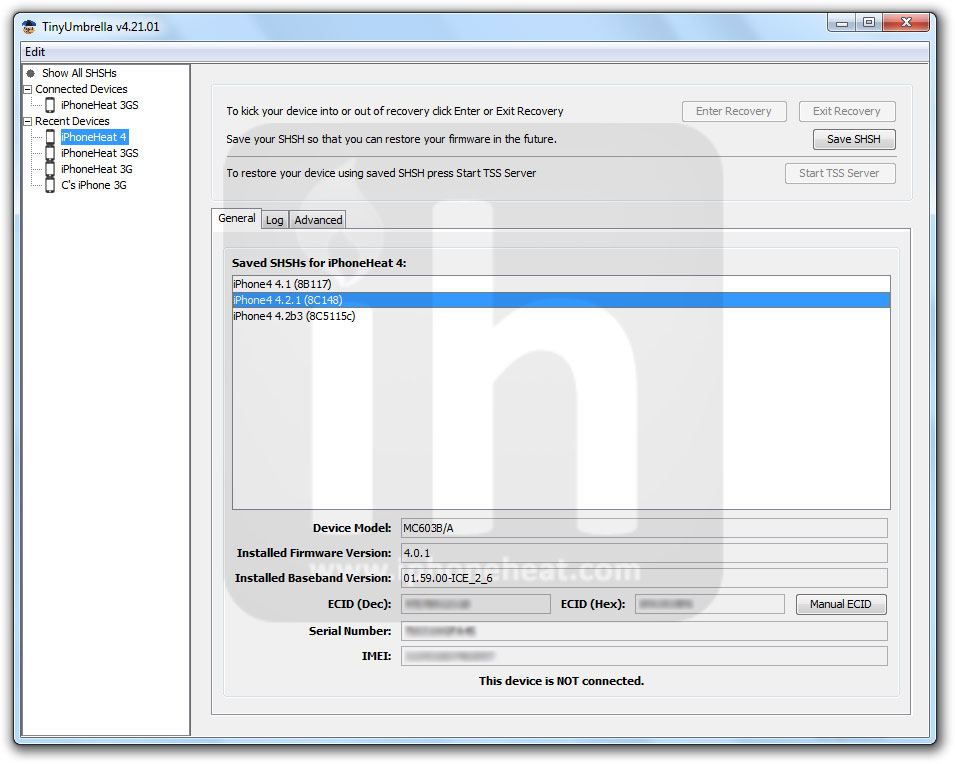
Semaphore has released TinyUmbrella 4.21.01 that can save SHSH blobs for iOS 4.2.1 (iPhone, iPad and iPod Touch). Step-by-step instruction to save iOS 4.2.1 SHSH blobs and TinyUmbrella 4.21.01 download links after the jump…

save shsh blobs ios 4.2.1NOTE:

  • You can save SHSH blobs for iOS 4.2.1 only if it’s being signed by Apple. Go grab your SHSH blobs for iOS 4.2.1 before it’s too late. Apple stops signing a firmware when an updated version is out.
  • TinyUmbrella can save SHSH blobs regardless of jailbreak.
  • With TinyUmbrella you can save SHSH blobs for iOS 4.2.1 even if you’re on an older iOS version.

Let’s save iOS 4.2.1 SHSH blobs for iPhone, iPad and iPod Touch.

How to Save SHSH blobs for iOS 4.2.1

Steps to save SHSH blobs for iOS 4.2.1 are exactly similar to the guide posted earlier. So, please navigate to the guide linked below and follow the steps there to save SHSH blobs.

save shsh blobs ios 4.2.1

Also Checkout:

You can follow us on Twitter, Join us at Facebook, and also Subscribed to RSS Feed to receive latest updates.

Digg
Twitter
StumbleUpon
Facebook
Reddit
del.icio.us

AppSync 4.2 for iOS 4.2.1 – MobileInstallation Patch

AppSync 4.2 for iOS 4.2 jailbroken firmware is now available in the Cydia. AppSync 4.2 patches MobileInstallation file and lets you install cracked apps on iOS 4.2. Once you’ve AppSync for iOS 4.2.1 installed on your iPhone/iPad/iPod Touch running jailbroken iOS 4.2.1, you’ll be able to install cracked apps (.ipa).


NOTE: Your iPhone/iPad/iPod Touch must be jailbroken on iOS 4.2.1. You can jailbreak iOS 4.2.1 using the guides linked at the bottom. after jailbreak, install AppSync 4.2 on iPhone, iPod Touch or iPad to install cracked apps/games.

DISCLAIMER: iPhoneHeat.com doesn’t support or endorse piracy. We strongly oppose AppSync. This guide is for testing and educational purposes only. Use it at your own risk. We can NOT be held responsible if anything goes wrong. We encourage you to buy apps from iTunes AppStore.

Install AppSync 4.2 for iOS 4.2 Firmware

  1. Assuming that you’re running jailbroken iOS 4.1, Simply go to Cydia.
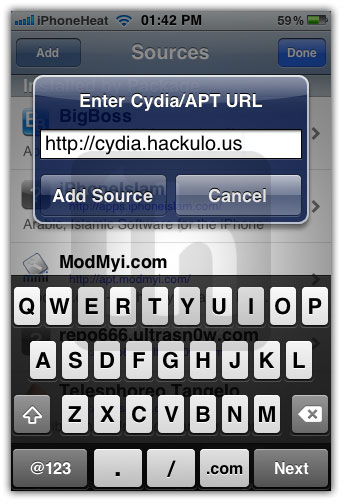
  2. Add the following source: http://cydia.hackulo.us (How to)
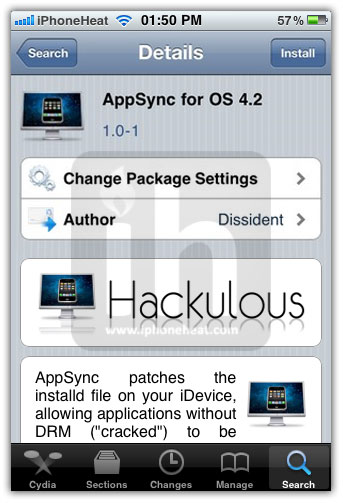
  3. Now search for AppSync for OS 4.2 in Cydia.
  4. Install AppSync for OS 4.2.

Installing AppSync will patch MobileInstallation on iOS 4.2.1 and let you install cracked apps (.ipa) on your iPhone, iPod Touch and iPad.

appsync 4.2 ios 4.2appsync 4.2 ios 4.2appsync 4.2 ios 4.2

*** Don’t forget to install a free app from iTunes Store before trying Cracked apps.***

Jailbreak iOS 4.2.1

How to Jailbreak iOS 4.2.1 using RedSn0w (All iDevices)

You can follow us on Twitter, Join us at Facebook, and also Subscribed to RSS Feed to receive latest updates.

Also Checkout:

Digg
Twitter
StumbleUpon
Facebook
Reddit
del.icio.us

Android App Development – Layouts Part Two: Table and Absolute Layouts

Table Layout:

Organizing widgets in a table is a famous approach in HTML design where you construct a table of a number of rows and cells and distribute the controls over the cells to achieve a consistent look for your UI. Android provides a similar technique.

In android you define the number of rows by your own and android determines the number of cells in each row according to the number of widgets in each row.

<TABLELAYOUT xmlns:android="http://schemas.android.com/apk/res/android" android:layout_width="fill_parent" android:layout_height="fill_parent">
    <TABLEROW>
 <TEXTVIEW android:layout_width="wrap_content" android:layout_height="wrap_content" android:text="Enter your name">
    <EDITTEXT android:layout_width="150px" android:layout_height="wrap_content">
    <Button
    android:layout_width="wrap_content"
    android:layout_height="wrap_content"
    android:text="Submit"
    />
    </TABLEROW>
</TABLELAYOUT>

You can define a table and add rows and views to it programmatically like this:

TableLayout tl=new TableLayout(this);
TableRow tr=new TableRow(this);
Button btn=new Button(this);
btn.setText("Hello");
tr.addView(btn);
tl.addView(tr);
setContentView(tl);

Spanning Multiple Columns:

A table cell can span multiple columns like this:

<TABLELAYOUT xmlns:android="http://schemas.android.com/apk/res/android" android:layout_width="fill_parent" android:layout_height="fill_parent">
    <TABLEROW>
 <TEXTVIEW android:layout_width="wrap_content" android:layout_height="wrap_content" android:text="Enter your name">
    <EDITTEXT android:layout_width="150px" android:layout_height="wrap_content">
    <Button
    android:layout_width="wrap_content"
    android:layout_height="wrap_content"
    android:text="Submit"
    />
    </TABLEROW>

 <TABLEROW>
 <TEXTVIEW android:layout_width="wrap_content" android:layout_height="wrap_content" android:text="Spanning Two columns" android:layout_span="2">
    <Button
    android:layout_width="wrap_content"
    android:layout_height="wrap_content"
    android:text="Cancel"
    />
 </TABLEROW>
</TABLELAYOUT>

Or programmatically like this:

TableRow.LayoutParams trParams = new TableRow.LayoutParams();
trParams.span = 5;

TableRow titleRow = new TableRow(this);

TextView title = new TextView(this);
title.setLayoutParams(trlp);
titleRow.addView(title);

Also you can choose which column to put your widget by using android:layout_column property, you define the Zero-based index of the column where you want your widget to be:

<TABLELAYOUT xmlns:android="http://schemas.android.com/apk/res/android" android:layout_width="fill_parent" android:layout_height="fill_parent">
    <TABLEROW>
 <TEXTVIEW android:layout_width="wrap_content" android:layout_height="wrap_content" android:text="Enter your name">
    <EDITTEXT android:layout_width="150px" android:layout_height="wrap_content">
    <Button
    android:layout_width="wrap_content"
    android:layout_height="wrap_content"
    android:text="Submit"
    />
    </TABLEROW>

 <TABLEROW>
 <TEXTVIEW android:layout_width="wrap_content" android:layout_height="wrap_content" android:text="Spanning Two columns" android:layout_span="2">
    <Button
    android:layout_width="wrap_content"
    android:layout_height="wrap_content"
    android:text="Cancel"
    />
 </TABLEROW>

 <TABLEROW>
 <Button
    android:layout_width="wrap_content"
    android:layout_height="wrap_content"
    android:text="Help"
    android:layout_column="1"
    />
 </TABLEROW>

</TABLELAYOUT>

Note:

if you specify an index greater than the actual cells count, the widget won’t appear. For example in the previous example if android:layout_column had a value greater than 2 the widget wouldn’t appear.

Using Separators:

Table layout also allows you to put widgets directly under <TableRow> the tag to act as a separator between rows:

<TABLELAYOUT xmlns:android="http://schemas.android.com/apk/res/android" android:layout_width="fill_parent" android:layout_height="fill_parent">
    <TABLEROW>
 <TEXTVIEW android:layout_width="wrap_content" android:layout_height="wrap_content" android:text="Enter your name">
    <EDITTEXT android:layout_width="150px" android:layout_height="wrap_content">
    <Button
    android:layout_width="wrap_content"
    android:layout_height="wrap_content"
    android:text="Submit"
    />
    </TABLEROW>

 <TABLEROW>
 <TEXTVIEW android:layout_width="wrap_content" android:layout_height="wrap_content" android:text="Spanning Two columns" android:layout_span="2">
    <Button
    android:layout_width="wrap_content"
    android:layout_height="wrap_content"
    android:text="Cancel"
    />
 </TABLEROW>
 <VIEW android:layout_height="5px" android:background="#f00">
 <TABLEROW>
 <Button
    android:layout_width="wrap_content"
    android:layout_height="wrap_content"
    android:text="Help"
    android:layout_column="5"
    />
 </TABLEROW>
 <Button
    android:layout_width="wrap_content"
    android:layout_height="wrap_content"
    android:text="Separator"
    />
</TABLELAYOUT>

Stretching Columns:

In table layout each column occupies space equal to the size of the largest widget in it. But you can set the width of any column to take the largest available space, just like setting the width to 100 % in HTML. This is done by setting the property android:stretchColumns to the index of the column, also you can set multiple columns by separating them with a comma.

Look at the layout below:

<TABLELAYOUT xmlns:android="http://schemas.android.com/apk/res/android" android:layout_width="fill_parent" android:layout_height="fill_parent">
    <TABLEROW>
 <TEXTVIEW android:layout_width="wrap_content" android:layout_height="wrap_content" android:text="Enter your name">
    <EDITTEXT android:layout_width="100px" android:layout_height="wrap_content">
    </TABLEROW>
</TABLELAYOUT>

Now we gonna to add android:stretchColumns=”0″ to the table layout and see what it’s gonna look like:

<TABLELAYOUT xmlns:android="http://schemas.android.com/apk/res/android" android:layout_width="fill_parent" android:layout_height="fill_parent" android:stretchcolumns="0">
    <TABLEROW>
 <TEXTVIEW android:layout_width="wrap_content" android:layout_height="wrap_content" android:text="Enter your name">
    <EDITTEXT android:layout_width="100px" android:layout_height="wrap_content">
    </TABLEROW>
</TABLELAYOUT>

Column 0 occupied the largest available space.

You can set this property from code like this:

TableLayout tl=new TableLayout(this);
tl.setColumnStretchable(0, true);

the setColumnStretchable(ColumnIndex, IsStretchable) method parameters are the column index and a Boolean value to indicate it is going to be stretched.

Shrinking Columns:

Now what if we have a column that have a large content. Android columns by default do not wrap their content. Look at this layout:

<TABLELAYOUT xmlns:android="http://schemas.android.com/apk/res/android" android:layout_width="fill_parent" android:layout_height="fill_parent">
    <TABLEROW>
 <TEXTVIEW android:layout_width="wrap_content" android:layout_height="wrap_content" android:text="Please enter your name and some very very long info as a test for this property">
    <EDITTEXT android:layout_width="100px" android:layout_height="wrap_content">
    </TABLEROW>
</TABLELAYOUT>

See column zero occupies large space that column 1 is not visible.

We can use android:shrinkColumns property to wrap content of a certain column or for multiple columns by assigning column numbers separeted by commas.

When we use the property with column zero it will be like this:

<TABLELAYOUT xmlns:android="http://schemas.android.com/apk/res/android" android:layout_width="fill_parent" android:layout_height="fill_parent" android:shrinkcolumns="0">
    <TABLEROW>
 <TEXTVIEW android:layout_width="wrap_content" android:layout_height="wrap_content" android:text="Please enter your name and some very very long info as a test for this property">
    <EDITTEXT android:layout_width="100px" android:layout_height="wrap_content">
    </TABLEROW>
</TABLELAYOUT>

Its like using style=”white-space:wrap;” style in HTML
You can set the property from code like this:

TableLayout tl=new TableLayout(this);
tl.setColumnShrinkable(0, true);

The setColumnShrinkable(columnIndex, isShrinkable) method parameters are the column index and a Boolean to indicate it si going to be shrinked.

Hiding Columns:

Finally if you want to make some columns invisible you can use the property android:collapseColumns the same way we used the last two properties.

<TABLELAYOUT xmlns:android="http://schemas.android.com/apk/res/android" android:layout_width="fill_parent" android:layout_height="fill_parent" android:collapsecolumns="0">
    <TABLEROW>
 <TEXTVIEW android:layout_width="wrap_content" android:layout_height="wrap_content" android:text="Please enter your name and some very very long info as a test for this property">
    <EDITTEXT android:layout_width="100px" android:layout_height="wrap_content">
    </TABLEROW>
</TABLELAYOUT>

See that column zero is invisible.
You can use this property from code like this:

TableLayout tl=new TableLayout(this);
tl.setColumnCollapsed(0, true);

The method setColumnCollapsed(columnIndex, isCollapsed) parameters are the column index and a Boolean to indicate that it’s going to be collapsed

This is just like using the style=”display:none;” in HTML

Other functions can be called from code:

  • TableLayout.setShrinkAllColumns(Boolean shrinkAllColumns) : shrinks all colums
  • TableLayout.setStretchAllColumns(Boolean stretchAllColumns): stretches all columns

Absolute layout:

Note:

the absolute layout class is deprecated, you are encouraged to use Frame Layout or Relative layout.

The reason of that is that it won’t be compatible with all the android phones as they have different screen sizes and resolutions.

absolute layout lays widgets by specifying their exact X and Y positions. In android the origin (0,0) coordinate is located at the top left of the screen.

you can use Absolute Layout only if your application is targeted for a certain phone type so that you can be sure that it will display properly.

absolute layout is defiend in XML as <AbsoluteLayout>
by default, if you define any control in absolute layout without defining it’s x,y coordinates, it will be placed in the origin point at (x,y)=(0,0)

if you define x,y values that are too large, the widget will not appear on the screen

you can specify the values of x and y by many units as shown:

<ABSOLUTELAYOUT xmlns:android="http://schemas.android.com/apk/res/android" android:layout_width="fill_parent" android:layout_height="fill_parent" android:id="@+id/mainlayout">
    <Button
    android:layout_width="wrap_content"
    android:layout_height="wrap_content"
    android:text="placed at 100,130 pixels (px)"
    android:layout_x="100px"
    android:layout_y="130px"
    />
    <Button
    android:layout_width="wrap_content"
    android:layout_height="wrap_content"
    android:text="placed at 0,150 points (pt)"
    android:layout_x="0pt"
    android:layout_y="150pt"
    />
    <Button
    android:layout_width="wrap_content"
    android:layout_height="wrap_content"
    android:text="placed at 0.7,0.5 inches (in)"
    android:layout_x="0.7in"
    android:layout_y="0.5in"
    />
    <Button
    android:layout_width="wrap_content"
    android:layout_height="wrap_content"
    android:text="placed at 3,3 millimeters (mm)"
    android:layout_x="3mm"
    android:layout_y="3mm"
    />
    <Button
    android:layout_width="wrap_content"
    android:layout_height="wrap_content"
    android:text="placed at 0,270 density independant pixels (dp)"
    android:layout_x="0dp"
    android:layout_y="270dp"
    />
    <Button
    android:layout_width="wrap_content"
    android:layout_height="wrap_content"
    android:text="placed at 0,180 scale independant pixels (sp)"
    android:layout_x="0sp"
    android:layout_y="180sp"
    />
</ABSOLUTELAYOUT>


To define absolute layout from the code you can use the following code:

AbsoluteLayout abslay=new AbsoluteLayout(this);
Button btn=new Button(this);
btn.setText("Hello");
abslay.addView(btn, new AbsoluteLayout.LayoutParams(AbsoluteLayout.LayoutParams.WRAP_CONTENT,AbsoluteLayout.LayoutParams.WRAP_CONTENT,10,100));
setContentView(abslay);

the absolutelayout.layoutparams function has the following constructor:
AbsoluteLayout.LayoutParams(width,height,position X,position Y).

Hands on: iPad printing with 4.2 and AirPrint, a limited menu

If AirPlay’s first-generation limitations have disappointed a lot of would-be iPhone video mavens who had dreamed of quickly sharing their clips to the big screen, you can just imagine how irate everyone is about AirPrint.

The universal shared printer solution for iPhone and iPad was kneecapped in late builds of Mac OS X 10.6.5 for reasons yet to be revealed, and the result is that a big-ticket feature has shipped with very little real-world applicability — at least, out of the box.

Fortunately, if you’re willing to do a little bit of finagling or lay out a small amount of cash, you can quickly gain back the AirPrint functionality you were promised, and more. Let’s take a quick look at what’s in the ‘vanilla’ version of AirPrint, then move on to the expanded remix edition.

Continue reading Hands on: iPad printing with 4.2 and AirPrint, a limited menu

Hands on: iPad printing with 4.2 and AirPrint, a limited menu originally appeared on TUAW on Tue, 23 Nov 2010 17:45:00 EST. Please see our terms for use of feeds.

Source | Permalink | Email this | Comments

Phil Schiller’s Twitter account gets verified

Apple’s Phil Schiller has joined Scott Forstall (though not Steve Jobs) over on Twitter — he now has a verified account to tweet from, and is following a few celebrity and official company accounts so far. The account’s actually been around for a while (Schiller tweeted from France while there and mentioned 500 million app downloads when it was announced last January), but only recently got verified, which means there’s one more official Apple voice on the networking service.

It’s strange that Apple still doesn’t have a real official presence on Twitter — Schiller follows an account called @AppleIncNews, but it appears to be a simple RSS feed of Apple website news, and it’s not verified by Twitter as official at all. There are certainly plenty of fake Steve Jobs accounts, but none of those have been verified either. Especially since Steve seems so easygoing with his Stevemails, you think Twitter would be a perfect place for him to interface directly with the Apple community.

But so far, all we’ve got is Forstall and Schiller, and neither of them seem very forthcoming about interacting with the community of Apple fans online.

[via 9to5Mac]

Phil Schiller’s Twitter account gets verified originally appeared on TUAW on Tue, 23 Nov 2010 17:15:00 EST. Please see our terms for use of feeds.

Source | Permalink | Email this | Comments

Oprah studio guests scream for free iPads, her "favorite thing ever"

Oprah Favorite Things iPadDo I now have to buy an iPad to give to all my Oprah Winfrey-watching relatives for Christmas? Oprah just helped Apple boost their 2010 iPad sales figures even higher by featuring it on her “Favorite Things” episode on Monday. Oprah has aired this segment each year since 2002 and in the past has given her readers cars, trips, electronics, jewelry and clothing. While Oprah has picked the iPod 5G for inclusion on her favorite things list in the past, this year the iPad was chosen as her most favorite thing, and all 275 studio guests received one. Calling the iPad her “number one favorite thing ever,” Oprah said that from “our very first moment together I knew it had stolen my heart.”

The audience was pretty excited about the freebie but seemed to be a little more excited (and rightly so) about the 2012 VW Beetle they also received. I wonder if they know they have to pay the taxes on that “free” car? Update: Seems VW is paying the taxes on the cars. (Thanks @Doug)

Studio guests this year also received a five-year subscription to Netflix, a 52-inch Sony Bravia 3D television, and a Nikon D3100 digital camera. Click Read More to watch video of the audience screaming when they find out about the iPads.

[via CNNMoney]

Continue reading Oprah studio guests scream for free iPads, her “favorite thing ever”

Oprah studio guests scream for free iPads, her “favorite thing ever” originally appeared on TUAW on Tue, 23 Nov 2010 16:45:00 EST. Please see our terms for use of feeds.

Source | Permalink | Email this | Comments

Beatles sell 2 million tracks via iTunes already

Has it really been only a week since the day we would never forget? In that short amount of time, Apple has sold 2 million Beatles tracks and generated 45,000 album downloads via iTunes, Billboard magazine said today.

Not bad for a band that was pretty late to the digital music game — and one that a good bit of commenters decried wouldn’t do much for sales at all.

The top-selling album was 1969’s Abbey Road. The top-selling track is “Here Comes the Sun” from the same album.

[Via MacStories]

Beatles sell 2 million tracks via iTunes already originally appeared on TUAW on Tue, 23 Nov 2010 16:15:00 EST. Please see our terms for use of feeds.

Source | Permalink | Email this | Comments

TiVo announces iPad app to control TiVo box

If you’re like most iPad users, then you probably surf the web and check out IMDB with your iPad while watching anything that might be showing on the television. TiVo knows this, embraces this, and wishes to support this. They want to make the experience between your television and your iPad even closer.

TiVo announced Monday a new, upcoming iPad app that will let you use many features of the TiVo service all on your iPad, without ever interrupting what’s happening on your larger television screen.

The TiVo iPad application will allow you to browse TiVo’s program guide, schedule recordings, remotely control your TiVo unit, and browse your library of recorded shows. Additionally, the app will search both broadcast TV and premium services like Netflix, let you check out the cast and crew information of any shows you’re watching, as well as schedule shows to be recorded while you’re on the road.

Upcoming does mean that it’s not out yet, but TiVo says we’ll be notified in the customer newsletter as soon as the app is available. It will be interesting to get our hands on the TiVo app since it really could open up a lot of powerful features.

[Via PCMag.com]

TiVo announces iPad app to control TiVo box originally appeared on TUAW on Tue, 23 Nov 2010 15:00:00 EST. Please see our terms for use of feeds.

Source | Permalink | Email this | Comments