New MacBook Pro could arrive in April 2011 with SSD, Light Peak, no DVD

macbook pro 2010

Update Put your checkbooks away, folks. Electronista has all but debunked this rumor. By crunching the numbers, they confirmed that (at today’s prices at least), such a MacBook Pro could easily be priced out of the market. Read on and dream, but don’t expect this machine to appear on your desk any time soon.

—–

Three Guys and a Podcast
are reporting that the next-generation MacBook Pro will likely arrive in April 2011 with a new design inspired by the latest slim-line MacBook Air. That means that the high-end laptops will probably dispense with spinning drives altogether and come equipped only with solid-state drives of up to 512GB capacity. If you haven’t yet finished ripping all of your CDs and DVDs, you’ll want to complete that task before migrating to a new MBP because the internal optical drive will probably follow the floppy into the annals of history.

With the internal speed bottlenecks reduced by the flash memory drives and new Sandy Bridge CPUs, Apple will also work on speeding up the external communication interfaces. Light Peak may finally debut on the MBP, two years after it was originally announced by Intel. Whether or not Light Peak makes it to the party, we expect that USB 3.0 probably will arrive in an Apple product on these new machines. The fate of Firewire is unknown at this time, but it seems unlikely to make the cut, especially if Light Peak is included. The one exception may be if Apple keeps one of the current generation 15-inch machines in the lineup as an entry model. If the 13-inch MBP also remains in the lineup, the new interfaces, CPUs and perhaps a higher resolution display will be what set it apart from the similarly sized Air.

Users are expected to be able to put this speedy new hardware to work with a new version of Final Cut Pro that should debut around the same time. Not much is known about FCP at this time except that it should be faster.

New MacBook Pro could arrive in April 2011 with SSD, Light Peak, no DVD originally appeared on TUAW on Mon, 29 Nov 2010 08:45:00 EST. Please see our terms for use of feeds.

Source | Permalink | Email this | Comments

Talkcast 10 PM ET: Look ahead to Cyber Monday

Tonight on the TUAW Talkcast we’ll be working off those food comas from Thursday, and looking ahead to tomorrow’s best online bargains for Cyber Monday. If you got a great deal on Mac gear or an iPod touch this weekend, c’mon out and let us know about that too.

To participate on TalkShoe, you can use the browser-only client, the embedded Facebook app, or the classic TalkShoe Pro Java client; however, for maximum fun, you should call in. For the Web UI, just click the “TalkShoe Web” button on our profile page at 10 PM on Sunday. To call in on regular phone or VoIP lines (take advantage of your free cellphone weekend minutes if you like): dial (724) 444-7444 and enter our talkcast ID, 45077 — during the call, you can request to talk by keying in *8.

If you’ve got a headset or microphone handy on your Mac or your PC, you can connect via the free SJphone or X-Lite SIP clients or by using the TalkShoe client’s ShoePhone tool; basic instructions are here.

We’ll kick things off at 10 PM ET/ 7 PM PT. See you there!

Talkcast 10 PM ET: Look ahead to Cyber Monday originally appeared on TUAW on Sun, 28 Nov 2010 18:30:00 EST. Please see our terms for use of feeds.

Source | Permalink | Email this | Comments

TUAW’s Daily App: Cookie Rush

Cookie Rush is an interesting title. The goal is to keep some villagers away from a giant rolling cookie, but instead of guiding them directly, you control them by placing jump arrows in their way — it’s kind of like a group Canabalt where you’re controlling the environment rather than the character. Things get frantic quickly. As you go along, you have to dodge gaps and try to get your villagers up to rescue vehicles, there are dogs to dodge, and there are bad guys that you don’t want jumping up with the rest of your folks.

I like Cookie Rush. It’s pretty original (given that the main villain is a gigantic rolling cookie, it pretty much has to be), and it’s worth a shot if you like arcade-style platformers. It’s too bad there’s no free version to try, and if you’re on the fence, you might want to wait for a lite version to come along. But OpenFeint achievements and leaderboards add some fun functionality for just US$0.99. If the idea of the gameplay appeals, it’s worth a look.

TUAW’s Daily App: Cookie Rush originally appeared on TUAW on Mon, 29 Nov 2010 08:00:00 EST. Please see our terms for use of feeds.

Source | Permalink | Email this | Comments

Jailbreak iPhone 3GS/3G iOS 4.2.1 and Update to Baseband 06.15.00 with RedSn0w 0.9.6b5

Redsn0w 0.9.6b5 can jailbreak iOS 4.2.1/4.1 and update iPhone 3GS / 3G baseband to 06.15.00 which is unlockable with UltraSn0w 1.2. Those iPhone 3GS/3G users stuck with Baseband 05.15.04 & 05.14.04 need to update baseband to the iPad baseband 06.15.00.

Fortunately, RedSn0w 0.9.6b5 comes with the feature to jailbreak and also update iPhone 3GS/3G baseband to 16.15.00 to unlock with UltraSn0w 1.2. RedSn0w is available for both Windows and Mac OS X. PwnageTool 4.1.3 also does the same thing and prompts if you want to update baseband, however, it supports Mac OS X only.

IMPORTANT: If you do flash your baseband via redsn0w, please keep it plugged into USB the whole time. You don’t want your battery to die during the flash process!

WARNING — YOU DO THIS AT YOUR OWN RISK!  PLEASE UNDERSTAND THE CONSEQUENCES OF UPDATING TO 06.15.

  1. There is no way to come back down from 06.15, and there’s no hiding the baseband version from Apple.  You’ll be voiding your warranty in a very obvious way.
  2. If some future baseband comes out with a critical fix, you won’t be able to update to it if it remains down in the 05.xx sequence (then again, you wouldn’t update to it if you wanted to keep your unlock anyway).
  3. Starting with FW 4.2.1 if you have 06.15 on your iPhone you won’t ever be able to restore to stock firmware (it will fail).  You’ll need to only restore to custom IPSWs (then again, if you’re unlocker you should already be doing that).

Certainly don’t update to 06.15 if you don’t need to!  Only do this if you need the unlock and you’re stuck on 05.14 or 05.15, and you’re willing to assume the above risks.

Untethered Jailbreak: iPhone 3GS (old bootrom), iPhone 3G, iPod touch 2G (Non-MC)

Tethered Jailbreak: iPhone 4, iPhone 3GS (new bootrom), iPad, iPod touch 4G, iPod touch 3G, iPod touch 2G (MC Model)
A tethered jailbreak means that each time your device loses battery power or needs to be rebooted, you must attach it to a PC or Mac to boot into the jailbroken state.

Lets jailbreak iOS 4.2.1/4.1 and update iPhone 3GS or 3G to baseband 06.15.00 using RedSn0w 0.9.6b5.

How to Jailbreak iPhone 3GS/3G iOS 4.2.1 and Update to Baseband 06.15.00 with RedSn0w 0.9.6b5

Step 1

Step 2

Connect your iDevice to the iTunes 10.1 and restore iOS 4.2.1/4.1.

Step 3

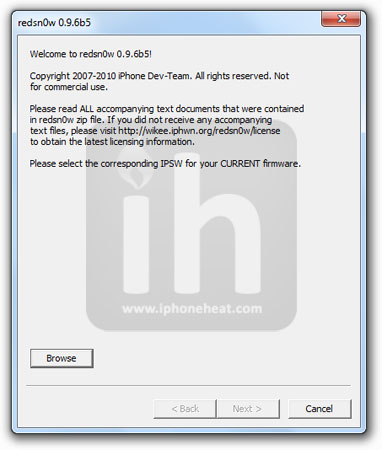
Once your iPhone is running iOS 4.2.1/4.1, execute the downloaded RedSn0w 0.9.6b5. (Windows 7 and Vista users, please run redsn0w as Administrator in “XP Compatiblity Mode”)

Step 4

Hit the Browse button and select the downloaded iOS 4.2.1/4.1 firmware. RedSn0w will recognize the firmware, now hit the Next button.

Step 5

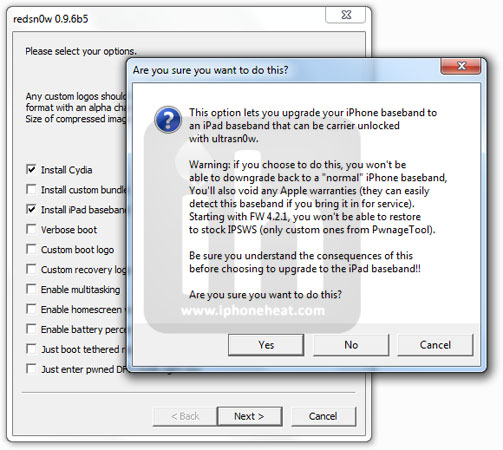
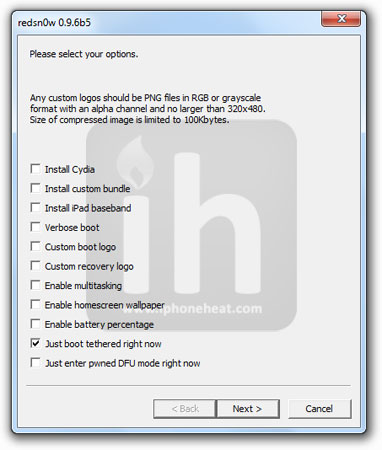
Select Install Cydia and Install iPad Baseband options. This will add Cydia to iOS 4.2.1 and replace iOS 4.2.1 baseband with iPad 3.2.2 baseband 06.15.00. Hit Yes if you want to update baseband to unlock iPhone.

Step 6

RedSn0w will ask you to turn off your device. When it’s off and plugged in, hit the next button.

Step 7

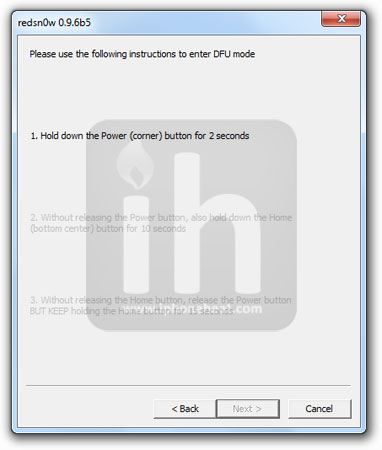
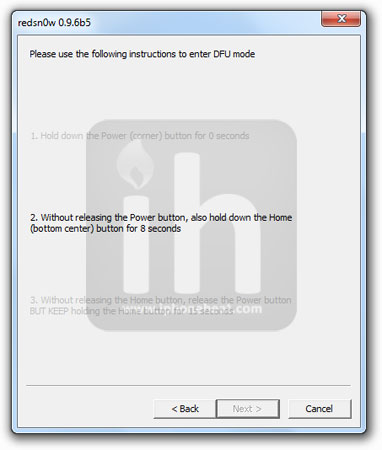
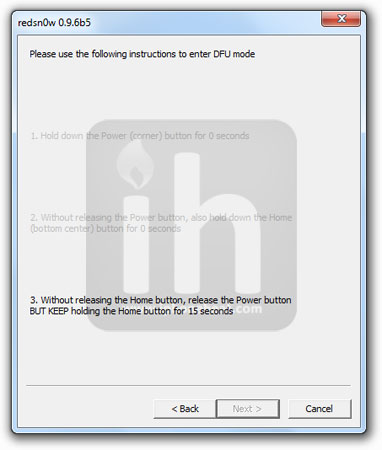
Now you’ll be instructed to put your device into DFU Mode. Follow the on screen instructions.

Once your device goes into DFU mode, RedSn0w will start jailbreaking it. Once done, you can find the Cydia icon on your iPhone / iPod Touch / iPad home screen.

That’s it. You’ve successfully jailbreak iOS 4.2.1 on iPhone 3GS, 3G and now have baseband 06.15.00.

How to Boot Tethered jailbroken Device after reboot:

Unlock iPhone 3Gs/3G

How to unlock iPhone 3GS/3G Baseband 06.15.00

Also checkout:

Digg
Twitter
StumbleUpon
Facebook
Reddit
del.icio.us

Download RedSn0w 0.9.6b5: Jailbreak iOS 4.2.1 + Update to Baseband 06.15.00

Redsn0w 0.9.6b5 to jailbreak iOS 4.2.1 and update baseband to 06.15.00 is out now! You can download RedSn0w 0.9.6b5 for Mac & Windows from the links below. Those iPhone 3GS/3G users stuck with 05.15.04 & 05.14.04 baseband need to update baseband to 06.15.00 which is unlockable.

Dev-Team has already released PwnageTool to do the same thing, however, RedSn0w supports both the Windows and Mac OS and there’s in no need of iPad 3.2.2 firmware in RedSn0w 0.9.6b5 case (atleast for now.)

The new redsn0w 0.9.6beta5 is out.  It gives both Windows and OSX users the ability to flash the iPad 06.15 baseband on iPhone3G or iPhone3GS.  It fetches the baseband files directly from Apple for now (the only IPSW you ever point it at is the stock IPSW for the FW on your iPhone right now).  There may be a long delay while it’s doing this (their servers are currently getting pounded).

If you do flash your baseband via redsn0w, please keep it plugged into USB the whole time.  You don’t want your battery to die during the flash process!

Download Redsn0w 0.9.6b5

  • Download Redsn0w 0.9.6b5 for Windows [Link 1] [Link 2] (Windows 7 and Vista users, please run redsn0w as Administrator in “XP Compatiblity Mode”)
  • Download Redsn0w 0.9.6b5 for Mac OSX [Link 1] [Link 2]
  • Download iOS 4.2.1

A detailed guide on how to use RedSn0w to jailbreak iOS 4.2.1 on iPhone 3GS/3G and update baseband to 06.15.00 to unlock with UltraSn0w 1.2 will be posted shortly.

You can follow us on Twitter, Join us at Facebook, and also Subscribed to RSS Feed to receive latest updates.

Digg
Twitter
StumbleUpon
Facebook
Reddit
del.icio.us

Unlock iPhone 3GS / 3G iOS 4.2.1 with UltraSn0w 1.2

UltraSn0w 1.2 is out to unlock iPhone 3Gs/3G iOS 4.2.1. This guide is on how to unlock iPhone 3GS or 3G iOS 4.2.1 baseband 006.15.00 with UltraSn0w. iPhone 3GS / 3G unlock instructions can be found below.

IMPORTANT

  • Your iPhone 3GS or iPhone 3G must already be jailbroken.
  • For baseband 05.14 or 05.15 your need to update your baseband to 06.15.00. (How to jailbreak and update baseband 06.15.00).
  • This UltraSn0w update can unlock baseband 05.13.04 or older too.

NOTE: This is NOT for iPhone 4 users. iPhone 4 unlock will take some more time.

Disclaimer: This guide is for information and educational purposes only. Use it at your own risk. we cannot be held responsible if anything goes wrong.

Let’s unlock iPhone 3G or iPhone 3GS running iOS 4.2.1 or 4.1 with UltraSn0w unlock.

How to Unlock iPhone 3GS/3G with UltraSn0w

***T-Mobile USA users please disable 3G network first. (Settings >General >Network and turn the “Enable 3G” switch to OFF.)

Assuming that your iPhone 3GS/3G is already jailbroken on iOS 4.2.1/4.1

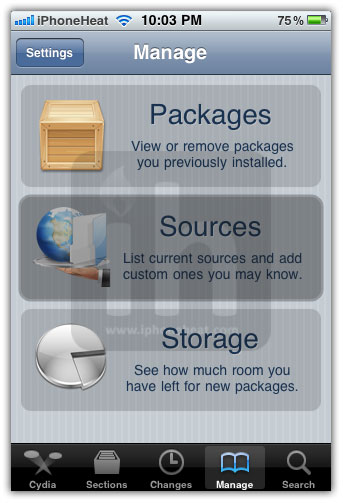
  • Open the Cydia.
  • Go to manage Tab at bottom.
  • Hit the big Sources button.

unlock iphone 3gs / 3G iOS 4.2.1

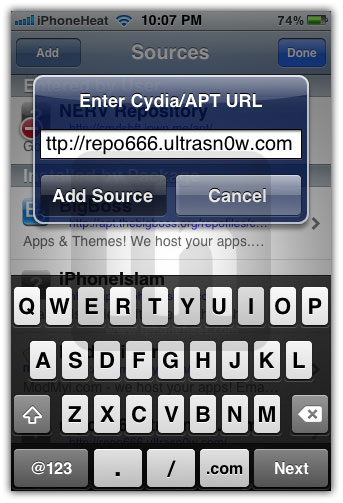
  • Hit the Edit button on Top-Right
  • Then Hit the Add button on Top-Left
  • Then Enter the following URL: http://repo666.ultrasn0w.com and hit the Add Source button.

unlock iphone 3gs / 3G iOS 4.2.1

  • Once the Source is added to the Cydia, hit the big return to Cydia button at bottom of the screen and then Done button.
  • Go to Search tab and search for ultrasn0w and install it.

unlock iphone 3gs / 3G iOS 4.2.1

Installing UltraSn0w will unlock iPhone 3GS or iPhone 3G iOS 4.2.1 with baseband 06.15.00. Once the installation is completed, reboot your iPhone.

Voila! You have unlocked iOS 4.2.1 on iPhone 3GS/3G baseband 06.15.00 with UltraSn0w and can use SIM from any carrier now.

You can follow us on Twitter, Join us at Facebook, and also Subscribed to RSS Feed to receive latest updates.

Also checkout:

Digg
Twitter
StumbleUpon
Facebook
Reddit
del.icio.us

How to Update iPhone 3GS/3G Baseband to 06.15.00 with PwnageTool 4.1.3

UltraSn0w 1.2 is out now to unlock iOS 4.2.1 and 4.1 on iPhone 3GS and iPhone 3G. Unfortunately, unlocking is pretty complicated this time. If your iPhone has baseband 05.14.02 or 05.15.01 you need to update baseband to 06.15.00 which is an iPad baseband came with iPad iOS 3.2.2.


If your iPhone has baseband 01.59.00, 05.13.04, 05.12.01, 05.11.07, or 04.26.08, then simply install UltraSn0w from Cydia. Baseband 05.14.02 or 05.15.01 users need to update baseband to 06.15.00 which is unlockable. We strongly suggest you to read this before you continue.

In this guide you’re going to learn how to update iPhone 3GS / 3G baseband to 06.15.00 to unlock iPhone later.

WARNING — YOU DO THIS AT YOUR OWN RISK!  PLEASE UNDERSTAND THE CONSEQUENCES OF UPDATING TO 06.15.

  1. There is no way to come back down from 06.15, and there’s no hiding the baseband version from Apple.  You’ll be voiding your warranty in a very obvious way.
  2. If some future baseband comes out with a critical fix, you won’t be able to update to it if it remains down in the 05.xx sequence (then again, you wouldn’t update to it if you wanted to keep your unlock anyway).
  3. Starting with FW 4.2.1 if you have 06.15 on your iPhone you won’t ever be able to restore to stock firmware (it will fail).  You’ll need to only restore to custom IPSWs (then again, if you’re unlocker you should already be doing that).

Certainly don’t update to 06.15 if you don’t need to!  Only do this if you need the unlock and you’re stuck on 05.14 or 05.15, and you’re willing to assume the above risks.

How to Update iPhone 3GS/3G to Baseband 06.15.00

Steps 1

Download the stuff linked below:

Step 2

Open the downloaded PwnageTool.dmg and copy the PwnageTool.app to your desktop/any folder and execute it from there.

Hit the OK button.

Step 3

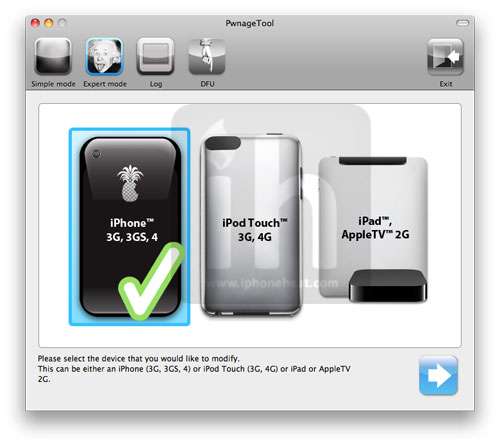
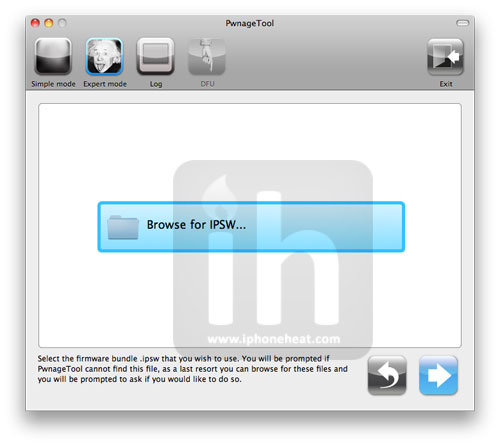
Now select Expert Mode from the top left side of the window.

and then select your iDevice. Hit the Next button.

Step 4

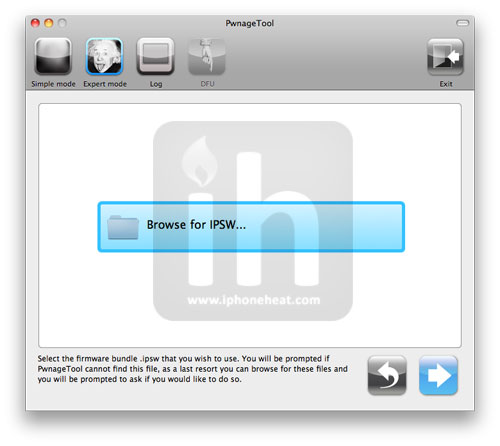
Now hit the Browse for IPSW button and select iOS 4.2.1/4.1 firmware for your device (downloaded from Step 1).

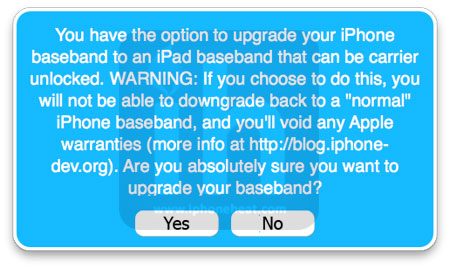
You will now be asked if you want to update your baseband to 06.15.00. If you are on 05.14 or 05.15 or later and depend on unlock hit the OK button. If you do NOT need unlock hit No.

We strongly recommend you to read this before you continue.

If you hit Yes, PwnageTool will once again ask you to Browse for IPSW. This time select the iPad iOS 3.2.2 IPSW.


Step 5

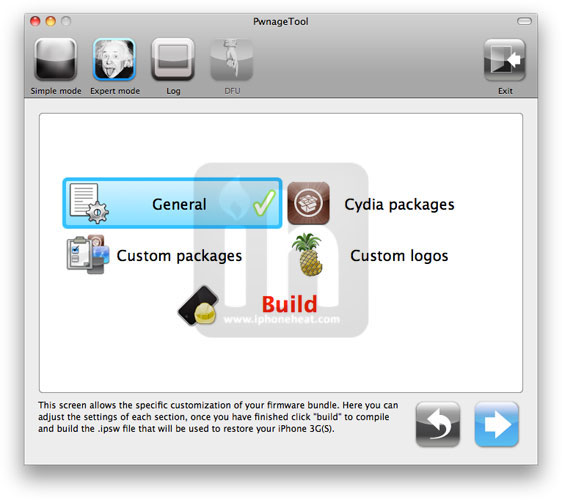
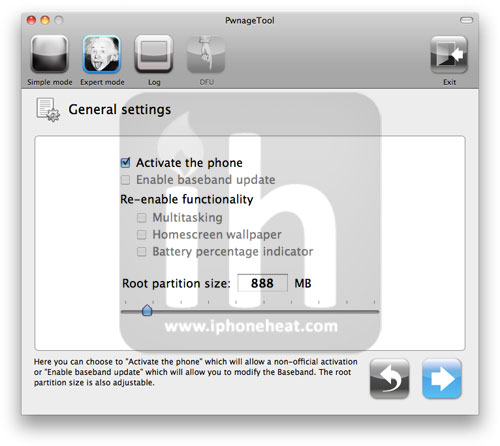
On next screen, Select General and hit the Next arrow button.

Step 6

* Select Activate the phone option if you’re on unofficial carrier.
* Do NOT select Activate the phone option if you’re on official carrier e.g. AT&T.

Step 7

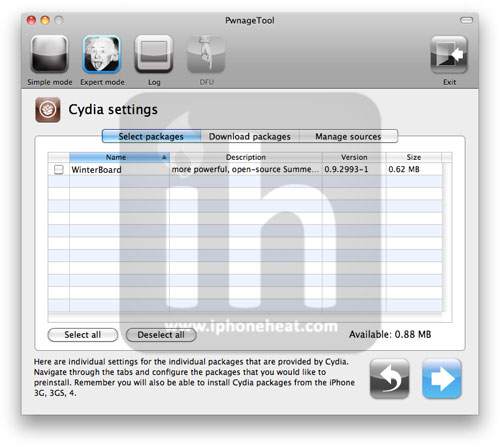
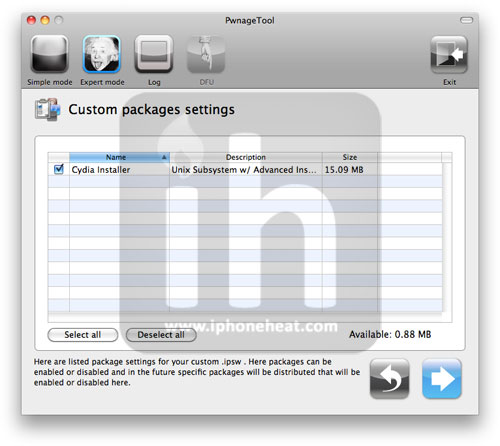
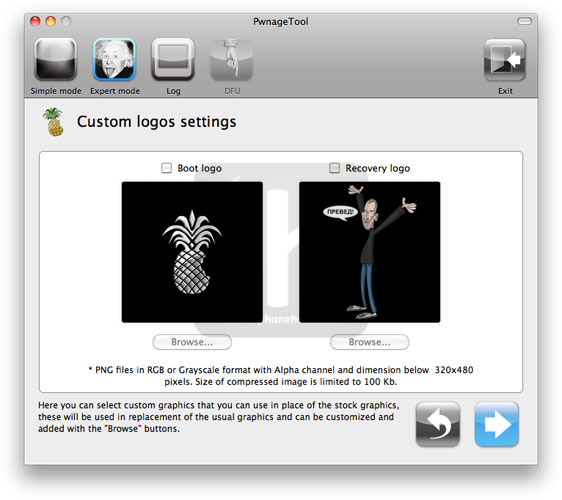
Keep hitting Next button until you’re back to the same screen where you selected General.

Now Select the Build Option and Hit Next.

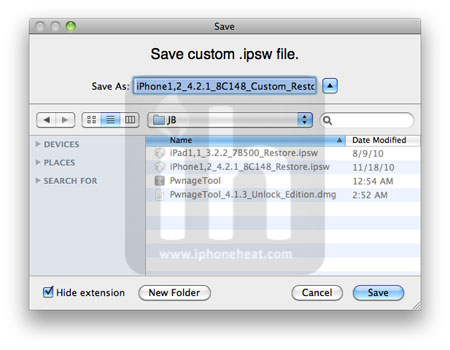
PwnageTool will prompt you to select a destination folder to save custom iOS 4.2.1/4.1.

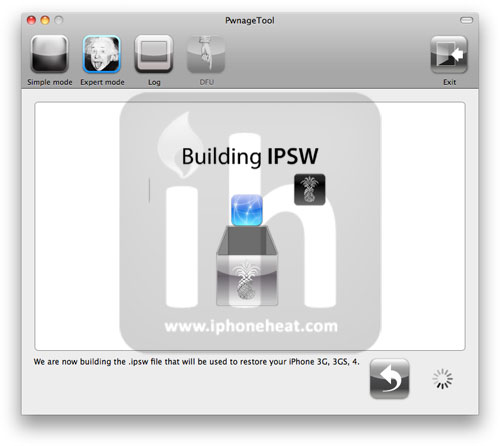
PwnageTool will start building your Custom IPSW.

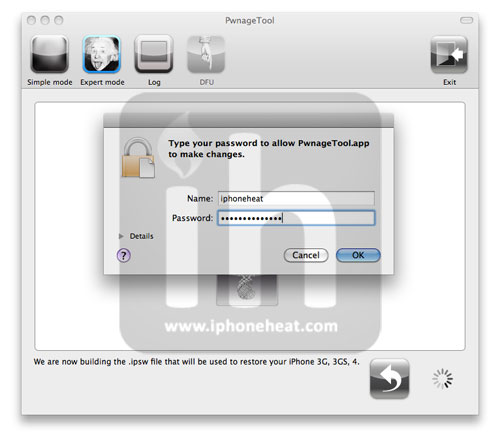
During the build process it’ll prompt you for your admin password.

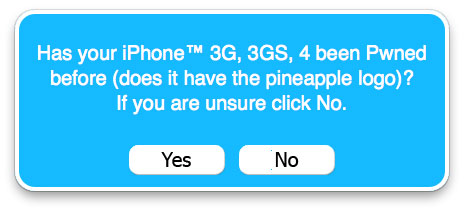
click No for a more thorough restore.


Step 8

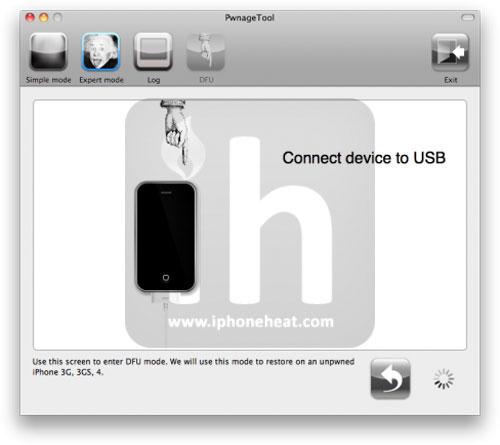
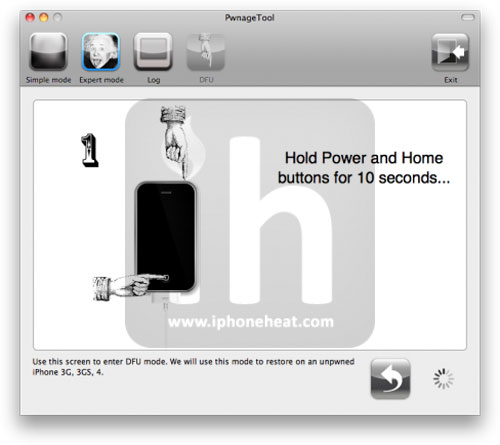
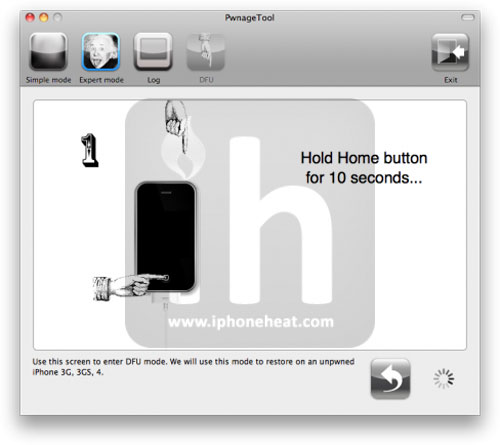
Once the custom IPSW has been built, PwnageTool will ask you to connect your iDevice to your computer. Once your device is detected, you’ll be instructed to put your iDevice into DFU mode.

* Press and hold the power + home buttons for 10 seconds.
* Release the power button but continue holding the home button for 10 seconds.

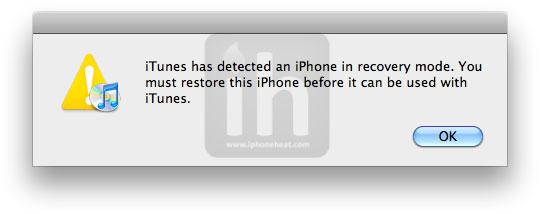
Once the iPhone/iPod Touch is in DFU mode, the follow popup message will appear. iTunes will also pop-up.

Step 9

In iTunes, hold the Alt/Option key and hit Restore. From the popup window, browse to the Folder where you saved custom iOS 4.2./4.1 and select you custom .ipsw file that you just created and click Open Button. (Make sure you’re selecting custom firmware, Not official one)

iTunes will now restore the firmware on your iPhone. This can take up to 10 minutes.

When done, you have successfully Jailbreak iOS 4.2.1/4.1 and with updated baseband 06.15.00 with PwnageTool 4.1.3. Now your iPhone is ready for unlock. Unlock guide will be posted shortly.

Also checkout:

Digg
Twitter
StumbleUpon
Facebook
Reddit
del.icio.us

iOS Advanced Programming: Event Kit Framework

In today’s tutorial we are going to cover the Event Kit Framework and how to add an event to the calendar.

The Event Kit Framework is the way Apple wants us to display or create a calendar entry. With this they are not trying to replace the calendar app, they are trying to give us a way to create an appointment from our app and add it to the calendar app.

To explain this I am going to create a calendar event programmatically. The only problem is that we are not going to be able to test it in the simulator because it doesn’t have a calendar app. To test it you will have to pay $99 to Apple.

Open up Xcode and create a View-Based Application for iPhone. I’m going to call mine “EventApp”.

Adding the framework

The Event framework is not added by default. You have to right click over the “Frameworks” folder in “Groups and Files” and select Add->Existing Frameworks then find EventKit.framework and click the “Add” button.

iPhone Advance Programming | Event kit Framework | image 1

Writing the Code

Now in the EventAppViewController.m import EventKit.

#import

Now create a method that will be called when the user touches the “Create event” button that we are going to add later to our interface.

-(IBAction) newEvent {

}

Remember that it must also be added to the .h file as well.

First add the object that is going to give us access to the events database, an EKEventStore.

EKEventStore *eventDB = [[EKEventStore alloc] init];

Then we create a new event object:

EKEvent *myEvent  = [EKEvent eventWithEventStore:eventDB];

Now we set some basic properties:

myEvent.title     = @"New Event";
myEvent.startDate = [[NSDate alloc] init];
myEvent.endDate   = [[NSDate alloc] init];
myEvent.allDay = YES;

I’m setting the start date and end date the same because it is not going to last more than one day and later I it will be an all-day event.

Next we must specify a calendar for that event. I am going to set it to the default calendar.

[myEvent setCalendar:[eventDB defaultCalendarForNewEvents]];

Before we save the event we need to check for errors:

NSError *err;
[eventDB saveEvent:myEvent span:EKSpanThisEvent error:&err];

Now we test to see if there are any errors. If there are no errors we tell the user that the event was successfully created.

if (err == noErr) {
	UIAlertView *alert = [[UIAlertView alloc]
		initWithTitle:@"Event Created"
		message:@"Yay!"
		delegate:nil
		cancelButtonTitle:@"Okay"
		otherButtonTitles:nil];
	[alert show];
	[alert release];
}

Apple strongly recommends that you notify the user that the event was created. If you create events in the background and you don’t tell the user, Apple will probably reject your app from the App Store, so it is always a good idea to do this.

And last we release the objects:

[startDate release];
[endDate release];
[eventStore release];

The final look of the method should be this:

-(IBAction) newEvent {

	EKEventStore *eventDB = [[EKEventStore alloc] init];

    EKEvent *myEvent  = [EKEvent eventWithEventStore:eventDB];

	myEvent.title     = @"New Event";
    myEvent.startDate = [[NSDate alloc] init];
    myEvent.endDate   = [[NSDate alloc] init];
	myEvent.allDay = YES;

    [myEvent setCalendar:[eventDB defaultCalendarForNewEvents]];

    NSError *err;

    [eventDB saveEvent:myEvent span:EKSpanThisEvent error:&err]; 

	if (err == noErr) {
		UIAlertView *alert = [[UIAlertView alloc]
			initWithTitle:@"Event Created"
			message:@"Yay!?"
			delegate:nil
			cancelButtonTitle:@"Okay"
			otherButtonTitles:nil];
		[alert show];
		[alert release];
	}
}

Now let’s go to interface builder to create the GUI for our App.

Building the Interface

Open EventAppViewController.xib in the Resources folder.

Add a Round Rect Button and put some text in it.

iPhone Advance Programming | Event kit Framework | image 2

Then connect it to the newEvent method.

Save and quit Interface Builder and we are done.

Conclusion

That was easy, wasn’t it?

Apple also included a UI kit for creating events that looks exactly like the calendar app, but it is so easy that i don’t need to explain it, i’m going to leave it to you as homework.

See you in the next tutorial!

Angry Birds Christmas to be free upgrade to Halloween edition

Rovio has a free gift on the way for everyone that ponied up the $0.99 for the Halloween edition of Angry Birds. The promised Christmas edition of the super-addictive mobile game will be a free update for iPhone, iPod touch and iPad users. @RovioMobile responded to a query on Twitter confirming that the next edition of the game will come gratis.

Rovio has not yet indicated whether it will start incorporating iAds into the iOS version of the game and giving it away as they have done with the AdMob-supported Android edition. Fortunately, the 7 million Android users helping the birds recover their eggs will be glad to know that the Christmas add-on will not be an iOS-exclusive like the Halloween edition.

[via MobileBurn]

Angry Birds Christmas to be free upgrade to Halloween edition originally appeared on TUAW on Sun, 28 Nov 2010 15:30:00 EST. Please see our terms for use of feeds.

Source | Permalink | Email this | Comments

Forthcoming Windows notebooks hint at next-gen MacBook Pro CPUs

intel sandy bridgeIntel’s next generation CPU architecture has yet to hit the streets, but several online retailers have begun listing Windows notebooks powered by the Sandy Bridge microprocessor — which should also power the next iteration of the MacBook Pro.

Laptoping spotted notebooks from Acer, Gateway and Lenovo equipped with the new Intel I7-2630QM showing up on product lists, but they won’t ship before the official Sandy Bridge launch at CES in January.

This new 2.0+ GHz quad-core processor is expected to be manufactured on Intel’s current 32 nanometer process while adding enhancements to improve media and math performance. The new chips will also likely improve out-of-order execution performance, which is critical to getting a real world boost on these multi-core processors with multi-threaded applications.

The Sandy Bridge chips also feature a new integrated graphics core that may match the horsepower of the dedicated GPUs currently provided by Nvidia and AMD. Having a high-performance integrated GPU would allow Apple to simplify the internals of the MacBook Pro and migrate the line to a new slimmer form factor similar to the MacBook Air. The current MBP unibody design has been with us since late 2008.

Intel will officially announce the Sandy Bridge CPUs on January 5, 2011 at the Consumer Electronics Show in Las Vegas, so we may see new MacBook Pros soon after.

[via Electronista]

Forthcoming Windows notebooks hint at next-gen MacBook Pro CPUs originally appeared on TUAW on Sun, 28 Nov 2010 16:30:00 EST. Please see our terms for use of feeds.

Source | Permalink | Email this | Comments

iPhone photographers, get your Glif on with new tripod mount

It’s a local-boys-make-good story for the Internet age: two New Yorkers brainstorm an idea for the kind of iPhone 4 tripod mount/stand they’d want to buy. They put their design on Kickstarter with the intention of raising US$10,000 in ramp-up funding. With a snazzy prototype video and the attention of some traditional and not-so-traditional media outlets, they missed their funding estimate by more than 10x — in the positive direction.

Having collected almost $140,000 in preproduction pledges, the gobsmacked inventors have now moved on to full-scale production and are accepting orders for the final product on their website.

You can pick one up for $20, and although they aren’t promising holiday delivery they say they’re doing everything possible to get the Glifs out the door in time to slide under the tree (with priority to their 5,000+ Kickstarter contributors, of course).

[via Silicon Alley Insider]

iPhone photographers, get your Glif on with new tripod mount originally appeared on TUAW on Sat, 27 Nov 2010 21:15:00 EST. Please see our terms for use of feeds.

Source | Permalink | Email this | Comments

Audio tool WireTap Anywhere hits v2.0

WireTap Anywhere 2.0

Ambrosia Software has released WireTap Anywhere 2.0, an upgrade to the company’s professional audio routing and mixing software. Following up on the 2008 release of version 1.0, this upgrade claims that “hardwired is out; softwired is in” and allows users to capture, map, and independently adjust audio channels from any combo of applications or input devices and route it to the audio processor application of your choice.

Interested in recording your Skype conversations or sending some real-time QuickTime audio to a friend in iChat? WireTap Anywhere 2.0 can do that, allowing users the ability to mix and match any combinations into a single recording application. I have been a user of Audio Hijack Pro from Rogue Amoeba for years, and this looks like a solid competitor in the audio capture niche.

While you can try it out free for 30 days, WireTap Anywhere 2.0 for Mac OS X 10.5 or later is available to new users for US $129 or as a $69 upgrade for registered users of WireTap Anywhere 1.x.

Audio tool WireTap Anywhere hits v2.0 originally appeared on TUAW on Sat, 27 Nov 2010 20:00:00 EST. Please see our terms for use of feeds.

Source | Permalink | Email this | Comments

UltraSn0w 1.2 – Unlock for iOS 4.2.1 on iPhone 3GS, 3G is Out Now!

The iPhone Dev-Team has just released the UltraSn0w 1.2 to unlock iOS 4.2.1 on  iPhone 3G and iPhone 3GS. We strongly recommend you to read the Dev-Team blog post first.

Today we’re pleased to announce our free carrier unlock for iPhone3G/3GS owners with a baseband later than 05.13.04.  The unlock for that baseband exploited the AT+XAPP command, thanks to a crash initially discovered by @sherif_hashim (@Oranav also found this crash).  So what hole are we exploiting today, since Apple closed that AT+XAPP hole?  Well, we’re exploiting the exact same hole!

It turns out that the very first iPad firmware 3.2.2 has baseband version 06.15.00 still vulnerable to AT+XAPP.  The iPad baseband is built for the exact same baseband chip as the iPhone3G/3GS — they’re fully compatible! Some of us have been running 06.15 for weeks now on our iPhones in preparation for this release.

Since 06.15 is a higher version than 05.14 or 05.15 (where AT+XAPP is gone), anyone stuck at those versions can simply upgrade to 06.15 to unlock again!  Luckily for us, Apple *still* provides the iPad FW 3.2.2 with this vulnerable baseband right from their own servers. (Grab it now, before they take it down!)

We’ve been busy updating both PwnageTool and redsn0w to make the baseband update as seamless as possible.

  1. First up is “PwnageTool 4.1.3 Unlock Edition”.  It has a special dialog box which will ask you if you want to update to the iPad baseband.  You must already have the iPad 3.2.2 IPSW on your computer (see the above link)….so just point PwnageTool at it (or let it find it on its own if you’re in “simple” mode).
  2. Directly after PwnageTool 4.1.3 is available, the official ultrasn0w repo http://repo666.ultrasn0w.com will be updated with ultrasn0w 1.2, which covers iPhone 4 baseband 01.59.00 and iPhone 3G/3GS basebands 04.26.08, 05.11.07, 05.12.01, 05.13.04 and now 06.15.00.
  3. Finally, we’ll release an update to redsn0w today for those without Macs and can’t run PwnageTool.  The new redsn0w will give you the option to update your baseband to 06.15 too.

WARNING — YOU DO THIS AT YOUR OWN RISK!  PLEASE UNDERSTAND THE CONSEQUENCES OF UPDATING TO 06.15.

  1. There is no way to come back down from 06.15, and there’s no hiding the baseband version from Apple.  You’ll be voiding your warranty in a very obvious way.
  2. If some future baseband comes out with a critical fix, you won’t be able to update to it if it remains down in the 05.xx sequence (then again, you wouldn’t update to it if you wanted to keep your unlock anyway).
  3. Starting with FW 4.2.1 if you have 06.15 on your iPhone you won’t ever be able to restore to stock firmware (it will fail).  You’ll need to only restore to custom IPSWs (then again, if you’re unlocker you should already be doing that).

Certainly don’t update to 06.15 if you don’t need to!  Only do this if you need the unlock and you’re stuck on 05.14 or 05.15, and you’re willing to assume the above risks.

This PwnageTool also contains a 4.2.1 bundle for iPhone3G owners…for all else, it’s still only 4.1.  If you have an iPhone3GS with an old bootrom, the new redsn0w will handle 4.2.1 for you (in fact it covers 4.2.1 for all devices, even though some of them are still tethered at 4.2.1 until @comex can work some untethering magic).  iPhone3GS users with old bootroms who want to go to 4.2.1 should not use this PwnageTool! Update to stock 4.2.1 first, then use the upcoming redsn0w to update your baseband.

Please feel free to use our comments section for questions.  We have some very knowledgeable and helpful moderators:  angiepangie, Confucious, dhlizard, and Frank55!

Official Bittorrent Releases

PwnageTool 4.1.3  – PwnageTool_4.1.3_Unlock_Edition.dmg.5994102.TPB.torrent

SHA1 Sum = adda6d882dce1b5117d01586037de289407e038a

A detailed step-by-step instruction on how to use PwnageTool and upcoming RedSn0w to jailbreak and prepare baseband for UltraSn0w 1.2 unlocking will be posted shortly. Stay Tuned!

[Dev-team]

Read MoreYou can follow us on Twitter, Join us at Facebook, and also Subscribed to RSS Feed to receive latest updates.

Also checkout:

Digg
Twitter
StumbleUpon
Facebook
Reddit
del.icio.us

iBooks, Kindle or Nook? Battle of the E-Reader Apps

The war of electronic reading devices is at its peak and has taken a strange turn not seen in many other rivalries. Even if you give in and buy an iOS device instead of an Amazon Kindle or Barnes and Noble Nook, you can still be a patron to these companies by using their free iPhone or iPad apps.

Below we’ll take a quick look at the three big names in book reading: iBooks, Kindle and Nook. I’ll give you my opinion of each based on a number of comparable factors like interface, features and shopping experience so you can decide which is best for you.

iBooks

We’ll start with the app that should be right at home iOS: Apple’s own iBooks. Just like the other competitors, this app is free to download and provides plenty of free material so you can thoroughly try it out without committing through book purchases.

Sign Up Process

The iBooks sign up process takes the gold because it simply uses the iTunes account that you needed to download the app in the first place. So you’re already signed up and ready to go, even if you’ve never used the app before.

Library

The iBooks library is shown as a beautifully rendered bookshelf. Sometimes Apple can get pretty lame with their psuedo-realistic interfaces but I think they knocked it out of the park with this one.

screenshot

iBooks book shelf

If you don’t like the book shelf view, you can also view your books in a simple but attractive searchable/sortable list.

screenshot

iBooks book list

Store

Apple wins this battle hands down. As you’ll see below, I hated the shopping experience provided by the other apps, which merely send you to Safari and don’t even have the courtesy of a built-in webkit browser.

The iBooks store on the other hand, is an in-app feature that looks, feels and operates just like the excellent App Store that you’re familiar with.

screenshot

iBooks store

Kindle and Nook really need to take notes in this area because this is probably the single biggest user experience disparity I came across in my tests.

Reading Experience

The iBooks interface is, not surprisingly, a book. The content is split up into two columns with a crease down the center and an illustrated book frame.

screenshot

iBooks reading interface

Along the bottom there’s a little square and a timeline that allows you to quickly jump to any page of the book. The top left corner holds buttons for the table of contents and library while the top right corner contains options for adjusting the brightness, font size, and typeface along with a search and bookmark feature.

All of the apps that we’ll look at today allow you to make a text selection and then perform various actions. iBooks provides a simple popup that gives you the option to cop the word, look it up in the dictionary, highlight a passage, make a note or create a search string.

screenshot

Text selection actions

After using some of the competing apps below, I came to dislike the faux-book interface that iBooks forces you into. It seems a little crowded by comparison and really eats up a lot of valuable screen real-estate. Tapping the center of the screen makes the controls go away, but the frame is still present.

I think it’s great that Apple is going all out to simulate the book experience but I really wish they provided users with an alternate, minimal viewing option without the fluff.

Kindle

The next competitor is Kindle, no small name in electronic reading. Did Amazon honor their good reputation with their iOS app or did they merely spit out an inferior product hoping you’ll trash that iPad and pick up an actual Kindle? Let’s find out.

Sign Up Process

Before you do anything with the Kindle app, you have to sign up for an account. I was fortunately able to log in with my existing Amazon account so the process was fairly pain free and should only take a minute.

Library

The Kindle library shows book covers in an icon view like iBooks, only on top of an illustration instead of a bookshelf. Also like iBooks, you can view your books in an alternate list form.

screenshot

Kindle Library

I don’t like this graphic nearly as much as I liked the Apple bookcase. In fact, it feels like a placeholder image that I should be able to replace with a wallpaper from my iPad’s library. Unfortunately, this feature is not present. If Amazon is clever enough to add it in the future, it would instantly remove any qualms people have with the this part of the interface as they could create and share their own bookshelves and other graphics.

The Kindle does have a nice system that lets you “Archive” books that you’re finished with. This removes them from your grid but stores them in a different area in case you want to go back and read them later.

Store

As I mentioned above, the store is a huge let down. Tapping the store button in the upper right takes you to Amazon.com in Safari where you can purchase and download books, which in my experience frequently error upon sending them to the Kindle app, forcing you to find the “Manage my Kindle” page to have it re-sent.

screenshot

The not-so-great Kindle store

Since purchasing books is the primary behavior they want users to engage in, Amazon should take the time to integrate this experience into the app and make it a stellar one.

Reading Experience

Despite the horrible shopping experience, the Kindle app has an excellent reading experience. While you’re reading, there’s nothing to distract you but a bookmark feature and a home button. Everything else is hidden until you tap the center of the screen to pull it up and there’s no annoying book theme like we saw on iBooks.

screenshot

The excellent Kindle reading interface

The hidden controls mentioned above include a basic search feature, a table of contents/extras panel (notes, marks, etc), and a text customization feature that allows you to choose from six different font sizes, three different themes, two different layouts (single or double column) and also includes a slider for adjusting the screen brightness.

screenshot

The text options

Selecting a word in the Kindle app automatically brings up the definition at the bottom (a great feature) with Google and Wikipedia links and the options to make a note or highlight appear over the selection.

screenshot

The text selection options

As much as I hate going through the process to purchase them, I actually really like reading books on the Kindle. It’s a great app that provides a nearly perfect reading experience. My one complaint is that it takes three taps to adjust the screen brightness. E-reader underdog Stanza has a much better process for this and allows you to just slide your finger vertically anywhere on the screen.

Nook

The final app in our competition is Nook from Barnes and Noble. The Nook devices are closer to the iPad’s rich full color interactivity, let’s see how the app fares.

Sign Up

The sign up process for Nook is almost exactly like that of the Kindle, except that many users will likely not have an existing account as they do with Amazon so it tends to take a bit longer.

Library

The Nook library has the largest book icons of the three apps and opts for a solid color rather than a distracting background image. You can rate each book right from this screen and there are some handy book suggestions with the option to download.

screenshot

The Nook library

The Nook list view blows away that of the other two apps by including lots of information and options all displayed right up front without digging through submenus.

screenshot

The Nook library list view

Store

As with the Kindle store, tapping the “shop” button takes you out of the app completely and into Safari. I’ve already ranted about how poor the experience is with this technique so I won’t say much beyond that unless Apple is blocking these developers to from doing so, including an integrated store is an absolute must.

screenshot

The Barnes and Noble Nook Store

Reading Experience

As with the Kindle app, the Nook reading interface is fairly minimal, this time giving you the ability to hide all on-screen controls. When you tap the center to bring them up, the interface still stays very sleek and efficient.

screenshot

The Nook reading interface

The default text size feels smaller than the other apps and when you enlarge it, you unfortunately lose the two-column interface. I think they should give the users the option to decide whether or not to view one or two columns instead of forcing them into one or the other.

The other text customization options allow you to choose the line spacing, justification, font, and color scheme. You can even choose from a bunch of pre-built color schemes. Other options include screen brightness and margin.

screenshot

Appearance Options

When you select a word in Nook, you get the option to highlight it, add a note, search the dictionary or look it up on Google/Wikipedia.

I really liked the minimal reading experience and thorough options provided by Nook. Since it was such a similar experience to Kindle, it’ll definitely be a close call!

Verdict

Now comes the part you’re really interested in, which should you use? Before I tell you which to download, let’s go over the variables and present the winners.

To make this easy, I’ll declare iBooks the winner of almost every category. The sign up process is non-existant because we all have App Store accounts, the library is gorgeous and the shopping experienced is unmatched.

However, this competition isn’t so easy to call. First of all, despite the visual advantage of iBooks, Nook comes out the clear winner in library functionality. Further, in my opinion, both Kindle and Nook provide a better reading experience than iBooks simply because they don’t force you to look at that silly fake book all day.

So which one do I recommend? Predictably, I’m going to tell you to try iBooks first. This isn’t because I’m an Apple fanatic but because my reason for not liking it (the book interface) is extremely subjective. You might absolutely love the book frame. If you do, why not go with the reader that wins everywhere else?

If you don’t like the book frame, I recommend that you check out Nook. this was a hard choice because I really hate that Nook goes messing with my columns when I adjust the text size. However, Nook has a better library, a super minimal reading interface and more customization options that Kindle.

Further, Nook has a killer feature that I didn’t even mention above: book lending. This awesome idea allows you to actually loan digital books to friends (limited to 14 days) just like you would with a real book. Since I’m a cheap skate who hates paying full-price for books when they’re free at the library, the ability to just grab a book from a friend really appeals to me. Plus I’m a sucker for innovation and that’s simply a stellar feature.

One lame part about Nook is that the iPhone and iPad apps are separate. With the others you get a single universal app and I’m not sure why Barnes and Noble didn’t do the same.

Kindle is a really close competitor though so if you like simplicity in your feature set, a two-column reading format and an effortless dictionary feature, skip Nook entirely and download Kindle instead.

What Do You Think?

To sum up, the three popular reading apps are pretty close in features and overall experience. So close that choosing between them is inevitably a matter of splitting hairs. My conclusions are admittedly pretty subjective but I kept my logic clear so you can decide which is best for you depending on what you find important.

Leave a comment below and let us know which book-reading app you can’t live without. I intentionally kept this as a battle between the big three but there are plenty of other great apps out there like Stanza that can easily take on these guys in many respects. Let us know what you think!