Schiller answering questions on Twitter

Last week, we reported that Apple’s Phil Schiller has gotten a verified account on Twitter, and since then, his popularity on the short form social networking service has apparently skyrocketed. Rather than just retreat to the shadows, he’s stepping up into the limelight, sharing insights and answering questions of all kinds from Apple fans. It’s pretty awesome, actually — he’s sharing everything from his favorite apps to why you have to put in your iTunes password every time you install a new app (for security’s sake — Apple wants your approval for every piece of software on your machine). It’s cool to see a senior member of Apple not named Jobs getting so hands-on with Apple’s customers.

TechCrunch has a few other tidbits from Schiller’s tweets so far: the @appleincnews account that seems real on Twitter actually isn’t, but the @itunes accounts are completely official. And he hasn’t yet tried Reeder for Mac, but he is a fan of the iOS version.

All in all, it seems like Schiller is really “getting” Twitter — he’s declined to share his Game Center name, so he still wants some privacy, but he is using the service as it’s meant to be used, reaching out directly to customers en masse. You never know — maybe a good word from Schiller to Jobs might get us a verified account for Steve himself.

Schiller answering questions on Twitter originally appeared on TUAW on Tue, 30 Nov 2010 18:30:00 EST. Please see our terms for use of feeds.

Source | Permalink | Email this | Comments

Steve Jobs "hopes" AirPlay will support Safari and third-party apps next year

MacRumors is reporting that one of their readers emailed Steve Jobs to ask if Apple was ever going to enable AirPlay to stream videos from third-party apps or those embedded in a web page in Safari. Jobs answered:

“Yep, hope to add these features to Airplay in 2011.”

AirPlay is the technology introduced in iOS 4.2 that enables users to stream content from their iOS devices to televisions connected to an Apple TV. A number of third-party developers have also introduced AirPlay products, like the Photofast AP1000 that allows you to stream music to your car’s audio system.

Currently, AirPlay video support is limited to the YouTube, Photos and Video apps that come bundled as part of iOS — although we’ve seen several compelling proof-of-concept demos courtesy of our own Erica Sadun, and jailbroken devices already have an option to activate AirPlay for other apps. The addition of an AirPlay API is going to make a lot of developers happy in 2011.

Steve Jobs “hopes” AirPlay will support Safari and third-party apps next year originally appeared on TUAW on Tue, 30 Nov 2010 19:00:00 EST. Please see our terms for use of feeds.

Source | Permalink | Email this | Comments

Animated wallpaper running on a jailbroken iPad

vWallpaper Hack

In case you needed even more distraction and less battery life from your iPad, MacStories wants you to know about the ultimate hack just for you. For jailbroken iPads, a new app allows for having animated backgrounds just like Android devices. Called vWallpaper, it enables a video resized for the device’s screen to be used an animated background, even while browsing and viewing apps. Of course, you could just run Android on your iPad and skip the hack, but that’s more than some people are willing to do.

My buddy runs an animated background on his Android phone (which makes it impossible for me to find the app I want, personally), but he seems to like the look of it. His battery life definitely suffers though, and while the iPad definitely has decent battery life, I would think this hack would cut it down significantly. If you want to do it anyway (and have a jailbroken iPad), you can get vWallpaper from the danstaface repo.

Click Read More to check out a video of vWallpaper in action.

Continue reading Animated wallpaper running on a jailbroken iPad

Animated wallpaper running on a jailbroken iPad originally appeared on TUAW on Tue, 30 Nov 2010 17:30:00 EST. Please see our terms for use of feeds.

Source | Permalink | Email this | Comments

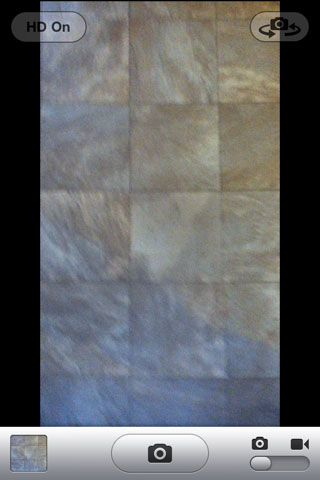
Enable Widescreen (720p) Photos on the iPod Touch 4G with HD Photographer

HD Photographer, a new Cydia Tweak, enables Widescreen 7209 photos on iPod Touch 4G. By default, iPod Touch 4G camera can’t take HD photos (720p). HD Photographer effectively adds more megapixels to the photos taken but at the price of losing the default 4:3 aspect ratio.

Technically, HD Photographer give a boost to iPhone Touch 4G camera from 0.7 MP (960×720) to 1.0 MP (1280×720). It adds a toggle button to the camera.app turn HD photos ON/Off. There are no icons installed for HD Photographer, and nothing in settings.app.

Note: Your iPod Touch must be jailbroken to install HD Photographer and enable Widescreen HD photos on it. You can use Limera1n, Greenpois0n, PwnageTool for iOS 4.1 and RedSn0w for iOS 4.2.1 to jailbreak iPod Touch 4G.

You can purchase and download HD Photographer from Cydia store under BigBoss repository for $0.99.

You can follow us on Twitter, Join us at Facebook, and also Subscribed to RSS Feed to receive latest updates.

Also checkout:

Digg
Twitter
StumbleUpon
Facebook
Reddit
del.icio.us

Fix Battery Drain After iPhone 3GS/3G Baseband 06.15.00 Unlock with UltraSn0w 1.2

Dev-Team released PwnageTool and Redsn0w to jailbreak iOS 4.2.1 and update iPhone 3GS/3G baseband to 06.15.00 which is unlockable with UltraSn0w 1.2. However, many users are reporting poor battery performance after the jailbreak/unlock.


According to Sherrif Hashim:

On a very important side note, before anyone starts to complain about battery drainage issues after installing the new ultrasn0w on the 6.15.00 updated BB, the culprit here is not ultrasn0w, it’s the hacktivation process (activating the phone by pwnagetool or redsn0w rather than using an official carrier sim to do so) that u mostly did while jailbreaking.

The 4.1 and 4.2.1 ipsws unlike their old ancestors, seem to keep looking for valid push certificates all the time, either thru your wifi, or thru your cellular data network (which u only have after installing ultrasn0w and hence u accuse it) , this can be seen clearly if u have a cellular working data plan for 3g or edge and u watched the settings > general > usage > cellular network data (sent & received are continuously increasing even without using any internet traffics on the phone) , this will also render the phone going hot even in stand by mode and also very rapid battery drainage occurs plus consuming ur data if you were not on an unlimited plan.

How to Fix Battery Drain After iPhone 3GS/3G Baseband 06.15.00 Unlock

While an official fix for battery drain issue is currently being worked on, you can try the temporary solutions listed below to fix the battery drain problem.

A) try to activate the phone using the official sim if u have it (even if the sim itself is old and not working) , or borrow it from a friend if it’s possible, by any means, try to have an access to one and use it

B) if A is not feasible, u can install SBsettings from featured cydia packages and turn wifi and data off when u r not using it (shuts down both 3g and edge) , till C is done

C) there is a very nice module being worked on by a trusted jailbreak app dev, namely @sbingner, which will resolve that issue for those having it, the details of which shouldn’t be disclosed until he finishes his awesome work, till then, either use A or B to resolve the issue if it exists for you.

[via theBigBoss]

You can follow us on Twitter, Join us at Facebook, and also Subscribed to RSS Feed to receive latest updates.

Also checkout:

Digg
Twitter
StumbleUpon
Facebook
Reddit
del.icio.us

GPS Not Working on Baseband 06.15.00? [Dev-Team’s Response]

After updating to baseband 06.15.00 with RedSn0w or PwnageTool and then unlocking with UltraSn0w, many people started reporting about GPS not working and battery drain problems. We have already shared a temporary fix for battery drain issue. About the GPS issue on baseband 06.15.00, checkout the Dev-Team’s comments after the jump…

Unlockers have been reporting mixed results about GPS functionality at 06.15.00. Until we can track down what differentiates those who retain GPS vs. those who lose it, be conservative and assume you’ll lose GPS at 06.15.00. As we work on finding the cause (and possibly a fix), please report your personal findings in our comments section. (Update: early indications are that while 06.15.00 is capable of GPS, it will require some further hacks. But please still be conservative and assume you will lose GPS at 06.15, in case the hacks don’t work).

So, the Dev-Team does not currently have a fix for the GPS issue on Baseband 06.15.00 and says that, you should just assume you will lose GPS capabilities when unlocking 06.15.00. However, they are still working on a fix for the problem. [via Dev-Team Blog]

We’ll keep you updated as soon as a fix for GPS on Baseband 06.15.00 comes out. Stay Tuned!

You can follow us on Twitter, Join us at Facebook, and also Subscribed to RSS Feed to receive latest updates.

Also checkout:

Digg
Twitter
StumbleUpon
Facebook
Reddit
del.icio.us

Android App Development – Layouts Part Three: Frame Layout and Scroll View

In part 3 of my tutorials on layouts for Android app development I am going to cover frame layout and scroll view.

Frame Layout:

Frame layout is used to display a single view at a time. The view can contain many widgets but only one will appear at a time.

for example we have two images that are same size:

and

In this example the activity has two image views but only one of them is displayed at a time which is the last view defined in the file. The frame layout displays views as if they are in a stack.

<?xml version="1.0" encoding="utf-8"?>
<FrameLayout android:id="@+id/mainlayout" android:layout_height="fill_parent" android:layout_width="fill_parent" android:orientation="vertical" xmlns:android="http://schemas.android.com/apk/res/android">
<ImageView android:layout_height="wrap_content" android:layout_width="wrap_content" android:padding="5px" android:src="@drawable/image1"/>
<ImageView android:layout_height="wrap_content" android:layout_width="wrap_content" android:padding="5px" android:src="@drawable/image2"/>
</FrameLayout>

If we have two image views, one displays a blue box and the other displays a red box, the blue is bigger than the red one, it would be like this:

<?xml version="1.0" encoding="utf-8"?>
<FrameLayout android:id="@+id/mainlayout" android:layout_height="fill_parent" android:layout_width="fill_parent" android:orientation="vertical" xmlns:android="http://schemas.android.com/apk/res/android">
<ImageView android:layout_height="wrap_content" android:layout_width="wrap_content" android:padding="5px" android:src="@drawable/blue"/>
<ImageView android:layout_height="wrap_content" android:layout_width="wrap_content" android:padding="5px" android:src="@drawable/red"/>
</FrameLayout>

Scroll View:

Suppose that our activity displays a large number of controls or content like this layout:

<?xml version="1.0" encoding="utf-8"?>
<LinearLayout xmlns:android="http://schemas.android.com/apk/res/android"
    android:orientation="vertical"
    android:layout_width="fill_parent"
    android:layout_height="fill_parent"
    >
<TextView
    android:layout_width="fill_parent"
    android:layout_height="wrap_content"
    android:id="@+id/txt"
    />

    <Button
    android:layout_width="fill_parent"
    android:layout_height="wrap_content"
    android:text="Button 1"
    />
    <Button
    android:layout_width="fill_parent"
    android:layout_height="wrap_content"
    android:text="Button 2"
    />
    <Button
    android:layout_width="fill_parent"
    android:layout_height="wrap_content"
    android:text="Button 3"
    />
    <Button
    android:layout_width="fill_parent"
    android:layout_height="wrap_content"
    android:text="Button 4"
    />
    <Button
    android:layout_width="fill_parent"
    android:layout_height="wrap_content"
    android:text="Button 5"
    />
    <Button
    android:layout_width="fill_parent"
    android:layout_height="wrap_content"
    android:text="Button 6"
    />
</LinearLayout>


This is a linear layout that displays a TextView with  large text and some Buttons. As we can see, not all the buttons are displayed and that the layout does not fit in the device screen.

The solution to this problem is to use ScrollView as a container for the controls and a scroll bar to make the layout fit in the screen.

We will now change the layout with this code:

<?xml version="1.0" encoding="utf-8"?>
<ScrollView xmlns:android="http://schemas.android.com/apk/res/android"

    android:layout_width="fill_parent"
    android:layout_height="wrap_content"
>
<LinearLayout xmlns:android="http://schemas.android.com/apk/res/android"
    android:orientation="vertical"
    android:layout_width="fill_parent"
    android:layout_height="fill_parent"
    >
<TextView
    android:layout_width="fill_parent"
    android:layout_height="wrap_content"
    android:id="@+id/txt"
    />

    <Button
    android:layout_width="fill_parent"
    android:layout_height="wrap_content"
    android:text="Button 1"
    />
    <Button
    android:layout_width="fill_parent"
    android:layout_height="wrap_content"
    android:text="Button 2"
    />
    <Button
    android:layout_width="fill_parent"
    android:layout_height="wrap_content"
    android:text="Button 3"
    />
    <Button
    android:layout_width="fill_parent"
    android:layout_height="wrap_content"
    android:text="Button 4"
    />
    <Button
    android:layout_width="fill_parent"
    android:layout_height="wrap_content"
    android:text="Button 5"
    />
    <Button
    android:layout_width="fill_parent"
    android:layout_height="wrap_content"
    android:text="Button 6"
    />
</LinearLayout>
</ScrollView>

As you can see the result is a scroll bar that we can use to see all the controls within the layout like this:

Remember, the ScrollView can have only one child control, so we can make a container (Linear, relative, Table Layouts) the child of the ScrollView and put all the controls inside this child.

So what do we do if we want to display this layout Horizontally ? In this case we’re going to use another container which is HorizontalScrollView. This container acts the same as the ScrollView except that it scrolls child controls horizontally.

Now our layout will be like this:

<?xml version="1.0" encoding="utf-8"?>
<HorizontalScrollView xmlns:android="http://schemas.android.com/apk/res/android"

    android:layout_width="fill_parent"
    android:layout_height="wrap_content"
>
<LinearLayout xmlns:android="http://schemas.android.com/apk/res/android"
    android:orientation="horizontal"
    android:layout_width="fill_parent"
    android:layout_height="fill_parent"
    >
<TextView
    android:layout_width="fill_parent"
    android:layout_height="wrap_content"
    android:id="@+id/txt"
    />

    <Button
    android:layout_width="fill_parent"
    android:layout_height="wrap_content"
    android:text="Button 1"
    />
    <Button
    android:layout_width="fill_parent"
    android:layout_height="wrap_content"
    android:text="Button 2"
    />
    <Button
    android:layout_width="fill_parent"
    android:layout_height="wrap_content"
    android:text="Button 3"
    />
    <Button
    android:layout_width="fill_parent"
    android:layout_height="wrap_content"
    android:text="Button 4"
    />
    <Button
    android:layout_width="fill_parent"
    android:layout_height="wrap_content"
    android:text="Button 5"
    />
    <Button
    android:layout_width="fill_parent"
    android:layout_height="wrap_content"
    android:text="Button 6"
    />
</LinearLayout>
</HorizontalScrollView>

In order to achive the Horizontal scrolling, we had to change the Orientation of the child LinearLayout to Horizontal.

You may have noticed that the scroll bar disappears (fades out) after scrolling, you can set the time interval in which the scroll bar fades out by setting this time interval (in milli-seconds) through the android:scrollbarFadeDuration property. To make the scroll bar always visible we set the time interval to zero: android:scrollbarFadeDuration=”0″.

That is it for this week. After finishing this tutorial you should under stand how to create different views using Frame Layout and Scroll View. If you have any questions please post them in the comments.

We will continue the Android App Development tutorial series next week.

Quick Look: Gift Lister

Quick Look posts are paid submissions offering only a brief overview of an app. Vote in the polls below if you think this app is worth an in-depth AppStorm review!

In this Quick Look, we’re highlighting Gift Lister. The developer describes Gift Lister as “a premium holiday shopping list app for iPhone, enabling you to create gift lists, share gift lists with friends and family, and discover the hottest gift ideas of the season. In a sea of Christmas shopping list apps, many of which incorporate tacky holiday-themed design and poor usability, Gift Lister is refreshingly simple, productive and beautiful. Watch demo video on our site”

Read on for more information and screenshots!

Screenshots

screenshot

Gift Lister

About the App

Here are the top five features you can expect to see in the latest version:

  • Create gift lists
  • Share gift lists
  • Track spending and purchases
  • Discover the hottest gift ideas
  • Purchase gifts within Gift Lister

Requirements: Compatible with iPhone, iPod Touch and iPad. Requires iOS 3.0 or later.
Price: 3.99
Developer: Gorilla Group, LLC

Vote for a Review

Would you like to see us write a full review of Gift Lister? Have your say in our poll:

Would you like to see Gift Lister reviewed in-depth on AppStorm?survey software

Quick Look posts are paid submissions offering only a brief overview of an app. Vote in the poll if you think this app is worth an in-depth AppStorm review! If you’re a developer and would like to have your app profiled, you can submit it here.

Daylite Touch: Powerful Business Management on Your iPad

If you’re a fan of Daylite from Marketcircle, you’ll be happy to know that they’re putting the finishing touches on the newest addition to the family of apps: Daylite Touch for iPad. You’ll see it up in the app store sometime in the near future but in the mean time, we’ve got an exclusive sneak peek!

Many of the productivity apps we’ve seen recently are big on eye-candy and short on features. This couldn’t be less true of Daylite Touch. The interface is simple and frill-free and the functionality blows away anything you’ve seen before.

Daylite for Mac

Before diving into Daylite Touch for iPad, you should know that it is an extension of the Mac desktop application. Daylite Touch will not run independently of the Mac client so don’t download the iPad app unless you have Daylite (and Daylite Server) up and running on your computer.

Daylite for Mac is a bit like Things, Address Book, and iCal all rolled into one big application (and then some). It provides you with a single location where you can manage all your contacts, projects, tasks, appointments and more.

screenshot

Daylite for Mac

Daylite for Mac is targeted at serious business professionals and has a price tag of $189/user. We’ve already taken a look at both the Mac and iPhone versions of Daylite at Mac.AppStorm so be sure to check that article out if you’re new to the application.

Meet Daylite Touch for iPad

If you’re familiar with the iPhone version of Daylite Touch, you’ll be able to instantly pick up and run with the iPad version. The same five category buttons adorn the bottom of the app: Home, Objectives, Contacts, Calendar and Tasks. Below we’ll take a more in-depth look at each of these.

As always, any changes that you make in one version will be updated and synced across all your Daylite implementations across various devices.

Home

screenshot

The Home screen

The Home screen, shown above, is where you will see a detailed list of any tasks, meetings, etc. that are coming up either today, tomorrow or in the next week.

This is more than a simple overview screen, all of your items are directly editable from here. So if you get a call informing you that today’s meeting is being pushed back by two hours, you can shift the time right from the Home page without digging around the rest of the app to find the meeting.

You can also create a new Appointment, Meeting or Task from the Home screen. At first, the functionality may seem a bit redundant with the other screens but you’ll appreciate this easy-access philosophy when you need to quickly update Daylite and get back to what you were doing.

screenshot

Adding an appointment, meeting or task from the Home screen

Objectives

The nine basic data types that you’re used to working with inside of Daylite for Mac are organized a bit differently inside of Daylite Touch. For instance, instead of seeing dedicated sections for Projects and Opportunities, these are found under the Objectives tab shown below.

screenshot

Objectives

On the left of this screen is a sortable list of all your Projects and Opportunities. Selecting an item from the list will bring up its corresponding information. This allows you to view all of your information in a context that directly relates to how you work.

For instance, if you were working on a project for AppStorm, you would be able to tap on the AppStorm project and see any tasks, notes, appointments and linked contacts relevant to that particular project. As you can see, each of the different data types inside of Daylite are tightly integrated so that you can easily keep an eye on everything you need to keep up on from almost anywhere in the app.

You can also edit your project pipelines and delegate any sales leads right from your iPad.

Contacts

Contacts and Organizations are grouped in the same way that we saw Projects and Opportunities. They also follow the same basic idea of having all your information linked in one place.

Tapping on a contact will not only show you all of that person’s information, it will also reveal any tasks, notes and linked items related to that contact. This is awesome for any team leads out there who manage several employees and need a way to keep track of what’s going on with each of them.

screenshot

Contacts

Calendars

The next tab contains all the meetings, appointments and deadlines for your various projects, viewable in a Day, Week or Month format. The weekly view, shown below, is very similar to the same in iCal on the Mac.

screenshot

Week Calendar

From here you can tap on various appointments to view and edit them, set up notifications, etc. You can also quickly add events by tapping and dragging with two fingers.

Another handy feature here is the ability to see the calendars of any coworkers running on the same server. This makes it drastically easier to schedule meetings and appointments at a time that’s convenient for everyone involved.

Tasks

The final tab is the Tasks screen. This screen alone is more fully functional than a lot of other task management applications you’ll find in the App Store.

screenshot

Tasks

You can easily create and edit tasks, give them due dates, delegate them to others, assign locations and categories and a lot more all from this simple screen.

A Worthy Addition to the Daylite Family?

The first time I opened Daylite for Mac, I was quite intimidated. It’s a pretty large application that has more options, features, bells and whistles than I knew what to do with. However, once you get to know the system and learn to understand the various data types, it all starts to make sense and you really see how much of your scattered business information can be migrated, accessed and maintained in this one convenient location.

Daylite Touch in many ways simplifies the Daylite experience and makes it easier to understand for new users, while at the same time leveraging all the power and flexibility that seasoned veterans want.

In all honesty, the iPad version of Daylite Touch really isn’t very different from the iPhone version that’s been on the market for quite a while. However, the larger screen does make for a vastly superior experience that is familiar enough for you to pick it right up and improved enough for you to be thrilled with it. The iPhone version will still be the best for quick fixes when you’re on the run, but that big, beautiful iPad screen is perfect for more involved tasks. As with the previous version of Daylite Touch, this is available for $49 USD per device per year.

Conclusion

To sum up, Daylite Touch harnesses all of the unrivaled professional project management tools of Daylite for the Mac and wraps them in an extremely simple and user-friendly interface that feels right at home on your iPad. If you’re a small business owner or freelancer, you’ll be hard-pressed to find a suite of Mac and iOS-specific apps that allow you to effectively manage as much information as Daylite.

The Daylite team was kind enough to grant me early access to the app and I’ve been using it for over a week without a single issue. We’ll let you know when the app officially releases and maybe even hook you up with a free license!

Summit: A Polished Basecamp Experience

In my business as a freelance software developer, the hardest part by far is maintaining quality communication with my clients, and having task-accoutability for both me and my corporate contacts. That’s why I and many others love Basecamp so much: it gives us a beautiful, simple, and easily learnable way to communicate with clients and delegate tasks, but more importantly, to document that communication and delegation.

Naturally, we all want to keep up with our projects on the go, which is where Summit, by Andy Smart comes in. Keep reading after the fold to see how you can simplify your Basecamp workflow like I did!

Getting Started

First, of course, you must download Summit from the App Store onto your iPhone or iPod touch. Once you’ve opened the app, getting started is dead-simple! Just type in the URL to your Basecamp site, and then enter in your username and password; now, you’re ready to go!

getting started

Getting started is as simple as entering your account information and tapping Save

Summit lets you setup multiple Basecamp accounts. This is especially helpful if, like me, you’ve contracted with a company that requires you to use a Basecamp account under a company email address. Now, you can access all of your projects, regardless of the account.

The Dashboard

When you open the account that you set up, you are shown the Dashboard, which does the exact same thing as the Dashboard in the Basecamp web application: shows all of the activity across your projects at a glance. In fact, the layout of Summit is such that if you understand Basecamp, you’ll have no problem using Summit.

Your dashboard

Your dashboard shows activity across all your projects, just like on the real Basecamp.

From the tab bar at the bottom of the Dashboard screen, you have quick access to a list of projects, as well as a list of pending todos across all your projects

Explore the tab bar at the bottom

Explore the tab bar at the bottom of the Dashboard to see a list of projects and pending todos.

Interacting With Your Project

When you tap on the name of your project, you are brought to another view, which shows a all of the todo lists that are part of that project. From there, you can create a new todo list or view and edit an existing one. Like the previous view, there is a tab bar at the bottom which will bring you to the Messages section, as well as Milestones.

Another tab bar lets you jump to a project's messages and milestones.

Another tab bar lets you jump to a project’s messages and milestones.

From within any of these views, you can tap on an item to see it in detail, as well as any commentary associated with it.

Design & Interface

Summit is truly set apart from all other Basecamp clients by its incredible elegant design; I recall having seen a Basecamp app try the dark-style theme once upon a time, but it didn’t really work. I now know that this is not the result of any flaw in the idea of a dark-styled Basecamp app, but the result of a designer who didn’t quite have the knack of making user interfaces that look right on iOS.

Indeed, Summit is a completely different story: the custom user interface elements (navigation bars, table views, tab bars, buttons) are all fantastically polished. One of my favorite parts is the dark, spotted pattern used for the background of table views; it plays against the rest of the color-scheme beautifully.

I’m also very impressed by the styling of the editor for composing messages, comments and todos: it is a simple text view on top of an exquisite gradient. The most common iOS idiom for this sort of large field-editor is to have a text view embedded in a rather large table cell, placed on top of a pinstriped background. I’m very impressed by the developer’s creativity, and ability to step outside the status quo in this respect. In fact, not more than three months ago, I designed an almost identical control for the HauteLook iPhone application; I suppose great minds think alike…

Summit stands apart with careful use of gradients, textures, and noise. The detail views and editing forms are simply beautiful!

Summit stands apart with careful use of gradients, textures, and noise. The detail views and editing forms are simply beautiful!

The long story short, Summit serves us a deliciously beautiful and professional user interface that’s sure to drag many a user away from competing applications.

Functionality

The culture of 37signals and Basecamp users is simplicity, and to forgo features that are really unnecessary. When trying to convince “dorks” of the superiority of a simple product over a complicated one which has a thousand more features, I usually end up just telling them to throw away their expectations of various features, and start fresh with the product; in most cases, it will turn out to be all that they actually need.

Summit follows the same philosophy: you cannot create new projects, nor delete existing ones, nor type messages in rich text, nor change your account settings, etc. It is a beautifully simple mobile window into an application that is at home on the web. Instead of trying to be everything to everyone, Summit is content to just be exactly what the doctor ordered.

Performance

When I first saw all of the intense custom controls and gradients, I expected that the app would run at a snail’s pace and probably scroll jerkily; but this was not the case. In fact, Summit is one of the most responsive third-party apps that I have installed on my iPhone 4, second perhaps only to Instapaper.

I congratulate the developer on producing something so elegant, and so smooth-running at the same time.

Room For Improvement

As awesome as Summit is, there are just one minor thing about which I’d like to gripe. The first is that in the text field in account-setup, where you enter the URL of your Basecamp site, the first letter is set to be automatically capitalized; for URL text fields, auto-capitalization should be turned off. Moreover, since most everyone’s Basecamp site ends in *.basecamphq.com, it would be nice to have that somehow autocompleted.

The Competition

Summit has competition in Outpost 2 from Enormego ($19.99, Universal), and Insight from Alexander Batalov ($9.99, iPhone only). Unfortunately, the few other Basecamp apps on the App Store are so amateurish as to avoid mention.

Summit, which only costs $3.99, is a clear winner. Despite it not having a special iPad version, I think that it is much better than Outpost 2, which I also own. Outpost 2 is a really great app (especially the iPad version), but it is mired in complexity as well as some rather poor choice of icons in UI elements. Summit is simply sublime.

Pricing & Verdict

Summit is an amazing deal at $3.99, a fraction the cost of its competitors.

By now, my ultimate recommendation on Summit is probably clear: 10/10. If you use Basecamp, you need this app now. Be sure to let us know what you think in the comments section below!

Quick Look: Beer Kings

Quick Look posts are paid submissions offering only a brief overview of an app. Vote in the polls below if you think this app is worth an in-depth AppStorm review!

In this Quick Look, we’re highlighting Beer Kings. The developer describes Beer Kings as “the new drinking necessity. This will revolutionise the way you drink with family and friends. Take turns flipping random cards. Each card has a rule associated to it and players follow these rules. Just watch out for the King cards you may not like what you drink.”

Read on for more information and screenshots!

Screenshots

screenshot

Beer King

About the App

Here are the top two features you can expect to see in the latest version:

  • Random cards
  • New Rules

Requirements: iOS 3.0

Price: $1.19

Developer: Bronron.com

Vote for a Review

Would you like to see us write a full review of Beer Kings? Have your say in our poll:

Would you like to see Beer Kings reviewed in-depth on AppStorm?survey software

Quick Look posts are paid submissions offering only a brief overview of an app. Vote in the poll if you think this app is worth an in-depth AppStorm review! If you’re a developer and would like to have your app profiled, you can submit it here.

Humail: A New Way to Use E-mail on the iPhone

Humail is an e-mail replacement app for your iOS device. Featuring a unique way to browse and view e-mail that centers around envelopes, this e-mail app works hard to differentiate itself. In this review, I discuss the two major features that make Humail different from the default iOS e-mail client before describing additional functions such as a global inbox, shortcut bar and filters.

Created by App develop firm Insighde, Humail strives to “make e-mail emotional again”. Humail was co-founded by Chief Experience Officer Rami Khalil and Chief Innovation Officer Mahmoud Abdur-Rahman. When asked to describe the app, Khalil said, “We believe that we’ve had enough of e-mail grids and it’s the time to feel, touch and communicate with our mail contacts in a more humotional way”. This statement conveys the underlying idea that Humail is centered around: to move email away from the grids and lists with which we have become familiar.

The Two Features That Make Humail Different

When the iPhone was first released, the fight between smartphone devices centered around email. Phone manufacturers knew that their devices would succeed based on the quality of their e-mail applications. Today, mobile e-mail is somewhat passe as companies and users alike feel confident that their e-mail needs are met. There is however still a great deal of room to innovate in this area. Social networking, bandwidth speeds, and basic user needs have all changed.

In the face of these changes, e-mail clients have remained the same with improvements being made to features that encourage productivity rather than engagement. Humail differentiates itself by relying on two major features that encourage engagement rather than productivity. While there are a variety of unique features and functions, Humail excels in two very specific areas.

Cover Flow Style Navigation

Cover Flow has been well received by the Apple community. Built into iTunes and OSX itself, Cover Flow makes flipping through volumes of music, videos and photos intuitive. Presumably, Insighde saw this functionality and thought, “it would be interesting to access e-mail messages with cover flow”.

Email however is not based around cover art or images, it is based around textual information that up until this point, has been presented to users in lists. Long lists of e-mail give users the ability to quickly scan subject lines, sender information and even preview messages themselves. Standard horizontal cover flow would not have allowed this critical information to be displayed so instead, Insighde flipped Cover Flow so that rather than swiping across the screen, they swipe up and down to scroll through their messages.

screenshot

Humail startup splash screen and the primary cover flow style navigation.

The disadvantage of using Cover Flow style navigation in an e-mail application is that in order to display the scrolling graphics to convey the Rolodex style navigation, critical e-mail information is lost. It is only possible to preview one e-mail message at a time. Information from other messages is scaled down behind the current message. This disadvantage alone is the reason why e-mail power users will have difficulty accepting this app as a full-time replacement.

The advantage of Cover Flow style navigation is in the fluid actions that are used to move from one message to the next. This is especially useful when skimming through a large amount of email. By swiping up and down, users are presented with the same critical details that we find in traditional list based e-mail apps, but there is also room for the customizable envelopes that form Humail’s second major feature.

screenshot

Writing and reading an e-mail in Humail.

Customizable Envelopes

Rather than the familiar long list of e-mail presented in traditional Mail apps, Humail’s core user interface is built around envelopes. The appearance of the envelopes can be customized based on personal preference or on a set of rules. Similar to flags and color assignments in other mail applications, the rules that can be applied to envelopes help identify and compartmentalize messages when they arrive.

screenshot

Customizing the way that an envelope looks.

There are 3 ways that envelopes improve e-mail in Humail:

  1. First, different individuals can be automatically assigned a unique envelope. For example, I have marked incoming messages from my wife with a red colored envelope.
  2. Different groups of contacts can be identified with a unique envelope. More useful than identifying individuals, co-workers, friends and relatives could each have a unique envelope.
  3. Last, Humail has the ability to change the type of envelope an e-mail is displayed in after comparing the address with the internal iOS contact database. By enabling this feature, you can quickly identify spam or conversely, new contacts that you have entered into your iPhone as a contact.

Customizable envelopes are one of the two major features that differentiate Humail from other iOS e-mail applications. By giving users the opportunity to associate a uniquely styled and colored envelope, Humail provides a simple way to identify and organize e-mails.

Beyond The Basics: Additional Humail Features

Cover Flow for e-mail and attractive customizable envelopes are the two most important features that Humail offer. Humail has a few other tricks up it’s sleeve including:

Global Inbox: Messages from a variety of accounts can be viewed as separate stacks of envelopes or combined in one large pile.

screenshot

Viewing messages from multiple e-mail accounts in one screen.

Viewing Filters: Using similar rules as unique envelopes, users can specify that they would only like to see messages from existing contacts, specific groups or individual people.

screenshot

Viewing messages based on rules such as flags, contacts and groups.

Shortcut Bar: When viewing the stack of envelopes that contain each e-mail message, the shortcut bar provides quick access to functions such as replying, forwarding, flagging and deleting.

screenshot

The shortcut bar is present when viewing messages in Cover Flow

Issues and Problems

Developing an e-mail application is exceptionally difficult. Not only has Apple put a lot of thought into how e-mail should work on iOS devices, but third party powerhouses such as Google are currently trying to one-up the default mail application.

Humail has tried something different and if at any time you’ve thought that lists of e-mails were difficult to use, you should try Humail. However, as an e-mail power user myself, I cannot recommend purchasing it or using it on a regular basis. Below, I’ve listed the reasons why.

  1. The application is slow. Even after giving the app a chance to download messages and sit quietly, it felt like there was a lag between functions.
  2. The app crashed multiple times when I was using it. Almost randomly and without explanation, the app simply exited without warning or report.
  3. When a new message arrives, it takes 4 clicks to read the message.
  4. Cover Flow for e-mail is difficult to use. When searching for a message, I needed to carefully swipe my finger down so that I didn’t miss the message.
  5. The shortcut bar in the Cover Flow envelope stack gets in the way of navigation.
  6. Cover Flow only allows the user to clearly see 3 messages at a time without scrolling.

Conclusion

Humail is an attractive, easy to learn application. Being able to specify unique colors and styles for incoming mail is a welcome addition to daily email use and the idea to integrate Cove Flow into e-mail navigation is a creative, interesting idea that I was excited to try. However, the limitations of using Cover Flow for text information become apparent almost immediately. Combined with this, performance issues and basic usability concerns stop me from using this app regularly.

According to the website, Humail is being active developed and this is an early first release. With this in mind, I am excited to see what improvements are made to Humail and look forward to reviewing a future release. Currently, Humail is an unreliable e-mail app with user interface limitations that will prevent dedicated e-mail users from adopting it into their daily lives.

The Fingerist makes your iPhone a mini guitar

The FingeristIf you have been looking for an iPhone or iPod touch accessory that enables you to play your music applications as if you are playing them with a guitar, look no further. The Fingerist from EVENNO is here to make your dream of being a (nerdy) rock star come true. One part guitar body and one part speaker, The Fingerist holds your iPhone 4, iPhone 3G/3GS, or iPod touch 2G/3G in place for you (with the included strap) like a guitar hung around your neck, making it easier to use those music apps you love so much to make some sweet sounds. Apps like Guitar World Lick of the Day (which teaches you a new guitar move every day) or even the new GarageBand let you make music, and The Fingerist lets you play it loudly.

While the built-in speaker runs for 6 hours on 3 AA batteries, The Fingerist comes with a line-out jack to send your songs to your amplifier so you can share with your entire neighborhood. Info on where you can purchase one isn’t found on the EVENNO site, but Engadget spotted it for sale over at Amazon for $150.

$150 seems a bit steep for my taste when you can get a cheap used guitar and amp for that price, along with maybe a lesson or two. As a guitar player myself, I say go for the real thing. That said, I can see the appeal of bringing this out when the family gets together over the holidays for some rockin’ jam sessions.

[via Engadget and iLounge]

The Fingerist makes your iPhone a mini guitar originally appeared on TUAW on Tue, 30 Nov 2010 17:00:00 EST. Please see our terms for use of feeds.

Source | Permalink | Email this | Comments

Game Center terms of service updated, real names shared on invitation

Apple has quietly tweaked the Game Center terms of service to add in the rule that whenever you first invite a friend to join your friends list in the gaming social network app, your real first and last names (as entered in your iTunes account) are shown to them. You still use a nickname as a full ID (and Game Center will still show your nickname when you log in to browse achievements or see what people are playing), but when you first “friend” someone, they get to see your real name.

Apple has been able to get away with this one somehow — the iTunes-based Ping social network also makes liberal use of the real name associated with an Apple account when adding friends, but for some reason nobody has made too much of a fuss about it. Consider Apple lucky — when Blizzard Entertainment tried to require real names to be shared on their World of Warcraft forums, their community raised such a clamor that they had to back down and keep the forums anonymous.

But Apple hasn’t had that problem, either because the audiences are different, or just because people don’t care so much about anonymity among their Game Center or Ping friends. We’ll have to see how the community responds to a change like this.

Game Center terms of service updated, real names shared on invitation originally appeared on TUAW on Tue, 30 Nov 2010 16:30:00 EST. Please see our terms for use of feeds.

Source | Permalink | Email this | Comments

TUAW’s Holiday Gift Guide: 10 iPad apps for seniors

Our favorite Wall Street analyst, Gene Munster of Piper Jaffray, called the iPad “the Mac of the masses” in a weekend analysis of how the iPad was selling in the pre-Christmas shopping runup. That was based on an unscientific observation that the iPad was apparently making inroads among demographics that normally don’t buy Macs.

If my personal observations are any indication, there’s a lot of interest in the iPad among senior citizens. Many of the older folks I’ve talked to are fascinated by the device and find it to be perfect for their Internet usage — email, web browsing, looking at pictures, reading books, and watching videos. It’s incredibly easy to use, it’s fast, it’s non-threatening, and there’s no need to worry about malware.

Given these friendly attributes, I’d speculate that we’ll see a lot of older people getting iPads as Christmas gifts this year. If you’re one of the people who will be on the giving end of one of these holiday transactions, here are some ideas for senior-friendly iPad apps that you might want to pre-install on your gift before you wrap it up.

Continue reading TUAW’s Holiday Gift Guide: 10 iPad apps for seniors

TUAW’s Holiday Gift Guide: 10 iPad apps for seniors originally appeared on TUAW on Tue, 30 Nov 2010 16:00:00 EST. Please see our terms for use of feeds.

Source | Permalink | Email this | Comments