TUAW TV Live today at 5 PM ET: Printers, iPad docks, and Office ’11

This afternoon on TUAW TV Live, I have some rather fascinating demos to show you.

First, I’ll be using a new HP Photosmart C310a e-All-in-One printer to demonstrate how printing from an iPad or iPhone running iOS 4.2 is supposed to work. This printer is one of a handful that supports ePrint and zero-configuration printing, so you can literally set up the printer to work with Macs, PCs and iDevices without installing a driver anywhere, or print anything that you can email. It’s an interesting look at the future of printing.

Next, I’ll be demonstrating a new iPad dock with speakers, the PadDock 10 from SMK-Link. For those who want to use their iPads to show off media, the PadDock 10 is a useful docking station for viewing, listening, syncing and charging your device.

I also took advantage of a Cyber Monday sale to get a family pack for Microsoft Office 2011 for Mac Home and Student Edition, and I’ll show you some of the features of the new Office suite. Hint: it’s fast. Damned fast.

Of course, we’ll have some time to talk about whatever else is new in the world of Apple. Whether it’s rumors of the iPad 2, the competition or just chatting about the coolest app you’ve ever used, we’ll spare some time for your input and comments.

If you’ve never watched TUAW TV Live, you’re in for a treat. The show is about an hour long, and you not only see streaming video of some of the latest and greatest Apple technology, but you can also participate through our chat tool. To watch and participate in the show, just be sure to come back to TUAW.com at about 4:55 PM ET for full instructions on how to join in on the fun.

TUAW TV Live today at 5 PM ET: Printers, iPad docks, and Office ’11 originally appeared on TUAW on Wed, 08 Dec 2010 13:00:00 EST. Please see our terms for use of feeds.

Source | Permalink | Email this | Comments

European carriers want Apple, others to finance network buildup

European carriers want providers like Apple, Facebook and Google to help finance the billions of dollars worth of network investments that their data-hungry devices and services demand. France Telecom SA, Telecom Italia SpA and Vodafone Group Plc are among those requesting that Apple and the others start paying a usage-based fee.

The carriers note that the ever-increasing pool of mobile users requires significant upgrades to their networks. Eventually, they fear, the cost of keeping up will outpace revenue growth. According to one economic researcher who’s following the story, the number of mobile data connections in western Europe is expected to rise to 270 million by 2014 (that’s an average of 15 percent per year), and carrier investment is expected to grow by 28 percent to US$3.7 billion.

On the other hand, providers like Apple note that they don’t share in the carriers’ profits, and don’t see why they should be responsible for their network upkeep as a result.

It’s a brave — and pricey — new world.

European carriers want Apple, others to finance network buildup originally appeared on TUAW on Wed, 08 Dec 2010 12:45:00 EST. Please see our terms for use of feeds.

Source | Permalink | Email this | Comments

$1.7M Apple Store coming to Berkeley; residents sing with joy

The People’s Republic of Berkeley is getting a new Apple Store.

ifoAppleStore has all of the details and images of the 15 pound pack of Apple Store blueprints that were recently dropped off at the Berkeley, CA city planning department. The building permit application was filed on November 15th, and shows that the store will occupy and expand upon a current storefront. The Genius Bar is going to be huge, housing 17 seats where Apple-lovin’ aging hippies can get assistance.

Several local animal rescue and adoption agencies currently use a plaza in front of the location for animal “meet and adopt” get-togethers, but they’ll soon need to find a new location as the storefront will obliterate the plaza.

While the Milo Foundation and several other animal adoption groups might singing the blues over the loss of their plaza, at least one group of local residents listed on YouTube as the Art Licensing Group were so happy about the news that they recorded themselves singing a Christmas-themed tune welcoming the new Apple Store. Check it out after the break.

Continue reading $1.7M Apple Store coming to Berkeley; residents sing with joy

$1.7M Apple Store coming to Berkeley; residents sing with joy originally appeared on TUAW on Wed, 08 Dec 2010 12:30:00 EST. Please see our terms for use of feeds.

Source | Permalink | Email this | Comments

Free iPhone 3GS at Best Buy on December 10th

Guys over at BGR has been tipped by one of their ninjas that Best Buy will be offering free iPhone 3GS on Friday, December 10th. The Free iPhone 3GS offer will be valid for one day only to both new lines, additional lines, and also qualified upgrades.

The report also claims that Best buy stores have sufficient inventory levels to cover the promotion. It’s an instant rebate type deal.

There’s no official word yet from Best Buy but from the looks of things, this is all but certain. Who’s up for a free iPhone 3GS this Friday? [BGR]

You can follow us on Twitter, Join us at Facebook, and also Subscribed to RSS Feed to receive latest updates.

Digg
Twitter
StumbleUpon
Facebook
Reddit
del.icio.us

Apple Updates Push Notifications to Use 2048-bit TLS/SSL Encryption

Apple has announced a more secure 2048-bit TLS/SSL encryption for iOS push notifications starting December 22, 2010. In an email sent to developers, Apple mentions Push Notifications will now have stronger encryption in the form of 2048-bit TLS/SSL certificates.

Developers are instructed to update their push notifications’ server with a copy of the 2048-bit root certificate from Entrust’s website in order to continue the service beyond December 22, 2010.

The email screenshot:

You can follow us on Twitter, Join us at Facebook, and also Subscribed to RSS Feed to receive latest updates.

Digg
Twitter
StumbleUpon
Facebook
Reddit
del.icio.us

Untethered iOS 4.2.1 Jailbreak Confirmed!

Dev-team and Comex has confirmed that untethered iOS 4.2.1 jailbreak will be out before Christmas 2010. First MuscleNerd came up with a video demonstrating untethered iOS 4.2.1 jailbreak on iPod Touch 4G.

According to MuscleNerd, it’s a backup plan for untethered iOS 4.2.1 Jailbreak because comex is working on a more extensible one, but this method is also generalizable. This method Uses iOS 4.2 beta 3 SHSH blobs Cydia kept for you.

Got “backup plan” for untethered 4.2.1 JB working (video coming up). Uses mysterious 4.2b3 hashes Cydia kept for you [Source]

(It’s a “backup plan” because comex is working on a more extensible one, but this method is also generalizable) [Source]

This backup untethered jailbreak plan doesn’t use any new exploit, he further explains. Checkout the iPod Touch 4g iOS 4.2.1 untethered Jailbreak w/4.2b3 kernel Demo:

Later, Comex, the dev behind Spirit and JailbreakMe, confirmed that the userland untethered jailbreak for iOS 4.2.1 will be released before this Christmas. So expect the iOS 4.2.1 untethered jailbreak released within next couple of weeks.

iCykey: @comex I want a 4.2.1 untethered jailbreak for christmas :P

comex: @iCykey you’ll get it.

*** This will jaibreak all iOS 4.2.1 devices UNTETHERED!

We will update you as the more info comes, Stay Tuned!

You can follow us on Twitter, Join us at Facebook, and also Subscribed to RSS Feed to receive latest updates.

Digg
Twitter
StumbleUpon
Facebook
Reddit
del.icio.us

Bad Bunny, Great App: The Tale of Peter Rabbit

As a child I am sure everyone has read or been read The Tale of Peter Rabbit. If not I do feel sorry for you!  It is a great kids story about a misbehaving rabbit. Loud Crow has brought the timeless classic to a new generation in such a brilliant and fun way! The full title of the application is PopOut! The Tale of Peter Rabbit, as the name suggests, it is a pop-out book for the iOS platform. The app, which was developed by Loudcrow Interactive, does seem like a strange concept, but it works very very well.

When you open the application you are greeted with the option of having the story read to you or to read it on your own along with some other info tabs. The tabs are what make up the pop-out feature of the story and the title page is the first glimpse of those. Once you’ve selected whether or not you want the story read aloud or to read it yourself, simply tap on “The Tale of Peter Rabbit by Beatrix Potter” book to begin.

The book itself is now loaded and it shows the title page.  Looking at the wonderful character art you might notice they seem to stick out a bit or at least have shadows, tap them and you will get different noises related to the characters and situations through the book. I had a good time tapping each of them to the amusement of my girlfriend. I enjoy the cutesy goofy kid things a lot. Once you drag the right page side the story will begin. If you selected to have it read to you a wonderful British female voice will carry you through the story. The art will slightly be animated at times, or have animated pieces falling.  You can click on them to pop leaves or blackberries at another point out into the front of the page. Also you may tap each word to have them read aloud again, this is great for kids learning to read for repetition and sounding out. Through the book you’ll be seeing more of the pull tabs from the title page of the application, you can pull them for fun interaction and different sounds that go with the story. Poking and tapping the characters will also give other noises.

I had a blast with this application, anyone from a small child to a 28 year old nerd and up will be able to get some enjoyment from it. The story itself is kind of messed up if you read into it, single mother rabbit with a bunch of kids, one bad, their father made into a pie for trespassing.  It is not quite on par with the kiddie safe schlock of the modern era, but that’s the way I like it! Bad bunnies might get turned into pie, good lesson I think! Overall though I cannot suggest this application enough. The level of cutesy rabbit adventure is fantastic, the pop-out portions and noises add to that and kept me engrossed the whole time. I cannot wait to see what comes in the future from Loud Crow and their PopOut! line, they have one devoted 28 year old customer in me and hopefully a lot more people out there. I give this application a rating of 5 out of 5 rabbit pies!

Building a great user experience for your app

Expectations for a good user experience in mobile apps is higher than ever. Apple has set the bar high with their built-in apps on the iPhone and iPad, and many independent developers have followed suit to deliver the best user experience possible. The astronomical download numbers of these apps are poof positive that good UX is a main ingredient in App Store success.

Great user experiences doesn’t just happen by opening up Xcode and dragging some design builder elements over. It takes a conscious effort throughout every stage of the design and development process to get it right.

Here’s a few tips you can try that will help you achieve a great user experience in your app:

Design your app’s flow BEFORE you open Photoshop, Xcode, or your text editor of choice

Sketch out how your app will flow from point A to point B, and include all the “what-if” scenarios.  Doing this up front will allow you to realize and fix your design mistakes by copying, pasting, and deleting. Having an “oh crap” moment too late in the game could cost you a lot of time re-coding, or a lot of downloads because you settled for less. Have those “oh crap” moments early.

Don’t be afraid to iterate. Ask yourself: “Is there another way this could be done?” Sketch them all out and choose the best.

Google Drawings is a great free tool for sketching out flows, and there’s even mobile wireframe stencils available to expedite the process.

To give you an idea, here’s an example of a flow for a simple movie ticket app that I made using Illustrator and an iPhone Fireworks stencil:

Having a good blueprint for your app will help make the design and development process flow efficiently, and your user experience will be better for it.

Minimize learning curve

Part of how I define a good user experience is having an app work just like I’d expect it to, even if it’s my first time using it. Expectations are set by all the other apps we’ve already used, and is the lens that we view all new apps through. The better that apps as a whole follow UI standards, the better the overall experience of the device.

Study and know the user interface guidelines for the platform you’re building for. Both iOS and Android have excellent guidelines. They are the holy grail of app user experience.

Every time you stray from these guidelines, you pile on additional learning curve (aka, frustration) to your app. Only stray from the guidelines if doing so pays off in exceptional gains of time or productivity. Just know that you’re selling a piece of your app’s soul for it.

Less learning curve = better user experience.
Better user experience = more word of mouth.
More word of mouth = more exposure and downloads.

Watch people use your app

Hand 8 people your app, watch them use it, and shut up. Keywords here are “watch” and “shut up”. You will be tempted to show them something, or interrupt them to point out what they’re doing wrong. When you do that, you learn nothing. By shutting up and watching, you see how your actual customers experience your app. Tell them that you wont help them up front, but have them explain what they’re thinking out loud as they go through it.

Watch them get frustrated, observe how they overcome problems. Are they getting stuck but quickly figuring it out, or do they just give up? Once you watch a few people use your app, you’ll see patterns and the solution will become clear.

Doing this exercise will humble you and prove your assumptions wrong. Once people can use your app to accomplish their goal quickly with minimal issues, you’re well on your way to a great user experience.

Keep your app simple, brah (KYASB)

Solve your customer’s problems in as few steps as possible, but that doesn’t mean cram everything on one screen. Think of your app as a set of tasks (dare i say wizard?) that leads up to the end result.

Each of those tasks should have its own screen in your app, and there should be as few tasks as absolutely necessary. Remove anything that doesn’t directly aid in completing the task at hand.

People love being led down a simple path. Guide them like they are your children, and you’ll have yourself a great user experience.

Cory Shaw is the founder of User Kind, a Hawaii based user experience design company, and creator of AppifyWP, a WordPress theme for app developers.

Android App Development-Controls Part One: Introduction to UI in Android and Text Controls

Layouts in Android are constructed from two objects: View and ViewGroup.

The View class is the base class for many widgets sub classes such as TextView and Button classes.

The ViewGroup is a view that conatains other views. The Viewgroup class is the base class for many layouts in Android.

The UI Hierarchy is described in this image from the Android  SDK documentation:

As you can see the root node is a view group which can be any layout that contains child views or even other viewgroups.

The root node appears on the activity by calling setContentView method in the activitiy’s onCreate method. Which in turn draws its child nodes and each child node draws its child nodes.

In the this series we are going to explore the categories of android widgets including:

  1. Text Controls
  2. Button controls
  3. Selection controls
  4. Pickers.
  5. Menus.
  6. Dialogs
  7. other controls

Text Controls:

Text controls include:

  1. TextView.
  2. EditText.
  3. AutoCompleteEditText.
  4. MultiCompleteTextView.

TextView:

The TextView represents non-editable text. It resembles the Label control in C# or ASP.NET but it has an interesting feature which is the ability to highlight the text if it is a URL, an e-mail or a phone number so that when the user clicks on the textview the default intent whether it is the web browser or the dialer launches:

<?xml version="1.0" encoding="utf-8"?>
<LinearLayout xmlns:android="http://schemas.android.com/apk/res/android"
    android:orientation="vertical"
    android:layout_width="fill_parent"
    android:layout_height="fill_parent"
    >
<TextView
    android:layout_width="fill_parent"
    android:layout_height="wrap_content"
    android:text="Visit Http://www.android-pro.blogspot.com"
    android:autoLink="web"
    android:id="@+id/txtURL"
    />

    <TextView
    android:layout_width="fill_parent"
    android:layout_height="wrap_content"
    android:text="Dial 1 650-253-0000"
    android:autoLink="all"
    />
</LinearLayout>


You can see that the TextViews containing URLs or Phone numbers are highlighted, and when the user presses on them the default intent, the browser or the dialer launches. This is done by using the property android:autoLink which can have the values:

web, email ,phone, map, All

This can be achieved from code by using the following code:

TextView txtURL=(TextView)findViewById(R.id.txtURL);
Linkify.addLinks(txtURL, Linkify.ALL);

Edit Text:

The EditText is a subclass of the TextView it is like the TextBox in C#. it enables users to edit text and offers interesting features like Text correction, capitalizing letters and password text.

We set and get the text of EditText programmatically using setText(String text) and getText() methods
We can use the autoText property to make the EditText to correct the common spelling mistakes.

<?xml version="1.0" encoding="utf-8"?>
<LinearLayout xmlns:android="http://schemas.android.com/apk/res/android"
    android:orientation="vertical"
    android:layout_width="fill_parent"
    android:layout_height="fill_parent"
    >
<EditText
android:layout_width="fill_parent"
android:layout_height="wrap_content"
android:autoText="true"

/>
</LinearLayout>


We can use the capitalize property to make the text capitalized like this:

<LinearLayout xmlns:android="http://schemas.android.com/apk/res/android"
    android:orientation="vertical"
    android:layout_width="fill_parent"
    android:layout_height="fill_parent"
    >

<EditText
android:layout_width="fill_parent"
android:layout_height="wrap_content"
android:capitalize="characters"

/>
<EditText
android:layout_width="fill_parent"
android:layout_height="wrap_content"
android:capitalize="none"
/>
<EditText
android:layout_width="fill_parent"
android:layout_height="wrap_content"
android:capitalize="words"
/>
</LinearLayout>


We can use the password property to make the control accepts phone numbers as input:

<?xml version="1.0" encoding="utf-8"?>
<LinearLayout xmlns:android="http://schemas.android.com/apk/res/android"
    android:orientation="vertical"
    android:layout_width="fill_parent"
    android:layout_height="fill_parent"
    >

<EditText
android:layout_width="fill_parent"
android:layout_height="wrap_content"
android:password="true"

/>

</LinearLayout>


We can enforce the Control to wrap all the text in a single line by setting android:singleLine property to true.

AutoCompleteTextView:

The AutoCompleteTextView is an EditText with auto complete functionality. The auto complete functionality can be achieved by attaching an Adapter with the auto complete values to the control like this:

<?xml version="1.0" encoding="utf-8"?>
<LinearLayout xmlns:android="http://schemas.android.com/apk/res/android"
    android:orientation="vertical"
    android:layout_width="fill_parent"
    android:layout_height="fill_parent"
    >

<AutoCompleteTextView
android:layout_width="fill_parent"
android:layout_height="wrap_content"
android:id="@+id/act"

/>

</LinearLayout>


Then attach the adapter from the code like this:

AutoCompleteTextView act=(AutoCompleteTextView)findViewById(R.id.act);
        ArrayAdapter arr=new ArrayAdapter(this,android.R.layout.simple_dropdown_item_1line,new String []{"Hello","Hi","Alloha"});
        act.setAdapter(arr);

The Adapter object is used to determine the way data can be represented (viewed) in controls. In a search program you can obtain the auto complete words from a web service and populate the adapter with these words.

MultiAutoCompleteTextView:

The AutoCompleteTextView can suggest auto complete for the entire text in the control, meaning that if you type more than one word it would try to match the whole sentence not the single words.

The MultiAutoCompleteTextView works the same way as the AutoCompleteTextView except that it can suggest words for each word in the sentence you type. you  add a Tokenizer that parses the text and allows you to suggest where to start suggesting words like this:

<?xml version="1.0" encoding="utf-8"?>
<LinearLayout xmlns:android="http://schemas.android.com/apk/res/android"
    android:orientation="vertical"
    android:layout_width="fill_parent"
    android:layout_height="fill_parent"
    >

<MultiAutoCompleteTextView
android:layout_width="fill_parent"
android:layout_height="wrap_content"
android:id="@+id/act"

/>

</LinearLayout>

MultiAutoCompleteTextView mact=(MultiAutoCompleteTextView)findViewById(R.id.act);
        ArrayAdapter arr=new ArrayAdapter(this,android.R.layout.simple_dropdown_item_1line,new String []{"Hello","Hi","Alloha"});
        mact.setAdapter(arr);
        mact.setTokenizer(new MultiAutoCompleteTextView.CommaTokenizer());

The tokenizer tells the control to start suggesting words separated by a comma.

If you have any questions on this tutorial please ask them in the comments. We will cover Part Two of Development Controls next week.

LockInfo: Great Productivity App [Jailbreak Only]

iPhone Lock Screen

I recently jailbroke my iPhone 4 with limera1n and have added a feature to my iPhone that helps me stay productive by making use of an otherwise poorly utilized space in the iPhone OS: the Lock Screen.

LockInfo

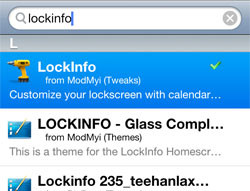
The app is called LockInfo and it’s available in Cydia.

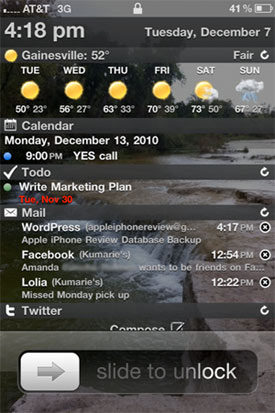
What does it do? LockInfo grabs all your important data from your apps and syndicates it on the lock screen that you see when you turn on your iPhone’s screen. You can use LockInfo to display all kinds of data on your iPhone lock screen, including:

  • The weather
  • Recent text messages
  • Missed calls & voicemails
  • Mail
  • Push notifications from any app
  • Calendar items from iPhone’s default Calendar app
  • To-do list items pulled from one of three leading to-do apps in the App Store
  • Twitter
  • RSS Feeds

In my opinion, Apple should take a look at LockInfo and make this default functionality in the next iOS version. Currently, the iPhone lock screen is just wasted realty, and LockInfo makes it much more useful.

LockInfo Plugins

LockInfo Settings

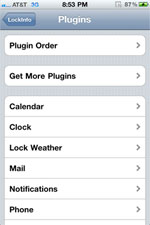
LockInfo supports plugins that expand its functionality. By default, it will display mail, calendar items, text messages, phone calls and push notifications, but everything else is available as a plugin. I like that LockInfo runs on plugins because it gives you the ability to choose what features you want and leave the extra stuff off your iPhone harddrive.

You can customize each plugin individually within Settings, including the order that the information is displayed on your lock screen.

How I Use LockInfo

LockInfo is great because it places a summary of all of your important information just a button-click away. By simply pressing my home button, I can check the time of day, see my upcoming appointments, view and check-off my tasks for the day, and read my recent email messages… all without even unlocking my iPhone.

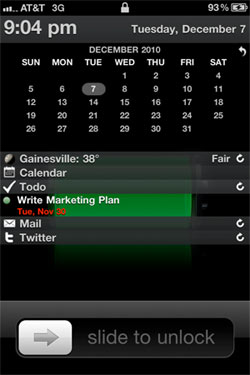
LockInfo Collapsed

You can customize the way your information is displayed, by adjusting the plugin order, setting the maximum amount of items for each plugin and expanding/collapsing sections on your lock screen.

The app also has a useful feature called InfoShade, which lets you pull up the LockInfo screen no matter what you are doing at the time. You can define how to activate it in Settings. I set it to appear when I pull down on the status bar at the top of my iPhone.

LockInfo also solves another problem with the iPhone, namely the lack of a notification handling system. I have lamented the fact that iPhone lacks a notification handling system before. LockInfo solves the problem by listing all your recent push notifications in their own section on the lock screen. Now, your important meeting alert won’t be erased by the notification about a Facebook message, for example. With LockInfo, all of your push notifications are listed on your lock screen until you clear them.

LockInfo makes checking email way faster, too, because it lets me read and Mark as Read (without reading) messages right from the lock screen. This saves me a lot of time because it prevents me from having to go to the Mail app just to check an email that I might never have read in the first place. For example, say you are busy and you get a buzz on your iPhone alerting you of a new email message. If you look at your LockInfo screen and see that it’s just a promotional email from an online store you once bought from but no longer care about, then you can simply mark it as read by tapping the X and go right back to work without being too distracted, and without ever unlocking your iPhone.

All in all, I am a big fan of LockInfo because it helps me reorient myself throughout the day. I can set my appointments and tasks at any time, and I can constantly update and view my workload right from the lock screen.

Is LockInfo Secure?

One concern I have about LockInfo is the fact that anyone who picks up your iPhone can see all your important data on your lock screen. I tried setting a Passcode Lock to see how much LockInfo would let me access without having to enter a passcode, and it was more than I would like.

Not only can anyone see my upcoming appointments, to-do items and text messages, but they can actually manipulate the data by marking emails as read (but not read the content of emails), marking to-do list items as complete, and sending out messages from Twitter, without even having to enter the passcode. If you are dealing with sensitive information or are very strict about your privacy, then LockInfo is probably not for you.

How to Install & Customize LockInfo

LockInfo Cydia

LockInfo is full of functionality and is highly customizable. Is there a catch? Yes. LockInfo is not free. In fact, it’s a little on the high end for an app at $7.99, however you do get a 14-day trial.

You can find the app and plugins in Cydia by searching for “LockInfo.” For detailed instructions on how to install and use LockInfo, check out this LockInfo how-to guide by iClarified.

For more info on jailbreaking any iPhone, see my Ultimate iPhone Jailbreak Guide.

LockInfo: Great Productivity App [Jailbreak Only] is a post from Apple iPhone Review.

You Might Also Like…

  1. Once-Great ZiPhone Jailbreak Software Now Sadly a Scam
  2. Set SMS Privacy Levels With the Kate App [Jailbreak Required]
  3. iPhone Jailbreak: Do You Jailbreak? [Reader Poll]


Hacksugar: Twisting your browser

This morning, we posted a simple little trick for slowing down OS X animations by depressing the shift key. In the comments on that post, TUAW reader Rafe H reminded me about this sweet little trick that allows you to retain a warped (but still usable) browser window in your workspace.

By slowing the animation during minimization and killing the dock mid-transition (enter “killall Dock” in a Terminal window), the window retains the Core Animation changes at the point that the OS X dock is terminated. That produces a seriously eyecatching result that will please your aesthetics for… well, probably at least for seconds.

Check out a quick little video after the break to see how this works.

Continue reading Hacksugar: Twisting your browser

Hacksugar: Twisting your browser originally appeared on TUAW on Wed, 08 Dec 2010 12:00:00 EST. Please see our terms for use of feeds.

Source | Permalink | Email this | Comments

iPad display supplier reportedly identified

DigiTimes has reportedly identified another iPad parts supplier. This time, Taiwanese electronics manufacturer Coretronic has been pegged to deliver backlighting units (BLUs), starting in the beginning of 2011. Specifically, Coretronic will deliver the units to vendors Chimei Innolux and LG Display.

This rumor suggests that the next-generation iPad will not have an OLED display, and will be fundamentally similar to the backlit, IPS-style LCD it currently uses.

Last month, DigiTimes suggested that Tripod Technology and TTM Technologies will supply at least the initial run of Printed Circuit Boards for the next iPad, while Taiwanese supplier Largan Precision recently filed documents with the Taiwan Stock Exchange noting that it has been selected as the sole lens module supplier for the iPad 2, with shipments beginning in the first quarter of 2011.

[Via MacNN]

iPad display supplier reportedly identified originally appeared on TUAW on Wed, 08 Dec 2010 11:45:00 EST. Please see our terms for use of feeds.

Source | Permalink | Email this | Comments

Spotify "can’t commit" to launch US service in 2010

Label negotiations will keep Spotify out of the U.S. for what’s left of 2010, according to an interview conducted by Mark Sullivan of PC World. While at the Wall Street Journal’s Dive Into Mobile event, Spotify founder and CEO Daniel Ek said that his company “can’t commit” to a 2010 launch.

Spotify is a streaming, ad-supported music service that is enjoying enormous popularity in Europe. Customers can choose from three tiers of service: the free, ad-supported Open tier that lets you play files locally; the £4.99 per month unlimited streaming tier with no ads; or the £9.99 per month plan, offering offline mode and mobile support. Spotify currently boasts more than 10 million tracks available for streaming and 750,000 paying subscribers.

Why the delay? Ek took the diplomatic route. “[the labels] are still trying to get their heads around the space,” he said. “They are seeing what we are seeing, with mobile and social. They want to make sure that if this is going to move on to be the next thing they want make sure they are setting the right precedents with free models, ad models, subscription models.”

This makes me wonder how Rdio is able to offer essentially the same service — streaming music for a fee — in the U.S. and Canada. Sullivan notes that Spotify is enjoying royalties deals in Europe that will be hard to duplicate in the U.S.

Here’s hoping it gets worked out soon, if only to stop my friends across the pond from bragging about how awesome it is.

Spotify “can’t commit” to launch US service in 2010 originally appeared on TUAW on Wed, 08 Dec 2010 11:15:00 EST. Please see our terms for use of feeds.

Source | Permalink | Email this | Comments

Daily Deals for December 8, 2010

Deals! Savings! Stuff! Holidays! Another fresh batch of time-sensitive deals from our friends at dealnews. Check ’em out. Several app deals are available, including Rayman 2, Daily Show and Ocarina.

  • iTunes Music Store: iPhone App Store Freebies: Infinity Project, Cosmosis, Smooth Solitaire, more
  • iTunes Music Store: The Daily Show for iPhone and iPod touch downloads for free
  • iTunes Music Store: Ocarina for iPhone and iPod touch for free
  • iTunes Music Store: Rayman 2: The Great Escape for iPhone / iPod touch downloads for free
  • iTunes Music Store: iPhone App Price Drops: I Am T-Pain, Hair & Beard, Hipstamatic, more
  • Meritline: Mini Bluetooth Wireless Keyboard for $19 + free shipping
  • Meritline: USB Travel Charger for Apple iPhone / iPod for 79 cents + free shipping
  • PC Connection Express: Pandigital 16″ Touchscreen LCD HDTV / Kitchen Center for $95 + free shipping
  • Meritline: Microfiber Cleaning Cloth for 39 cents + free shipping
  • Canon: Refurb Canon Rebel XS 10MP DSLR w/ lens for $350 + free shipping, more
  • Meritline: Metal Cover Case, Stylus & Screen Protector for iPhone 4 for $5 + free shipping
  • Lenovo: Targus Eternity 15″ Laptop Backpack for $12 + free shipping

Daily Deals for December 8, 2010 originally appeared on TUAW on Wed, 08 Dec 2010 11:00:00 EST. Please see our terms for use of feeds.

Source | Permalink | Email this | Comments

iPadLock protects your iPad from thieves

Travelers with iPads have a bit of a dilemma. There’s no way to lock the iPad to a heavy piece of furniture to keep it from walking off when you leave the room and somebody else decides to pick it up.

Maclocks.com has a new way to resolve the problem. They’ve just introduced the iPadLock, which is a combination of a special case and a traditional laptop cable lock. The case is made of very hard plastic and holds the iPad. On the side is a standard security slot into which a cable lock can be introduced. The result? It’s easy to lock down your iPad. According to Maclocks, once the lock and the case are joined together, thieves can’t remove the case without damaging the iPad.

The iPadLock is available with (US$64.95) and without ($39.95) the cable lock, so if you happen to have a spare lock hanging around, you don’t need to spend the extra quid to get a duplicate.

There are less expensive ways to secure your iPad while traveling. Many hotels have in-room safes in which you can store a stack of iPads, or you can just carry it with you all of the time — an iPad isn’t exactly a heavyweight object. What do you use to secure your iPad? Leave us a comment below.

iPadLock protects your iPad from thieves originally appeared on TUAW on Wed, 08 Dec 2010 10:30:00 EST. Please see our terms for use of feeds.

Source | Permalink | Email this | Comments