Parallels weirds us out with this Eminem/Avatar Mac parody

A warning: The video after the break is one of the weirdest things we’ve ever seen promoting the Mac OS. Sure, it’s from Parallels, and sure, the virtualization software guys know how to sell a switch over to the Mac. But here they’ve chosen to do it in an extremely weird way, by creating a parody version of an Eminem song (that’s still SFW, as far as we can tell), and combining it with some strange references to the movie Avatar.

We don’t really get it (eventually, Steve Ballmer and Steve Jobs fight it out, and then there’s some explosions?), but some of you might find it funny. Next time, Parallels, maybe choose just one parody and stick to that. This one is well done, but man it is just … strange.

Continue reading Parallels weirds us out with this Eminem/Avatar Mac parody

Parallels weirds us out with this Eminem/Avatar Mac parody originally appeared on TUAW on Thu, 09 Dec 2010 15:45:00 EST. Please see our terms for use of feeds.

Source | Permalink | Email this | Comments

TUAW’s Holiday Gift Guide: Should I buy an Apple TV?

Welcome to the TUAW Holiday Gift Guide! We’ve sorted the treasure from the junk and are serving up suggestions to make your holiday gift-giving a little easier.

The second-generation Apple TV might just be on a lot of Christmas lists this year. The new Apple TV is inexpensive at US$99, now allows streaming of photos and some video (YouTube and Netflix, for example) from iOS devices, and isn’t plagued with hot operation, large size or slow response like the original one.

Long-time TUAW readers may remember that I really hated the first-generation Apple TV. It just didn’t seem like something that came out of Cupertino, and I enjoyed gutting my old Apple TV as an experiment to extract some photos that I had saved on it. Well, the second-generation device is small, fast and easy to use, and the remote control app that is available for iPhone, iPod touch and iPad make it even more enticing. But do you really want to get one for Christmas?

Let’s talk about what you need in order to be able to use an Apple TV. First, you should have an HDTV with a free HDMI port. The Apple TV uses HDMI output, and you frankly don’t want to try to use an HDMI to Composite, HDMI to DVI or HDMI to Component adapter. It’s designed for ease of use, and Apple wants you to be able to take a standard HDMI cable and connect your Apple TV to your HDTV in seconds.

Continue reading TUAW’s Holiday Gift Guide: Should I buy an Apple TV?

TUAW’s Holiday Gift Guide: Should I buy an Apple TV? originally appeared on TUAW on Thu, 09 Dec 2010 15:30:00 EST. Please see our terms for use of feeds.

Source | Permalink | Email this | Comments

iPad deals: QVC offers iPad bundle at a nice price

Shopping channel QVC, of all places, has a pretty good iPad deal going on right now. It’s offering up Apple’s magical and revolutionary device (in a 16GB Wi-Fi version) along with a ton of accessories for US $749. In that price, you get the dock connector cable, a silicon sleeve and stand, a clear case to put it in, a headphone splitter cable, two different screen protectors, and another case/stand to use. If you were planning to buy an iPad and all of these accessories anyway, that’s as good a deal as you’ll find.

No indication on how long the deal’s going on, so you should probably get to buying if it’s something you want to take advantage of. They don’t specifically mention the quality of the cases and stands included, but the pictures make them look pretty sturdy. I’d say go for it, and enjoy your new iPad!

Update: Folks in the comments are saying this deal is nothing special. Your mileage may vary — if you don’t need all the accessories and the cables, then feel free to buy the iPad at its normal price.

Thanks to everyone who sent this in.

iPad deals: QVC offers iPad bundle at a nice price originally appeared on TUAW on Thu, 09 Dec 2010 15:15:00 EST. Please see our terms for use of feeds.

Source | Permalink | Email this | Comments

iPad already matches Linux in web market share; will represent 2.3% of total net traffic in 2011

In an interesting Chitika research note, the internet advertising firm says the iPad is currently making up 0.83% of all internet traffic. When Chitika says “all internet traffic” they mean the 100,000+ sites they serve ads to. Still, if we can extrapoloate those numbers to the entire Internet, a 0.83% share of web traffic on a device that is less than a year old is nothing short of amazing — especially when you consider that the iPad is going head to head with every other smart phone, laptop, and desktop on the planet in these numbers.

Perhaps what is even more amazing is that at current growth rates, Chitika says the iPad will account for 2.3% of all web traffic by the end of 2011. As AllThingsDigital points out, Chitika did take some flak earlier this year when it ran a counter of the total number of iPads sold, which turned out to be off the mark, but Chitika’s research director Daniel Ruby says he’s confident of this prediction since it’s a metric Chitika can directly measure.

So just how impressive are those 0.83% and 2.3% web traffic numbers? Pretty damn impressive. Ruby points out that at even the its current 0.83% web traffic share, the iPad already matches the total North American web market share of Linux — an OS that is having its 20th birthday next year. Not too bad for a device you never knew you needed until it came into existence nine months ago.

iPad already matches Linux in web market share; will represent 2.3% of total net traffic in 2011 originally appeared on TUAW on Thu, 09 Dec 2010 15:00:00 EST. Please see our terms for use of feeds.

Source | Permalink | Email this | Comments

MacBook Air versus PowerBook 145B video smackdown

The oldsters at TUAW (yeah, I’m one of ’em) just love it when someone does a comparison of some nice new shiny Apple technology with Michael Spindler-era Apple products.

Today’s example comes from TUAW reader and Duke University sociology professor Kieran Healy, who kept the PowerBook 145B that helped him throughout grad school. As he says in the blog post accompanying the video (after the break), “despite being such a seemingly underpowered dinosaur, it (the Powerbook) nevertheless cold-booted faster than any computer I’ve owned since.” That “dinosaur” had a 25 MHz 68030 processor, 4MB of RAM, and a huge (for the time) 40MB hard disk drive.

Healy recent purchased an 11″ MacBook Air, which he put to the test versus the aging speedster. The Air won handily in the bootup race, loading OS X and even a few applications (I saw 1Password appearing on the Air’s screen) before the PowerBook finished loading all of those extensions. Enjoy the video, and especially the final shot comparing the size of the two laptops.

Continue reading MacBook Air versus PowerBook 145B video smackdown

MacBook Air versus PowerBook 145B video smackdown originally appeared on TUAW on Thu, 09 Dec 2010 14:20:00 EST. Please see our terms for use of feeds.

Source | Permalink | Email this | Comments

Howard Stern/SiriusXM deal brings Stern Show to iOS

Yes, the rumor of an Apple deal was false, but a new agreement between Howard and Sirius/XM will bring the Stern Show show to the company’s iOS app for the first time.

Sirius subscribers can use the free SiriusXM Premium Online app with their subscriptions. It allows you to stream nearly all of the network’s channels. Last year there was a mild uproar from subscribers who discovered that several of the network’s key features, like the Stern Show, the NFL and MLB were excluded from the iPhone app. Details on the new arrangement with Stern are scare, but his contract is set to renew in January, so we expect to have his show on our iPhones by then.

In short, Howard is coming to your iPhone, but not as we initially heard.

Howard Stern/SiriusXM deal brings Stern Show to iOS originally appeared on TUAW on Thu, 09 Dec 2010 13:45:00 EST. Please see our terms for use of feeds.

Source | Permalink | Email this | Comments

Gamers starting to prefer Smartphones, game design guru leaves Apple and more in this week’s mobile news.

A recent survey shows gamers are starting to prefer Smartphones over their DS/PSP for mobile gaming.

Gizmodo explains why a Verizon iPhone may drop fewer calls than one from AT&T.

Game design guru Graeme Devine has left Apple to puruse independent iOS game development.

Charities are not happy about Apple’s ban on donations for iPhone apps.

PCWorld lists the Android Tablet as one of the 20 biggest failures of 2010.

Gift Plan: Santa’s App For Mere Mortals

Christmas time is here again. I am reminded of the holiday’s presence by the decorated trees, sparkling lights, Christmas tunes on the radio and that huge pile of festively wrapped gifts. Oh wait! I knew I was forgetting something! It looks like yet another last-minute gift-grabbing spree for me!

But now the real challenge begins. Her favorite color was red, right? Does he worship or despise Manchester United? And after all the effort I went through to secretly sneak into the closet to find her real shirt size, I’ve already forgotten what it was. And how much was that new iPod Touch going to cost again? If only I could keep track of all of that and more. If only I had known about Gift Plan sooner!

What’s the Occasion?

Gift Plan works on the basis of Occasions. At first use, you are able to choose from such events as Birthdays, Christmas, and Anniversaries, but you can add any others as necessary.

Occasions

Occasions

Of course, you will need to have someone for whom the occasion is being planned, so when you click the “+” button on the main screen, you will be offered a number of ways to add people into your Gift Plan entourage. The first method is to simply create a new Gift Plan contact with the “Add new person” button. Input their name and an optional photo and you’re done.  Likewise, you can import your iPhone contacts and/or Facebook friends.  After a few taps and some login info perhaps, your Gift Plan is now filled with plenty of people to keep your shopping days busy!

Add Occasion

Add Occasion

Now it’s just a matter of choosing a person from your list and adding them to any number of occasions either presets or custom.

Add Occasion

Add Occasion

If you start to get overwhelmed with the sheer number of your closest and most dearly personal acquaintances that fills your shopping list, it’s a simple matter to filter people by relevant events.  Just select or deselect any event, and your list will almost immediately reflect the new changes.

Filters

Filters

Making A List

So now you’re sure not to forget your Uncle Joe’s birthday, but what do you get him?  You seem to remember his poor taste in general fashion; maybe a new suit would do well.  That is a good idea,  now if only you could remember his size…  Oh wait, his size, favorite brands, and colors are all in Gift Plan for you, making a quick visit to the mall (with obligatory smoothie stop) the only thing left to do!

Profile

Profile

Shop Like A Pro

Since Gift Plan kept a balance of estimated gift prices, you had enough money left over to get the Mega-Mouth sized smoothie!  So, receipts in pocket and bags in hand, you can check off Uncle Joe’s suit and still have time to catch the latest episode of “The Big Bang Theory”.  A successful day I think.

Shopping List

Shopping List

Help and The Settings

To make the most out of your Gift Plan experience, the developers have included an incredibly insightful “Info” section with a “Help” feature that will give you detailed assistance for dealing with any task from adding a birthday to optimizing the profile images.  If the well-planned interface of Gift Plan leaves you at any time wondering what to do next, just pull of the help section and you should be gifting again in no time!

Gift Plan Info

Gift Plan Info

And finally, you can use the “Settings” tab to enable notifications of coming events, create new events, or set a private passcode (to keep those curious eyes from sabotaging your gift-giving plans).

Settings

Settings

“Wrapping” It Up

Of course there’s just one final thing that makes any gift just that much cooler- the wrapping.  It doesn’t matter if you’re giving a new suit, a book, or a 700″ plasma tv- some simple wrapping paper or a festive gift bag shows the extra effort and personal touch that make the whole experience much more enjoyable.  So it only seems reasonable that a gift shopping app should be just as exciting to use and Gift Plan certainly takes that to heart!

Wrapping It Up

Wrapping It Up

Whether it’s the welcoming gift-wrapped/bow introductory animation or the elegant blue and dark interface with plenty of sliding effects, there isn’t a moment when Gift Plan is undesirable to use if not outright fun!

The Best iPhone and iPad Apps of 2010

We are mere weeks away from the end of the first decade in this new millennium. This year has been a big one for Apple’s multi-touch product line with the arrival of the iPad, iPhone 4 and iOS 4. Along with these new technologies has come a seemingly endless barrage of great apps that keep us coming back for more.

Today we’ll take a look at some of our favorite apps that were either introduced or popular throughout the year. Some of them made the list as a result of huge sales while others are an important piece of iOS history. A big thanks to all of our Twitter followers who submitted votes for their favorite apps! You’ll definitely see many of your submissions included below.

iPhone Apps

Angry Birds

Angry Birds

Angry Birds

It’s odd to me that I would top such an ambitious list with such a silly game, but where else could I possibly start? Angry Birds has taken the world by storm and garnered millions of downloads. It was an instant success with both hardcore and casual gamers and is quickly expanding to every gaming platform that will have it, mobile and otherwise.

The evil green pigs have stolen the eggs of the angry birds and your task is to hurl the birds and destroy the structures occupied by the pigs to get them back. If it sounds crazy, it is. It’s also more addicting than most things you’ll ever experience. If you haven’t yet jumped on the Angry Birds bandwagon, you need to. Try out the free lite version first and then move on to the full app.

Price: $0.99
iTunes Rating: 5/5 Stars
Developer: Rovio

screenshot

Angry Birds

Angry Birds

Foursquare and Gowalla

Foursquare and Gowalla

This was the year for location-based social networks. “Checking-in” at various places we visit made the Twitter-like jump from something that confused people to something that everyone is doing. Pioneers Foursquare and Gowalla, though very distinct from each other visually, approached the idea in almost identical fashions: follow friends and check-in as much as possible to earn rewards.

The idea was apparently so good that Facebook wanted to steal it and become the de-facto hub through which all check-in services would integrate.

Price: Free (both)
Foursquare iTunes Rating: 4/5 Stars
Gowalla iTunes Rating: 3.5/5 Stars
Foursquare Developer: Foursquare
Gowalla Developer: Alamofire

screenshot

Foursquare and Gowalla

screenshots

iMovie

iMovie

The iPhone 4 launched with a much greater emphasis on both photography and videography. With two on-board cameras and stunning quality images and video not easily found on a phone, it was a natural jump for Apple to decide that you should be able to both shoot and edit movies right on your phone.

The app and even the concept is still in its infancy so editing movies on your iPhone isn’t the most time-efficient process in the world but the app still represents quite an impressive leap that will no doubt continue to push the bounds of mobile multimedia creation.

Price: $4.99
iTunes Rating: 3/5 Stars
Developer: Apple Inc.

screenshot

iMovie

screenshots

Hipstamatic and Instagram

Hipstamatic and Instagram

While we’re on the subject of those wonderful iPhone cameras, another category that is definitely worth mentioning is retro photography apps. The popularity of these apps have skyrocketed this year and you need only look at your Twitter and Facebook streams to prove it.

Hipstamatic and Instagram are two of the most popular apps in this category and they have two distinct strategies. Hipstamatic is $1.99 and allows you to combine different virtual lenses, flashes and films to create a ton of different combinations of effects. Instagram on the other hand, is free and focuses on single-tap effects that can quickly be applied and then shared with the Instagram network.

Both apps are a blast to play with and have really opened up the wonder of photography to a much larger audience.

Hipstamatic Price: $1.99
Instagram Price: Free
Hipstamatic iTunes Rating: 3.5/5 Stars
Instagram iTunes Rating: 4.5/5 Stars
Hipstamatic Developer: Synthetic Corp
Instagram Developer: Burbn, Inc.

screenshot

Hipstamatic and Instagram

screenshots

Skyfire Web Browser

Skyfire Web Browser

Flash and the iPhone, Apple has piously assured us on several occasions that the two shall never meet. A few intrepid developers decided to attack this problem head on this year by creating apps designed to cleverly work around the built-in limitation. Basically, the apps just render the Flash elements on their own servers and send them back to the user.

Skyfire is one of the more popular attempts at a Flash-enabled browser to date. The implementation is far from perfect. It doesn’t work on all Flash web elements, only video, and some popular sites like Hulu are blocked. However, it is an important development for iOS users who are sick of being the only people on the planet who pay hundreds of dollars for a smartphone that can’t run Flash.

Price: $2.99
iTunes Rating: 3/5 Stars
Developer: Skyfire Labs, Inc.

screenshot

Skyfire Web Browser

screenshots

Weet for Twitter

Weet for Twitter

No list of great iOS apps would be complete without a Twitter client, and I gave a lot of thought to which one it should be. This year was very interesting for Twitter app fans because Twitter made the completely unexpected move of acquiring the incredibly popular Tweetie app while changing the price to free and setting themselves up as a direct opponent to all of the amazing developers that are largely responsible for bringing the obscure service to fame.

Tweetie for iPhone was renamed “Twitter” and was upgraded to surpass the functionality of just about any other Twitter app on the market. Developers rallied nicely though and we’re now seeing the fruits of that spirited response.

The current fan favorite seems to be Weet, an attractive app that has all the charm that made us all fall in love with Tweetie. The interface is slick and simple to use, the feature set is powerful and the app integrates with lots of third party services that you actually use like CloudApp, Text Expander and Instapaper. Hats off to Craig Merchant for coming out of nowhere and creating an app that actually succeeded in winning some of the Tweetie fans over. There’s also an early Mac version that you should download and try.

Price: $0.99
iTunes Rating: 3.5/5 Stars
Developer: Craig Merchant

screenshot

Weet for Twitter

screenshots

Instapaper and Read It Later

Instapaper and Read It Later

As you’ve probably noticed by now, there seems to be a trend with new and innovative services: there’s almost always two primary options. This holds true in the fast-growing market of services that let you quickly add an article or site to a list with the intention of reading it later.

These services weren’t born in 2010 but, like the location-based social networks above, they seem to have really boomed this year. iOS seems to be one of the most obvious places for this service to exist. As you’re scrolling through Weet, you’re likely to come across a dozen or more interesting links that you want to read/watch later, either on a desktop where they’re larger or simply when you have more time.

We received plenty of votes for both Instapaper and Read It Later so I decided to include them both. They are very similar in features so which app/service is better ultimately comes down to a matter of preference. Check them both out and see what you think!

Price: $4.99 (both)
Instapaper iTunes Rating: 5/5 Stars
Read It Later Pro iTunes Rating: 4.5/5 Stars
Instapaper Developer: Marco Arment
Read It Later Pro Developer: Idea Shower

screenshot

Instapaper and Read It Later

screenshots

Cut the Rope

Cut the Rope

Chillingo is on a major winning streak. Not only are they the publishers behind Angry Birds above but they get another title on my list in the form of Cut the Rope, an instantly charming puzzle game that is simple in concept and devilishly addictive in its execution.

Each stage features a piece of candy dangling from one or more ropes. Your task is to slice the ropes and use the various tools, obstacles, etc. to feed the piece of candy to Om Nom the hungry monster. The illustrations and animations are just beautiful (try the iPad version for an even better visual experience) and the gameplay is ridiculously fun.

Price: $0.99
iTunes Rating: 4.5/5 Stars
Developer: Chillingo

screenshot

Cut the Rope

iPad Apps

screenshots

Twitter

Twitter

Now, I lauded Weet above for being one of the best apps to actually take social network giant Twitter head on in their own turf. There are now plenty of iPhone apps that feel pretty close to the experience offered by Twitter’s own. However, this doesn’t seem to be true for Twitter for iPad.

Twitter for iPad was one of the first apps I downloaded onto my iPad and continues to be the one that I use the most. Not only does this app capture the desktop Twitter experience, in my opinion it surpasses it. The sliding panels interface is simply unbeatable for quickly getting a look at the things your friends are sharing without leaving your Twitter stream behind.

Say what you will about how great Twitterrific and other iPad Twitter clients are, I’ve tried them and still firmly believe that Twitter’s own client is simply the most innovative Twitter experience to date. The value is especially large for those looking for a free client that beautifully handles multiple accounts.

Price: Free
iTunes Rating: 3.5/5 Stars
Developer: Twitter, Inc.

screenshot

Twitter

screenshots

iBooks

iBooks

One of the biggest selling points of the iPad has always been that it would blow the Kindle away as an e-reader on steroids. The key to this strategy is the iBooks app, which allows you to download and read a catalog of novels, non-fiction books, magazines and more.

In a recent article, I stated a few issues that I have with the iBooks app but in the end it definitely feels like the solution that is best integrated into the iPad experience, specifically when it comes to actually shopping for books (the Kindle and Nook iOS apps are forced to go through Safari for purchases).

Price: Free
iTunes Rating: 3.5/5 Stars
Developer: Apple, Inc.

screenshot

iBooks

screenshots

Flipboard

Flipboard

Flipboard was one of the first apps to really wow us with the iPad experience. Granted, the fad has slightly died down since its release but it still remains one of the most beautiful ways to read the news, browse Twitter and check in on Facebook.

If you’ve never used it, the basic concept is that Flipboard takes all your favorite content, puts it in one place and turns it into an attractive, interactive magazine-like experience. The result is unarguably one of the most unique ways we’ve seen to interact with social media.

Price: Free
iTunes Rating: 5/5 Stars
Developer: Flipboard Inc.

screenshot

Flipboard

screenshots

Adobe Ideas

Adobe Ideas

Adobe Ideas isn’t the best drawing application on the iPad, nor is it the one that I use the most. However, I’m a picky graphic designer willing to pay upwards of $10-20 for a professional vector editor; not your typical customer.

Adobe Ideas is a solid and fun app that is perfect in its simplicity. It’s free, easy to use and is actually the most responsive drawing app I’ve used (little to no lag). I’ve listed it here because it’s one of those great apps that you should download as soon as you get an iPad and never delete. When you hand the device over to a friend to show it off, fire up Adobe Ideas and you’ll spend the next twenty minutes wondering how to get your iPad back.

Price: Free
iTunes Rating: 3.5/5 Stars
Developer: Adobe Systems Incorporated

screenshot

Adobe Ideas

screenshots

Reeder

Reeder for iPad

When I asked people on Twitter to submit their favorite apps of 2010, Reeder came up time and time again. Design-conscious users simply love its simplicity and beauty.

The mild, slightly textured interface is super easy on the eyes and makes browsing, reading and sharing a truly enjoyable experience. If you like Reeder for iPad, you’ll be happy to know that the recently released beta of Reeder for Mac looks just as promising!

Price: $4.99
iTunes Rating: 4.5/5 Stars
Developer: Silvio Rizzi

screenshot

Reeder

screenshots

OmniFocus

OmniFocus

Another great thing about the iPad is that it marked the beginning of iOS apps that looked and felt just as powerful as their desktop equivalents. One of the places we saw this first was in productivity apps.

The excellent but perhaps overpriced forerunners in this category are OmniFocus and Things. Both are awesome applications but since Cultured Code has take so incredibly long to implement cloud sync I chose OmniFocus to feature here. OmniFocus for iPad is attractive and impressively featured with support for things simply you don’t see in other apps like sub-tasks and location-based contexts with built-in maps (and of course, free cloud syncing).

Price: $39.99
iTunes Rating: 4.5/5 Stars
Developer: The Omni Group

screenshot

OmniFocus

screenshots

Flud

Flud

So far, the majority of the iPad apps that we’ve featured are new and innovative readers. The iPad presents such a rich opportunity for these types of apps that they simply keep coming. Yet one more that I really enjoy using is Flud.

Flud is a bit like a cross between Reeder and Flipboard. Like Reeder, it has a stronger emphasis on RSS than Flipboard. However, like Flipboard, it has a really interesting node-based interface. In fact, it’s even far more efficient than Flipboard for sorting through lots and lots of content all at once.

Price:Free
iTunes Rating: 4/5 Stars
Developer: Flud

screenshot

Flud

screenshots

Evernote for iPad

Evernote for iPad

We’ve all owned and loved Evernote for years. Some people, like myself, keep their entire lives in this one amazing app and would be completely lost without it. The iPhone app took our Evernote information off of our desktops and put it where we really need it: everywhere else.

The iPad app continues this trend while providing a serious bump in design and aesthetics. Evernote for iPad is simply gorgeous and it really feels right at home on the bigger iPad screen (some of those big receipt PDFs aren’t really suited for iPhone viewing). You simply can’t beat the combination of applications and services that Evernote provides completely free of charge.

Price: Free
iTunes Rating: 3/5 Stars
Developer: Evernote

screenshot

Evernote for iPad

screenshots

Friendly for Facebook

Friendly for Facebook

The biggest gap in the iPad section of the App Store is the official Facebook iPad app. In case you haven’t heard, there isn’t one. Facebook is very focused on its mobile strategy, but Zuckerberg is quoted as saying that he doesn’t consider the iPad to be a mobile device. This is really a shame because the iPhone Facebook app, despite a rough history, is actually really good in its current implementation and an iPad-specific version would be amazing.

However, this gap has recently been filled with Friendly for Facebook, an excellent and free application that actually does a bang up job at providing a stellar Facebook iPad experience. I was fine with using the full Facebook website for a while but the Friendly app really has made Facebook much more accessible on the iPad and I won’t be going back any time soon.

My favorite feature here is the ability to load in multiple accounts and quickly switch between them, something not seen in almost any other Facebook client.

Price: Free
iTunes Rating: 3.5/5 Stars
Developer: Oecoway Inc.

screenshot

Friendly for Facebook

What Are Your Favorites?

Listing the best apps of the entire year is a dangerous task. It’s likely to be highly controversial and is admittedly completely subjective. The apps above represent our top picks but there are still tons more to choose from. As one example, Dropbox is a fantastic application (one of my favorites) and though it wasn’t new in 2010, it definitely continues to get plenty of votes for the top spot (in the end I chose Evernote for iPad simply because the interface was a little nicer).

So this is where you get to chime in. Feel free to compose a rant about how much you hate my choices as long as you leave a few choices of your own! We want to hear all about the apps you’ve used most over the last year and why they stand out as the best.

The Best Mac and Web Apps of 2010

If you’re a fan of your Mac, or all the amazing new online apps that are hitting the interwebs (and let’s face it, who isn’t?), you may also like to take a look at the companion posts published across the AppStorm network. These include some seriously amazing software, and it’s a good way to quickly see what you might have missed over the course of the year.

Take a look at:

Thank you so much for reading AppStorm in 2010. We’re really excited about everything that 2011 has in store, and I hope you’ll take a minute to subscribe to the site if you haven’t already!

Quick Look: Safety Switch

Quick Look posts are paid submissions offering only a brief overview of an app. Vote in the polls below if you think this app is worth an in-depth AppStorm review!

In this Quick Look, we’re highlighting Safety Switch. The developer describes Safety Switch as “the ultimate personal panic alarm for iPhone, with five built-in alarms you can activate if you feel unsafe or find yourself in trouble. It is designed to quickly and easily notify your friends and family that you’re in trouble and where you are, as well as give you instant access to emergency services. With Safety Switch, help is never more than a tap away.”

Read on for more information and screenshots!

Screenshots

screenshot

Safety Switch

About the App

Here are the top five features you can expect to see in the latest version:

  • Send a distress message with your location to friends and family on Facebook and/or Twitter
  • Send a text message with your location to an emergency contact
  • Activate a loud siren to startle predators and alert bystanders
  • Use your iPhone as a torch to alert others nearby and see in dark places
  • Call emergency services with one tap

Requirements: iOS 4.0 and above
Price: $0.99
Developer: Edward Dowling

Vote for a Review

Would you like to see us write a full review of Safety Switch? Have your say in our poll:

Would you like to see Safety Switch reviewed in-depth on AppStorm?survey software

Quick Look posts are paid submissions offering only a brief overview of an app. Vote in the poll if you think this app is worth an in-depth AppStorm review! If you’re a developer and would like to have your app profiled, you can submit it here.

The Google Nexus S Squares Off Against the iPhone 4

When Google’s last “iPhone killer,” the Nexus One, fell flat on its face, many predicted that Google would get out of the hardware game and focus on developing Android for handsets made by other companies. However, the king of search is back with an impressive attempt to revive the Nexus line.

Below we’ll answer the one question iPhone owners really want to know: How does the new Nexus S stack up against the iPhone 4? Does it blow away our beloved Apple device or will it be pale in comparison? Let’s take a look!

screenshot

The Google Nexus S Website

Physical Size

We’ll start with the factor that’s perhaps the most superficial in deciding whether or not anyone will like it: the dimensions. Google lists the dimensions of the Nexus S at 63.0 mm wide, 123.9 mm high and 10.88 mm deep. For those of you boggled by the metric system, that’s approximately 2.4 inches wide by 4.8 inches high by 0.42 inches deep.

Now, let’s compare sizes to see who wins! Apple lists the iPhone’s width at 2.31 inches (58.6 mm), the height at 4.5 inches (115.2 mm), the and the depth at 0.37 inch (9.3 mm).

Obviously, the phones are very close and it comes down to mere millimeters of difference. And then there’s the question of who wins. Is smaller always better? Or perhaps it’s the weight that counts? The Nexus S weighs in at 4.5 ounces and the iPhone is 4.8 ounces.

Ultimately, neither really has bragging rights in this category. For what it’s worth, the Nexus S is both a little bigger and a little lighter than the iPhone 4.

screenshot

The Nexus Runs a clean clean version of Gingerbread

Storage, RAM and CPU

Now for the good stuff. How do these two contenders compare in the technology that makes a difference? Let’s start off with the processor.

Processor comparisons are tricky if you’re not really familiar with the chips. Ultimately, they both have a 1GHz processor, Google with the A8 Hummingbird and Apple with the A4. Here’s a comparison of Samsung’s Humminbird vs. Apple’s A4.

Next up is built-in storage. Both the Nexus S and the iPhone have a 16GB version but the iPhone does one better with the 32GB version. Whether or not you actually need 32GB is up to you, but it’s definitely nice to have the option on the table.

Finally, let’s have a look at the RAM. Again, the two are evenly matched with both coming in at 512MB. Nothing to see here folks, move along.

Obviously, the Nexus S specs aren’t exactly arbitrary but have been pegged to be extremely comparable to the iPhone. If you’re yawning at this point, get ready, we’ll dig deeper and point out the differences next.

screenshot

It’s definitely a sharp looking device

The Big Differences

As you can see, the two phones are turning out to be just about the same with tech specs. Let’s get all the other similarities on table quickly shall we? Both start at $199 for 32GB, both have a primary 5MP camera with flash in addition to a front-facing camera and both have Bluetooth, WiFi and GPS.

Fear not however, for with this mound of identical features comes a few notable differences. For starters, Apple boasts 7 hours of battery talk time while Google only claims 6 (PC World says 6.7 for the Nexus S). Far more interesting however are the screens. The Nexus S wins the screen size battle (assuming suddenly that bigger is better) with a 4″ 480 by 800 pixel AMOLED display but the iPhone 4′s 3.5″ retina display is still kicking butt and taking names with resolution at 640 by 960 pixels. Translation: The iPhone still has the most beautiful display you’ll find on a phone.

If at this point you’re ready to run out and tell your Google pals how your iPhone is still better than anything they can dish out, you might want to make sure you have all your facts straight. They’ll likely pull two arguably big cards that will leave you defenseless.

The first is Flash. Just about every device on the planet runs it but the iPhone, including the Nexus S. I’m personally not a Flash fan (quite the opposite) but I am getting sick of Apple deciding which websites I should and shouldn’t visit instead of supporting everything and leaving the choice to me.

Finally, and this one is big for me, the Nexus S can serve as a Wi-Fi hotspot. Why can’t the iPhone do this? I imagine it’s not really Apple but AT&T being stubborn on this matter but regardless, it really sucks that all the other kids get cool hotspots in their phones and we don’t!

Will The Nexus S Follow the Nexus One?

Now that you’ve seen the specs, let us know what you think of the Nexus S. We know you’re not going to throw your iPhone in the trash to rush out and get one, but we are interested in hearing your thoughts on whether or not it will succeed where the Nexus One failed.

Google is abandoning its online-only distribution strategy and pushing the phone out to a Best Buy near you. Perhaps that will be enough to convince consumers to pick one up? Or maybe Google really should “pull a Sega” and get out of the hardware game. Tell us in the comments.

Announcing Two New AppStorm Sites!

We had a big day at AppStorm HQ yesterday, as we’ve launched an exclusive preview of two new sites that are due to kick off in the New Year. I hope you’ll join me in welcoming both Android.AppStorm and Windows.AppStorm to our growing family of sites!

Although you may feel that your iPhone will always be superior to Android, there are plenty of iOS device owners out there who still use and enjoy Windows as their operating system! Read on for a few more details about each of the new sites…

Windows.AppStorm

With Windows 7 restoring some lost Windows pride, it’s time PC users had a place to find awesome apps from both small indie developers and the big powerhouses. Plus I’ve been hearing really good things about the new Windows Mobile, so you can expect to get a dose of non-desktop apps too! To kick things off we have: 90+ Incredibly Useful Windows 7 Apps & Tips

Android.AppStorm

Lately Android has been appearing on all sorts of devices. With a few different app stores and so many incredible developers making apps for Google’s open source platform, you need a trusted place to get the low down on Android Apps. So head over and check out the new site! Our first bumper post takes the form of: 100+ Absolutely Essential Android Apps & Tips

Thanks for Reading!

Thanks again for taking the time to read our sites every day. I hope you enjoy the teaser posts we’ve launched today, and I’m really looking forward to getting into full swing with both sites in 2011. If neither of these topics interest you particularly, don’t worry – they’re completely separate sites, and we’ll continue to serve the same fantastic content here at iPhone.AppStorm!

Feel free to let us know your thoughts in the comments, along with any suggestions for content you’d like to see on the new sites!

Quick Look: Pepperplate

Quick Look posts are paid submissions offering only a brief overview of an app. Vote in the polls below if you think this app is worth an in-depth AppStorm review!

In this Quick Look, we’re highlighting Pepperplate. The developer describes Pepperplate as an app that “manages all of your recipes, menus and schedules – online and on the iPad. Pepperplate is the first system that works the way you do – online and in the kitchen – import recipes from your favorite sites, create your own categories and cook multiple recipes at the same time on the iPad cook panel.”

Read on for more information and screenshots!

Screenshots

screenshot

Pepperplate

screenshot

Pepperplate

About the App

Here are the top five features you can expect to see in the latest version:

  • Import recipes from all your favorite sites
  • Combine Recipes into Menus
  • Plan your Menu days or weeks in advance
  • Cook Recipes one at a time or all at once on the iPad
  • Set separate timers for each recipe

Requirements: iOS 3.2
Price: $9.99
Developer: Pepperplate

Vote for a Review

Would you like to see us write a full review of Pepperplate? Have your say in our poll:

Would you like to see The Downtime Cost Calculator reviewed in-depth on AppStorm?Market Research

Quick Look posts are paid submissions offering only a brief overview of an app. Vote in the poll if you think this app is worth an in-depth AppStorm review! If you’re a developer and would like to have your app profiled, you can submit it here.

LockInfo: Great Productivity App [Jailbreak Only]

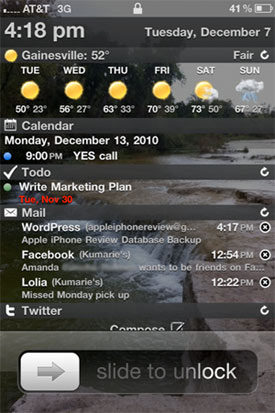
iPhone Lock Screen

I recently jailbroke my iPhone 4 with limera1n and have added a feature to my iPhone that helps me stay productive by making use of an otherwise poorly utilized space in the iPhone OS: the Lock Screen.

LockInfo

The app is called LockInfo and it’s available in Cydia.

What does it do? LockInfo grabs all your important data from your apps and syndicates it on the lock screen that you see when you turn on your iPhone’s screen. You can use LockInfo to display all kinds of data on your iPhone lock screen, including:

  • The weather
  • Recent text messages
  • Missed calls & voicemails
  • Mail
  • Push notifications from any app
  • Calendar items from iPhone’s default Calendar app
  • To-do list items pulled from one of three leading to-do apps in the App Store
  • Twitter
  • RSS Feeds

In my opinion, Apple should take a look at LockInfo and make this default functionality in the next iOS version. Currently, the iPhone lock screen is just wasted realty, and LockInfo makes it much more useful.

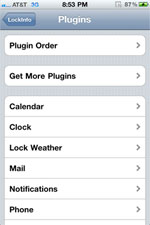
LockInfo Plugins

LockInfo Settings

LockInfo supports plugins that expand its functionality. By default, it will display mail, calendar items, text messages, phone calls and push notifications, but everything else is available as a plugin. I like that LockInfo runs on plugins because it gives you the ability to choose what features you want and leave the extra stuff off your iPhone harddrive.

You can customize each plugin individually within Settings, including the order that the information is displayed on your lock screen.

How I Use LockInfo

LockInfo is great because it places a summary of all of your important information just a button-click away. By simply pressing my home button, I can check the time of day, see my upcoming appointments, view and check-off my tasks for the day, and read my recent email messages… all without even unlocking my iPhone.

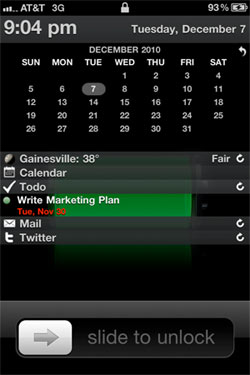
LockInfo Collapsed

You can customize the way your information is displayed, by adjusting the plugin order, setting the maximum amount of items for each plugin and expanding/collapsing sections on your lock screen.

The app also has a useful feature called InfoShade, which lets you pull up the LockInfo screen no matter what you are doing at the time. You can define how to activate it in Settings. I set it to appear when I pull down on the status bar at the top of my iPhone.

LockInfo also solves another problem with the iPhone, namely the lack of a notification handling system. I have lamented the fact that iPhone lacks a notification handling system before. LockInfo solves the problem by listing all your recent push notifications in their own section on the lock screen. Now, your important meeting alert won’t be erased by the notification about a Facebook message, for example. With LockInfo, all of your push notifications are listed on your lock screen until you clear them.

LockInfo makes checking email way faster, too, because it lets me read and Mark as Read (without reading) messages right from the lock screen. This saves me a lot of time because it prevents me from having to go to the Mail app just to check an email that I might never have read in the first place. For example, say you are busy and you get a buzz on your iPhone alerting you of a new email message. If you look at your LockInfo screen and see that it’s just a promotional email from an online store you once bought from but no longer care about, then you can simply mark it as read by tapping the X and go right back to work without being too distracted, and without ever unlocking your iPhone.

All in all, I am a big fan of LockInfo because it helps me reorient myself throughout the day. I can set my appointments and tasks at any time, and I can constantly update and view my workload right from the lock screen.

Is LockInfo Secure?

One concern I have about LockInfo is the fact that anyone who picks up your iPhone can see all your important data on your lock screen. I tried setting a Passcode Lock to see how much LockInfo would let me access without having to enter a passcode, and it was more than I would like.

Not only can anyone see my upcoming appointments, to-do items and text messages, but they can actually manipulate the data by marking emails as read (but not read the content of emails), marking to-do list items as complete, and sending out messages from Twitter, without even having to enter the passcode. If you are dealing with sensitive information or are very strict about your privacy, then LockInfo is probably not for you.

How to Install & Customize LockInfo

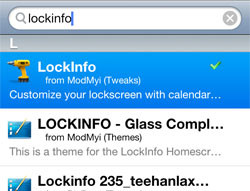
LockInfo Cydia

LockInfo is full of functionality and is highly customizable. Is there a catch? Yes. LockInfo is not free. In fact, it’s a little on the high end for an app at $7.99, however you do get a 14-day trial.

You can find the app and plugins in Cydia by searching for “LockInfo.” For detailed instructions on how to install and use LockInfo, check out this LockInfo how-to guide by iClarified.

For more info on jailbreaking any iPhone, see my Ultimate iPhone Jailbreak Guide.

LockInfo: Great Productivity App [Jailbreak Only] is a post from Apple iPhone Review.

You Might Also Like…

  1. Once-Great ZiPhone Jailbreak Software Now Sadly a Scam
  2. Set SMS Privacy Levels With the Kate App [Jailbreak Required]
  3. iPhone Jailbreak: Do You Jailbreak? [Reader Poll]