Mossberg says the iPad is the top 2010 product

Wall Street Journal tech journalist Walt Mossberg says the iPad is “amazing” and his favorite product of 2010. He added that “with the new iOS 4.2 operating system and its huge selection of apps, the iPad continues to stay ahead of the competition.”

No arguments from here. Apple has redefined the tablet form factor, after years of talk about it from Microsoft, who has yet to really produce anything that has caught on with the public.

Mossberg gave his number two ranking to 4G networks, saying they are something “to watch closely in 2011.” His third place was a tie between two phones, the Samsung Galaxy S and the iPhone 4.

Mossberg also had some thoughts on the worst products of 2010. He cites the Dell Streak tablet as a failure that is “too big to be a phone, yet too small to be a tablet.”

He also dissed Google TV as not being ready for prime time, suffering from a confusing user interface and a clumsy keyboard.

Mossberg says the iPad is the top 2010 product originally appeared on TUAW on Sun, 26 Dec 2010 14:30:00 EST. Please see our terms for use of feeds.

Source | Permalink | Email this | Comments

Untethered Jailbreak iOS 4.2.1 on iPhone 4, iPad, iPod Touch 4G with RedSn0w 0.9.7b1

RedSn0w 0.9.7b1 is out now to untethered jailbreak iOS 4.2.1 on iPhone 4, iPad and iPod Touch 4G. Follow the instructions below to jailbreak iOS 4.2.1 untethered on iPhone 4, iPod Touch 4G and iPad using RedSn0w 0.9.7b1.

Important

Warning

  • If you depend on UltraSn0w unlock, STAY AWAY from iOS 4.2.1 and RedSn0w.
  • This is a beta tester program. It’s not a general release!  Things can go very wrong, so please don’t even consider testing if you have pictures or other media on your device that you haven’t backed up!
  • The Bluetooth functionality is disabled for now.

Disclaimer: This guide is for educational and information purposes only. Follow the steps below at your own risk. We cannot be held responsible if anything goes wrong.

Let’s untethered jailbreak iOS 4.2.1 on iPhone 4, iPod Touch 4G and iPad using RedSn0w 0.9.7b1.

Untethered Jailbreak for iOS 4.2.1 on iPhone 4, iPad and iPod Touch 4G with RedSn0w 0.9.7b1

All the required stuff is linked at bottom for download.

Step 1

This backup plan for untethered iOS 4.2.1 jailbreak depends on iOS 4.2 beta 3 SHSH blobs. Make sure you’ve SHSH blobs for iOS 4.2 beta 3 saved via Cydia. To check:

  • Open Cydia and let the page load.
  • Look at the top of the page if you’ve 4.2b3 listed next to SHSH.

If you don’t have SHSH 4.2b3 saved in Cydia, this guide in NOT for you. If SHSH 4.2b3 blobs are listed on Cydia front page, continue reading.

Step 2

Restore iOS 4.2.1 on your iPhone 4, iPad or iPod Touch 4G and keep it connect to your Mac via USB.
*You can skip this step if you’re already running iOS 4.2.1/tethered jailbroken iOS 4.2.1.

Step 3

  • Download usbmuxd
  • Extract usbmuxd
  • Start Terminal in python-client directory.
  • Execute the following commands:

chmod +x tcprelay.py

./tcprelay.py -t 22:2222

Step 4

Execute the Redsn0w0.9.7b1 (Download link below)

Step 5

Hit the Browse button and select official iOS 4.2.1 firmware (download link below). It will recognize your IPSW file. then hit Next.

Step 6

Now check mark Jailbreak Monte (untether). It will ask for iOS 4.2 beta 3 IPSW.

Browse and select iOS 4.2 beta 3 IPSW (Download below)

Step 7

Now make sure your your iPhone 4, iPad or iPod Touch 4G is turned OFF and Plugged in to the Mac. Then hit Next

Step 8

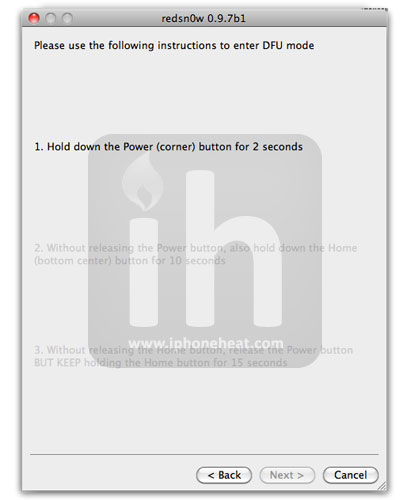
Now you’ll be instructed to put your iDevice into DFU Mode. Follow the on screen instructions.

Once you’ve successfully entered into DFU mode, RedSn0w will start jailbreaking iOS 4.2.1 untethered. When done! your iPhone 4, iPad or iPod Touch 4G will jailbroken untethered on iOS 4.2.1.

Downloads

You can follow us on Twitter, Join us at Facebook, and also Subscribed to RSS Feed to receive latest updates.

Digg
Twitter
StumbleUpon
Facebook
Reddit
del.icio.us

Download RedSn0w 0.9.7b1 – Untethered iOS 4.2.1 Jailbreak

RedSn0w 0.9.7b1 to jailbreak iOS 4.2.1 untethered is now available for download. You can download RedSn0w 0.9.7b1 from below. It’s the backup plan  for the Untethered jailbreak which required iOS 4.2 beta 3 SHSH blobs. Currently the Redsn0w 0.9.7b1 is Mac OS X only and limited to iPhone 4, iPad, and iPod touch 4G.

Important

  • This is a beta tester program. It’s not a general release!  Things can go very wrong, so please don’t even consider testing if you have pictures or other media on your device that you haven’t backed up!
  • For the same reason, please don’t participate if you rely on the ultrasn0w carrier unlock.  Wait for the final version!
  • Until we fix some sandbox issues with bluetooth, the bluetooth functionality is disabled.
  • This very first beta1 is limited to iPhone4, iPad, and iPod touch 4G.
  • Cydia must have your 4.2b3 SHSH blobs saved on file.  (As we approach a general release, we’ll provide a way to let you use locally saved hashes too).
  • You must already have the usbmuxd software installed and running on your Mac (this requirement will eventually go away too). The correct invocation of the relay is just as that page says: “./tcprelay.py -t 22:2222”.  If the relay isn’t installed or running correctly by the time the redsn0w ramdisk has started, you’ll need to restore to stock FW again to try it again. Please test it beforehand to save yourself some time!

Download RedSn0w 0.9.7b1

You can download RedSn0w 0.9.7b1 for Mac from below:

Download RedSn0w 0.9.7b1 for Mac [Mirror 1] [Mirror 2]

A detailed how to guide will be posted shortly. Stay Tuned! is here:

How to: Untethered Jailbreak iOS 4.2.1 on iPhone 4, iPad, iPod Touch 4G with RedSn0w 0.9.7b1

You can follow us on Twitter, Join us at Facebook, and also Subscribed to RSS Feed to receive latest updates.

Digg
Twitter
StumbleUpon
Facebook
Reddit
del.icio.us

Apple Plans to Hide Antenna Behind the Logo on Future iPhones

According to a patent, folks at Apple have plans for a new antenna design that hides behind logo on future iPhones and other iDevices. The latest patent filing, shows an antenna placement behind the logo to allow better reception without metal or other housing walls causing interference.


The iPad and iMac has already a sort of “logo antenna” for WiFi. Apple’s new patent clarifies that the logo antenna will go beyond just Wi-Fi which is supposedly used in iMac’s after 2009. The patent states that logo antennas will cover “wireless communications in cellular telephone bands such as the GSM bands at 850 MHz, 900 MHz, 1800 MHz and 1900 MHz and the 2100 MHz data band.” Additionally, logo antennas will cover multi-bands for telephonic communications and GPS.

Read more about the Logo Antenna patent.

You can follow us on Twitter, Join us at Facebook, and also Subscribed to RSS Feed to receive latest updates.

Digg
Twitter
StumbleUpon
Facebook
Reddit
del.icio.us

Skype Video Calling Coming to iPhone and iPod Touch?

Skype video calling is coming to iPhone and iPod Touch, reveals a mistakenly posted help document, according to Engadget. The mistakenly posted help document explained making video calls from Skype for iPhone to the Skype for Android? Windows/Mac?. The document has already been pulled.

Engadget explains:

“So let us set this up for you: Skype has been telling everyone that it’ll be making a “series of video-related announcements” at CES next month… and it’s participating in a panel called “Video Calling Gets Ready for Primetime,” so yeah, needless to say, we’d have to guess that Skype’s finally getting ready to enter the mobile video calling game in a big way. Anyhow, the final piece in the puzzle filtered into our inbox this morning: a help document on Skype’s site detailing making video calls using Skype for iPhone.”

How do I make video calls with Skype for iPhone?

The following questions and answers will help you get started with using Skype video calls on your iPhone.

To make video calls with your contacts, you will need an iPhone 4, iPhone 3GS, 3rd generation iPod touch, 4th generation iPod touch or an iPad. Your contacts will only be able to see you if your device has a camera. Make sure your device is running iOS 4.0 or above and that you are using Skype for iPhone 3.0 or above.

The contacts you are calling must be using one of the following Skype clients:

  • Skype for Windows version 4.2 and above
  • Skype for Mac OS X version 2.8 and above
  • Skype for iPhone 3.0 and above

You can make Skype video calls by using a WiFi or 3G connection*. The quality of the video will depend upon the available network conditions.
*Additional data charges may apply. Check with your operator for details.

If you have an iPhone or iPod touch with two cameras – front and rear – you will be able to switch between them during a Skype video call. If you have an iPhone 3GS it will always use the rear camera.

If you turn your device into landscape mode, the camera picture will automatically rotate.

In both portrait and landscape mode double tapping anywhere on your screen will zoom the picture to take up the full extent of the screen. Double tapping again will take the picture back to its normal size.
While on a Skype video call the sound will always be played through the loudspeaker, unless a headset is plugged into the device.

During a video call tap your screen to display the camera and microphone controls. Tap and hold down the microphone button to put the call on hold. To resume the call, simply tap the hold symbol on the screen.

Yes, at any time during a Skype video call you can choose to turn off the video. Tap the Camera button and select the No Camera option. To turn the video back on tap the Camera button again and then tap the camera you want to switch on.

When your iPhone is processing a lot of video its CPU (Central Processing Unit) has to work very hard and makes the iPhone become warm to the touch. You will experience the same thing if you stream videos through applications like Netflix or YouTube.

Yes, you will be able to receive screen shares from people using Skype for Windows or Mac OSX. You cannot share what is on the screen of your iPhone with other people and you cannot receive a screen share from another iPhone user.

No, you will be switched to audio only, as Skype for iPhone does not support group video calling.
The quality of the video you send and receive from your iPhone will depend upon the quality and bandwidth available on the WiFi or 3G network you are connected to. For best results, make sure you have nothing else running that might use up your bandwidth.

via [Engadget]

You can follow us on Twitter, Join us at Facebook, and also Subscribed to RSS Feed to receive latest updates.

Also checkout:

Digg
Twitter
StumbleUpon
Facebook
Reddit
del.icio.us

Weekly Poll: What Is Your Favorite Mobile Gaming Device?

Today we’re pitting Nintendo and Sony, the former kings of mobile gaming, against the completely unexpected force that has taken this industry by storm: multitouch phones, music players and tablets.

Twenty years ago, as we all awed at the amazing experience provided to us by our original Gameboys, no one ever predicted that the future of gaming would lie in a phone. In fact, the idea would’ve seemed downright nonsensical at the time.

What we want to know is whether or not you think these fancy all-in-one app-centric multitouch devices really provided a gaming experience that’s on par with dedicated gaming devices like the DS and PSP.

Is the incredibly vast offering of iPhone games enough to pull you away from Nintendo and Playstation or are the iOS games shallow in comparison to the rich offerings on other systems?

Cast your vote one the right and leave a comment below telling us your thoughts.

USA Today AutoPilot: Travel Organization on the iPhone

Going on a trip? It seems that in an App Store packed with travel planners, there are tons of different options to choose from. What makes one better than the other and what makes it worthy of a home screen placement?

Hopefully, we can help with that. USA Today AutoPilot is an ad-supported app that puts your travel itinerary all in one place, which makes the hassle of travel easier. But is it worth the download? Fortunately, we have the answer.

Putting it to the Test

We could go through and list all of the features of AutoPilot, but timing, as they say, is everything. My wife’s grandmother was coming into town recently, so I decided to put the program through its paces. I knew she had a flight scheduled, so I began by hitting the plus button on the home screen, and starting a new trip itinerary. In this case, I was just organizing a flight, so I chose that option.

Organize your trip with ease using AutoPilot

Organize your trip with ease using AutoPilot

Once I had that entered in, it was time to input the flight info. This is one of those steps that can be frustrating in other apps if you don’t know your airport’s three-character code, but with AutoPilot, I just entered Phoenix – my home airport – and it gave me a list of all of the airports in the Phoenix Metro area. After selecting Sky Harbor, I moved on to enter in the rest of the info, including the flight number and date. Just like that, the trip was planned. Had I wanted to add lodging or a car rental to the list, I could’ve done so right there as well.

Making Sure it Works

A few hours later, I started checking the app to see how it was going. After opening up the trip itinerary, I clicked on the Flight Tracker option to see where my wife’s grandmother was in relation to Phoenix. At the time, I was occupied with another task, and I wanted to make sure that I would be there. First, I saw the scheduled time, where I noticed that the flight was good for 2:55 pm. Then I check the flight map, and I noticed in the bottom corner that the flight might be ahead of time, so I decided to schedule my afternoon accordingly.

Flight tracking live on the iPhone

Flight tracking live on the iPhone

Sure enough, everything worked out fine. The flight came in almost 20 minutes before scheduled, but since I had the app on hand, I was prepared. I picked up my wife’s grandmother at the airport, and I was the hero of the day. Yay for the App Store!

Now this isn’t the only time I’ve used the program. A few months back, my wife was flying into Las Vegas to meet me for a work conference, and I entered in all of her info into the app so that I had everything organized. This worked substantially better than digging through my e-mail to find her confirmation letter, which is almost always a nightmare to do. I also used it on another trip of mine, but this time I put in my rental car info as well. Same deal, worked like a charm.

Design & Usability

If an app isn’t easy to use, then I don’t want anything to do with it. It should be easy enough to figure out without any instructions, yet be able to do all of the tasks I require without hesitation. Fortunately, AutoPilot is pretty user friendly, with no complex menus or hard to use interfaces. I was able to input  all of my various travel plans pretty easily, without much in the way of complications.

Check for delays and find travel accommodations or requirements from your iPhone

Check for delays and find travel accommodations or requirements from your iPhone

Better yet, it looks good. Yes, it’s ad supported, but the ads don’t get in the way like they seem to on other applications. The color scheme is easy on the eyes, and nothing jumps out as jarring or out of place. It may be free, but they didn’t cut corners on the design, which is appreciated.

The Competition

The App Store has an entire travel section, so there’s plenty of other options for your money. American Express has the American Express Travel App, which is handy if you’re an Amex card holder, but not so much otherwise. Flight Track Pro looks neat, but it’s $9.99, so if you’re not a frequent flyer, you may want to pass on the pro model. There’s also TripCase, which is similar but frankly, doesn’t look quite as pretty. Frankly, you could throw a rock and hit a travel app in the store, so there’s a lot of things out there to choose from.

The Verdict

I don’t travel as much as I’d like to, mostly because it’s so stressful. Trying to coordinate all of my plans in one place involved a manilla folder and a lot of swearing. Once I found AutoPilot though, I was able to combine everything without requiring any folders or any extra curse words, and it made travelling just that much easier. These aren’t just faint words of praise either; I really do like the thing enough to endorse it. Really, I don’t have any major complaints about the program, and nothing but praise. Isn’t that what we all want from an app?

iPhone Game Friday: New Releases

If you’re into digital stocking stuffers then you’re in luck, because this week has been another great one for significant game releases on the App Store.

Rather than focus on the flurry of Christmas-flavoured updates, here are some of the new titles that you shouldn’t be neglecting!

Shadow Guardian

Shadow Guardian

Shadow Guardian

There seems to be a push recently into the “next gen” of iOS gaming. Gameloft, one of the stars of the App Store gaming scene, is keeping up with the trend by putting out some remarkable releases, one of which is Shadow Guardian.

If Uncharted was squeezed into a phone, Shadow Guardian would be the result. In the game, you play as Jason Call, a dashing action hero who must intercept a group of mercenaries and beat them to a remote temple where an ancient relic called the Prima Materia lies hidden. This familiar plot is balanced by exquisite environments and superb graphics. The gameplay is surprisingly diverse, featuring cover-based shooting, climbing, and even melee combat. The controls handle this diversity admirably, and despite the impressive scope, the game always feels right at home on your mobile device.

Let’s see: puzzles, adventure, action, and great presentation? What’s not to love? As long as you’re packing one of the later generations of iOS devices, you shouldn’t think twice about this one.

Price: $6.99
Developer: Gameloft
Download: App Store

N.O.V.A. 2

N.O.V.A. 2

N.O.V.A. 2

Also from Gameloft is this fresh sequel to their first groundbreaking FPS for the iPhone. N.O.V.A. 2 brings expanded multiplayer, improved graphics, wider variety of gameplay scenarios, and of course more weapons and abilities.

If you liked the first game then there’s no reason to avoid this one. It’s an excellent example of taking a good foundation and building upon it successfully. The AI is smarter too, so veterans of the first game will enjoy a better challenge when they’re not playing against friends. Said veteran players also have an advantage when joining multiplayer matches; you’ll find a handy XP boost has been applied to give you a headstart. Not sure if that’s a fair system since it leaves new folks at more of a disadvantage but it’s nice to see Gameloft reward its fans.

Of course, achievements and leaderboards are active as well. Despite its hefty pricetag, this is definitely a next gen iOS game and it’s well worth your time if you’re a fan of well polished shooters.

Price: $6.99
Developer: Gameloft
Download: App Store

Riven: The Sequel to Myst

Riven: The Sequel to Myst

Riven: The Sequel to Myst

I’m a huge Myst fan. As soon as I heard that Cyan Worlds was adapting their classic series for the iOS devices, I was extremely excited. Nevertheless, along with the majority of people, I found that the first port was underwhelming. It seemed like a rough and uncomfortable transfer to the mobile device and the result was something of a sour aftertaste despite the familiar game setting.

For the sequel, things have definitely improved. Gameplay feels a bit smoother and of course the sequel itself is a more sophisticated game. Unfortunately, despite being over a gigabyte in size, the graphical fidelity is still noticeably compressed from the original which detracts from the experience somewhat. Beyond that though, Game Center achievements have been added, and there’s a solid bookmarking/autosaving feature that lets you multitask and leave the game at any point without losing progress.

Veterans will find the hint system annoying, but for those who are new to Myst’s difficult puzzles, they can be a life saver. Either way, if you’re a fan of beautiful classic games with rich story and compelling puzzles, Riven is an easy winner and a good step up from its predecessor.

Price: $5.99
Developer: Cyan Worlds
Download: App Store

Tiki Totems 2

Tiki Totems 2

Tiki Totems 2

In case you’re not a fan of the really huge next-gen type titles, I’ve also got a couple of more traditional offerings. First up is Tiki Totems 2, the follow-up to one of the most attractive and popular physics puzzlers on the App Store.

Tiki Totems 2 is essentially a continuation of the first, with the same tried and true gameplay mechanic of carefully dismantling structures made out of various types of blocks in order to bring the Tiki Totem safely to the ground without damaging it and angering the Tiki gods. The graphics have been slightly overhauled — for better or worse, depending on your taste — and the sequel also features two slightly different gameplay mechanics based on the original. They fit in perfectly and lend the title some extra diversity without feeling tacked on.

Once you finish the 100 or so levels, you get to play with the built-in level editor. This fantastic tool lets you create and share levels, instantly securing a huge amount of lasting appeal for the game’s extensive fan base. The difficulty curve still ramps up gently, so even if you haven’t played the first, it’s easy to pick this one up and enjoy.

Price: $0.99
Developer: spokko
Download: App Store

Geared 2!

Geared 2!

Geared 2!

Last but not least is another puzzling sequel: Geared 2!

Another basic extension of a good formula, Geared 2! features plenty of fun levels where your task is still to make all the blue gears spin by carefully placing and interacting with various sized gear wheels available to you. Your entire system is powered by a rather adorable little hamster that whistles, hums, giggles, and farts every now and again. It’s a hilarious little companion to your pondering and makes the game feel friendly and easy-going.

Geared 2! sports another take on the papery visuals, and it pulls it off quite successfully. Just like the first, it’s one of those games that’s great to spend a bit of time with when you’re waiting for something or just looking for a dose of cuteness and relaxing gameplay.

Price: $0.99
Developer: Bryan Mitchell
Download: App Store

What Have You Been Playing?

We hope that (between bouts of gaming) you manage to enjoy a fun, warm, and relaxing holiday weekend. When you get a chance to peel away from family and friends, let us know what other cool games you’ve been playing in the comments.

Don’t drink too much eggnog!

Quick Look: Greetings Cards for iPad

Quick Look posts are paid submissions offering only a brief overview of an app. Vote in the polls below if you think this app is worth an in-depth AppStorm review!

In this Quick Look, we’re highlighting Greetings Cards. The developer describes Greetings Cards as an iPhone and iPad Application that lets you send greetings and Christmas cards. Send the best wishes to your family and friends.

Enjoy and send beautiful greeting crads. It is really easy to use: choose a design, type your regard then share it by email or in your favorite social network.

Read on for more information and screenshots!

Screenshots

screenshot

Greetings Cards

About the App

Here are the top five features you can expect to see in the latest version:

  • Design and edit Greetings Cards
  • Send via Email
  • Share it in Facebook, Twitter, Tumblr
  • iPhone, iPod Touch and iPad Compatible
  • Beautiful Design

Requirements: iPad, iPhone, iPod Touch

Price: 2.99

Developer: Lateral View

Vote for a Review

Would you like to see us write a full review of Greetings Cards? Have your say in our poll:

Would you like to see Greetings Cards reviewed in-depth on AppStorm?online surveys

Quick Look posts are paid submissions offering only a brief overview of an app. Vote in the poll if you think this app is worth an in-depth AppStorm review! If you’re a developer and would like to have your app profiled, you can submit it here.

Never Get Lost With TomTom U.S.A.

It used to be that if you didn’t want to get lost, the best options were to get a standalone GPS unit that sat on your dashboard or have one installed at the dealership in your car. Both options were expensive, and they all had their downsides. You’d think that having Google Maps on your iPhone would solve that problem, but in reality, it’s tough to drive and touch a screen without going into the median.

TomTom saw that standalone models were starting to go the way of the dinosaur, so they decided to build an app for the iPhone. At under $50, it’s cheaper than most standalone GPS models, plus it’s with you everywhere your phone goes. Granted, $50 is a lot of money for an app. Is it worth the cash?

The Schematics

TomTom U.S.A. uses the GPS antenna in your iPhone to triangulate your position, and tell you where you’re at. Of course, if you have an iPhone you knew this already, but a turn-by-turn GPS setup has to be incredibly accurate or else you’re going to get lost after the first turn. Fortunately, the iPhone has the ability to do that, and TomTom taps into it easily.

Plug in your destination and you get an ETA and distance as well

Plug in your destination and you get an ETA and distance as well

The longest part of the process is determining where exactly you want to go. Just touch the screen and input either your point of interest, address, or recent destination, and away you go. You start with a screen that overviews the entire trip, giving you distance to the spot as well as the estimated driving time. If you don’t like what comes up, then you can click on the options and change up your trip. Inputing in all of this information can seem tedious the first time you do it, but once you’ve entered in a few locations, you can also store them as favorites in the system. This makes recalling previous destinations easier, and makes it much quicker to get from A to B.

Driving

TomTom is all about being able to drive while not holding your phone in your lap, and there are tons of different voice options to make the process easier. The program comes with several different language choices, and even options for different accents. So if you’re a guy from New York who prefers a woman with a British accent telling him where to go, then just select Jane from the UK, and it’s her voice you’ll hear as you drive.

Touch to navigate from place to place, then watch as it's displayed and spoken to you.

Touch to navigate from place to place, then watch as it's displayed and spoken to you.

The GPS response time in TomTom is ridiculously fast. Not only will it tell you your speed accurately and display it in the bottom left corner of the screen (and if you’re speeding, it turns red), but it also displays your spot pretty precisely. There’s no lag time like there is with the built-in Google Maps option, so you don’t have to pause and wait as you drive. The bottom of the display also shows you how many miles and even feet until you reach your destination, which means no more missed turns. Reminders come on audibly as well, but that’s something you can turn on or off if it gets annoying.

Horizontal view works nicely as well, and looks more like a traditional standalone GPS.

Horizontal view works nicely as well, and looks more like a traditional standalone GPS.

If you prefer, you can also lay your iPhone on its side, and the display compensates accordingly. Nothing changes, but it does become a bit more difficult to see off in the distance. It comes down to personal preference, but sometimes it becomes easier to use the app vertically as opposed to horizontally.

The Add Ons

When comparing the Google Maps app to TomTom, the big missing link is traffic coverage. There’s no telling how accurate the Google option is or how frequently it’s updated, but if you want to pay extra money, Tom Tom has a 12-month traffic subscription available for $19.99 a year. We didn’t test this option, but the fact that it’s available is a nice added bonus.

Buy a traffic pack for $19.99, or change up your icon to your preference.

Buy a traffic pack for $19.99, or change up your icon to your preference.

Up in the top left corner of each screen is a little music icon. Touch it, and a panel drops down with play, fast forward, and rewind as options. TomTom plays a shuffle of your iTunes library, but it doesn’t let you choose what you want to play from TomTom itself. There is a workaround though, and it almost seems like it was meant to be this way. Start by opening the iPod app and choosing your music. Then switch to TomTom. Once inside TomTom, the music icon is now highlighted, letting you skip forward and backward as necessary. It’s weird, but it works.

The Downsides

Actively using your GPS antenna can really suck down the juice. In a recent trip from Phoenix to Las Vegas, I noticed I was at 20% battery life about two hours into my drive after starting with a full charge. Now I have a car charger, but it was a bit difficult to stretch the cable across the dash to where the iPhone was easiest to view while driving. Even with it plugged in, the iPhone was barely charging, and I’m not even sure if it registered at 50% when I arrived at my destination a few hours later.

Lane diagrams show up to help you figure out where you need to be.

Lane diagrams show up to help you figure out where you need to be.

It’s also a bit expensive. It does go on sale for under $40 fairly regularly, but that’s still a lot of dough for an iPhone app. Compared to a standalone, it’s still much cheaper and more convenient, but if the turn-by-turn thing isn’t your bag, then you can stick with the Google Maps option.

Verdict

Three years ago, I went on a business trip to Oklahoma, and I bought a standalone TomTom for my trip. At the time, it had Bluetooth, and all sorts of other cool features, so I figured it was worth the few hundred dollars I spent. It was. I used it on my honeymoon, for business trips, and all sorts of other places that would otherwise be foreign to me. When it was stolen a year ago, I was pretty upset. It wasn’t until I replaced it with the TomTom U.S.A. app on my iPhone that I felt better again.

Once you’ve used GPS, you never want to go back. It’s easier to get places, and it’s hard to get lost. Having all that in your pocket at all times is incredibly convenient, and almost a necessity when you’re travelling. A $50 app may seem like a lot of money, but after it’s saved you 20 minutes by not getting lost, you’ll think it’s worth every penny.

Got an Apple TV for Christmas? Here’s how to set it up

Did you find a new Apple TV under the tree or in your Christmas stocking this morning? If you did, you’re probably anxious to get it set up and running just as soon as you’re done drinking more eggnog and eating those waffles. This is the perfect time to check out some instructions from us on how to set up your new device. Follow along, and we’ll give you the info you need to get your Apple TV up and running in no time.

1) Make sure your TV is going to work with the Apple TV. You need a TV with an available HDMI input that is capable of displaying 720p HDTV. If you don’t, then now is the time to take a break and brave the after-Christmas sales to buy yourself a new TV. C’mon, you deserve it.

2) Get an HDMI cable. Guess what? Unless Santa also left you an HDMI cable to connect your TV to the Apple TV, you’re going to have to wait to play with your new toy. Of course, you can always steal the cable that’s currently connecting your Blu-Ray player to the HDTV, and replace it tomorrow when you go to the mall to return that hideous chartreuse and maroon sweater Aunt TUAW gave you for Christmas. But seriously, folks, you need an HDMI cable. Six feet is usually a good length.

3) Open the Apple TV box. There’s not much in that little box. You’ll see some paperwork, a nice little aluminum remote, a power cord, and the black box that is the Apple TV. Take ’em all out, but be sure to keep the box until you know everything works. By the way, there is a Setup Guide in the box. It has a black cover with ?TV printed on it. It’ll tell you a lot of the same stuff I’m writing here, but if you threw it out with the wrapping paper, at least you have my instructions to follow.

Continue reading Got an Apple TV for Christmas? Here’s how to set it up

Got an Apple TV for Christmas? Here’s how to set it up originally appeared on TUAW on Sat, 25 Dec 2010 08:30:00 EST. Please see our terms for use of feeds.

Source | Permalink | Email this | Comments

iPad 101: Downloading and installing iTunes on Windows

Did you find a shiny new iPod touch, iPhone or iPad under the tree this morning? Congratulations — we’re sure you’re going to enjoy it. First things first, though: if you don’t own a Mac, and you haven’t been using Apple’s tools to manage your music, you’re going to have to download and install iTunes to sync and manage your new iDevice. Not to worry — it’s just a few quick steps, and we’ll walk you through it. You’ll be up and running in no time.

[Regular TUAW readers who are staring in disbelief and muttering “Are they really writing up the iTunes for Windows install process?” — relax, go have some egg nog, we’ll be back to normal in no time.]

First step: download the software. The URL is easy to remember, though… itunes.com, then click on the Download iTunes button at the top right.

Continue reading iPad 101: Downloading and installing iTunes on Windows

iPad 101: Downloading and installing iTunes on Windows originally appeared on TUAW on Sat, 25 Dec 2010 07:30:00 EST. Please see our terms for use of feeds.

Source | Permalink | Email this | Comments

iLuv iMM-747 Audio Cube: Review and video

iLuv has been making iPod and iPhone speaker docks for a while, and now the company has come to the table with a new product that extends docking to the newest member of the Apple family — the iPad.

The iLuv iMM-747 Audio Cube features two cube-shaped speakers (hence the name) and a central dock that can be moved around to accommodate most iPods and iPhones. There’s also enough space between the speakers to place an iPad, making the Audio Cube useful for those who want to pump tunes out of their iPad. While the Audio Cube does its job as a speaker dock quite well — watch the video on the second page for a demonstration of how loud this thing can really get — it falls short in a few areas.

First, the pricing is ridiculous on this model. Suggested retail is $149.99, although the Audio Cube is generally discounted by online retailers down to about $100. Even at at discounted price, there are many other iPad speaker docks for much less, including the SMK-Link PadDock 10 that can be purchased online for around $90.

Why am I bringing up the PadDock 10? For one very good reason, and another reason why I’m not too happy with the iLuv Audio Cube: at least the PadDock 10 holds the iPad in both portrait and landscape orientations. If you want to watch a movie with your iPad docked on the Audio Cube, you’re going to be watching it with the video squeezed into the portrait orientation. On the other hand, you can also dock iPhones and iPods to the Audio Cube, something that would be awkward on the PadDock.

The Audio Cube also seems to be cheaply made, a contradiction when you consider the pricing. As an example, that $90 PadDock 10 has a solid aluminum base, while the Audio Cube is plastic. Black plastic for the speakers and stand, and a “faux aluminum” plastic strap that joins the two speakers.

If you get an iPad for Christmas and you’re looking around for speaker docks, definitely see if you can do a hands-on demo of one at a local retailer. If I had just looked at the Audio Cube online, I would have been impressed. Seeing it in person was a bit of a letdown, so in the words of Ebenezer Scrooge — “Bah, humbug!”

I did a short video for Wednesday’s TUAW TV Live show demonstrating the Audio Cube. It’s on the next page, and you can see for yourself how the device looks and sounds.

Continue reading iLuv iMM-747 Audio Cube: Review and video

iLuv iMM-747 Audio Cube: Review and video originally appeared on TUAW on Fri, 24 Dec 2010 18:00:00 EST. Please see our terms for use of feeds.

Source | Permalink | Email this | Comments

Merry Christmas from TUAW!

May all your holidays be as bright as the LED light on the back of the iPhone 4, and as fun as Angry Birds on your iPad. Thank you for reading TUAW through 2010! We really appreciate the opportunity to do this for you, and we’re glad you’ve come by to read the site.

We’ve got a lot of surprises coming in 2011, so stay tuned. Be safe out there, and have a happy holiday and a Merry Christmas from your friends at TUAW.

Merry Christmas from TUAW! originally appeared on TUAW on Sat, 25 Dec 2010 02:30:00 EST. Please see our terms for use of feeds.

Source | Permalink | Email this | Comments