Fix MobileSubstrate on iOS 4.3 after Jailbreak [How to Guide]

iOS 4.3 breaks the MobileSubstrate in Cydia after jailbreak. It’s due to the ASLR (Address Space Layout Randomization) implementation in iOS 4.3. Mobile Substrate is an essential base for all the tweaks and hacks available in Cydia.

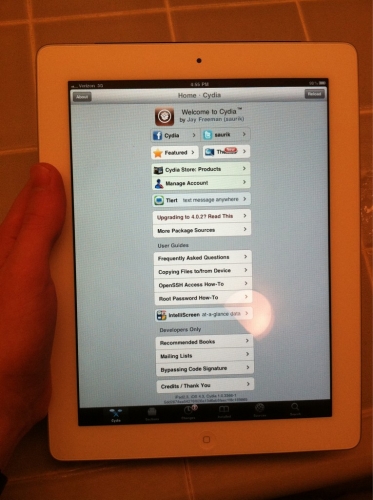
Saurik has silently updated Mobile Substrate for iOS 4.3 jailbreak. These are the instructions to fix for Mobile Substrate in Cydia after iOS 4.3 jailbreak on iPhone, iPad and iPod touch. Once done! you can install Cydia apps and tweaks of your choice.

Fix MobileSubstrate on iOS 4.3 after Jailbreak

We assume that your iPhone, iPad, iPod Touch is already jailbroken on iOS 4.3. If not, follow the guide linked below to jailbreak iOS 4.3 on iPhone 4, 3GS, iPod Touch 4G, 3G and iPad 1:

How to: Jailbreak iOS 4.3 with Sn0wBreeze

Download iOS 4.3

Step 1

Download this: .deb file.

Step 2

SSH into iPhone, iPod Touch
or
SSH into iPad

Step 3

Navigate to /var/root/Media/
and create a new folder named Cydia and inside Cydia folder, create a folder called AutoInstall (Folder names are Case-Sensitive)

Step 4

Now copy the downloaded .deb file inside the AutoInstall folder
and reboot your iDevice.

[Thanks FSM]

You can follow us on Twitter, Join us at Facebook, and also Subscribed to RSS Feed to receive latest updates.

Also checkout:

Digg
Twitter
StumbleUpon
Facebook
Reddit
del.icio.us

JailbreakMe 3.0 to Jailbreak iOS 4.3 Untethered!

Soon after showing the iPad 2 Jailbreak screenshot and video, a conversation between Comex and a Twitter user hints that JailbreakMe 3.0, the userland jailbreak by Comex might be the first untethered iOS 4.3 jailbreak.
jailbreakme iOs 4.3

GUnitJC: @comex does this mean jailbreakMe 3.0 is out now since you just had jailbroken the new iPad 2?
Comex: @GUnitJC No, it will take some work to package it into a jailbreak. Same deal as i0n1c.

If you’re not familiar, JailbreakMe is a userland (Web-based) jailbreak. You just point your mobile browser to a URL and it jailbreaks your iPhone, iPad or iPod Touch. Userland jailbreaks are the easiest jailbreak solutions and also easier for Apple to Patch them.

Still, all these are speculations. No one knows about the exploit type used by Comex to jailbreak iPad 2 iOS 4.3. If the exploit is a userland, it’ll most probably end in JailbreakMe 3.0 update.

There’s no ETA for this iOS 4.3 untethered for iPad 2 and other devices. We’ll keep you posted as we know more about jailbreaking iOS 4.3 untethered. Stay Tuned!

You can follow us on Twitter, Join us at Facebook, and also Subscribed to RSS Feed to receive latest updates.

Also checkout:

Digg
Twitter
StumbleUpon
Facebook
Reddit
del.icio.us

iPad 2 Jailbreak Has been Achieved!

chpwn, a dev-team member  has just tweeted a photo of jailbroken iPad 2. Yes! you read it right. The all new iPad 2 Jailbreak has been achieved, thanks to Comex. In case you don’t know, Comex is well known for his expertise in userland jailbreaks.

This is what chpwn has just tweeted:

by @comex: yfrog.com/h2vharmj

Later Dev-Team tweeted this:

Dev-Team: Congrats to @comex for jailbreaking yet another brand new device (iPad2) while 2500 miles away from it!

Comex says he “would’ve had it yesterday if I didn’t have to spend 1.5 days looking for a replacement exploit (which came from a most unexpected place…)”

Congratz Comex and the iPhone Dev-Team! Thanks guys for your hard work.

We’ll update the post as more information about the iPad 2 jailbreak becomes available. I think it’s a userland jailbreak similar to Spirit. Stay Tuned!

You can follow us on Twitter, Join us at Facebook, and also Subscribed to RSS Feed to receive latest updates.

Digg
Twitter
StumbleUpon
Facebook
Reddit
del.icio.us

How to Jailbreak iOS 4.3 on iPhone 4, 3GS, iPod Touch 4G, 3G, iPad with Sn0wBreeze 2.3b

iH8Sn0w has released Sn0wBreeze 2.3b to jailbreak iOS 4.3 on iPhone 4, 3GS, iPod Touch 4G, 3G, and iPad. Follow the steps below to jailbreak iOS 4.3 firmware with Sn0wBreeze 2.3b but first read the IMPORTANT part.

Important

  • Sn0wBreeze 2.3 is still in beta, Updating to iOS 4.3 is not safe as the mobile substrate conflict is not corrected yet Mobilesubstrate is fixed now.
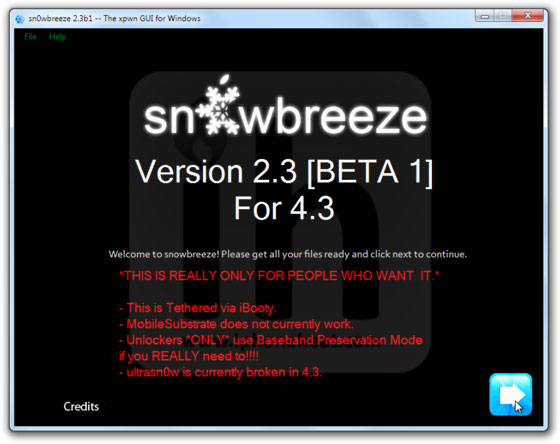
  • Sn0wBreeze 2.3b provides a tethered jailbreak. You will need your computer every time you reboot for it to work.
  • If you depend on unlock, don’t update to iOS 4.3 because there’s no unlock out yet. UltraSn0w is broken on iOS 4.3 even if your Baseband is preserved. UltraSn0w has been fixed for iOS 4.3 in Sn0wbreeze.
  • Sn0wBreeze is available for Windows OS only.

Supported Devices

Let’s jailbreak iOS 4.3 firmware using Sn0wbreeze jailbreak.

How to Jailbreak iOS 4.3 with Sn0wBreeze

Step 1

Download the required stuff linked below and put them on your desktop.

Step 2

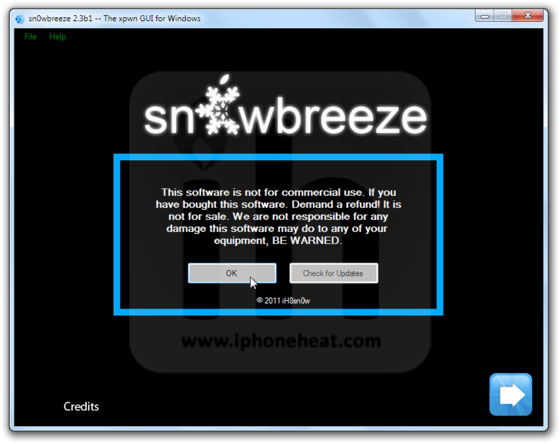
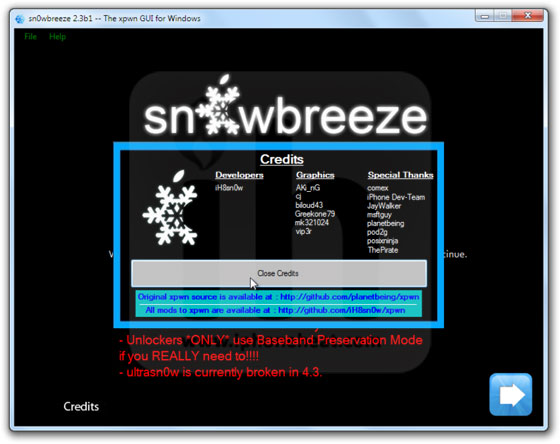
Run the Sn0wBreeze.exe. Hit Ok and then Close Credits button. and then hit the next button.

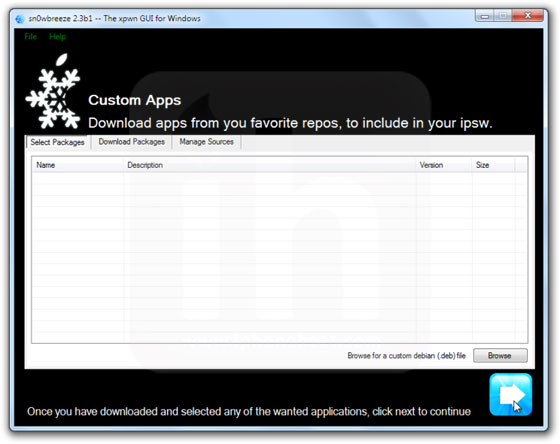
jailbreak ios 4.3 sn0wbreeze (17)jailbreak ios 4.3 sn0wbreeze (16)jailbreak ios 4.3 sn0wbreeze (15)

Step 3

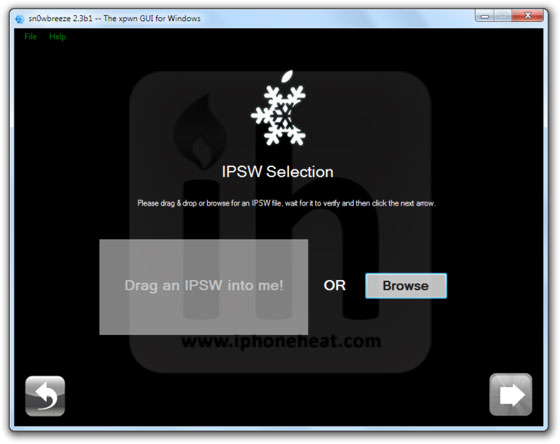
Either drag & drop the iOS 4.3 firmware file in the given drop-box on Sn0wbreeze window or hit the Browse button and select the downloaded iOS 4.3 IPSW file.

Sn0wBreeze will identify the IPSW firmware file. When done, hit the next button.

jailbreak ios 4.3 sn0wbreeze (14)jailbreak ios 4.3 sn0wbreeze (13)jailbreak ios 4.3 sn0wbreeze (12)

Step 4

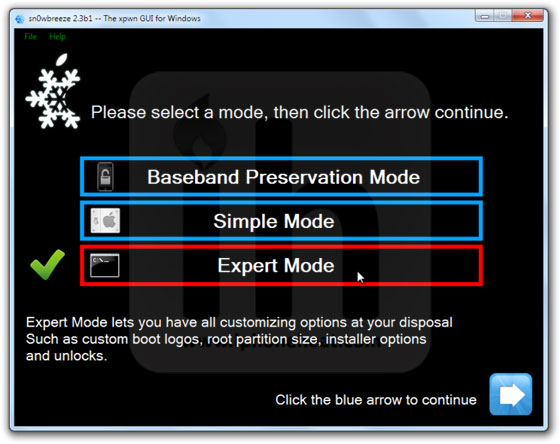
Now select the Expert Mode and Hit next button.
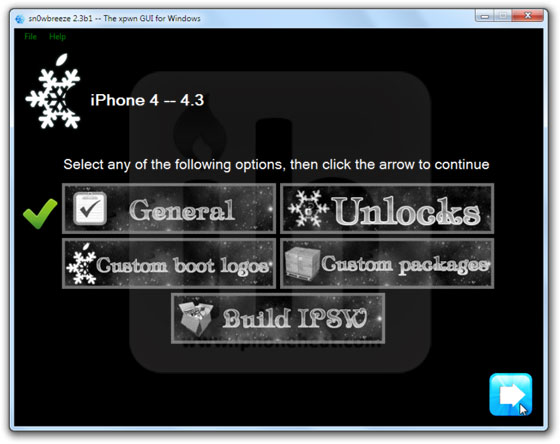
Now select General.

jailbreak ios 4.3 sn0wbreeze (11)jailbreak ios 4.3 sn0wbreeze (10)

Step 5

iPhone Users:

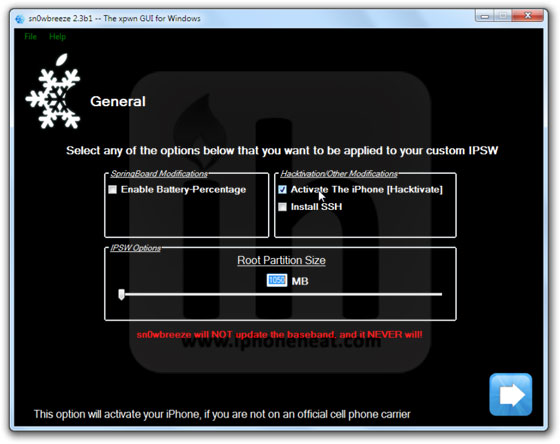
**If you depend on unlock make sure Activate The iPhone [Hacktivate] option is checked/selected.
Then keep hitting Next.

jailbreak ios 4.3 sn0wbreeze (9)jailbreak ios 4.3 sn0wbreeze (8)

Step 6

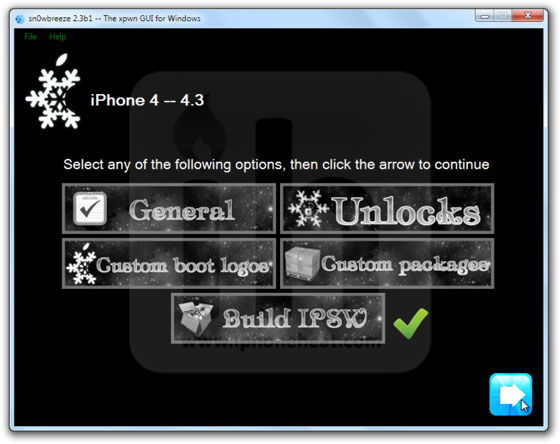
Now select the Build IPSW option and hit next.
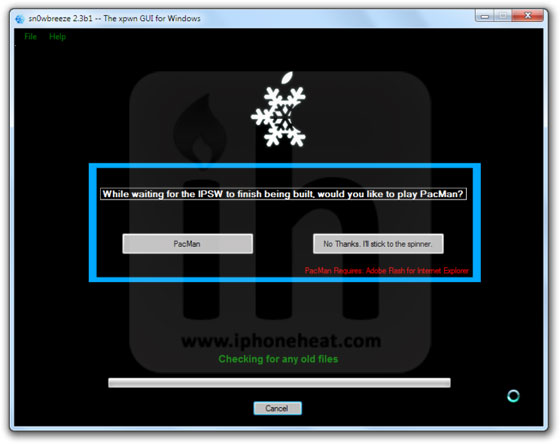
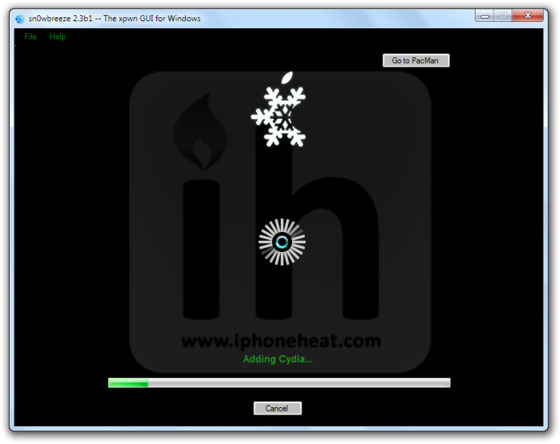
Sn0wBreeze will start building custom firmware for your device. Since the building process takes several minutes to complete, you can either choose to play PacMan or stick with the Spinner.
Once Done! Hit the OK button. (Custom firmware can be found on desktop)

jailbreak ios 4.3 sn0wbreeze (7)jailbreak ios 4.3 sn0wbreeze (6)jailbreak ios 4.3 sn0wbreeze (5)

Step 7

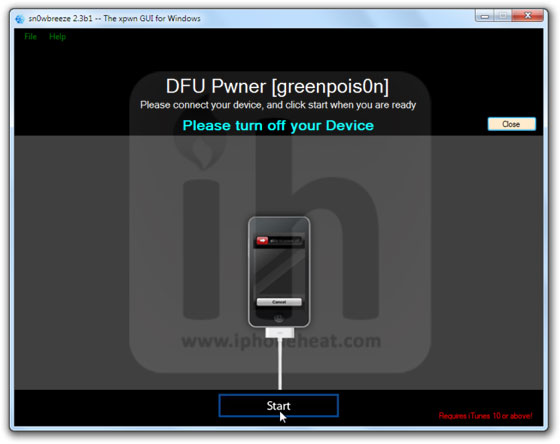
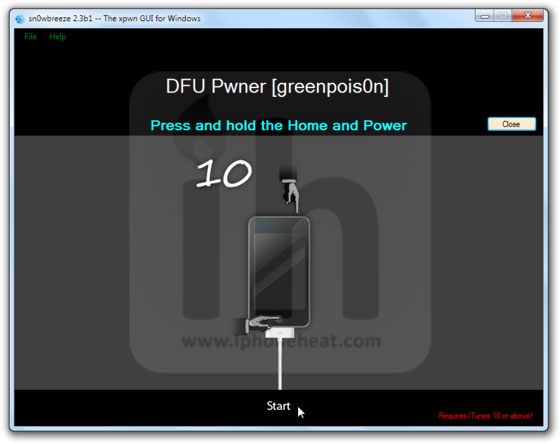
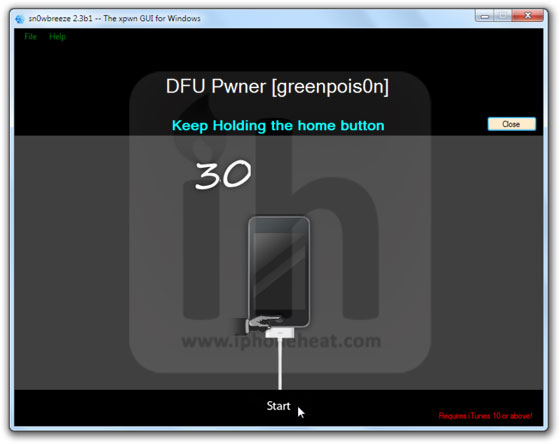
Now follow the on screen instructions to put your iDevices into Pwned State. Sn0wBreeze instructions are important to follow because this will put iDevice into Pwned DFU state NOT the simple DFU mode.

  • Hold Power + Home buttons for 10 seconds
  • Now release the Power button but keep holding the Home button for 10-30 more seconds
  • Your device should now be in DFU mode

jailbreak ios 4.3 sn0wbreeze (4)jailbreak ios 4.3 sn0wbreeze (2)jailbreak ios 4.3 sn0wbreeze (1)

Sn0wBreeze will prompt you once you’re into Pwned DFU state.

Step 8

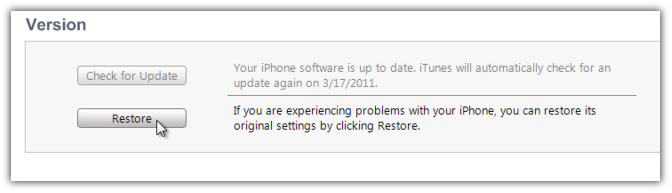
Now open iTunes, Hold down the Shift key and hit the Restore button.
Browse and select the custom firmware that we just created, from the desktop.

iTunes will start restoring iOS 4.3 on your iPhone/iPad/iPod Touch. Once the restore process is complete, your device might stuck at the Apple logo. Don’t panic, follow the next step.

Step 9 – Booting in Tethered Mode

Like I told you earlier, it’s a tethered jailbreak.

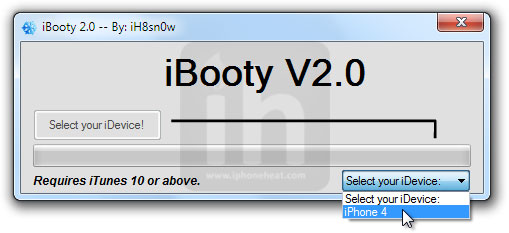
On your desktop, there’ll be a new folder named iBooty-for-4.3. Open the folder and run the iBooty.exe.

Select your device from the drop down menu (bottom-right) and hit the start button.

Follow the on screen instructions to put your iDevice into DFU mode.

  • Hold Power + Home buttons for 10 seconds
  • Now release the Power button but keep holding the Home button for 10-30 more seconds
  • Your device should now be in DFU mode

Once you’re into DFU mode, iBooty will do the rest and your iPhone, iPad or iPod touch will boot into jailbroken state!

You can follow us on Twitter, Join us at Facebook, and also Subscribed to RSS Feed to receive latest updates.

Also checkout:

Digg
Twitter
StumbleUpon
Facebook
Reddit
del.icio.us

SHAtter and Limera1n Jailbreak Exploits Patched in iPad 2

Now that iPad 2 in out and hackers have already started testing bootrom exploits like SHAtter and Limera1n on iPad 2. Early results from this testing are not in favor of the jailbreak community because both the SHAtter and Limera1n exploits are said to be patched in iPad 2.

If you don’t know, Bootrom exploit, SHATTER and Limerra1n exploit for instance, is a hardware level exploit and can only be patched with hardware revision. All the recent jailbreak tools like Greepois0n, RedSn0w use Limera1n exploit to jailbreak iPhone, iPad and iPod Touch. Geohot released Limera1n jailbreak back in October last year that forced the Chronic Dev Team to save their SHAtter exploit to for future iDevices like iPad 2 and iPhone 5.

Early testing shows that the iPad 2 has a new bootrom with patched Limera1n and SHAtter exploits. Both the exploits seems to be patched since March 2010, long before they were found by Geohot and Chronic Dev Team.

MuscleNerd: iPad2 bootrom version iBoot-838.3 means it was compiled March’10. Seems geohot guessed right: limera1n was already closed

MuscleNerd: Early testing also seems to show at least one thing SHAtter depends on was gone by March 2010 too :(

MuscleNerd: This means any early iPad2 jailbreaks will have to be purely userland

This leaves us with no bootrom exploit, atleast for now. All the current iDevices except iPad 2 are still vulnerable to SHAtter and Limera1n because there’s no hardware revision for those devices out yet.

With GeoHot busy in dealing with Sony Lawsuit, we hope Dev-Team, Chronic Dev-Team, Pod2g (SHAtter founder) will bring us a new bootrom exploit and/or Comex (the userland jailbreak expert) comes up with JailbreakMe update to jailbreak iOS 4.3 on iPad 2. Unfortunately, Comex has this to say:

Comex: I must be really unlucky… I just realized that my best kernel bug was closed in iOS 4.3.

On side note, an iPhone hacker named i0n1c has already achieved the iOS 4.3 jailbreak untethered. We’ll update you as we know more about the ipad 2 jailbreak. Stay Tuned!


Digg
Twitter
StumbleUpon
Facebook
Reddit
del.icio.us

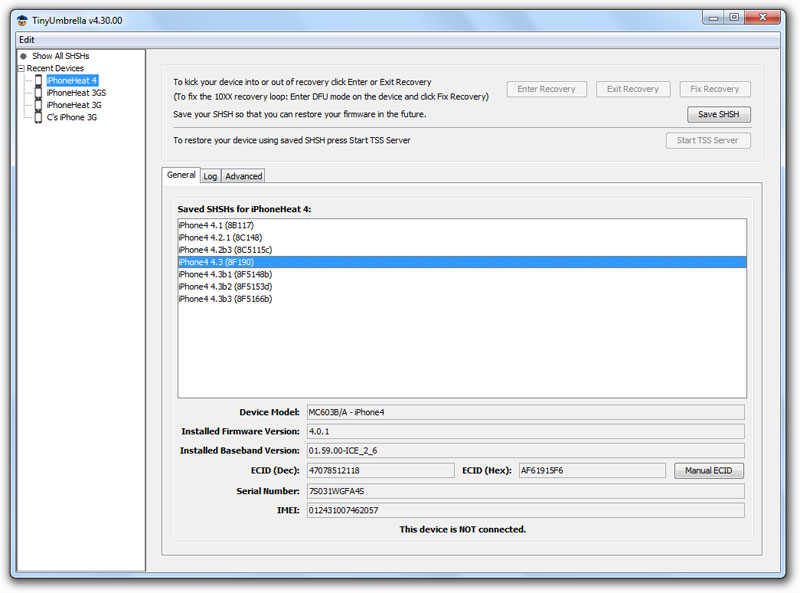
Save SHSH Blobs for iOS 4.3 with TinyUmbrella [How to Guide]

TinyUmbrella 4.3.00 can save SHSH blobs for iOS 4.3 (iPhone, iPad and iPod Touch). Follow the steps below to save iOS 4.3 SHSH blobs with TinyUmbrella 4.3.00…

NOTE:

  • You can save SHSH blobs for iOS 4.3 only if it’s being signed by Apple. Go grab your SHSH blobs for iOS 4.3 before it’s too late. Apple stops signing a firmware when an updated version is out.
  • TinyUmbrella can save SHSH blobs regardless of jailbreak.
  • With TinyUmbrella you can save SHSH blobs for iOS 4.3 even if you’re on an older iOS version.

Let’s save iOS 4.3 blobs for iPhone, iPad and iPod Touch.

How to Save SHSH blobs for iOS 4.3

Steps to save SHSH blobs for iOS 4.3 are exactly similar to the guide posted earlier. So, please navigate to the guide linked below and follow the steps there to save SHSH blobs.

save shsh blobs for iOS 4.3

Also checkout:

Digg
Twitter
StumbleUpon
Facebook
Reddit
del.icio.us

iPhone 4 Hacked at Pwn2Own Contest in Vancouver

iPhone was once again exploited by security expert, Charlie Miller, at the Pwn2Own contest in Vancouver. At Pwn2Own contest, Charlie Miller successfully hacked iPhone 4 using a Mobile safari exploit which swipe the address book of the compromised iPhone 4.

At Pwn2Own contest, if you are the fastest to hack, you get it. The devices range from iPhone, and Blackberry to MacBook and laptops. Google had even offered a $20,000 reward to anyone who could hack Chrome browser. But day 2 was all about the iPhone 4, and was once again exploited by security expert, Charlie Miller…

The attack simply required that the target iPhone surfs to a rigged web site. On first attempt at the drive-by exploit, the iPhone browser crashed but once it was relaunched, Miller was able to hijack the entire address book.

The Safari exploit also exists in the latest firmware; iOS 4.3. However, it’s hard to inject any code into iOS 4.3 because of ASLR (Address Space Layout Randomization) which Apple has implemented in the latest version of iOS. iOS devices running iOS 4.2.1 or below are still vulnerable to this exploit.

if you update your iPhone today, the [MobileSafari] vulnerability is still there, but the exploit won’t work. I’d have to bypass DEP and ASLR for this exploit to work.

As of 4.3, because of the new ASLR, it will be much harder.

You can follow us on Twitter, Join us at Facebook, and also Subscribed to RSS Feed to receive latest updates.

Digg
Twitter
StumbleUpon
Facebook
Reddit
del.icio.us

Install iMovie on iPad 1 [How to Guide]

Apple has released the iMovie for iPad 2. Unfortunately though, iMovie does not work on iPad 1 (first-gen iPad). However, iMovie has been hacked to work on iPad 1, just like it was hacked to run iMovie on iPhone 3GS.

These are the instructions to install iMovie on iPad 1 without jailbreaking your iPad.

How to Install iMovie On iPad 1

  1. Download and install iPhone Configuration Utility v3.3. [Windows] [Mac]
  2. Download iMovie for iPad
  3. Run the iPhone Configuration Utility
  4. Select Applications from the left navigation pane
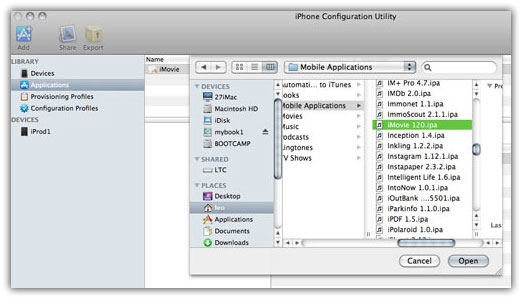
  5. Hit the Add button (top-left), Browse and select iMovie (.IPA) from your iTunes library (~ / Music / iTunes / iTunes Media / Mobile Applications).
  6. install imovie ipad on iPad 1

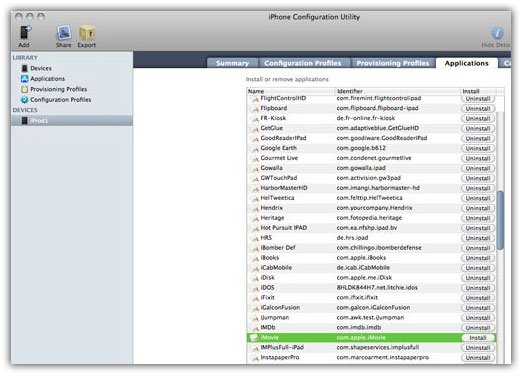
  7. Connect your iPad to your computer and select your iPad listed under Devices in left navigation pane.
  8. Now select the Applications tab (Right navigation pane) and hit the Install button next to iMovie app to install iMovie 1.2 on iPad 1.
  9. install imovie ipad on iPad 1

You can follow us on Twitter, Join us at Facebook, and also Subscribed to RSS Feed to receive latest updates.

Thanks [Macrumors][fscklog]

Also checkout iPad Apps Gallery and iPhone Apps Gallery.

Digg
Twitter
StumbleUpon
Facebook
Reddit
del.icio.us

iOS Development Tutorial Series: PickerViews & More

Hello, and welcome to another iOS Development tutorial. Today we are going to learn about UIPickerViews and how to switch viewcontrollers (I’ll explain what that is later).

I’ll start off by explaining that picker views work fairly the same way as table views, so if you did the last tutorial then you should have no problem understanding this one.

In the last tutorial I took a poll about whether we should use Xcode 4 or Xcode 3 in the tutorials and it looks like Xcode 4 won by a long shot. So, we will be using Xcode 4 in our tutorials from now on. I will try to explain where things are in Xcode 4 and how things work, but be patient, as I am learning as well. If you are not a part of the iPhone developer program, you download Xcode 4 from the Mac App Store for $5.

By now you should have downloaded Xcode 4 and installed it.

Lets get to the tutorial.

1. Create a new view-based project name “Picker”

As you can see Xcode 4 is completely redesigned. Everything is now in one window, rather the multiple windows that was in Xcode 3. For example, in the interface builder application you had four different windows just to build your view. In Xcode 4 everything is in one window and is much easier to build your views and write your code. We will explore more of Xcode 4 later, but for now that will do.

2. Go to the header file (PickerViewController.h) and lets create come new actions and IBOutlets. In the header file, type:

IBOutlet UIPickerView *pickerView;
NSArray *pickerViewArray;
@property (nonatomic, retain) NSArray *pickerViewArray;
-(IBAction)selectedRow;

Since we are going to be using a picker view in our application our viewcontroller must conform to the UIPickerView protocols. This works the same way as the protocols for a table view.

3. In the @interface line type:

These two lines of code make our viewcontroller conform to the UIPickerViewDelegate protocol and the UIPickerViewDataSource protocol.

Now that we have our action, outlet, and property declared, we need to synthesize the property in the implementation file.

4. In the implementation file type:

@synthesize pickerViewArray;

Since picker views work very similar to the way table views work, we need to implement the methods that are required for the picker view to function.

5. Copy this code into the implementation file:

– (NSInteger)numberOfComponentsInPickerView:(UIPickerView *)pickerView {
return 1;
}
– (NSInteger)pickerView:(UIPickerView *)pickerView numberOfRowsInComponent:(NSInteger)component {
return [pickerViewArray count];
}
– (NSString *)pickerView:(UIPickerView *)pickerView titleForRow:(NSInteger)row forComponent:(NSInteger)component {
return [self.pickerViewArray objectAtIndex:row];
}

In the first method we are saying that we want one component in our picker view. You may ask what a component is. Well, if you go to the clock application that comes stock on the iPhone, and add an alarm clock you will see that the picker view has 3 components.

In the second method we are saying that we want the number of rows in the picker view to the be the number of objects in our NSArray. You should already understand this since we covered it in the last tutorial.

In the third method we are populating the picker view with the contents of the NSArray. This works the same way as the table view methods work. We are setting the value of the row in the picker to the object in the NSArray that is at the same index as the picker view is currently selected.

6. Below our new methods type:

-(IBAction)selectedRow {
int selectedIndex = [pickerView selectedRowInComponent:0];
NSString *message = [NSString stringWithFormat:@”You selected: %@”,[pickerViewArray objectAtIndex:selectedIndex]];
UIAlertView *alert = [[UIAlertView alloc] initWithTitle:@”Alert” message:message delegate:self cancelButtonTitle:@”OK” otherButtonTitles:nil];
[alert show];
[alert release];
}

In our IBAction we are creating an integer and setting the value to the selected index of the picker view. Then we create an NSString and give it some generic text (“You selected”) and then put the value of the NSArray that is at the same index as our picker view, using our integer that we created. We then create an alert and display it to the user (you should already know how to do this as well).

Ok, that’s cool, but if we were to run the application our picker view would be empty. Why? Because our array has no data. We must load our picker view with some new data.

7. Uncomment the “viewDidLoad” method and type this code in it:

– (void)viewDidLoad
{
NSArray *arrayToLoadPicker = [[NSArray alloc] initWithObjects:@”iPhone”,@”iPad”,@”iPod”,@”iMac”,@”MacBook”,@”MacBook Pro”, nil];
self.pickerViewArray = arrayToLoadPicker;
[arrayToLoadPicker release];

[super viewDidLoad];
}

Here we are creating an NSArray and giving a list of strings. Then we set our main NSArray equal to the one we just created.

Now we have our code finished, but we haven’t linked our code to our interface yet.

8. Single click the PickerViewController.xib and create our interface

As you can see, interface builder is now integrated with Xcode and is much easier to design your interfaces with.

Using the far right button under the view section in the top right of Xcode you open the view on the right side of Xocde. For example,

Down in the bottom right you are given a window with all of the objects that you can place on your main view, it works similarly to the old interface, just a little more enclosed in one window.

Drag all the objects onto the view to make your interface look similar to this one:

You should now have your interface built. Now we need to plug our outlets and actions to our objects.

9. Select the button on your view and then select connections tab right above the objects view and drag the plus button beside “Touch Up Inside” to the files owner to link the button to our IBAction.


10. Now select the files owner and link the pickerView outlet to the picker view.
11. Now select the picker view and drag the data source and the delegate to the files owner so that the picker view will know to look for the methods to populate the picker view.

We’re done! Build and Run your application and watch it in action.

We aren’t done yet. Now we want to be able to load a new view controller onto our window, so lets get started with that.

12. Right click on the “Picker” folder and select “New File”

Now you will be presented with a window that will allow you to select the different types of files you can add to your project. For this tutorial we are going to use the UIViewController Subclass template.

13. Select the UIViewController Subclass and the hit Next

14. Now give it a name of “SecondViewController” and then hit Next

As you can see this added three new files to your project. It added a header file, implementation file, and interface builder file to your project.

Now that we have a new viewcontroller we need to give it some code so that it doesn’t just load a blank page.

15. Go to the SecondViewController headfile (SecondViewController.h) and add a new IBAction called “goBack”

Now that we have our IBAction declared, we need to give this action some code.

16. In the SecondViewController.m type:

-(IBAction)goBack {
[self dismissModalViewControllerAnimated:YES];
}

This code is pretty self explanatory. It closes the viewcontroller that is currently loaded and animates it closing.

Now that we have our code to close the viewcontroller, we need the code to open the viewcontroller.

17. In the PickerViewController.h file we need to import our new viewcontroller so that we will have access to load the viewcontroller we just created. In PickerViewController.h type:

#import “SecondViewController.h”

Now that we have access to the SecondViewController, we need to write the code that will load that viewcontroller.

18. Below our selectedRow method, create a new one called switchControllers.

19. Copy this code into the PickerViewController.m file:

-(IBAction)switchControllers {

SecondViewController *viewcontroller = [[SecondViewController alloc] initWithNibName:@”SecondViewController” bundle:nil];

[self presentModalViewController:viewcontroller animated:YES];

[viewcontroller release];

}

Lets start with the first line of code… The first line is creating an instance of the SecondViewController (we are only able to do this because we imported the SecondViewController into our viewcontroller).

In the second line we are presenting our viewcontroller and saying yes to being animated. You can play with the animation effect if you want to. If you say NO, rather than YES it will present the viewcontroller with no animation.

In the last line we are releasing the instance of the SecondViewController we created.

We now have finished coding our project, but we haven’t designed the view for the SecondViewController.

20. Click the SecondViewController.xib and design your view to look similar to this one:

21. Now link the goBack IBAction to the Back button.

22. Now back to the PickerViewControlller.xib and put a new button on your view called “Next ViewController”

23. We’re almost done, just link of the IBAction to the button.

We’re done! Build and run you project to see your hard work.

We’ve now completed our first Xcode 4 project!

We’ve learned a couple of things thoughout this tutorial… We’ve learned how to use a picker view (and that they work simillarly to table views) and how to present a different viewcontroller’s view on your window.

If you  have any questions feel free to ask!

We will be using Xcode 4 from now on.

See you next tutorial! :)

If you enjoy my tutorials, you can support me by buying my app from the App Store (here). Thanks!


iPhone 5 news, new Apple patent, and more in this week’s mobile news

United States Senators have asked Apple to pull DUI checkpoint apps from the App Store.

According to the China Times the iPhone 5 has been put into trial production and should be released in the third quarter.

Apple submits a patent for “Segmented Graphical Representations for Recommending Elements”, in other words they are looking in to a graphical grid format for contacts and music.

FCC officials do not think the AT&T/T-Mobile deal will go through.

CEO of Forrester Research Inc. says Apple sales will grow 50% through 2012.

Android App Development: Gallery Control

In Android the Gallery control is a selection control that displays items in a horizontal gallery. the items in the gallery appear beside each other. they can appear separated by a pre-defined space.

we can use the gallery to display String items using a simple ArrayAdapter.
so let’s see how to create a gallery that displays the word “Hello” in several languages:

the layout:

<?xml version="1.0" encoding="utf-8"?>
<LinearLayout xmlns:android="http://schemas.android.com/apk/res/android"
    android:orientation="vertical"
    android:layout_width="fill_parent"
    android:layout_height="fill_parent"
    >
<TextView
    android:layout_width="fill_parent"
    android:layout_height="wrap_content"
    android:text="Gallery Demo"
    />
    <Gallery
    android:id="@+id/gallery"
    android:layout_width="fill_parent"
    android:layout_height="wrap_content"
    android:gravity="center_horizontal"
    android:spacing="100px"

    />
</LinearLayout>

and in the OnCreate method

@Override
    public void onCreate(Bundle savedInstanceState) {
        super.onCreate(savedInstanceState);
        setContentView(R.layout.main);
        gallery=(Gallery)findViewById(R.id.gallery);
        //String array holding the values
        String [] text=new String[]{"Hello","Hi","Alloha",
                            "Bonjour","Hallo","¡Hola"};
        //Array adapter to display our values in the gallery control
        ArrayAdapter arr=new ArrayAdapter(this,
                                android.R.layout.simple_gallery_item, text);
gallery.setAdapter(arr);
}

the gallery will be like this:

we can increse the spacing between the items by increasing the value of android:spacing property.

we can display a scroll bar to indicate the position of the current selected item in the gallery like this:

<Gallery
    android:id="@+id/gallery"
    android:layout_width="fill_parent"
    android:layout_height="wrap_content"
    android:gravity="center_horizontal"
    android:spacing="100px"
    android:scrollbars="horizontal"
    android:scrollbarFadeDuration="0"
    android:scrollX="100px"
    />


setting the android:scrollbarFadeDuration=”0″ makes the scroll bar always visible.

The android:scrollX property defines the initial scroll offset of the scroll bar which is the initial distance that the gallery is scrolled for.

Handling Gallery Events:

since the gallery is a selction Control (a adapter view) so it can register a OnItemSelectedListener to handle the selection of items within the gallery.

final String [] text=new String[]{"Hello","Hi",
                                  "Alloha","Bonjour","Hallo","¡Hola"};
gallery.setOnItemSelectedListener(new OnItemSelectedListener() {

   @Override
   public void onItemSelected(AdapterView parent, View view,
     int position, long id) {
    // TODO Auto-generated method stub
    TextView txt=(TextView)findViewById(R.id.txt);
    txt.setText(text[position].toString());
   }

   @Override
   public void onNothingSelected(AdapterView parent) {
    // TODO Auto-generated method stub

   }
  });

now the final step is to add two navigation buttons: Next and Previous to navigate throught the items in the gallery.
the layout is gonna be like this:

<?xml version="1.0" encoding="utf-8"?>
<LinearLayout xmlns:android="http://schemas.android.com/apk/res/android"
    android:orientation="vertical"
    android:layout_width="fill_parent"
    android:layout_height="fill_parent"
    >
<TextView
    android:layout_width="fill_parent"
    android:layout_height="wrap_content"
    android:text="Gallery Demo"
    android:id="@+id/txt"
    />
    <Gallery
    android:id="@+id/gallery"
    android:layout_width="fill_parent"
    android:layout_height="wrap_content"
    android:gravity="center_horizontal"
    android:spacing="100px"
    android:scrollbars="horizontal"
    android:scrollbarFadeDuration="0"
    android:scrollX="100px"
    />
    <LinearLayout
     android:layout_width="fill_parent"
     android:layout_height="wrap_content"
     android:orientation="horizontal"
     android:layout_marginTop="5px"
     >
     <Button
     android:text="Previous"
     android:layout_width="wrap_content"
     android:layout_height="wrap_content"
     android:id="@+id/btnPrev"
     android:onClick="onClick"
      />
      <Button
     android:text="Next"
     android:layout_width="wrap_content"
     android:layout_height="wrap_content"
     android:id="@+id/btnNext"
     android:onClick="onClick"
      />

    </LinearLayout> 

</LinearLayout>


now in order to keep track of the index of the currently selected item we need to define two variables

//Variable to store the number of items in the gallery
 int ItemsInGallery=0;
 int CurrentIndex=0;

and the navigation buttons click handlers:

@Override
 public void onClick(View v) {
  // TODO Auto-generated method stub
  switch(v.getId())
  {
  case R.id.btnNext:
   //Increase the index
   CurrentIndex++;
   //if reached the end of the gallery, then start from the first item
   if(CurrentIndex>ItemsInGallery-1)
    CurrentIndex=0;
   gallery.setSelection(CurrentIndex,true);
   txt.setText(String.valueOf(CurrentIndex));
   break;
  case R.id.btnPrev:
   //Decrease the index
   CurrentIndex=CurrentIndex-1;
   //If reached the first item, then return to the last item in the gallery
   if(CurrentIndex<0)
    CurrentIndex=ItemsInGallery-1;
   gallery.setSelection(CurrentIndex,true);
   txt.setText(String.valueOf(CurrentIndex));
   break;
  }
 }

Displaying Images:

The Gallery control is populated by an adapter, so we will create a custom adapter that contains ImageViews to display the images.
our custom adapter must inherit from BaseAdapter class

package mina.android.GalleryDemo;

import java.util.ArrayList;
import java.util.List;

import android.content.Context;
import android.view.View;
import android.view.ViewGroup;
import android.widget.BaseAdapter;
import android.widget.ImageView;

public class ImageAdapter extends BaseAdapter {
 Context Con;
 //array to hold the values of image resources
 int [] Resources;
 List views;

 public ImageAdapter(Context con,int[] resources)
 {
  Con=con;
  Resources=resources;
  views=new ArrayList(resources.length);
 }

 @Override
 public int getCount() {
  // TODO Auto-generated method stub
  return Resources.length;
 }

 @Override
 public Object getItem(int position) {
  // TODO Auto-generated method stub
  return views.get(position);
  //return position;
 }

 @Override
 public long getItemId(int position) {
  // TODO Auto-generated method stub
  //return views.get(position).getId();
  return position;
 }

 @Override
 public View getView(int position, View convertView, ViewGroup parent) {
  // TODO Auto-generated method stub
  ImageView img=new ImageView(Con);
  img.setImageResource(Resources[position]);
  views.add(img);

  return img;
 }

}

then in our activity onCreate Method:

int []res=new int[]{R.drawable.wc,
              R.drawable.wc2,R.drawable.wc3,R.drawable.wc4,R.drawable.wc5};
        ItemsInGallery=res.length;
        ImageAdapter imgAdapter=new ImageAdapter(this, res);
        gallery.setAdapter(imgAdapter);

and it will look like this:


and that was the Gallery Control, stay tuned next week for another tutorial

How to Win the iPhone App Popularity Contest

Guest writer Matthew Palmer is an experienced online marketer for the technology industry, having created successful marketing campaigns for companies such as IBM and Intel. He offers more tips on how to successfully sell iPhone apps on his website, Marketing Your App.

What if you threw a party and no one showed up? That is the fear many iPhone developers have when launching their app in the App Store. After long hours creating their app (followed by lots of testing), they want to make sure their app is popular with customers.

You can put those fears aside because successfully selling your iPhone app is actually quite similar to throwing a good party. Better yet, you don’t have to be the most popular app in town to attract a lot of attention. Here are three app marketing tips to help you get sales worth celebrating.

No one wants to be the first at the party

When your app just arrives in the App Store, one of your first goals should be getting good ratings and reviews. You’ll need a total of five ratings and reviews before the ratings will show any stars. Until then, it looks like no one has shown up at your party.

People may be eager to add a comment to a lively discussion online, but they’re much less likely to be the first to stick their head out and leave a review. But until you have those five people, App Store shoppers don’t know what real people think about your app. They don’t know how well liked it is and how much they’ll enjoy having it.

So, planning the guest list to your app launch is crucial. While you’re waiting for your app to be reviewed, line up some people who are likely to give you a quick and positive review… previous customers, colleagues, friends, etc. Have them be the first to rate your app to encourage others to join in too.

If everyone’s going, it must be good!
Many app developers want to build buzz around their apps, but it’s difficult to start all on its own. Instead of waiting for sales and publicity to come to you, you can take charge and build buzz yourself. Do it by proving to people how much other customers love your app and how excited they are to talk about it.

It’s the idea of “social proof” – that there are real customers out there who like your app. If other people like it, the thinking goes, there must be a good reason for it. Having other people endorse your app makes someone more likely to buy it.

Some developers wait around and hope that buzz and social proof with start on their own, but it’s often better to help them along. Show potential customers how much your users love your app by getting quotes from your Facebook and Twitter accounts. It’s like a testimonial in 140 characters or less. Give examples of people talking about your app and put them on your website and your app description in the App Store.

Social media is the perfect way to build social proof. Spark a conversation on Twitter about your app, and then share what your users say. It’s a buzz-building cycle that will grow and grow.

Have your friends invite their friends

When trying to convince as many people as possible to come to your band’s latest show, what’s easier… inviting everyone yourself or asking your friends to ask their friends? Word of mouth is a powerful tool, but it can be very hard to do by yourself.

Yet many apps try to go it alone, wits against the world, not knowing that your strongest tool is actually other people. Knowing how to leverage this will put you far ahead of many other apps.

You can start with the app itself and make it a social experience. Invite people to email their friends and post to Twitter with what they’re doing in the app. At the same time they’re bragging about their high score, they’re marketing your app.

Then, continue with your app’s website. Make it is easy for users to share what they found (your wonderful app website) with their friends on their favorite social network. You can do this by putting large sharing buttons for Facebook, Twitter, Digg, and other popular social networking and social bookmarking sites. It’s almost like your customers are doing your marketing for you.

Using these three strategies will help you spread the word about your app, and since you’re leveraging your social network, reach potential customers you might not reach otherwise. Plus, using the idea of social proof, you can more effectively convince people to buy your app. Putting all of these powerful tactics together can help you win the iPhone app popular contest.


Mastering Freemium Game Mechanics Series: Discounting Alerts

Matt Tubergen heads Recharge Studios, a wholly owned subsidiary of W3i. Recharge Studios is an iOS investment fund that subsidizes the development and marketing/distribution of freemium iOS games.  W3i is a market leader in distributing and monetizing mobile apps, social applications, web applications and browser add-ons. Recharge Studios is part of a suite of expanding mobile solutions offered by W3i.

In February, analytics firm Localytics released data that indicates nearly 30% of users trying a new app will only open the app once, and never return again. User retention is a key issue for all apps, particular freemium games that depend on progressive game play and lifetime value to achieve fiscal success. The market for freemium has expanded tremendously from January 2010 to today.

A growing percentage of the top grossing apps, particularly in the Apple App Store, are operating a freemium business model, usually powered by virtual goods. The virtual goods market is expected to be a more than $2 billion industry in the U.S. alone in 2011. With all that pressure, now’s the time to master freemium game mechanics and position your app to take a bite of the pie.

Posts on our corporate W3i blog series have already covered topics that include: Planning an effective reward schedule, avoiding inadvertent in-app purchases and when to use alerts and for what.  This week, we look forward to including the Mobile Orchard audience in our discussions on mastering freemium game mechanics. Continuing our series, we look deeper at alerts beginning with discounting and provide practical advice.

Push notification

What are discounting alerts?

Discounting alerts are an outstanding way to drive users back into a game, or entice them while already there. There are a variety of things that can be discounted and potentially trigger an alert, for example:

  • Virtual Currency Discounts ( ex. “Receive half off all bundles of dolphin bucks today only)
  • Virtual Good Discounts ( ex. “Today only build stockpiles for half off”)
  • Time Discounts (ex. “Today only harvest in half the time”)


When and how often to use alerts.

In our post on when to use alerts we discussed how far a developer can push, the use of push notifications. Our experience has been that three notifications a day is a maximum threshold.  With that understanding daily discounts would eat up one of your three potential alerts. A schedule of alerts would be beneficial to ensure you don’t inundate your users with notifications about: free this, rotting that and visits from so-and-so.

Under that premise, the question of when or where can result in a couple different scenarios.

Regarding when, it depends on the timeliness of your promotion. The reasoning here is the longer a consumer has to consider the offer the bigger window of time to make a decision. Additionally, a sense of urgency helps speed that decision process. Messages such as “Today Only” and “For a Limited Time” are musts in your alerts.

Regarding where, you’re faced with two options: a notification upon opening an app or within the app (local), and a notification that pre-empts the opening of an app (push). Depending on the offer, it may be large enough of a carrot to push a notification and drive a user back into the app.

Alerts are a must.

Whatever you decide that works best in your schedule, make sure you have one. Alerts are an absolute must in driving the success of your freemium games. Next week we’ll examine threshold alerts. Do you have a question about freemium gaming or a topic you’d like us to explore? Let us know in the comments or catch us on twitter @rechargestudios or @w3i.