TUAW’s Daily App: Forget-Me-Not

Forget-Me-Not is an impressive retro game. It’s like Pac-Man, but that’s just a way of characterizing the mechanics rather than the actual gameplay. Essentially, you run a little guy around a random Pac-Man style map, but instead of just eating pellets, you’re also shooting and trying to collect a key that will eventually lead you out of each level. There are “ghosts” chasing you, but you can shoot them down or “grind” on the walls to build up some power and take them out. Charged up “ghosts” can also explode, which can actually change the shape and layout of the little map.

The little retro bleeps and bloops and simple graphics make the experience enjoyable and simple, at least until you get to the really big maps and things get chaotic. There are three different modes, Game Center integration and a “multiplayer” mode where two people can play the same game on the same screen. Forget-Me-Not is currently US$1.99 for a universal version. It’s definitely a must-see title, especially for fans of retro-styled games.

TUAW’s Daily App: Forget-Me-Not originally appeared on TUAW on Mon, 04 Apr 2011 08:00:00 EST. Please see our terms for use of feeds.

Source | Permalink | Email this | Comments

5 things I want to see in iOS 5

With all the rumors that iOS 5 is going to be a major revamp, including features like digital lockers, cloud storage and AI voice control, the next version of Apple’s iPhone and iPad operating system is sure to knock our socks off. It may even include things we never knew we always needed. However, here are five of my humble wishes for iOS 5:

1. Notifications: Everyone knows notifications need a major overhaul in the next iOS. They really haven’t been tweaked since iOS launched in 2007. While the iPhone is arguably the best smartphone on the market, its notification system is perhaps the worst of all. There are plenty of ways Apple could go with a notification redesign, but I’m hoping at the very least it includes a new lock screen featuring notifications (with the ability to disable them on the lock screen for privacy purposes), then use the very valuable screen real estate, which is currently entirely dedicated to Spotlight searching. There is so much space on that screen, Apple can easily divide it up between a notifications center and Spotlight search.

2. Weather app: This is probably not on anyone’s list but mine, but I want to see a feature-added Weather app. I’m not even talking about any advanced stuff; all I really want is to be able to rotate the iPhone into landscape mode while in the Weather app and see an hourly forecast. Like notifications, the Weather app hasn’t changed since the first version of iOS, and I don’t think asking for an hourly breakdown is beyond Apple’s technological skills. It would also be nice for the Weather app to be location aware, with one default weather screen always showing your current location’s weather.

Continue reading 5 things I want to see in iOS 5

5 things I want to see in iOS 5 originally appeared on TUAW on Mon, 04 Apr 2011 07:00:00 EST. Please see our terms for use of feeds.

Source | Permalink | Email this | Comments

iCab Mobile for iOS is like a pro version of Safari

iCab Mobile icon When I first used Safari on my iPhone, I was blown away by how much better it was than any other mobile browser, but since then, Apple hasn’t done much with it. A recent Safari update brought significant speed increases, but there are many other limitations that finally led me to try something else, namely iCab Mobile. Is improving your web browsing experience on the iPad or iPhone/iPod touch worth $2?

Before you object to paying for a web browser, let me remind you of a few Apple apps and their alternatives.

On iOS, Apple gave you a Notes app, but many people prefer Simplenote or other text editors or note programs because they offer more features. If you subscribe to MobileMe, you have a 20 GB iDisk, but anyone who has tried Dropbox knows that it works much better. Apple gave you iCal, but BusyCal is a lot better. Apple gave you TextEdit in OS X, but BBEdit and TextMate are much better. You can read RSS feeds in Mail or Safari, but do you?

Likewise, Apple gave us Safari, which is “good,” but iCab offers many features that make it “great.”

Continue reading iCab Mobile for iOS is like a pro version of Safari

iCab Mobile for iOS is like a pro version of Safari originally appeared on TUAW on Mon, 04 Apr 2011 05:00:00 EST. Please see our terms for use of feeds.

Source | Permalink | Email this | Comments

Talkcast tonight; 7 PM PT/10 PM ET: Happy Birthday iPad Edition!

ipad cake birthday extraketchup

Hippo, birdie, two ewes,
Hippo, BIRDie, two ew-wes,
Hippo, birdie, two ewwwwwwwwwwwwwwes!

Here we go again! It’s the first birthday of our own iPad, the little tablet that could. It’s seems like that little guy has just been around forever, but really it’s only been a year. Look how far we’ve come! In that time we’ve seen millions of stork deliveries make millions of people happy the world over. We even have a new sibling in the family, the iPad Mark II. Today we even celebrated with a slate of TUAW meetups worldwide to celebrate, and we’ll (hopefully) get reports from attendees (aside from me, that is).

Keep in mind that when you come for the show, you are invited to stay for the aftershow, and TUAWTF is never recorded for a very good reason.

Your calls and questions help us make the show the best it can be, otherwise I’m just talking to myself! To participate on TalkShoe, you can use the browser-only client, the embedded Facebook app, or download the classic TalkShoe Pro Java client; however, for maximum fun, you should call in. For the web UI, just click the Talkshoe Web button on our profile page at 4 HI/7 PDT/10 PM EDT Sunday. To call in on regular phone or VoIP lines (yay for free cell phone weekend minutes!): dial (724) 444-7444 and enter our talkcast ID, 45077 — during the call, you can request to talk by keying in *8.

If you’ve got a headset or microphone handy on your Mac, you can connect via the free X-Lite or Blink SIP clients; basic instructions are here. Talk to you tonight!

Photo by extraketchup | flickr cc

Talkcast tonight; 7 PM PT/10 PM ET: Happy Birthday iPad Edition! originally appeared on TUAW on Sun, 03 Apr 2011 17:30:00 EST. Please see our terms for use of feeds.

Source | Permalink | Email this | Comments

HTC ThunderBolt vs. Verizon iPhone sales tales based on anecdotal evidence

HTC Thunderbolt

There’s an old joke that goes, “Why don’t analysts look out of the window in the mornings? So they’ll have something to do in the afternoon.” Turns out, that’s wrong — they actually spend their mornings on the phone calling every Verizon store they can find (registration required).

OK, full disclosure: some journalists think that they and analysts do remarkably similar jobs, except that analysts have the cojones to add a few zeros to their bill at the end of the day. But it has to be admitted, calling 150 Verizon stores to ask, “Say, how’s that new HTC ThunderBolt selling compared to the iPhone?” takes, well, quite a bit of time.

And writing up the conclusion, too, that must have taken a while. “61% of the stores that we contacted said they sold an equal amount of both phones, 11% said they sold more iPhones (principally in the Southeast) and 28% of stores had sold more ThunderBolts.”

The research was done by BTIG analyst Walter Piecyk, and he admits it’s not a very scientific study — the salespersons to whom he spoke “did not have access to actual sales figures and their response was based on their own experience.” But, he adds, “they were not much hesitation in the response [sic].”

So, a shiny new smartphone released two weeks ago is outselling one that’s been available for a year on AT&T and nearly three months on Verizon? Could it be that those who crave speed picked up the latest, greatest smartphone, which runs on the faster network, in preference to the older model? Well, 28% of those asked in an unscientific survey did, anyway. Perhaps.

[Via Business Insider]

HTC ThunderBolt vs. Verizon iPhone sales tales based on anecdotal evidence originally appeared on TUAW on Sun, 03 Apr 2011 14:30:00 EST. Please see our terms for use of feeds.

Source | Permalink | Email this | Comments

Jailbreak iOS 4.3.1 [All Guides]

iOS 4.3.1 jailbreak tools are out now! You can jailbreak iOS 4.3.1 firmware untethered with PwnageTool, RedSn0w, and Sn0wBreeze. All the guides to jailbreak 4.3.1 firmware are linked below…

How to Jailbreak iOS 4.3

Follow the guides linked under your concerned iDevice (iPhone 4, 3GS, iPod Touch 4G, iPod Touch 3G, iPad).

Jailbreak iOS 4.3 – iPhone 4

How to: Jailbreak iPhone 4 iOS 4.3.1 with PwnageTool
How to: Jailbreak iPhone 4 iOS 4.3.1 with RedSn0w
How to: Jailbreak iPhone 4 iOS 4.3.1 with Sn0wBreeze

Jailbreak iOS 4.3 – iPhone 3GS

How to: Jailbreak iPhone 3GS iOS 4.3.1 with PwnageTool 4.3
How to: Jailbreak iPhone 3GS iOS 4.3.1 with RedSn0w
How to: Jailbreak iPhone 3GS iOS 4.3.1 with Sn0wBreeze 2.5

Jailbreak iOS 4.3 – iPod Touch 4G

How to: Jailbreak iPod Touch 4G iOS 4.3.1 with PwnageTool 4.3
How to: Jailbreak iPod Touch 4G iOS 4.3.1 with RedSn0w
How to: Jailbreak iPod Touch 4G iOS 4.3.1 with Sn0wBreeze 2.5

Jailbreak iOS 4.3 – iPod Touch 3G

How to: Jailbreak iPod Touch 3G iOS 4.3.1 with PwnageTool 4.3
How to: Jailbreak iPod Touch 3G iOS 4.3.1 with RedSn0w
How to: Jailbreak iPod Touch 3G iOS 4.3.1 with Sn0wBreeze 2.5

Jailbreak iOS 4.3 – iPad

How to: Jailbreak iPad iOS 4.3.1 with PwnageTool 4.3
How to: Jailbreak iPad iOS 4.3.1 with RedSn0w
How to: Jailbreak iPad iOS 4.3.1 with Sn0wBreeze 2.5

We’ll update this post as a new jailbreak solution for iOS 4.3.1 is out. Stay Tuned!

You can follow us on Twitter, Join us at Facebook, and also Subscribed to RSS Feed to receive latest updates.

Also checkout:

Digg
Twitter
StumbleUpon
Facebook
Reddit
del.icio.us

How to Jailbreak iPhone 4.3.1 Using Sn0wBreeze 2.5 [Untethered]

Sn0wBreeze 2.5 is out to jailbreak iOS 4.3.1 untethered on iPhone 4, 3GS, iPod Touch 4G, 3G, and iPad 1, Apple TV 2G. These are the steps to jailbreak iiPhone 4.3.1, iPod Touch, iPad and Apple TV 2G on iOS 4.3.1 firmware with Sn0wBreeze 2.5.

Sn0wbreeze, just like PwnageTool, creates a custom firmware to jailbreak iPhone, iPad and iPod Touch on iOS 4.3.1 and also preserves iPhone baseband so you may unlock iPhone using UltraSn0w. But unlike PwnageTool, Sn0wbreeze works under Windows environment only.

Note: iPad 2 is NOT jailbreakable ATM. iPod Touch, iPad users and those iPhone users who do not depend on UltraSn0w unlock should go for RedSn0w jailbreak. Mac Users can use PwnageTool and RedSn0w. All Guides are here:

Let’s jailbreak iPhone, iPad, iPod Touch and Apple TV 2G on iOS 4.3 firmware using Sn0wbreeze jailbreak.

How to Jailbreak iPhone 4.3.1 Using Sn0wBreeze 2.5

Step 1

Download the required stuff linked below and put them on your desktop.

Step 2

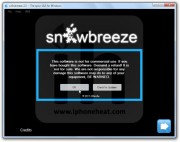
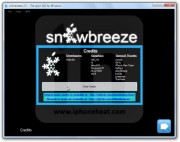
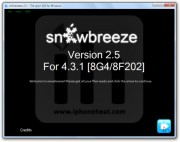
Run the Sn0wBreeze.exe. Hit Ok and then Close Credits button. and then hit the next button.

sn0wbreeze ios 4.3.1 jailbrea (17)sn0wbreeze ios 4.3.1 jailbrea (16)sn0wbreeze ios 4.3.1 jailbrea (15)

Step 3

Either drag & drop the iOS 4.3.1 firmware file in the given drop-box on Sn0wbreeze window or hit the Browse button and select the downloaded iOS 4.3.1 IPSW file for your iDevice.
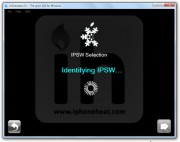
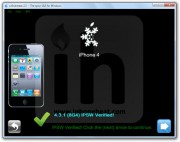
Sn0wBreeze will identify the IPSW firmware file. When done, hit the next button.

sn0wbreeze ios 4.3.1 jailbrea (14)sn0wbreeze ios 4.3.1 jailbrea (13)sn0wbreeze ios 4.3.1 jailbrea (12)

Step 4

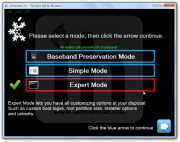
Now select the Expert Mode and Hit next button.
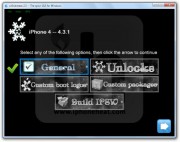
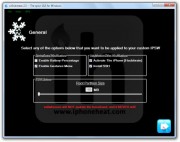
Then select General.

sn0wbreeze ios 4.3.1 jailbrea (11)sn0wbreeze ios 4.3.1 jailbrea (10)

Step 5

iPhone Users:

**If you depend on unlock make sure Activate The iPhone [Hacktivate] option is checked/selected.
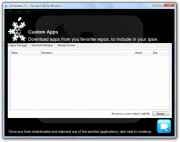
Then keep hitting Next.

sn0wbreeze ios 4.3.1 jailbrea (9)sn0wbreeze ios 4.3.1 jailbrea (8)

Step 6

Now select the Build IPSW option and hit next.
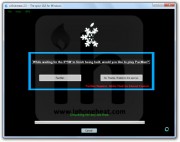
Sn0wBreeze will start building custom firmware to jailbreak your iPhone 4, 3GS, idevice. Since the building process takes several minutes to complete, you can either choose to play PacMan or stick with the Spinner.
Once Done! Hit the OK button. (Custom firmware can be found on desktop)

sn0wbreeze ios 4.3.1 jailbrea (7)sn0wbreeze ios 4.3.1 jailbrea (6)sn0wbreeze ios 4.3.1 jailbrea (5)

Step 7

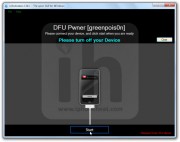
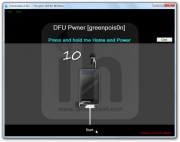
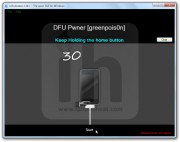
Now follow the on screen instructions to put your iDevices into Pwned State. Sn0wBreeze instructions are important to follow because this will put iDevice into Pwned DFU state NOT the simple DFU mode.

  • Hold Power + Home buttons for 10 seconds
  • Now release the Power button but keep holding the Home button for 10-30 more seconds
  • Your device should now be in DFU mode

sn0wbreeze ios 4.3.1 jailbrea (4)sn0wbreeze ios 4.3.1 jailbrea (3)sn0wbreeze ios 4.3.1 jailbrea (2)

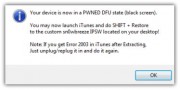
Sn0wBreeze will prompt you once you’re into Pwned DFU state.

sn0wbreeze ios 4.3.1 jailbrea (1)

Step 8

Now open iTunes, Hold down the Shift key and hit the Restore button.
Browse and select the custom firmware that we just created, from the desktop.

sn0wbreeze ios 4.3.1 jailbrea (18)

iTunes will start restoring iOS 4.3.1 on your iPhone/iPad/iPod Touch/Apple TV 2G. Once the restore process is complete, your device will be running iOS 4.3.1 jailbroken.

You can follow us on Twitter, Join us at Facebook, and also Subscribed to RSS Feed to receive latest updates.

Also checkout:

Digg
Twitter
StumbleUpon
Facebook
Reddit
del.icio.us

Download Sn0wBreeze 2.5 – Untethered iOS 4.3.1 Jailbreak [Windows]

iH8sn0w has released Sn0wbreeze 2.5 to jailbreak iOS 4.3.1 untethered on iPhone 4, 3GS, iPod Touch 4G, 3G, iPad and AppleTV 2G. You can download Sn0wbreeze 2.5 from the link below.

Sn0wbreeze, just like PwnageTool, creates a custom firmware to jailbreak iPhone, iPad and iPod Touch on iOS 4.3.1 and also preserves iPhone baseband so you may unlock iPhone using UltraSn0w. But unlike PwnageTool, Sn0wbreeze works under Windows environment only.

Supported devices

Sn0wbreeze 2.5 can jailbreak iOS 4.3.1 firmware on

  • iPhone 4
  • iPhone 3GS
  • iPod Touch 4G
  • iPod Touch 3G
  • iPad 1
  • Apple TV 2G

NOTE: Sn0wbreeze 2.5 will also hacktivate all above mentioned devices. It provides untethered solution now.

Download Sn0wBreeze 2.5

Download Sn0wbreeze 2.5 for Windows
Download iOS 4.3.1

Detailed guides on how to jailbreak iOS 4.3 on iPhone 4, 3GS, iPod Touch 4G, 3G , iPad and ATV 2G will be posted shortly.

Sn0wBreeze Guides

[In process]

RedSn0w Guides

How to: Jailbreak iPhone 4 / 3GS iOS 4.3.1 Untethered with RedSn0w 0.9.6 RC9
How to: Jailbreak iPod Touch 4G / 3G iOS 4.3.1 Untethered Using RedSn0w 0.9.6 RC9
How to: Jailbreak iPad iOS 4.3.1 Untethered Using RedSn0w 0.9.6 RC9

PwnageTool Guides

How to: Jailbreak iOS 4.3.1 with PwnageTool 4.3

You can follow us on Twitter, Join us at Facebook, and also Subscribed to RSS Feed to receive latest updates.

Also checkout:

Digg
Twitter
StumbleUpon
Facebook
Reddit
del.icio.us

How to Jailbreak iOS 4.3.1 with PwnageTool 4.3 (Untethered)

PwnageTool 4.3 is out to jailbreak iOS 4.3.1 on iPhone 4, 3GS, iPod Touch 4G, 3G and iPad 1. These are the steps to jailbreak iOS 4.3.1 untethered. PwnageTool will create a custom firmware 4.3.1 to jailbreak iPhone, iPad, iPod Touch and Apple TV 2G. PwnageTool also preserves iPhone baseband.
In this guide you’ll learn how to create custom iOS 4.3.1 to jailbreak iPhone 4, 3GS (New & Old bootrom), iPod Touch 4G, 3G, iPad and Apple TV 2G while preserving iPhone baseband so that you may use UltraSn0w to unlock iPhone later.

If you do not depend on UltraSn0w unlock, RedSn0w is much easier and faster way to go for. RedSn0w guides are linked at bottom.

NOTE: PwnageTool is available for Mac OS only. Windows users can use Sn0wbreeze (Guides linked at bottom) to create custom firmware 4.3.1. iPad 2 sport is missing in all jailbreak tools.

Lets create custom iOS 4.3.1 (Jailbroken iOS 4.3.1) to jailbreak iPhone 4, 3GS, iPod Touch 4G, 3G, iPad and ATV 2G on iOS 4.3.1.

How to Jailbreak iOS 4.3.1 with PwnageTool 4.3.1

Step 1

Step 2

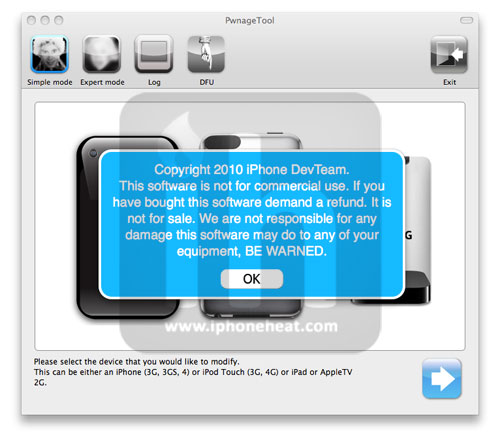
Open the downloaded PwnageTool.dmg and copy the PwnageTool.app to your desktop and execute it from there.

Hit the OK button.
jailbreak ios 4.3.1 pwnagetool (18)

Step 3

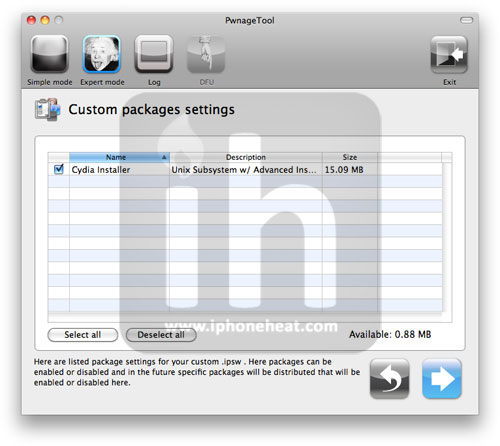
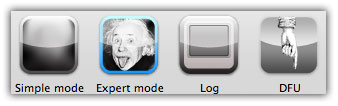
Now select Expert Mode from the top left side of the window.
jailbreak ios 4.3.1 pwnagetool (17)

and then select your iDevice. Hit the Next button.

jailbreak ios 4.3.1 pwnagetool (16)

Step 4

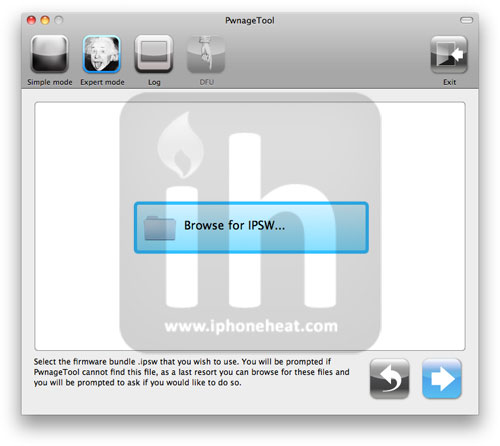
Now hit the Browse for IPSW button and select iOS 4.3.1 firmware for your device (downloaded from Step 1).
jailbreak ios 4.3.1 pwnagetool (15)

Step 5

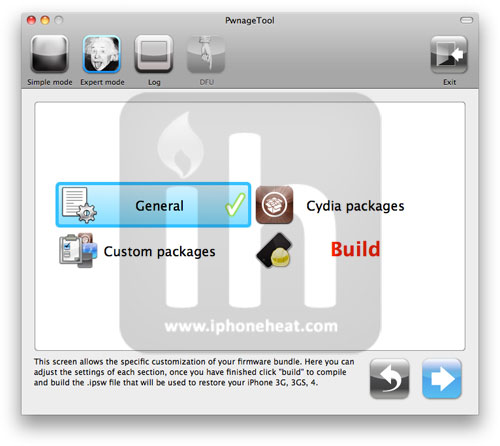
On next screen, Select General and hit the Next arrow button.
jailbreak ios 4.3.1 pwnagetool (14)

Step 6

iPhone users:

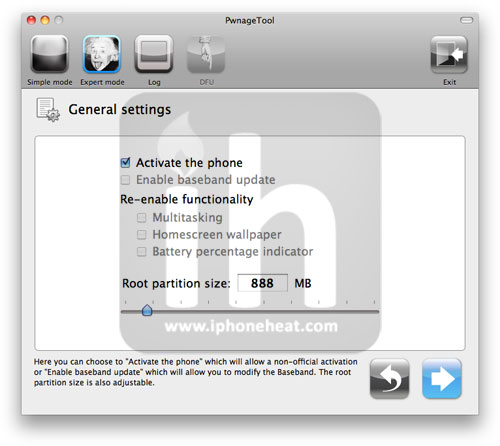
  • Select Activate the phone option if you’re on unofficial carrier.
  • Do NOT select Activate the phone option if you’re on official carrier e.g. AT&T.
jailbreak ios 4.3.1 pwnagetool (13)

Step 7

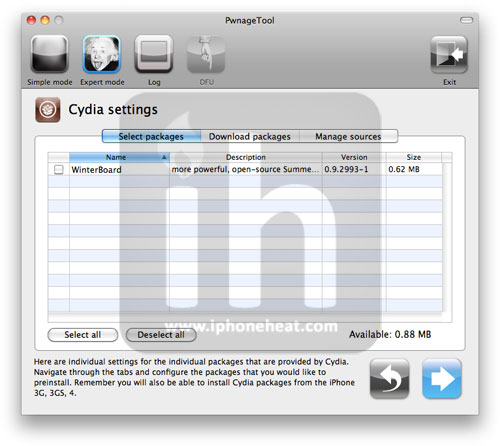
Keep hitting Next button until you’re back to the same screen where you selected General.
jailbreak ios 4.3.1 pwnagetool (12)jailbreak ios 4.3.1 pwnagetool (11)

Now Select the Build Option and Hit Next.

jailbreak ios 4.3.1 pwnagetool (10)

PwnageTool will prompt you to select a destination folder to save custom iOS 4.3.1.

jailbreak ios 4.3.1 pwnagetool (9)

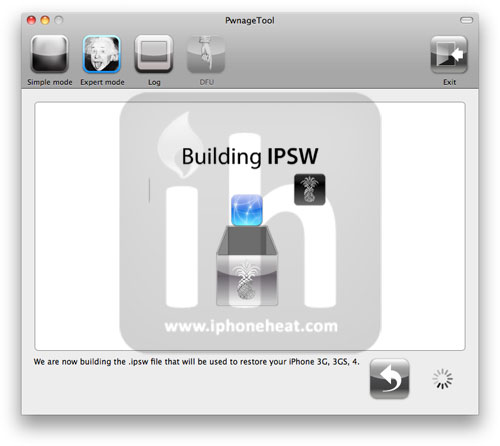
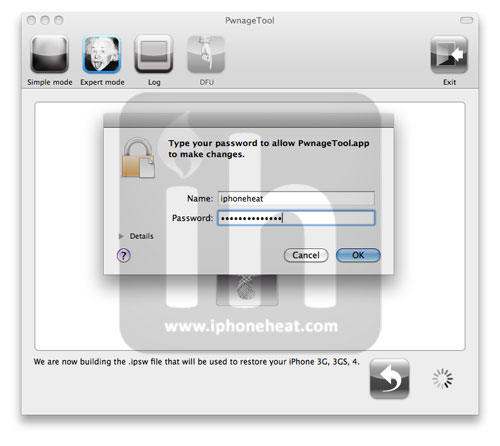
PwnageTool will start building your Custom IPSW.
jailbreak ios 4.3.1 pwnagetool (8)

During the build process it’ll prompt you for your admin password.
jailbreak ios 4.3.1 pwnagetool (7)

Step 8

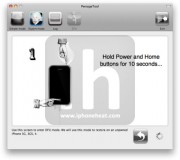
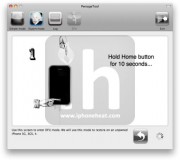
Once the custom IPSW has been built, PwnageTool will ask you to connect your iDevice to your computer. Once your device is detected, you’ll be instructed to put your iDevice into DFU mode.

  • Press and hold the power + home buttons for 10 seconds.
  • Release the power button but continue holding the home button for 10 seconds.
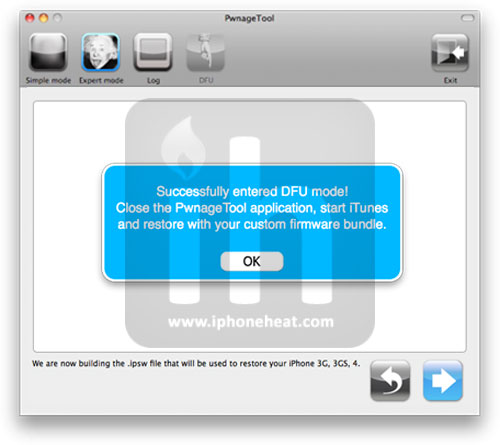
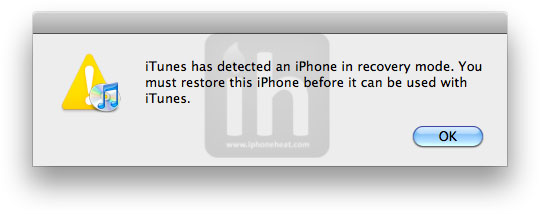
Once the iPhone/iPod Touch/iPad is in DFU mode, the follow popup message will appear. iTunes will also pop-up.
jailbreak ios 4.3.1 pwnagetool (3)

jailbreak ios 4.3.1 pwnagetool (2)

Step 9

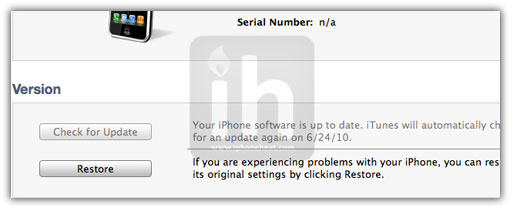
In iTunes, hold the Alt/Option key and hit Restore. From the popup window, browse to the Folder where you saved custom iOS 4.3.1 and select your custom .ipsw file that you just created and click Open Button. (Make sure you’re selecting custom firmware, Not stock one)
jailbreak ios 4.3.1 pwnagetool (1)

iTunes will now restore the firmware on your iPhone/iPad/iPod Touch. This can take up to 10 minutes.

When done, you have successfully Jailbreak iOS 4.3.1 firmware with PwnageTool 4.1.

RedSn0w Guides

Sn0wBreeze Guides

You can follow us on Twitter, Join us at Facebook, and also Subscribed to RSS Feed to receive latest updates.

Also checkout:

Digg
Twitter
StumbleUpon
Facebook
Reddit
del.icio.us

Jailbreak iPad iOS 4.3.1 Untethered Using RedSn0w 0.9.6 RC9

These are the steps to jailbreak iPad on iOS 4.3.1 untethered using RedSn0w 0.9.6rc9. RedSn0w 0.9.6 can jailbreak iOS 4.3.1 on iPad 1, iPod Touch 4G, 3G, and iPhone 4, 3GS. Step-by-step iPad 4.3.1 jailbreak instructions after the jump…

NOTE: There’s no iPad 2 jailbreak out yet.

Let’s untethered jailbreak iPad iOS 4.3.1 with RedSn0w 0.9.6 RC9.

How to Jailbreak iPad 4.3.1 untethered with RedSn0w 0.9.6rc

Step 1

Download the required stuff:

Step 2

Restore iOS 4.3.1 on your iPad and keep it connected to your computer via USB.
*You can skip this step if you’re already running iOS 4.3.1/tethered jailbroken iOS 4.3.1.

Step 3

Rest of the steps are exactly similar to the guide posted earlier. Follow the guide linked below and continue from Step 3:

How to: Jailbreak iOS 4.3.1 with RedSn0w 0.9.6

If you depend on UltraSn0w unlock or want to use custom firmware created via PwnageTool/Sn0wbreeze, follow the guides linked below:

You can follow us on Twitter, Join us at Facebook, and also Subscribed to RSS Feed to receive latest updates.

Also checkout:

Digg
Twitter
StumbleUpon
Facebook
Reddit
del.icio.us

Jailbreak iPod Touch 4G / 3G iOS 4.3.1 Untethered Using RedSn0w 0.9.6 RC9

These are the steps to jailbreak iPod Touch 4G, 3G on iOS 4.3.1 untethered using RedSn0w 0.9.6rc9. RedSn0w 0.9.6 can jailbreak iOS 4.3.1 on iPod Touch 4G, iPod Touch 3G, iPhone 4, 3GS and iPad 1. Step-by-step jailbreak instructions after the jump…
jailbreak iPod Touch 4G 3G iOS 4.3.1 redsn0w
Disclaimer: This guide is for educational and information purposes only. Follow the steps below at your own risk. We cannot be held responsible if anything goes wrong.

Let’s untethered jailbreak iPod Touch 3G and iPod Touch 4G iOS 4.3.1 with RedSn0w 0.9.6 RC9.

How to Jailbreak iPod Touch 4G, 3G 4.3.1 untethered with RedSn0w 0.9.6rc

Step 1

Download the required stuff:

Step 2

Restore iOS 4.3.1 on your iPod Touch 4G/iPod Touch 3G and keep it connected to your computer via USB.
*You can skip this step if you’re already running iOS 4.3.1/tethered jailbroken iOS 4.3.1.

Step 3

Rest of the steps are exactly similar to the guide posted earlier. Follow the guide linked below and continue from Step 3:

How to: Jailbreak iOS 4.3.1 with RedSn0w 0.9.6

If you depend on UltraSn0w unlock or want to use custom firmware created via PwnageTool/Sn0wbreeze, follow the guides linked below:

You can follow us on Twitter, Join us at Facebook, and also Subscribed to RSS Feed to receive latest updates.

Also checkout:

Digg
Twitter
StumbleUpon
Facebook
Reddit
del.icio.us

Jailbreak iPhone 4 / 3GS iOS 4.3.1 Untethered with RedSn0w 0.9.6 RC9 [How-to Guide]

These are the steps to jailbreak iPhone 4, iPhone 3GS on iOS 4.3.1 untethered using RedSn0w 0.9.6rc9. RedSn0w 0.9.6 can jailbreak iOS 4.3.1 on iPhone 4, 3GS, iPod Touch 4G, 3G and iPad. Step-by-step jailbreak instructions after the jump…

Important

  • If you depend on UltraSn0w unlock, STAY AWAY from iOS 4.3.1 and RedSn0w.
  • UltraSn0w unlockers go for the PwnageTool/Sn0wbreeze Custom firmware (Guides linked at bottom).
  • iPhone 4 users can update to iOS 4.3.1 while preserving baseband with TinyUmbrella. Here is how to:
  • Your iPhone 4, iPhone 3GS must be running iOS 4.3.1

Disclaimer: This guide is for educational and information purposes only. Follow the steps below at your own risk. We cannot be held responsible if anything goes wrong.

Let’s untethered jailbreak iPhone 3GS and iPhone 4 iOS 4.3.1 with RedSn0w 0.9.6.

How to Jailbreak iPhone 4, 3GS iOS 4.3.1 untethered with RedSn0w 0.9.6rc

Step 1

Download the required stuff:

Step 2

Restore iOS 4.3.1 on your iPhone 4/iPhone 3GS and keep it connect to your computer via USB.
*You can skip this step if you’re already running iOS 4.3.1/tethered jailbroken iOS 4.3.1.

Step 3

Execute the Redsn0w 0.9.6 rc9 (Download link below)

Step 4

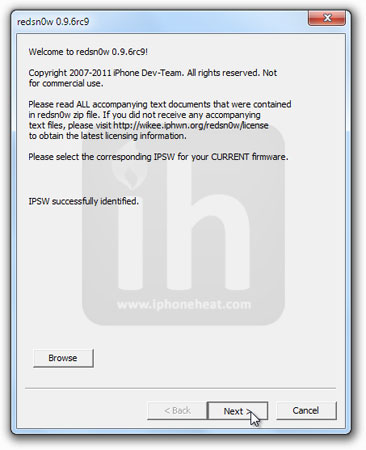
Hit the Browse button and select official iOS 4.3.1 firmware (downloaded in Step 1). RedSn0w will recognize your IPSW file. Then hit Next.

Step 5

Now check mark “Install Cydia” and hit Next.

Step 6

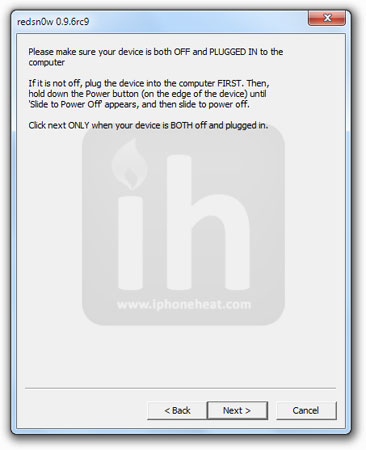
Now make sure your iPhone 4, iPhone 3GS is turned OFF and Plugged in to your computer. Hit Next.

Step 7

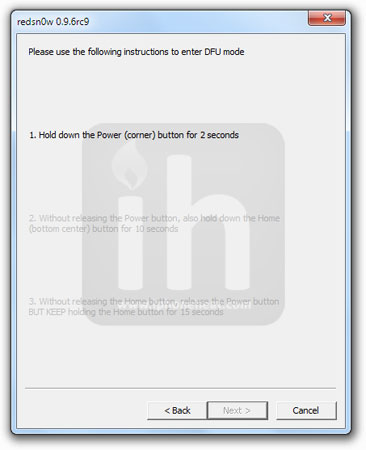
Now you’ll be instructed to put your iDevice into DFU Mode. Follow the on screen instructions.

Once you’ve successfully entered into DFU mode, RedSn0w will start jailbreaking iPhone 4 or iPhone 3GS on iOS 4.3.1 untethered. When done! your iPhone 4, iPhone 3GS will be jailbroken untethered on iOS 4.3.1.

If you depend on UltraSn0w unlock or want to use custom firmware created via PwnageTool/Sn0wbreeze, follow the guides linked below:

You can follow us on Twitter, Join us at Facebook, and also Subscribed to RSS Feed to receive latest updates.

Also checkout:

Digg
Twitter
StumbleUpon
Facebook
Reddit
del.icio.us

Download PwnageTool 4.3 – Jailbreak iOS 4.3.1 [Custom Firmware]

PwnageTool 4.3 to jailbreak iOS 4.3.1 is out now! PwnageTool 4.3 creates custom firmware to jailbreak iOS 4.3.1 untethered on iPhone 4, 3GS, iPad, iPod Touch 4G, 3G and Apple TV 2G. Download PwnageTool 4.3 from the link below.


Note

  • PwnageTool 4.3 does NOT support iPad 2.
  • Recommended jailbreak method for UltraSn0w unlock dependents
  • If you don’t need an unlock, RedSn0w is an easier way to go for

Download PwnageTool 4.3

PwnageTool is available for Mac OS only. You can download PwnageTool from the link below to jailbreak iOS 4.3.1 untethered on iPhone 4, 3GS, iPad, iPod Touch 4G, 3G.

Download PwnageTool 4.3 for Mac [Official Torrent]

You can follow us on Twitter, Join us at Facebook, and also Subscribed to RSS Feed to receive latest updates.

Also checkout:

Digg
Twitter
StumbleUpon
Facebook
Reddit
del.icio.us

Download RedSn0w 0.9.6 rc9 – Jailbreak iOS 4.3.1 Untethered

The iPhone Dev-Team has just released RedSn0w 0.9.6 rc9, the iOS 4.3.1 untethered jailbreak. With RedSn0w 0.9.6 rc9 you can jailbreak iOS 4.3.1 firmware untethered on iPhone 4, iPhone 3GS, iPod Touch 4G, iPod Touch 3G and iPad 1. No iPad 2 support. Download RedSn0w 0.9.6 rc9 from below…

IMPORTANT

  • If you depend on UltraSn0w unlock, STAY AWAY from iOS 4.3.1 and RedSn0w.
  • UltraSn0w unlockers go for the PwnageTool/Sn0wbreeze Custom firmware (Guides linked at bottom).
  • iPhone 4 users can update to iOS 4.3.1 while preserving baseband with TinyUmbrella. Here is how to: (Coming Soon)
  • RedSn0w 0.9.6 rc9 provides untethered iOS 4.3.1 jailbreak.
  • No iPad 2 support.

Download RedSn0w 0.9.6 rc9

You can download RedSn0w 0.9.6 rc9 for both the Windows and Mac OS to jailbreak iOS 4.3.1 untethered on iPhone 4, iPhone 3GS, iPod Touch 4G, iPod Touch 3G and iPad 1 from below:

You can follow us on Twitter, Join us at Facebook, and also Subscribed to RSS Feed to receive latest updates.

Also checkout:

Digg
Twitter
StumbleUpon
Facebook
Reddit
del.icio.us

Mastering Freemium Game Mechanics Series: Social Alerts

Matt Tubergen heads Recharge Studios, a wholly owned subsidiary of W3i that invests in the development and marketing/distribution of freemium mobile games.  W3i is a market leader in distributing and monetizing apps with over 500 million apps distributed for W3i clients. Recharge Studios is actively seeking new investment opportunities, if you have a great idea for a game contact us.

Last week we examined the use of threshold alerts. We outlined the various thresholds that can trigger both push and local notifications in your freemium game including: time, decay and maximum thresholds.  This week we’re looking at alerting in relation to the social features of your freemium game.


Kinds of Social Alerts

As freemium gaming evolves so too will the kinds of social alerts you can employ in your game. Freemium game developers are always crafting new ways to engage gamers with their networks in games. Recharge Studios have a few up our sleeve we’ll give sneak peeks to in coming posts. For now we’ll categorize them into these three categories:

  • Gifting
  • Visiting/Working
  • Competing

Gifting alerts can prompt gamers when someone in their network has either 1.) sent them a gift 2.) Requested an “order” (think Trade Nations) or 3.) completed an “order.” These alerts can be both push and local, however with any of the social alerts, make sure that if you use push, it’s a priority so you don’t exhaust your gamers with notifications, keeping in mind the rule of 3 pushes a day across all alert types.

Visiting/working alerts are just what they sound like. Someone has visited your city, village, farm, restaurant, park… you get the point. Additionally, an alert can be used if your friend completed an action in your city, village, farm etc. The use of an alert helps prompt a gamer to carry out a social act in reciprocation.

Competing alerts refer to competitive levels within a game For example leaderboards or any element of competition. For example you can use social alerts to show a gamer how their experience stacks up in relationship to those within their network. This provides a more personal, engaged gaming experience rather than just a global or even local leaderboard.

When to Use Social Alerts

You’ll most often want to use social alerts as local notifications unless you have a time sensitive action or element tied to the social functionality (i.e. have to use or claim a gift in X time or to prompt a user back into a game “Bob6148 just sent you a gift. What is it?!.”)

Alerts are a must.

Whatever you decide that works best in your schedule, make sure you have one. Alerts are an absolute must in driving the success of your freemium games. Do you have a question about freemium gaming or a topic you’d like us to explore? Let us know in the comments or catch us on twitter @rechargestudios or @w3i.

Mastering Freemium Game Mechanics is published in partnership with the series on W3i’s corporate blog.