Jailbreak iPhone 4.3.2 with PwnageTool 4.3.2 [How-to Guide]

PwnageTool 4.3.2 can jailbreak iPhone 4.3.2 untethered. These are the steps to jailbreak iPhone 4.3.2 with PwnageTool 4.3.2. PwnageTool 4.3.2 jailbreak steps are same for iPhone 4, iPhone 3GS, iPad and iPod Touch 4G, 3G.


PwnageTool will preserve iPhone 4 and iPhone 3GS baseband so that you can unlock with UltraSn0w later. Windows users can use Sn0wbreeze 2.6 to jailbreak iOS 4.3.2 untethered on iPhone 4, 3GS, iPad, iPod Touch 4G, 3G.

Jailbreak iPhone 4.3.2 with PwnageTool 4.3.2

Step 1

Step 2

Open the downloaded PwnageTool.dmg and copy the PwnageTool.app to your desktop and execute it from there;
Hit the OK button;
Now select Expert Mode from the top left side of the window;

and then select your iDevice. Hit the Next button.

Now hit the Browse for IPSW button and select iOS 4.3.2 firmware for your device (downloaded from Step 1);
On next screen, Select General and hit the Next arrow button;
iPhone users:

  • Select Activate the phone option if you’re on unofficial carrier.
  • Do NOT select Activate the phone option if you’re on official carrier e.g. AT&T.

Keep hitting Next button until you’re back to the same screen where you selected General.
Now Select the Build Option and Hit Next.

PwnageTool will prompt you to select a destination folder to save custom iOS 4.3.2;
PwnageTool will start building your Custom IPSW;
During the build process it’ll prompt you for your admin password.

Step 3

Once the custom IPSW has been built, PwnageTool 4.3.2 will ask you to connect your iDevice to your computer. Once your device is detected, you’ll be instructed to put your iDevice into DFU mode.

  • Press and hold the power + home buttons for 10 seconds.
  • Release the power button but continue holding the home button for 10 seconds.

Once the iPhone/iPod Touch/iPad is in DFU mode, the follow popup message will appear. iTunes will also pop-up.

Step 4

In iTunes, hold the Alt/Option key and hit Restore. From the popup window, browse to the Folder where you saved custom iOS 4.3.1 and select your custom .ipsw file that you just created and click Open Button. (Make sure you’re selecting custom firmware, Not stock one)

iTunes will now restore the firmware on your iPhone/iPad/iPod Touch. This can take up to 10 minutes.

When done, you have successfully Jailbreak iOS 4.3.2 firmware with PwnageTool 4.3.2.

You can follow us on Twitter, Google Buzz, Facebook, and Subscribed to RSS Feed to receive latest updates.

Digg Twitter StumbleUpon Facebook Reddit del.icio.us

Download PwnageTool 4.3.2 Jailbreak for iOS 4.3.2

iPhone Dev Team has released PwnageTool 4.3.2 which is now available for download. PwnageTool 4.3.2 incorporates i0n1c’s iOS 4.3.2 untethered exploit for iPhone 4, 3GS, iPod Touch 4G, 3G and iPad. You can download PwnageTool 4.3.2 from the link below.

PwnageTool 4.3.2 lets you create custom iOS 4.3.2 to jailbreak iOS 4.3.2 on iPhone, iPad and iPod Touch. PwnageTool also preserves the iPhone baseband so that you can use UltraSn0w to unlock your iPhone.

PwnageTool for iOS 4.3.2 supports the following devices:

  • iPhone 4
  • iPhone 3GS
  • iPad 1
  • iPod Touch 3G
  • iPod Touch 4G

* There’s no iPad 2 jailbreak out yet because it has an update BootRom.

Download PwnageTool 4.3.2

You can download PwnageTool 4.3.2 jailbreak for Mac OS from the link below:

Download PwnageTool 4.3.2 [Official Torrent] [Mirror]
Download iOS 4.3.2
Download iTunes 10.2.2

Detailed step-by-step instruction will be posted shortly. Stay Tuned!

You can follow us on Twitter, Google Buzz, Facebook, and Subscribed to RSS Feed to receive latest updates.

Digg Twitter StumbleUpon Facebook Reddit del.icio.us

4 Innovative Ways to Dial A Friend on Your iPhone

Sometimes we focus so much on how well the iPhone browses the web, plays games or keeps us on task that we forget that it’s also a phone! As such, shouldn’t there be a few cool apps dedicated to making phone calls?

You’re in luck, today we’ll show you some apps that are aimed at helping you quickly dial friends and family in some really interesting and useful ways.

Add Contacts to Your Home Screen

After four iterations, I can’t believe iOS still doesn’t officially supporting adding specific contacts to your home screen as dedicated icons. It’s a super simple idea and would save us the few extra taps that it takes to open the phone app, go to the favorites tab and locate the person we want to call.

Fortunately, one developer was tricky enough to figure out how to make this common feature request a reality. With Speed.Dial, you simply find the contact that you want to add to your home screen, customize their information and the app will pull up a temporary web page that serves as a link to the contact. As with any web page, you can then save this to your home screen.

screenshot

Speed.Dial lets you add contacts to your home screen

Now with a single tap, you can call your favorite contacts. It does takes a second longer to dial because Safari has to open and then link to your phone app, but the automated process can still be quicker than manually searching for a contact.

Drag to Dial

If you like seeing your contacts as icons but don’t necessarily want them to clutter up your home screen, check out QuickBins, a free app that is a really nice alternative to a list of contacts.

With Quick Bins, you create icon shortcuts for your favorite contacts. These are arranged in a space that’s almost exactly like your home screen with multiple pages that can be accessed through swiping back and forth. The cool part is that the icon grid is flanked by four bins: one for calling, one for SMS, one for emailing and one for mapping their address.

screenshot

With Quick Bins, you drag contacts to hotspots to perform certain actions

When you open the app, you quickly identify the person you want to call and drag their icon to the phone box to call them or the SMS box to shoot them a text. It sounds a little clunky but after you’ve used it for a while you start to see that it’s a really efficient system that saves you a lot of taps.

Speak to Dial

Though this will likely be changing very soon, the current iOS really lacks proper voice commands of any kind. Voice dialing was made popular nearly a decade ago so it’s a little surprising that your fancy new Apple device can’t do it out of the box.

Fear not however, there are plenty of free utilities that come to the rescue and even deliver a lot more than simple voice dialing. Currently, Vlingo is one of the best apps available in this category. This impressive tool allows you to not only speak a contact’s name to call them, but perform tons of other actions like sending emails and text messages and even updating your Facebook status completely through speech.

screenshot

Vlingo performs lots of actions via voice commands

Unfortunately, though Vlingo is free, they charge you for many of the more impressive services like SMS speech to text. Check out Dragon Dictation if you’re looking for a truly free alternative. Dragon isn’t quite as efficient as Vlingo when it comes to sending messages, but it still works quite well.

Draw to Dial

This one is a particularly quirky idea. Instead of remembering numbers or choosing contacts from a list, apps like Speed Dial+ let you create custom gestures that will launch calls to specific people. For instance, you could create a gesture so that when you launch the app and draw a heart, your phone automatically dials your significant other.

screenshot

Speed Dial+ lets you make calls with gestures

I can’t really see how this makes dialing easier, in fact remembering more than a few gestures would be quite difficult. However, it is one of those apps that is fun for showing off your iPhone. And while you’re at it, you might as well pull out Doodle Dial, which lets you actually dial individual numbers by drawing them.

screenshot

Doodle Dial lets you draw numbers to dial them

How Do You Dial?

With the apps above you’ll have all kinds of new ways to dial your friends, whether you want something hands-free or gesture-powered.

Leave a comment below and let us know about the interesting phone-dialing utilities you’ve come across and how they stack up to the options above.

Weekly Poll: Your iPhone Tracks Your Every Move, Do You Care?

This week news outlets all over the U.S. exploded with a juicy conspiracy story: iPhones are secretly keeping track of the location of their users on a minute-by minute basis! (Read about it here)

The gist is that your phone creates a file with this information which is then hidden deep on your computer upon sync. As far as anybody can tell, the file isn’t being transmitted to Apple in any way. If this is true, the only privacy threat then comes from people that know how to access the file and have direct access to your computer. In other words, if you’re cheating on a tech-savvy spouse, you’re bound to get busted (unless you encrypt the data).

Obviously, there are two primary reactions to this information. Some are convinced that Steve Jobs and Obama are huddled in a room watching everything you do, others are taking a “Who cares?” approach because their lives aren’t really that exciting anyway.

Today we want to hear your opinion on the matter. Is this a major invasion of privacy or no big deal? Vote abovet and leave a comment below explaining your vote.

iPhone Game Friday: New Releases

Welcome back to Game Friday, folks!

If you’ve been in withdrawal then I’m happy to report that we have a sweet set of games for you this week. And we miss your recommendations too, so let us know what you’ve been playing this past week after you read.

Hyperlight

Hyperlight

Hyperlight

Hyperlight is a beautiful, TRON-like arcade game that both feels and sounds like it should be housed in a real arcade console. Its 2.5D graphics and the fact that it’s on an iPhone bring it to the modern world, but there’s a definite old-school vibe about it.

The best way to get a feel for the game is to jump in and play. The gameplay consists of using the tilt controls to dash about a grid and defeat enemies while collecting power-ups. Tilting past a certain point activates faster-than-light speed, which you’ll need to achieve in order to damage your enemies. It can get pretty claustrophobic and intense if you don’t take care of the baddies quickly, and the smooth and colourful animations make it easy to get lost in the levels, whether you’re playing Arcade or Endless mode.

The arcade-style voice-overs are a bit annoying, and the game could definitely use a more streamlined tutorial system to get you up to speed with what’s going on, but both those issues can be circumvented and don’t ultimately impact the core gameplay, which remains a lot of fun.

Price: $0.99
Developer: CatFishBlues Games
Download: App Store

Monstruction

Monstruction

Monstruction

Here’s an innovative puzzle game. The folks at Molecube have put together an interesting hybrid between a stacking game and a tilt-based system, and the result is Monstruction.

In a beautiful hand-drawn art style, you’re tasked with building a tower and withstanding the assault of one of three amusing “monsters”. In each level, you’ll get a set of building materials and an area that represents the goal of where you must build to. Once you’ve managed to construct your structure (within the time limit, of course), a monster will come to try and topple your design. This is where the tilt controls come in: use them to keep your building balanced and survive the onslaught to win.

It’s easier to grasp when you’re playing, and luckily there’s a nice tutorial to help you get started. The combination of an innovative gameplay mechanic and charming art is a good one, and Monstruction is worth picking up.

Price: $0.99
Developer: Molecube
Download: App Store

Woozzle

Woozzle

Woozzle

If you like your puzzlers brain bending, the Woozzle is your new best friend.

Not entirely unlike Aqueduct and similar route-the-flow type games, Woozzle asks you to direct a series of coloured balls to the correct receptacle. There’s not much more to the core gameplay, but within the first five levels (out of more than 60), it becomes evident that it’s far from a simple game. Keeping track of the colours and paths will test your awareness and challenge you.

All this is wrapped in lovely eye candy, making it a polished package all around. This one has me completely addicted.

Price: $1.99
Developer: Flash Technical
Download: App Store

Grove Keeper

Grove Keeper

Grove Keeper

Grove Keeper is the strange child of Angry Birds and a tower defines game, clothed in a Zelda-like art style.

Your goal, playing as the magical keeper, is to ward off encroaching armies by making use of various magical deterrents including 6 defensive and 6 offensive spells. You’ll have help in the form of archers and other helpful allies, and you’ll need them because things get challenging as you progress through the 80 or so levels.

Achievements and Game Center support help add some extra incentive to get good scores, and the slick Retina-ready graphics lend some extra sparkle to the art. It’s an unusual combination, but Grove Keeper makes it work, and there’s a lot of content crammed in despite the price.

Price: $2.99
Developer: CGMatic Co., Ltd.
Download: App Store

Chicken Balls

Chicken Balls

Chicken Balls

Back to bird tossing. Chicken Balls shakes things up by introducing a little more variety to the gameplay with powerups and the powerful Farmaggeddon move.
You play as a single bird too, one with a backstory, and aliens are your enemies. Tormenting the farmyard with their abductions, it’s up to you to bash open their containment pods and release the captured animals. Collecting eggs while you do this will give you access to the Farmaggeddon super-move, which helps you rack up the extra points.

The usual slew of Game Center achievements and OpenFeint leaderboards rounds off this derivative but well polished physics flinger. It’s a fun spin on the formula and worth a look if you’re after some variety in the genre.

Price: $0.99
Developer: Endloop Systems Inc.
Download: App Store

What Have You Been Playing?

While you’re pondering those, drop us a line in the comments and let us know what you’ve been playing and if we’ve missed and sweet games. Keep your eyes peeled for another review next week, and the next Game Friday the week after. Until then, happy weekend!

Quick Look: Unabridged English-Spanish Dictionary

Quick Look posts are paid submissions offering only a brief overview of an app. Vote in the polls below if you think this app is worth an in-depth AppStorm review!

In this Quick Look, we’re highlighting Unabridged English-Spanish Dictionary. The developer describes Unabridged English-Spanish Dictionary as follows: Beyond any doubt, the largest Business & Finance Translation Dictionary in the market. Over 155,000 entries; over 205,000 translations and 202,000 synonyms. Also includes definitions, usage examples, Spanish verb conjugations of over 9000 verbs. Natural sounding voice in English and Spanish.

Read on for more information and screenshots!

Screenshots

screenshot

Unabridged English-Spanish Dictionary

About the App

Here are the top five features you can expect to see in the latest version:

  • Natural sounding voices in English and Spanish
  • Conjugations of over 9,000 Spanish verbs in 17 different tenses
  • Thousands of translations and synonyms
  • English and Spanish definitions for thousands of words
  • Usage examples and quotes for thousand of words

Requirements: iOS 3.2 or better. iPad/iPhone/iPod Touch
Price: $19.99
Developer: Word Magic Software

Vote for a Review

Would you like to see us write a full review of Unabridged English-Spanish Dictionary? Have your say in our poll:

Would you like to see Unabridged English-Spanish Dictionary reviewed in-depth on AppStorm?online survey

Quick Look posts are paid submissions offering only a brief overview of an app. Vote in the poll if you think this app is worth an in-depth AppStorm review! If you’re a developer and would like to have your app profiled, you can submit it here.

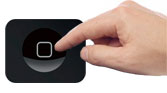
Will the Next iPhone Home Button Have Gesture Recognition?

If you’ve ever used a Macbook Pro, you know that nothing beats the gesture recognition feature on the Macbook Pro trackpad. Swipe three fingers left on the trackpad to go back in the browser, swipe four fingers up to reveal the desktop, and swipe four fingers down to see thumbnails of all your open windows (the Mac OS X Exposé feature).

iPhone Home Button Gestures

Well, rumor has it that the next iPhone home button may feature a gesture area with similar functionality. If the rumors are to be trusted, this home button gesture feature could signal the next revolution in smartphone technology.

With all the competition in the smartphone market, a gesture area on the iPhone home button would help the next iPhone stand apart from Android smartphones and other competitors. The iPhone screen already has decent gesture recognition — pinch to zoom, swipe left and right to move from one home screen to the other, etc. — but expanded gesture recognition would open up a new world of possibilities for the iPhone 5, or whatever the next iPhone is called.

Imagine swiping left on the iPhone home button to go back to the last app you had open, or swiping down on the home button to bring up a list of your recent notifications. The possibilities would be abundant.

What do you think? Would you consider home button gesture recognition a good capability to add to the list of potential iPhone 5 features?

Will the Next iPhone Home Button Have Gesture Recognition? is a post from Apple iPhone Review.


Mac OS X Lion sporting 1024×1024 icons, 3200×2000 wallpapers; Retina display Macs coming?

MacMagazine.com.br has posted an interesting find. Apparently the latest build of Lion includes some icons which are sized at 1024×1024. That’s twice the current 512×512 size of icons in Snow Leopard (four times the pixel count, but 2x larger in each dimension). Additionally, on April 2nd, Mac blog OSXDaily found some of the default wallpaper resolutions in Lion to be as large as 3200×2000 pixels.

These wallpaper and icon size increases are interesting because, as far as the wallpaper resolution goes, Apple currently does not make a display that supports that high of a pixel density. Given the fact that Apple is bumping up its icon and wallpaper sizes, it could point to a future where Macs sport high-density Retina displays.

Indeed, MacRumors points out that Apple has built in support for HiDPI display modes in Lion. “These HiDPI modes allow developers to supply 2x-enlarged images to support double-high resolution displays,” according to MacRumors. “Like the iPhone 4’s Retina Display, this means that user interface elements will remain the same size, but everything will be twice the resolution and, therefore, twice as detailed.”

Mac OS X Lion sporting 1024×1024 icons, 3200×2000 wallpapers; Retina display Macs coming? originally appeared on TUAW on Sat, 23 Apr 2011 21:30:00 EST. Please see our terms for use of feeds.

Source | Permalink | Email this | Comments

White iPhone 4 listed in Best Buy’s inventory with April 27th launch date

As if we needed any more proof that the white iPhone 4 is about to be unleashed, 9to5Mac posts screenshots from a Best Buy inventory system that shows the white iPhone 4 will be released on Wednesday, April 27th. This latest hint comes after a week long series of reports and leaks from Italy, the Netherlands, the UK, and even Verizon’s systems in the US.

9to5 notes that the white iPhone 4s are already en route to Best Buy stores across the US and should arrive by Monday or Tuesday. The model in the screenshot is the AT&T GSM model, but Verizon models are expected to be available on the same day. With a delay of almost a year, the white iPhone 4 seems to lack the punch it once did. But with the iPhone 5 rumored not to be appearing until September, the white iPhone 4 could be enough of an incentive for those wanting one not to hold off until the next model.

White iPhone 4 listed in Best Buy’s inventory with April 27th launch date originally appeared on TUAW on Sat, 23 Apr 2011 20:30:00 EST. Please see our terms for use of feeds.

Source | Permalink | Email this | Comments

Apple protoype spotted with T-Mobile 3G signal

A rumor fresh out of BGR suggests Apple is testing the iPhone for T-Mobile. A crystal clear image shows a white iPhone rocking a 3G signal from the wireless carrier.

Since the current iPhone 4 does not support T-Mobile’s 3G AWS 1700 MHz band, this is either a legitimate leak, a clever ruse where T-Mobile Europe is being pawned off as T-Mobile USA, or perhaps some Photoshop magic.

The prototype model reportedly sports an internal model number of N94, which fits in with Apple’s numbering scheme. The Verizon iPhone is N92, the GSM model is N90 and the iPhone 5 was thought to be N94.

This does not mean the above handset is the iPhone 5. It may be a prototype used to test the performance of a 3G radio compatible with T-Mobile’s network. It may also be a fake. It’s not like that hasn’t happened before.

Apple protoype spotted with T-Mobile 3G signal originally appeared on TUAW on Sat, 23 Apr 2011 20:02:00 EST. Please see our terms for use of feeds.

Source | Permalink | Email this | Comments

Kindergarten iPad 2 program causes rift between parents and school officials in Maine

Recently, the school board in Auburn, Maine decided to launch a pilot program which would place an iPad 2 in the hands of the district’s 300 kindergarten students. While school officials hail this program as “a revolution in education,” some parents are questioning this decision.

Spearheaded by Tracey Levesque of Auburn, the Auburn Citizens for Responsible Education are mounting an opposition to the school board’s iPad 2 program. The group questions the effect of handing iPads to children who are not ready for the technology and objects to the use of taxpayer money to fund this experimental program. Read on for more information about the objections to a program some think is the future of education.

Continue reading Kindergarten iPad 2 program causes rift between parents and school officials in Maine

Kindergarten iPad 2 program causes rift between parents and school officials in Maine originally appeared on TUAW on Sat, 23 Apr 2011 13:30:00 EST. Please see our terms for use of feeds.

Source | Permalink | Email this | Comments

Increase in iPad recycling prompts Gazelle to enter reseller market

After the iPad 2 announcement, Gazelle saw a marked increase in the number of first generation iPads being recycled by consumers. The electronics recycler has received so many iPad 1 tablets in good to excellent condition that it has decided to begin selling them back to consumers in the upcoming weeks.

Gazelle lets consumers send in used electronics for cash. It’s an easy way to sell your device without the hassle of deadbeat sellers on eBay or the spam from Craigslist. The amount paid out depends on the model of the device and its condition. Currently, Gazelle is paying $183 for a good condition 16 GB WiFi iPad model. Since the iPad 2 announcement, the company has accepted almost 17,000 iPads, 90% of which are in mint condition.

Rather than resell these iPads through Amazon or eBay, Gazelle has decided to open an online store as an extension of its current website. Pricing is still being determined, but the used iPads will likely cost between US$300 to $500. Gazelle may also collaborate with Square Trade to offer warranties on these used devices.

If all goes well with the iPad, Gazelle plans to eventually add the iPhone to its online store. The company expects to receive over 50,000 iPhone 4 handsets when the iPhone 5 hits the market later this year.

Increase in iPad recycling prompts Gazelle to enter reseller market originally appeared on TUAW on Sat, 23 Apr 2011 11:30:00 EST. Please see our terms for use of feeds.

Source | Permalink | Email this | Comments

Some spiffy cases for your Square credit card reader

As we noted last week, the Square credit card reader is now available in Apple Stores all around the country — you buy the reader for $9.95, but get a $10 credit when you do so, so the only charges are what you rack up when actually accepting credit card payments. As we’ve said before, it’s a pretty easy way to use cards, whether you just need money from a friend or have a small business that only occasionally takes payments.

But that reader is tiny and easily lost, so what’s the best way to keep track of it? A special case, of course. Unpluggd has a few options for keychain cases built specifically to hold that little widget, from $10 up to the excellent case above for $25. Yes, it might seem a little strange to spend that much on a case for something that you essentially got for free. But if it helps you keep track of the reader and have it right there on hand when you need to take a big payment, it’ll be worth it, right?

Some spiffy cases for your Square credit card reader originally appeared on TUAW on Sat, 23 Apr 2011 08:00:00 EST. Please see our terms for use of feeds.

Source | Permalink | Email this | Comments