my-Ditto lets you access your data from literally anywhere including your iOS devices

There are a lot of solutions to getting your hands on files, video and audio remotely. You can do it on your own configuring firewalls. Apple had iDisk, but that is slowly fading and it’s going to be dead next year unless Apple changes its mind. Of the many methods I’ve seen, Dane-Elec has come up with a product that is both easy and secure. It’s called the my-Ditto system. It consists of an external hard drive you attach to your Mac or PC via ethernet. Essentially it’s a NAS, or network attached storage. Once it’s up and running, you can access your files from any remote computer via a secure USB key. Pop it into any other computer anywhere, enter a password, and the files you have sitting at home are available. Even better, you can see your files from an iOS device running a special my-Ditto app.

The my-Ditto hardware offers systems up to 4 terabytes of storage, and there are starter systems of 500 gigabytes, or empty drive casings that let you populate it on your own. The systems also support RAID for data redundancy.

I was sent a 500 GB system to try. Setup was pretty easy. Plug the my-Ditto into your router, run the software from the USB key, and register. The USB keys need to be matched to your device with a serialization scheme, and if you need more you can buy them from Dane-Elec or just use a flash drive you buy anywhere and go through the steps to match it securely to your system.

You can then copy data to the drive, and set up public and private partitions. The system supports secure AES 256-Bit encrypted login. The software also can be set to back up a Mac, PC or Linux box. The server also allows a USB drive to be plugged in, and those files can also be securely accessed.

How did it all work? Quite well. I had one glitch setting my account up. I never received the email that would enable me to fire up the system. That turned out to be a known issue, and it has been fixed. I tried remotely accessing my files from both a Mac and PC laptop. You must have your USB key with you to do this, but it worked fine. The key has both a Mac and PC app on it and that’s what you run to access your files.

When you run the app remotely you will see 2 windows. Your remote computer and your local one. Files can be dragged and dropped between the 2, or there is a handy search dialogue box that makes finding files easy. If you have media on the my-Ditto, it can be streamed if you have the requisite bandwidth. Photos can be viewed as thumbnails, which makes browsing them easy.

Multiple users you authorize can access the files simultaneously, which makes it great for group projects. Up to 30 USB keys can be registered to a my-Ditto server.

The iOS app doesn’t use a hardware key, but you still get access to your files. You need a password, and all the data is encrypted. If your phone was lost, you simply disable the account and the phone would no longer have access.

In practice, the my-Ditto system is very easy to set up, works as expected, and gives you an easy way to pull files from anywhere. The USB keys can be put on a keychain. If it is lost, there is no way for a person to get your files just by having the USB key. If you forget your password you can re-authenticate your key with the my-Ditto server.

The system I tested sells for US $149.99 and consists of a 500 GB 2-bay enclosure. The second bay is empty if you want more storage. At the top of the line the company offers a 4 TB 2 driver server for $369.00. The iOS apps are free for the downloading and are universal for iPhone and the iPad. These apps also let you transfer iOS accessible files from your iPhone or iPad to your remote server. The app works on 3G or WiFi. There are also versions for Android phones.

The my-Ditto solution is very slick and very easy to use. If you have large amounts of data you want to access from anywhere, I can’t think of a competing solution that is as secure and quick to set up. The my-Ditto servers are available direct from Dane-Elec and some retailers.

my-Ditto lets you access your data from literally anywhere including your iOS devices originally appeared on TUAW – The Unofficial Apple Weblog on Wed, 30 Nov 2011 20:00:00 EST. Please see our terms for use of feeds.

Source | Permalink | Email this | Comments

The iPad rocks this ‘It Girl’ remix

We’ve heard some really good music come out of an iPad before, but to me it’s all basically sounded like yeah, it came from a tablet. This remix of Jason Derulo’s “It Girl,” however, which you can watch below, sounds like the real thing to me. Yes, there’s a lot of R&B sampling in there, and some of the sythesizers do sound like, well, synths, but on the whole it sounds really amazing. Professional music, made completely with an iPad!

Plus, the video, by a group called East Midwest Music, is probably the most well-produced iPad music video ever, clearly documenting not only which apps were used for which instruments, but also how they were recorded and put together. Trust me, as a blogger who often has to go hunting around for screenshots to label apps in music videos, I really appreciate that. Definitely give this one a watch below.

[via TechCrunch]

The iPad rocks this ‘It Girl’ remix originally appeared on TUAW – The Unofficial Apple Weblog on Wed, 30 Nov 2011 19:30:00 EST. Please see our terms for use of feeds.

Source | Permalink | Email this | Comments

Amidio’s Laugh Synth makes you cry — with laughter?

Amidio is known for their mobile music creation apps for iOS devices. They’ve brought us fully featured apps like the recent Songineer, Seline HD and Touch DJ. But the focus of their newest app, Laugh Synth, is a little more, well… light-hearted.

Laugh Synth does what it says on the tin, it synthesizes laughs. As detailed on Amidio’s YouTube page, Laugh Synth “…takes a sample of a laugh as an input, then divides it into phases and intelligently loops the most notable part, enriching it with the pitch modifications, subtle vowel alterations and crazy effects.” I couldn’t have said it better myself!

With 25 built-in laugh samples (some of them quite ominous), including Dracula and T-Rex, simply drag your finger around the input panel to mold, manipulate and morph the laugh samples. Take it even further with delay, chorus, bitcrush and reverb effects. And when you eventually stop laughing from all of that, sample some of your own laughs and share them with your friends on Twitter and Facebook.

Honestly, Laugh Synth will either have you chuckling away or (more likely) crying in desperation. But don’t take my word for it, check out the video below and get the app for a laughable $US0.99 from the iOS App Store.

Amidio’s Laugh Synth makes you cry — with laughter? originally appeared on TUAW – The Unofficial Apple Weblog on Wed, 30 Nov 2011 19:00:00 EST. Please see our terms for use of feeds.

Permalink | Email this | Comments

Get Where’s my Water free from Apple’s Facebook page

Apple is apparently giving yet another popular game away using its Facebook page — this time, it’s Disney’s Where’s my Water up for grabs. To grab your free copy of the great water-guiding physics puzzler, just head over to Apple’s App Store Facebook page, become a fan, and you’ll get a free promo code to download the game on an iOS device of your choice. It’s a great title (put together, as we’ve previously reported, by a former game tester at the House of Mouse), and obviously much better at the low price of completely free.

This is still such a weird promotion, though — Apple has traditionally not had the best relationship with Facebook, but they have given away apps using Facebook before. Cupertino has a perfectly good Twitter account that could also be used to give away free games, but the Facebook freebies appear to use a slightly different method than posting promo codes. Don’t forget Apple also has the Ping social network that could probably use a little traffic (and, you know, already happens to be connected up in iTunes).

Get Where’s my Water free from Apple’s Facebook page originally appeared on TUAW – The Unofficial Apple Weblog on Wed, 30 Nov 2011 18:30:00 EST. Please see our terms for use of feeds.

Source | Permalink | Email this | Comments

Apple retail to mark World AIDS Day by spotlighting PRODUCT (RED)

According to ifoAppleStore.com, Apple will be spotlighting (PRODUCT) RED items in its stores on December 1 to mark World AIDS Day. A percentage of proceeds from the (PRODUCT) RED line, which Apple launched in 2006, is donated to the Global Fund to fight AIDS in Africa.

Sources indicate that Apple Store employees will be wearing and/or promoting the red iPod nano, and employees carrying iPads will have red Smart Covers on them. Apple is also expected to promote its RED iTunes gift card and a set of Beats by Dre headphones that are also part of the RED initiative. At the same time, Mophie is also launching a line of RED products, including a new version of the red Juice Pack Air which has been available for some time now.

As of this writing Apple is already promoting the red Smart Cover on its website; clicking links to buy the Smart Cover took me directly to the page for the (PRODUCT) RED version.

Apple has stated that “(PRODUCT) RED has generated more than $170 million for the Global Fund” since its 2006 introduction, and “up to 50 percent of gross profits” from (PRODUCT) RED sales go to the Global Fund.

Apple retail to mark World AIDS Day by spotlighting PRODUCT (RED) originally appeared on TUAW – The Unofficial Apple Weblog on Wed, 30 Nov 2011 18:00:00 EST. Please see our terms for use of feeds.

Source | Permalink | Email this | Comments

Apple disabled settings shortcuts in iOS 5.1 beta

Thanks to the release of iOS 5, iPhone users found a tweak that allowed them to setup settings shortcuts for Bluetooth enabling and WiFi. This was all thanks to Safari allowing you to create a web shortcut to these settings.

With the relase of iOS 5.1 beta Apple has disabled this feature so that you can no longer create these shortcuts. If you want to get this feature back it looks like you are going to have to “jailbreak” your phone, which is how users did it prior to iOS5.

Tutorial: How To Create An iPad Split View With A Sliding Master Controller Like The Mail App

Typically with a UISplitViewController if you want to keep the entire space of the screen usable by the Detail view of your app then you will place the master (controlling) view within a UIPopOver.

The Mail app does things differently by sliding in the detail view from the left.

Keith Harrison has written an excellent tutorial on how to create a UISplitViewController modeled after the Mail app which has a master view that slides in from the left responding to toolbar presses, and to gestures.

You can find more details on Keith’s site here.  Keith has also created a followup that builds the gesture recognizers using interface builder rather than in code here.

A full example project is included.

©2011 iPhone, iOS 5, iPad SDK Development Tutorial and Programming Tips. All Rights Reserved.

.

DeliciousTwitterTechnoratiFacebookLinkedInEmail


Comments Off

Those who follow me on Twitter may be familiar with my approximately twice-yearly musings on whether it’s necessary, wise or desirable to allow comments on blogs.

For most people, a comment form is an essential part of what a blog is, and most of us enjoy the opportunity to leave feedback (even if we do so only rarely). But there are also plenty of possible reasons why comments are unnecessary, or undesirable.

The argument against comments

  1. They’re for a tiny minority. Compared to page-views, only the smallest fraction of people will actually leave a comment on the article itself. Twitter mentions (for my particular readership/audience) are at least three times as common.

  2. You should never read the bottom half of the internet. This doesn’t tend to apply quite so much to this blog, but generally speaking, comments on the web don’t contribute very much. For that reason, I doubt that any significant percentage of readers go on to read the comments of others, which rather defeats at last half of the point of comments – to continue the discussion.

  3. Comments encourage unconsidered responses. You’ve just read an article, you feel strongly about it, and you have a text field just waiting there. When disagreeing, people tend to be at their very worst when writing comments. They use language and tones which they’d never use in email, much less in person. If your blog allows comments, you’re inviting people into your house – but sadly, some of them don’t conduct themselves appropriately.

  4. Comments allow anonymity and separation of your words from your identity. On Twitter or Facebook, anything you say is at least tied to whatever form of identity you have there. Comments on an arbitrary website don’t follow you around, and I think that encourages very unhealthy behaviour.

  5. Comments create a burden of moderation on the blog owner. Various systems exist to ease the burden, but with the burgeoning spam problem on blogs, there’s always going to be a trade-off between getting people’s comments published as quickly as possible, and keeping the comments relevant and spam-free.

Bye, comments

It’s been a very difficult decision (I love reading comments on my articles, and they’re almost unfailingly insightful and valuable), but I’ve finally switched comments off. Since I used the excellent Disqus service, the easiest way was simply to disable it globally, which also removes (but doesn’t delete – I still have them) comments on all previous posts too.

I join an increasing number of fellow bloggers, developers and designers who have removed (or never added) their comment forms and never looked back, such as Chuck, John, Marco, Shawn and Ben. I also asked on Twitter just yesterday whether I should go ahead and remove comments, and pretty much all of the replies were firmly in the ‘yes’ category.

We’ll see how it goes. I want to make it clear that this isn’t a means to discourage conversation; indeed, I hope the opposite is true. If you read something here, and want to reply, please do one of the following, in order of preference:

  1. Write a response on your own blog. Considered, long-form follow-ups by an identifiable, accountable person are the ultimate form of feedback and discussion. I’d love to read what you have to say. Let me know about it via email or a tweet.

  2. Reply on Twitter. If your thoughts are brief, send a public tweet to my Twitter account (@mattgemmell). This is what most people do already anyway, and it tends to automatically invite others into the conversation too. There’s a little blue ‘Tweet’ button at the bottom of every article on this blog.

  3. Email. I discourage this (I get a lot of email, and I think that the vast majority of replies to published articles should themselves be public), but it’s available as an option; my contact info is on my About page.

I look forward to continuing the conversation with you.

 Addendum

I received an email the day after publishing this article, quoted below:

Dear Matt,

I don’t have a strong feeling about whether a blog should have comments or not – it’s your site, so do what you want. There are high quality sites without comments (like Daring Fireball or Marco.org), and high quality sites with high quality comments (like Asymco or The Loop). Of course, there are also low quality sites with low quality comments (like every local newspaper website in the United States). Your site is well written, so I’ll keep coming back.

On the other hand, one of the things you wrote in your post really struck me the wrong way. “I want to make it clear that this isn’t a means to discourage conversation; indeed, I hope the opposite it true.” No, turning off comments is unquestionably a means to discourage conversation. You say that comments are for a tiny minority, which is true. Running and maintaining a blog is for an even tinier minority. It takes a lot of effort to build a blog of high enough quality that it will be heard. Twitter is arguably a bit better, but 140 characters at a crack allows perhaps a single sentence.

The purpose of turning off comments is to discourage conversation. There’s nothing wrong with that, if that is what you want. But if you really want a conversation, don’t pretend that you are going to get one by turning off comments. You aren’t being honest with your readers or yourself.

Just some food for thought.

With best regards,

[Name supplied]

This was one of the points I feared would be misinterpreted in the article. I replied as follows:

Hi [Name],

Thanks for your message.

I think there’s a distinction between a goal (or purpose, as you say) and a consequence. Switching off comments will inevitably reduce the number of responses, but I think that it’ll increase the average value of the remaining responses; that was my point.

I think it’s also important to clarify what I mean by conversation. The sad truth is that the vast majority of all comments fall into one of a few categories:

1. Strong agreement, without any further contribution or expansion of the discussion. Nice to read, but not valuable in the context of the article.

2. Strong disagreement, without sufficient/any rational justification. The “angry teenager on the internet” phenomenon. Unpleasant, frequent, and disposable.

3. Spam, either unrelated/commercial or thinly-veiled excuses to link to someone’s own product/service/site. Irritating and very plentiful.

The remaining tiny percentage (maybe 1%?) is the agreement or disagreement that contributes value, by amplifying or extending the original article, pointing out flaws or different perspectives, and so on. It’s definitely that kind of percentage, based on my own experience.

Some people will say that comments are what make blogs (or the web as a whole) interesting and edifying and social and so on. That’s fine, but it’s a bit simplistic – the truth is that most comments don’t actually add any value. And yes, there’s then the question of what constitutes value, and who should be the arbiter of it.

But we’re talking about a personal blog, which isn’t a democracy – and furthermore, which amongst other things is a portfolio and a principal branding opportunity for the author. The simple, polarised question of utopian conversational democracy vs ultimate censorship becomes a lot more complex. Your blog is your own site, and it’s just not an “anything goes” scenario.

I don’t like the fact that switching comments off will reduce ‘engagement’, which it will, but I truly don’t think it’ll noticeably reduce value or damage conversation, all things considered. I’ll be delighted to link to people’s follow-ups on their own sites, for example, and I’ll be happier to do it because there’s just a better chance that those follow-ups are well-considered and will expand the discussion. And if that’s not the case, then I don’t have the Sophie’s Choice of whether to remove a comment (something I’ve done on only a handful of occasions in all the years I’ve been blogging), or to let the bad smell cling to my own site for all time. I think that’s actually a lot more democratic for me as the author.

I can honestly say that, no, switching off comments wasn’t a means to discourage conversation. There are easier and less conspicuous ways to do that, which wouldn’t raise controversy (such as moving to an all-moderated policy for comments, for example, or insisting on an externally-authenticated login like a Facebook account, and so on). I do stand by the decision, and I can only re-iterate that it’s for the reasons stated. If anything, I was also hoping to provoke debate over the issue of whether comments are actually a good idea – an issue I continue to think about.

I’m grateful that you took the time to email me.

Best,
-Matt

I feel that both emails make worthy addenda to the article, so I decided to post them here.

50 Unique Journal and Diary Apps

For those of you who are serial diarists or are always toting around a notebook in which to scribble all your genius ideas, memories or musings, why not combine your love of writing with your love for your iPhone?

Here are 50 journal and diary apps, all of them as unique as the people who will inevitably use them. And while, yes, there are even more out there — including those designed to keep track of everything from food and exercise to clothing and wine, from travel and books to hunting and fishing — I tried to limit this list to apps that were created under the general concept of recording thoughts and memories.

Now whether that’s through text, photos, videos, audio recordings, music or sketches, well, that’s up to you. And up to which app you choose. Hit the jump now to find the perfect one.

My Daily Journal

My Daily Journal keeps your daily thoughts under password protection and makes journaling simple and beautiful, with auto-save, the option for multiple entries per day, sharing of entries available via email and the ability to export your entire journal as a PDF.
Price: $1.99
Developer: JI Software Company
Download: iTunes

Penzu

This Penzu app doesn’t cost a cent, but is perfect for writing down your diary entries or journaling. It can sync your entries to Penzu.com, where you’ll always have access to your content, and you can lock your app with a PIN. The ability to insert images into entries is pretty cool, too.
Price: Free
Developer: Penzu Inc.
Download: iTunes

Plain Diary

This stylish app can add photos to diary entries, allows you to email your content, marks the date with a touch of the ribbon icon, and allows you to choose from multiple fonts.
Price: $0.99
Developer: ordinaryFactory
Download: iTunes

Day One

Day One is a stunning app that makes it very easy for you to quickly log your thoughts and then retrieve them from the cloud later just as simply. Notes are password-protected, and the app features a Dropbox sync to the Day One desktop application and your other devices.
Price: $1.99
Developer: Bloom Built, LLC
Download: iTunes

iDo Notepad

With iDo Notepad you can add as many journal entries as you want, and even assign different icons to different events in your notes. Content is password-protected and searchable, and notes can be added to any date.
Price: Free
Developer: Neil Thomas
Download: iTunes

Momento

Momento is a Starbucks’ “Pick of the Week,” and is gorgeous plus simple to use. It can connect to Twitter, Facebook, Flickr, Instagram, Foursquare, Gowalla, YouTube, Vimeo, Digg and Last.fm to collect and display your online activity as part of your diary.
Price: $2.99
Developer: d3i Ltd
Download: iTunes

My Daily Thoughts

From the creators of My Daily Journal comes My Daily Thoughts, a no-frills app that shifts the focus from all the bells and whistles to just plain writing. You’ll find no backgrounds, no covers and no photos here — just the blank space you need to write.
Price: $0.99
Developer: JI Software Company
Download: iTunes

iDiary Pro

iDiary Pro looks extremely lean at first glance, but still packs all the most important features, including landscape capability, password protection, full-text search, editable entries and others.
Price: $0.99
Developer: Jony Cree – mt
Download: iTunes

iDiary

Manage all your thoughts with iDiary, capable of storing journal entries, photos and voice memos. To keep you further organized, the app includes full text search, backup and restore, color and time tags, encryption, customizable fonts, customizable background image and more.
Price: $6.99
Developer: Triple Creeks Studio
Download: iTunes

The Journal

This app will appeal to younger users or those who really loved filling up their school notebooks with doodles and random thoughts. The Journal app can be password-protected, and its theme can be customized. Users also have the ability to email content directly from the app.
Price: $0.99
Developer: Rhobota LLC
Download: iTunes

My Secret Diary

Incorporate pictures, text, notes and music into your My Secret Diary entries, and then you can even decorate the pages with “stickers” or use bookmarks to keep track of extra special entries. Finally, lock the diary with your three-digit code to ensure all your secrets stay safe.
Price: Free
Developer: yoobee
Download: iTunes

My Diary

The My Diary app includes features such as password protection, sharing via email, landscape mode, backup, restore, color tagging, erase via wiping and font size changes via “pinching” the screen.
Price: $0.99
Developer: My Diary, Inc.
Download: iTunes

Secret Diary

Keep your diary entries safe with this password-protected app, featuring autosave, backup, AirPrint (so that you can print your content wirelessly), built-in text templates, labels you can assign to entries, full text search capability, and integration of images, maps and more.
Price: $0.99
Developer: Pavel Trafimuk
Download: iTunes

Flava

Use Flava as a journal, a date book, scrapbook, or photo album with the many options this app provides. Save photos with stickers, save songs with album art images, keep track of quotes from books, make lists, or just simply take the time to write out your thoughts. The app also offers tags, text color choices, Dropbox backup and restoration, the ability to sync with Evernote and more.
Price: $0.99
Developer: Greenmonster, Inc.
Download: iTunes

Windbell-Diary

Windbell-Diary is a beautiful app that features nature-inspired themes and interfaces, and allows the user to decorate the diary however he or she wants, for example, with fields, forests or beaches. Note your mood using icons, text images and voice memos.
Price: $1.99
Developer: Coolin
Download: iTunes

MyTymz

The MyTymz developers describe the app as a way to “capture your life in the moment” using text, photos, voice recordings, video and geographic location, making for a truly multimedia journaling experience. The app is protected with a PIN and also features to-do lists and task alerts, as well as a cool visual that maps your entries to show you where you’ve been.
Price: Free
Developer: Taponix, Inc.
Download: iTunes

Every Journal

The Every Journal app claims to be a weekly journal or diary based on the idea that it’s for everyone, every time, everywhere. Simple to use, it allows a person to enter or schedule memos and diary entries quickly, and you can even export the data.
Price: Free
Developer: Tomohisa Ishibashi
Download: iTunes

eJournal

Choose from 13 different themes in the eJournal app (including even more as in-app purchases), plus enjoy a user-friendly interface, secure password protection, the ability to include photos and images in your journal entries, searchability, font choices and sharing capability via email.
Price: $2.99
Developer: Piccadilly Journals, Gifts and Stationery
Download: iTunes

Journal Diary

Not only does the Journal Diary app allow users to record memories and thoughts with ease (using more than just text), but you can also include emoticons, as well as a background picture for each day.
Price: $1.99
Developer: Sulaba Inc
Download: iTunes

Raconteur

Raconteur actually reminds you of entries you still need to write, plus allows you to track your favorite memories and perform full text searches using the date, favorite status, picture or any combination of the above — meaning you can find entries fast! It also supports TextExpander and landscape mode.
Price: $2.99
Developer: Too Much Tea
Download: iTunes

Quick Diary

Quick Diary allows users to write down notes or thoughts quickly and then edit or delete them later, plus search by text or date and share content. It is what it says it is: quick.
Price: Free
Developer: TopOfStack
Download: iTunes

Save Your Moment

Save Your Moment can lock up your entries to keep them private, or the app makes it possible to share your moments via Twitter, Facebook and email. Plus, you can easily insert photos and tag your moments to keep them organized.
Price: $0.99
Developer: Yapp
Download: iTunes

Memory Book

The Memory Book developers describe their app as a “revolutionary approach to diary writing.” Add photos, tag people or places and categorize your memories in this app, then have it all automatically synced to any number of your devices so that your content is always accessible.
Price: $0.99
Developer: WhiteLime
Download: iTunes

Storie

The Storie app is all about recording your thoughts and memories and then sharing those stories with the world via Tumblr, Twitter, Facebook, or your blogs and websites. You can also import photos from your photo album, Facebook albums or Instagram account.
Price: Free
Developer: Shnap
Download: iTunes

Wonderful Days

This is a very pretty app that allows for lots of customization when it comes to your journal entries, including choosing your themes, photo frames, fonts and icons.
Price: $2.99
Developer: HandyPadSoft
Download: iTunes

MomentDiary

This is a good free app for keeping track of, well, practically anything, simply and quickly. Features include backup, restore, export capabilities, picture support and choice of background color.
Price: Free
Developer: Utagoe Inc.
Download: iTunes

iJournal

The iJournal developers claim their app is intuitive, with features that include customizable text styles and backgrounds for each journal entry, a customizable home screen, entries that can be sorted, edited or deleted, and password protection.
Price: $1.99
Developer: Fishington Studios
Download: iTunes

Amazing Diary

This beautiful, well-organized app is easy to use. Write notes, take pictures, make audio recordings, and then add them to your diary entries. The app can be viewed in calendar mode, and the font color and background image can be changed. Don’t forget to use the backup features in case you need to use the restore option!
Price: $0.99
Developer: Roland Yau
Download: iTunes

Diary Mobile

Parts planner, task manager and journal, Diary Mobile is secure and can sync all your notes and content to Diary.com so that you never have to worry about losing your data — even though it still works offline, too. The app also makes use of diary alerts and daily and weekly agenda email alerts.
Price: Free
Developer: Diary.com Ltd
Download: iTunes

Daily Diary

In this app, enjoy password protection, search capability, option for multiple entries per day, sharing via email, landscape mode, customizable fonts and font sizes, editable date and time for entries, and more.
Price: $1.99
Developer: We4Mobile
Download: iTunes

Moments!

With a very pink and precious design, Moments! offers plenty of customization options, plus the ability to insert photos, tag entries and even add weather and mood icons.
Price: $1.99
Developer: Vita Stone Ltd.
Download: iTunes

Scribe Notes

This multimedia journal enables you to create thoughts and notes using photos, videos, maps, sketches and geotags (according to wherever you are when you compose the entry). One of the many great features is the ability to create different notebooks for categorizing your entries.
Price: $0.99
Developer: Boost Academics
Download: iTunes

MeDaily

Use songs, pictures and text to create content that’s all about you! The app is password-protected so you can keep things all to yourself, or you can post your thoughts to Facebook or Twitter with the simple click of a button.
Price: Free
Developer: Lunchbox
Download: iTunes

JournalPro

Within this app find two separate and completely customizable journals, as well as a spell-checker, three security levels to choose from, a search function, a color-coded calendar of your entries and a share-via-email option.
Price: $1.99
Developer: Beacon Consulting, LLC
Download: iTunes

Diary Journal Pro

A little pricier than most of the other journaling apps in this collection, Diary Journal Pro aims to impress by combining all the best bells and whistles into a single app. The functionality looks great, even if the design of the interface does need a tiny bit more work.
Price: $5.99
Developer: Sulaba Inc.
Download: iTunes

My Life Journal

Aesthetically simple yet well thought out, the My Life Journal app is secure and can accommodate an unlimited number of entries per day. Use photos, videos and multiple tags — people, places, events, and custom options — to help create your memories. View your entries according to a day, list or calendar view, and share your entries via Facebook if you want.
Price: $0.99
Developer: Echelon Studios
Download: iTunes

MyDiary 2

This beautiful app includes such features as wireless syncing, backup, restore, password protection, paging according to months, sharing via email, landscape mode, customizable font size, color tagging and others.
Price: $1.99
Developer: MyDiary Inc.
Download: iTunes

Chronicle

Chronicle features landscape editing, photo integration, customizable fonts and background colors, the ability to upload to Google Docs, password protection, autosave, and the option to back-date posts.
Price: $1.99
Developer: Steven Romej
Download: iTunes

My Days

With My Days you can add multiple entries per day, as well as make entries for past or future dates. All content is autosaved as you type, and you can choose a passcode to ensure you never lose your info to a tech failure or prying eyes. Landscape mode and multiple fonts are supported, and different skins offer options for further customization. Share via Twitter, Facebook or email, and enjoy backup and restore via Dropbox, Wi-Fi and iTunes file sharing.
Price: $0.99
Developer: Vineing
Download: iTunes

Daily Log

As the name indicates, this app is best used for brief diary or journal entries. Capture moments, information or thoughts with ease using the home page, from which users can select from text, snapshot, camera roll or quick entries. Then later export filtered entries to Dropbox as html or text.
Price: $1.99
Developer: TaHelpYa
Download: iTunes

Seretech Chronicler

A truly unique app made by developers who have thought outside the box, the Seretech Chronicler journaling app includes an interface that enables the user to quickly view individual entries (automatically timestamped and geo-tagged), or all entries in a day, month or year.
Price: $2.99
Developer: Serene IT
Download: iTunes

Kemba

Named after the phrase meaning “Keep Me Balanced,” the Kemba app features lots of cheery purple and was designed to allow you to record special moments while also relating each one to your most important life roles. For example, you might tag an entry with “wife,” “best friend,” or “sister” and so on. At a glance you can now see how “balanced” your life is, according to the roles that matter most to you.
Price: Free
Developer: Mobickus, LLC
Download: iTunes

Diary

This diary is secret! Shake your iPhone to enter the passcode for your hidden diary and gain access to all your entries, which can be written in customized fonts and colors and can include pictures, voice recordings, emoticons and more. Lock all your entries, or just some of them. And don’t forget to back up the content via Wi-Fi or email.
Price: Free
Developer: mob-era.com
Download: iTunes

Memoirs

The developer describes Memoirs as “a place you can store all your thoughts and memories in a fast, fun and easy-to-use app.” Type out thoughts or ideas, or insert a photo from your library into this secure app. Although some necessary updates are on the horizon, Memoirs is a very attractive app.
Price: $1.99
Developer: SimonsApps
Download: iTunes

Lifejournal Pro

Lifejournal is a journal that keeps track of your life’s events in a simple, convenient manner and makes it simple and easy to share them with your friends and family. Add tags or a picture, share your entries on Twitter, Facebook, or by email, and view visual representations (timelines) of your life as it’s progressed.
Price: $1.99
Developer: Down-Shift Inc.
Download: iTunes

Journal ABW

Journal ABW is an elegant app that autodates entries and uses simple formatting with a big, bold font and different-colored backgrounds. You can also easily export your content to Text documents.
Price: $4.99
Developer: Noor Eldeeb
Download: iTunes

Thought Book

Thought Book helps you keep all your most meaningful memories and thoughts in one place. Type out your entries and add music or photos, and then save them for yourself, or share them via Twitter and Facebook integration.
Price: $0.99
Developer: Paul Pilone
Download: iTunes

The Good Life Journal

The developers of The Good Life Journal app say this app is “designed to give you a flexible and free platform for recording your life events, moods and details of your day. Use this app to remember how you felt, pictures of the day, record extended journals and remember big and little events.” Sounds like the good life, indeed.
Price: Free
Developer: Under Pressure Development
Download: iTunes

Any Day Journal

With a very simple and easy to understand interface, Any Day Journal allows users to incorporate notes, pictures, video, sounds and even sketches into their entries. The app takes its name and concept from the famous quote: “Any day is a good day to start a journal.”
Price: $2.99
Developer: Lobitos Creek
Download: iTunes

Dayflip

The gorgeous Dayflip app separates your life into notebooks, based on the idea that your life is like a big book. Entries are organized by day (Day 1, Day 2, …), but the entries don’t have to be made on consecutive dates. Enjoy integration with Facebook and Twitter, as well as nine different notebook colors, the option to add photos to entries, the ability to lock the app, and more.
Price: $0.99
Developer: Y-Tech
Download: iTunes

Wrap Up

Did you find one you like? Do you already have a journal app that you’re in love with but we didn’t include it? Comment to let us know your thoughts.

Organize All Your Receipts With Lemon

If only there were a way to save all your receipts from getting washed, lost in your car or buried in the stacks of paper claiming most of the real estate on your desk — in a single, easily accessible place, right?

With the Lemon app — designed to complement the services of Lemon.com — you can scan all your receipts with your iPhone and store all their details online. Keep track of your spending, create expense reports and more. Want to see how it works? Hit the jump and I’ll show you.

Your Lemon Account

To get the most out of Lemon, sign up for a free account, either through the app or online at Lemon.com.

Signing up for a Lemon account is free, and the website and app are designed to complement each other.

Signing up for a Lemon account is free, and the website and app are designed to complement each other.

Even if you don’t register online, you’ll still be able to access your receipts using the app, but the convenience the online dashboard provides is pretty spiffy, as it can tell you things like the total number of receipts you’ve scanned that month, how much you’ve spent, how many of your receipts are being processed and more — all at a glance.

The Lemon.com dashboard provides a wealth of information all at a glance.

The Lemon.com dashboard provides a wealth of information all at a glance.

Lemon’s core service of converting your receipts to digital data and storing them in the cloud is free, however the company does offer premium services that have a monthly subscription fee.

Scanning Receipts

Scanning receipts is a snap. All you have to do is match the edges of your receipt to the on-screen box and then click the camera button to take a photo.

Lemon reads each receipt you scan in order to extract all the important information.

Lemon reads each receipt you scan in order to extract all the important information.

Once the receipt has been captured, Lemon extracts all the important pieces of information — store name, store’s contact info, the date and time, items purchased, the tax and total amount paid — and makes tags out of them, which can be searched later.

You have to confirm that all the information Lemon has pulled is accurate — which, it regularly is, provided you took a clear photo — but if the app returns something inaccurate, you’ll have to either take another snapshot (since the app doesn’t allow for manual editing of the info, unfortunately), or log onto Lemon.com, where you can edit the receipt you want by choosing it from your All Purchases section.

For each receipt scanned you can categorize the expenses, even choosing multiple categories, such as Personal, Business, Credit Card, Check and so on. Of course, you can also create your own customized categories, if you’re keeping track of expenses for an upcoming vacation for example, or if you need to keep track of your expenses per client or per project.

Assign your expenses to one of the given categories, or create your own.

Assign your expenses to one of the given categories, or create your own.

By the way, if you have a receipt that’s too long to easily fit in the shot for a single screen capture, Lemon offers the option to add snapshots, although it takes some hand-eye coordination. Line up the previous image with the next image you’d like to take of the receipt, then take the snapshot and Lemon will turn the receipt into one long, seamless image.

Emailing Receipts

“But what about when I shop online?” you ask. Well, Lemon has a way to deal with your e-receipts, too. When you registered with Lemon via the app or the service’s website, you created your own personal @lemon.com account.

Each time you purchase something online, forward your digital receipts to your @lemon.com email address. Once Lemon’s system has processed them to extract all the important details as per usual (this can take a few minutes), the receipts will then appear in your Purchases section. (Any reports you run will not include your email receipt information until they are processed and shown in your Purchases section.)

And you’ll still be able to access the information from your e-receipts on your iPhone, just the same as you would any receipts you scan.

Access from your iPhone all the details of your scanned receipts and e-receipts.

Access from your iPhone all the details of your scanned receipts and e-receipts.

Using the Data

And here it is, the reason you wanted this app in the first place: the ability to export your expenses and create reports.

To get started, simply log in to Lemon and head to the Reports section on your dashboard. Choose a date range (weekly, monthly or all dates) and the labels you want to filter by. Lemon will generate the information you’ve requested, providing a number of different chart views, and you’ll have the option to export your report to an .xls, .csv or .pdf file and have it sent to the email of your choice.

Lemon can generate reports based on your receipts and email them to anyone you want.

Lemon can generate reports based on your receipts and email them to anyone you want.

Ideal for when your accountant or boss needs facsimiles of your receipts, Lemon can even include in the email a URL for downloading all the images of your receipts.

Conclusion

This app does all the hard work for you — reading all the details of your receipts and keeping track of how much was spent on what — and convenience is worth a lot of points.

A few drawbacks include the inability to manually edit the receipt details directly from your iPhone (you have to go through Lemon.com), as well as the inability to add multiple users and the ads you occasionally have to deal with — although the latter two issues become non-issues if you’re a Lemon subscriber. (Visit the Lemon website to see pricing for the Business Premium account and other options.)

All in all, I think this app is very useful, highly accurate, and has the potential to save me a lot of time and headache (and maybe even cash!) in the long run. Are you already using it? Let us know what you think in the comments below.

Fitbit: an Excellent Tool for Getting In Shape

There have been plenty of games reviewed over here on AppStorm, so there are plenty of ways for you to kick back and relax. What I’d like to look at today is a way for you to get active and in shape, with the Fitbit app for iPhone. Fitbit is a relatively mature utility in the fitness space but their iPhone app is brand new.

Is this service going to help you get in shape, or is it a slouch? In my experience, it may just have the tools that you need to get up and running.

The Problem

People are becoming more and more aware of how their weight is affecting their overall health. With the rise of fitness-based services, people are beginning to take their health seriously and are leveraging the tools offered by technology in order to make changes to their everyday lives.

The traditional thought is that you need to diet to lose weight. While it’s true that this can help, you also need to be more active in your day to day life and watch what you eat every day, instead of just the days that you’re feeling a bit down about your size.

Fitbit offers a variety of tools to help you reach your weight loss and fitness goals.

Logging Activity

Key to a healthy lifestyle is an active lifestyle. It all comes down to how much you’re moving compared to how much you’re bringing on. Simple math, simple concept, but difficult execution. Fitbit makes it easy to log your activity and see just how much effort you’re putting into your health every day.

Hopefully your activity screen won't look like this for long.

Hopefully your activity screen won't look like this for long.

I found most forms of activity are present, from walking and running to calisthenics, working at a day job, or writing. I can’t attest to how accurate the calories burned are; I’m operating under the assumption that they’re as accurate as possible given Fitbit’s knowledge of my body (height and weight) as well as time spent working out and intensity. I’d love to have a way to monitor my heart rate, but unfortunately that isn’t possible just yet.

You mean sitting at the computer does burn calories?

You mean sitting at the computer does burn calories?

Remembering to log your activities has a significant psychological advantage. While it would be nice to be able to set reminders, I found that I didn’t actually need them; I became almost compulsive with logging as much as I possibly could. I’m sure that most people will have the same reaction, adding as many activities as possible into Fitbit in order to get a sense of satisfaction and a real idea of how much they’re working throughout the day.

You Are What You Eat

Of course, how much you’re moving is only one side of the coin. It’s also important to measure how much you’re bringing in, as the fuel is just as important as the output. Fitbit makes it relatively easy to monitor your calories throughout the day, with extensive knowledge of the calories present in many popular dishes from restaurants and fast-food joints.

Luckily, Fitbit does have info for some generic items.

Luckily, Fitbit does have info for some generic items.

I would have liked more generalized answers, as sometimes I had to pretend that I had eaten out somewhere when really I was cooking at home. I’m sure that this is difficult to do, but it’s an important aspect of the service that deserves to be fleshed out. I’ve found that as I cook at home more I lose more weight, and it would be nice to have the numbers to back that up.

Other applications will use other methods of tracking what you eat, and what it comes down to is personal preference. In some ways I love knowing how many calories I’m bringing in throughout the day, but I also know that calories are only part of the story.

If there’s anywhere that Fitbit needs to expand, this would be it; despite a robust offering, there’s more to food than the calories brought in and I would love to be able to have information on more generic objects.

Water

Water is what keeps you going. You can last longer without food than you can without water, and it’s important to make sure that you’re drinking enough throughout the day. Beyond that, there’s a trick to weight loss that some people still don’t understand: you need to drink more.

As you drink more water, the man on the left will become more and more blue.

As you drink more water, the man on the left will become more and more blue.

See, most of the time when people are absentmindedly eating or feeling hungry at odd times, they’re actually feeling thirsty. Misinterpreting this can add a ton of unneeded calories (and fat, and other horrible things) so a good rule of thumb is to drink something first and then see if you still feel hungry.

Adding water is easy with the slider and with a provided keypad.

Adding water is easy with the slider and with a provided keypad.

Why would you drink water instead of soda or juice? Again, because of all the things present in them. Water is calorie free, sugar free, fat free, etc. It’s everything that we want in our diets and is one of the best things that we can consume, and yet we don’t get enough of it. Fitbit’s app makes it easy to set a goal for how much water you’d like to drink throughout the day, and then log the amount that you actually drank.

Weight

This is the big one. Most often, when people talk about “getting fit” they mean “losing weight.” Monitoring your weight regularly can help you understand how what you eat and drink is affecting your body, as well as provide real, measurable feedback that you can act on.

Luckily I'm comfortable enough for you all to see how much I weigh.

Luckily I'm comfortable enough for you all to see how much I weigh.

There isn’t much to do with the iPhone app here; you can log your weight and that’s about it.

Future Updates

As the iPhone becomes more and more aware, I would love to see future updates to the app. For instance, it’s currently impossible to measure your steps with the iPhone app; I’m sure that the iPhone could be turned into a pedometer of some sort. This may go against the company’s desire to sell their own tracker (the Fitbit Ultra) but it would be a nice incorporation.

There’s also a ton of functionality on the website that can’t be accessed via the iPhone app. At this point it would be nice to have a way of viewing this extra info while I’m away from the computer, but in no way is it a deal-breaker.

Conclusion

The Fitbit app is the first app that has actually helped me get fit. Part of this has to do with the service itself; it’s a strong, stable tool that incorporates a bunch of information in order to help you become the best you possible. This iPhone app makes it easy to log my activity no matter where I am, reducing the friction necessary to track what I’ve been doing.

It’s worth mentioning the best-in-class UI as well. Everything about this app’s interface is fantastic, with friendly colors and nice details that really make the experience enjoyable during use. This further reduces the barrier to entry, and makes the app a joy to use.

There’s nothing you can get that covers the same bases as Fitbit, for free. Other apps will excel in certain areas, but Fitbit has the best overall package available. With a free web app and iPhone app, there’s really no excuse not to try Fitbit today.

iTunes Movie Trailers: Meeting All Your Movie Needs

For years, Apple’s worst kept secret has been the Trailer section of their website. It’s not publicized very often, but occasionally a web article will link to it, or someone will tell you about the latest exclusive feature, but it’s one of those things you kind of have to know about before you go there.

A few months back, Apple released a series of new apps designed to showcase the cool features in iOS 5, and one of them was iTunes Movie Trailers — but we’ll call it Trailers to keep things simple. At first blush, it seems like this would be a pretty shallow app with only one focus: showing you trailers. But as it turns out, there’s a lot more to the app than just some pretty videos, and I’ll tell you about them after the break.

The Basics

Yes, Trailers will show you movie trailers. I mean, that makes a lot of sense, so if you’re going to name your app with such a literal name, you’d want it to do what it says, and Trailers excels for sure.

The home screen for Trailers is pretty straight forward.

The home screen for Trailers is pretty straight forward.

Apple has the benefit of getting access to all of the best trailers, and as such, all of the ones featured on their website are available on the app. The featured trailer will show up on the top of the home screen first, but you’re also able to sort the flicks by genre if you so choose.

Tom Cruise runs in every movie. It's a fact.

Tom Cruise runs in every movie. It's a fact.

Once you pick out your movie of choice, you’re able to watch one of the trailers right there, just by touching on the title. And if that was it, I really wouldn’t be very impressed. Fortunately, it’s not.

The Continuing Saga

If you look down on the bottom of the screen, you’ll notice one of those standard bits of interface found in many iOS apps, and this is where stuff starts to change up.

First off, there’s the Calendar section, which tells you what’s coming out when. Sounds simple, right? Well that’s the gist of it sure, but think about the last time you wanted to know when that one movie was hitting the theaters and had to randomly Google names until you figured it out? Happens to me all the time. Now it’s easy, just by flipping through the calendar and seeing if something prompts your memory.

Find release dates and top trailers, all in one place.

Find release dates and top trailers, all in one place.

The Top 25 section is next on the list, and these are broken down into a few different sections. You’ve got the most popular trailers, the biggest ones on the weekend box office, top reviews from Rotton Tomatoes and iTunes top movies. Again, this seems trivial at first, but it comes in handy at parties or when you’re trying to prove to your boss that yes, the latest Twilight movie really did hit the top of the box office charts last weekend. As for why that happened, well your guess is as good as mine.

The Buying Experience

The next icon on the bottom is called In Theaters, and as the title would seem to imply, it’s a list of the movies that are currently in the theaters. Pick a day from the calendar bar at the top of the screen to see what’s playing this week, or select Theaters from the top of the screen and find a theater near you. This pulls up a Google map that shows you all of the theaters in your area, and from there you can choose whatever movie you want to see.

The In Theaters section has a lot to offer.

The In Theaters section has a lot to offer.

Once you’ve found a theater, you can see what’s playing and that’s neat. But, you can also touch one of the little blue buttons on each listing and select whatever showtime you want to attend. At the bottom of the screen you’ll get a little popup that asks if you want to buy tickets, and if you choose that option you’ll be whisked away to buy tickets on the company’s website.

See? It's just like I said in the previous paragraph.

See? It's just like I said in the previous paragraph.

Finally, there’s also a Favorites section of the app. In my world, there’s a few theaters that I really like to visit, and others that I stay away from like the black plague is delivered with the popcorn. If I touch the little star icon in the corner of the In Theaters section, then that theater becomes one of my favorites. Same with the movies part, making it easy for you to select your favorite movies before they come out, and then you can see what the local showtimes are at your favorite theater.

Final Thoughts

There’s not really much wrong with this app, because it does everything it says in the title and then some. The interface is nice, everything is laid out on a black background making it convenient to read in low-light situations and it’s convenient to use.

That said, I just can’t give it a full 10 score, but I don’t really know why. There’s some little nagging doubt in my head that says, “This app isn’t perfect. I mean, it’s close, but it’s not that cool.” Again, no real logical reason here, just something in the back of my head.

But don’t let that stop you. The app is free so you really don’t have much to lose, and the added functionality may make your life a little bit easier. Plus, it’s always cool to see the new trailers before they hit the screen, right?

ELCImageGrabber

As I was working on the ELCImagePickerController, bringing it up to speed for iOS 5, I needed to get some images inside my iOS simulator. I did some googling and came up with the handy method of dragging and dropping images onto the simulator and using Safari to save them to a photo album. This is all well and good for four or five photos, but it starts to really slow down after that. Also, if you ever run into a situation where you need to reset the simulator you’re stuck with doing it all over again. For the love of all that is automation, and of course any excuse to start new project in iOS 5, I knew it was time for a utility to handle this task for me.

With that, I give you ELCImageGrabber.

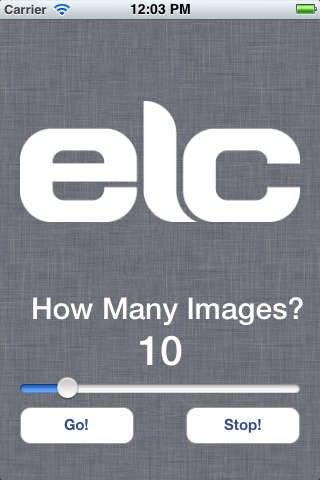
This was a quick project, so it’s not the prettiest interface, but it sure gets the job done. Tell it how many photos you want and watch as the previews go by and get stored in your photo library. The 64 images at a time limit is imposed by the Google image API for a single request, but there are plenty of ways around it. Also, I’ve hardcoded the search term in the source code, but perhaps you want rainbows and unicorns instead? I hope people find this useful and change it up to fit their needs as well. I’d love to see pull requests for any useful features that you lovely readers might add!

Get the code here!

TUAW TV Live: Open mics on the last day of November

Did this month just fly by or what? Just 35 days ago I was doing a live review of the “new” iPhone 4S, and now all of us are used to talking to Siri. It’s also hard to believe that in just a few weeks, TUAW TV Live marks its second anniversary of weekly idiocy.

Time flies, and so will today’s show as I open the microphones to TUAW TV Live regulars. I’ll provide my Skype address to folks in the chat room, and if you’d like to pontificate about a topic for 5 – 10 minutes, you’ll have the chance. Just keep it on topic — i.e., Apple-related — and you’ll be fine!

Below, you’ll find a Ustream livestream viewer and a chat tool. The chat tool allows you to participate by asking questions or making comments.

If you’re driving somewhere and would like to watch TUAW TV Live while you’re stuck in traffic, please don’t — keep your eyes on the road! However, if someone else is doing the driving, you can watch the show on your iPhone and join the chat by downloading the free Ustream App. It’s a universal app and is wonderful on an iPad, both for viewing and participating in the chat.

We’ll start at about 5 PM ET, so if you’re seeing a prerecorded show, be sure to refresh your browser until you see the live stream. For those of you who are not able to join us for the live edition, you’ll be able to view it later this evening on our TUAW Video YouTube channel and as part of the TUAW TV Live podcast viewable in iTunes or on any of your Apple devices.

TUAW TV Live: Open mics on the last day of November originally appeared on TUAW – The Unofficial Apple Weblog on Wed, 30 Nov 2011 16:55:00 EST. Please see our terms for use of feeds.

Source | Permalink | Email this | Comments

Details on Apple’s Grand Central Terminal retail deal

Apple is soon set to open a huge new store in New York City’s Grand Central Terminal, and it’s expected to be one of its largest and most profitable venues. The New York Post has obtained some details on the deal Apple got on the space, and let’s just say I want someone from Apple in my corner negotiating for me if I ever buy a house.

First, while it’s expected that Apple’s Grand Central Terminal location will see US$100 million in annual sales, unlike all other retail entities in Grand Central, Apple won’t be sharing a percentage of that revenue with the Metropolitan Transportation Authority. Second, Apple is reportedly paying only $60 per square foot for renting the space, far below what most other tenants are paying. The Post cites an upcoming Shake Shack burger restaurant as one example; that outlet will pay $200 per square foot in rent.

MTA has justified the terms of the deal by saying it expects the Apple Store to generate significantly increased traffic and higher sales at nearby stores where it does reap a percentage of revenues. By comparison, Apple’s 5th Avenue location reportedly generates $400 million in annual sales, with approximately $15 million of that going to the location’s owner.

In order for the MTA to see similar percentages, sales at outlets adjacent to the Grand Central Terminal Apple Store will need to rise by a minimum of 7.5 percent. That’s assuming the estimates of $100 million per year in Apple Store sales and MTA’s $500,000 revenues per 1 percent increase in sales are both correct. There’s no way of knowing whether sales will rise by that much — the new Apple Store hasn’t even opened yet — but count me among the skeptical.

Details on Apple’s Grand Central Terminal retail deal originally appeared on TUAW – The Unofficial Apple Weblog on Wed, 30 Nov 2011 16:00:00 EST. Please see our terms for use of feeds.

Source | Permalink | Email this | Comments