Compare a nested array with another array

I have two array one is Movie List and another is Genre

Requirement:

Need to compare both the array and filter the movies according to its genre.

1.Example for Movie List

movietList = [
  {
    title: "The Dark Knight",
    genre: "Action"
  },
  {
    title: "The Godfather",
    genre: "Crime"
  },
  {
    title: "The Shawshank Redemption",
    genre: "Drama"
  },
]

2.Example for Genre

genre = [Action, Crime, Drama]

3.Expected Result

result = [
  action: {
     title: "The Dark Knight"
      },
  crime: {
     title: "The Godfather"
     },
  drama: {
     title: "The Godfather"
     }
]

Legends not showing properly in google pie chart

I am changing labels, to protect data by replacing it with dummy data with same length.
enter image description here

Code Link: https://jsfiddle.net/p_raveen/L84wnc6d/
I am ready to make size of pie chart smaller, but legends should be clearly visible.

ChartArea property not working

<script type="text/javascript" src="https://www.gstatic.com/charts/loader.js"></script>
<script type="text/javascript">
google.charts.load('current', {
  'packages': ['corechart']
});
google.charts.setOnLoadCallback(drawChart);

function drawChart() {

var data = google.visualization.arrayToDataTable([
    ['Type', 'Value'],
    ['Manual Success:362', 362],
    ['Manual Ongoing:2', 2],
    ['Manual Failed:980', 980],
    ['Bulk Success:0', 0],
    ['Bulk Ongoing:0', 0],
    ['Bulk Failed:0', 0],
    ['Api Success:0', 0],
    ['Api Ongoing:0', 0],
    ['Api Failed:0', 0],
  ]);

  var options = {
    title: 'ABC Abcd Abcdef(1234)',
    titleTextStyle: {
      color: '#475F7B',
      fontSize: '16',
      bold: true
    },  
    sliceVisibilityThreshold: 0,
    slices: {
      0: {
        color: 'rgb(16, 148, 25)'
      },
      1: {
        color: 'rgb(51,102,204)'
      },
      2: {
        color: 'rgb(255, 0, 0)'
      },
      3: {
        color: 'rgb(53,94,59)'
      },
      4: {
        color: 'rgb(0,0,128)'
      },
      5: {
        color: 'rgb(114,47,55)'
      },
      6: {
        color: 'rgb(127,255,0)'
      },
      7: {
        color: 'rgb(137,207,240)'
      },
      8: {
        color: 'rgb(248,131,121)'
      }
    },
    legend: {
      position : 'top',
      maxlines: 15,
      textStyle: {
        fontSize: 10,
        bold: true
      }
    },
chartArea:{
      left : '20%',
      top : '20%',
      width : '60%',
      height : '60%',
    }
  };

  var chart = new google.visualization.PieChart(document.getElementById('pie_chart_1'));

  chart.draw(data, options);
}
</script>
 <div id="pie_chart_1" style="height: 400px;"></div>

I have try using chartArea Property, but It is not working

can i collect the deps in the babel plugin or webpack plugin?

I want to use the form of collection package to load the CSS corresponding to the dependent package

but in babel ImportDeclaration I can’t collect the node_module’s dependent dependency.

thanks for you answer my question

sounds like these
I try to collect them but i failed, only the ‘src’ deps without dependent dependency.
enter image description here

enter image description here

how can i collect them and insert css ?

Push Array React Native Keep Replace And Not Append

What is the correct way to use push array in React native ?

const BuilderIndicatorCard = (props) => {
    const [isChecked, setIsChecked] = useState(false);
    const [checkedValue, setCheckedValue] = useState([]);
    
    let storeCheckedValue = [];
    useEffect(() => {    
        if (isChecked) {
            storeCheckedValue.push(props.indicator);                                                      
        }                                    
        console.log(storeCheckedValue);      
    }, [isChecked, checkedValue])


    // const removeCheckedStrategy = (checkedValue, array) => {
    //     var copyArray = [...array]; 
    //     var index = copyArray.indexOf(checkedValue);
    //     if (index !== -1) {
    //         copyArray.splice(index, 1);
    //         setArray(copyArray);
    //     }
    // }

    return (              
        <CheckBox           
            containerStyle={styles.checkbox}
            size={15}  
            textStyle={styles.name}       
            title={props.indicator}
            checked={isChecked}
            onPress={() => {setIsChecked(!isChecked)}}
        />                            
    );
};

When I do storeCheckedValue.push(props.indicator); why the array keep replace and not append ?

This is show in the console :

Array [
  "Price Below MA (5)",
]
Array [
  "Price Below MA (7)",
]
Array [
  "Price Below MA (9)",
]

did I miss something in here ?

React changing element position onClick

I have a large set of FIELDS(which includes “text”, “select”, “radio”) and place them on our page.

I’m iterating the FIELDS objects and rendering them in the same order. Below case,
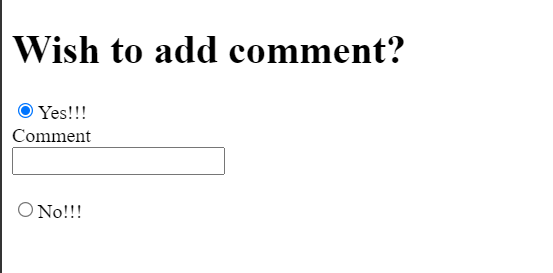
If the customer press “Yes” the comment section will be displayed If “No” we need to remove that.

In this case alone I wanted to place the input box next to the Yes option after the customer chooses “Yes”.

Like below

enter image description here

const FIELDS = {
  'wishToAdd': {
    name: 'wishToAdd',
    id: 'wishToAdd',
    type: 'radio',
    required: true,
    options: {
      yes: {
        displayName: 'Yes!!!',
        id: 'yes',
        value: 'Yes',
      },
      no: {
        displayName: "No!!!",
        id: "no",
        value: 'No',
      }
    },
  },
  'comment': {
    name: 'comment',
    id: 'txtComment',
    dataRequired: true,
    value: '',
    displayName: 'Comment',
    type: 'text',
    required: true,
    maxlength: 100,
    autoFocus: true,
  },
}

class TextField extends React.Component {
  constructor(props) { 
    super(props);
  }

  render() {
    const field = this.props.field;
    const values = this.props.values;
    return (
      <div className="input-group">
        <input
          type={field.type}
          name={field.name}
          data-required={field.dataRequired}
          id={field.id}
          value={values[field.name].value}
          maxLength={field.maxlength}
          className="form-control flashcard"
          autoFocus={field.autoFocus}
        />
      </div>
    )
  }
}

class RadioField extends React.Component {
  constructor(props) { 
    super(props);
  }

  render() {
    const field = this.props.field;
    const options = this.props.field.options;
    const values = this.props.values;
    return (
      <div className="check-group">
        {
          Object.keys(options).map((opt) => (
          <div>
            <label className="orgRadio" key={options[opt].id}>
              <input
                type={field.type}
                name={field.name}
                id={field.id}
                value={options[opt].value}
                  className="form-control flashcard radio"
                onChange={e => this.props.handleRadioChange(field, e)}
                autoFocus={field.autoFocus}
                checked={values[field.name].value === options[opt].value}
              />
              <span className="lbl text-center">{options[opt].displayName}</span>
            </label><br/>
            </div>
          ))
        }
      </div>
    )
  }
}
class Fieldset extends React.Component {
  constructor(props) { 
    super(props);
  }

  showField = () => {
    let add = this.props.values.wishToAdd.value;
    if (this.props.field.name === 'comment') {
      return add === 'Yes' ? true : false;
    } else {
      return true
    }
  }

  render() {
    const field = this.props.field;
    const values = this.props.values;

    return (
      <div>
        {this.showField() &&
          <div className='form-group org-new'>
            <label htmlFor={field.id}>{field.displayName}</label>
            <div className="row">
              <div className="col-sm-12">
                <div className="has-feedback">
                  {(field.type === 'text' || field.type === 'email') &&
                    <TextField
                      field={field}
                      values={values}
                      handleChange={this.props.handleChange}>
                    </TextField>
                  }  {field.type === 'radio' &&
                    <RadioField
                      field={field}
                      values={values}
                      handleRadioChange={this.props.handleRadioChange}>
                    </RadioField>
                  }
                </div>
              </div>
            </div>
          </div>
        }
      </div>
    );
  }
}

class Form extends React.Component {
  constructor(props) {
    super(props);  
  }

  render() {
    const fields = this.props.fields;
    const values = this.props.values;
    return (
      <div>
        {
          fields.map((field) => (
            <div key={field.id}>
              <Fieldset
                field={field}
                values={values}
                handleChange={this.props.handleChange}
                handleRadioChange={this.props.handleRadioChange}>
              </Fieldset>
            </div>
          ))
        }
      </div>
    );
  }
}

class Content extends React.Component {
  constructor(props) { 
    super(props);
  }

  render() {
    return (
      <form method='POST'>
        <h1 className='font-xl'>{this.props.header}</h1>
        <Form
          prevStep={this.props.prevStep || false}
          nextStep={this.props.nextStep}
          handleChange={this.props.handleChange}
          handleRadioChange={this.props.handleRadioChange}
          values={this.props.values}
          fields={this.props.fields}>
        </Form>
      </form>
    )
  }
}

class Page extends React.Component {
  constructor(props) {
    super(props);
    this.state = {
      wishToAdd: {
        value: '',
        valid: null
      },
      comment: {
        value: '',
        valid: null,
      },
    }
  }

  handleRadioChange = (field, e) => {
    this.setState({
      [field.name]: {
        value: e.target.value,
        valid: true,
      },
    });
  }

  render() {
    const { wishToAdd, comment } = this.state;
    const values = { wishToAdd, comment }
    let fields = [FIELDS.wishToAdd, FIELDS.comment];
    return (
      <div>
        <Content
          handleChange={this.handleChange}
          handleRadioChange={this.handleRadioChange}
          values={values}
          fields={fields}
          buttonText='Add'
          header='Wish to add comment?'
        />
      </div>
    )
  }
}

/*
 * Render the above component into the div#app
 */
ReactDOM.render(
  <Page />,
  document.getElementById('app')
);
<script src="https://cdnjs.cloudflare.com/ajax/libs/react/16.6.3/umd/react.production.min.js"></script>
<script src="https://cdnjs.cloudflare.com/ajax/libs/react-dom/16.6.3/umd/react-dom.production.min.js"></script>
<div id="app"></app>

Validating a string of comma separated emails after transforming them to an array

Let’s say I got a “string” that represents a list of comma separated emails. I need to validate each email individually. I thought that I can do a transformation (from string to array) and then apply the “email” constraint on individual entries. But it doesn’t work…

const schema = yup.object().shape({
  emails: yup
    .string()
    .transform(function (value, originalValue) {
      console.log('transform', value);
      if (this.isType(value) && value !== null) {
        return value;
      }
      return originalValue ? originalValue.split(/[s,]+/) : [];
    })
    .array()
    .of(yup.string().email(({ value }) => `${value} is not a valid email!`)),
}); 

The above “array” call doesn’t work (obviously). Please note that the input is of “string” type and this cannot be changed. How can I validate individual entries against a given constraint using Yup?

Any help would be appreciated.

How to call external javascript function in html with onclick

I have two javascript function in my index.js file saved in the same folder directory as my html file but for some reasons i am able to call only one of the function the second function is not getting called.

index.js

function cond(){
    alert('Is the form correct');
}

function isNumber(e){
    e = e || window.event;
    var charCode = e.which ? e.which : e.keyCode;
    return /d/.test(String.fromCharCode(charCode));
}

index.html

<?php require "header.html"?>

<label>Year</label>
<input type ="number" min="1950" max="2050" name="year" onkeypress="return isNumber(event)" required>

<label>school</label>
<input type ="text" onclick="cond();" name="school" required>

header.html

<!DOCTYPE html>
<html>
    <head>
        <meta charset="UTF-8">
        <script src="index.js"></script>
    </head>
    <body>
    <main>

Am able to use the isNumber() function successfully but the other function cond() is not getting called when the text is clicked

Fetch Request is cancelled

I am making use of Fetch API to make a network request and get a response back which includes the session token details.

Below is the piece of code I am using in Apache Tomcat server.

   <!doctype html>
<html lang="en">
  <head>
    <!-- Required meta tags -->
    <meta charset="utf-8">
    <meta name="viewport" content="width=device-width, initial-scale=1">

    <!-- Bootstrap CSS -->
    <link href="https://cdn.jsdelivr.net/npm/[email protected]/dist/css/bootstrap.min.css" rel="stylesheet" integrity="sha384-+0n0xVW2eSR5OomGNYDnhzAbDsOXxcvSN1TPprVMTNDbiYZCxYbOOl7+AMvyTG2x" crossorigin="anonymous">

    <title>My App</title>
    <link href="login.css" rel="stylesheet">
  </head>
  <body class="text-center">
    <main class="form-signin">
    <!-- <form onsubmit="return login()"> -->
    <form>
       <!-- <img class="mb-4" src="./logo.png" alt="" height="300"> -->
        <h1 class="h3 mb-3 fw-normal"><b>My App</b> - Login</h1>
    
        <div class="form-floating">
          <input type="text" class="form-control" id="username" placeholder="[email protected]">
          <label for="floatingInput">Email address</label>
        </div>
        <div class="form-floating">
          <input type="password" class="form-control" id="password" placeholder="Password">
          <label for="floatingPassword">Password</label>
        </div>
    
        
        <button class="w-100 btn btn-lg btn-primary mt-3" type="submit" onClick=clickLogin()>Login</button>
        
        <div id="myData"></div>

      </form>
    </main>

    <!--<script src="login.js"></script>    -->
    <script src="https://cdn.jsdelivr.net/npm/[email protected]/dist/sweetalert2.all.min.js"></script>
    <script src="https://cdn.jsdelivr.net/npm/[email protected]/dist/js/bootstrap.bundle.min.js" integrity="sha384-gtEjrD/SeCtmISkJkNUaaKMoLD0//ElJ19smozuHV6z3Iehds+3Ulb9Bn9Plx0x4" crossorigin="anonymous"></script>
    <script>
    async function clickLogin() {
        console.log("Inside click Login");
  //e.preventDefault();
  const response = await fetch ('https://example.com/authenticate', 
  {
     method: 'POST',
     headers: {
      'Content-Type': 'application/json',
       'Username': '[email protected]',
       'Password': 'Ch4ng3it!'
    },
})
  /*.then(response => response.json())
  .then(json => console.log(json))
  .catch(err => console.log('Request Failed', err))*/
  
    console.log("Reached before ok");
  
   if (!response.ok) {
      throw new Error(`Error! status: ${response.status}`);
    }
    
    const result = await response.json();
    
    console.log(result);


  document.getElementById(myData).innerHTML = result;
}


    </script>
  </body>
</html>

enter image description here

The above image shows the network trace. The call to authenticate endpoint is cancelled everytime.

I am not sure what I am doing wrong here. Also, I added the URL app.example.com in CORS for resource server API.

Active class not appearing for sections (DOM manipulation)

The CSS and HTML elements build different sections of this landing page, which I am manipulating from the DOM. I am building a code to highlight the section currently in the viewport along with highlighting the nav element in view using Javascript. I did that by getting dimensions via getBoundingClientRect() and then add “active-class” using classlist. However, the active section is not working on my project. I already tried debugging the project.

When I scroll, a section in view does not get highlighted.

The project repository is located here: https://github.com/Himanshukumar30/Landing-Page

  // Check the section in view
    
    function sectionInView () {
        const position = element.getBoundingClientRect();
        return (position.top <= 150 && position.bottom >= 150);
    }
    
    // Set sections as active
    
    function activeClass() {
     for (section of sections) {
       if (sectionInView(section)) {
    
            // Add "active-class" to section in view port
                section.classList.add("active-class");
                
            } else {
    
                // Remove "active-class" from section not in view port
                section.classList.remove("active-class");
            }
        }
    }
    
    // Function call to show active section in view
    document.addEventListener("scroll", function() {
        activeClass();
      });

I tried adding active-class manually, it still didn’t work.

When I log section in console, it gives following error:

63app.js:32 Uncaught ReferenceError: element is not defined
at sectionInView (app.js:32:22)
at activeClass (app.js:39:13)
at HTMLDocument.<anonymous> (app.js:54:5)

Want to create an html formfield which generate new formfield when I enter input in the first formfield

When I input value in the html formfield1 then fromfield 2 will be created, when I input value in tha formfiled2 then formfield 3 will be created and so on, but the form fields didn’t work in that sequence and my typed input values also not show in formfields.

This is my code:

<html>
<head>
</head>
<body>
    <div id="fieldvalue">
    <input type="text" oninput=Childfield() />
    </div>

    <script type="text/javascript">
        const Childfield = () => {
            //console.log("Hey man");
            let rvalue= '<input type="text" id="fieldvalue" name="" oninput=Childfield() />';
            document.getElementById('fieldvalue').innerHTML += rvalue;
        }
    </script>
</body>
</html> ```

Is there a way in JavaScript to use document.forms for a select tag get a if else compound condition to work

I know you can use document.forms to check if a radio button or checkbox is checked but I am not sure how you could this for a select since it has multiple options.

This is the code I thought I could use.
JavaScript:

var pick_deliv = document.forms[order] 
[pick_deliv].checked;

HTML:

<form>
    <select name="pick_deliv" id="pick_deliv">
    <option value="pick_up">Pick up </option>
    <option value="delivery">Delivery </option> 
    </select>
  </form

How to use event.preventDefault() when function have arguments

i have a code like this:

const upListCandy = (candy) => {
      /* How i add event.preventDefault() and it word*/
      axios.post("example.com", {
         candyName: candy.name
       }).then().catch()
    }

here is my button:

dataCandy?.map((item, index) => {
   return(
      <div key={index}>
        <button onClick = {() => upListCandy(item)}>{item.name}</button>
      </div>
    )   
 })

And my question is how add parameter of event then event.preventDefault() work?

how to divide a background image in small blocks while using animejs

I’m trying to create a photo dispersion effect with the help of animejs.

Also, I’ve divided my background image in small blocks by keeping the background position fixed and till now its fine. like this:

enter image description here

But when I include anime js in it, my background doesn’t seems to be a single one. Those all block takes same part of the image like this:

Here is the complete code:

let photoContainer = document.querySelector(".photoContainer")


for(let i = 0; i<100; i++){
    let ele = document.createElement("div");
    ele.classList.add("block");
    photoContainer.appendChild(ele);
}


let block = document.querySelectorAll(".block")
let animation = anime.timeline({
    targets: block,
    easing: "easeInOutExpo",
    loop: true,
    delay: anime.stagger(20, {start:0}),
})

animation
.add({
    delay: 4000,
    scale: 0,
    translateX: function(){return anime.random(-360,2100);},
    translateY: function(){return anime.random(-360,2100);},
    rotate: function(){return anime.random(360,-360);},

    duration : function(){return anime.random(500,3000);}
})
.add({
    scale: 1,
    translateX:0,
    translateY: 0,
    rotate: 0,

    duration : function(){return anime.random(2000,3000);}
})
.photoContainer{
    position: relative;
    display: flex;
    flex-wrap: wrap;
    transform-style: preserve-3d;
    border: 2px solid red;
}

.photoContainer .block{
    position: relative;
    width: 5vh;
    height: 5vh;
    transform-style: preserve-3d;
    perspective: 1000px;
    box-sizing: border-box;
    border: 2px solid green;

    background-image: url(img.png);
    background-color:red ;
    background-size: 50vh 50vh;
    background-attachment: fixed;
    background-repeat: no-repeat;
    background-position: top;
 
}


.dispersionContainer{
    width: 50vh;
    height: 50vh;
    margin: 0px auto;
    /* border-radius:50% ; */
    background-color: black;
    overflow: hidden;
    border: 2px solid red;
}
<body>


    <section id="spanContainer">
            <div class="dispersionContainer">
                <div class="photoContainer"></div>
            </div>

</section>

</body>

Note: When I pushed this code to github previously, it was fine but when I cloned it again this problem arised.

Thanks in advance.

Order an array of objects based in other array values

Lets say I have an array of products:

const Products = [
{ id: 123, productName: "Portable Tabletop Game", quantity: 12 },
{ id: 456, productName: "Gift Card", quantity: 23 },
{ id: 789, productName: "Box of Chocolates", quantity: 8 },
{ id: 012, productName: "Gift Box", quantity: 4 },
{ id: 098, productName: "Balloons", quantity: 15 },
{ id: 765, productName: "Music Box", quantity: 30 }];

and I have another, smaller array where I store the order of the products on my page:

const orderItems = [
{ order: 1, productId: 021 },
{ order: 2, productId: 765 }, 
{ order: 3, productId: 123 }];

And I want my Products array in such a way they are ordered like the orderItems array defines, like so:

const Products = [
{ id: 012, productName: "Gift Box", quantity: 4 },
{ id: 765, productName: "Music Box", quantity: 30 },
{ id: 123, productName: "Portable Tabletop Game", quantity: 12 },
{ id: 456, productName: "Gift Card", quantity: 23 },
{ id: 789, productName: "Box of Chocolates", quantity: 8 },
{ id: 098, productName: "Balloons", quantity: 15 }];

and I want the products who do not have a corresponding orderItem to be at the end of the array, is there any way to do it?