Uploaded images not being displayed [closed]

So I upload a new logo that must be saved to a MSSQL db and then resized to be correct size to fit on a report. But when the image is uploaded, a small image pops up and not the uploaded logo. When i inspect the page, the preview is a checkered pattern and not the logo i uploaded.

Using C#, html and JS

This is my very first experience with c# and mssql. So any help is usefull.

Determine if async function is nested or runs in parallel

This is a async function that does a sqlite transaction:

  async transaction<V>(done: (conn: this) => V): Promise<V> {
    this.depth += 1;
    await this.execute(`SAVEPOINT tt_${this.depth}`);
    try {
      return await done(this);
    } catch (err) {
      await this.execute(`ROLLBACK TO tt_${this.depth}`);
      throw err;
    } finally {
      await this.execute(`RELEASE tt_${this.depth}`);
      this.depth -= 1;
    }
  }

It can be nested, meaning that inside done I can call transaction() .

But calls on the same level cannot be made in parallel, for eg.

promise.all([
   db.transaction(...),
   db.transaction(...),
]);

because it messes up the save/release in sqlite apparently.

any way to detect inside the function if there is another call of the function running on same level at same time ?

integrate MPGS with PHP

I’m trying to integrate the MPGS (Mastercard Payment Gateway Services) payment gateway with my checkout page using PHP. I have already created a checkout form, but I’m unsure how to send payment details securely to MPGS and handle the response in PHP.

Could someone guide me on:

The necessary API calls to make a payment request.
How to securely send payment information to MPGS.
How to handle the response from MPGS to confirm if the payment was successful or failed.
I have tried researching the MPGS API documentation, but I’m struggling with how to integrate it into my PHP code. Any guidance would be appreciated!

How do I make the topbar slide along with the rest of the page?

I’m doing a website and I can’t seem to get the topbar to slide alongside with the rest of the page. It used to when the topbar didn’t scroll along with the page, but since i made it follow along with the page, it no longer does so. If anyone could help me to figure this I would really appreciate the help!

/* Set the width of the side navigation to 250px and the left margin of the page content and top bar to 250px */
function openNav() {
  document.getElementById("mySidenav").style.width = "250px";
  document.getElementById("main").style.marginLeft = "250px";
}

/* Set the width of the side navigation to 0 and the left margin of the page content and top bar to 0 */
function closeNav() {
  document.getElementById("mySidenav").style.width = "0";
  document.getElementById("main").style.marginLeft = "0";
}
/* The side navigation menu */
.sidenav {
  height: 100%;
  /* 100% Full-height */
  width: 0;
  /* 0 width - change this with JavaScript */
  position: fixed;
  /* Stay in place */
  z-index: 1000;
  /* Stay on top */
  top: 0;
  /* Stay at the top */
  left: 0;
  background-color: #111;
  /* Black*/
  overflow-x: hidden;
  /* Disable horizontal scroll */
  padding-top: 60px;
  /* Place content 60px from the top */
  transition: 0.5s;
  /* 0.5 second transition effect to slide in the sidenav */
}

/* The navigation menu links */
.sidenav a {
  padding: 8px 8px 8px 32px;
  text-decoration: none;
  font-size: 25px;
  color: #818181;
  display: block;
  transition: 0.3s;
}

/* When you mouse over the navigation links, change their color */
.sidenav a:hover {
  color: #f1f1f1;
}

/* Position and style the close button (top right corner) */
.sidenav .closebtn {
  position: absolute;
  top: 0;
  right: 25px;
  font-size: 36px;
  margin-left: 50px;
}


/* Style page content - use this if you want to push the page content to the right when you open the side navigation */
#main {
  position: relative;
  transition: margin-left .5s ease;
  padding: 20px;
  z-index: 10;
}

.top-bar {
  display: flex;
  align-items: center;
  /* Vertically center the items */
  width: 100%;
  position: fixed;
  /* Make the bar stick to the top */
  top: 0;
  left: 0;
  z-index: 1000;
  /* Ensure it stays above other content */
  background-color: beige;
  /* Add background color (adjust as needed) */
  box-shadow: 0 2px 5px rgba(0, 0, 0, 0.1);
  /* Optional shadow for separation */
  transition: margin-left 0.5s ease;
  /* Add transition for smooth sliding */
}

.logo {
  display: block;
  margin-left: auto;
  margin-right: auto;
}

.openbtn {
  margin-left: 40px;
  font-size: 20px;
  cursor: pointer;
  background-color: #111;
  color: white;
  padding: 10px 15px;
  border: none;
  border-radius: 5px;
}

.openbtn:hover {
  background-color: #444;
}

.user {
  margin-right: 40px;
  font-size: 20px;
  cursor: pointer;
  background-color: #111;
  color: white;
  padding: 10px 15px;
  border: none;
  border-radius: 5px;
}

.user:hover {
  background-color: #444;
}
<div id="mySidenav" class="sidenav">
  <a href="javascript:void(0)" class="closebtn" onclick="closeNav()">&times;</a>
  <a href="/">Home</a>
  <a href="#">Men's Shoes</a>
  <a href="#">Women's Shoes</a>
  <a href="#">Kid's Shoes</a>
  <a href="#">About Us</a>
  <a href="/faq">FAQ</a>
</div>

<!-- Put all content inside main so it pushes content to the side-->
<div id="main">

  <div class="top-bar">
    <button class="openbtn" onclick="openNav()">&#9776;</button>
    <div class="logo">
      <img src="img/shoelogo.png" alt="Logo of the shoe shop" style="width:100px; height:auto;">
    </div>
    <a href="/login">
          <button class="user">&#9733;</button>
        </a>
  </div>

  <div class="faqTitle">
    <h1>FAQ</h1>
  </div>

</div>

Get data from views to a Javascipt file

In django, I’m trying to make a webapp where the the graph is defined in javascript and I want the data to come from firebase (the only way I know to get that data is in the views) how do I pass the data to it since what I only know is to pass that data to html

I’ve tried using json response, but I dont know how to route the data to the static files where the javascript is located

Replacement of input type hidden and data-

Código dentro do foreach de um arquivo Smarty(.tpl):

<{foreach from=$censosLista key=key item=item}>
    <a href="#" class="btnFecharCenso" data-index="<{$item['id_censup']}>" data-toggle="modal" data-target="#modalFecharCenso" title="Fechar censo">
<{/foreach}>

Tenho o seguinte código HTML:

<form id="formFecharCenso">
    <div class="modal-body">
        <input type="hidden" id="id_censup_fechar" name="id_censup_fechar">
        Deseja realmente <b>fechar</b> esse censo?
    </div>
    <div class="modal-footer">
        <button type="button" class="btn btn-default" data-dismiss="modal">Cancelar</button>
        <button type="submit" id="fecharCenso" class="btn btn-warning">Sim</button>
    </div>
</form>

E o script em JS abaixo usando o framework jQuery dentro do arquivo .tpl que confere o valor do id_censup ao input do formulário:

<script>
     $("body").on("click", ".btnFecharCenso", function(e){
        let btn = $(this);
        let id_censup = btn.attr("data-index");
        $.ajax({
            url: "<{$url->create()->add('Page', 'ChamadasAjax')->add('Action','buscaCenso')->finalize()}>",
            type: 'POST',
            data: {
                'id_censup': id_censup
            }
        })
        .done(function(data){
            $("#id_censup_fechar").val(data[0].id_censup);
        });
    });
</script>

Com isso, li uma questão “É seguro deixar informações cruciais em um input hidden no HTML?” e fiquei com receio de continuar com essa prática, querendo ao máximo evitar. Já pensei em utilizar “data-“, porém, no fim das contas resulta no mesmo, considerando a inspeção e acesso aos dados via DevTools.

A minha dúvida é: pelo o que eu deveria trocar o input type hidden que está armazenando e passando o id?

Excel script for generating pivot tables without subtotals

I have a script that creates a pivot table, but I don’t want to display subtotals, only final totals.

function main(workbook: ExcelScript.Workbook) {
    let sheet = workbook.getActiveWorksheet(); // Downloading the active sheet

    // Finding the range with the data (I assume it starts with A1)
    let dataRange = sheet.getRange("A1").getSurroundingRegion();

    // Checking that the scope is correct
    if (!dataRange) {
        console.log("No data found.");
        return;
    }

    // Creating a pivot table on the same sheet
    let pivotTable = sheet.addPivotTable("February", dataRange, sheet.getRange("H1"));
    
    let rowHierarchy = pivotTable.addRowHierarchy(pivotTable.getHierarchy("Posting date"));

    // Pivot table configuration
    pivotTable.addColumnHierarchy(pivotTable.getHierarchy("Project no."));
    pivotTable.addColumnHierarchy(pivotTable.getHierarchy("Name"));
    pivotTable.addColumnHierarchy(pivotTable.getHierarchy("Task No."));


    // Dodanie wartości (Ilość)
    let qtyHierarchy = pivotTable.getHierarchy("Time");
    let dataField = pivotTable.addDataHierarchy(qtyHierarchy);
    dataField.setSummarizeBy(ExcelScript.AggregationFunction.sum);
    // Hiding subtotals for "Project No." and "Name"

    // Alternate formatting (lines)
    let pivotRange = pivotTable.getLayout().getRange();
    let rowCount = pivotRange.getRowCount();

    for (let i = 1; i < rowCount; i += 2) { // Every second line
        let row = pivotRange.getCell(i, 0).getEntireRow();
        row.getFormat().getFill(); 
    }

    console.log("The pivot table has been created.");
}

I would like the grand total not to be shown and I would like the column and row lines to be shown.

Html2canvas runs sequentially when using promise.all

I have the following code, when I check the runtime log, log, and request time that html2canvas calls, I see the code is running sequentially instead of “parallel”. My DOM is quite small but it takes 5s on localhost and 10s on production.
When I replace await html2canvas() with await myApi.call() it calls 3 api at the same time. when I use await html2canvas, it will call my test.css file, suppose my promises array has 3 elements, each time html2canvas is processed is 5s, in the network tab, I see the time to fetch test.css is 5s apart instead of calling almost at the same time. I don’t think the problem is in my code, please help me know where the problem is, am I wrong somewhere?

async convertDivSigToBase64(id) {
    try {
        var el = document.getElementById(id)
        if (!el) {
            return ''
        }
        const options = {
            useCORS: true,
            scale: 3,
            letterRendering: true,
        };
        let output = await html2canvas(el, options)
        const dataUrl = output.toDataURL()
        return dataUrl.substring(13 + 'image/png'.length);
    } catch (e) {
        console.error('Lỗi capture chữ ký', e)
        return null;
    }
},
async getAllCaptureSig() {
    // other logic
    console.time("Thời gian chạy getAllCaptureSig");
    const promises = [];
    console.time('time add promise to array')
    promises.push(checkAllElectricSameSize ? this.convertDivSigToBase64(elecId) : null)
    promises.push(checkAllDigitalSameSize ? this.convertDivSigToBase64(digitalId) : null)
    promises.push(checkAllFlashSameSize ? this.convertDivSigToBase64(flashId) : null)
    // console.log(promises)
    console.timeEnd('time add promise to array')
    const results = await Promise.all(promises);
    // console.log('Kết quả của tất cả các hàm convertDivSigToBase64:', results);
    if (results[0] != '') {
        this.captureElectricSignature = results[0]
    }
    if (results[1] != '') {
        this.captureDigitalSignature = results[1]
    }
    if (results[2] != '') {
        this.captureFlashSignature = results[2]
    }
    console.timeEnd("Thời gian chạy getAllCaptureSig");
}

How can I fix and optimize performance

Require 3rd party module methods in index.js and export them vs. require them in each individual express app module

Structuring my express app into modules and not sure what’s the better approach.

Approach 1:

Index.js:

const express = require('express');
const {method1, method2} = require('module1');
const app = express();
module.exports = {app, express, method1, method2};

srcCode1.js:

const {method1, method2} = require('./index');

srcCode2.js:

const {method1, method2} = require('./index');

Approach 2:

Index.js:

const express = require('express');
const app = express();
module.exports = {app, express};

srcCode1.js:

const {method1, method2} = require('module1');

srcCode2.js:

const {method1, method2} = require('module1');

I’m thinking approach 1 might be better from a code organization perspective, bearing in mind scalability of code. But then it makes index.js unnecessarily long. Since each srcCode file in the express app will have to require the same modeul1 methods from index.js anyway, why not just require them directly from module1 (ie, approach 2)? What I’m not sure about approach 2 is whether it creates multiple instances of each module1 method and if that will create unanticipated issues in a significantly more complex code with multiple other srcCode files.

Also, is there a performance (speed and memory) difference between the two approaches and which of the two approaches is considered a “best practice”?

JSON Expand/Collapse Functionality Not Working

The expand and collapse functionality for JSON is not working as expected. When attempting to expand or collapse the JSON data, no action takes place, and the data remains static. This issue is preventing users from navigating large JSON files efficiently.

I am using vite (vite-plugin-monaco-editor).

`plugins: [
    react(),
    eslint(),
    MonacoEditorPlugin({
      languageWorkers: ['json'],
    }),
  ],`

Below is react code :

import MonacoEditor from 'react-monaco-editor';

    export const CodeEditor = () => {
     const jsonCode = `{
        "employee": {
        "name": "sonoo",
        "salary": 56000,
        "married": true
    }
  }`;

  /**
   * formatJSON
   */
  function formatJSON(val: string) {
    try {
      const res = JSON.parse(val);
      return JSON.stringify(res, null, 2);
    } catch {
      const errorJson = {
        error: `非法返回${val}`,
      };
      return JSON.stringify(errorJson, null, 2);
    }
  }

  return (
    <>
      <MonacoEditor
        height="600"
        language="json"
        options={{
          readOnly: true,
          automaticLayout: true,
          folding: true, // Ensure folding is enabled
          scrollBeyondLastLine: false,
          minimap: { enabled: false },
        }}
        value={formatJSON(jsonCode)}
        width="800"
      />
    </>
  );
};

Json should be render correctly also expand and collapse feature should work.

Change document title of parent window from an iframe with different subdomain [duplicate]

I have developed an application that is embedded via iframe in a website that I do not manage.

The iframe is on the same domain of the website but on different subdomain.

For example the website https://sub1.example.net includes the iframe in this way:

<iframe src="https://sub2.example.net"></iframe>

I want to change the website document title from the iframe embedded app that is running on https://sub2.example.net

I tried this way:

window.parent.document.title = 'this is a test';

But I get this error:

Uncaught SecurityError: Failed to read a named property 'document' from 'Window': Blocked a frame with origin "https://sub2.example.net" from accessing a cross-origin frame.

Is it possible to change the parent document title from an iframe with different subdomain of the parent website?

Are there any workarounds?

Prop hidden() or hide() and show() can’t used in Select2 Multiple Option

i wanna ask about select2. I want when i’m choosed the option. It will be hidden the option in the select. And also if we removed it in multiple select option, it will be showed too in the option. The cases is when i’m using prop(‘disabled’, true), It’s works. But, when i’m using prop(‘hidden’, true), It’s not hidden properly.

$(document).on("select2:select", "#multiple_one, #multiple_two", function(e) {
  updateSelections(e.params.data.id);
});


$(document).on("select2:unselect", "#multiple_one, #multiple_two", function(e) {
  updateSelectionsTwo(e.params.data.id);
});

I’m using event select2:select and select2:unselect

  function updateSelections(selectedValue) {
    // console.log(selectedValue);
    $("#multiple_one option[value='" + selectedValue + "']").prop('disabled', true)
    $("#multiple_two option[value='" + selectedValue + "']").prop('disabled', true)
    // $("#multiple_one").select2("destroy").select2();
  }

  function updateSelections(selectedValue) {
    // console.log(selectedValue);
    $("#multiple_one option[value='" + selectedValue + "']").prop('disabled', true)
    $("#multiple_two option[value='" + selectedValue + "']").prop('disabled', true)
    // $("#multiple_one").select2("destroy").select2();
  }

The code is using disabled property. Could i’m using hidden property if it’s already selected? And showed again if the option is unselected?

Convert JavaScript Time Zone to .NET Time Zone in MVC (Avoid Blink Issue on Client-Side)

Scenario:
I want to convert a JavaScript time zone to a .NET time zone in my ASP.NET MVC project. Currently, I am using:

TimeZoneInfo tz =
TimeZoneInfo.FindSystemTimeZoneById(“Asia/Calcutta”);

on the server, where the time zone is retrieved from JavaScript using:

let timezone = Intl.DateTimeFormat().resolvedOptions().timeZone;

Problem:
I know that JavaScript time zones (IANA format, e.g., “Asia/Kolkata”) differ from .NET time zones (Windows format, e.g., “India Standard Time”).

In my project, I need to convert UTC time from the database to the user’s local time before rendering it on the client. Since my project renders views using Razor, I tried converting the time on the client-side using JavaScript (DOM manipulation). While it works, there is a noticeable blink/flicker when the time updates after the page loads.

What I Have Tried:
Server-side conversion: Not feasible because I don’t know the user’s time zone before rendering.
Client-side conversion using JavaScript: Works, but causes a flicker as the time updates after the page is loaded.
Question:
How can I seamlessly convert UTC time to the client’s local time in an MVC project without causing a visible flicker? Is there a better approach to handle this in a Razor-based frontend?

How to transform the canvas objects while keeping opposite side fixed?

So my idea is to make some simple canvas editor.
My current problem is I can’t resize my object properly.
Currently it’s being resized from it’s center and not from the edge I’m dragging.

Here’s what I have:
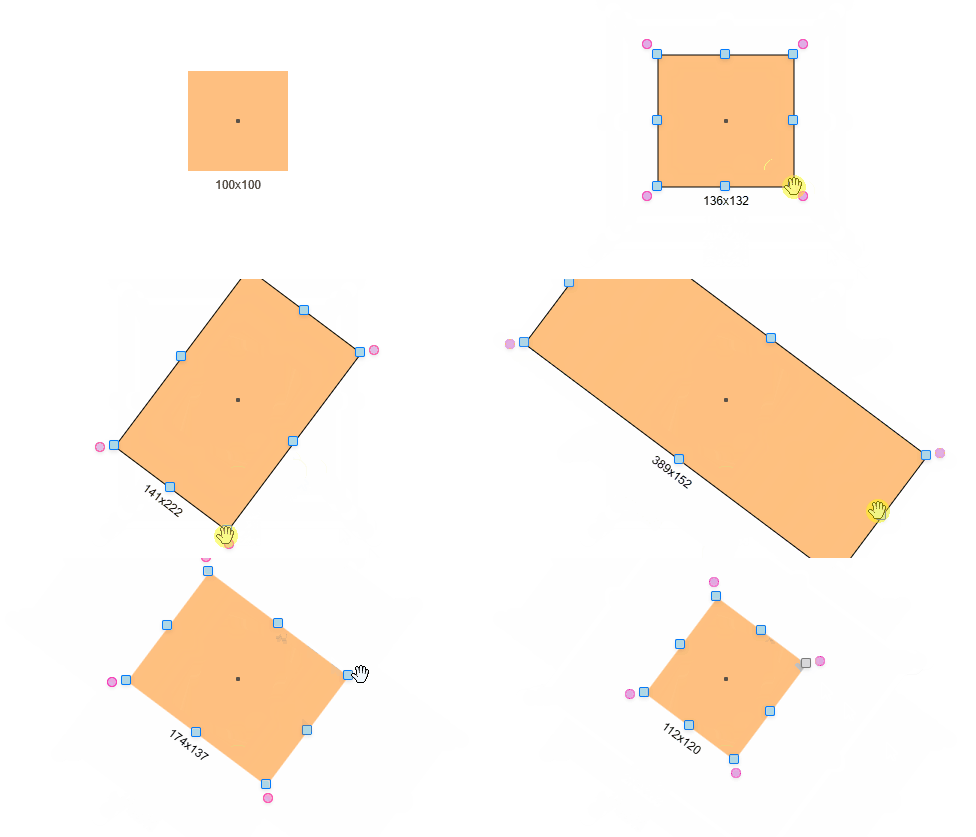
Animation2.gif

And here’s what I expect to have:
Animation.gif
My code:

<!DOCTYPE html>
<html lang="en">
<head>
    <meta charset="UTF-8">
    <meta name="viewport" content="width=device-width, initial-scale=1.0">
    <title>Canvas Object Editor</title>
    <style>
        body { display: flex; font-family: Arial, sans-serif; }
        #canvasContainer {
            position: absolute;
            top: 50%;
            left: 50%;
            transform: translate(-50%, -50%);
        }
        canvas { border: 1px solid black; }

        .transform-handle{
            width: 8px;
            height: 8px;
            background-color: lightblue;
            position: absolute;
            cursor: grab;
            z-index: 1000;
            border: 1px solid #007BFF;
            border-radius: 2px;
            box-shadow: 0 2px 4px rgba(0, 0, 0, 0.1);
            transform: translate(-50%, -50%);
        }
        .rotate-handle {
            width: 8px;
            height: 8px;
            background-color: rgb(225, 173, 230);
            position: absolute;
            cursor: grab;
            z-index: 1000;
            border: 1px solid #ff00aa;
            border-radius: 8px;
            box-shadow: 0 2px 4px rgba(0, 0, 0, 0.1);
            transform: translate(-50%, -50%);
        }
    </style>
</head>
<body>

    <div id="canvasContainer">
        <canvas id="editorCanvas" width="800" height="700"></canvas>
    </div>

    <div id="top-left-handle" class="transform-handle"></div>
    <div id="top-right-handle" class="transform-handle"></div>
    <div id="bottom-left-handle" class="transform-handle"></div>
    <div id="bottom-right-handle" class="transform-handle"></div>
    <div id="middle-left-handle" class="transform-handle"></div>
    <div id="middle-right-handle" class="transform-handle"></div>
    <div id="middle-top-handle" class="transform-handle"></div>
    <div id="middle-bottom-handle" class="transform-handle"></div>

    <div id="rotate-top-left-handle" class="rotate-handle"></div>
    <div id="rotate-top-right-handle" class="rotate-handle"></div>
    <div id="rotate-bottom-left-handle" class="rotate-handle"></div>
    <div id="rotate-bottom-right-handle" class="rotate-handle"></div>

    <script>
        const canvas = document.getElementById("editorCanvas");
        const ctx = canvas.getContext("2d");
        const canvasContainer = document.getElementById("canvasContainer");

        let isDragging = false;
        let offsetX, offsetY;
        let isResizing = false;
        let isRotating = false;
        let currentHandle = null;
        let initialMouseX, initialMouseY, initialWidth, initialHeight, initialAngle;

        let objects = [
            { id: 1, name: "Object 1", x: 50, y: 50, width: 100, height: 100, angle: 0, opacity: 1, layer: 0, color: "#FFC080", behaviours: {} },
            { id: 2, name: "Object 2", x: 250, y: 150, width: 80, height: 80, angle: 45, opacity: 1, layer: 1, color: "#FF9900", behaviours: {} },
            { id: 3, name: "Object 3", x: 500, y: 120, width: 50, height: 60, angle: 80, opacity: 1, layer: 2, color: "#FFD700", behaviours: {} }
        ];

        var selectedObject = null;

        function drawObjects() {
            ctx.clearRect(0, 0, canvas.width, canvas.height);
            objects.sort((a, b) => a.layer - b.layer).forEach(drawObject);
        }

        function drawObject(obj) {
            ctx.save(); // Save the canvas state before any transformations
            
            ctx.globalAlpha = obj.opacity;

            // Move the canvas to the center of the object, then rotate
            ctx.translate(obj.x, obj.y); // Use top-left as the origin, not center
            ctx.translate(obj.width / 2, obj.height / 2); // Shift to the center
            ctx.rotate((obj.angle * Math.PI) / 180); // Apply rotation

            // Now, draw the object centered on the (0, 0) point (its center)
            ctx.fillStyle = obj.color;
            ctx.fillRect(-obj.width / 2, -obj.height / 2, obj.width, obj.height);

            // Draw the center point for reference
            ctx.fillStyle = "black";
            ctx.beginPath();
            ctx.arc(0, 0, 2, 0, 2 * Math.PI);
            ctx.fill();
            
            // Draw the size text
            ctx.fillStyle = "black";
            ctx.font = "12px Arial";
            ctx.textAlign = "center";
            ctx.textBaseline = "middle";
            ctx.fillText(`${Math.round(obj.width)}x${Math.round(obj.height)}`, 0, obj.height / 2 + 15);

            // Restore canvas state after drawing the object
            ctx.restore();

            // Now for the outline, ensure it's drawn at the correct location, accounting for the transformation
            if (obj === selectedObject && isResizing) {
                ctx.save(); // Save the current state

                ctx.translate(obj.x, obj.y);
                ctx.translate(obj.width / 2, obj.height / 2); // Move to center
                ctx.rotate((obj.angle * Math.PI) / 180);

                // Outline of the object (square outline)
                ctx.beginPath();
                ctx.moveTo(-obj.width / 2, -obj.height / 2);
                ctx.lineTo(obj.width / 2, -obj.height / 2);
                ctx.lineTo(obj.width / 2, obj.height / 2);
                ctx.lineTo(-obj.width / 2, obj.height / 2);
                ctx.closePath();
                ctx.stroke();

                ctx.restore(); // Restore state for normal drawing behavior
            }
        }

        function updateHandles() {
            if (selectedObject) {
                const canvasRect = canvas.getBoundingClientRect();
                const cx = selectedObject.x + selectedObject.width / 2;
                const cy = selectedObject.y + selectedObject.height / 2;
                const width = selectedObject.width;
                const height = selectedObject.height;
                const angle = selectedObject.angle;
                const angleRad = angle * Math.PI / 180;

                const handles = [
                    { id: 'top-left-handle', dx: -width / 2, dy: -height / 2 },
                    { id: 'top-right-handle', dx: width / 2, dy: -height / 2 },
                    { id: 'bottom-left-handle', dx: -width / 2, dy: height / 2 },
                    { id: 'bottom-right-handle', dx: width / 2, dy: height / 2 },
                    { id: 'middle-left-handle', dx: -width / 2, dy: 0 },
                    { id: 'middle-right-handle', dx: width / 2, dy: 0 },
                    { id: 'middle-top-handle', dx: 0, dy: -height / 2 },
                    { id: 'middle-bottom-handle', dx: 0, dy: height / 2 },
                    { id: 'rotate-top-left-handle', dx: -width / 2 - 10, dy: -height / 2 - 10 },
                    { id: 'rotate-top-right-handle', dx: width / 2 + 10, dy: -height / 2 - 10 },
                    { id: 'rotate-bottom-left-handle', dx: -width / 2 - 10, dy: height / 2 + 10 },
                    { id: 'rotate-bottom-right-handle', dx: width / 2 + 10, dy: height / 2 + 10 }
                ];

                handles.forEach(handle => {
                    const element = document.getElementById(handle.id);
                    const rotatedX = handle.dx * Math.cos(angleRad) - handle.dy * Math.sin(angleRad);
                    const rotatedY = handle.dx * Math.sin(angleRad) + handle.dy * Math.cos(angleRad);
                    const x = cx + rotatedX;
                    const y = cy + rotatedY;

                    element.style.left = `${x + canvasRect.left}px`;
                    element.style.top = `${y + canvasRect.top}px`;
                    element.style.display = 'block';
                });
            }
        }

        function rotatePoint(x, y, cx, cy, angle) {
            const rad = angle * Math.PI / 180;
            const cos = Math.cos(rad);
            const sin = Math.sin(rad);
            return {
                x: (x - cx) * cos - (y - cy) * sin + cx,
                y: (x - cx) * sin + (y - cy) * cos + cy
            };
        }
        function unrotatePoint(x, y, cx, cy, angle) {
            return rotatePoint(x, y, cx, cy, -angle);
        }

        function getCanvasMousePosition(event) {
            const rect = canvas.getBoundingClientRect();
            return {
                x: event.clientX - rect.left,
                y: event.clientY - rect.top
            };
        }

        // SELECT OBJECT
        canvas.addEventListener("mousedown", (event) => {
            const pos = getCanvasMousePosition(event);
            
            const objectsUnderCursor = objects.filter(obj => {
                const centerX = obj.x + obj.width / 2;
                const centerY = obj.y + obj.height / 2;
                
                // Transform cursor position relative to object's center and rotation
                const dx = pos.x - centerX;
                const dy = pos.y - centerY;
                const angle = -obj.angle * Math.PI / 180;
                
                const rotatedX = dx * Math.cos(angle) - dy * Math.sin(angle);
                const rotatedY = dx * Math.sin(angle) + dy * Math.cos(angle);
                
                // Check if the rotated point is within the object's bounds
                const absWidth = Math.abs(obj.width);
                const absHeight = Math.abs(obj.height);
                return Math.abs(rotatedX) <= absWidth / 2 && Math.abs(rotatedY) <= absHeight / 2;
            });

            selectedObject = objectsUnderCursor.reduce((highest, current) => {
                return current.layer > highest.layer ? current : highest;
            }, { layer: -999 });

            if (selectedObject && selectedObject.layer !== -999) {
                updateHandles();

                offsetX = pos.x - selectedObject.x;
                offsetY = pos.y - selectedObject.y;
                isDragging = true;
            } else {
                selectedObject = null;
                // console.log('selectedObject = null');
                // Hide handles when no object is selected
                const handles = document.querySelectorAll('.transform-handle, .rotate-handle');
                handles.forEach(handle => {
                    handle.style.display = 'none';
                });
            }
        });

        canvas.addEventListener("mousemove", (event) => {
            if (isDragging && selectedObject) {
                const pos = getCanvasMousePosition(event);
                selectedObject.x = pos.x - offsetX;
                selectedObject.y = pos.y - offsetY;
                updateHandles();
            }
        });

        function onHandleMouseDown(event, type) {
            event.preventDefault();
            event.stopPropagation();

            if (!selectedObject) return;

            currentHandle = event.target.id;
            const pos = getCanvasMousePosition(event);

            if (currentHandle.startsWith('rotate-')) {
                isRotating = true;
                const center = {
                    x: selectedObject.x + selectedObject.width / 2,
                    y: selectedObject.y + selectedObject.height / 2
                };
                initialAngle = Math.atan2(pos.y - center.y, pos.x - center.x) * 180 / Math.PI - selectedObject.angle;
            } else {
                isResizing = true;
                initialMouseX = pos.x;
                initialMouseY = pos.y;
                initialWidth = selectedObject.width;
                initialHeight = selectedObject.height;
                initialX = selectedObject.x;
                initialY = selectedObject.y;
            }
        }

        // RESIZE
        window.addEventListener('mousemove', (event) => {
            if (!selectedObject) return;

            const pos = getCanvasMousePosition(event);
            const center = {
                x: selectedObject.x + selectedObject.width / 2,
                y: selectedObject.y + selectedObject.height / 2
            };

            if (isResizing) {
                // Convert mouse coordinates to object's local space
                const angleRad = -selectedObject.angle * Math.PI / 180;
                const dx = pos.x - center.x;
                const dy = pos.y - center.y;
                
                // Get rotated mouse position
                const rotatedX = dx * Math.cos(angleRad) - dy * Math.sin(angleRad);
                const rotatedY = dx * Math.sin(angleRad) + dy * Math.cos(angleRad);

                // Get initial rotated position
                const initialDx = initialMouseX - center.x;
                const initialDy = initialMouseY - center.y;
                const initialRotatedX = initialDx * Math.cos(angleRad) - initialDy * Math.sin(angleRad);
                const initialRotatedY = initialDx * Math.sin(angleRad) + initialDy * Math.cos(angleRad);

                // Calculate deltas in rotated space
                const deltaX = rotatedX - initialRotatedX;
                const deltaY = rotatedY - initialRotatedY;

                let newWidth = selectedObject.width;
                let newHeight = selectedObject.height;
                let newX = selectedObject.x;
                let newY = selectedObject.y;


                switch (currentHandle) {
                    case 'bottom-right-handle':
                        newWidth = initialWidth + deltaX * 2;
                        newHeight = initialHeight + deltaY * 2;
                        break;

                    case 'bottom-left-handle':
                        newWidth = initialWidth - deltaX * 2;
                        newHeight = initialHeight + deltaY * 2;
                        break;

                    case 'top-right-handle':
                        newWidth = initialWidth + deltaX * 2;
                        newHeight = initialHeight - deltaY * 2;
                        break;

                    case 'top-left-handle':
                        newWidth = initialWidth - deltaX * 2;
                        newHeight = initialHeight - deltaY * 2;
                        break;

                    case 'middle-right-handle':
                        newWidth = initialWidth + deltaX * 2;
                        break;

                    case 'middle-left-handle':
                        newWidth = initialWidth - deltaX * 2;
                        break;

                    case 'middle-top-handle':
                        newHeight = initialHeight - deltaY * 2;
                        break;

                    case 'middle-bottom-handle':
                        newHeight = initialHeight + deltaY * 2;
                        break;
                }

                // Calculate new center position
                const widthDiff = newWidth - initialWidth;
                const heightDiff = newHeight - initialHeight;
                
                // Update the object's position to maintain its center
                newX = center.x - newWidth / 2;
                newY = center.y - newHeight / 2;

                // Apply the changes
                selectedObject.width = newWidth;
                selectedObject.height = newHeight;
                selectedObject.x = newX;
                selectedObject.y = newY;

            } else if (isRotating) {
                const angle = Math.atan2(pos.y - center.y, pos.x - center.x) * 180 / Math.PI - initialAngle;
                selectedObject.angle = angle;
            }

            updateHandles();
        });

        window.addEventListener('mouseup', () => {
            isDragging = false;
            isResizing = false;
            isRotating = false;
        });

        const handles = document.querySelectorAll('.transform-handle, .rotate-handle');
        handles.forEach(handle => {
            handle.addEventListener('mousedown', (event) => onHandleMouseDown(event, handle.id === 'rotate-handle' ? 'rotate' : 'resize'));
            // Initially hide handles
            handle.style.display = 'none';
        });

        function editorLoop() {
            drawObjects();
            if (selectedObject) {
                handles.forEach(handle => handle.style.display = 'block');
                updateHandles();
            }
            requestAnimationFrame(editorLoop);
        }

        editorLoop();
    </script>
</body>
</html>

What I’ve tried:
Implemented resizing using handles:
I added multiple resize handles around the object.
Each handle adjusts the width and height when dragged.

Handled rotation separately:
Rotation is applied using additional handles positioned around the object.
The angle is updated based on the cursor’s position relative to the object’s center.

Adjusted resizing calculations:
I tried updating width and height based on mouse movement.
However, resizing currently happens from the center instead of the edge being dragged.

Attempted coordinate transformations:
I used trigonometric functions to account for rotation.
The issue persists – handles do not behave as expected when resizing.

Maintained object selection state:
Only the selected object should show resize/rotate handles.
Clicking outside should deselect the object.

Despite these attempts, I am struggling to get the resizing to happen correctly from the dragged edge, rather than resizing the object symmetrically from the center.