
Remember paper registration forms?
In today’s digital world, it’s easy to forget that printed registration forms are part of your business branding. You may not use them much anymore, but that doesn’t mean you can take them for granted and use any old registration form.

Aside from being well-organized and looking professional, your printed registration forms need to be consistently branded along with all your other materials.
When to Use Printed Registration Forms
You need registration forms for various purposes, such as:
- getting entries for a contest
- signing up subscribers to your mailing list
- collecting contact information at a tradeshow
- receiving donations during a live fundraising event
- registering people to a class
And those are only a few examples!
You may wonder why you need printed registration forms in the first place. Why couldn’t you do all your registration online?
There are simply some circumstances when you’ll need a paper form instead of an online one. For example:
- at events where an internet connection is either unreliable or totally unavailable
- when registrants, such as the elderly, prefer to use paper forms
- when paper forms are required by the government or another regulating body
Even if you plan on using an online registration form, it’s a good idea to have a few paper registration forms on hand. You never know when a power outage, computer breakdown, or internet disruption might make it impossible for you to use your online forms!
Save Time With a Premium Printable Registration Form Template
The easiest way to create registration forms is by using a template. Printed registration form templates are available at Envato Elements and GraphicRiver. Many of them are editable in Microsoft Word, which you may already be familiar with.
If you only need one registration form template for Word or would prefer to pay only for what you use, then check out the print templates on GraphicRiver. You pay just one small fee for a single use of each MS Word template.

While you may be tempted to download a free registration form template, premium templates are often the better deal. For one thing, they’re professionally designed and you can be sure that not everyone is using that same form.
Getting Started With Paper Registration Forms
Before creating your paper registration form, plan it out.
1. To Begin, Get Clear on What the Form Is For
Is it merely a tool to collect information, such as an attendance record? Or will it be the basis of a financial transaction? Will it need to pass muster with a particular institution? If so, you’ll need to know what their requirements are.
2. List the Information You’ll Gather
Based on the objective for the form, make a list of the information the registration form needs to capture. The items on this list will become the fields on your registration form later on. The specific items on your list will depend on what you’re using the form for, but here are some items to consider:
- Personal information. Typically, you’ll need the registrant’s name and contact information. You may also need their mailing address, affiliations, and other details.
- Information for the registrant. Will they choose between different packages, dates, or other options?
- Payment details. These could include forms of payment, amounts, and credit card information.
- Permissions. If you’re subscribing people into a list, add a checkbox where they can indicate that they’re giving you permission to do so.
- Signature. Do you need the registrant to sign?
Consider making a registration form sample by hand so you’ve got an idea of where you want to place the different parts of your form.
3. Make It Easy to Complete
Don’t ask for more data than you’ll actually need. Make it as easy as possible for people to fill in the form.
You’ll also want to keep the form length to a minimum to save on printing and paper costs. If you expect to print hundreds, even thousands, of copies, then the cost can quickly add up. In most cases, your registration form doesn’t have to be longer than one page.
When you’ve got the list of the information you need, then you’re ready to create your paper registration form.
In the rest of this post, I’m going to show you how to customize a registration form template using Microsoft Word.
1. Download a Registration Form Template
Log into your Envato account, then go to either Elements or GraphicRiver.
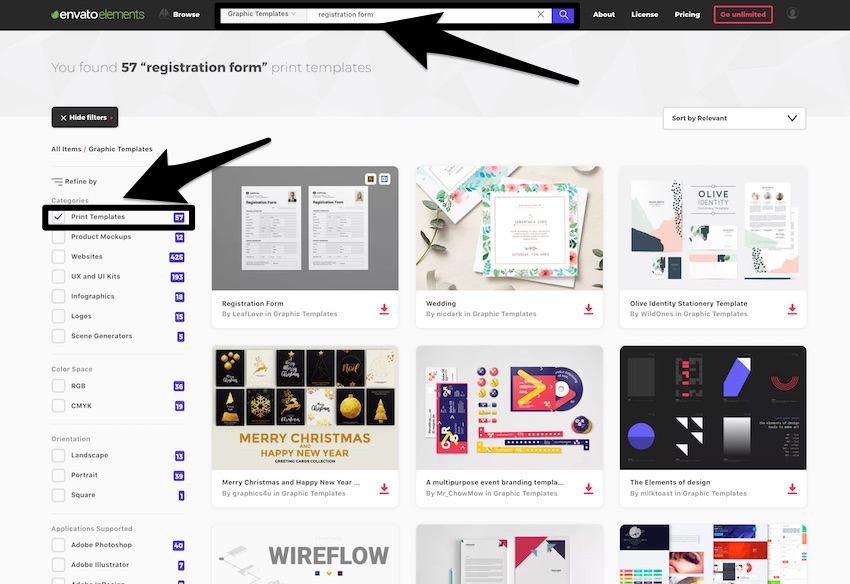
Type “registration form template” in the search bar. Filter your search; under Categories, check Print Templates.

Play around with different search terms to see what other options you find.
For this tutorial, I’m going to create a registration form sample using this registration form template for Microsoft Word, which is one of the print templates available in Envato Elements.
When you see a printable registration form you like, download it from the search results by clicking on the download icon underneath the template’s thumbnail:

Or, click on the registration template to open its product page. Then, click the Download button.

When prompted, add the registration template to an existing project in your Envato Elements account or create a new project. Click Add & Download.

Now, you can find the registration template anytime in the My Downloads area of your Envato account, and you can download it from there in the future.

After downloading the template file, you’ll have to unzip it.
In Windows, find the zip file in File Explorer. Double-click on the file name to unzip it.

To unzip the file on a Mac, find it in Finder, then double-click on the file. Or, right-click the file and then click Open.

You should see the following folders:

You may wish to open and read the Info Documentation file in the Info Documentation folder. It also has the link to the Roboto font that’s used in the template if you don’t have it on your computer yet.
IMPORTANT: You must download and install this font before opening the printable registration form template file on Microsoft Word.
The Info Documentation file also has additional instructions, as well as the designer’s email address, so you know how to reach out if you get stuck when using the template.

Expand the Microsoft Word folder and open the sub-folder that corresponds with the size of your printed registration form: US Letter Size for 8.5 x 11 inches and A4 for 8.27 x 11.69 inches.
TIP: Duplicate either “Registration Form.doc” or “Registration Form.docx” and customize the copy. Don’t touch the original file. This way, if you mess up the file, you can duplicate the template again and start over.
If your computer is newer than 2004, then you should be fine with .docx.
Rename the duplicate file and open it.

Now you’re ready to customize the registration form template and make it your own!
Follow these steps to customize the printed registration form template in Microsoft Word:
2. Replace the Logo
The logo is a great place to start customizing the registration form.
To replace it with your own, right-click on the logo and click Change Picture.
Find the image file in your hard drive, then click Insert or Open.

Click and drag the corners of the logo image to resize it.
Or change its height and width in the Picture Format tab.

3. Delete the Company Name and Image Placeholder
Select the unwanted element then click Delete or right-click on it and select Cut from the drop-down menu.

In this case, I don’t need the big text beside the logo and the rectangular box in the upper-right corner, which serves as a placeholder for the registrant’s photo.
4. Add Your Contact Information
Under the logo, add your address, telephone number, and email. Double-click inside the text box to edit the text. Type your information inside the text box.

5. Change the Form Title
Replace the form title with one that reflects your event or the purpose of the form.
At this point, you may wish to change the font, font size, color, style, and alignment of the form title. To do so, select the text box. Under the Home tab, choose the settings you desire.

Remember to save as you go!
6. Customize the Form Fields
Now it’s time to customize the form fields.
How to Delete Form Fields
Remove the fields you don’t need. For example, to remove Place of Birth, select the text box, then click the Delete key. Or right-click the text box and click Cut.

You’ll notice, this leaves white space in the middle of the line. To remove the white space, delete the gray rectangle at the end of the line.
Next, select the remaining gray rectangle and resize it to the end of the line.

To remove several elements at the same time: Click on one, hold the shift key, then click on other elements. Press the Delete key.

Remember to also delete the gray lines that remain.

For this registration form sample, I’m going to delete the rest of the fields under Personal Information.
How to Add Form Fields
If you need to add form fields, the easiest way is to copy an existing field. In this case, I’m going to copy the Membership Type field and use it to create a Payment Details field.
Right-click on the fields and then select Copy from the drop-down menu.

Replace the text with your own.
Move elements, as needed, to make room for new fields or sections.
And now, my paper registration form is finished:

7. Print the Form
When the registration form looks just the way you want it to, it’s time to print the form.
Go to File > Print.

Choose the appropriate printer settings and print just one copy for now.
Double-check the printed form to make sure it:
- has your organization name and/or logo
- is consistent with your branding
- contains all the form fields you need
- is free of typos and grammatical errors
- provides enough space to write on
If everything looks good, then go ahead and print the number of copies you think you’ll need.
TIP: Print extra copies, because you may need more than you think. It doesn’t hurt to be prepared!
More Print Templates You Can Customize in MS Word
If you need to make other types of documents, you’ll find countless other templates you can customize in Microsoft Word. Here are just a few:
 Resumes25+ Professional MS Word Resume Templates With Simple Designs For 2019Marc Schenker
 Invoicing14 Simple Invoice Templates: Made For Microsoft WordMarc Schenker
Create a Branded Paper Registration Form With a Microsoft Word Template
It’s easy to customize a Microsoft Word template to come up with a registration form that aligns with your branding and meets your objectives.
And as you learn to customize one printable registration form template, you’ll find it much easier to edit others. Microsoft Word templates enable you to easily and quickly create various documents, both printed and digital.
Explore the editable MS Word templates on Envato Elements, if you want unlimited downloads of templates for one subscription price. Your subscription also gives you unlimited access to fonts, stock photos, icons, and other graphic elements to use in your document.
Or, pay only for what you use on GraphicRiver. Either way, customizing a Microsoft Word template is the best way to come up with your own paper registration form and other documents.

{excerpt}
Read More