
Today I’ve got something special prepped in
a form of a quick tip tutorial. In the following minutes we are going to look at how
we can create a set of smooth graffiti-inspired line icons using Adobe Illustrator’s basic
shapes and some drips of the Direct Selection Tool here and there.
1. Create
a New Document
Assuming you have
Illustrator up and running, press Control-N
to create a new document (File > New)
and set it up using the following settings:
- Number of Artboards: 1
- Width: 480
px - Height: 280
px - Units: Pixels
And from the Advanced tab:
- Color Mode: RGB
- Raster Effects: High
(300ppi) - Align New Objects to Pixel Grid: checked

2. Set
Up a Custom Grid
Since our icons are quite tinny we need
to set up a custom Grid by going to Edit
> Preferences > Guides & Grid. From there, simply make sure that
both the Gridline Every and Subdivisions options are set to 1 px so that everything is super-precise. You will want to enable the Snap
to Grid option (View > Snap to
Grid) as it helps you better position elements onto the Artboard itself.

Quick tip: You can find more about the Grid and how it
works by reading these two articles:
3. Separating
Objects on Different Layers
Since each icon is
composed of a number of different elements, I usually separate them
by using a series of labeled layers. Then when I start working on a
particular icon I lock all the other layers so that I can make sure that I
won’t accidentally get parts of one icon on top of another one. As you can see
from the image below, I currently have eight layers, each labeled using short
keywords so that I know exactly what I’m working on.

4. Defining
Our Colors
Seeing as our icons are
line-based, the composition will rely on the relation between the background
color and the one used for our objects. In this particular case I went with a yellow
(#F9DF74) and orange (#EDAE49) combo, which not only makes the icons look warm
but also makes the little details pop.
Besides the two colors, I also
applied a bunch of highlights and shadows by using full white and black shades
with different Blending Modes and Opacity levels:
- Overlay: 30% for
white - Darken: 8% for black

In case you’re wondering why I didn’t go for a
brighter tint of yellow for the highlights and a darker shade of orange for the
shadows, well the answer is somewhat simple. If I need to change the two main
colors to something else, I won’t need to start playing around with different
shades for the highlights and shadows as the tricked out white and black ones
will almost always do the job. But that’s a scenario where the designer has a
lazy morning and needs to come up with a quick solution.
5. Consistency
and Attention to Details
Probably the most important thing you
should be aware of when using this style is consistency. If
your first icon’s main lines end up having a Width of 4 px then you
should apply the same thickness to all the other ones, thus making the pack
uniform. The same rules apply to smaller detail lines, highlights, shadows and
all the other composing elements that you feel could be adjusted and fitted to
some of the other icons.
So let’s take the first icon, the spray
can, and see how it’s built, as all the other ones will follow almost exactly the same pattern.
Step 1
Assuming you’re on
the right layer, grab the Rounded
Rectangle Tool and create a 30 x 58
px shape with a Corner Radius of
1 px. Color the object using #EDAE49
and then flip its fill with its stroke (Shift‑X), giving the stroke a Weight of 4 px. You can expand the shape by
selecting it and then going to Object
> Expand > Fill & Stroke.

Step 2
Create another 30 x 4 px shape with a Corner Radius of 2 px, color it using the same orange tint (#EDAE49), and then position
it on top of the previously created object, making sure to center the two using
the Align panel.

Step 3
Using the Ellipse Tool (L) create a 20 x 10 px shape, flip its fill with
its stroke (Shift‑X) and then give
it a Weight of 4 px. Expand the shape and then cut it in half so that in the end
you’re left with only the top section.

Step 4
Add a soft highlight
by creating a 16 x 4 px white
rectangle which we will position towards the top section of the bulky ellipse
we just created, making sure to send it underneath. Once you have things in
place, simply select the white shape and change its Blending Mode to Overlay, lowering its Opacity to 30%.

Step 5
Create the spray cap
using the Rounded Rectangle Tool and
then start adding some details to the can itself, by playing around with
different types of lines (thicker, thinner, longer, shorter). Also don’t forget
to add the little paint drips on the right side of the can, using the Rounded Rectangle Tool.

Step 6
Finish off the spray
can icon by adding the two diagonal highlights. To create them, simply grab the Rectangle Tool (M) and draw two white rectangles
that have the same height (60 px)
but different widths (6 px for the
thicker one and 1 px for the other).
Change their Blending Mode and Opacity levels to the default values
that we’ve chosen, and then create a clipping mask using a rectangle that has a
smaller width and height (18 x 46 px)
compared to the inside of our spray can’s main body.

6. Use
Variations of the Shapes You Already Have
If you recall, a few
lines ago I told you that you should always pay attention to consistency. Well
since all the other icons are based on the same 4 px Stroke Weight value, you could create the remaining ones by making
six copies of the spray can’s main shape (the one we created in step 1)
and adjusting the Width and Height values for each of them.
Keep in mind this will only work if you didn’t expand the shape. If you
did expand it, just create another one, and then adjust the copies using the
values provided below:
- Sponge: 20 px Width / 44 px Height
- T marker: 14 px Width / 50 px Height
- Paint bucket: 44 px Width / 48 px Height
- Marker refill: 36 px Width / 48 px Height
- Broad marker: 12 px Width / 52 px Height
- Narrow marker: 8 px Width / 48 px Height

7. Add
Repeating Details to Each of the Icons
Since every icon will
have some highlights, shadows and detail lines, simply add them and play around
with some of the details that need to be adjusted due to the width or height of
the shape. This should be a fun process of exploration and imagination which I
hope you get involved with, as it will help you understand how these kinds of
icon packs are built.

8. Add
Characteristic Features to Each of the Icons
Once you have added
the repeating features it’s time to add the ones that set each icon apart. For
the T marker it’s the thicker/taller top section that holds the tip, for the
paint bucket it’s the round handle and lid, for the refill it’s the cone-like
tip, and for the last two markers it’s the wider/narrower tips. Again, try
and play around as I’m sure you will get something really cool in the end.
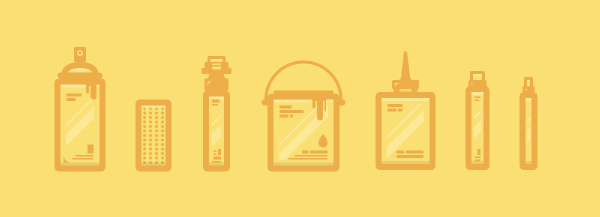
Grab Your Digital Cans and Start Drawing!
Assuming you went
through all of the above quick steps, you should now be able to build a killer set of
graffiti icons ready to be used on any hipster Artboard.

{excerpt}
Read More