
In the United Arab Emirates (UAE), National Day
is celebrated each year on December 2, with amazing fireworks, festive shows,
concerts, heritage displays, and a no-work holiday for everyone!
The day marks
the UAE’s formal nationalization, which was when the seven emirates
were united under one flag to form the United Arab Emirates. The seven emirates (Abu Dhabi, Dubai, Sharjah, Ajman, Umm Al Qaiwain, Ras Al Khaimah, and Fujairah) are headed by Sheikh Khalifa bin Zayed Al
Nahyan, the federation’s president. Dubai being the largest and most popular
Emirate, I’ve decided to create a National Day poster showcasing the city’s
iconic landmark and the world’s tallest tower, Burj Khalifa.
In this tutorial, we will use some new Adobe Illustrator features and enhancements, as well as the more traditional tools, to create a festive graphic style poster for
the UAE National Day holiday.
Let the celebrations begin!
1. Sketching & Setting Up
Step 1
We start by sketching out the idea for our design.
I suggest you browse online for images of the UAE, Dubai, and Burj Khalifa tower, to
help you visualize the elements for your creation. When I sketch, I normally use Photoshop CS6, and my
Wacom Intuos Pro Pen tablet.
In Photoshop
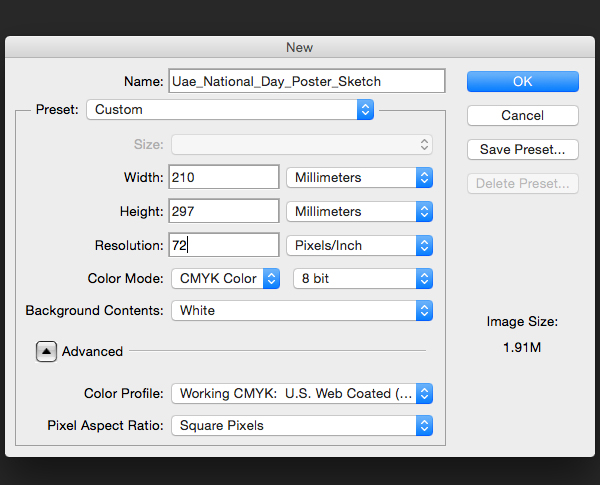
CS6, open a new file: File > New
(Command-N).
Name the
file: Uae_National_Day_Poster_Sketch.
Select Preset:
International Paper, Size: A4, Color Mode: CMYK, set a Resolution of 72 Pixels/inch, and Background Contents: White. When the resolution
is modified, you will see the Preset will
change to Custom.
In case you are
wondering why I sketched at 72 pixels, it is because I just wanted to roughly place
in the outline of the artwork and not initially add in any details to the piece.
Step 2
Select the Brush
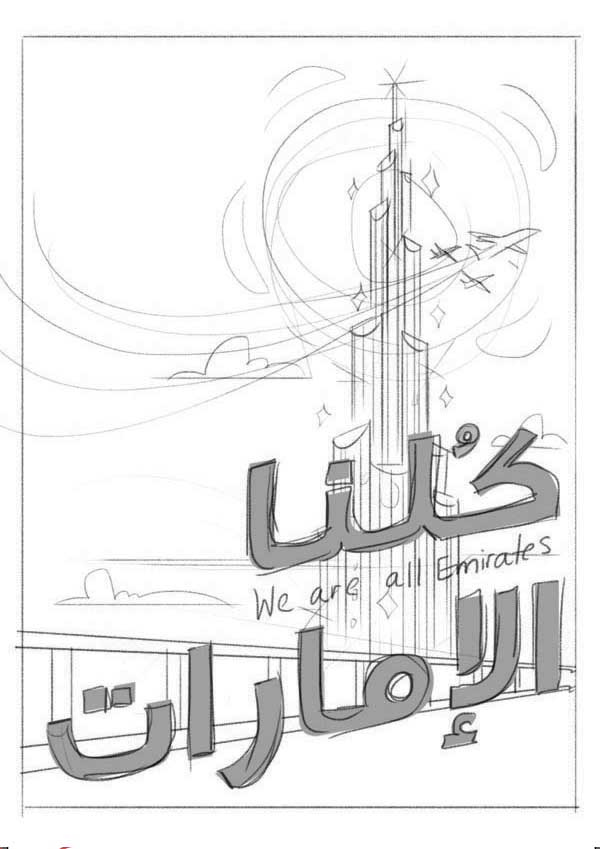
Tool (B), with a greyish foreground color for your brush, and draw your basic concept on the artboard. Sketching with the grey brush helps
you trace the sketch easily in Illustrator.
I was visualizing the poster as being bright, edgy, and retro-inspired, with an architectural
space theme. On the sketch I have added hand-drawn lettering of the
Arabic translation of “We are all Emirates”.
With a wide round brush preset selected, color in
the text area to give it a visual pop. Fill in the text area with the brush Mode set at Multiply.
Once your sketch is complete File > Save (Command-S) using the JPEG format, and
move on to Illustrator CC.
Step 3
In Illustrator
CC, create a new file: File > New (Command-N). Name it as UAE_National_Day_Poster,
set the Size to be A4, and click OK.

Open the Layers
panel: Windows > Layers. Name the first layer Sketch so we can place in our sketch image.
File >
Place (Command-Shift-P), select the file Uae_National_Day_Poster_Sketch.jpg, and click OK. You will notice a
graphics pointer appear, with a tiny preview of your selected image. Drag the
pointer, and click it on the upper left corner of your artboard, to place your sketch
on the artboard. Then double-click the Sketch layer, which will open the Layers
Options panel. Select Lock & Dim Images to 50%. Click OK.

To add a new layer above the
selected layer, click the Create New
Layer button in the Layers
panel, and create a new layer called Burj Khalifa, as we will start tracing
the tower’s first section.
File
> Save (Command-S), and save the file as UAE_National_Day_Poster.ai.
2. Tracing & Illustrating
Step 1
Let’s start drawing our tower. Select the Rectangle Tool (M), and with a black Stroke, and Fill set to None, draw a rectangle to measure up to the dimensions of one of the
tower’s sections. Then with the Direct
Selection Tool (A), drag the left upper corner downwards in order to slant
the top, while holding down the Shift key
to constrain the anchor vertically.

Select the Pen
Tool (P) and free-draw a curve to create the top face of the building. Open
your Pathfinder panel: Window > Pathfinder. Select both of the shapes we just created
with the Selection Tool (V) and from
the Pathfinder panel click the Divide button.
Just
as the name implies, it divides all overlapping shapes into distinct, non?overlapping
shapes. It also groups the shapes together. Select the shape, Ungroup (Command-Shift G) and delete the
excess shapes.

With the Line
Segment Tool (\), draw a line from one side of the rectangle to the other,
to connect the ends. Then you need to curve the line segment slightly upwards
to give the impression of a curved form on the tower. So select the Anchor Point Tool (Shift-C), which is
under the Pen Tool bin, and give the line a slight pull up.

Now duplicate the curved line segment to create
the rest of the tower floors. So select the line segment we curved, hold down
the Option and Shift keys, and drag downwards to copy and constrain your selected
line segment. You will
now have your first copy. All you have to do after that is fill in the rest of the floors by pressing Command-D to Duplicate the line. Continue to click Command-D, until the
tower section is filled.

Take the Line
Segment Tool (\) again, and draw vertical lines from top to bottom of our
rectangle. Hold down the Option and Shift
keys and drag downwards to copy and constrain your selected line and fill
the floors in. Some of your lines will be shorter than the full height of the
rectangle. So select the Direct
Selection Tool (A) to manually extend the ends. Hold down the Shift key to constrain the lines vertically. File >
Save (Command-S).

Step 2
Let’s start coloring in our tower section.
Select the rectangle, and here’s a nice little
trick to copy and paste an object in place. The keyboard shortcut for this is Command-C for Copy, and Command-F for Paste in Front and Command-B
for Paste to Back. Make sure you Paste to Back. You won’t see the
action, but if you drag the selection to the side you will notice the pasted copy
right behind. Once you’ve duplicated the rectangle, do the same with the top
half circle.

Open
Window > Gradient, the Stroke panel, and the Swatches panel.
In the Gradient panel, select Type: Linear, Angle: -90°, and give the gradient sliders a red tone from light red to a
darker shade, Stroke (X) to None. Then drag the gradient swatch from the Gradient panel onto the Swatches panel to save it, in case we need to use the same
gradient at a later stage.
Select
both half circles, and Object > Arrange
> Bring to Front (Command-Shift-]), so we can cover the line segments.
Give the lower half circle a flat pink-red color, and keep the one on top with
a black stroke.
With
one of the black stroke lines selected, Select
> Same > Stroke Color, and you
will find that this action selects all shapes with black strokes. Deselect
the borderlines, by just holding down the Shift
key. Group (Command-G) the inner lines
together, and give them an orange-red stroke of 0.3 pt weight.
Windows > Transparency, and give the strokes a Screen: Blending Mode.

Then
select the borderlines of the rectangle, Group (Command-G),
and give them a white stroke, Rounded Caps & Corners with 1 pt
weight.
You will notice while browsing images of the Burj Khalifa that some of
the towers’ floors are highlighted, so we need to mimic that effect. Select All (Command-A), and Lock Selection (Command-2). Take the Pen
Tool (P) and freehand draw a curved rectangular shape to fill at least three or four floors. Fill in with red and a Blending
Mode: Screen. Object > Unlock all (Command-Option-2), and arrange the screened
highlights to be behind the white borderlines.

Select
all the tower elements and Group (Command-G)
them together. We now have one section of the tower. All you have to do now to
complete the render of the tower is to follow the same steps we did for the
first tower section.
I
wanted to give the tower the colors of the UAE flag: Red, Green, White and
Black. However, black is too aggressive, and white won’t showcase clearly, so I
worked on red, green, and white-bluish gradients.
Note:
Each time you create a section, modify the arrangement to be behind the other
section.
When
you reach the top of the tower, it’s best you downsize the stroke weight of
your lines, and for the head of the tower, just draw in vertical rectangles,
with the Rectangle Tool (M).
Once
you are done, Select All (Command-A) and Group (Command-G) all the tower elements
together. File >
Save (Command-S).

Step 3
Lock the Burj
Khalifa layer, create a new layer, and name it Text.
Select the Type
Tool (T), with a font size of about 43 pt, and type in the English text, We are all Emirates, with the desired font. I worked
with Nova font, which you can download free.
Next,
I notice some of the letters need space between them, so I use the Touch Type Tool (Shift-T) and select
the I, S and L in the sentence to add in some breathing space between
each letter.

To
type in the Arabic, you need the Adobe-ME (Middle Eastern) edition for full
Arabic support, which you can get from the Adobe website.
For Arabic fonts you can download the desired type free from Fonts2U.
Take
the Type Tool (T), and type in the Arabic
text, set at 50 pt font weight. Make
sure Paragraph Direction is set to Right-to-Left Direction, because Arabic
reads from right to left.

We need to slant the text, so
select the Shear Tool, which
you can find under the Scale Tool bin.
To
shear along the text’s vertical axis, drag anywhere in the document window in a
down direction. Hold down Shift to
constrain the object to its original width.

Then you need to expand your type to turn them into shapes, because we will give them effects at a later stage. Object > Expand. The Expand Options panel
will open; make sure Object and Fill are checked, and click OK. Move the text into the placement you want.
Lock and hide the Text layer, and create a new layer
above Sketch. Name it Background.
Step 4
In our background layer, we need
to trace the remaining elements. So select the Pen Tool (P) and
start tracing all the other elements.
For the bridge, draw a long
rectangle using the Rectangle
Tool (M), then hold down Shift and Alt. With
both rectangles selected, click the Free
Transform Tool (E). The free transform widget will appear with the button
options to constrain, free transform, perspective distort, and free distort.
Select Perspective Distort.
You
will notice Perspective Distort is
constrained, so there’s no need to hold the Shift
key when moving the anchors. To
help you align the results the way you want, click Free Distort, and align accordingly.

Take
the Rectangle Tool (M), and draw
a rail on each end of the parallel lines. Object > Blend > Blend Options, and a Blend Options panel will appear. You can blend objects to
create and distribute shapes evenly between two objects, so to capture that we select Specified Steps as 6, and click OK. Then Blend
> Make (Command-Option-B), and rails will appear.

Object > Blend > Expand the blended object, so we
can form the shapes. Select the rails and parallel lines and in the Pathfinder panel, click Shape Modes: Unite, to create a compound
shape. Then finish off tracing the rest of the sketch, toggle visibility on the
Text layer, and delete the Sketch layer.
Unlock
the Burj Khalifa layer. Select the
rail and the bridge ground and drag them to the Burj Khalifa layer to cover the tower’s lower section. File > Save (Command?S).
Now
we need to color the rest of the poster, so we can start visualizing it better.

3. Color
Step 1
Dubai has sun all year long, so we need to work
with a bright color palette for the background, yet we need it to blend with
the flag’s palette. For the background sky color, I chose a yellowish gradient, and the other shapes were either white, yellow, or in accordance with the
UAE flag color hues.

While coloring, I began to notice some shapes
were the wrong color tone. For example the tower section tops, with the
pink-red color, were altered to white fills. Also the head of the tower wasn’t matching
in hue so it was given a flat sky blue tone. For the smoky plane trails, I
gave them a fading swatch fill. Move and rescale the cloud behind the smoke
trails. For the white bridge, you need to transform it by slightly extending
it. Also move the tower slightly to align it properly in the layout.
Now the illustration is starting to come to life.

Lock the Background and Burj Khalifa layers, and
unlock the Text layer.
When we expanded the Arabic text, all the
elements were grouped together. So, Ungroup (Command-Shift-G) and then select each word’s
letters and create a compound shape by selecting the Pathfinder panel: Unite. In
the Pathfinder Panel Options, you
will find in the drop-down menu the Make
Compound Shape option. Select this option, and then hit the Expand button on the Pathfinder panel, so the shape is
unified.
For
the English text, Unite the whole
sentence together.

Now you start noticing there is too much going on on one side of the poster, and the text doesn’t read properly, so unlock the Burj Khalifa layer and move the tower
to the left, then scale down the size of the text slightly. That way it will give
it some breathing space. Unlock the Background layer, and move the clouds and any other elements around to un-clutter the
scene. Then lock the two layers again and leave the Text unlocked.
The English text looks squeezed in between the
Arabic, so I decided to drag it below the Arabic, and I brought the Arabic text
closer. With the Arabic text selected, Object
> Path > Offset path at 2.2 mm,
Round, and OK, to give it a border.

From the Pathfinder panel, click Unite, and then
delete any holes that may appear in the new shape. You will also notice some
gaps like the ones I have circled.

Connect the gaps by adding in some new shapes
with your Pen Tool (P). Select the
new shapes you created plus the border created, and Unite in Pathfinder. In
the Pathfinder Panel Options > Make Compound Shape and click Expand. Give the new shape a white fill
and Send to Back (Command-[).

Step 2
Let’s add some effects to the text.
Draw two ovals with the Ellipse Tool (L) to mimic the curve of a light flare. Copy
(Command-C), and
Command-F to Paste in Front. From the Pathfinder panel, select Shape Mode: Intersect to create a
compound shape from the two intersecting forms. Delete the extra oval. Give the
new shape a black to grey gradient with an Angle:
-90°.
Render
the same effect for the lower text.

Step 3
Lock
the Text layer, and unlock the Background and Burj Khalifa layers.
You
may need to tweak some of your elements on the Background layer, so that they look in harmony. I thickened the borderlines of my tower,
sheared my bridge form, gave the clouds a white fading gradient, adjusted
the color and shape of the sun, and modified the jet planes. Once you are
satisfied with the overall image, you can move on to add some sparkle to the
scene.
Lock
your Background layer and move onto
the Burj Khalifa layer.
Step 4
Hold and click your Rectangle Tool button, and select the Star Tool from the bin.
Click once on your artboard and the Star Option window will appear.
Fill in Radius
1: 0.5 mm, Radius 2: 7 mm, and Points: 8. Click OK.

Fill the star with the Radial gradient from white to black, and then apply a Screen Blending Mode from the Transparency panel.
Draw another sparkle, with the Ellipse Tool (L). Create a white fill
circle, Effect > Distort &
Transform > Pucker and Bloat. Give it a Pucker of -155%, and a Screen Blending Mode.

Step 5
Draw a few more circles of different shapes
around, give them gradients and Screen
blending modes.
Open Windows > Symbols.
Drag the batch of stars and circles onto the Symbols panel to create a new symbol. Keep
the settings in your Symbol Options,
name the symbol Sparkle and click OK.

Select the Symbol
Sprayer Tool (Shift-S), and with
the Sparkle symbol selected, spray a number of copies of the symbol on the tower
shape. Try to keep within the bounds of the shape, and not overdo it. The Symbol Sprayer Tools are a cool bunch of
tools to test and have fun with. You can use the symbolism tools to modify your
instances, disperse, enlarge, shrink, rotate or gradually tint the color of
instances to make them look more realistic.

Step 6
We are almost done.
Unlock all the layers, Select All (Command-A) and Group
(Command-G) all the artwork and text together. Everything will move into the Text layer.
Delete the empty layers.
With the Rectangle
Tool (M), draw a rectangle in the middle of the artboard, so that we can mask the
artwork.
You may have to move or scale the grouped
artwork, in order to capture everything inside the rectangle.
Select the rectangle and the grouped artwork, Object > Clipping Mask > Make (Command-7). Now the artwork looks as if it’s framed.
Done!
Voila, the festive National Day Poster is done!
Let’s celebrate.
File >
Print (Command-P), and paste it around your neighborhood.

Working with Illustrator CC helps you work on your designs faster
and more effectively, if you know your tools and memorize the shortcuts. Hopefully
you enjoyed this tutorial, and you’re on your way to creating your own
festive national day artwork. Let’s showcase that patriotism!!
{excerpt}
Read More