
This Halloween, get your party howling with some
eyeball-popping homemade popcorn boxes. Gather a bunch of friends, turn the
lights out, and host a “Scary Movie Night”. I recommend playing “The
Exorcist”, “Texas Chain Saw Massacre” or “Dawn of the Dead”. And what more better
party prop for this celebration than a gory, single-serving popcorn box for each
of your friends, to get them screaming in
fear?
I have crafted up this tutorial for a popcorn
box printable, to bring the spook to your party. You will learn to create a
template for your work, use freehand art brushes, and take advantage of some Adobe Illustrator tips and tricks. I’ll cover traditional Illustrator tools as well as new features like Perspective Distort, and will teach you how to share work on Behance, how to use Live Corner Widgets, and more.
Let’s get the party started!
1. Create and Set Up a Template
Step 1
To start, we need to create our template. Creating
a template can save you time, and you won’t need to reinvent the layout
every time you need to decorate a popcorn box. Create a new file: File
> New (Command-N). Name it “Popcorn” for now, set the Size to A4, and make sure orientation is Horizontal. Click OK.
We will begin by drawing the first side of our
box template. I did the homework for you, so you won’t have to calculate the
dimensions.
I wanted to create a medium-sized popcorn box, and
because most people have A4 printers, I came up with the solution of designing
half a box template, with two sides instead of four. This way, we’ll
get a bigger volume of popcorn for our guests. All we have to do is print the template
twice, and stick it together. If we created a four-sided popcorn box on A4
paper, you would need to arrange a party for small monsters.
Let’s start by selecting the Rectangle Tool (M). Click the artboard once to open the Rectangle
Dialog box, and enter a Width of
9.4 cm and Height of 14.7 cm, to define
the shape.

You need to open the Info panel (Window > Info or Command-F8) so that we can follow the measurements for our template.
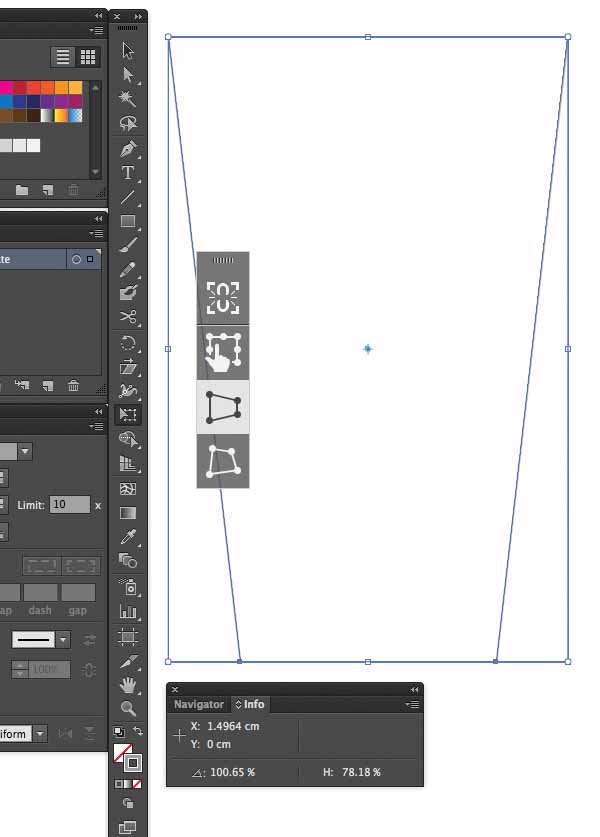
With the Free
Transform Tool (E) chosen, you will notice you get a transparent widget
on your board, which you can grab and move around. The widget contains four icons;
choose the third one, Perspective
Distort. Perspective Distort is
always constrained, so no need to hold the Shift
key when moving the anchors.
Select the lower anchor points and subtract your
width until you reach Height of 78% (preview measurements from Info Window). If you are wondering why
we are subtracting from the base, it is to give the box a cone-like shape, so
the guests can hold the box more easily.
Now we need to create the lower fold of the
popcorn box. That will be the fold that
closes the box from underneath, so your popcorn doesn’t fall out. To get the
diameter of the base, you need to measure the distance between two base points.
We can do that using the Measure
Tool. Select
the Measure Tool by pressing
and holding the Eyedropper Tool to
see it in the Tools panel.
Click
the two points to measure the distance between them, by clicking over the first
point and dragging your Measure Tool to
the second point (Shift?drag to constrain the tool).
The
Info panel will not only show you the
horizontal and vertical distances from the x and y axes, but also the total
horizontal and vertical distances, the total distances, and the angle measured.
So you’ll see that our base distance is about W: 6 cm.

Knowing
that our base has a total of 6 cm, select the Rectangle tool (M) and create a rectangle with a Width 6 cm and Height 3.5 cm and position it under our first rectangle. The 3.5 cm
height is calculated using a little bit of basic math. Our base is a 6 x 6
square, so you need to divide the diameter of the base in half, and add an
extra 0.5 cm for the flaps to overlap, so that you can glue the folds properly later on.

Select the Free
Transform Tool (E) again, and Perspective
Distort the lower points until you reach H: 88.55%.

Step 2
To
create the second side of the box, Group
(Command-G) the top and lower rectangles of the first side together. Then drag
the group, by holding down the Shift-Alt keys. Hold down the Shift key
and you‘ll notice that the shape is constrained to moving only on a horizontal
or vertical plane. Hold down Alt and
it will make a copy that is lined up horizontally or vertically. So drag the
group until the generated copy base points meet in the middle as shown below.

From the second side group, we need to shorten
the length of the bottom fold so the box close is flexible. Use the Direct Selection Tool (A) to select the
lower base anchor points. Hold down the Shift
key and drag the two anchor points until about 1 cm is subtracted from the
height. These folds look something like this:

Close the Info
panel; we will no longer need it.
Select the second side group, then select the Rotate Tool (R). You will see the
center reference point (light-blue circle) appear in the middle of your
selection; the rotation will originate at that point. Drag it to the meeting
point of the two box sides and rotate the selection until both sides meet on
the top box fold.

The only element left out in our box template is
the side fold, which connects the top folds together. Select the Pen Tool (P), and freehand draw an
approximate 1 cm fold on the end of the second side. It doesn’t need to be perfect,
because this fold will be on the inside of the box.

the middle of your canvas, and give them all a grey Stroke of 0.15 pt, from
the Stroke panel.
In Layers
panel, double-click “Layer 1” and name the layer “Template” and lock it.
We also need to create two other layers besides
the “Template”. At the bottom of the Layers
panel, you will see the Create New
Layer icon. Click and
a new layer will appear. Change the layer’s
name to “Artwork”. Drag the “Artwork” layer under the “Template” layer.
Then create another layer under “Artwork” and name it “Sketch”.

Step 3
File
> Save (Command-S), and save it as Illustrator Template, which has the extension “.ait”. Or you could just
select File > Save as Template, and it
will select the “.ait” format in the dialog
box for you automatically. You will see the icon for the
file is a little different from an AI file; it has a fold on the right-hand
corner of the icon.
Step 4
Now we print the file, and sketch
the scary, gory elements on it. Or you have the option of exporting the file, File > Export. Export
into PNG format, with Use Artboards selected. The PNG Options panel will open; set Resolution as Medium (150 ppi) with Background Color of White. Open the file
in Adobe Photoshop, and start your sketching using a pen tablet, if you have one at
hand.
One one side I drew a rotting zombie eating raw intestines, an eyeball, and a finger, and on the other side I wrote the word “Scary” in slimy, melting text.
After
you are done, scan your illustration or save the file as “Popcorn_Sketch.png”.

2. Brush Setup
Step 1
File > Open (Command-O) the template “Popcorn_Box_Template.ait”. When you do this, you will see that the
document’s name is “Untitled”. That’s
because when you open a template, you open a new version of it, so you can
create a brand new document with it, without overwriting any existing work and
settings.
Select the “Sketch”
layer in the Layers Panel. Then File > Place, and select “Popcorn_Sketch.png”. A graphics pointer will appear with a small
preview of your selected image. Drag the loaded graphics pointer, and place it
on the upper left corner of your canvas. This will place your image exactly
under your template. If you don’t get it right the first time, just select
your image and drag it into position.
Double-click the “Sketch” Layer, and the Layers
Options panel will open. Select Lock and Dim Images to 50%. Click OK.
File
> Save (Command-S), and save the file as AI. Name it Zombie_Popcorn_Box.ai. Now that our file is imported, we can prepare our art brushes.

Step 2
Before we begin tracing, we need to create a couple
of freestyle art brushes.
Make sure you are on the “Artwork” layer.
Select the Pen
Tool (P), which will allow you to draw all sorts of straight and smooth
lines, curves, and closed shapes.
Start
rendering some gothic-looking brush strokes, with spikes or blood-like drool
lines.
Tip: you can group several shapes
together and create a single brush for a more deadly effect. Check out the
shapes I created.

Step 3
Open
the Brushes panel (F5 or Window > Brushes).
Select
each shape you wish to make a brush out of, drag and drop onto the Brushes palette, and a New Brush window will pop up. Select Art Brush, and OK. The Art Brush Options
panel will open. There is no need to name each stroke, since you will identify
them by their preview. Just select Stretch
to Fit Stroke Length, set the Width as Fixed, and set the Colorization Method as Tints, so that we can give it color at a later stage.
Voila, your art brush
is created!
Now do
the same steps for all the other shapes, and fill your Brushes library.
Delete
all the shapes from your artboard after, or select all the shapes and hide
them; Object > Hide (Command-3), in case you wish to edit them
later.
Tip: Test the art brushes to make sure they
capture the effect you need, and delete the ones you don’t need from your Brushes
panel.

3. Tracing
Step 1
Let’s
start tracing! Select the Paintbrush Tool (B), and pick a brush from the Brushes panel with a black stroke and a size of 1 pt. Then start tracing over the lines on your sketch. The key is to vary the stroke weight with your brushes. It’s all a matter of variety. Use a bit of trial and error, and see what
works for your design.
Have a look what I accomplished with just the Paintbrush Tool
(B).

Step 2
You will notice that we left some parts out while tracing the illustration. That’s because we will fill those
parts in with the Pen Tool (P).
We need to Select > All (Command-A) to
single out all the line-work, and lock these lines so that we can trace freely over
the artwork. Object
> Lock > Selection (Command-2).
Select the Pen
Tool (P), with a black fill and stroke set to none, and trace over the rest of
the sketch.

Step 3
After filling out the larger parts, unlock your
strokes: Object > Unlock All (Command-Option-2).
Now you can add in the finishing touches to your
tracing and edit the shapes.
Illustrator CC (update 17.1) has a feature in
which you can easily edit the corners and paths of objects.
Take the Direct
Selection Tool (A), select an object, and on the corners you will see some new control
elements appear. These are called Live
Corner Widgets, and are displayed by a circle with a point at the center. You
can select a Live Corners Widget and
change the shape of the corner by double-clicking on it. A Corners dialog window will appear. Here you
can choose from three types of corner: Round, Inverted Round, or
Chamfer. You can also set the value and type of rounding Radius you need.
Note:
When dragging the Live Corner Widgets, note
that when the highest possible point
of the rounding is reached, it will be highlighted in red.

Step 4
Once you have finalized the details of the
artwork, lock your “Artwork” Layer. Then delete the “Sketch” layer, by dragging
it from the Layers panel to the
trash icon on that panel.
Want to show off your work in progress? You can
upload your new artwork directly to
Behance from Illustrator, if you are signed in with an Adobe ID. Click the Behance icon at the lower-left corner of
the active window, or click File
> Share on Behance, fill in all the details of the work on the Share on Behance dialog, and post it as
a Work in Progress on Behance! If you don’t want to, just move on to the
next step.

4. Color
Step 1
Once we have finished tracing, we can color in the
creepy artwork.
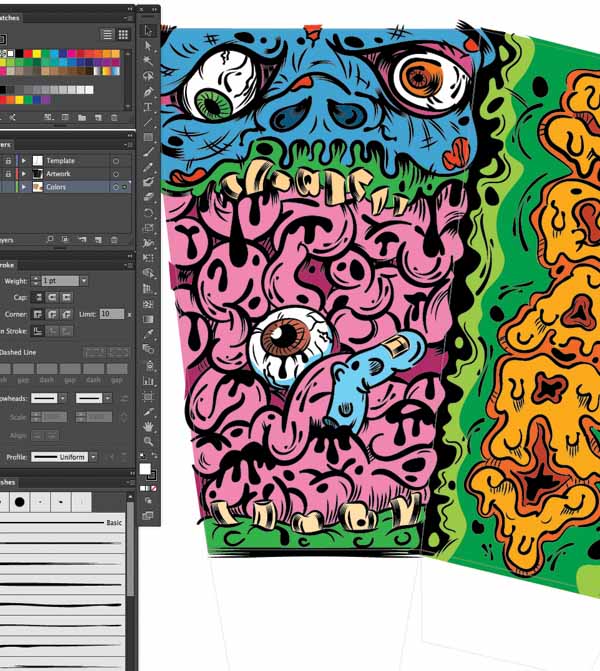
Select
the Create New Layer icon at the bottom of the Layers
panel. Double-click the layer, and name it “Colors”. With the Pen Tool (P) selected, fill
in the space with the Fill color of
your choice, no stroke. The trick is to divide the illustration into blocks of
color at first. There is no need for perfection when tracing. All you need is
the Pen Tool (P), and learn to Arrange objects in your layer:
Arrange > Bring to Front (Command-Shift-])
Arrange > Bring Forward (Command-])
Arrange > Send Backward (Command-[)
Arrange > Send to Back (Command-Shift-[)
Step 2
Once you have filled in the main color blocks,
start adding in darker shades, by selecting a shade/hue
darker than the one originally chosen. The darker parts will make the artwork pop,
and should be applied where there are wrinkles, folds, and deeper areas to the
artwork.
Take the Eyedropper
Tool (I), and click on one of the color shades. Then double-click the Fill from the Tools panel. The Color Picker
dialog window will open, and you will see a circle icon selecting the color
gradient. Drag the circle icon around to select a darker shade, and click OK. Then select the Pen Tool (P) and add a darker shade to the artwork.

Step 3
After adding in the deeper hues, we need to add
highlights to the artwork. Follow the same process as in Step 2, except select
lighter shades, and apply.

Step 4
The final step is to lock the “Colors” layer, and
give colors to some of the strokes and shapes you have in black. For example, I gave the eye veins red strokes, and added white shiny
highlights and drops to the intestines.

And We Are Done, Design-Wise!
Print your file. File >
Print (Command-P).
Cut out the template, glue the parts together, and pop
your popcorn. Fill the box and serve with a spook!
Advice: Print on A4 printing paper that’s thicker than 80g/m2. Once you print and craft, make sure the glue and ink has been dry for a long time before putting in
the popcorn, or the popcorn will smell and taste like glue!

With Illustrator CC (17.1), designing and illustrating has become much easier and faster. The live corners, shortcuts and enhancements make it a fantastic
program, helping you work faster and edit your design with ease. I hope you enjoyed this
tutorial, and have learned to work with templates, render art brushes, and layer your artwork with simplicity.
Enjoy, and let’s
hear those screams pop!

{excerpt}
Read More